




 Obkio Blog


 Subscribe
Table of Contents
Table of Contents
VoIP is usually the first application to break when a network degrades. Calls run in real time over UDP, so a lost or late packet can't be resent. It's simply missing audio. A connection that handles email, file transfers and web browsing without complaint can still make every call sound broken.
That's also why VoIP problems are hard to troubleshoot. Users report what they hear ("the call keeps cutting out"), not what's happening on the network, and by the time IT looks, the call is over and the problem is gone.
Most VoIP problems come from the network, not the phone. Choppy or robotic audio points to packet loss or jitter. Delay and people talking over each other point to latency. Dropped calls point to sustained loss, a brief connection drop or a session timeout. Match the symptom to the metric, then find where on the call path it starts.
This article works from the symptom back to the cause. It shows what each VoIP problem means, where on the call path it usually starts, and how to fix it at the source. It's written for IT teams, MSPs and VoIP providers troubleshooting calls across offices, remote workers and customer sites.
Common VoIP Problems and What Causes Them 
Users rarely say “we’re seeing 3% packet loss.” They say the call sounded robotic, or that they kept talking over each other. The fastest way to troubleshoot a VoIP problem is to start with what the user heard. Choppy audio, delay and dropped calls each leave a different signature in the network data, so the symptom narrows down both the metric to check and where to look.
Most VoIP problems trace back to packet loss, jitter or latency. A few don’t: one-way audio is a call setup issue, and static is almost always hardware. Use the list below to match what users hear to what to check first.
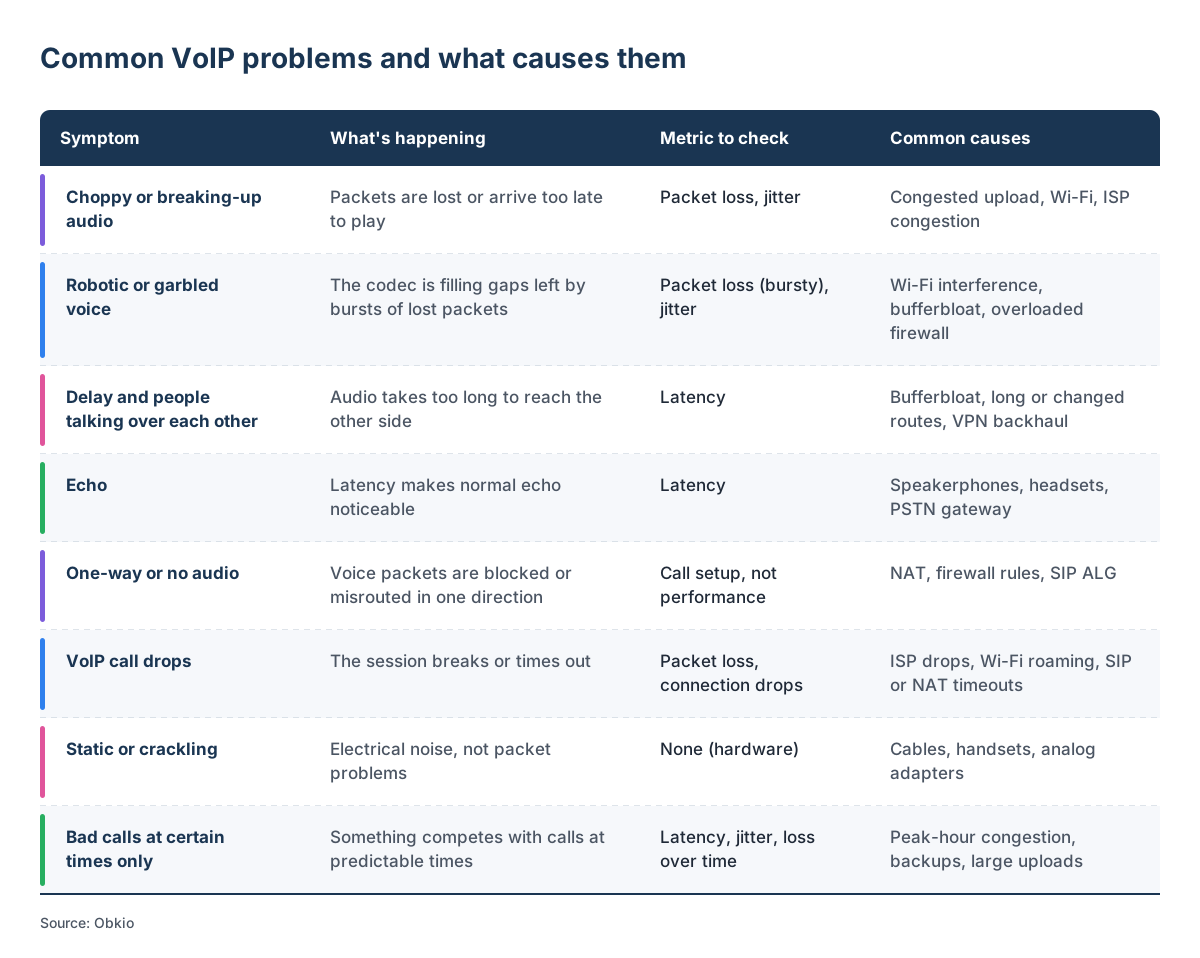
Each VoIP symptom maps to a short list of network metrics and causes. Start here before you touch a phone or open a ticket.
- Choppy or breaking-up audio: Packets are lost or arrive too late to play. Check packet loss and jitter. Common causes: a congested upload, Wi-Fi, ISP congestion.
- Robotic or garbled voice: The codec is filling gaps left by bursts of lost packets. Check packet loss (bursty) and jitter. Common causes: Wi-Fi interference, bufferbloat, an overloaded firewall.
- Delay and people talking over each other: Audio takes too long to reach the other side. Check latency. Common causes: bufferbloat, long or changed routes, VPN backhaul.
- Echo: Latency makes normal echo noticeable. Check latency. Common causes: speakerphones, headsets, the PSTN gateway.
- One-way or no audio: Voice packets are blocked or misrouted in one direction. This is a call setup problem, not a performance problem. Common causes: NAT, firewall rules, SIP ALG.
- VoIP call drops: The session breaks or times out. Check packet loss and connection drops. Common causes: ISP drops, Wi-Fi roaming, SIP or NAT timeouts.
- Static or crackling: Electrical noise, not packet problems, so there's no network metric to check. Common causes: cables, handsets, analog adapters.
- Bad calls at certain times only: Something competes with calls at predictable times. Check latency, jitter and loss over time. Common causes: peak-hour congestion, backups, large uploads.
For thresholds on each metric, see 8 VoIP quality metrics and how to measure them.
Choppy or breaking-up audio
Choppy audio means voice packets are being lost or arriving too late for the phone's jitter buffer to play them, so parts of words disappear. It's the most common VoIP problem. It usually comes from a congested upload, a weak Wi-Fi connection or congestion inside your ISP's network.
Because it shows up as both packet loss and jitter, check both. A call can have near-zero loss and still sound choppy if packets arrive unevenly. See the VoIP jitter guide for how jitter buffers handle late packets.
Robotic or garbled voice
A robotic voice is the codec trying to cover for lost packets. When a few packets go missing in a row, the phone fills the gap with synthesized audio based on what came before, and the result sounds metallic or garbled. This points to bursty packet loss, often from Wi-Fi interference, bufferbloat or an overloaded firewall.
Delay and people talking over each other
When people start talking at the same time and then both stop, the problem is latency: audio takes too long to reach the other side. Bufferbloat on a busy Internet connection is a common cause, along with long or recently changed routes and VPNs that send calls through a distant hub. See VoIP latency for how much delay a call can tolerate.
Echo
Echo on a VoIP call usually starts as an acoustic echo from a speakerphone or headset, or at the gateway where the call reaches the phone network. Latency is what makes it noticeable: the longer the delay, the more clearly a speaker hears their own voice coming back. If only one participant causes an echo, check their device first. If every call has it, check latency.
One-way or no audio
One-way audio is a call setup problem, not a performance problem. The call connects, but voice packets are blocked or sent to the wrong address in one direction, usually by NAT, a firewall rule or SIP ALG rewriting call information on the router.
VoIP call drop issues
VoIP calls drop when the session breaks or times out. Short Internet drops, heavy packet loss and laptops roaming between Wi-Fi access points can all break a call mid-conversation. Calls that drop at a fixed point, such as after 30 seconds or 15 minutes, usually point to a SIP or NAT timeout on the firewall rather than network quality.
Bad calls only at certain times
If calls are fine in the morning and bad every afternoon, something is competing with them on a schedule. Peak-hour congestion at your ISP, cloud backups and large uploads are the usual causes. Track call quality over time to find the pattern, then match it to what's running on the network. See Why is my Internet slow at night?.
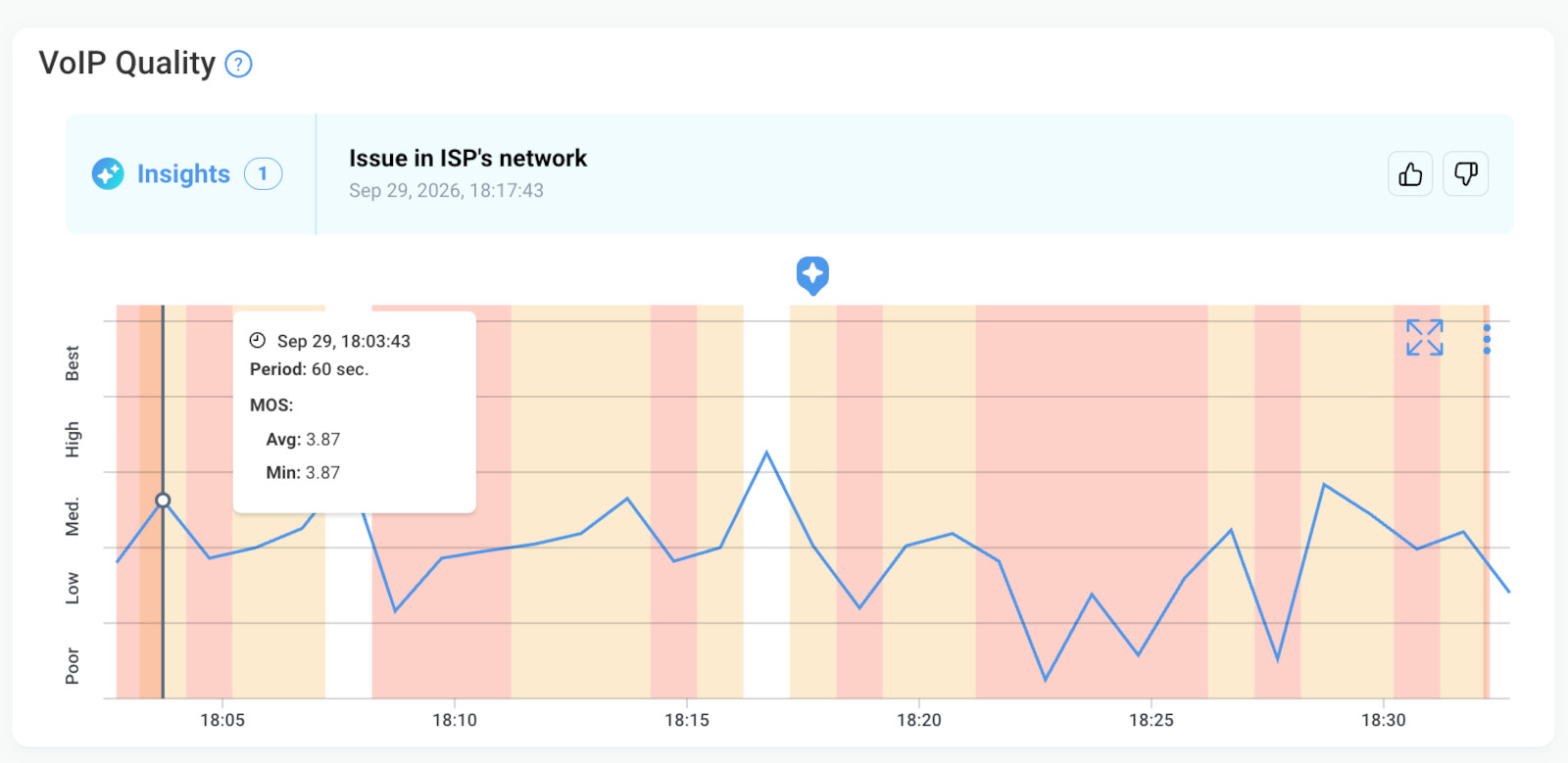 Screenshot from Obkio's Network Monitoring & Diagnostic Tool. Start monitoring VoIP issues with Obkio's free trial.
Where on the Call Path do VoIP Problems Start?
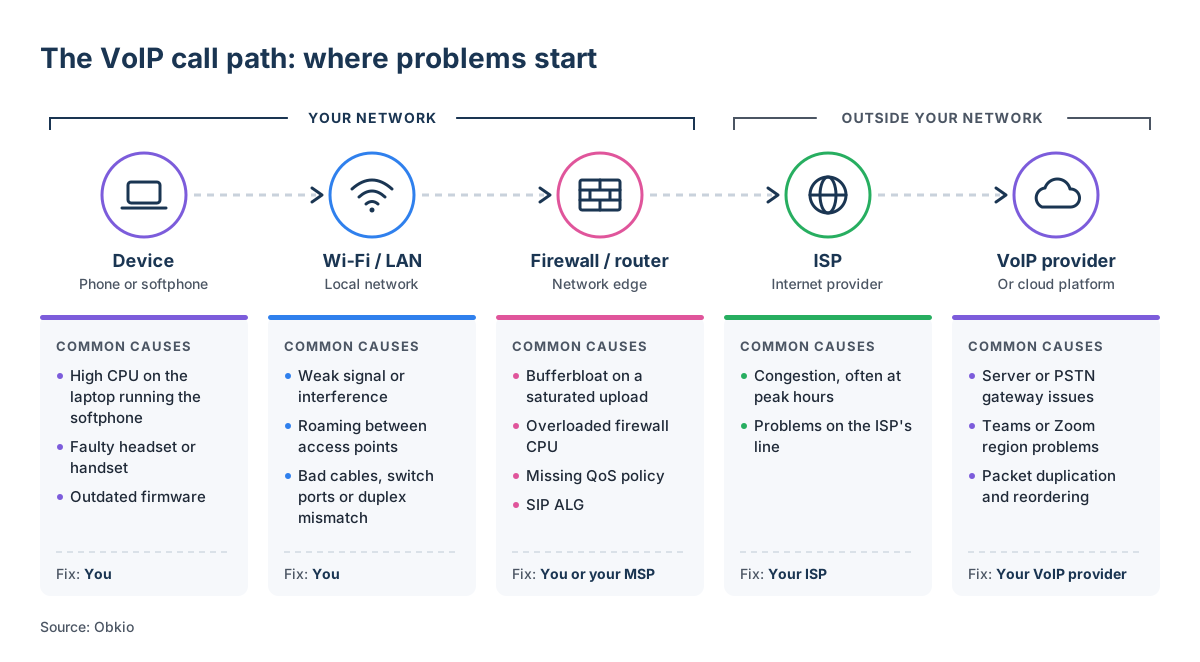
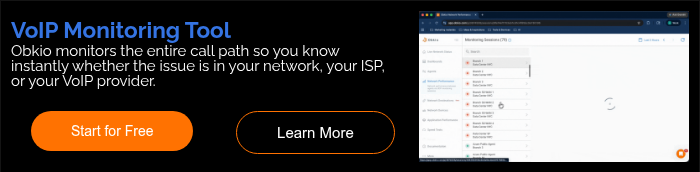
A VoIP call crosses up to five network segments between the two callers, and a problem in any one of them sounds the same to the user. The symptom tells you what's wrong. The segment where the VoIP problem starts tells you who is responsible for fixing the problem, so you don’t have to keep fighting with our ISP or VoIP service providers.
1. The device
Desk phones, softphones and headsets cause fewer call problems than they're blamed for, but they're the first thing to rule out. A laptop running a softphone at high CPU will drop audio even on a healthy network. A faulty headset or handset can add echo or static. If only one user has bad calls, start here.
Who fixes it: you.
2. Wi-Fi and the local network
Wi-Fi is one of the most common sources of choppy and robotic audio. Weak signal, interference and laptops roaming between access points all cause bursts of packet loss and jitter that calls can't recover from. On wired networks, faulty switch ports, bad cabling and speed or duplex mismatches cause the same symptoms.
Who fixes it: you.
3. The firewall or router
Every call passes through the edge device, which makes it a common bottleneck. When the upload is saturated, packets queue in the router's buffers and latency and jitter spike, which is the problem called bufferbloat. An overloaded firewall CPU drops packets. A missing QoS policy lets other traffic crowd out voice. SIP ALG can break call setup entirely.
Who fixes it: you or your MSP.
4. The ISP
If quality drops after traffic leaves your network, the problem is in your ISP's network. ISP congestion, often worse at peak hours, causes loss and jitter on every call at once. A problem on your ISP's line causes short drops and errors. These issues look identical to local ones from the user's side, which is why they're often misdiagnosed.
Who fixes it: your ISP, once you can show them where the problem is.
5. The VoIP provider or cloud platform
Sometimes the network path is clean, and the problem is at the destination: the VoIP provider's servers, its connection to the PSTN, or a Teams or Zoom region. Packet duplication and reordering can also start inside a provider's network. If several sites using the same provider have bad calls at the same time, look here.
Who fixes it: your VoIP provider.
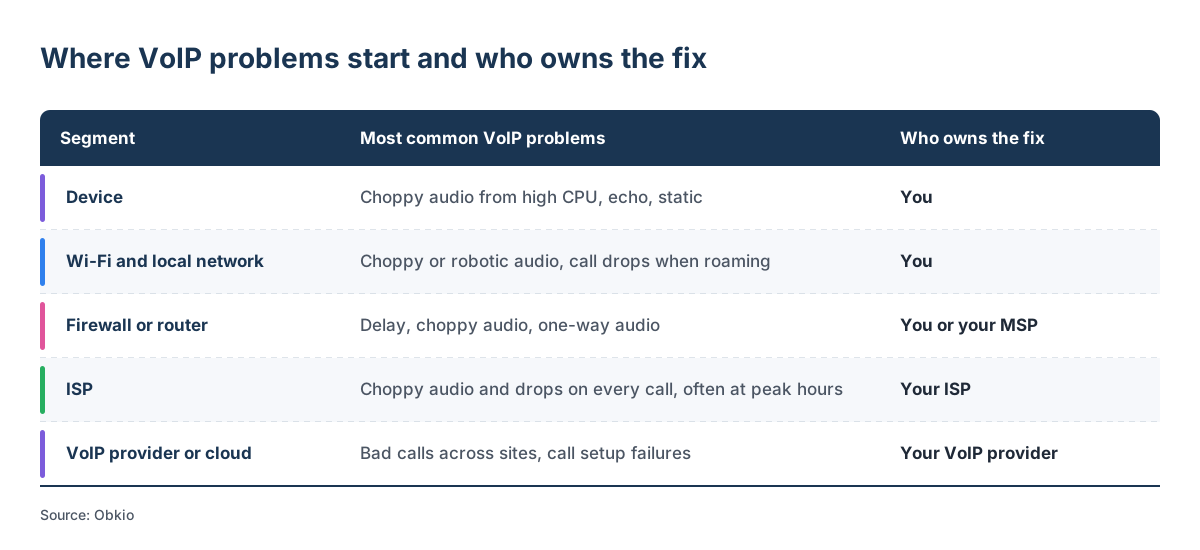
Find Where Your VoIP Problems Start, Automatically
Obkio's VoIP monitoring solution measures call quality continuously, even when nobody is on a call. Network Monitoring Agents at your sites send synthetic VoIP traffic along the same path your calls take, and calculate MOS every minute alongside jitter, latency and packet loss.
When quality drops,Obkio Insights diagnoses the cause for you, whether it's a saturated upload, an overloaded firewall or congestion inside your ISP's network. You know who owns the fix before the next ticket comes in.


What’s Causing Your VoIP Problems? Bandwidth, Wi-Fi or a Maxed-Out Laptop
When calls start breaking up, the first reaction is usually “we need more bandwidth.” Sometimes the fix is that simple, but often it isn’t. Upgrading a connection won’t help if the real problem is a congested upload, a weak Wi-Fi signal or a laptop running at full CPU, and all three produce the same choppy audio and delay that users report.
These are also the most common causes of bad calls, and the easiest to check because they’re all inside your own network. Each one can be confirmed or ruled out in a few minutes with a simple test. Do that before you open a ticket with your ISP or VoIP provider, so you don’t end up paying for an upgrade you didn’t need or escalating a problem that was never theirs.
Bandwidth: Usually not how much you have, but how full it is
A single VoIP call uses very little bandwidth: about 90 Kbps in each direction with the G.711 codec, and less with compressed codecs like G.729 or Opus. Even a modest business Internet connection can carry dozens of calls at once.
The real problem is a full connection. When someone uploads a large file or a cloud backup kicks in, the upload saturates, and packets start queuing in the router's buffers. Voice packets wait in line behind everything else, and latency and jitter spike. This is bufferbloat, and it's why calls can break up on a connection with plenty of capacity on paper.
How to test it: Watch latency or call quality while you saturate the upload, for example by uploading a large file or running a speed test. If latency jumps by tens or hundreds of milliseconds under load, the problem is queuing, not capacity.

Learn how to monitor bandwidth usage: how utilization is measured, 6 monitoring techniques, the best tools, and ways to troubleshoot common bandwidth issues.
Learn more

Wi-Fi: The most common cause of choppy calls
Wi-Fi delivers packets in bursts. Weak signal, interference from neighbouring networks and laptops roaming between access points all cause short bursts of packet loss and jitter. A file download barely notices. A call drops words or turns robotic.
How to test it: Make the same call on a wired connection. If the problem disappears, it's the Wi-Fi. From there, check signal strength (a common guideline for voice is -67 dBm or better), whether the device is on 2.4 GHz instead of 5 GHz, and whether the problem happens when users move around the office.
The Laptop: When the computer is the bottleneck
Softphones and apps like Teams and Zoom process audio on the computer itself. When the CPU is maxed out by a video call with screen sharing, an antivirus scan, dozens of browser tabs or an update running in the background, audio processing falls behind. The call sounds choppy even though the network is fine. Laptops on battery can make it worse, because power-saving modes throttle both the CPU and the Wi-Fi adapter.
How to test it: Open Task Manager (Windows) or Activity Monitor (macOS) during a bad call. If CPU usage is sustained near 100%, or the problem only happens on one person's laptop, the computer is the likely cause. Plug it in and close heavy applications, then compare.
If all three tests come back clean, the problem is likely outside the device and local network: the firewall, the ISP or the VoIP provider. The next section walks through how to find it.
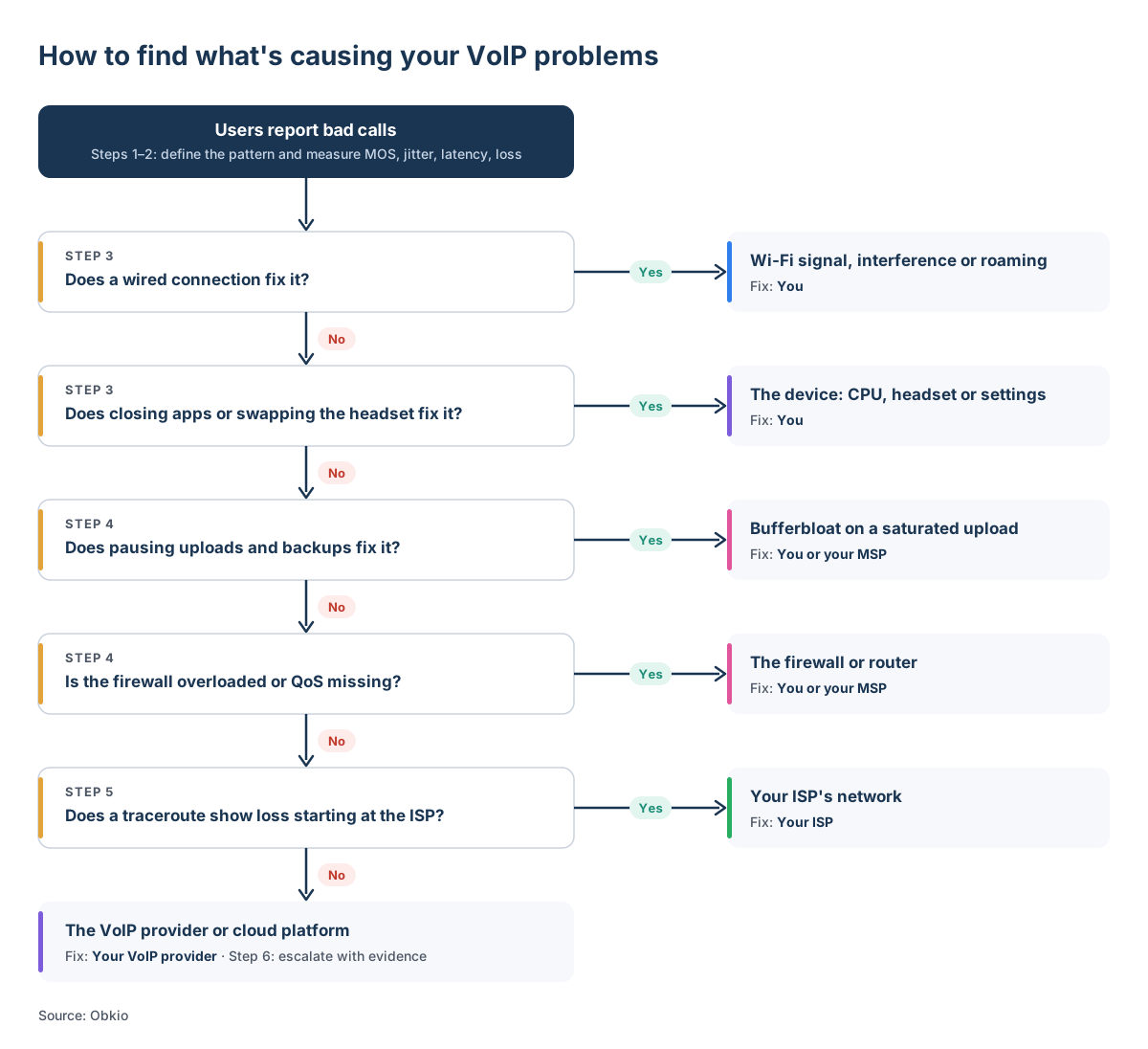
How to Diagnose VoIP Issues on Your Network: Step-by-Step
Once you've ruled out the usual suspects using quick tests, VoIP troubleshooting becomes a process of narrowing down. Start with the pattern, measure what's happening during a bad call, then work outward along the call path until you find the segment where quality drops.
These six steps work whether you're troubleshooting one office, a remote worker or a customer site. They also leave you with the evidence you'll need if the fix turns out to belong to someone else.
Step 1: Define the Pattern
Before you test anything, find out exactly when and where the problem happens. The answers often point to the cause before you open a single tool.
- Who is affected? One user points to their device or Wi-Fi. A whole site points to the firewall or the ISP. Several sites at once point to the VoIP provider.
- Which calls? If internal calls are fine and external calls are bad, look at the Internet connection and the provider. If every call is bad, start locally.
- When does it happen? Problems at the same time every day suggest congestion or a scheduled job like a backup. Random problems suggest Wi-Fi or an unstable connection.
- What does it sound like? Match the symptom to the metric using the common VoIP problems list above.
Step 2: Measure VoIP Call Quality During a Bad Call
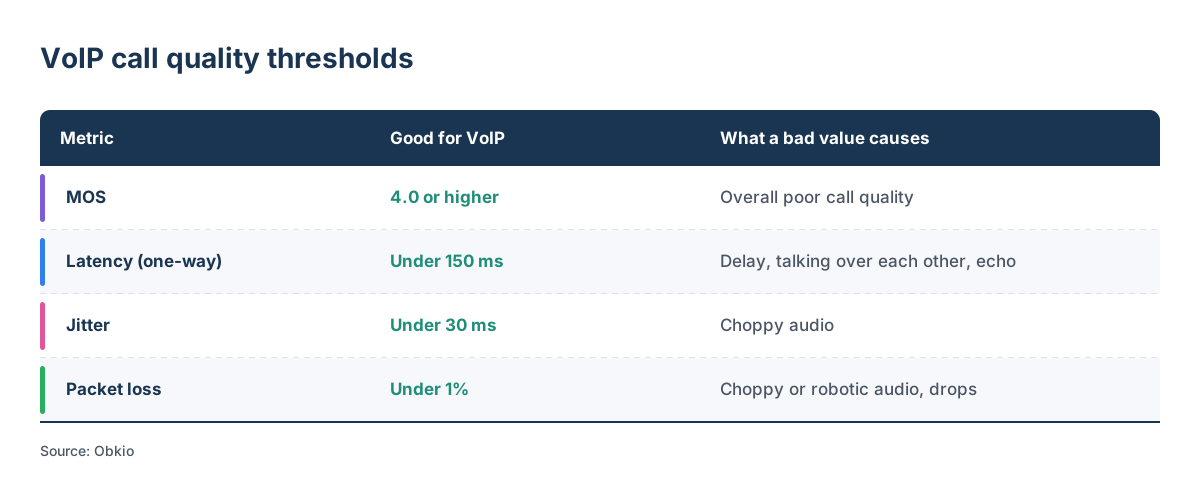
Users describe what they hear. To troubleshoot, you need the numbers behind it: MOS, jitter, latency and packet loss, measured while the problem is happening rather than after.
- MOS: 4.0 or higher is good for VoIP. A lower score means poor overall call quality.
- Latency (one-way): Under 150 ms is good for VoIP. Higher latency causes delay, people talking over each other and echo.
- Jitter: Under 30 ms is good for VoIP. Higher jitter causes choppy audio.
- Packet loss: Under 1% is good for VoIP. Higher loss causes choppy or robotic audio and dropped calls.
For how each metric is measured, see 8 VoIP quality metrics and how to measure them.
Most VoIP platforms and softphones show call statistics for recent calls, and Teams and Zoom both offer call quality dashboards. The limitation is that they only show calls that have already happened, and only from the endpoints' point of view. They tell you a call was bad, not where it went bad.
How to Measure VoIP Quality
There are three ways to get these numbers, and each one shows you a different part of the picture:
Call statistics from your VoIP platform: Most softphones and VoIP platforms log jitter, packet loss and MOS for recent calls.
Manual tests: Running ping during a bad call gives you a quick read on latency and jitter, and an online VoIP test can estimate MOS. Both are snapshots, though.
Continuous VoIP monitoring: A VoIP monitoring solution like Obkio measures call quality all the time, whether or not anyone is on a call. Network Monitoring Agents installed at your offices, remote sites or data centres send synthetic VoIP traffic between each other and toward the Internet, calculating MOS, jitter, latency and packet loss every minute. Because the data is always there, you can go back to the exact time a user reported a bad call and see what the network was doing, instead of trying to reproduce the problem.
For intermittent problems, which most VoIP problems are, continuous monitoring is usually the only way to catch the issue in the act.
Step 3: Rule Out the Device and Wi-Fi
If the VoIP problem is limited to one user or one location in the office, run the quick tests from the previous section: switch to a wired connection, pause uploads, and check the computer's CPU. If the call improves, you've found your cause. If not, move outward.
Step 4: Check the Firewall and Local Network Edge
The firewall or router is the most common bottleneck between a healthy LAN and the Internet. Check four things:
- Upload utilization: Is the upload regularly saturated during business hours? If so, calls are queuing behind other traffic.
- Firewall CPU and memory: A firewall running near its limits drops and delays packets, especially with VPN, inspection or filtering enabled.
- QoS: Is voice traffic marked (typically DSCP EF, 46) and prioritized on the upload? Is the marking actually honoured, or stripped somewhere along the way? See QoS for VoIP.
- SIP ALG: If you have one-way audio, failed transfers or calls that drop at a fixed time, check whether SIP ALG is enabled.
How to Monitor Your Firewall and Edge Devices
Logging into the firewall shows you its state right now. As with call quality, though, the problem has often passed by the time you look. A device monitoring solution like Obkio uses SNMP to poll your firewalls, routers and switches continuously. It tracks CPU, memory, interface bandwidth, errors and discards over time, so you can see whether the firewall was maxed out or the upload was saturated at the exact moment calls went bad.
Because Obkio collects device metrics alongside VoIP quality data, you can line the two up directly. If MOS drops at the same time the firewall CPU spikes or the upload hits 100%, you’ve found your cause. Obkio Insights can also flag an overloaded firewall or a saturated upload automatically, so you don’t have to correlate the graphs yourself.

Step 5: Find Where on the Path VoIP Quality Drops
If the local network checks out, the problem is likely past the firewall. Run a traceroute or MTR toward your VoIP provider's servers to see which hop latency or packet loss starts at.
Read the results carefully. Many routers deprioritize responses to traceroute probes, so loss at a single hop that doesn't carry through to the following hops usually isn't real. Look for packet loss or latency that starts at one hop and continues all the way to the destination. That's where the problem begins.
A traceroute only captures a single moment, though, and intermittent VoIP problems are rarely happening when you run one. This is where continuous monitoring makes the difference.
A solution like Obkio runs synthetic VoIP tests from your own sites every minute and keeps a history of each route with Visual Traceroute, so you can go back to the exact moment calls went bad and see which segment was responsible.
Step 6: Escalate Your VoIP Problem with Evidence
If the VoIP problem starts in your ISP's network or at your VoIP provider, the fix is theirs, but you'll usually need to prove it first. A ticket that says "our calls are choppy" gets a generic reply. A ticket with timestamps, metrics and the hop where quality drops gets escalated.
Include:
- When the problem happened and how often
- MOS, jitter, latency and packet loss during the affected period
- Traceroute results showing where the problem starts
- Proof that your local network was healthy at the same time
With Obkio, you can share a dashboard with your ISP or provider through a Shareable Link, so they see the same data you do.
VoIP Problems and Solutions: How to Fix Each One
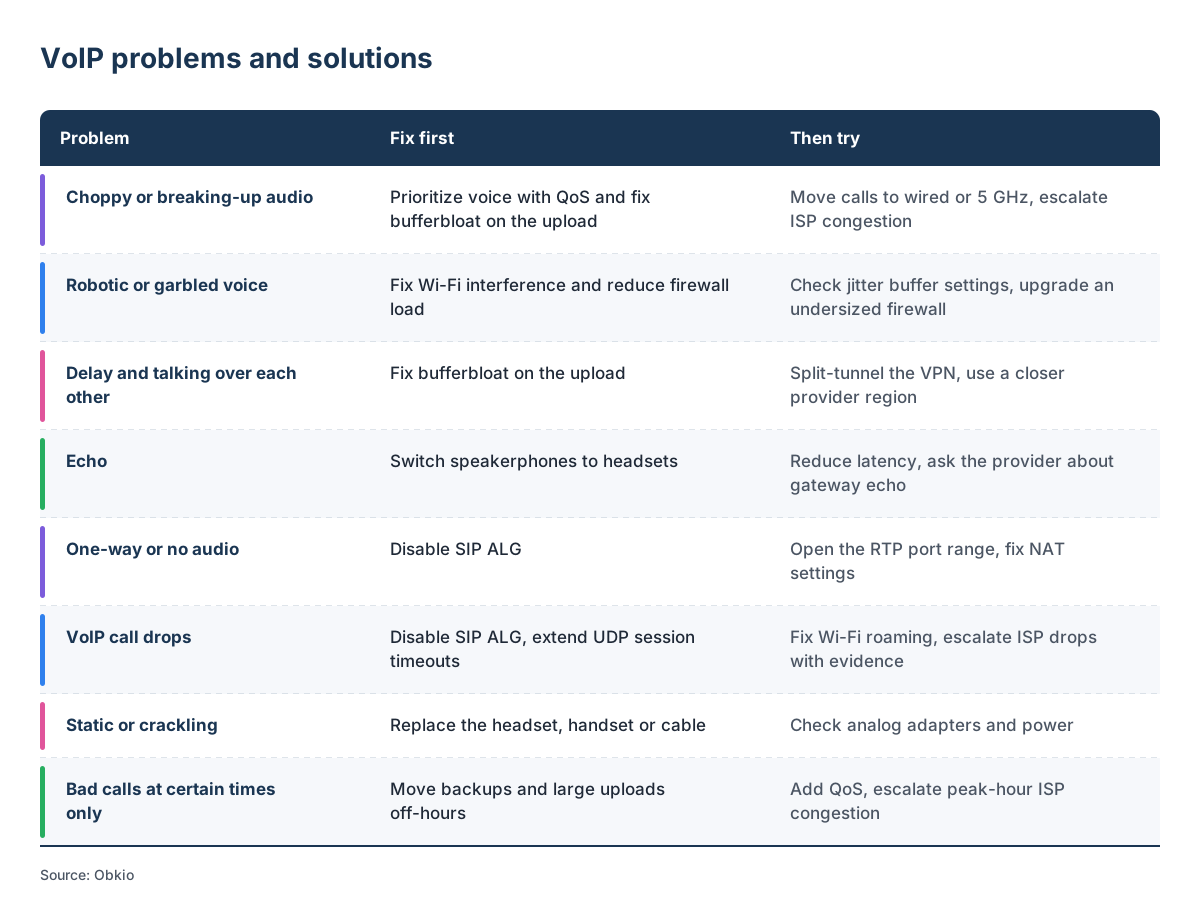
Once you know what's causing the VoIP problem and where it starts, the fix is usually straightforward. The trick is fixing the cause, not the symptom. Turning up the jitter buffer can hide choppy audio for a while, but if the upload is saturated every afternoon, the problem will come back.
Below are the most common VoIP problems and the fixes that solve them, starting with the one that works most often.
How to fix choppy or breaking-up audio
- Prioritize voice with QoS: Mark voice traffic (DSCP EF) and give it priority on the upload, so it doesn't queue behind other traffic. See QoS for VoIP.
- Fix bufferbloat: Enable Smart Queue Management (SQM) on the router if it supports it, or cap the upload slightly below the line's real speed so the router controls the queue instead of the ISP's equipment.
- Move calls off weak Wi-Fi: Use wired connections for desk phones and heavy callers, and push laptops to 5 GHz.
- Escalate ISP congestion: If quality drops after traffic leaves your network, open a ticket with the evidence from Step 6.
How to fix robotic or garbled voice
- Fix Wi-Fi interference: Move access points to less crowded channels, reduce channel width in dense environments, and add coverage where signal is weak.
- Reduce load on the firewall: Exclude voice traffic from deep packet inspection and content filtering where your security policy allows it. If the CPU stays high at normal traffic levels, the firewall may simply be undersized.
- Check jitter buffer settings: An adaptive jitter buffer on phones or the PBX can absorb moderate jitter. Treat this as a cushion, not a fix.
How to fix delay and people talking over each other
- Fix bufferbloat first: It's the most common cause of high latency on business connections.
- Split-tunnel the VPN: If remote users' calls are routed through a VPN to head office before reaching the provider, send VoIP traffic directly to the Internet instead.
- Use a closer provider region: Make sure users connect to the VoIP provider's nearest data centre or region.
How to fix echo
- Switch speakerphones to headsets: Most VoIP echo is acoustic, and headsets remove it.
- Update firmware and check echo cancellation: Make sure echo cancellation is enabled on phones, softphones and the PBX.
- Reduce latency: The lower the delay, the less noticeable any remaining echo becomes.
- Ask your provider about gateway echo: If echo only happens on calls to the regular phone network, the problem may be at the provider's PSTN gateway.
How to fix one-way or no audio
- Disable SIP ALG on the firewall or router. It's the most common cause.
- Open the RTP port range: Make sure the firewall allows the voice ports your provider uses, in both directions.
- Fix NAT settings: Configure the correct external IP and NAT settings on the phone system or PBX.
How to fix VoIP call drops
- Disable SIP ALG: It often breaks calls mid-session.
- Extend UDP session timeouts: If calls drop at a fixed point, set the firewall's UDP timeout longer than the phone system's SIP re-registration or session refresh interval.
- Fix Wi-Fi roaming: Enable fast roaming (802.11r) on your access points if your devices support it, and tune AP placement so devices don't hold on to a weak signal.
- Escalate ISP drops with evidence: Short connection drops on the ISP side are theirs to fix.
How to fix static or crackling
- Replace the headset, handset or cable: Static is almost always hardware.
- Check analog adapters and power: On analog phones connected through an ATA, check the adapter, phone cords and power supply.
How to fix bad calls at certain times only
- Move backups and large uploads off-hours: Schedule cloud backups and sync jobs outside business hours, or limit the bandwidth they can use.
- Add QoS: This protects calls from whatever else is running at the same time.
- Escalate peak-hour congestion: If calls degrade every evening or at the same time every day, and your own traffic doesn't explain it, the congestion is likely in your ISP's network. Consider a second Internet connection or SD-WAN to fail calls over to a cleaner path.
After any fix, compare call quality before and after over at least a few days. Intermittent problems can look solved for an afternoon and return the next week.

Optimize VoIP performance with QoS implementation. Explore best practices for QoS for VoIP, overcome challenges, and elevate clarity with Obkio's NPM tool.
Learn more
How to Fix VoIP Issues for Teams and Zoom Calls
For many teams, "VoIP" now means Microsoft Teams or Zoom rather than a desk phone. The calls look different to users, but underneath they work the same way. Teams and Zoom send audio and video over UDP in real time, so packet loss, jitter and latency cause the same choppy audio, frozen video and dropped calls covered above, and the same troubleshooting steps apply.
What's different is where the call goes.
A traditional VoIP call travels to your provider's servers. A Teams or Zoom call travels to Microsoft's or Zoom's cloud, often through a nearby media relay, and the path can change from one call to the next. That adds a few platform-specific causes to check, and it makes it harder to tell whether the problem is your network, your ISP or the platform itself.
- UDP is blocked or restricted: Teams and Zoom prefer UDP, but they fall back to TCP when it's blocked: Teams over UDP 3478–3481 and TCP 443, Zoom over UDP 8801–8810. Calls still connect over TCP, but quality drops because lost packets get retransmitted and arrive too late to be useful. Make sure the firewall allows the UDP ranges of each platform document.
- VPNs and proxies: Routing Teams or Zoom media through a VPN tunnel or a web proxy adds latency and can break the UDP path. Both Microsoft and Zoom recommend sending their media traffic directly to the Internet.
- Service-side issues: If calls are bad across several sites at once, check the Microsoft 365 service health dashboard or Zoom's status page before troubleshooting your own network.

For platform-specific troubleshooting, see common Microsoft Teams issues,how to detect Microsoft Teams outages and Zoom network issues.
How to Monitor Teams and Zoom Call Quality
The built-in tools only show part of the picture. The Teams admin center and Call Quality Dashboard report on calls that already happened, from the user's device. Zoom's dashboard works the same way. Neither shows what the network between your users and the platform was doing, or where along that path quality dropped.
Obkio's Microsoft Teams monitoring fills that gap. Network Monitoring Agents at your offices, remote sites and data centres continuously test network performance toward Microsoft's infrastructure, measuring MOS, jitter, latency and packet loss every minute, even when nobody is on a call. When Teams calls go bad, you can see whether the problem is on your network, in your ISP's network or on Microsoft's side, and when it started.
The same approach works for Zoom. Obkio agents monitor the network path from your sites toward Zoom, so you can catch degraded performance before users join a meeting and tell whether a bad call came from your network or theirs. See Zoom monitoring.
VoIP Phone Issues: When the Problem is the Device
Most VoIP problems are network problems, but not all of them. Desk phones, headsets and softphones have their own failure points, and some of them, like a phone that won't register or has no dial tone, have nothing to do with call quality at all.
The quickest way to tell is scope. If one phone has the problem and the phone next to it on the same network doesn't, start with the device. If every phone at a site has the same problem, it's almost certainly the network, and the fixes in this section won't help.
The phone won't register
A phone that shows "No service," "Unregistered," or a similar message can't connect to the phone system or VoIP provider. Common causes:
- Wrong account details: The SIP username, password or server address on the phone is incorrect or out of date, often after a provider change or a password reset.
- DNS problems: The phone can't resolve the provider's server name. Check the DNS servers the phone receives from DHCP.
- Firewall rules: SIP traffic (usually UDP or TCP 5060, or TLS 5061) is blocked outbound, or the responses can't get back in.
- SIP ALG: It can rewrite registration messages and break them. Disable it if registrations fail intermittently.
- Provider outage: If every phone loses registration at once, check your provider's status page before changing anything locally.
No dial tone or the phone won't power on
- PoE: Most desk phones get power from the network switch. Check that the switch port supports PoE and that the switch hasn't run out of PoE budget, which often happens when new phones or cameras are added.
- Voice VLAN and DHCP: Phones on a voice VLAN need the right VLAN tagging and DHCP options to get an address and find their provisioning server. A phone stuck booting or with no IP address usually points here.
- Provisioning and firmware: Phones download their configuration and firmware from a provisioning server. If that fails, or the firmware is outdated, the phone may boot without a usable configuration. Update the firmware and re-provision.
Bad audio on one phone only
If call quality is bad on one device and fine everywhere else, check the hardware before the network:
- Headsets and handsets: Faulty cords, worn connectors and failing headsets cause static, low volume and audio that cuts in and out.
- Cabling and switch port: A damaged network cable or a bad switch port can cause errors and packet loss for that phone only. Swap the cable and try a different port.
- Speed and duplex: A mismatch between the phone and the switch port causes packet loss that looks exactly like a network problem. Make sure both sides auto-negotiate.
Softphone problems
Softphones and apps like Teams and Zoom add the computer to the list of suspects:
- Wrong audio device: The app is using the laptop's built-in microphone or speakers instead of the headset, which causes echo and poor audio.
- Outdated app or drivers: Update the softphone and the headset's drivers or firmware.
- High CPU and power saving: See the laptop section above.
- Network adapter power saving: On laptops, Wi-Fi power-saving settings can delay packets and cause choppy audio, especially on battery.
If you've worked through the device checks and the problem persists, or the same fix works on one phone, but the problem affects the whole office, it's time to look at the network. The next section walks through how.

Learn how Obkio works with hosted VoIP Provider, bravad TI, to streamline network monitoring & troubleshooting to optimize VoIP Quality & user experience.
Learn more
How to Catch VoIP Issues Before Users Report Them
Every step in this article gets easier when you already have the data. Most VoIP problems are intermittent. They show up during a busy afternoon, at peak hours or for a few minutes during a backup, and they're gone by the time someone opens a ticket. Troubleshooting after the fact means trying to reproduce a problem that may not happen again until next week.
Continuous monitoring flips that around. Instead of waiting for users to complain and then trying to reconstruct what happened, you see call quality degrade as it happens, along with where and why.
Obkio's VoIP monitoring solution is built for exactly that.
Measure call quality around the clock
Network Monitoring Agents installed at your offices, remote sites, data centres and in the cloud send synthetic VoIP traffic between each other and toward the Internet. MOS, jitter, latency and packet loss are measured every minute, whether or not anyone is on a call. When VoIP call quality crosses a threshold, you get an alert before the first user notices.
Know where the problem is and who owns the fix
Because agents test from multiple points, Obkio shows whether a drop in quality is happening inside your network, on your ISP's network or toward your VoIP provider or cloud platform.
Visual Traceroute keeps a history of each route, so you can see which hop was responsible at the time of a bad call. And with Obkio Insights, common causes like ISP congestion, a saturated upload or an overloaded firewall are diagnosed automatically.
See your firewall and edge devices alongside call quality
Device monitoring uses SNMP to poll firewalls, routers and switches for CPU, memory, bandwidth and interface errors. When MOS drops at the same time the firewall CPU spikes or the upload hits 100%, the cause is on the same screen.
Monitor Teams and Zoom, not just SIP
The same agents monitor network performance toward Microsoft Teams and Zoom, so you can troubleshoot meeting quality with the same data you use for your phone system.
Prove it to your ISP or provider
When the problem isn't yours to fix, share the evidence with your ISP or VoIP provider. A Shareable Link gives your ISP or VoIP provider access to the same dashboard you're looking at, with timestamps, metrics and the segment where quality dropped. That's the fastest way to turn a generic support reply into an escalation.
For MSPs and VoIP providers, the same setup works across customer sites. Deploy an agent at a customer location, and you can tell them whether the problem is their Wi-Fi, their ISP or your service, before they call.

Stop guessing where bad calls start.
Frequently Asked Questions About VoIP Troubleshooting
1. Why does my VoIP call sound choppy?
Choppy VoIP audio means voice packets are being lost or arriving too late to play. It's usually caused by packet loss or jitter from a congested upload, a weak Wi-Fi connection or congestion in your ISP's network. Test on a wired connection and pause large uploads to narrow it down.
2. Why do my VoIP calls keep dropping?
VoIP calls drop when the session breaks or times out. Common causes are short Internet connection drops, heavy packet loss, laptops roaming between Wi-Fi access points, and firewall settings like SIP ALG or short UDP session timeouts. If calls drop at a fixed time, check the firewall first.
3. Why do VoIP calls drop after about 30 seconds?
Calls that drop after about 30 seconds usually point to a call setup problem, not call quality. The phone system never receives confirmation that the call was answered, often because SIP ALG or NAT on the firewall is rewriting or blocking SIP messages. Disabling SIP ALG fixes it in most cases.
4. What are the most common VoIP problems?
The most common VoIP problems are choppy or robotic audio, delay, echo, one-way audio and dropped calls. Most are caused by packet loss, jitter or latency on the network, typically from Wi-Fi, a saturated upload, an overloaded firewall or ISP congestion. One-way audio and static are exceptions: they're setup and hardware problems.
5. How do I know if it's my phone or my network?
Check the scope. If one phone has the problem and others on the same network don't, start with the device: the headset, cable, switch port or settings. If every phone at a site has the same problem, or the problem follows the user across devices, it's almost certainly the network.
6. How much bandwidth does a VoIP call need?
A VoIP call needs about 90 Kbps in each direction with the G.711 codec, and less with compressed codecs like G.729 or Opus. Bandwidth is rarely the problem on its own. Call quality usually suffers when the connection is saturated by other traffic, which causes queuing, latency and jitter.
7. Is the problem my ISP or my VoIP provider?
Run a traceroute toward your VoIP provider and look for where latency or packet loss starts and continues to the destination. If it starts in your ISP's network, it's an ISP problem. If the path is clean but calls are still bad, or several sites are affected at once, look at the provider.


