












 Obkio Blog


 Subscribe
Table of Contents
Table of Contents
Most network teams only find out their firewall is overloaded after users start complaining. A slow VPN, dropped calls, and random packet loss at 2 pm every day. The usual suspects get blamed first: the ISP, the switch, the application server. The firewall gets a pass because the dashboard says 40% CPU and everything looks fine.
Here is the problem with that picture. Standard SNMP monitoring polls every 5 minutes. A CPU spike that peaks at 95% and recovers within 90 seconds never shows up. Your monitoring tool averages it away, and you spend the next two hours chasing the wrong problem.
This article walks through what high CPU usage on a network device actually means, why it happens, how to confirm it is the real issue, and how to fix it. Step by step, no filler.
What Is High CPU Usage on a Network Device? 
High CPU usage on a network device means the processor is being asked to do more work than it can handle at a given moment, or sustained over time, without being able to keep up.
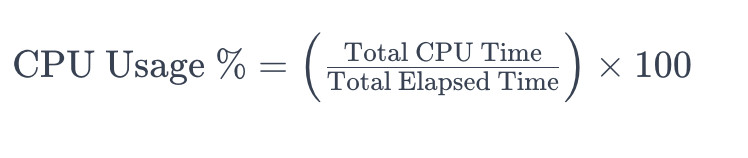
On a firewall or router, the CPU is responsible for work that cannot be handed off to dedicated hardware: packet inspection, security policy enforcement, NAT translation, routing protocol updates, VPN session management, and logging. Unlike a switch, which uses purpose-built ASICs to forward traffic at line rate without involving the CPU at all, a firewall is fundamentally CPU-dependent. Every packet that gets inspected, filtered, or logged runs through the processor.
That distinction matters. On a switch, high traffic volume barely touches the CPU. On a firewall, more traffic plus more security features equals more CPU. The relationship is direct.
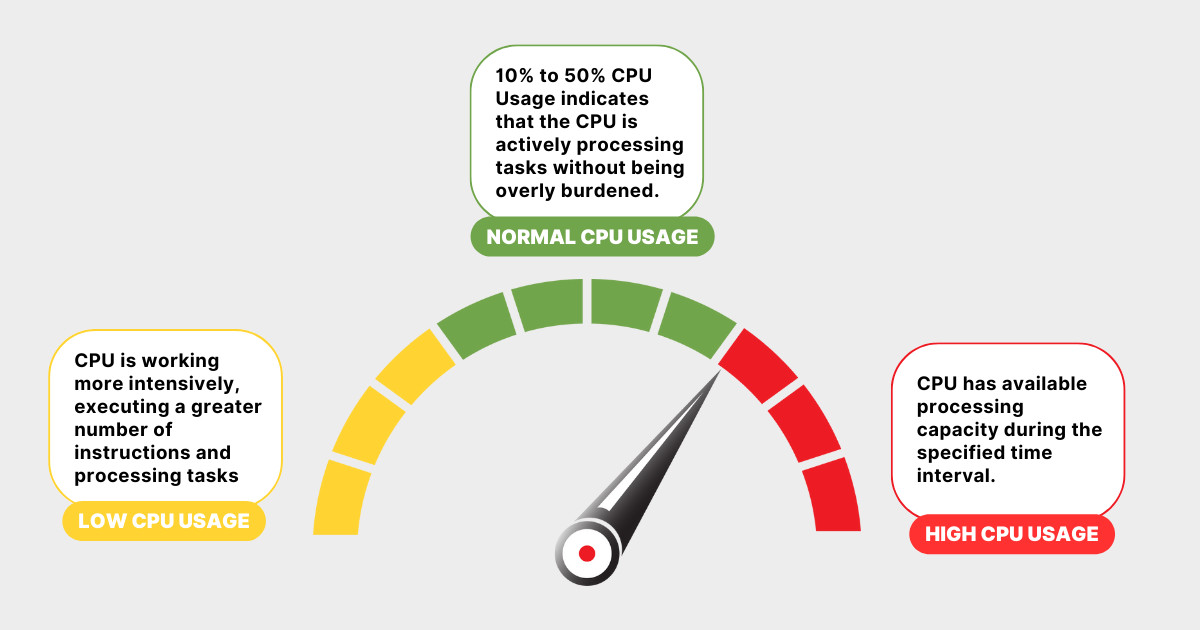
What does "high" CPU actually look like?
A device running at 40% CPU under normal load is healthy. The same device sustaining 70% to 80% over minutes starts to degrade. Above 85% sustained, you will see measurable packet loss, latency spikes, and in some cases, the device will start skipping inspection on some packets entirely just to keep up.
That last part is worth sitting with: a firewall under heavy CPU load may silently drop security processing to survive. Not ideal.
Why Does High CPU Usage Matter on a Firewall?
The downstream effects are real, and they show up fast. When firewall CPU utilization climbs into the red, here is what your users and your monitoring will start to see.
High CPU Usage on Firewall Impact #1: Packet Loss and Dropped Connections
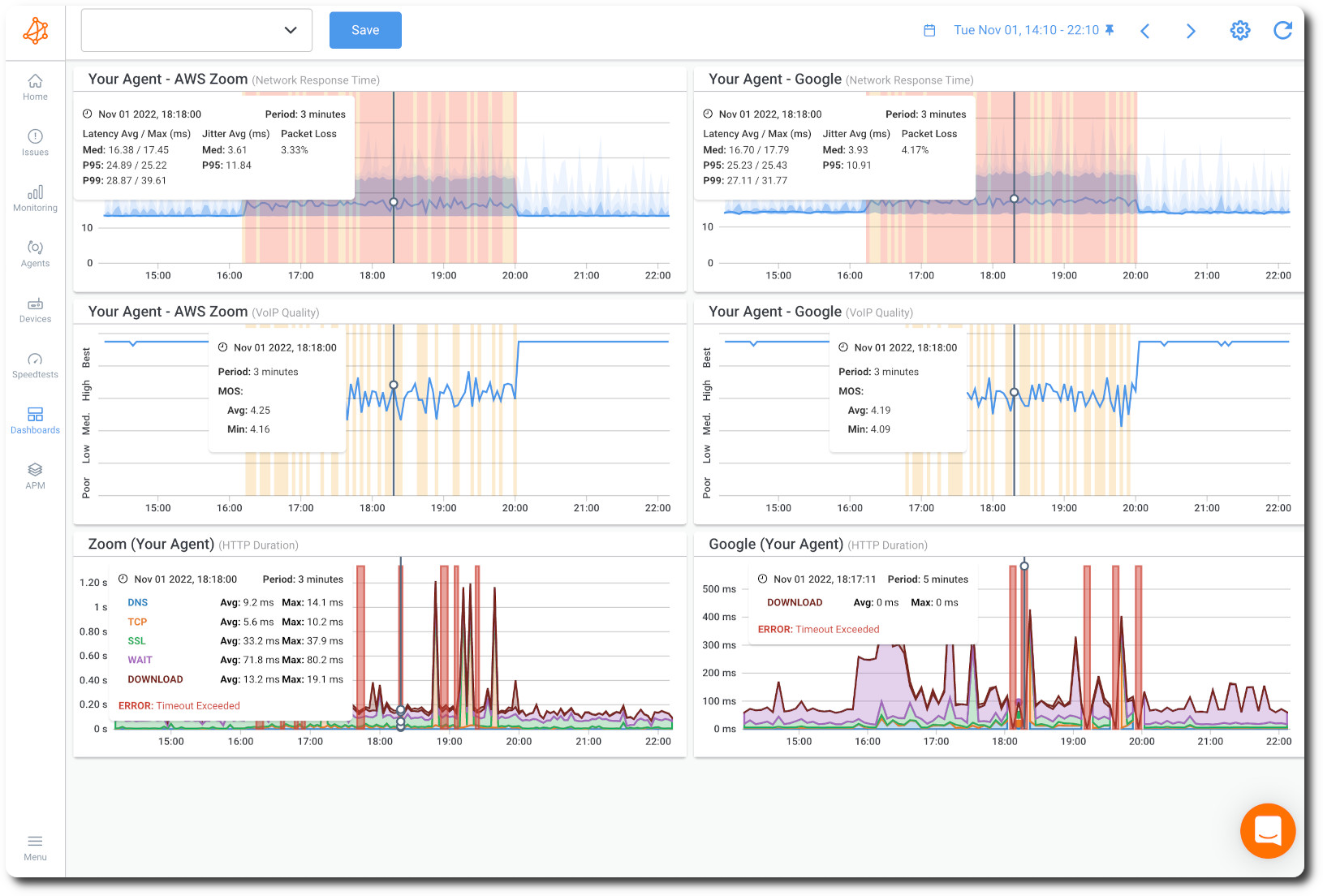
When the CPU cannot process inbound packets fast enough, they queue in the device's buffer. Once that buffer fills up, the firewall has no choice but to drop packets. Those dropped packets cause TCP retransmissions, application timeouts, and broken sessions.
The tricky part is that the packet loss is often intermittent. A transaction goes through fine, then the next one fails. Applications that tolerate some retransmission, like a file download, will just slow down. Applications that depend on tight session management, like a database query or an ERP transaction, will throw an error or silently corrupt data. Users end up blaming the application, not the network. The root cause stays hidden.
Even low packet loss values at the firewall level have an outsized impact on application performance.
High CPU Usage on Firewall Impact #2: Increased Latency and Jitter
Every packet waiting in the CPU's processing queue accumulates delay. That delay is latency. When the queue depth fluctuates, the delay fluctuates too, and that variation is jitter.
For bulk data transfer, higher latency just means slower throughput. Annoying, but not catastrophic. For real-time traffic, it is a different story. VoIP, video conferencing, Microsoft Teams calls, and anything that depends on a predictable timing stream becomes unusable when jitter climbs above 30 to 50ms. Audio breaks up. Video freezes. Participants start dropping.
What makes this particularly frustrating to diagnose is that the latency is induced by the firewall itself. A traceroute from LAN to WAN will show high latency at the firewall hop, and the hops on both sides will look clean. That pattern is the tell. It is not the ISP. It is not the switch. It is the firewall CPU struggling to keep up.
High CPU Usage on Firewall Impact #3: VPN Instability and Disconnections
VPN tunnels, especially IPsec-based ones, are among the most CPU-intensive workloads a firewall manages. Every packet through an IPsec tunnel requires encryption or decryption, integrity checking, and encapsulation. Under normal load, this is manageable. Under high CPU load, it becomes the first thing to degrade.
Teams running split-tunnel or full-tunnel VPN at scale are especially vulnerable here. As remote workforce numbers have grown, the VPN CPU burden on perimeter firewalls has grown with it. A firewall that was adequately sized three years ago may now be handling three times the VPN session count it was designed for.
High CPU Usage on Firewall Impact #4: Degraded VoIP and UC Quality
Voice and unified communications traffic expose firewall CPU utilization problems faster than almost anything else. VoIP uses RTP streams with fixed packet intervals, typically 20ms. If the firewall delays those packets unevenly, the jitter buffer on the receiving end either grows large enough to fix it (adding perceptible delay) or clips packets to stay in sync (causing audio gaps and choppy speech).
Mean Opinion Score, the standard measure of voice call quality, drops sharply when packet loss exceeds 1% or when jitter exceeds 30ms. A firewall running at 85% CPU can easily push both metrics into the red for the duration of the overload event. Users on the call notice immediately. Users' monitoring graphs may see nothing, because the event lasted 45 seconds and resolved before the next polling cycle.
High CPU Usage on Firewall Impact #5: Missed Security Inspection
This one does not show up in user complaints, which is exactly what makes high firewall CPU utilization dangerous.
When a firewall's CPU is saturated, some vendors implement a fail-open behaviour under sustained load: packets that cannot be inspected in time are passed through without inspection rather than dropped. The rationale is availability over security. The firewall is designed to keep traffic flowing even if it means skipping some checks.
High CPU Usage on Firewall Impact #6: Slow admin access
When the firewall CPU is under heavy load, the management plane competes with the data plane for processing resources. SSH sessions become sluggish. The web management UI takes 10 to 15 seconds to respond to a click. Commands you run via CLI come back slowly or time out.
This is worth noting for two reasons. First, it is actually a useful early warning signal: if logging into your firewall feels slow, check the CPU before you do anything else. Second, it makes the problem harder to resolve in real time. The moment you most need fast access to your device is exactly when the device is least able to give it to you.
What Causes High CPU Usage on a Network Device?
There is rarely just one cause. In most real-world cases, it is a combination of two or three factors that individually would be manageable, but together push the device over the edge. Here are the main causes of high CPU usage on network devices, and what each one actually looks like in practice.
High CPU Usage Cause #1: Network Traffic Volume Overload
The most straightforward cause. The firewall was sized for a certain traffic profile, and the network has grown beyond it. More users, more devices, more cloud applications, more simultaneous sessions. The hardware is being asked to process more packets per second than it was designed for.
What makes this hard to catch early is that growth tends to be gradual. The firewall handles 80% of capacity fine for months, then a new SaaS platform rolls out company-wide, or a new office opens and routes through the same device, and suddenly, you are hitting sustained CPU peaks during business hours.
High CPU Usage Cause #2: Deep Packet Inspection and UTM Feature Load
This is the most common cause of high CPU usage on a firewall that has not changed its traffic volume significantly.
Every Unified Threat Management (UTM) feature adds per-packet processing overhead. IPS requires matching each packet against a signature database. SSL inspection requires the firewall to act as a man-in-the-middle: it terminates the TLS session from the client, decrypts the payload, inspects the content, re-encrypts it, and forwards it to the destination. That is a significant amount of work per packet, and HTTPS is now the default for virtually all web traffic.
The compound effect is what catches teams off guard.
High CPU Usage Cause #3: Routing Protocol Instability and BGP/OSPF Churn
Routing protocol updates are processed entirely by the CPU. Under normal conditions, this is a small and manageable load. Under unstable conditions, it can become a significant one.
- BGP route flapping from an upstream provider generates a flood of withdrawal and reannouncement messages. Each one has to be processed, evaluated, and propagated. In a large routing table environment, a single BGP peer going unstable can generate thousands of route updates per minute, all of which compete with data plane processing for CPU time.
- OSPF instability on the internal network has a similar effect. A link that is repeatedly going up and down triggers SPF recalculations. In a large OSPF domain, that recalculation can consume a measurable amount of CPU each time it runs.
High CPU Usage Cause #4: DDoS Attacks and Abnormal Traffic Patterns
Attack traffic is deliberately designed to be expensive to process. A SYN flood sends thousands of connection initiation packets per second from spoofed source addresses, each of which the firewall has to track in its connection state table. A UDP flood overwhelms interface queues. An ICMP flood generates an interrupt load at the hardware level before the CPU even starts processing.
Small-packet traffic is disproportionately expensive for CPU-based devices. A firewall processing 1Gbps of traffic composed of 64-byte packets is handling roughly 12 times as many packets per second as the same throughput in 1500-byte frames. CPU load scales with packet rate, not just bandwidth.
Broadcast storms on the LAN side can have a similar effect. A misconfigured switch, a network loop, or a malfunctioning NIC flooding broadcast frames can generate millions of frames per second that the firewall has to process before it can discard them.
High CPU Usage Cause #5: Runaway Process or Firmware Bug
Not every CPU spike is traffic-related. Sometimes a specific software process on the device develops a problem, and the CPU climbs regardless of how much or how little traffic is flowing.
Memory leaks are a common culprit. A process that accumulates memory utilization over time without releasing it will eventually consume enough resources to start impacting overall performance, including CPU scheduling.
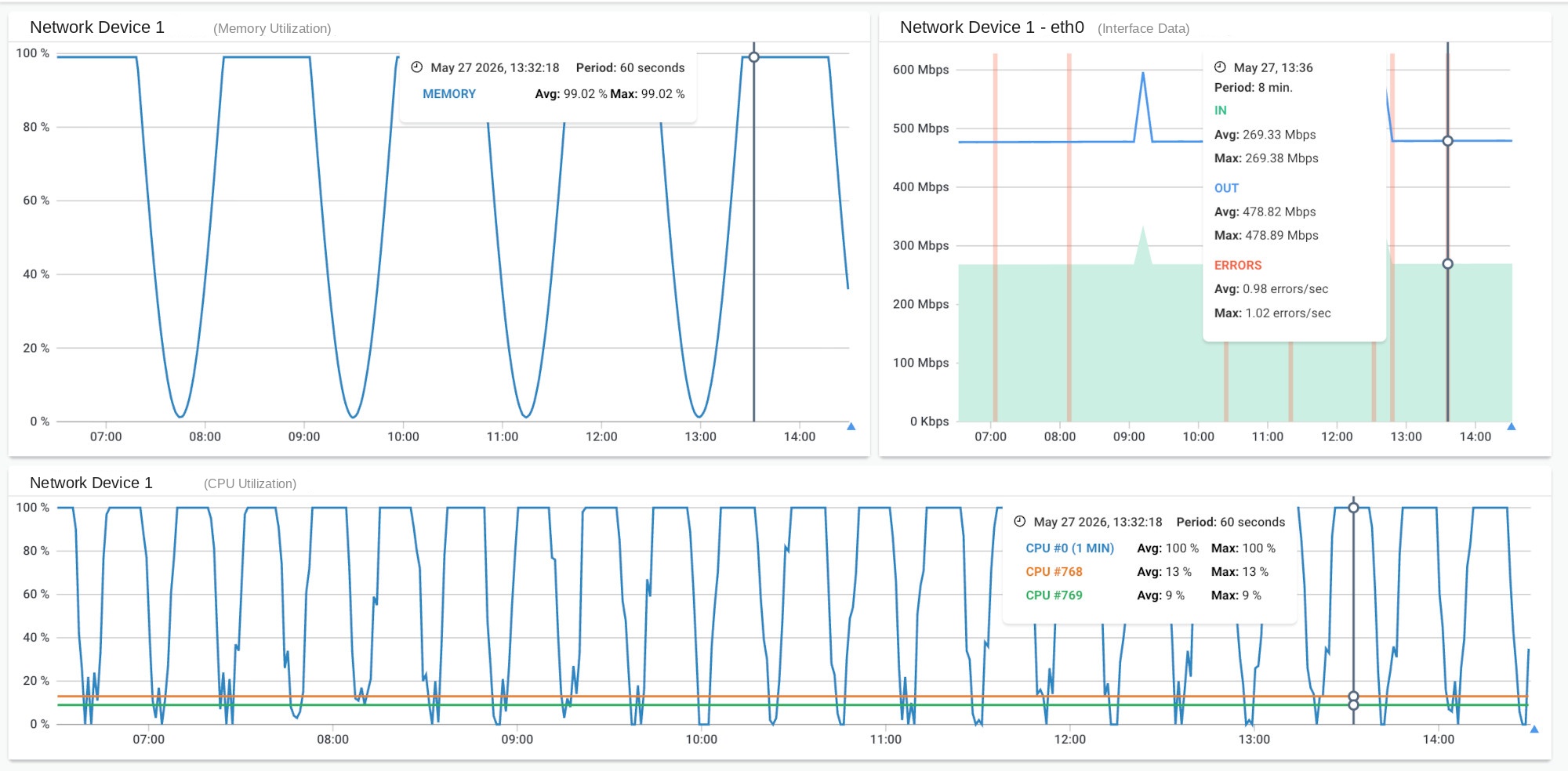
Firmware updates introduce these issues, but so do configuration changes that activate code paths that were not previously exercised. A new feature being enabled, a new object being referenced in policy, or a change to an existing rule can all trigger unexpected process behaviour in certain firmware versions.
High CPU Usage Cause #6: Undersized Network Hardware
The device was never the right fit for the load it is carrying, or it was, but the network has grown beyond what it was designed for.
Vendor spec sheets are optimistic by design. Throughput ratings are measured in controlled lab conditions with specific traffic profiles, often without security features enabled and with packet sizes set to maximize the numbers. Real-world firewall performance with IPS, SSL inspection, application control, and logging active is consistently 40 to 60% of the rated throughput figure, sometimes lower depending on the traffic mix.
The signs are consistent: CPU utilization tracking upward quarter over quarter on the same traffic base, degradation appearing at progressively lower traffic thresholds, and vendor support confirming the device is operating at the edge of its rated capacity.
High CPU Usage Cause #7: Network Device Misconfiguration
Configuration choices that seem reasonable in isolation can compound into meaningful CPU load at scale.
Excessive NAT rules increase the lookup time for every packet that requires address translation. Overly broad ACLs that match on large IP ranges or apply deep inspection to traffic that does not warrant it add processing overhead to every matching packet. Redundant security policies that inspect the same traffic class multiple times, often a result of rule sets that have grown organically over the years, multiply that overhead further.
Logging verbosity is a frequently overlooked factor. Session timeout values that are too long keep state table entries alive beyond their useful life, which bloats the connection table and adds lookup overhead for every new session. NAT hairpinning configurations, where internal hosts reach internal resources via the external IP, force all that traffic through the firewall rather than being switched locally, adding unnecessary session volume.
None of these individually is likely to cause a critical CPU overload. But on a device that is already running at 65 to 70% under normal load, the cumulative weight of misconfiguration can be enough to tip it over the threshold.

What Are the Symptoms of High CPU Usage on Network Devices You Should Not Ignore?
High CPU usage on a network device does not always announce itself clearly. Some symptoms look like application problems. Some look like ISP issues. Some do not show up in your monitoring at all. Knowing which patterns point to the firewall CPU is what gets you to the right diagnosis faster.
Symptom #1: Packet Loss That Tracks Business Hours
Intermittent packet loss that is worse during business hours and clean overnight is a strong CPU signal. It scales with user activity, which scales directly with traffic volume and CPU load. If your ISP circuit or LAN infrastructure were the cause, the timing pattern would be less consistent.
Symptom #2: Latency Spikes at Predictable Times
CPU-driven latency tends to be time-correlated. Spikes at 9am when users log in, at noon during peak activity, and again mid-afternoon. If the latency recovers quickly and follows that rhythm day after day, the firewall is the most likely source. Random or sustained latency without a traffic pattern points elsewhere.
Symptom #3: VPN Tunnel Drops Under Load
Tunnels that hold stable overnight but disconnect repeatedly during business hours are a reliable indicator of firewall CPU strain. The device is missing keepalives under load. If reconnecting the tunnel works immediately and it drops again the next morning, the hardware is the constraint, not the VPN configuration.
Symptom #4: Traceroute Showing Delay at the Firewall Hop
Run a traceroute from the LAN to a WAN destination. If the hop that corresponds to your firewall shows 80 to 150ms while every hop before and after it shows 1 to 3ms, the bottleneck is local to the device. That specific pattern rules out the ISP and the LAN in one shot.
Symptom #5: Poor VoIP or UC Call Quality During Peak Hours
Choppy audio, one-way audio, and dropped calls that only occur during business hours and clear up in the evening are textbook firewall CPU symptoms. Voice traffic is the first to degrade visibly because even small amounts of jitter and packet loss destroy call quality. If your MOS scores drop predictably at peak hours, start at the firewall before looking at the carrier.
Symptom #6: Your Monitoring Says Everything Is Fine
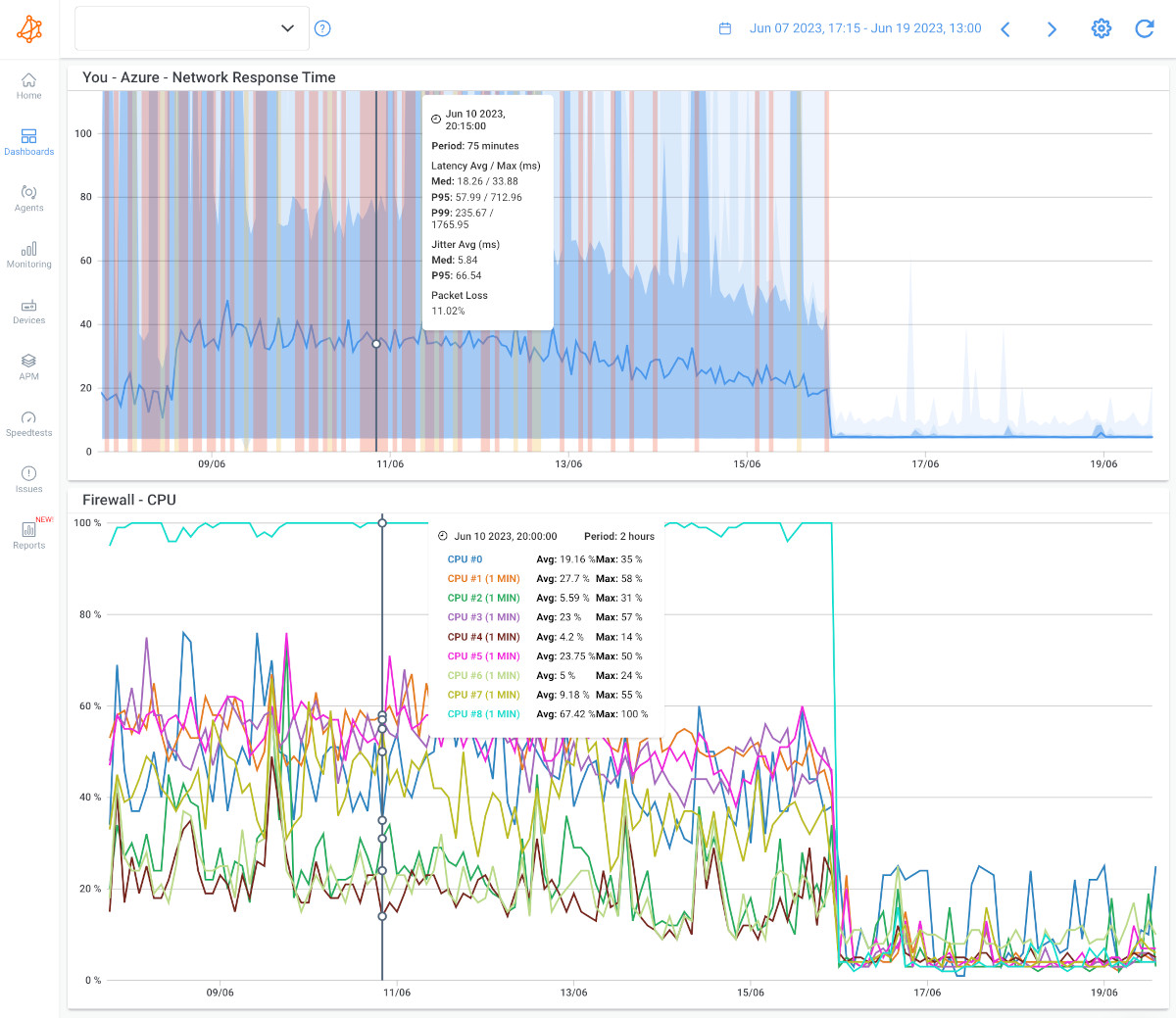
This is the most dangerous symptom on the list because it actively delays the investigation. Standard SNMP polling at 5-minute intervals averages out short-duration spikes. A firewall CPU that hits 92% for 75 seconds and then recovers looks like 45% on your dashboard. Users are complaining. Your graphs show nothing. The instinct is to blame the application or the ISP, and the firewall gets a clean bill of health it does not deserve.
If your monitoring interval is 5 minutes and your symptoms are intermittent, the data you are looking at is not showing you what is actually happening.
How to Troubleshoot High CPU Usage on a Network Device
High CPU on a network device can stem from half a dozen different root causes, and the fix for each one is different. Jumping to a solution before you've confirmed the cause is how you end up rebooting a firewall that needed a firmware update, or upgrading hardware that needed a rate-limiting rule.
The steps below are sequenced to narrow the problem from the outside in: confirm the CPU is actually the issue, identify what's driving it, then isolate where it's coming from.
Step 1: Confirm That High CPU Usage Is Actually the Problem
Before assuming, verify. Pull current CPU stats directly from the device.
On Cisco IOS:
show processes cpu sorted 5sec
show processes cpu history
On Cisco ASA:
show cpu usage
show processes cpu-usage sorted non-zero
On FortiGate:
get system performance status
diagnose sys top
What you are looking for: is CPU elevated right now, and has it been elevated recently? The process-level output tells you which process is consuming the most.
If you are using a monitoring tool, the next question is whether your polling interval is fast enough to catch what is actually happening. Standard SNMP polling at 5-minute intervals will miss any spike that peaks and recovers in under a few minutes.
Obkio's Network Device Monitoring uses SNMP polling at 30-second intervals, which is 10 times more granular than the industry default. That difference matters enormously for intermittent CPU spikes. A spike that lasts 90 seconds and then recovers will show up clearly on a 30-second graph. On a 5-minute graph, it disappears into the average and you never know it happened.
Obkio also handles OID detection automatically, so you do not need to know the vendor-specific OID for CPU utilization on every device in your network. Add the device, and Obkio figures out what to poll.

- 14-day free trial of all premium features
- Deploy in just 10 minutes
- Monitor performance in all key network locations
- Measure real-time network metrics
- Identify and troubleshoot live network problems

Step 2: Identify Which Process Is Consuming CPU
Once you know CPU is elevated, run process-level commands on the device (examples above). You are looking for anything consuming more CPU than it should relative to what the device is doing.
Cross-reference what you find with recent changes. Was a firmware update applied in the last few days? Was a new security policy added? Did someone enable SSL inspection for the first time? Configuration changes are the most common trigger for runaway process issues.
If a single process is consuming a disproportionate share of CPU with no clear traffic-based explanation, suspect a firmware bug and check vendor release notes before going further.
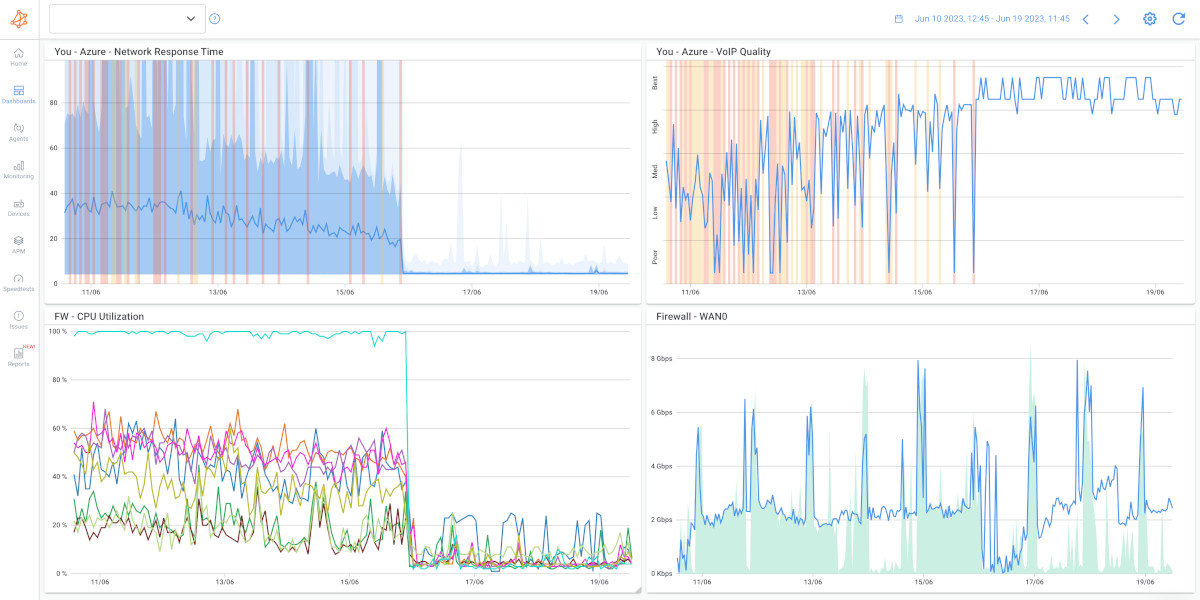
Step 3: Correlate CPU Spikes with Traffic Volume
Pull interface throughput data for the same time window as the CPU spike.
If bandwidth utilization and CPU spiked at the same time, you are looking at a traffic volume or feature load problem. The device is being asked to process more than it can handle.
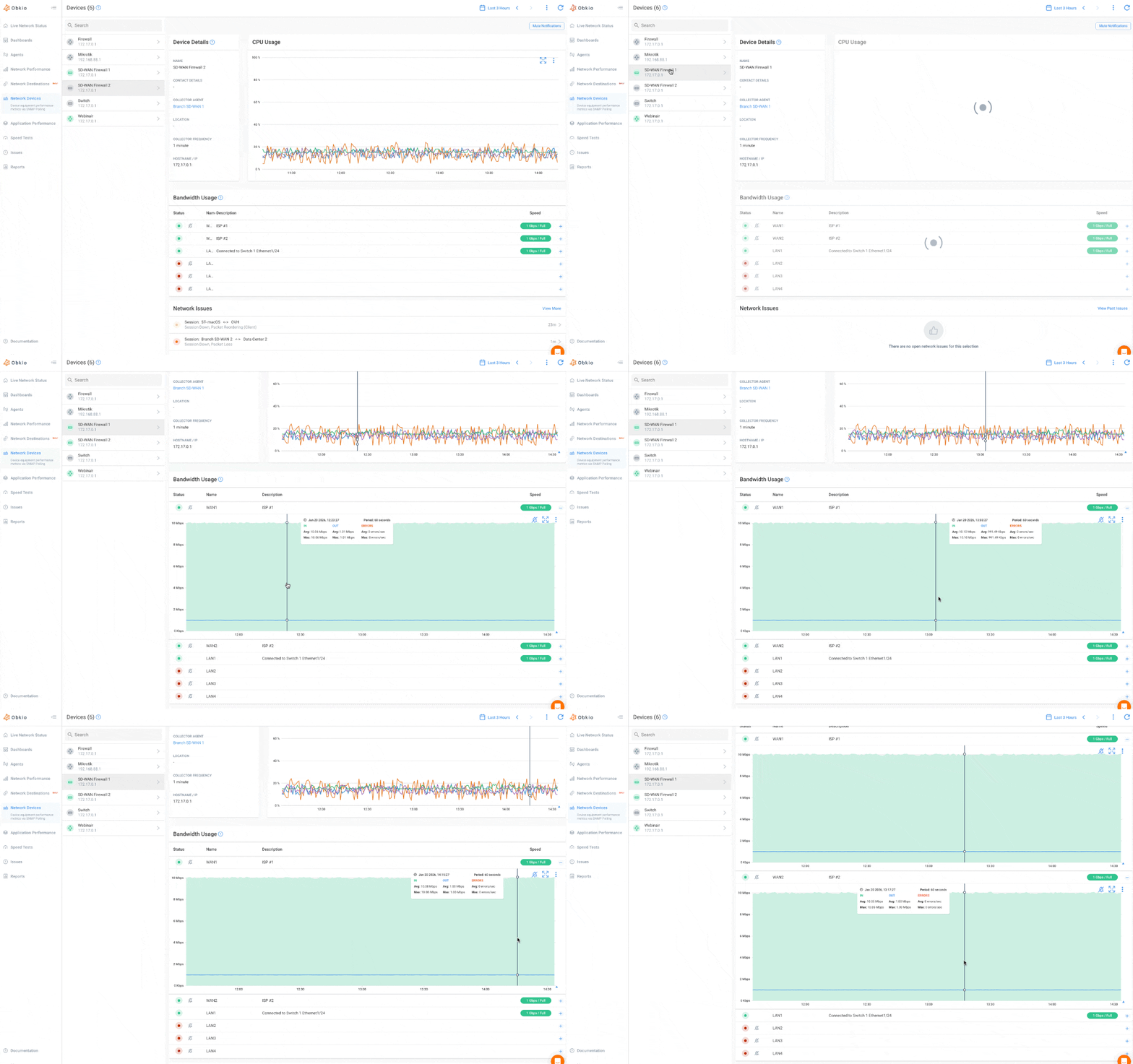
If CPU spiked with no corresponding traffic increase, suspect one of three things: a runaway process, a firmware issue, or attack traffic that looks small in volume but is CPU-intensive to process (like a SYN flood using many source IPs).
This correlation step is where having the right monitoring tool makes a significant difference. Obkio captures both CPU utilization (via SNMP) and session performance metrics (packet loss, latency, jitter) on the same timeline. You do not need to manually compare two separate graphs from two separate tools. The data is already aligned.
Step 4: Check for Abnormal or Malicious Traffic
Look at interface-level traffic and session tables for anything unusual.
On Cisco ASA:
show conn count
show local-host
On FortiGate:
diagnose sys session stat
diagnose ip router ospf
What you are looking for: a single source IP consuming a disproportionate share of bandwidth or sessions, an abnormally high number of half-open TCP sessions (SYN flood indicator), broadcast traffic volumes that exceed anything normal, or a high rate of small-packet traffic.
If you find evidence of attack traffic, apply a temporary ACL or rate limit to contain the source while you investigate further. Do not wait.
Step 5: Audit Security Feature Load
This step applies when CPU correlates with traffic volume, and you have UTM features enabled.
Pick a maintenance window and temporarily disable non-critical UTM features one at a time: start with SSL inspection, then IPS, then application control. Monitor CPU after each change.
If CPU drops materially when you disable a specific feature, you have found your constraint. The question then becomes: is this a hardware capacity issue (the device cannot handle this feature load at current traffic volume) or a configuration issue (the feature is applied too broadly, and inspecting traffic, it does not need to).
In many cases, scope reduction fixes the problem without hardware changes. SSL inspection applied to all traffic is far more expensive than SSL inspection applied to untrusted external categories only.
Step 6: Isolate Whether the CPU Problem Is From the Firewall or the Network
This is where you need to answer a specific question: is the degradation originating at the firewall, or is it coming from upstream or downstream?
A traceroute gives you a directional answer. If the firewall hop shows 80ms while the hops before and after show 2ms, the problem is local to the firewall.
For a more rigorous answer, Obkio's Sandwich Method gives you a structured approach. You deploy Obkio monitoring agents on three segments simultaneously: the LAN side of the firewall, the DMZ (if applicable), and the WAN side.
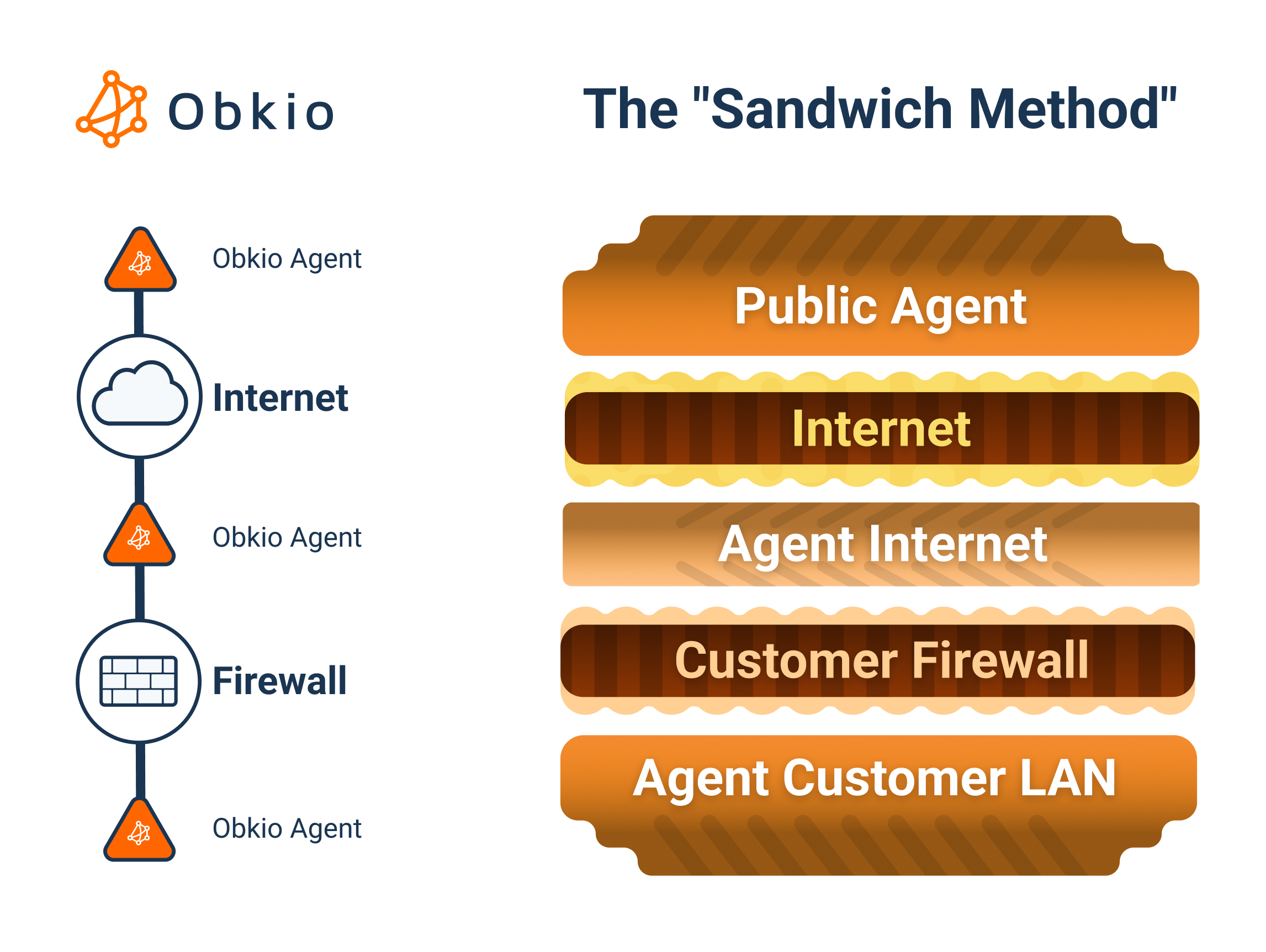
Each agent-to-agent session measures packet loss, latency, and jitter independently. By comparing the three measurement segments against each other on the same timeline, you can pinpoint exactly where degradation starts and stops. If LAN-to-DMZ is clean but LAN-to-WAN shows packet loss, the problem is between the DMZ and the WAN, which in most architectures means the firewall is the culprit.
This segmentation takes minutes to set up and eliminates hours of guessing.
Step 7: Establish a Baseline and Set CPU Usage Thresholds
You cannot recognize abnormal without knowing what normal looks like. After your initial troubleshooting, take time to document your baseline.
What is the typical CPU utilization during business hours? During peak load? Overnight? How does that correlate with traffic volume? What is the normal session count?
From that baseline, set alerting thresholds. A reasonable starting point for most firewall deployments:
Alert at sustained 70% CPU for more than 5 minutes. Critical at 85% sustained. Page at 90%.
Sustained matters. A brief spike to 75% during a large file transfer is normal. Sitting at 75% for 20 minutes is not.
Obkio's Device Monitoring lets you configure these thresholds and sends alerts when they are breached. Because polling is at 30-second intervals, the alert fires fast enough to be actionable before users are already calling the help desk.
How to Fix High CPU Usage on a Network Device
Fixing high CPU usage depends entirely on the cause. Restarting a process or rebooting a device might clear the symptom temporarily, but if the underlying cause is a traffic volume problem, a misconfigured feature, or hardware that was never sized for the current load, the issue comes back.
Once you've identified what's actually driving CPU utilization, the path forward is usually straightforward.
Impement QoS to Manage Traffic: Implement QoS policies to prioritize critical traffic. Apply rate limiting to non-business traffic. If traffic has genuinely outgrown the hardware, the conversation shifts to sizing a replacement.
Audit UTM Features: Audit which UTM features are actually delivering value at their current scope. SSL inspection applied to internal-only traffic is probably not worth the CPU cost. Review each feature's coverage and narrow it to where it matters.
Attack traffic: Deploy ACLs to block identified sources. Enable rate limiting at the firewall perimeter. Engage your ISP or upstream DDoS mitigation service for volumetric attacks that are saturating your circuit before they even hit the firewall.
Update Firmware: Check vendor release notes for known issues matching your firmware version. Apply the latest stable firmware in a maintenance window. If the issue persists after a firmware update, open a support case with the vendor.
Upgrade Your Hardware: This one requires honest accounting. Vendor throughput specs are measured under ideal conditions with security features disabled. Real-world throughput with IPS, SSL inspection, and application control enabled is often 40 to 60% of that number. Add your current traffic volume and projected growth, then size accordingly. Buying to spec is buying to yesterday.
Troubleshoot Misconfigurations: Run a ruleset audit. Look for duplicate rules, overly broad ACLs that inspect everything, and logging levels that write verbose data on every session. Reducing log verbosity alone can measurably reduce CPU load on a busy device.
How Obkio Automatically Detects High CPU on Your Firewall
Manual troubleshooting works. But it is slow, especially for intermittent issues that spike and recover faster than you can log in and pull a command.
SNMP Device Monitoring
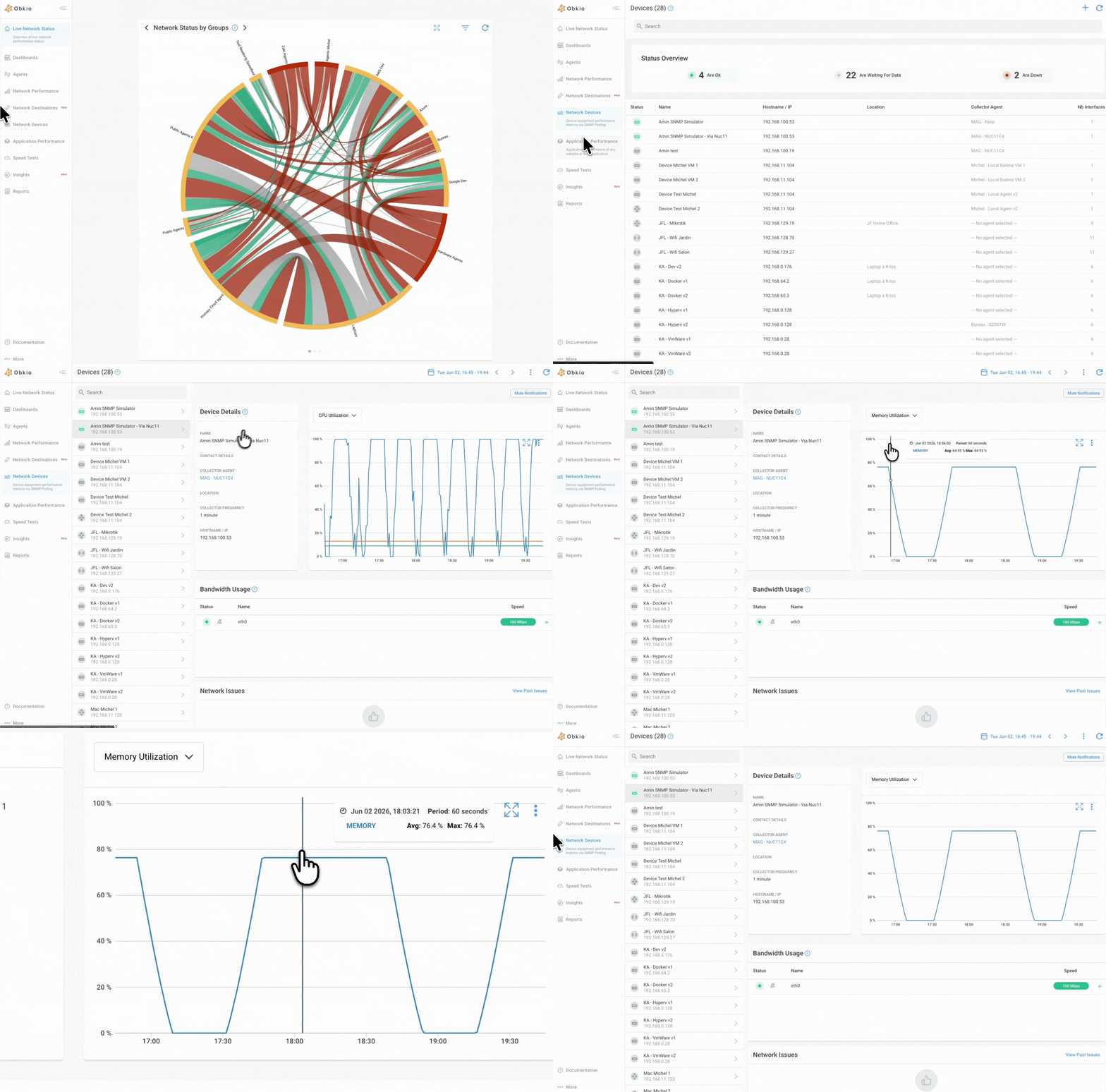
Obkio Device Monitoring polls CPU, bandwidth, memory, and other SNMP metrics at 30-second intervals. You add your firewall, Obkio detects the right OIDs automatically, and within minutes you have a continuous CPU utilization graph with historical data. Spikes that last 60 seconds show up clearly. No more averaged-away peaks.
Automatic Network Diagnostics
Obkio Insights is Obkio's automatic network diagnostics engine (currently in beta). It correlates Device Monitoring data with session performance data in real time. When high CPU on the firewall is in line with packet loss events on the network, Insights surfaces the diagnosis in plain language rather than requiring you to manually compare two separate graphs. You get a clear statement of what is happening and where, without the manual detective work.
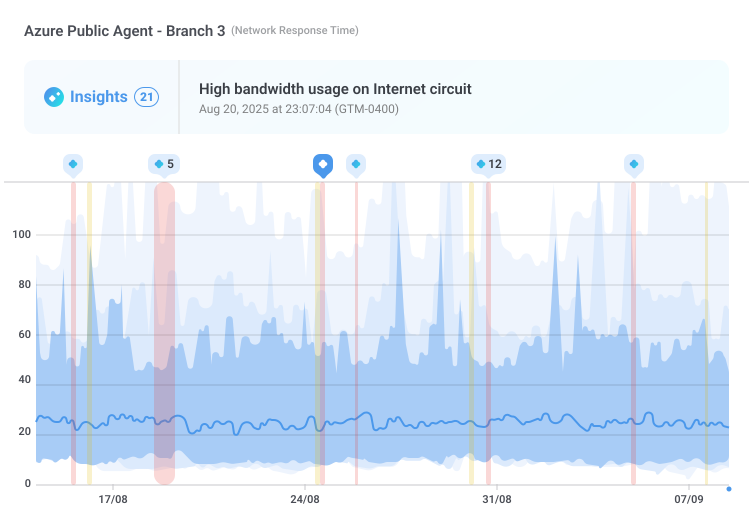
The Sandwich Method, combined with Obkio agents deployed on both sides of your firewall, gives you independent segment-by-segment measurement. When your firewall is the source of degradation, the data makes it obvious within minutes of the event starting.
Teams that have deployed Obkio in front of and behind their firewall regularly catch CPU-driven degradation that their previous monitoring missed entirely. Not because the monitoring was turned off, but because 5-minute polling intervals were smoothing out everything that mattered.
Get Started with Obkio
If you are troubleshooting intermittent network issues and your current monitoring is not giving you the resolution you need, Obkio's 14-day free trial gives you access to full Device Monitoring with 30-second SNMP polling, network agent deployment, and the Sandwich Method for firewall isolation. No credit card required.

Frequently Asked Questions about Network Device CPU Usage
What is considered high CPU usage on a firewall?
Sustained CPU utilization above 70 to 80% for several minutes is the threshold where most firewall platforms begin to degrade. Brief peaks above this during traffic bursts are normal. Sustained elevation is not. Set your alerts at 70% sustained to give yourself time to act before users notice.
Can high CPU cause packet loss?
Yes, directly. When the firewall CPU cannot process packets fast enough, packets queue up and eventually get dropped. The packet loss you see on your monitoring is the output of the CPU being unable to keep up with the input rate.
How do I check CPU usage on a Cisco firewall?
On a Cisco ASA, use show cpu usage for a current reading and show processes cpu-usage sorted non-zero for a per-process breakdown. On Cisco IOS, show processes cpu sorted 5sec gives you the top CPU consumers sorted by recent utilization.
Why does my firewall CPU spike during business hours?
Because CPU load scales with traffic volume and active sessions, both of which peak when users are working. If your firewall CPU spikes at 9am and again at lunch, that is normal load behaviour. If it spikes and stays elevated, or if the spike is significantly higher than it used to be, something has changed: more traffic, more users, new security features, or a growing mismatch between hardware capacity and current demand.
Does enabling UTM features increase CPU usage?
Significantly. Each UTM feature adds processing overhead per packet. SSL inspection is the heaviest single feature because it requires full decryption and re-encryption of every HTTPS session. IPS adds signature matching per packet. Application control adds another classification layer. Stack all three and you can easily see 2 to 3 times the CPU consumption of a firewall running with UTM disabled.
How often should I poll SNMP for CPU data?
The industry default of 5 minutes is too coarse for firewall troubleshooting. CPU spikes that cause real user impact can peak and recover in under 2 minutes. Poll at 30 seconds or less to reliably catch them. Obkio polls at 30-second intervals by default.
What is the difference between CPU usage on a switch vs. a firewall?
On a switch, most traffic is forwarded by ASICs in hardware without involving the CPU at all. CPU on a switch typically stays very low even under heavy traffic load. On a firewall, the CPU is the primary processing path for inspected traffic. More traffic and more security features mean more CPU. The two devices have fundamentally different CPU utilization profiles, and high CPU on a firewall is far more common and impactful than high CPU on a switch.
Try Obkio Free: A Real-World Lesson in Troubleshooting High CPU Usage
High CPU usage on a firewall is one of the most underdiagnosed causes of network problems. The reason is almost always the same: the monitoring data looks fine, nobody checks further, and users keep complaining while the investigation points at the wrong place.
That is exactly what happened to Station 22, a regional distributor supplying grocery, convenience, and liquor stores for over three decades.
- Their network started degrading.
- VPN connections were dropping.
- Microsoft Teams calls were breaking up.
- Remote users were calling in daily.
The infrastructure IT manager checked every available tool. Everything was green. The firewall's own CPU graph showed 40%.
What those tools could not show was what was happening between polling intervals. The firewall CPU was spiking well above 40% in short bursts, peaking and recovering fast enough to be averaged away by every 5-minute polling cycle they had.

Within 48 hours of deploying Obkio, the picture changed. With 30-second SNMP polling capturing CPU usage per core, the spikes that were invisible before showed up clearly. The correlation between those peaks and the packet loss, VoIP degradation, and VPN drops became undeniable.
- The installation took 15 minutes.
- The diagnosis took two days.
That gap between what the dashboard shows and what is actually happening is the core problem with firewall CPU troubleshooting. The steps in this article give you a path through it. But none of them work without data that actually reflects what the device is doing.
Read the full Station 22 case study to see exactly how the diagnosis unfolded.
- 14-day free trial of all premium features
- Deploy in just 10 minutes
- Monitor performance in all key network locations
- Measure real-time network metrics
- Identify and troubleshoot live network problems
Get started in minutes, for free, with Obkio’s Free Trial.

