











 Obkio Blog


 Subscribe
Table of Contents
Table of Contents
Your connection holds up all day. Then, in the evening, video calls start to stutter, pages take longer to load, and file uploads slow to a crawl. By the next morning, everything is back to normal, so any test you run during the day comes back clean.
For a business, that pattern shows up in a few ways. A remote employee can’t get through an evening call. A branch office’s nightly backup never finishes. An MSP’s client blames the network for a problem that’s actually in their ISP’s network.
Your Internet is slow at night because evening peak hours push demand past the available capacity, either in your ISP’s network, between providers or on your own connection. Speeds drop, and latency and packet loss go up, until traffic eases off. Backups, updates and streaming that run after hours can fill your own connection too.
What are Internet Peak Hours? 
Internet peak hours are the evening hours when the most people are online at once. In its broadband performance reports, the FCC defines the peak period as weeknights from 7 pm to 11 pm local time.
Your Internet connection isn't a dedicated pipe. Part of the path is shared: with other customers in your area, across your ISP's network, and over the links between your ISP and other networks. ISPs size that capacity for typical demand, not for everyone streaming, gaming and on calls at the same time. When evening traffic goes past what a link can carry, packets queue up or get dropped. Speeds fall, and latency and packet loss rise until demand eases off.
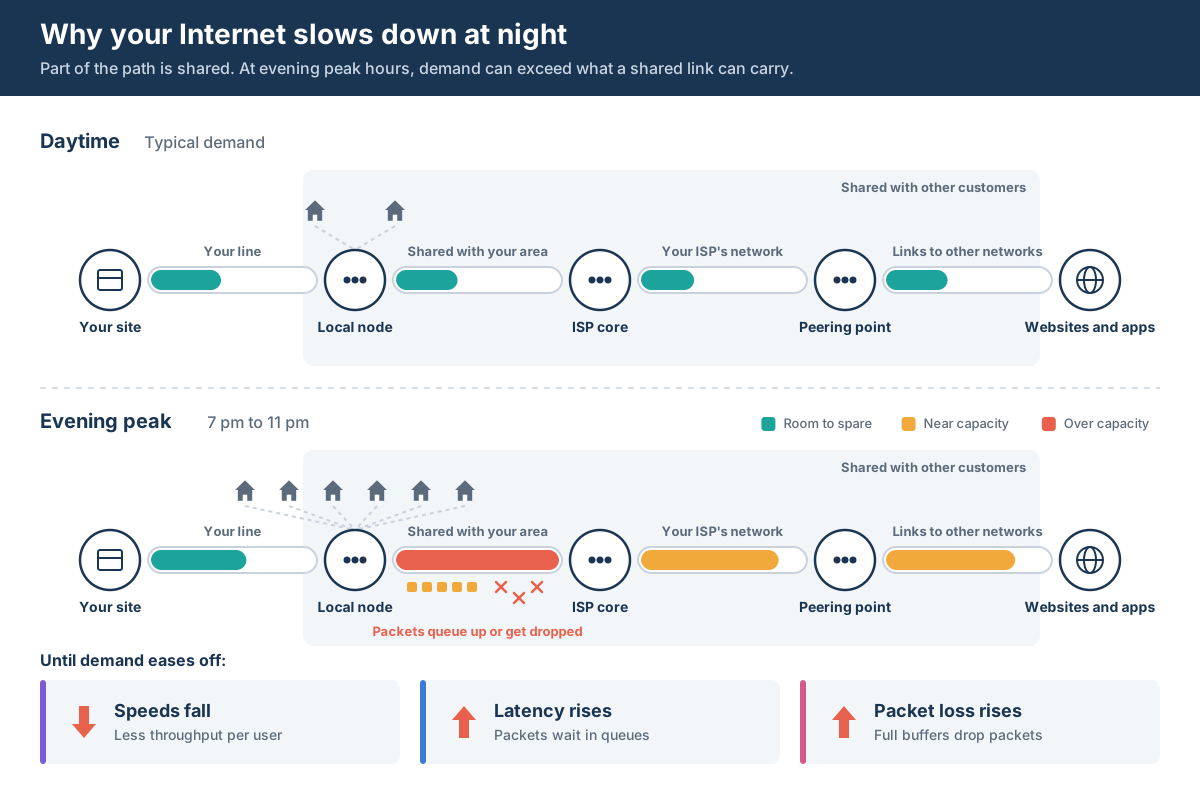
For businesses, peak hours matter in two ways. Remote employees on residential connections hit the same evening peak as everyone else in their neighbourhood. On top of that, after-hours jobs like backups, cloud sync and updates often run during that same window.
6 Reasons your Internet is Slow at Night
Evening slowdowns come from one of two places: capacity you share with others, or capacity you're using up yourself. Each cause leaves a different pattern, and that pattern tells you where to look.
1. Your ISP's network is congested
This is the most common cause. ISP congestion happens when too many customers send traffic through the same part of your ISP's network, whether that's the local segment, an aggregation point or the ISP's core. The slowdown starts around the same time every evening, affects every device and every destination, and happens on wired connections too. Meanwhile, your own bandwidth usage looks normal.
2. Traffic is congested between providers
Your ISP's network can be fine while the links between your ISP and other networks are full. These are the peering and transit connections where your traffic leaves your ISP's network, and peering congestion on those links slows down only some services, such as one cloud app, one region or one streaming platform, while everything else works normally.
In a traceroute, latency or packet loss jumps at the hop where your traffic leaves your ISP's network.

Learn what causes Internet congestion, how to detect it on your network, and how to fix it before users notice.
Learn more

3. Your own connection is full
Sometimes the bottleneck is your own connection. Backups, cloud sync, patch windows and security camera uploads tend to be scheduled after hours, and they can use up your whole connection right when people at home or on call need it.
If you monitor your bandwidth usage and it's near your circuit's capacity whenever the slowdown happens, your ISP isn't the cause. Look at what's scheduled and when.
4. Someone is uploading (bufferbloat)
A busy upload can slow down everything else, even when there's plenty of download capacity left. This is bufferbloat: when the router or modem queues too much upload traffic, latency spikes for everyone on the network.
The pattern: download speed tests look fine, but calls break up, pages hang, and gaming lags whenever a large upload is running.
5. Your Wi-Fi is competing with your neighbours' networks
If your Wi-Fi is slow at night but your wired connection isn't, the problem is wireless. In the evening, the most nearby networks are busy, so interference goes up, especially on 2.4 GHz and in apartments or shared office buildings. Compare Wi-Fi and wired at the same time.
If the wired connection holds up, focus on the Wi-Fi channel, the band and where the access point sits. For other causes of slow wireless, see Wi-Fi issues.
6. Your ISP is managing traffic
Some ISPs slow down certain types of traffic during peak hours, or slow everything down once you pass a data cap. In that case, specific traffic like streaming, large downloads or VPN tunnels slows down consistently while the rest of your traffic stays normal.
Throttling is harder to prove than congestion, and a gap in speed with and without a VPN is a common first check. Here's how to tell if your ISP is throttling your business Internet.

Is your ISP throttling your Internet? Learn how to tell ISP throttling from congestion, test it step by step, prove it to your ISP with data & stop it.
Learn more
Is it Your ISP or Your Network Causing Slow Internet at Night?
The six causes fall into two groups. Problems on your side are yours to fix. Problems on your ISP's side are yours to prove. The quickest way to tell which group you're in is to match what you see to the pattern each cause leaves.
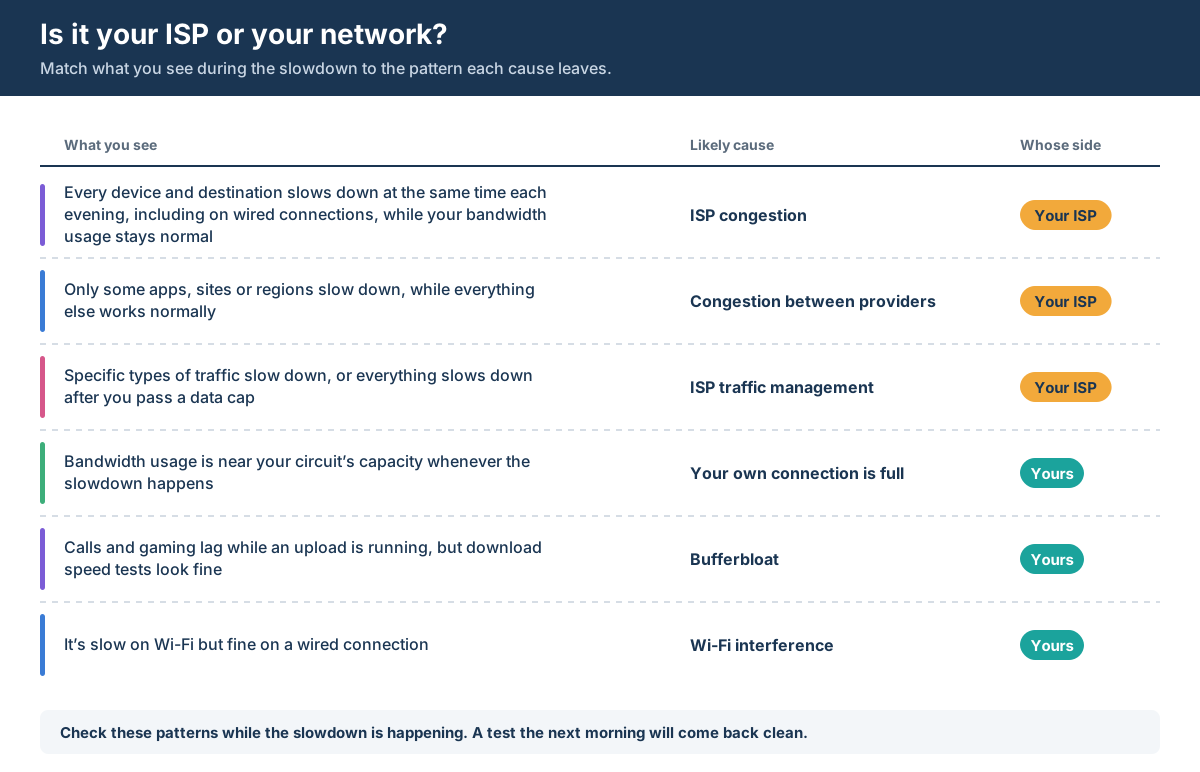
When the problem is on your ISP's side, the slowdown doesn't depend on what you're doing. If every device and destination slows down at the same time each evening, including on wired connections, while your own bandwidth usage stays normal, that points to ISP congestion.
If only some apps, sites or regions slow down while everything else works normally, the congestion is likely between your ISP and a provider it connects through. If specific types of traffic slow down, or everything slows down once you pass a data cap, your ISP is likely managing traffic.
When the problem is on your side, it follows your own usage. If bandwidth usage is near your circuit's capacity whenever the slowdown happens, your own connection is full. If calls and gaming lag while an upload is running but download speed tests look fine, it's bufferbloat. If it's slow on Wi-Fi but fine on a wired connection, it's Wi-Fi interference.
Every one of these patterns depends on data collected during the slowdown. A speed test the next morning will come back clean, so the next step is to test while the problem is happening.
How to Find Out Why Your Internet is Slow at Night
Finding the cause of an evening slowdown is a process of elimination. The five steps below start with the quickest checks on your side, Wi-Fi and your own bandwidth usage, and work outward to your ISP's network and the links beyond it. Each step rules out one or more of the causes from the previous section.
Timing matters more than which tools you use. An evening slowdown is gone by morning, so every test needs to run while the problem is happening, and at least once off-peak so you have something to compare against. If the problem turns out to be on your ISP's side, those same results become the evidence you send them.
1. Run a speed test at peak and off-peak hours
Run a speed test during the slowdown, then again in the morning or early afternoon. If your Internet speed is slow at night but normal during the day, the slowdown follows demand, not a fault on your line. Look at latency and packet loss as well as download speed. Congestion usually shows up as higher latency before throughput drops.
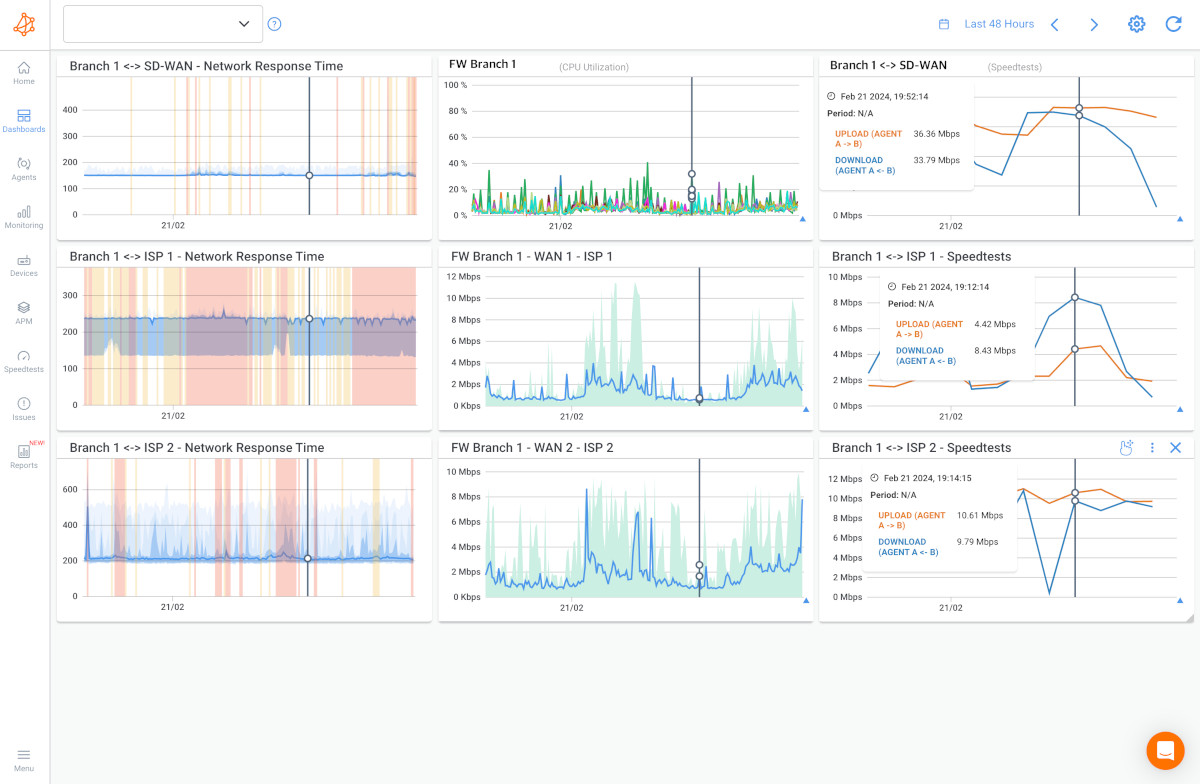
A one-off browser test only shows the moment you ran it. With a network monitoring and diagnostics solution like Obkio, Monitoring Agents (lightweight software, hardware, or virtual agents deployed at your site) run speed tests from your location, so you can compare peak and off-peak results without being there when the slowdown starts.
2. Test over a wired connection
Plug a computer into your router or switch and run the same test. If the wired connection holds up while Wi-Fi drops, the problem is wireless, and you can stop here. If the wired connection is slow too, move on to the next step.
3. Check your bandwidth usage and scheduled jobs
Check bandwidth usage on your router or firewall during the slowdown. If usage is near your circuit's capacity, find out what's running and when: backups, cloud sync, updates, security camera uploads. Jobs that upload a lot of data can also cause bufferbloat, so check upload usage as well as download.
4. Run a traceroute while it's slow
If your bandwidth usage is normal and the wired connection is still slow, run a traceroute to an affected service during the slowdown and another one off-peak. Then compare where latency or packet loss starts.
If it starts at a hop inside your ISP's network, that points to ISP congestion. If it starts at the hop where your traffic leaves your ISP's network, that points to congestion between providers. One thing to watch for: if a single hop shows high latency but the hops after it don't, that's usually a router putting traceroute replies at low priority, not real congestion.
Obkio's Visual Traceroute runs traceroutes from your Monitoring Agents and maps every hop, so you can put a run from during the slowdown next to an off-peak one and see where the path changes.
5. Monitor Internet speed around the clock
Steps 1 to 4 only capture single moments. Evening slowdowns come and go, so a single test can miss one, and a single result won't convince your ISP. Continuous monitoring runs the same tests all day and all night, so you can see the evening drop against your daytime baseline and know when it started.
Obkio keeps running performance tests between your site and the Internet, so the evening pattern shows up next to your daytime baseline without anyone having to catch it in the act.


How to Automatically Diagnose Internet Slowdowns at Night
Monitoring tells you when your Internet slows down. Working out why takes longer, and the steps above are hard to repeat every evening.
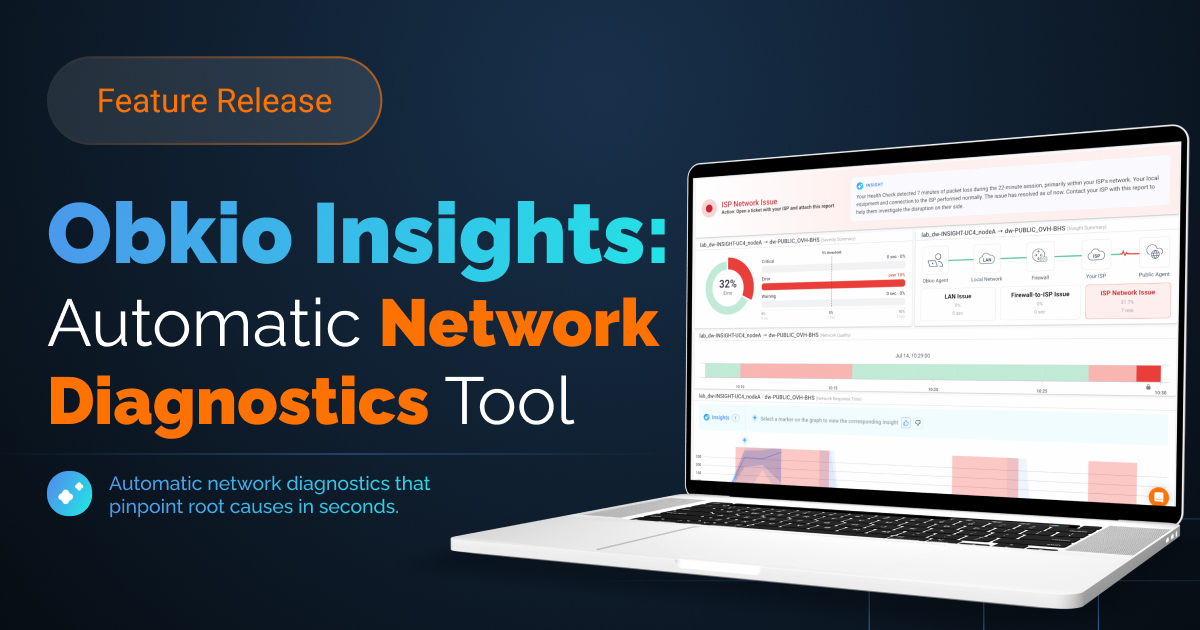
Obkio Insights is Obkio’s automated diagnostics feature. Instead of leaving you to read graphs and compare traceroutes yourself, it analyzes the data Obkio already collects and tells you what’s causing the problem. It cross-references several sources at once: network performance sessions between your Monitoring Agents, Visual Traceroute results, speed tests, device metrics from your firewalls and routers, and system stats from the agents themselves.
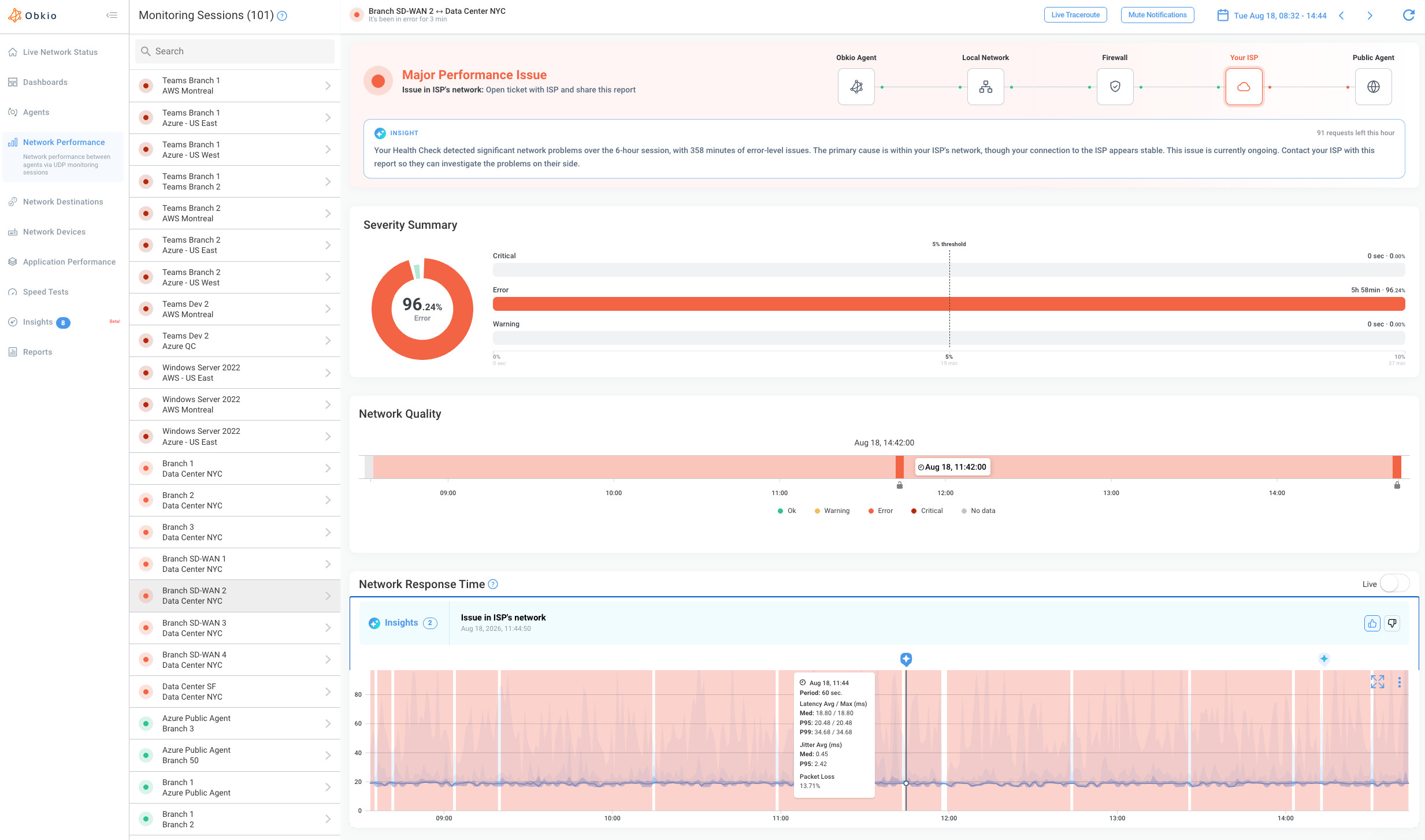
When it finds a problem, Insights names the likely root cause, such as packet loss in your ISP’s network, bandwidth saturation, or high CPU or memory on a firewall. It also shows where on the path the problem is happening and the data that points to it. That makes the answer something you can act on, or send to someone else.
For an evening slowdown, that usually leads to one of two answers.
When the Internet slowdown is in your ISP's network
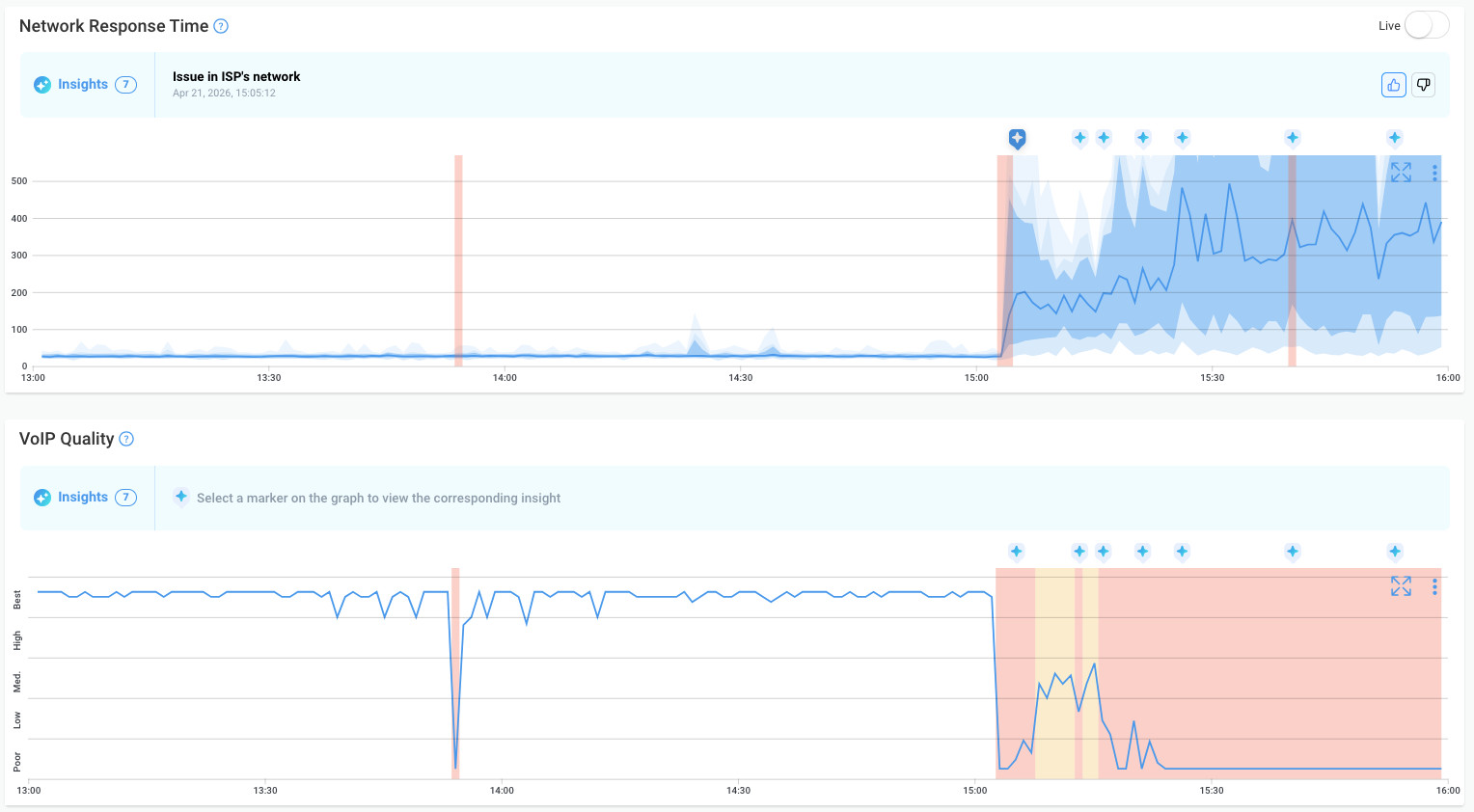
The "Issue in ISP's network" Insight appears when performance between your site and a public monitoring agent drops and the traceroutes show the drop happening between two public IP addresses, after your network ends. Obkio has already mapped your gateway, so the Insight rules out your side before pointing at your ISP. That keeps you from opening a ticket for a problem in your own network.
The traceroutes behind the Insight show which hop is affected, so you can tell whether the congestion is inside your ISP's network or where your traffic leaves it.
When the slowdown is in your network
If your own connection is full, Insights flags bandwidth saturation instead. It uses the bandwidth data that Network Device Monitoring polls from your firewall or router every 30 or 60 seconds, so you can see when the link reached capacity and compare that with your backup or sync schedule. If heavy evening jobs push your firewall to its limit, Insights also flags high CPU or high memory on the device.
Either way, "the Internet is slow at night" becomes a named cause and an owner, which is what you need before you contact your ISP.
How to Prove to Your ISP that Your Internet Slows Down at Night
If you tell an ISP "it's slow at night," the first thing they usually do is run a test. By then it's the next morning, the test comes back clean, and the ticket gets closed. To get past that, you need to show them the slowdown as it happened, over several nights, with the hop where it starts.
Obkio's Shareable Link lets you send that evidence directly. You share a link to the monitoring session and its traceroutes, and your ISP's support team can open it without an Obkio account. They can change the time range themselves to compare evening and daytime performance, or look across several nights. You choose when the link expires, up to two years out, so it can stay open as long as the ticket does.
For MSPs, the same link is how you show a client that the slowdown is in the ISP's network, not in the network you manage.
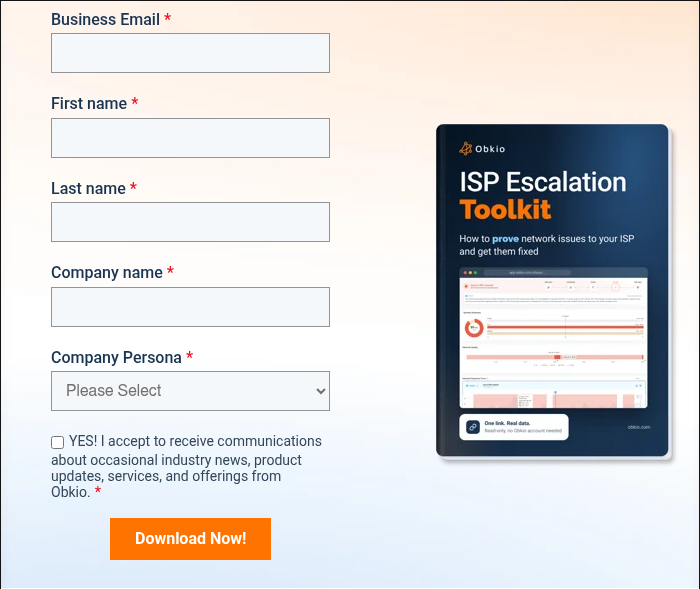
What you send with the link matters as much as the data. The ISP escalation toolkit includes a template email for your ISP and a guide to what to point out in the data: when the slowdown starts, how long it lasts, and the hop where latency or packet loss begins. That gives support a specific problem to escalate instead of a general complaint.
For the full escalation process, including what data to give your ISP and how to follow up if the first ticket goes nowhere, download the ISP Escalation Toolkit.
How to Fix Slow Internet at Night
The fix depends on whose side the Internet slowdown is on. Internet problems on your side you can usually fix the same day. Problems on your ISP's side you can't fix yourself, but you can make sure your ISP does.
If the Internet slowdown is on your side
If your own connection is full, start with the schedule. Move backups, cloud sync and updates out of the hours when people need the connection, or limit how much bandwidth they can use. If upload-heavy jobs are causing lag, set up QoS or smart queue management on your router or firewall so a large upload can't fill the buffer and slow everything else down.
If the problem is Wi-Fi, use a wired connection for anything that matters, switch from 2.4 GHz to 5 GHz, change to a less crowded channel, or move the access point closer to where people work.
Upgrade your connection only when the data shows your own link is full at peak hours. A faster plan won't help if the congestion is inside your ISP's network, since the bottleneck stays exactly where it was.
If the Internet slowdown is on your ISP's side
Open a ticket and include the evidence from the start: a Shareable Link to the monitoring session and traceroutes, plus the template email from the ISP escalation toolkit. Ask your ISP whether the local node or segment serving your area is congested at peak hours, and what they plan to do about it.
If the slowdown keeps happening after escalation, the options are on your side of the Internet SLA. You can move to a business-grade circuit with committed capacity, add a second ISP as a backup or failover link, or switch providers. Keep monitoring either way, so you can confirm whether the fix worked and hold your ISP to it if the slowdown comes back.

Unlock the secrets of Internet SLA monitoring, optimize your online experience, and hold your ISP accountable. Empower your Internet journey!
Learn more
Frequently Asked Questions About Internet Slowdowns at Night
1. Why is my Internet slow in the evening but fine in the morning?
Evening is peak usage time. Between about 7 pm and 11 pm, more people share the same capacity in your area, across your ISP's network and on the links to other networks. When demand exceeds what those links can carry, speeds drop, and latency rises. After-hours backups and updates can also fill your own connection at the same time.
2. Why is my Wi-Fi slow at night?
In the evening, your neighbours' Wi-Fi networks are busiest, so interference goes up, especially on 2.4 GHz and in apartments or shared buildings. To check, run a speed test over a wired connection at the same time. If the wired connection is fine, switch to 5 GHz, change channels or move your access point.
3. Will upgrading my Internet plan fix slow speeds at night?
Only if your own connection is full at peak hours. If bandwidth usage at your site is near your circuit's capacity, a bigger plan helps. If the congestion is in your ISP's network, a faster plan won't change anything, because the bottleneck is still in the same place. Check your bandwidth usage and run a traceroute before upgrading.
4. Is my ISP throttling my Internet at night?
It's possible. Some ISPs slow down certain types of traffic at peak hours or after a data cap. Throttling usually affects specific traffic, like streaming or VPN tunnels, while congestion slows everything down. Compare performance with and without a VPN, and see Is your ISP throttling your business Internet?
Catch the Next Evening Internet Slowdown as it Happens
Slow Internet at night almost always has a cause you can find: a congested link in your ISP’s network, a connection that’s full after hours, or Wi-Fi competing with your neighbours. What makes it hard is timing. By the time anyone looks, the slowdown is gone.

Obkio tests your connection all day and all night, Insights names the cause when performance drops, and a Shareable Link puts the evidence in front of your ISP. Deploy an agent today, and you’ll have data from tonight’s peak hours by tomorrow morning.


