











 Obkio Blog


 Subscribe
Table of Contents
Table of Contents
Your connection is fine in the morning and crawls every afternoon. Or video calls stutter while everything else loads normally. Either pattern could be ISP throttling. It could also be network congestion, or a problem inside your own network.
ISP throttling is when your internet service provider intentionally slows your connection based on how much data you use, the type of traffic you send, the time of day, or the plan you’re on.
Knowing throttling exists is the easy part. Proving it is harder. A single speed test can’t tell throttling apart from a busy network, and your ISP won’t act on “the Internet feels slow.”
This article covers how to tell throttling apart from other slowdowns, how to check for it step by step, how to prove it to your ISP, and how to stop it.
What Is ISP Throttling? 
ISP throttling is the intentional slowing of an Internet connection by the service provider. Instead of a network fault, it's a policy decision. The ISP limits bandwidth or delays certain traffic based on rules it sets, usually to manage congestion, enforce plan limits, or prioritize some traffic over others.
Throttling is typically done through traffic shaping. The ISP identifies traffic by type, volume, or destination, then caps its throughput or queues it behind higher-priority packets. The result looks like a slow connection, but the slowdown is selective and follows a pattern.
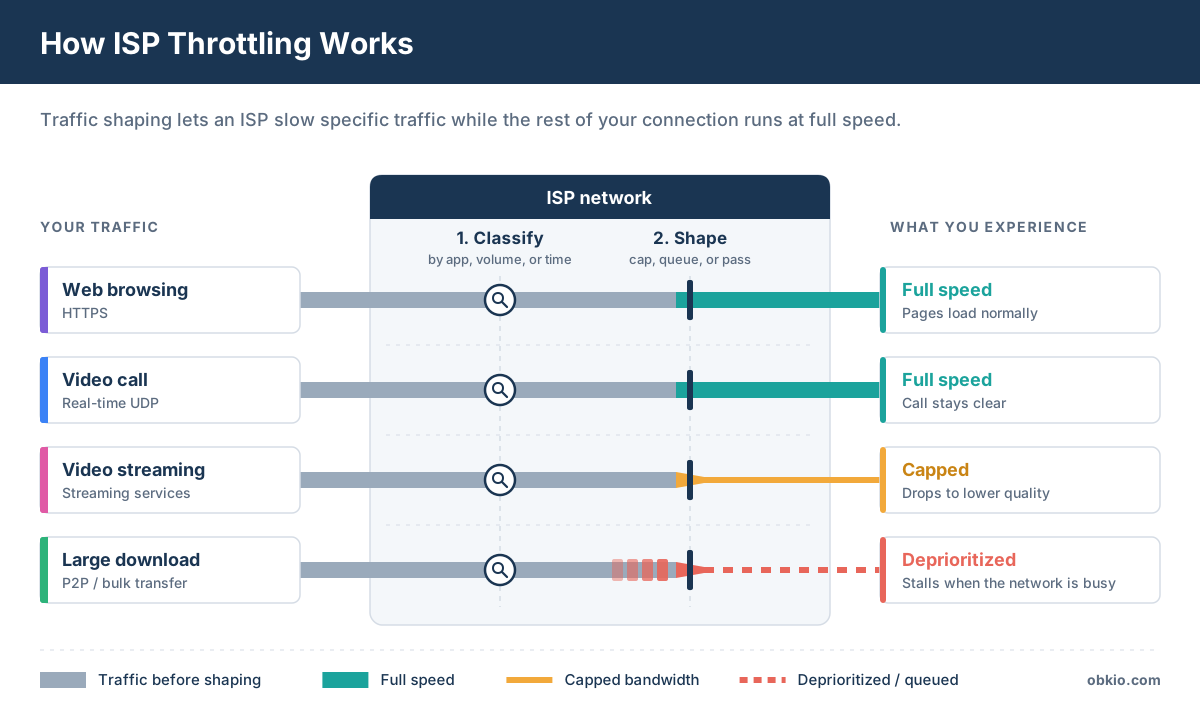
There are four common types of ISP throttling:
1. Bandwidth and Data Cap Throttling
The ISP reduces your speed after you pass a usage threshold during a billing cycle. Your connection still works, but at a fraction of the plan speed until the cycle resets. This is the most common type on mobile and fixed wireless plans, and it's usually spelled out in the plan's terms.
2. Application-Based Throttling
The ISP slows specific kinds of traffic, such as video streaming, peer-to-peer file sharing, or VPN tunnels, while leaving everything else untouched. It uses deep packet inspection or traffic signatures to identify the traffic. This is why a video call can stutter while web pages load normally.
3. Time-of-Day Throttling
The ISP limits throughput during peak hours when its network is busiest, often in the evenings for residential service. Which is why Internet is slower at night.
Speeds recover outside those hours. Because the timing overlaps with ordinary congestion, this type is the hardest to tell apart from a network that is simply overloaded.
4. Deprioritization
Your traffic isn't capped but is placed behind other customers' traffic when the network gets busy. Lower-tier plans, residential lines, and customers who passed a usage threshold are typically deprioritized first. On an uncongested network, you won't notice it. Under load, your latency and packet loss rise before anyone else's.
Why Do ISPs Throttle Bandwidth?
ISPs throttle bandwidth to control how their network capacity is used. The most common reasons are managing congestion during peak hours, enforcing the data limits and speed tiers of a plan, and prioritizing some traffic over other traffic. For the ISP, throttling is cheaper than adding capacity everywhere demand spikes.
ISP throttling usually happens for one of these main reasons:
- Congestion management: When a network segment is overloaded, the ISP slows heavy or less time-sensitive traffic so the rest of its customers stay usable.
- Plan enforcement: Data caps and speed tiers only work if the ISP limits customers who exceed them.
- Traffic prioritization: Some ISPs favor their own services or partner traffic, or deprioritize traffic types like P2P and streaming video that consume a lot of bandwidth.
- Cost control: Moving traffic through upstream transit and peering links costs the ISP money, so limiting high-volume traffic keeps those costs down.
Most ISPs describe these practices in their terms of service or network management policies. If you've never read the "network management" section of your contract, that's the first place to look.
Is ISP Throttling Legal?
In most cases, yes, as long as the ISP is transparent about it. The rules depend on where you are.
In the United States, there are currently no federal net neutrality rules. In January 2025, the Sixth Circuit Court of Appeals ruled that the FCC lacked the authority to reinstate rules that barred broadband providers from slowing or blocking internet content. State laws that closely follow the FCC's 2015 rules, including California's and Washington's, are not affected by that decision. Whether a specific throttling practice is allowed can depend on which state you're in.
In Canada, the CRTC allows throttling under a framework for internet traffic management practices. ISPs can use traffic shaping but must inform subscribers when and how they do it, and throttling is supposed to be a last resort that does as little harm to customers as possible. Practices that noticeably slow time-sensitive traffic, like videoconferencing or VoIP, require the CRTC's prior approval.
For business connections, the contract matters as much as the law. If your service agreement guarantees speeds or includes an SLA, throttling that breaks those terms is grounds for escalation, and potentially for service credits.

Unlock the secrets of Internet SLA monitoring, optimize your online experience, and hold your ISP accountable. Empower your Internet journey!
Learn more

Identify ISP Throttling Issues and Prove Them With Obkio
Knowing your ISP is the problem is one thing. Getting them to fix it is another.
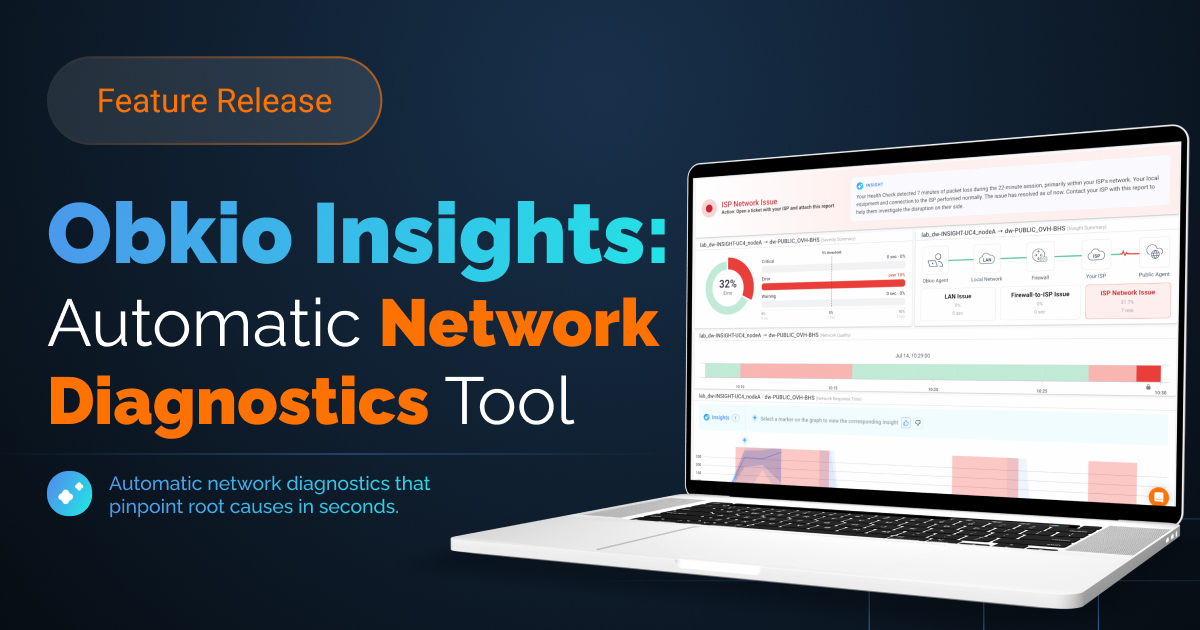
Obkio's Network Monitoring & Diagnostics tool continuously tests performance across your network and out to the Internet, so you have data on every slowdown, not just the ones you catch with a speed test. When something degrades, Obkio Insights cross-references your monitoring sessions, traceroutes, device data, and speed tests to show whether the problem is in your network, your ISP's network, or at the destination.
Once you know it's the ISP, send them a shareable link. Your provider's support team gets read-only access to the same performance graphs and traceroutes you're looking at, with no Obkio account needed. They can scroll back through the history and see the pattern for themselves, and you control how long the link stays active.

Less back-and-forth. More tickets that actually get escalated.
Is it time to stop guessing whether it's your ISP?


ISP Throttling vs. Network Congestion vs. Local Network Issues
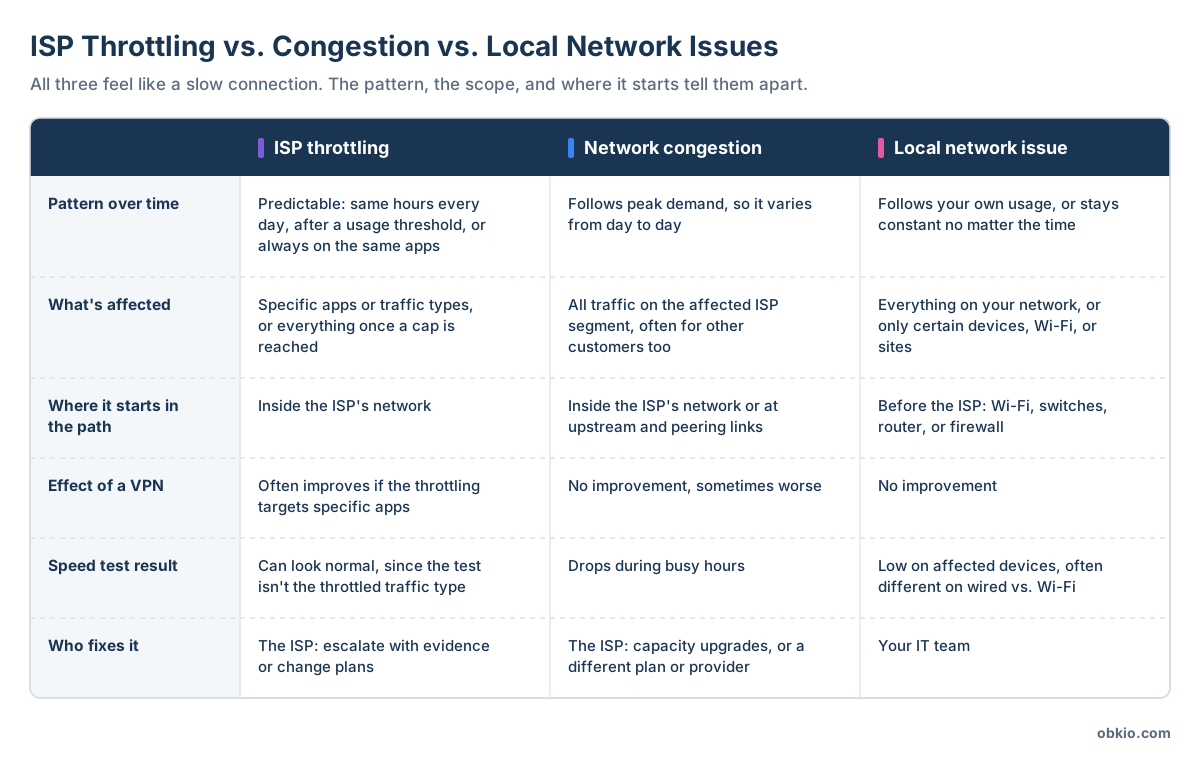
ISP throttling, network congestion, and local network issues all look like a slow connection, but they behave differently. Throttling is predictable or selective. Congestion follows peak demand. Local issues start inside your own network, before traffic ever reaches the ISP. Telling them apart comes down to three things: the pattern over time, what's affected, and where in the path the slowdown starts.
Look at the Pattern Over Time
ISP throttling follows rules, so it repeats. You'll see the same slowdown at the same hours every day, right after you pass a usage threshold, or every time you use a specific app.
Network congestion also shows up at busy times, but it varies with demand, so some evenings are worse than others.
Local network issues tend to follow what's happening on your own network, like a large backup running or a busy Wi-Fi access point.
Look at What's Affected
If only video streaming or VPN traffic slows down while everything else runs normally, that points to throttling. If everything slows down at once, it's more likely congestion or a local problem. When only certain devices or rooms are affected, the problem is almost always local.
Look at Where the Slowdown Starts
This is the most reliable signal, and the hardest to see without the right data. If latency and packet loss start rising before traffic leaves your network, the problem is local.
If your network is clean and the degradation starts at the ISP's hops, the problem is on the provider's side, whether that's throttling or congestion. The next sections cover how to check each of these step by step.
Learn how to detect network congestion & perform a network congestion test inside & outside your network with Network Monitoring & Network Device Monitoring.
Learn more
What Are Signs Your ISP Is Throttling Your Internet?
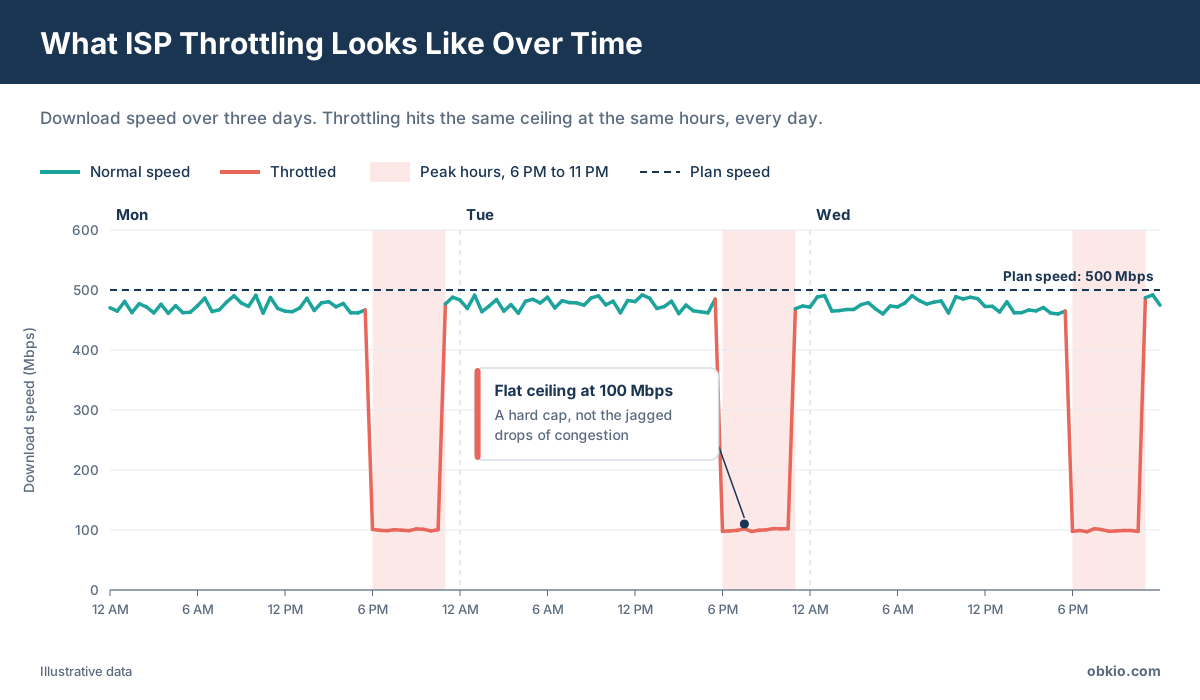
The most common signs of ISP throttling are slowdowns that only affect certain apps, speeds that improve when you connect through a VPN, and slowdowns that happen at the same time every day or right after you pass a data threshold. One sign on its own doesn't prove throttling, but several together point strongly to it.
Here's what to watch for:
- Only certain apps or services are slow: Video streaming buffers or video calls stutter, while web browsing and email work normally. Throttling that targets specific traffic types leaves everything else untouched, which congestion and local issues usually don't.
- Your speed improves on a VPN: A VPN hides the type of traffic you're sending. If performance jumps as soon as you connect to one, your ISP is likely slowing traffic based on what it can identify.
- Slowdowns happen at the same time every day: If your Internet connection slows down at the same hours every evening and recovers overnight, the ISP may be limiting throughput during peak hours. A pattern that repeats this consistently looks more like a policy than random congestion.
- Speeds drop after you use a certain amount of data: If your connection slows down late in the billing cycle and returns to normal when the cycle resets, you've likely hit a data cap or a soft usage threshold.
- Speed tests look fine, but your apps don't: Speed tests don't always use the traffic types an ISP throttles. If a test shows your full plan speed while streaming or calls still struggle, the slowdown is selective.
- Your local network checks out: If wired devices are just as slow as Wi-Fi, your router and firewall aren't overloaded, and the problem persists across devices, the cause is more likely outside your network.
Each of these signs can also be explained by congestion or a local problem. That's why the next step is to test for throttling methodically or using a network monitoring tool instead of relying on how the connection feels.
How to Check If Your ISP Is Throttling You
You’ve seen the signs. Video calls stutter every evening, streaming buffers while everything else loads fine, and every speed test you run says you’re getting what you pay for. Something isn’t adding up, but a hunch won’t convince your ISP.
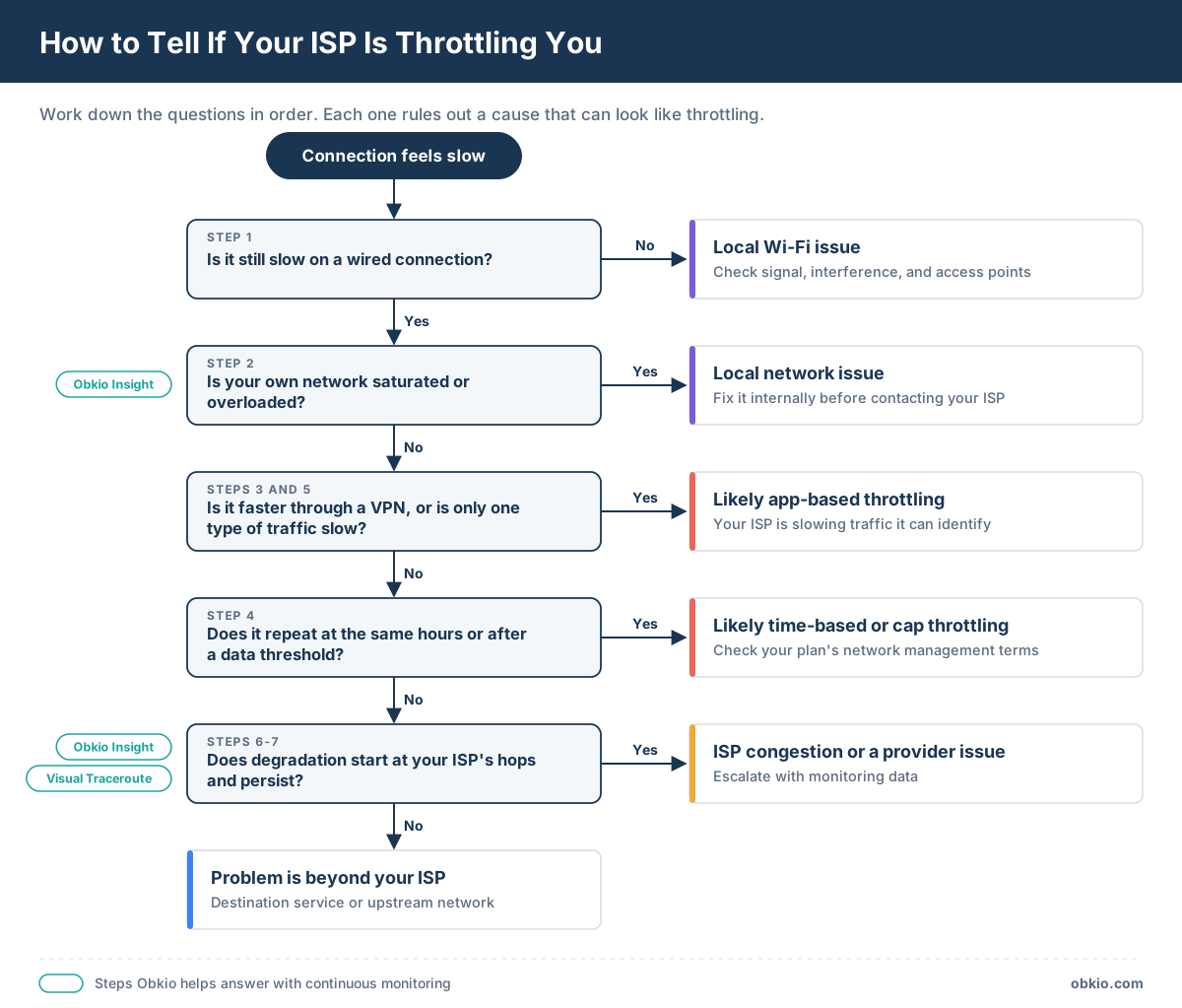
The good news is that throttling leaves a trail. To check if your ISP is throttling you, run a baseline speed test on a wired connection, rule out problems in your own network, then compare performance with and without a VPN, at different times of day, and across different services. Throttling shows up as a pattern, so continuous monitoring and traceroutes give you the clearest answer.
1. Run a Baseline Speed Test on a Wired Connection
Connect a computer directly to your router or modem with an Ethernet cable, close anything that uses bandwidth, and run a speed test. Compare the result to the speed in your plan. Testing over Wi-Fi adds variables like signal strength and interference, which can make a local problem look like an ISP problem. You can use a speed test website or the speed test tool within Obkio’s solution.
2. Rule Out Your Own Network
Before blaming the ISP, make sure the slowdown isn't coming from inside. Run a network monitoring tool like Obkio to check whether your Internet link is saturated by your own traffic, whether your router or firewall is running out of CPU or memory, and whether the problem affects every device or only some. If wired devices are fine and only Wi-Fi is slow, the issue is local.
3. Compare Performance With and Without a VPN
Run the same test or use the same app with your VPN on, then off, at the same time of day. A VPN adds a little overhead, so slightly slower results are normal. But if performance is noticeably better through the VPN, your ISP is likely slowing traffic based on what it can see, like streaming video or a specific service.
4. Test at Different Times of Day
Repeat your network performance tests in the morning, evening, and late at night over several days, and log the results. A slowdown that hits at the same hours every day and recovers on schedule points to time-of-day throttling. A slowdown that varies in timing and severity looks more like congestion.
5. Test Different Services and Destinations
Compare a standard speed test with real traffic: stream a video, join a video call, and download a large file from a few different sources. If one type of traffic is consistently slow while the others perform well, the slowdown is selective, which is a hallmark of throttling.
6. Monitor Continuously and Pinpoint Where the Problem Is
Manual tests only capture the moments you run them. Throttling is a pattern, so the strongest evidence comes from monitoring your connection continuously and seeing exactly when and where performance drops.
Obkio's Network Monitoring & Diagnostics tool sends synthetic traffic across your network and out to the internet around the clock, measuring latency, jitter, and packet loss on every path. When performance degrades, Obkio Insight cross-references your monitoring sessions, traceroutes, device data, and speed tests to show whether the problem sits in your local network, your ISP's network, or at the destination. That answers the question manual tests can't: is it actually your ISP?
7. Trace the Path to Find Where Degradation Starts
A traceroute shows every hop between your network and the destination. The first hops belong to your network, and the next ones belong to your ISP. If latency and packet loss start rising at the ISP's hops and continue all the way to the destination, the problem is on the provider's side.
One thing to consider: routers often deprioritize traceroute responses, so loss that appears at a single hop but disappears at the next one usually isn't real. Look for degradation that starts at a hop and persists.
Obkio's Visual Traceroutes run continuously in both directions, so you can see how the path behaved during a slowdown instead of only what it looks like now. These are also the traceroutes your ISP will see when you share the session with them.
Can a Speed Test Detect ISP Throttling?
Not on its own. A speed test measures one moment, using one type of traffic, to one server. If your ISP throttles specific applications, the speed test may not use that traffic type at all, so it can show your full plan speed while your streaming or video calls still struggle.
Speed tests are useful for a baseline, but proving throttling takes repeated measurements over time, across different types of traffic, and a view of where in the path the slowdown starts.
How to Prove ISP Throttling to Your Internet Service Provider
Getting your ISP to admit to throttling, or even to look into it, is often harder than finding it. Support teams hear "the Internet is slow" all day, and without evidence for your ISP, most tickets end with a router reboot and a closed case.
To prove ISP throttling, show your provider when performance dropped, how long it lasted, which path was affected, and where in the route the degradation starts. The strongest case lets your ISP see the same continuous monitoring data you're looking at, so they can confirm the pattern for themselves.
What Evidence Does Your ISP Need?
A ticket that gets escalated usually includes:
- Timestamps and duration. Exactly when each slowdown started and ended, not "It's been slow lately."
- The affected path: Which location or connection is affected, and which destinations or services are slow.
- Performance over time: Latency, jitter, and packet loss across hours or days, not a single speed test result.
- Traceroutes: Proof that degradation starts at the ISP's hops and persists to the destination, with your own network ruled out.
- The pattern: Whether it repeats at the same hours, after a usage threshold, or only on certain types of traffic.
The more of this you can show in one place, the less room there is for "We don't see any issues on our end."
How to Share Monitoring Data With Your ISP
Screenshots and exported reports start a back-and-forth. Support asks for a different time range, you send another screenshot, and the ticket stalls.
Obkio's shareable links skip that step. A shareable link gives your ISP's support team read-only access to the Network Monitoring Session for the affected connection, without an Obkio account or a login.
They see the session status, the Network Quality, Network Response Time, and VoIP Quality graphs, the Severity Summary when there are issues, and traceroutes in both directions.
They can also change the date range to any period. Instead of trusting your summary, your ISP can scroll back through the history and see the slowdowns repeat at the same hours, day after day.
To share a session with your ISP:
- Open the Network Monitoring Session for the affected connection.
- Click Share and give the link a name.
- Set the expiry so it covers the life of the support ticket. Links can last from 1 day to 2 years.
- Copy the link into your ticket, along with the time windows you want them to look at.
You stay in control the whole time. You can extend, shorten, or revoke the link when the case is closed; your organization's name isn't shown on the shared page, and the page isn't indexed by search engines.
Shareable links are turned off by default, so an Administrator needs to enable them once in your organization settings before the Share button appears.
Can You Use This Evidence for SLA Claims?
Yes. If you're on a business plan with guaranteed speeds or an SLA, the same monitoring data that proves throttling also documents when your ISP fell short of its commitments. Timestamped performance history makes it much easier to request service credits or renegotiate terms.
How to Stop ISP Throttling
ISP throttling rarely stops on its own. The fix depends on why your ISP is doing it, so the right move starts with what your testing showed.
The most effective way to stop ISP throttling is to escalate with your ISP using monitoring data that proves the slowdown. If that doesn't work, a VPN can get around throttling that targets specific apps, while upgrading your plan, switching providers, or adding a second connection solves throttling tied to plan limits or peak hours.
1. Escalate With Your ISP
Start here, especially on a business connection. Open a ticket with the evidence from the previous section: when the slowdowns happen, how long they last, which connection is affected, and where in the path they start. Ask directly whether your plan includes any traffic management, data thresholds, or peak-hour limits, and ask for the case to be escalated past first-level support if the answer doesn't match what your data shows.
Some throttling is the result of a misconfigured or outdated policy on the ISP's side, and it can disappear once the right team looks at it. If it's a deliberate policy, you'll at least know what you're dealing with.
Does a VPN Stop ISP Throttling?
Sometimes. A VPN encrypts your traffic, so your ISP can't see which apps or services you're using. If your ISP throttles specific traffic types, like video streaming, a VPN can get around it.
A VPN won't help if:
- Your ISP throttles all traffic after a data cap or during peak hours, since the slowdown doesn't depend on what you're doing.
- Your ISP throttles VPN traffic itself. Some ISPs can identify common VPN protocols and slow them down.
- The problem is congestion, since your traffic still travels across the same overloaded network.
VPNs also add some latency and overhead, and on a business network they need to fit your security and routing policies. Treat a VPN as a workaround and a diagnostic tool, not a permanent fix.
2. Move Heavy Traffic Outside Peak Hours
If your ISP throttles during specific hours or after a data threshold, scheduling large backups, software updates, and file transfers for off-peak times can keep you under the limits. It doesn't stop the throttling, but it reduces its impact while you work on a longer-term fix.
3. Upgrade to a Business Plan
Residential plans are usually the first to be deprioritized and are more likely to include data caps and broad network management terms. Business plans typically come with higher priority, clearer terms, and service level agreements that set expectations for performance. Before upgrading, read the network management section of the new contract to make sure it actually solves the problem you measured.
4. Switch Providers or Add a Redundant Connection
If your ISP won't change its practices, switching providers may be the only real fix. Compare the network management policies of other providers in your area, not just their advertised speeds.
For businesses that can't afford slowdowns, adding a second Internet connection from a different provider gives you somewhere to route critical traffic when the primary link is throttled or degraded. It also gives you a direct comparison: if the same traffic performs well on one ISP and poorly on the other, that's one more piece of evidence for your case.

Is your Internet slow? Learn how to tell if the problem is your network, your ISP, or your machine, and how to fix slow Internet fast.
Learn more
Frequently Asked Questions About ISP Throttling
1. How do I know if my ISP is throttling me?
The clearest signs are slowdowns that only affect certain apps, speeds that improve on a VPN, and slowdowns that repeat at the same hours every day or after you use a certain amount of data. To confirm it, rule out your own network first, then monitor your connection over time and check whether the degradation starts at your ISP's hops.
2. Can a speed test detect ISP throttling?
Not reliably. A speed test measures one moment, with one type of traffic, to one server. If your ISP throttles specific apps, the test may not use that traffic type at all, so it can show your full plan speed while streaming or video calls still struggle. Repeated tests and continuous monitoring are what reveal the pattern.
3. Can an ISP throttle one device?
Usually not on a home or business connection. Your ISP sees traffic from your connection as a whole, not the individual devices behind your router, so throttling typically applies to the whole connection or to specific types of traffic. If only one device is slow, the problem is more likely local. Mobile plans are different, since each line is its own connection.
4. Do ISPs throttle VPN traffic?
Some do. A VPN hides which apps you're using, but some ISPs can still identify common VPN protocols and slow them down. A VPN also won't help with throttling that applies to all your traffic, like data cap slowdowns or peak-hour limits. If your connection gets slower on a VPN rather than faster, your ISP may be targeting VPN traffic.
5. Why is my ISP throttling my upload speed?
First, check your plan. Many cable and DSL plans have much lower upload than download speeds by design, which isn't throttling. If uploads drop below your plan speed, your ISP may be limiting heavy upload traffic like cloud backups or file sharing. Saturated uploads can also slow down everything else on your connection, including video calls.
Stop Guessing and Start Proving ISP Throttling
ISP throttling is frustrating because it hides in plain sight. It looks like a slow connection; it doesn't show up on a single speed test, and your ISP won't take it seriously without evidence.
The way through is methodical. Rule out your own network first, then look for the pattern: slowdowns that hit the same hours, the same apps, or the same data threshold every time. Find where in the path the degradation starts. Once you can show that it starts at your ISP, you have a case your provider has to act on.
That's where Obkio comes in. Network Monitoring Agents track your connection around the clock, so every slowdown is on record, not just the ones you happen to catch. Obkio Insight shows whether a problem sits in your network, your ISP's network, or at the destination. And when it's your ISP, a shareable link lets their support team see the same graphs and traceroutes you do, without screenshots or back-and-forth.
Is it time to find out what's really slowing down your connection?


