








 Obkio Blog


 Subscribe
Table of Contents
Table of Contents
Here is a reality that every network admin eventually runs into: users report slow apps, dropped calls, and broken connections, and the first instinct is to blame the ISP or the cloud provider. The ticket gets escalated, the ISP pushes back, and hours later, you find out the problem was sitting inside your own building the whole time. A saturated switch port. A misconfigured VLAN. A flaky patch cable in the server room.
Local area network issues are among the most misdiagnosed problems in IT because their symptoms are identical to WAN or application problems. Slow performance looks the same whether it is caused by your internet circuit or a broadcast storm on your internal switches.
The difference is where the degradation originates, and most traditional monitoring tools never look in the right place. They measure your Internet connection, not the segment between your devices and your router. That gap is where LAN issues live, and that is exactly what this article covers.
What Is a LAN Issue? 
A LAN issue is any network degradation that originates within the local network segment before traffic ever reaches the WAN or the Internet.
Your LAN is the private network connecting all devices within a single physical location, whether that is an office floor, a building, or a multi-building campus. It includes everything between the end device and the router or firewall: switches, wireless access points, patch cables, VLANs, local servers, and the wiring between them. Everything in that segment is your infrastructure, under your control, and fully your problem to diagnose.
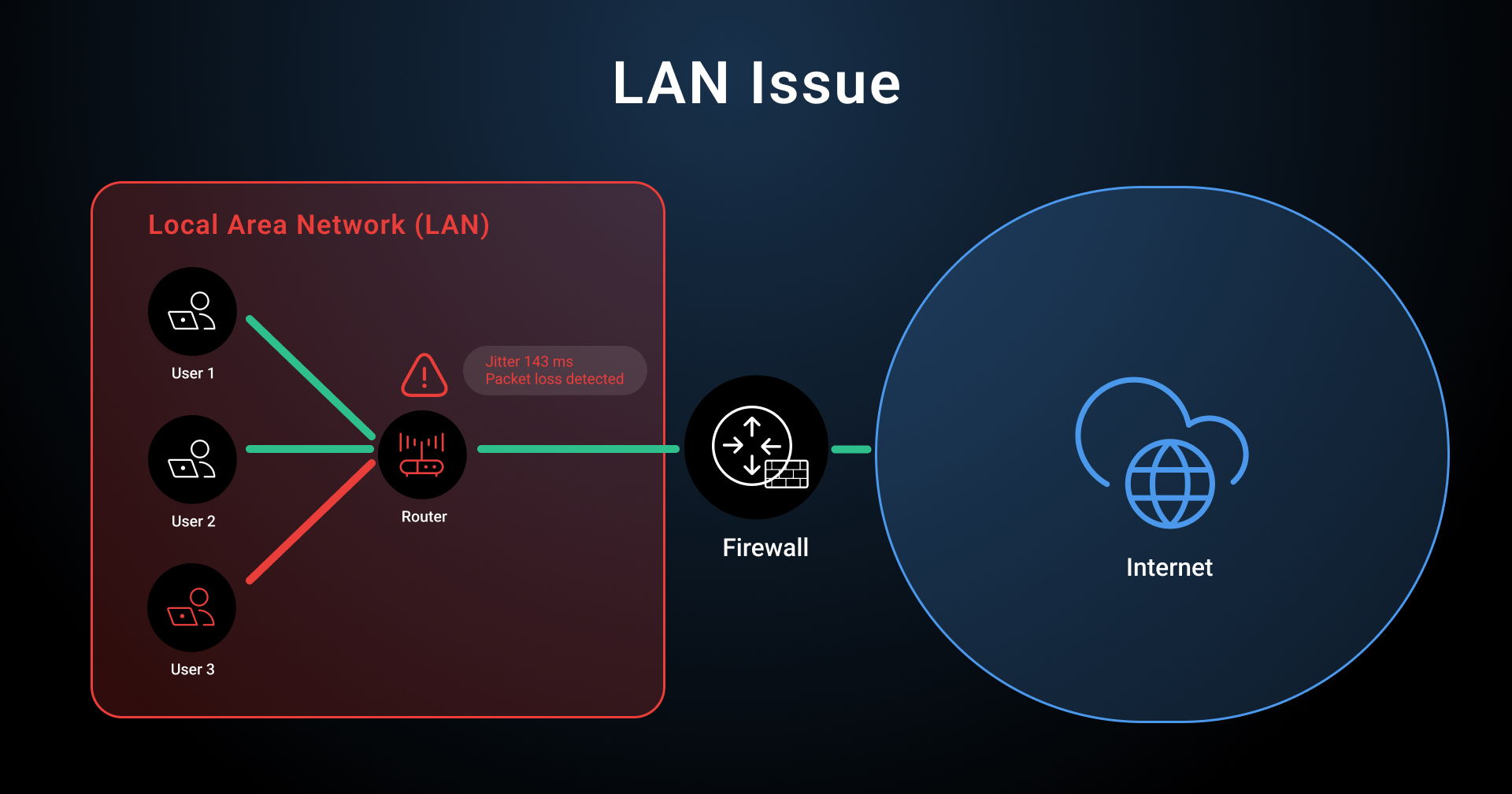
1. LAN issues can be similar to WAN issues
The tricky part is that LAN issues are infrastructure-layer problems, but they produce symptoms that look identical to application or ISP problems. Slow file transfers, degraded VoIP quality, dropped video calls, intermittent connectivity, and high latency on internal applications can all trace back to something wrong on your local segment. Because most traditional monitoring tools only measure Internet-facing performance, LAN problems stay invisible until someone physically starts pulling cables.
2. What are the affects of LAN issues?
Things that can go wrong at the LAN layer include overloaded or failing switches, misconfigured access points, damaged patch cables, VLAN misconfigurations, QoS policy gaps, and high-bandwidth local traffic saturating a segment.
3. How can you identify LAN issues?
Identifying a LAN issue means isolating the local segment from the rest of the network path, confirming where the degradation is introduced, and then chasing the cause. The steps below in the next section cover exactly how to do that.

What Are the Common Signs of a LAN Issue?
The common signs of a LAN issue are elevated jitter, increased latency between local devices, packet loss on internal hops, and intermittent connectivity drops that only affect users at a specific physical site.
The reason these symptoms are so easy to misread is that they show up at the application layer. A VoIP call breaking up looks like a VoIP problem. A slow file share looks like a server problem. An unstable Teams meeting looks like a Microsoft problem. When the actual root cause is your local network, the symptoms are the same.
"How do I know if I have a Local Area Network problem?"
Here is what to watch for.
1. High jitter on a local segment: On a well-functioning wired LAN, jitter should be below 5ms. Values above 10ms are worth investigating. When Obkio Insights surfaces an alert showing jitter of 143ms on a local segment, that is not a minor fluctuation. That is a severe local problem that will destroy any real-time application running on that network.
2. Elevated latency between local devices: Latency between two devices on the same LAN segment should be measured in single-digit milliseconds. If you are seeing 50ms, 80ms, or more between internal endpoints, something is wrong locally.
3. Packet loss on internal hops: Any packet loss between devices that never leave the local network is a LAN problem by definition. Even 1% packet loss on a local segment will noticeably degrade VoIP MOS scores and slow TCP throughput.
4. Asymmetric upload/download performance: If your upload and download speeds between local endpoints diverge significantly, a duplex mismatch or port-level issue is a likely candidate.
5. Intermittent connectivity affecting only local users: If the degradation is isolated to users at a single physical site while remote users and internet-facing paths remain clean, the problem is local. Full stop.
6. VoIP and video call degradation despite a healthy Internet connection: This is one of the most common presentations of a LAN issue. The Internet circuit tests fine, but calls are choppy and video freezes. The culprit is almost always the local segment between the device and the router.
LAN Issues vs. WAN Issues: How to Tell the Difference
To determine whether a problem is a LAN or WAN issue, measure performance on internal paths separately from external paths.
If degradation only exists between local endpoints, the problem is on your LAN.
If all paths degrade, including connections to external destinations, the problem is likely on your WAN or with your ISP.
This distinction is the first and most important diagnostic decision you need to make.
"How do I know if my network problem is LAN or WAN?"
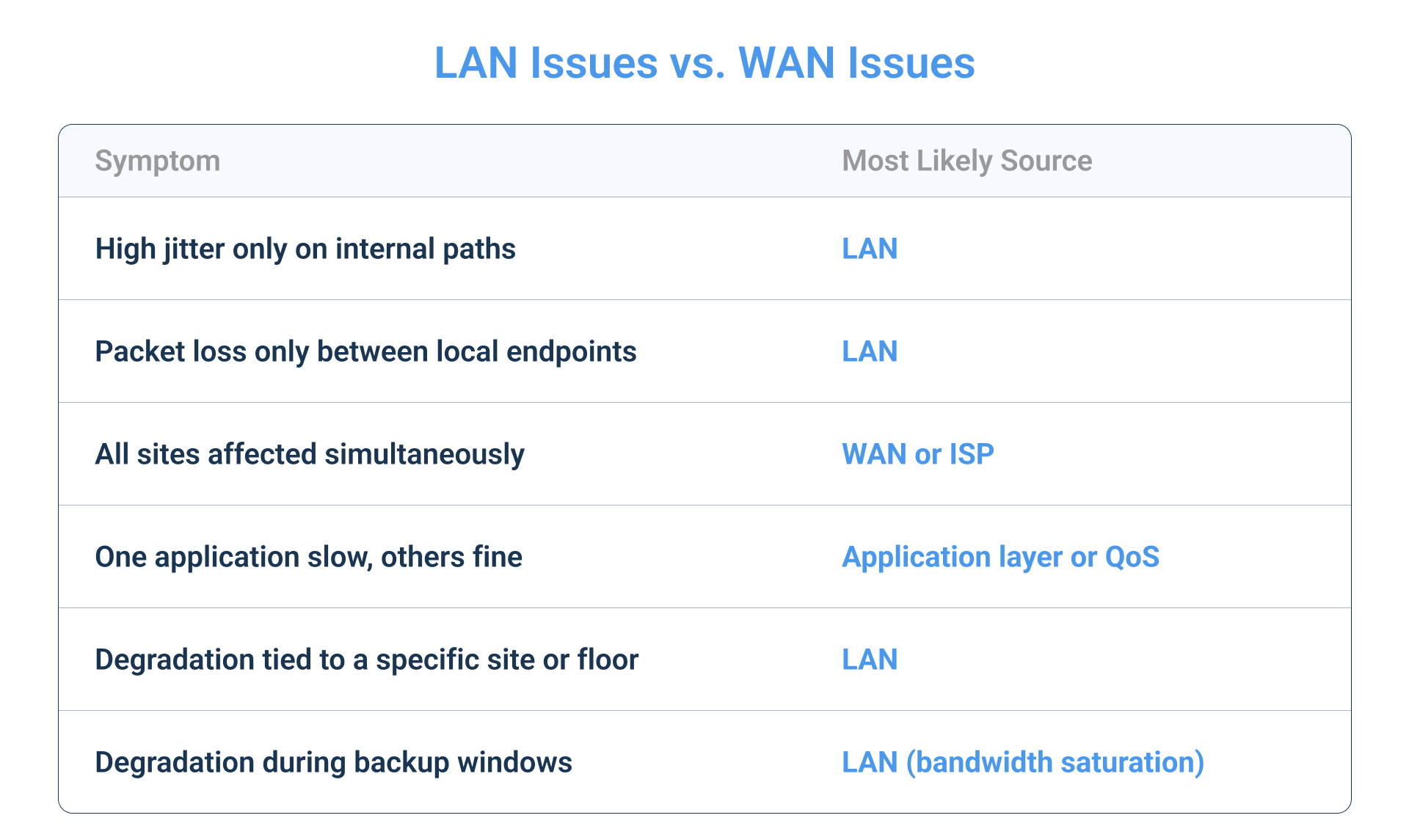
Here is a simple framework that you can follow throughout your troubleshooting process to diagnose LAN vs WAN problems.
- The problem only affects users at one physical site: If users at your main office are struggling but your remote users and branch sites are fine, the issue is almost certainly local to that site. WAN and ISP problems tend to affect all sites connecting through the same circuit.
- Latency and jitter are only elevated on internal hops: Use path analysis to compare internal hop performance against external performance. If hop 1 (your local switch) is introducing the latency and everything beyond your router is clean, the LAN is the source.
- All paths degrade, including connections to external destinations: If your internal monitoring agents AND your monitoring to external destinations both show degradation at the same time, you are looking at a WAN or ISP issue rather than a LAN issue.
- One application degrades while others perform normally: If a single application is the problem while everything else on the network runs fine, this is more likely an application-layer issue, a QoS misconfiguration, or a firewall policy problem rather than a pure LAN infrastructure issue.
What Are the Common Causes of LAN Issues?
The most common causes of LAN network problems are overloaded or failing switch hardware, duplex mismatches, broadcast storms, physical cable faults, Wi-Fi congestion and interference, QoS misconfigurations, VLAN errors, and high-bandwidth local traffic consuming available capacity.
Understanding the cause category matters because it determines your diagnostic path.
"What causes Local Area Network problems?"
Here is a breakdown of each.
Local Area Network Problems Cause #1: Faulty or overloaded switches and access points
A switch running at high CPU utilization or with failing hardware introduces latency and packet loss across every port it services. Access points under load or with failing radios produce the same effect on wireless clients. These are among the most common physical infrastructure failures that generate LAN-wide degradation.
Local Area Network Problems Cause #2: Duplex mismatches
When one side of a link is set to full duplex and the other auto-negotiates to half duplex, you get collision-induced retransmissions that look exactly like random packet loss. It is one of those configurations that can sit undetected for months until something changes and traffic volume increases.
Local Area Network Problems Cause #3: Broadcast storms
A broadcast storm occurs when broadcast traffic propagates exponentially across a network segment, typically caused by a switching loop, a misconfigured device, or a failing NIC sending malformed traffic. CPU utilization on affected switches spikes, and the segment becomes unusable for normal traffic.
Local Area Network Problems Cause #4: Physical cable issues
Damaged patch cables, bent connectors, and bad switch ports generate intermittent bit errors that cause retransmissions and packet loss. These are among the hardest problems to diagnose remotely because the link may show as up while still generating errors.
Local Area Network Problems Cause #5: Wi-Fi congestion and channel interference
In dense wireless environments, overlapping channels, interference from neighbouring networks, and AP-to-device ratios that are too high create the wireless equivalent of a congested switch. High retry rates, low signal quality, and heavy broadcast overhead all translate to application-layer degradation.
Local Area Network Problems Cause #6: QoS misconfigurations
When QoS policies are missing or incorrectly configured, high-bandwidth non-critical traffic such as backup jobs or large file transfers can crowd out latency-sensitive traffic like VoIP. The result is call quality degradation that has nothing to do with your circuit.
Local Area Network Problems Cause #7: VLAN misconfiguration
Incorrect VLAN assignments, missing trunk configurations, or spanning tree topology issues cause connectivity problems that can be difficult to trace without visibility into the local segment.
Local Area Network Problems Cause #8: High-bandwidth local traffic
Scheduled backup jobs, large file transfers between local servers, and software update distribution can saturate switch uplinks or specific ports during business hours. If your jitter and latency issues are time-correlated, this is one of the first things to check.

Discover the top 10 LAN Network Congestion Causes. Learn how to identify, monitor, and troubleshoot LAN congestion with this comprehensive guide.
Learn more

How to Identify LAN Issues In Your Network: Step-by-Step
Identifying LAN network problems requires a structured troubleshooting approach that isolates the local segment, measures the right network metrics between internal endpoints, and correlates the data with network events and timing.
Here are some steps that you can follow:
Step 1: Isolate the Scope of the Network Problem
Before chasing causes, confirm what areas of your network are beingaffected. Is it one user, one floor, one subnet, or the entire site?
Talk to the users reporting the issue. Ask whether it is consistent or intermittent, whether it started at a specific time, and whether it affects everything or just certain applications. Scope narrows your diagnostic focus and prevents you from spending time on the wrong segment.
Step 2: Measure LAN Performance Between Local Agents
Run continuous network monitoring between two endpoints on the same LAN segment. This is not a one-time ping. You need ongoing synthetic traffic measuring jitter, latency, packet loss, and throughput between local monitoring points.
Obkio deploys software monitoring agents on both sides of the network, including within the LAN itself, and generates continuous synthetic traffic between them. This gives you a real-time baseline and historical view of local segment performance rather than a point-in-time snapshot.



Step 3: Identify the Affected Network Metrics
Not every LAN problem looks the same. High jitter points toward a different cause than elevated latency or packet loss. Determine which metric is degraded and by how much.
- Jitter above 30ms on a wired LAN is a significant problem.
- Packet loss above 1% on an internal path is serious.
- Latency between two local endpoints exceeding 20ms is abnormal.
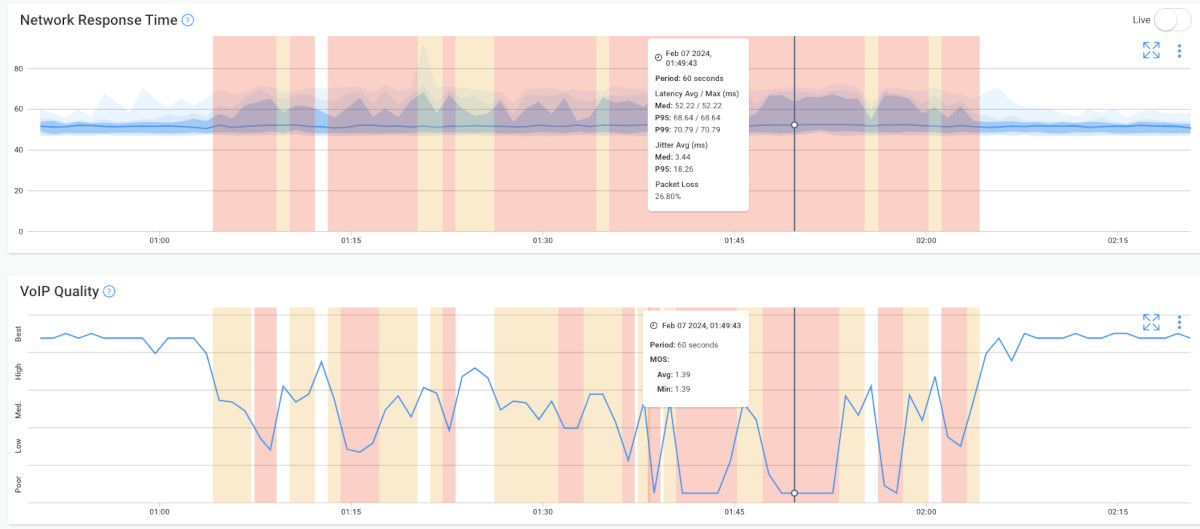
Identifying the specific network metric tells you what kind of problem you are dealing with before you start looking at hardware.
Step 4: Trace the LAN Path
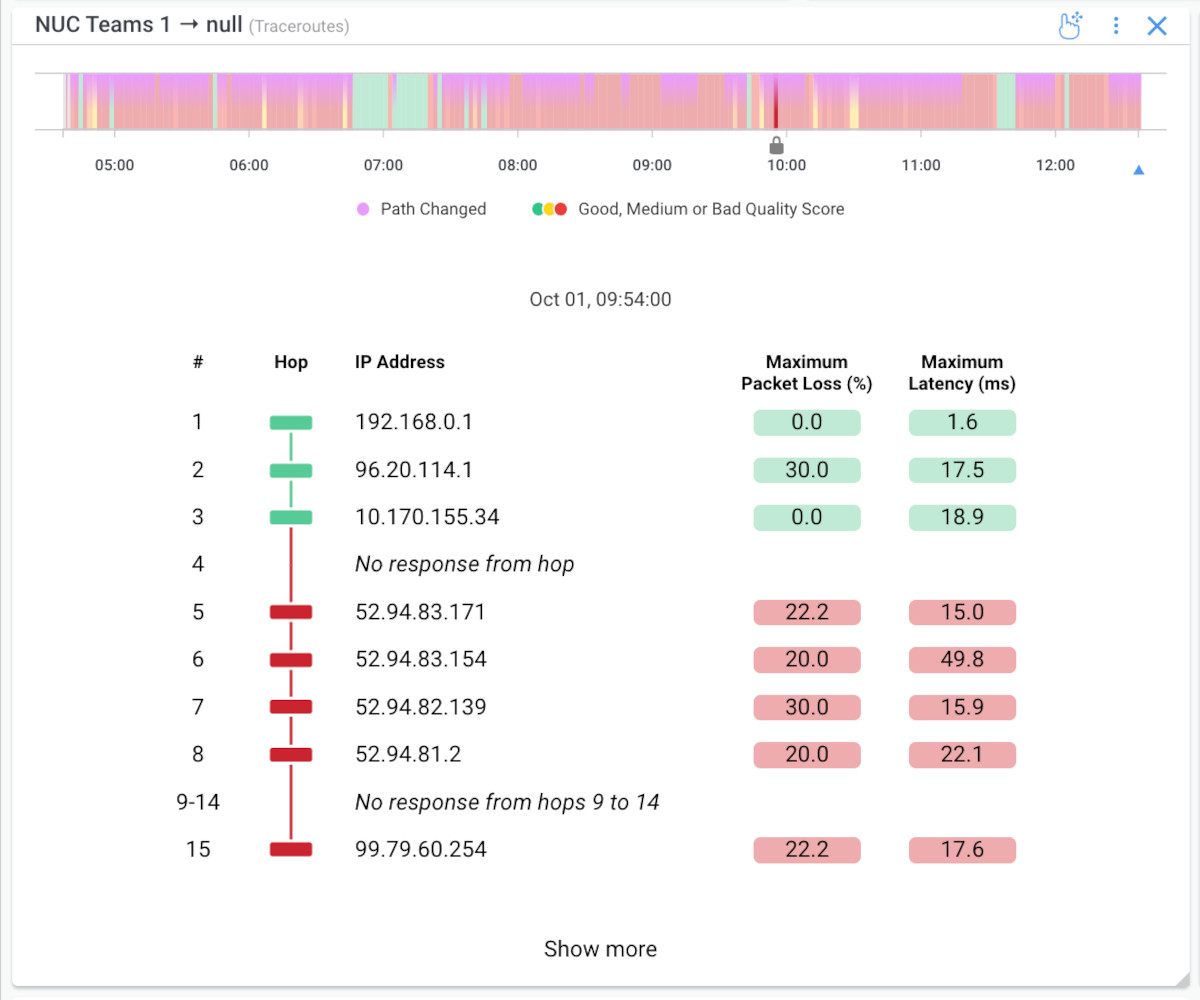
Use path analysis to identify which hop is introducing the degradation. A visual traceroute from a local monitoring agent shows you hop-by-hop latency and packet loss across your internal network infrastructure.
If latency jumps at the first hop between your monitoring agent and the local switch, the switch is the problem. If the path is clean to your router but degrades at a specific internal destination, the issue is at or near that destination. You are looking for where the degradation starts, not just where it shows up.
Step 5: Correlate Historical Data with Network Events and Timing
Check whether the problem is time-bound. Does jitter spike at the same time every day? That almost always means a scheduled task is consuming bandwidth or switch CPU. Does the issue track with business hours, then clear overnight? That is load-related.
Correlating the historical data with time of day, scheduled jobs, and recent configuration changes narrows the cause significantly.

Learn why historical network data is the key to establishing a baseline, finding patterns, proving issues, and fixing network problems faster.
Learn more
Step 6: Use Automated Diagnostics
Once you have continuous monitoring data, let the tool do the analysis for you rather than manually reading through charts.
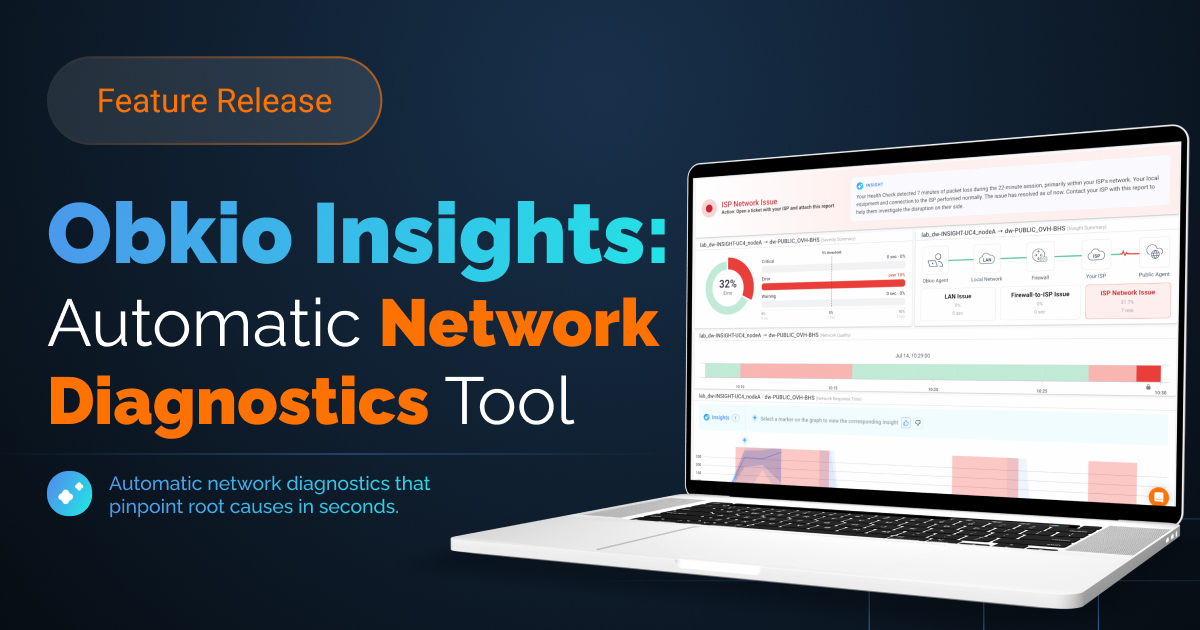
Obkio Insights (now in beta) analyzes performance metrics in real time and produces a plain-language conclusion about where the problem is located. Instead of interpreting jitter trends yourself, Insights tells you directly that the issue is on the LAN network, that it started at a specific time, and what the affected metrics look like. Your team knows it is a LAN problem before they open a ticket or pick up the phone.
How Obkio Identifies LAN Issues Automatically
Obkio's approach to LAN monitoring is built around continuous synthetic measurements between agents deployed at every relevant network location, using Obkio’s monitoring agents placed inside the LAN itself on both sides of the path.
The monitoring works like this. Software agents are installed on endpoints within the local network and at remote locations such as Obkio's public monitoring nodes, data centers, and branch offices. These agents continuously exchange synthetic UDP traffic and measure jitter, latency, packet loss, throughput, and MOS score in both directions, every minute, without waiting for a user complaint.
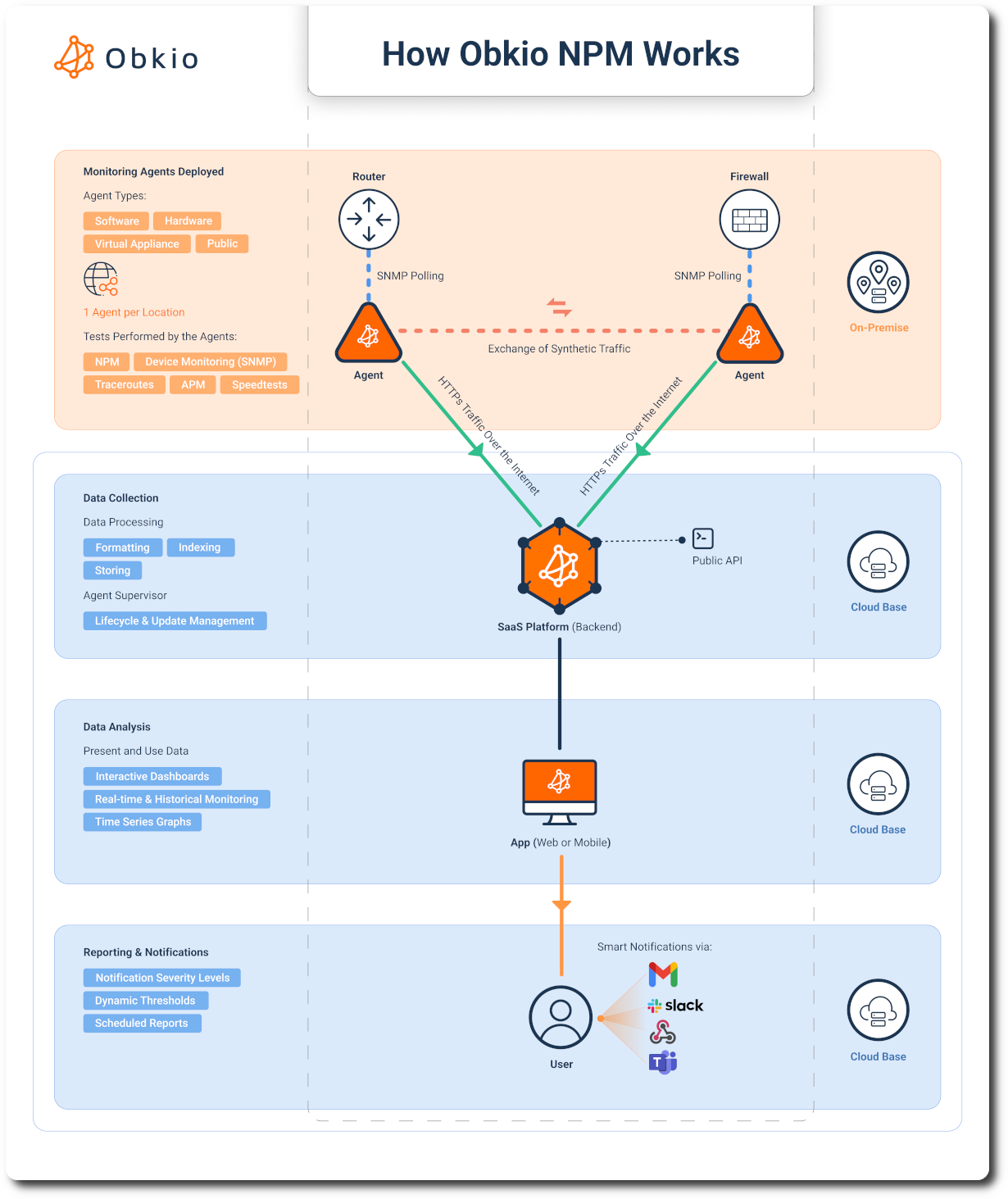
The combination of local-to-local and local-to-remote measurements means Obkio can isolate exactly which segment is introducing degradation. If two LAN agents show elevated jitter between each other but the same agents show clean performance toward external destinations, Obkio knows the problem is local.
On top of that continuous measurement layer, Obkio Insights (now in beta) provides automatic network diagnostics. Insights monitors the incoming performance data in real time and applies diagnostic logic to identify the root cause rather than just reporting symptoms.
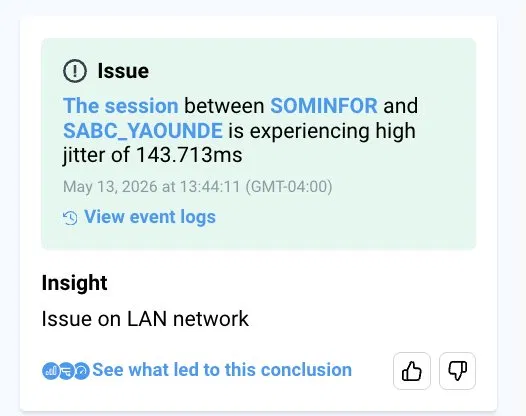
When it detects a LAN problem, it surfaces a plain-language conclusion directly in the interface: "Issue on LAN network." The alert includes the affected metrics, the time the issue started, and the severity level. There is no need to manually compare internal vs. external paths or interpret jitter trend lines. The diagnosis is already done.
This is meaningfully different from traditional monitoring approaches that only check whether your Internet connection is up. Obkio's agent-based architecture creates internal measurement points that see the local segment the same way an end user's device experiences it. When a switch port starts degrading, when a broadcast storm starts building, or when a backup job saturates an uplink at 2am, Obkio sees it, measures it, and tells you what it is.
How to Fix LAN Issues Once and For All
Once you have confirmed that the problem is on the LAN and identified the affected segment or device, the fix depends on what you found. Getting the diagnosis right first is what makes the resolution targeted rather than speculative.
Here are some different troubleshooting steps you can take to troubleshoot your local area network. You’ll want to use your network monitoring tool to continuously monitor your network and understand if your fixes are positively impacting your LAN performance.
1. Switch port migration or hardware replacement:If a switch port is generating errors or a switch is CPU-bound under normal traffic load, migrate affected devices to a healthy port and schedule hardware replacement. Do not wait for a full hardware failure once you start seeing degradation signals.
2. Duplex and speed renegotiation: If path analysis and interface counters point to retransmissions on a specific link, check both sides for duplex settings. Force both ends to the same duplex mode and speed rather than relying on auto-negotiation, especially on older infrastructure.
3. QoS policy review: If the issue is jitter and latency specifically affecting real-time traffic while bulk transfers are running, review your QoS policy on the affected switch and router interfaces. Ensure latency-sensitive traffic is prioritized in queue configurations and that backup traffic is rate-limited or scheduled outside business hours.
4. AP channel adjustment: For wireless-related LAN issues, survey the channel utilization in the affected area and reassign APs to less congested channels. In dense environments, consider reducing transmit power to allow cleaner cell boundaries and reduce co-channel interference.
5. Cable replacement and port testing: For intermittent packet loss that does not correlate with traffic load, physically test the cable and switch port. Replace the patch cable first since it is the lowest-cost change, then test the port with known-good hardware.
6. VLAN audit: If the scope of the problem aligns with a specific VLAN or a recent configuration change, audit the VLAN configuration across affected switches. Check trunk ports, access port assignments, and spanning tree topology for unintended changes.
The most important point here is that none of these fixes should be applied speculatively. Fixing the right thing starts with identifying the right cause, which is why continuous monitoring and accurate automated diagnostics matter more than any single one-time test.
How to Monitor Your LAN for Ongoing Issues
Reactive troubleshooting gets the job done eventually, but it means you are always starting from zero when a problem appears. You have no baseline, no historical data, and no way to know whether the issue is new or has been building for weeks.
Always-on LAN monitoring changes that. With Obkio agents deployed inside the LAN and measuring continuously, you have a performance baseline for every segment. When something starts degrading, you see it against that baseline immediately and the historical data is already there for correlation. You know when it started, what metrics are affected, and whether it has happened before.
Agent placement is what makes this work. For LAN coverage, deploy at least one Obkio agent at each physical site, on the same segment you want to monitor. A software agent installed on a dedicated machine, a virtual machine, or a NUC at each location is enough to generate continuous synthetic traffic and measure the local segment accurately. Pair local agents with measurements to Obkio's public monitoring nodes and you have both internal and external baseline visibility running at the same time.
When Obkio Insights detects an anomaly, it alerts your team with the segment, the metric, and the severity. Your team knows where to look before they pick up the phone.

Master LAN Monitoring: Learn the essentials, best practices, and improve LAN network performance with Obkio's Network Performance Monitoring tool.
Learn more
Frequently Asked Questions about LAN Issues
What is considered a LAN issue?
Any network degradation that originates within the local network segment, before traffic reaches the WAN or Internet, is a LAN issue. This includes problems caused by switch hardware, access points, patch cables, VLANs, QoS policies, and local traffic load.
What causes high jitter on a LAN?
High jitter on a LAN is most commonly caused by switch overload or hardware failure, duplex mismatches, Wi-Fi congestion and interference, and excessive broadcast traffic. Scheduled backup jobs saturating switch uplinks are another frequent cause of time-correlated jitter spikes.
How do I know if my issue is LAN or Internet?
If continuous monitoring between two local agents shows elevated jitter, latency, or packet loss while paths to external destinations remain clean, the issue is local. If all paths degrade at the same time, including connections to external monitoring nodes, the issue is more likely on the WAN or with the ISP.
What jitter level indicates a LAN problem?
On a wired LAN, jitter above 5 to 10ms is worth investigating. Jitter above 30ms represents a significant local problem. When Obkio Insights surfaces a jitter reading of 143ms on an internal segment, that is a severely degraded LAN segment that will impact every real-time application running on it.
Can Wi-Fi cause LAN issues?
Yes. Wireless congestion, co-channel interference, high client-to-AP ratios, and misconfigured access points are among the most common causes of LAN-layer performance problems. Wireless LAN issues are often harder to diagnose because the link may appear up while delivering poor performance due to high retry rates and low signal quality.
What tool identifies LAN issues automatically?
Obkio's network performance monitoring software, combined with Obkio Insights, automatically diagnoses whether a performance issue originates on the LAN, WAN, or application layer. Continuous synthetic measurements between LAN-resident agents give Obkio the local visibility that internet-only monitoring tools cannot provide. Insight surfaces the diagnosis in plain language so your team acts on the right problem immediately.
Stop Guessing. Start Monitoring Your LAN.
LAN issues do not announce themselves. They show up as user complaints, degraded calls, and slow applications that could just as easily be the ISP's fault or the application vendor's problem. Without internal measurement points, you are always guessing. You escalate the wrong ticket, apply the wrong fix, and waste time while your users wait.
Obkio gives you visibility where it actually counts: inside the network, between the devices, on the segment where the problem started. Software agents deployed within your LAN continuously measure jitter, latency, packet loss, and throughput between local endpoints and against external destinations simultaneously. You get a real baseline for your local network and the historical data to prove when things changed.
When something goes wrong, Obkio Insights does the diagnosis automatically. It tells you whether the issue is on the LAN, the WAN, or somewhere beyond your network, in plain language, without requiring you to manually interpret charts or run a parallel investigation. Your team knows exactly where to look from the first alert.
Try Obkio free for 14 days and see your LAN the way your users experience it.

- 14-day free trial of all premium features
- Deploy in just 10 minutes
- Monitor performance in all key network locations
- Measure real-time network metrics
- Identify and troubleshoot live network problems
Want Us to Show You?
Let us show you how to identify and troubleshoot LAN network problems in minutes! We'll discuss your use case and show you around Obkio's app.