











 Obkio Blog


 Subscribe
Table of Contents
Table of Contents
Someone on your team says "the Internet is slow." Twenty minutes later, IT finds out the Internet was never the problem. Maybe it was a laptop with a full RAM disk. Maybe it was an ISP outage two towns over that had nothing to do with your office.
Misdiagnosing slow Internet wastes time. It sends you down the wrong fix path, like rebooting a router when the real issue is sitting on someone's desktop. And in a business setting, it often means blaming an ISP that isn't actually at fault, which burns a support ticket and your credibility with the end user.
There are only three places a slow connection can come from: your local network, your ISP, or the machine trying to use the connection. This article walks through how to tell them apart and what to do once you know.
What Is Slow Internet? 
"Slow Internet" isn't one specific problem; it's a catch-all for a connection that isn't performing the way it should, measured across a few different network metrics that don't always move together:
- Bandwidth: How much data can move at once (low bandwidth = long download/upload times)
- Latency: How long a single request takes to get a response (high latency = noticeable lag, delay before pages load)
- Jitter: How much latency varies moment to moment (high jitter = choppy calls, stuttering video)
- Packet loss: Data that doesn't arrive at all and has to be resent (causes freezing, dropped calls, retries)
A connection can have plenty of bandwidth and still feel "slow" if latency or packet loss is the actual problem. Which is part of why the fix isn't always "upgrade your plan," and why the three culprits below can each affect these metrics differently.
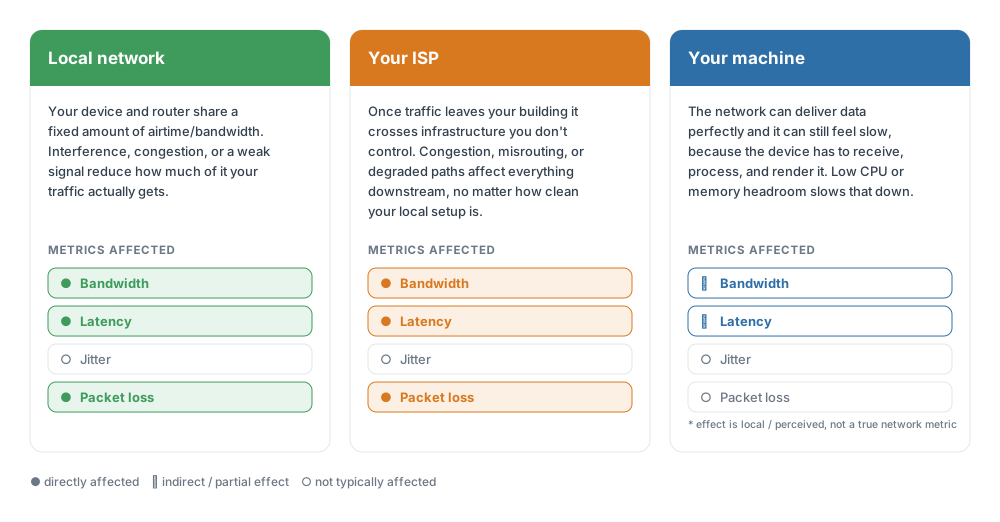
This is also why troubleshooting that only checks speed misses so much. A one-off speed test tells you about bandwidth at a single moment; it says nothing about the jitter that's breaking your video calls or the packet loss that's cutting out your VoIP. Getting an accurate read on "is my Internet actually slow, and why" means watching all four metrics, not just the one that's easiest to check.
Why Is "Slow Internet" Hard to Diagnose?
Slow Internet is hard to diagnose because the same symptom-buffering, lag, dropped calls-can come from three completely different places, and they all look identical from the user's chair.
Buffering during a video call could mean low bandwidth from the ISP, WiFi interference on the local network, or a CPU-starved laptop struggling to keep up. From the user's point of view, all three feel exactly the same: things are slow, and nobody knows why.
Most people's default fix is to restart the router. That only addresses one of the three possibilities, which is why the same complaint keeps coming back a week later with a different root cause.
This gets harder with hybrid and remote work. IT can't walk over and glance at someone's laptop or check the WiFi signal in their kitchen. Remote diagnosis needs an actual method, not a guess and a router reboot.
Slow Internet Cause #1: Your Local Network
Your local network is the likely cause when the problem tracks with WiFi, a specific location, or a specific segment of your LAN, while wired connections and other locations stay fine.
Your local network (LAN) covers everything between the device and the point where your traffic leaves for the Internet: WiFi, switches, cabling, and the router itself.
How Your LAN Causes Slow Internet
Your device and the router are constantly negotiating a shared, finite amount of airtime (WiFi) or shared LAN bandwidth; congestion, interference, or a weak signal all reduce how much of that "airtime" your traffic actually gets, so requests take longer to leave your building in the first place, before they ever reach the ISP
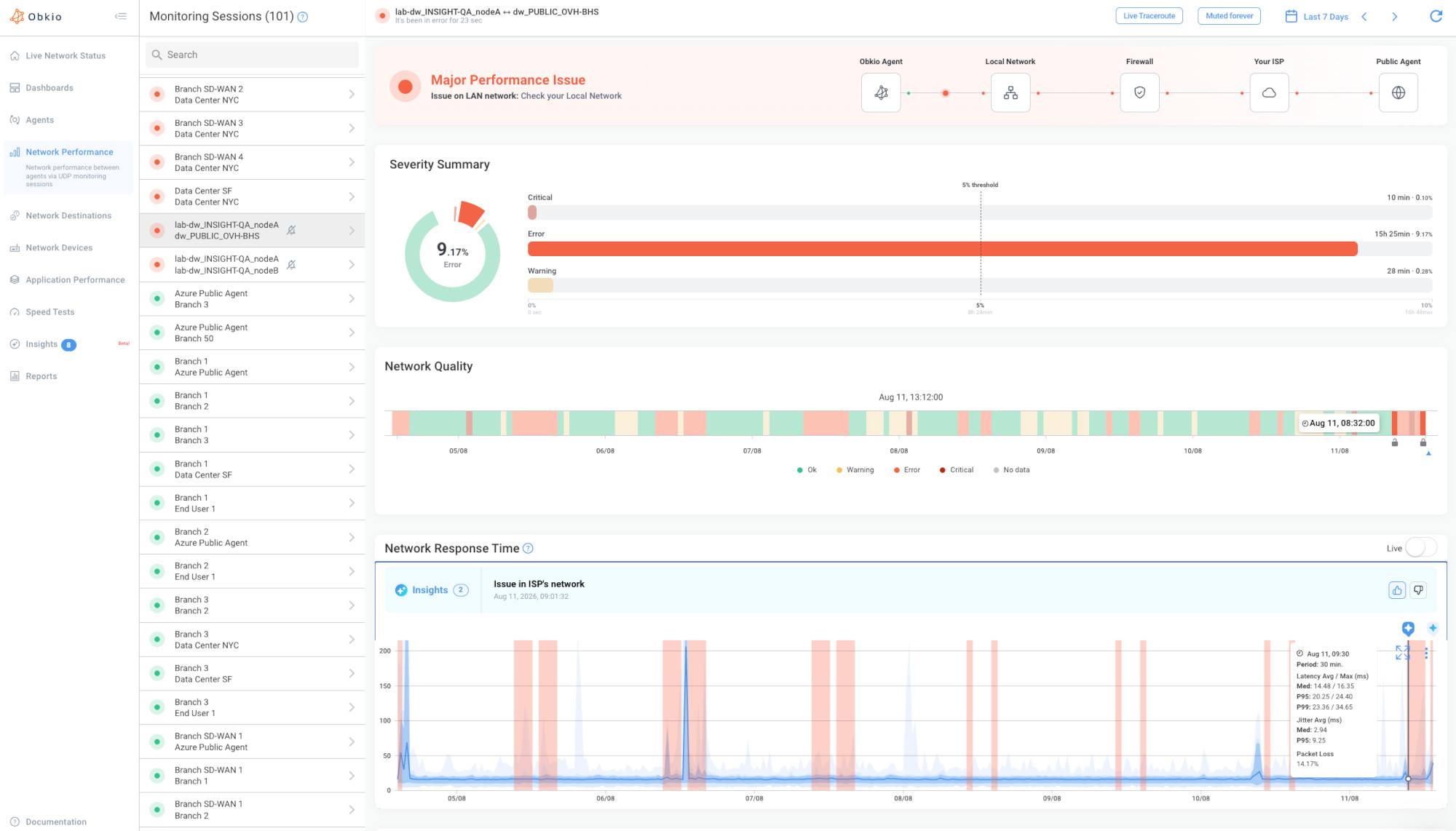 Screenshot from Obkio's Network Monitoring & Observability Tool
Common Causes of Slow Internet in your LAN
1. WiFi signal interference from microwaves, neighbouring networks, or physical obstructions like walls and metal shelving → Mainly latency and packet loss. Shows up as weak signal strength on the affected device.
2. Channel congestion in dense environments such as apartment buildings or open office floors → Mainly bandwidth and latency. Shows up as wired connections working fine while WiFi is slow.
3. Router or access point issues like placement issues, or outdated firmware → Mainly latency and packet loss. Shows up as wired connections working fine while WiFi is slow.
4. LAN congestion from several heavy users sharing the same local segment → Mainly bandwidth. Shows up as multiple devices at the same location affected, while devices elsewhere are fine.
5. Faulty network equipment like switches, cabling, or network cards on the local segment → Mainly packet loss. Shows up as wired connections working fine while WiFi is slow (or vice versa, depending on where the fault sits)

Discover the top 10 LAN Network Congestion Causes. Learn how to identify, monitor, and troubleshoot LAN congestion with this comprehensive guide.
Learn more

Slow Internet Symptoms In Your LAN
- Wired connections work fine, but WiFi is slow (this isolates the problem to wireless specifically)
- Multiple devices at the same location are affected, but devices elsewhere are fine
- Speed changes depending on where you are in the building
- Signal strength shows visibly weak on the affected device
If this sounds like your situation, WiFi and local network issues are usually fixable without involving your ISP at all. Jump to LAN fixes, or run through the gateway-vs-external ping test first to confirm before you start troubleshooting.
Slow Internet Cause #2: Your ISP (Internet Service Provider)
Your ISP is the likely cause when every device and every network at your location slows down at the same time, wired and wireless alike, regardless of what's running locally.
Once you rule out the local network, the next suspect sits upstream, between your router and the wider Internet.
How Your ISP Causes Slow Internet
Once traffic leaves your building, it has to cross infrastructure you don't control and often don't have visibility into. If that path is congested, misrouted, or degraded, everything downstream is affected regardless of how clean your local setup is; this is also why local troubleshooting fixes look like they "didn't work"
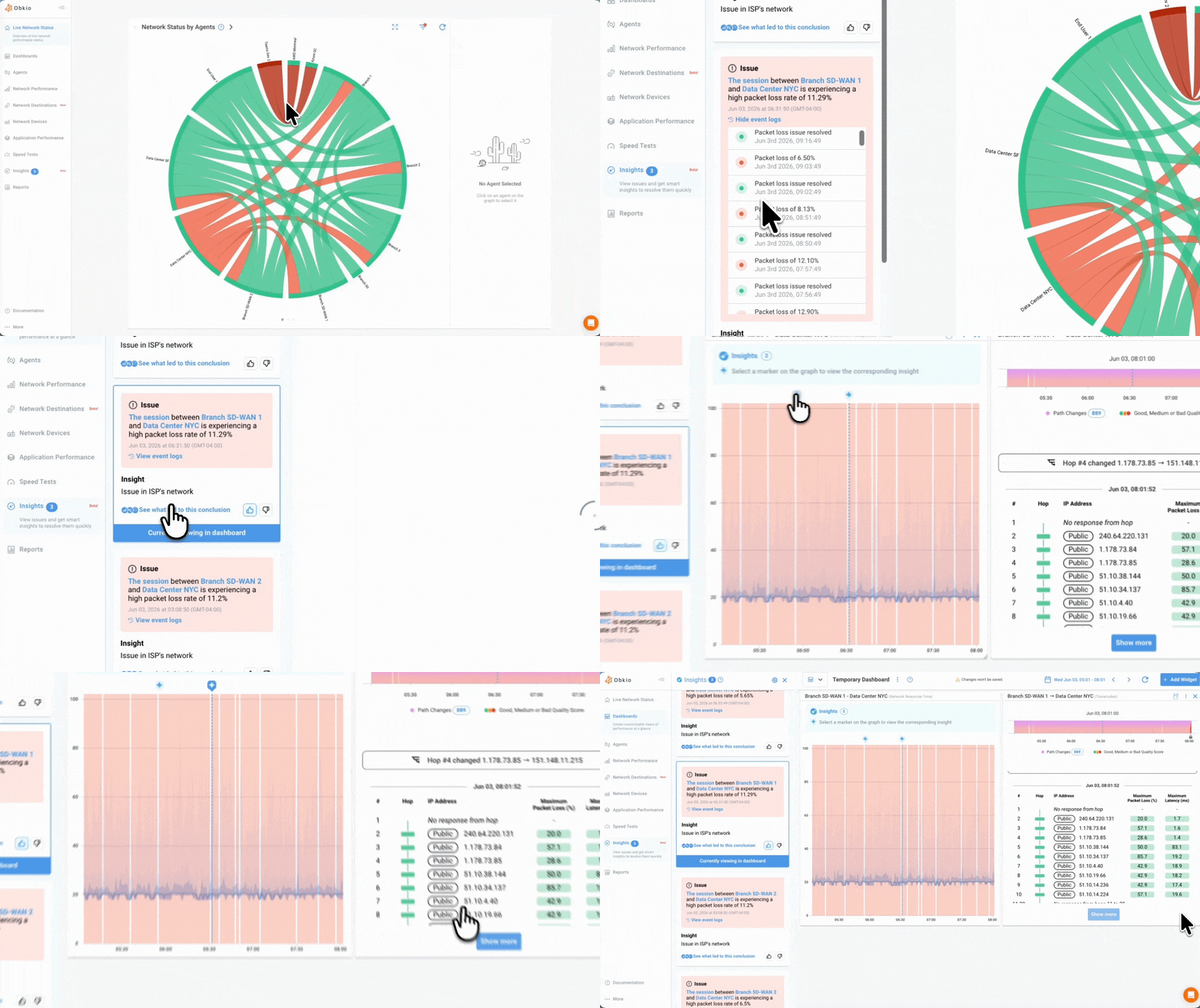
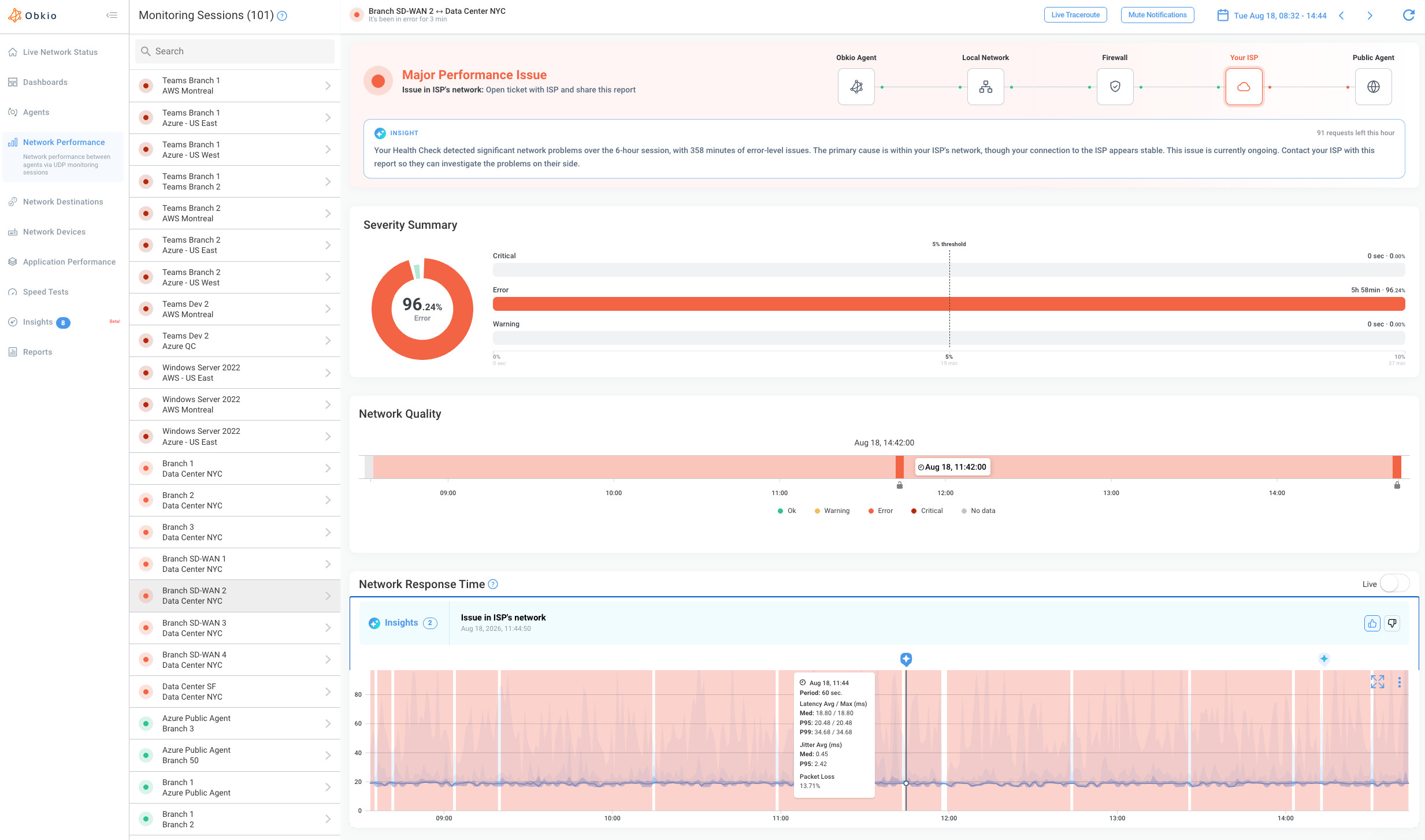 Screenshot from Obkio's Network Monitoring & Observability Tool
Common Causes of Slow Internet in Your ISP
1. ISP-side outages or scheduled maintenance → Mainly bandwidth and packet loss, sometimes total loss. Shows up as a slowdown that correlates with a known outage window.
2. Peering or routing issues further upstream than your own connection → Mainly latency and packet loss. Shows up as a speed test to the ISP's own servers looking fine, while general browsing and streaming still lag.
3. Bandwidth throttling, whether contractual or triggered by congestion → Mainly bandwidth. Shows up as every device at the location affected, not just one.
4. Oversubscribed local nodes, common with cable ISPs during peak hours → Mainly bandwidth and latency. Shows up as slowdowns that correlate with time of day.
5. Last-mile degradation from aging infrastructure or weather damage → Mainly latency and packet loss. Shows up as wired connections just as slow as wireless.

Is your ISP throttling your Internet? Learn how to tell ISP throttling from congestion, test it step by step, prove it to your ISP with data & stop it.
Learn more
Slow Internet Symptoms In your ISP
- Every device at the location is affected, not just one machine or one WiFi band
- Wired connections are just as slow as wireless, which rules out the local network as the sole cause
- A speed test to the ISP's own servers looks fine, but general browsing and streaming still lag (a classic sign of a peering issue rather than a raw bandwidth shortage)
- The slowdown correlates with time of day or a known outage window
ISPs rarely take "the Internet is slow" as a valid ticket. They want hop-by-hop data, timestamps, and packet loss numbers before they'll act. Jump to ISP fixes for how to gather that evidence, or run through the gateway-vs-external ping test first to confirm the ISP is really the source.
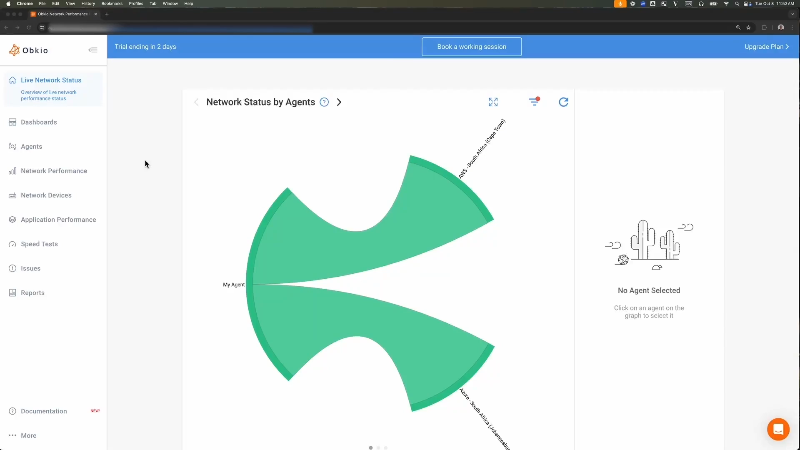
Slow Internet Cause #3: Your Own Machine
Your machine is the likely cause when only one device is affected while everything else on the same network runs fine, and non-network tasks feel sluggish too.
Sometimes the network is healthy from end-to-end, and the bottleneck is sitting right on the desk.
How Your Local Machine Causes Slow Internet
The network can be delivering data perfectly, and the experience can still feel slow, because the device has to receive, process, and render that data. If CPU, memory, or bandwidth is being consumed elsewhere (background processes, other apps), there isn't enough headroom left to handle the network traffic that's arriving just fine.
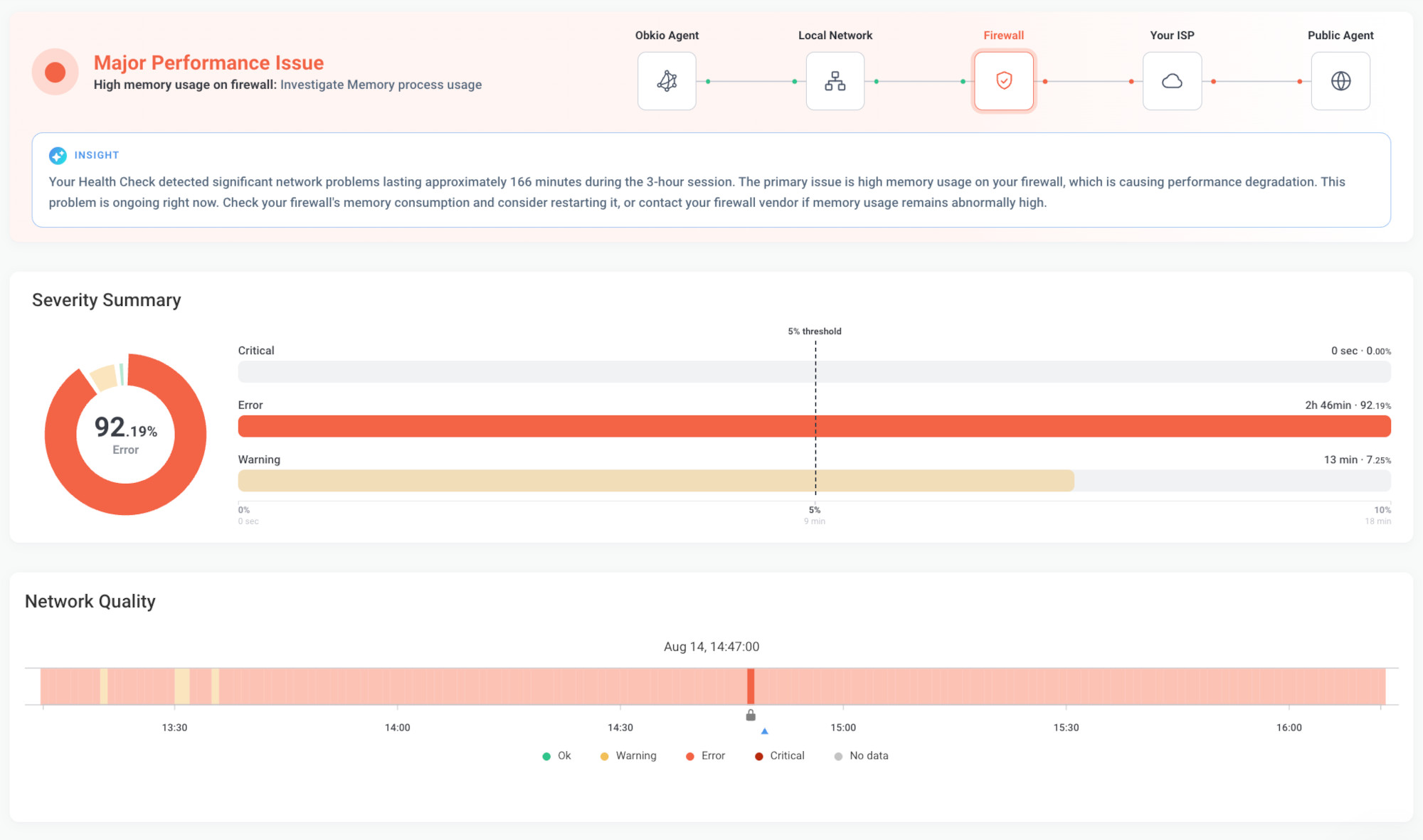
Common Causes of Slow Internet on Your Machine
1. High CPU or memory usage from background processes → Mainly effective latency (processing delay, not network delay). Shows up as non-network tasks also feeling sluggish.
2. Bandwidth-hungry apps running quietly, like auto-updates, cloud sync, or backup jobs → Mainly bandwidth (local contention). Shows up as only one device affected while others on the same network are fine.
3. Outdated or corrupted network drivers → Mainly latency and packet loss. Shows up as performance improving after closing apps or rebooting.
4. Battery-saving or power-throttling modes on laptops → Mainly bandwidth and latency (the NIC itself gets throttled). Shows up as the fan spinning up and the device running hot right as the slowdown starts.
5. Browser bloat from too many open tabs, extensions, or cached processes → Mainly effective latency. Shows up as non-network tasks also feeling sluggish.

Firewall memory usage climbing? Learn the common causes of high firewall memory, how to diagnose the root cause, and how to fix it before it drops connections.
Learn more
Slow Internet Symptoms In Your Machine
- Only one device is affected while others on the same network are fine
- Non-network tasks are also sluggish, a sign of resource contention rather than a connectivity problem
- Performance improves after closing apps or rebooting
- The laptop fan spins up, and the device runs hot right as the slowdown starts
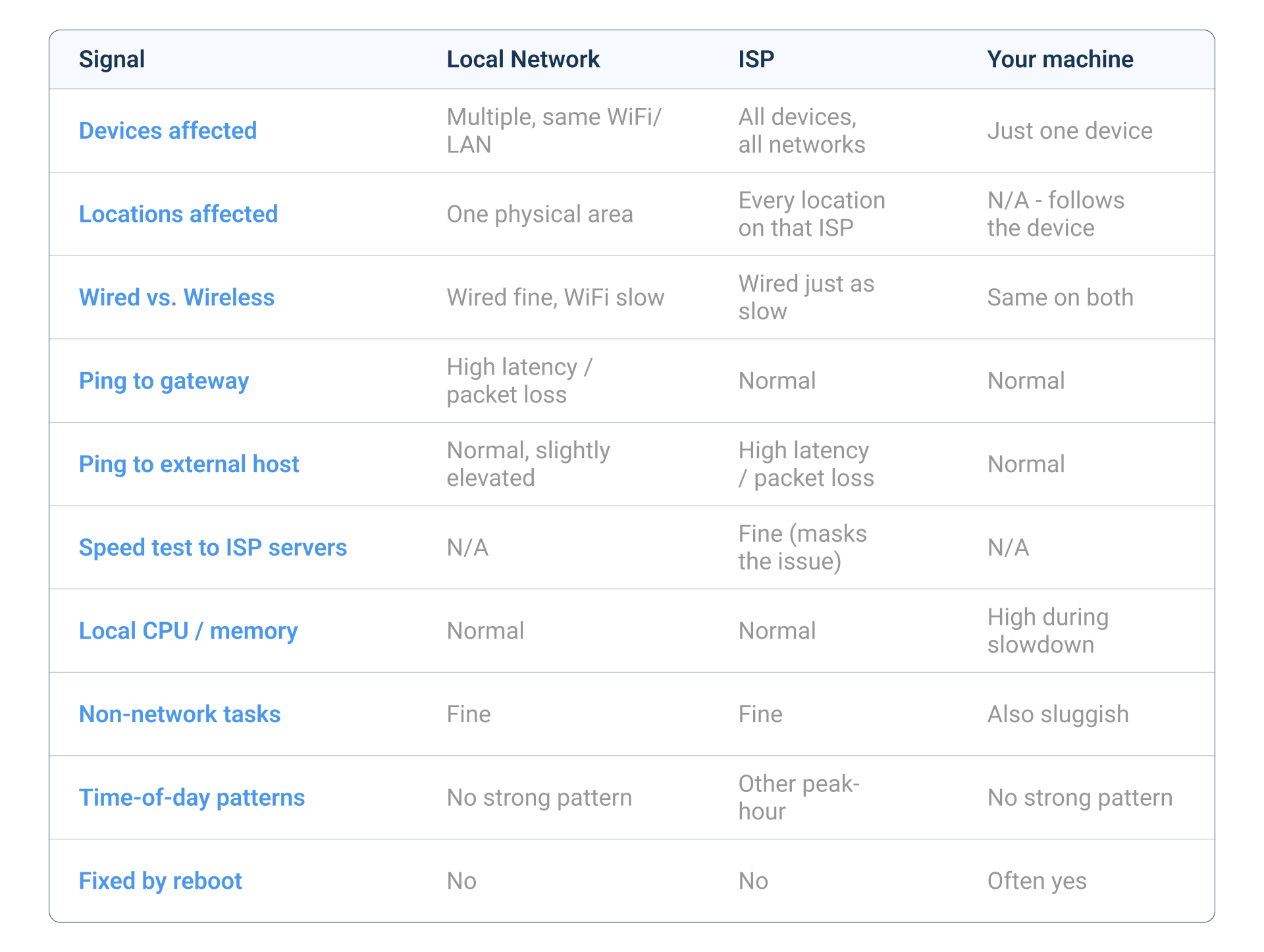
This is the cause IT teams miss most often on remote workers, because nobody can see CPU usage on a laptop three states away without the right tooling. Jump to machine fixes, or check the full diagnostic table to confirm before ruling out network and ISP.
How to Find the Real Cause of Slow Internet
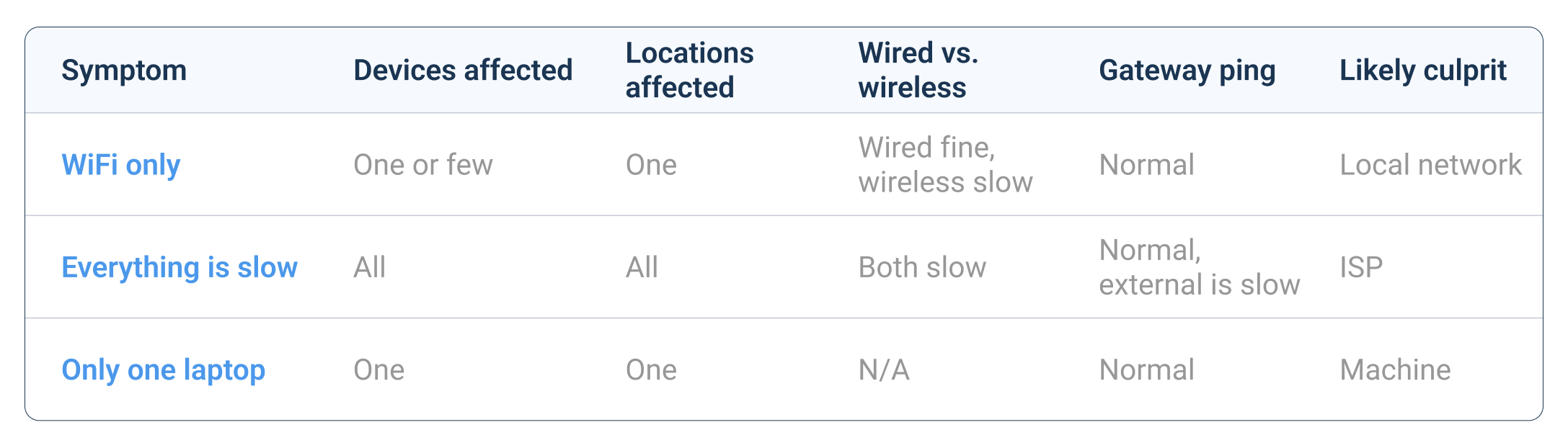
Work through five checks in order: one device or many, one location or many, wired versus wireless, gateway ping versus external ping, and local resource usage; the pattern points straight to network, ISP, or machine.
Run through these steps in order. Each one narrows the field, and by the end you should have a single culprit left standing.
Step 1: Is one device experiencing slow Internet performance or many?
One device points to the machine. Many devices point to the network or the ISP.
Ask around before you touch anything. If the person sitting next to the complainant, on the same WiFi, has no issues at all, the network is probably fine, and the problem lives on that one machine. If three people in the same office all report the same slowdown at the same time, the machine theory falls apart fast, because it would be a strange coincidence for three laptops to fail identically at once.
Example: A user reports Zoom freezing during calls. You check with two coworkers on the same floor. Neither has issues. That single data point already rules out the ISP and most of the local network, and points you straight at Step 5.
Step 2: Is one location having slow Internet problems or many?
One location points to the local network. Multiple locations affected at once points to the ISP.
This step matters most for organizations with more than one office or a mix of office and remote staff. If your head office is fine but your branch office is crawling, the ISP serving that branch is a much stronger suspect than anything upstream, since your ISP connections are likely different at each site. If every location you have, including remote workers on completely different ISPs, reports slowness at the same time, look at something shared between them: a VPN concentrator, a SaaS provider, or a common upstream carrier, rather than any single ISP.
Example: Your branch office in another city starts complaining about slow file transfers at 2 pm daily, while head office runs fine the whole time. That daily pattern, tied to one location, points to local congestion or an ISP capacity issue specific to that branch, not something in your corporate network.
Step 3: Compare Wired vs. Wireless Internet connection
If wired is fine and WiFi is slow, that isolates the problem to the wireless network specifically.
This is one of the fastest checks available, and most people skip it. Plug a laptop directly into the switch or router with an Ethernet cable and run the same task that was slow on WiFi. If it's suddenly fine, you've confirmed the issue lives in the wireless layer: interference, channel congestion, distance from the access point, or a WiFi driver issue, not anything downstream of the router.
Example: A user says their video calls keep freezing. You have them plug into Ethernet for their next call. No freezing at all. That single test just eliminated the ISP and the machine as suspects and told you to go look at the WiFi environment: access point placement, channel overlap with a neighbour's network, or physical obstructions.
Step 4: Ping the gateway, then ping an external host
Slow or lossy pings to your own gateway point to the local network. A clean ping to the gateway but slow pings to an external host like 8.8.8.8 point to the ISP.
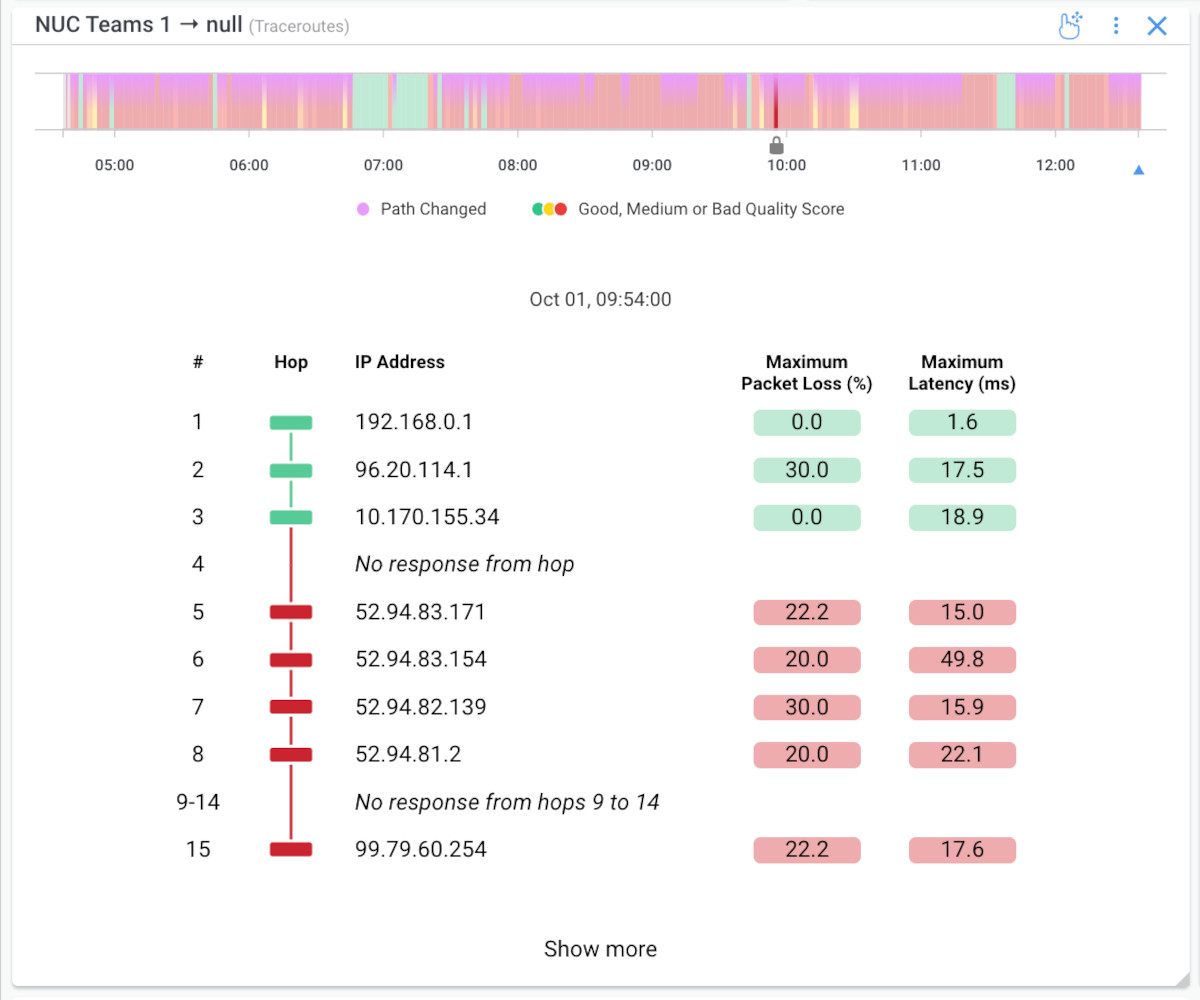
From a command prompt or terminal, ping your router's local IP address first (often something like 192.168.1.1). If you see high latency or dropped packets there, on a hop that never leaves the building, the problem is local: a saturated switch, a bad cable, or an overloaded access point. If that first hop comes back clean and fast, but pinging an external address like 8.8.8.8 or 1.1.1.1 shows latency spikes or packet loss, the problem sits somewhere between your router and the wider internet, which is ISP territory.
Example: ping 192.168.1.1 comes back at a consistent 1ms with zero packet loss. ping 8.8.8.8 shows 180ms average with 12% packet loss. Your local network is healthy. The problem starts right at your ISP's edge or further upstream, which is exactly the kind of evidence an ISP support ticket needs.
Step 5: Check local resource usage
Open Task Manager (Windows) or Activity Monitor (Mac). High CPU or memory usage during the slowdown points to the machine, not the network.
Sort processes by CPU and memory while the slowdown is happening, not after. Look for anything unexpected eating resources: a backup job that kicked off automatically, a browser with dozens of tabs open, a corrupted process stuck in a loop. If CPU is sitting at 90%+ or available memory is down to a few hundred MB, that alone can make a perfectly healthy connection feel unusable, since the machine can't process incoming data fast enough to keep up.
Example: A user's laptop shows CPU at 97% with a cloud backup client running in the background during their video call. Closing the backup app drops CPU to 15%, and the call quality improves immediately. No network issue involved at all, just resource contention on the endpoint.

How to Fix Slow Internet, by Culprit (Network, ISP, Local Machine)
The fix depends entirely on the culprit: move or reconfigure for network issues, escalate with data for ISP issues, and free up resources for machine issues. If you haven't confirmed which one you're dealing with, run through the diagnostic table first. Fixing the wrong layer just means the complaint comes back.
If Your Network is Causing Slow Internet
- Move closer to the access point, or add a second AP for dead zones
- Switch WiFi channels or bands to dodge congestion
- Update router and access point firmware
- Switch to a wired connection wherever that's practical
- Segment heavy users onto separate access points or VLANs
If Your ISP is Causing Slow Internet
- Check the ISP's public status page for known outages (immediate, resolves on the ISP's timeline, sometimes minutes, sometimes hours)
- Run speed tests at different times of day to catch peak-hour throttling (takes 24–48 hours to see the full pattern. A single test won't confirm or rule this out.)
- Contact support with specific data: ping results, traceroute hops, timestamps, not just "the Internet is slow" (expect a ticket cycle, not an instant fix. Data-backed tickets get prioritized faster, but resolution is still on their timeline)
- Consider a plan or bandwidth upgrade if this is a recurring capacity issue rather than a one-off (longest lead time. Billing/provisioning changes, not a same-day fix)

Learn how to use network monitoring tools to identify ISP issues and work with your ISP to troubleshoot. Don't let ISP problems slow you down!
Learn more
If Your Machine is Causing Slow Internet
- Check Task Manager (Windows) or Activity Monitor (Mac) to see whether CPU/memory usage or a specific app is actually the spike. This tells you whether you're dealing with background processes or browser bloat before you start closing things at random
- Close background apps and browser tabs eating memory
- Update network drivers
- Disable unnecessary startup processes
- Check power settings on laptops, especially battery-saving modes that throttle the network adapter
- Clear the browser cache or restart the browser entirely
Each fix targets a different layer, which is exactly why guessing wastes time. Fix the wrong layer and the complaint just comes back.
Once you've applied a fix, re-run the same test that pointed you there in the first place (ping the gateway again, re-check wired vs. wireless, or re-run the speed test) before calling it resolved.
And if you've worked through an entire list with no improvement, that's usually a sign the diagnosis was wrong rather than that you need a sixth fix; it's worth revisiting the diagnostic table, since some slowdowns really do have two causes stacked (a struggling laptop on a congested network, for example).

Learn what WiFi monitoring measures, how to check WiFi performance, and how to catch slow connections before remote teams notice.
Learn more
How Obkio Helps You Find the Real Cause, Automatically
Obkio runs continuous tests from the user's actual location, so you see whether a slowdown sits in the local network, the ISP, or the device itself, without walking anyone through diagnostic steps over the phone.
Manual troubleshooting works for a single incident. It falls apart when you're supporting a distributed team and can't see what's happening on someone's laptop or home network in real time.

- 14-day free trial of all premium features
- Deploy in just 10 minutes
- Monitor performance in all key network locations
- Measure real-time network metrics
- Identify and troubleshoot live network problems


Obkio's Monitoring Agents install directly on the user's device, whether that's a head office desktop or a remote worker's laptop, and run synthetic tests continuously, exchanging traffic every 500 milliseconds. That gives you a constant baseline instead of a single snapshot from the moment someone opens a ticket.
Here's how the pieces map to the three culprits from this article:
- Local network issues: the agent monitors WiFi signal strength and local network performance directly from the user's device, so you can confirm a WiFi problem without asking anyone to run a speed test themselves.
- ISP issues: Visual Traceroutes show the complete path hop by hop, so you can pinpoint exactly where latency or packet loss starts, often right at the ISP's first hop, and bring your provider concrete evidence instead of a vague complaint.
- Machine issues: the agent also tracks local device health, CPU usage, and memory, so you know immediately if "the Internet is slow" is actually "this laptop has no free memory left."
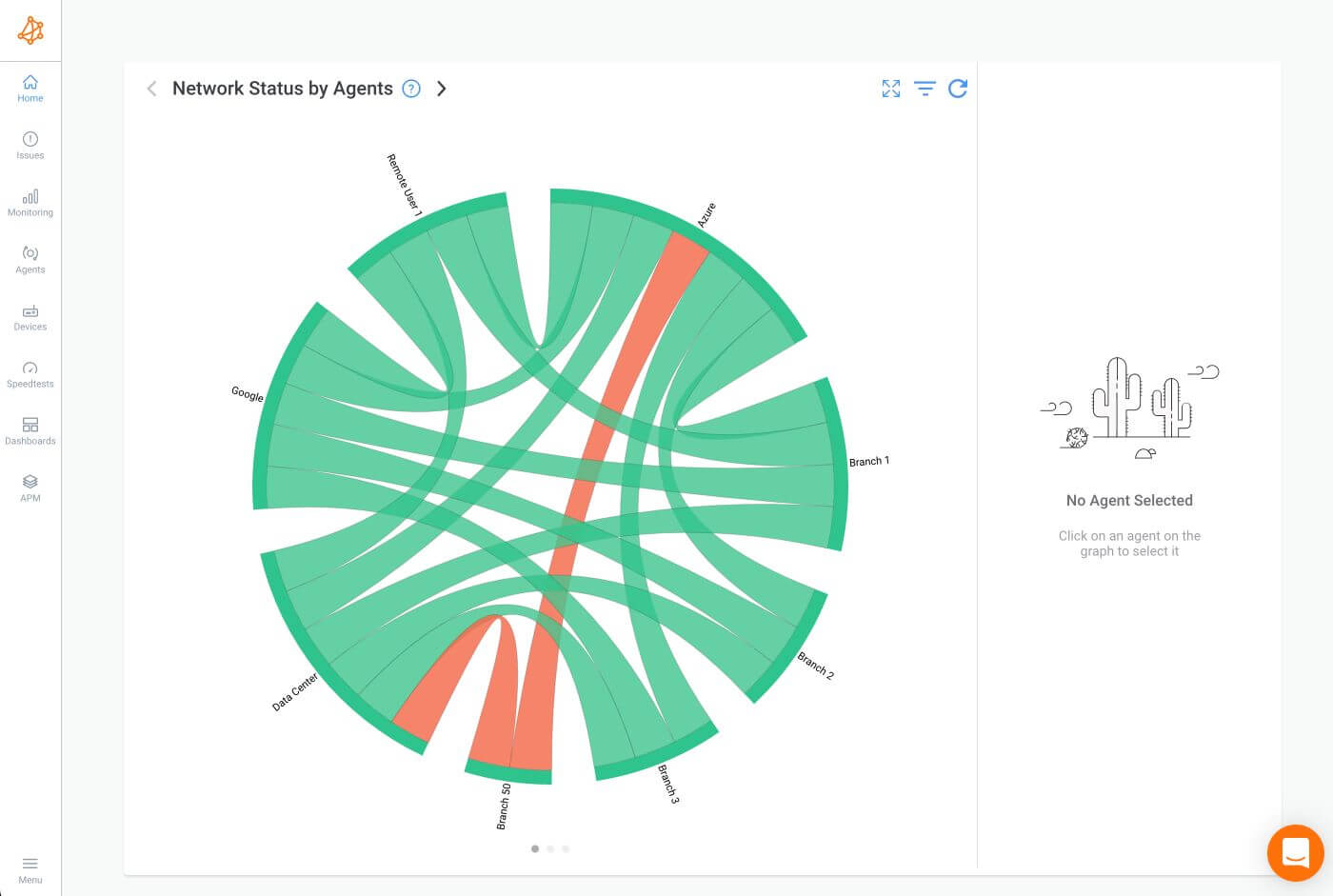
For businesses monitoring their own infrastructure, Public Monitoring Agents hosted on Azure, AWS, and Google Cloud let you test performance to and from major cloud regions, while SNMP polling every 30 seconds tracks the health of routers, switches, and firewalls at ten times the resolution of standard 5-minute polling tools.
For remote and hybrid teams, this same approach extends past the office, monitoring the network from the worker's exact location rather than guessing what's happening on an unmanaged home connection.
Explore Obkio's Remote Worker Monitoring | Start your 14-day free trial
FAQ: Slow Internet, LAN, ISP, and Machine Issues
How do I know if my Internet is slow because of my ISP?
Check whether every device at your location is affected, wired and wireless alike. If so, and a speed test to your ISP's own servers looks fine while general browsing lags, that points to a peering or routing issue upstream rather than raw bandwidth.
Why is my WiFi slow but my wired connection is fine?
This almost always points to the local network: signal interference, channel congestion, or a router placement issue. A wired connection bypasses WiFi entirely, so if it's fast while WiFi lags, the wireless layer is where the problem lives.
Can a slow computer make the Internet seem slow?
Yes. High CPU or memory usage, outdated network drivers, or too many background processes can make a perfectly healthy connection feel unusable. Check whether non-network tasks are also sluggish. If they are, the machine is the likely culprit, not the network.
How can IT teams diagnose slow Internet for remote workers?
IT teams need visibility from the remote worker's actual device, since you can't ping into most home networks from the outside (roughly 80% of ISPs block inbound ICMP traffic to residential connections). Installing a lightweight monitoring agent on the worker's laptop lets you test from their point of view instead of guessing.
What's the fastest way to tell if it's the network, the ISP, or the machine?
Run the five-step check: one device or many, one location or many, wired versus wireless, gateway ping versus external ping, and local resource usage. Each answer narrows the field until only one culprit fits the pattern.
Final Thoughts: Let Obkio Find the Real Cause of Slow Internet For You
Slow Internet always has one of three sources: the local network, the ISP, or the machine trying to use the connection. Walking through device count, location count, wired versus wireless, ping behaviour, and local resource usage will get you to the right answer almost every time.
That manual process works fine for a single complaint. It doesn't scale once you're supporting a distributed team you can't see, on networks you don't control. Knowing automatically whether an issue sits with the network, the ISP, or the device itself, without walking someone through diagnostic steps over the phone, is what turns troubleshooting from guesswork into a repeatable process.
This is exactly what Obkio is built for. Monitoring Agents run the same five checks you just read about, automatically and around the clock: testing the network path, watching device health, and mapping every hop between the user and the applications they depend on. Instead of guessing whether it's your ISP, you have hop-by-hop proof to put in the ticket.
That's the difference between troubleshooting one incident and never having to guess again.
- 14-day free trial of all premium features
- Deploy in just 10 minutes
- Monitor performance in all key network locations
- Measure real-time network metrics
- Identify and troubleshoot live network problems


