











 Obkio Blog


 Subscribe
Table of Contents
Table of Contents
For years, IT teams had a fairly contained job: keep the office network running. Every device, router, and switch that mattered was inside a building they controlled.
That job doesn't exist anymore.
Remote and hybrid work moved the "network" into hundreds of living rooms, home offices, and coffee shops, none of which IT can see, configure, or troubleshoot directly. So when a help desk ticket comes in saying "the app is slow" or "my calls keep dropping," IT is left guessing. Is it the company's network? The employee's ISP? Or is it something as simple as a weak WiFi signal three rooms away from the router?
This is where WiFi monitoring comes in. It's the piece of the puzzle that tells you whether the wireless connection itself — not the app, not the corporate network, not the ISP — is the source of the problem.
In this article, we'll cover what WiFi monitoring actually is, what it measures, how to check and improve WiFi performance yourself, and what to look for if you're evaluating a monitoring tool for a distributed team.
What Is WiFi Monitoring? 
WiFi monitoring is the continuous tracking of wireless network conditions, like signal strength, latency, and connection stability, to detect and diagnose performance issues before they disrupt users. Unlike a one-time speed test, it provides ongoing visibility into how a wireless connection is actually performing over time.
That "continuous" part matters. Wireless conditions aren't static. A signal that's strong at 9 am can degrade by 2 pm because a neighbour's network started broadcasting on the same channel, or because someone's microwave is running two rooms over.
Wired connections don't have this problem; once a cable is plugged in, its performance is comparatively stable. WiFi is inherently more variable, which is exactly why it needs its own category of monitoring.
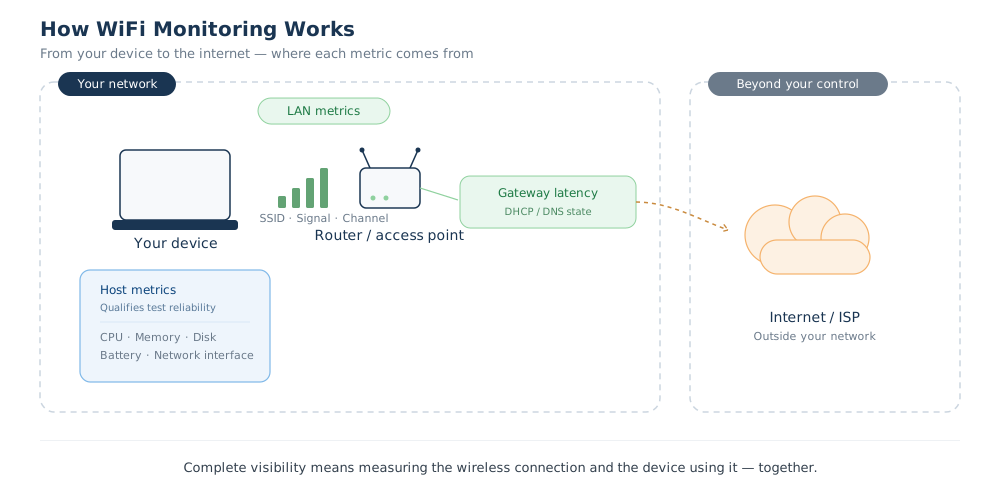
It's also worth distinguishing WiFi monitoring from network monitoring more broadly. Network monitoring typically watches infrastructure IT owns and controls — routers, switches, WAN links, the DHCP and DNS services that keep everything running.
WiFi monitoring, by contrast, is often watching a connection IT doesn't own at all: an employee's home router, a shared office WiFi network, a hotel connection. It's the layer of visibility that extends past the edge of the corporate network into wherever the user actually is.
Finally, WiFi monitoring is different from a WiFi speed test, a point we'll come back to later in this guide. A speed test tells you how your connection performed in the 15 seconds you ran it. Monitoring tells you how it's performed for the last hour, day, or week, which is usually the more useful question when you're trying to diagnose an intermittent problem.
What WiFi Monitoring Actually Measures
Slow WiFi has more than one possible cause, and a tool that only looks at the wireless connection itself will only ever tell you half the story. To actually diagnose a slowdown, monitoring needs to answer two separate questions: is the local wireless connection healthy, and is the device using it healthy?
Miss either one, and you risk blaming the network for a problem that's actually the laptop, or blaming the laptop for a problem that's actually the WiFi.
LAN-Side WiFi Metrics
These are the metrics that describe the wireless connection itself; the hop between a device and the local network (LAN).
- SSID: Which network the device is actually connected to. This catches the cases that seem obvious after the fact: a user on guest WiFi instead of the main network, or connected to a neighbour's weaker signal without realizing it.
- Signal Strength: How strong the wireless signal is at the device. Weak signal is one of the most common root causes behind "my Internet is slow" complaints, and it's the first thing worth ruling in or out.
- Channel: Which wireless frequency channel the connection is using. In dense environments (apartment buildings, open-plan offices), overlapping channels from neighboring networks are a frequent, invisible cause of interference.
- Connection type: Wired vs. wireless. It sounds almost too simple to mention, but confirming this is often the fastest way to rule WiFi in or out as a cause entirely.
- Gateway Latency: The round-trip time to the local router or gateway. This isolates "slow to my own router" from "slow to the Internet at large," which is exactly the distinction that determines whether the problem is local or external.
- DHCP/DNS State: whether the device received a valid IP lease and can resolve domain names locally. (For the mechanics of how this can go wrong, see our guides on DHCP issues and DNS issues.)
Together, these metrics answer one question: is the local wireless connection itself the problem?

Learn how to identify and fix common DNS issues, from resolution failures and cache poisoning to server outages, and keep your network running smoothly.
Learn more

Host-Side Context
Here's the part that's easy to overlook: a network device can have a perfect wireless signal and still feel slow because the device itself, not the network, is the bottleneck.
- CPU / Memory: A machine running hot on resources, like high CPU usage or memory usage, will feel sluggish no matter how strong the WiFi is. Without this context, a monitoring tool has no way to tell the difference, and will wrongly point the finger at the network.
- Disk: Heavy disk activity, like a backup running in the background or a pending OS update, can produce symptoms that look identical to a network slowdown.
- Network Interface: confirms which network adapter is actually active and its current state.
- Battery: A non-obvious one: a device throttling performance to conserve battery or manage heat can throttle network throughput as a side effect. This is a classic source of false positives if a monitoring tool isn't checking for it.
The purpose of tracking these isn't to monitor the device for its own sake. It's to qualify the reliability of the WiFi reading itself and eliminate false positives. A signal-strength reading taken while the CPU is pegged at 100% isn't telling you anything trustworthy about the network.
Modern monitoring tools increasingly look at both sides of this equation, the wireless connection and the device using it, because measuring one without the other leaves a diagnostic blind spot. A tool that only checks signal strength will occasionally blame the network for what's actually a dying laptop battery, and vice versa.
5 WiFi Metrics to Monitor
The previous section covered what these metrics mean and why they matter diagnostically. This one is the quick-reference version. It includes the numbers to actually watch, and the thresholds that separate "fine" from "worth investigating."
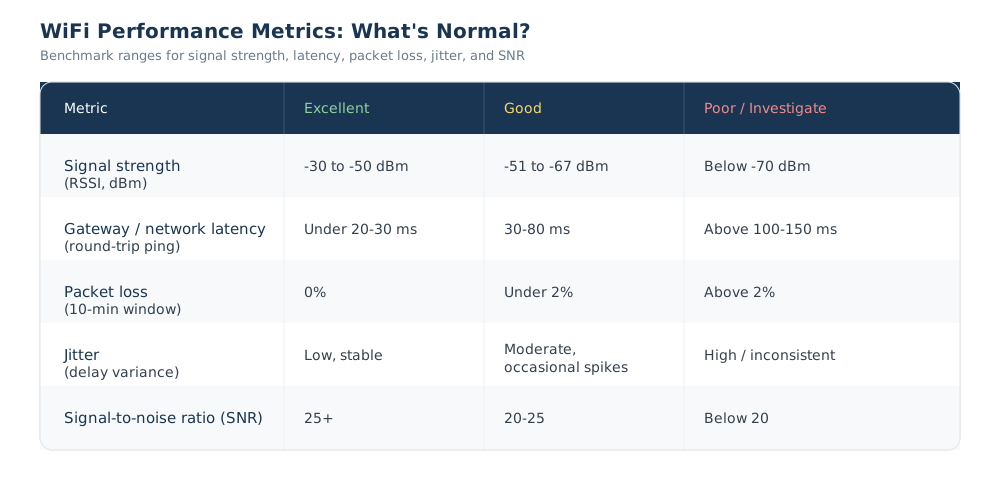
A few things worth knowing before using the table:
1. Signal strength (RSSI)
Signal strength (RSSI) is measured in dBm, and the scale is negative. The closer to zero, the stronger the signal. A reading of -50 dBm is stronger than -70 dBm, even though -70 looks like the bigger number. Anything in the -30 to -50 range means the device is close to the access point with a strong connection; below -70 is where users typically start noticing real problems.
2. Latency
Latency here refers to round-trip time to the local gateway, not to a server across the Internet. This is a deliberately narrow measurement. It isolates the local network hop from everything downstream, which is what makes it useful for diagnosis. Under 20-30ms is excellent for this specific hop; above 100-150ms is worth investigating, especially for video calls, which are far more sensitive to latency than casual browsing.
3. Packet Loss
Packet loss matters more than most people expect. Even small amounts, above roughly 2% over a 10-minute window, tend to produce the kind of intermittent, hard-to-pin-down symptoms that generate a disproportionate number of help desk tickets: choppy calls, pages that hang and then suddenly load, connections that feel unreliable without any single clear failure.
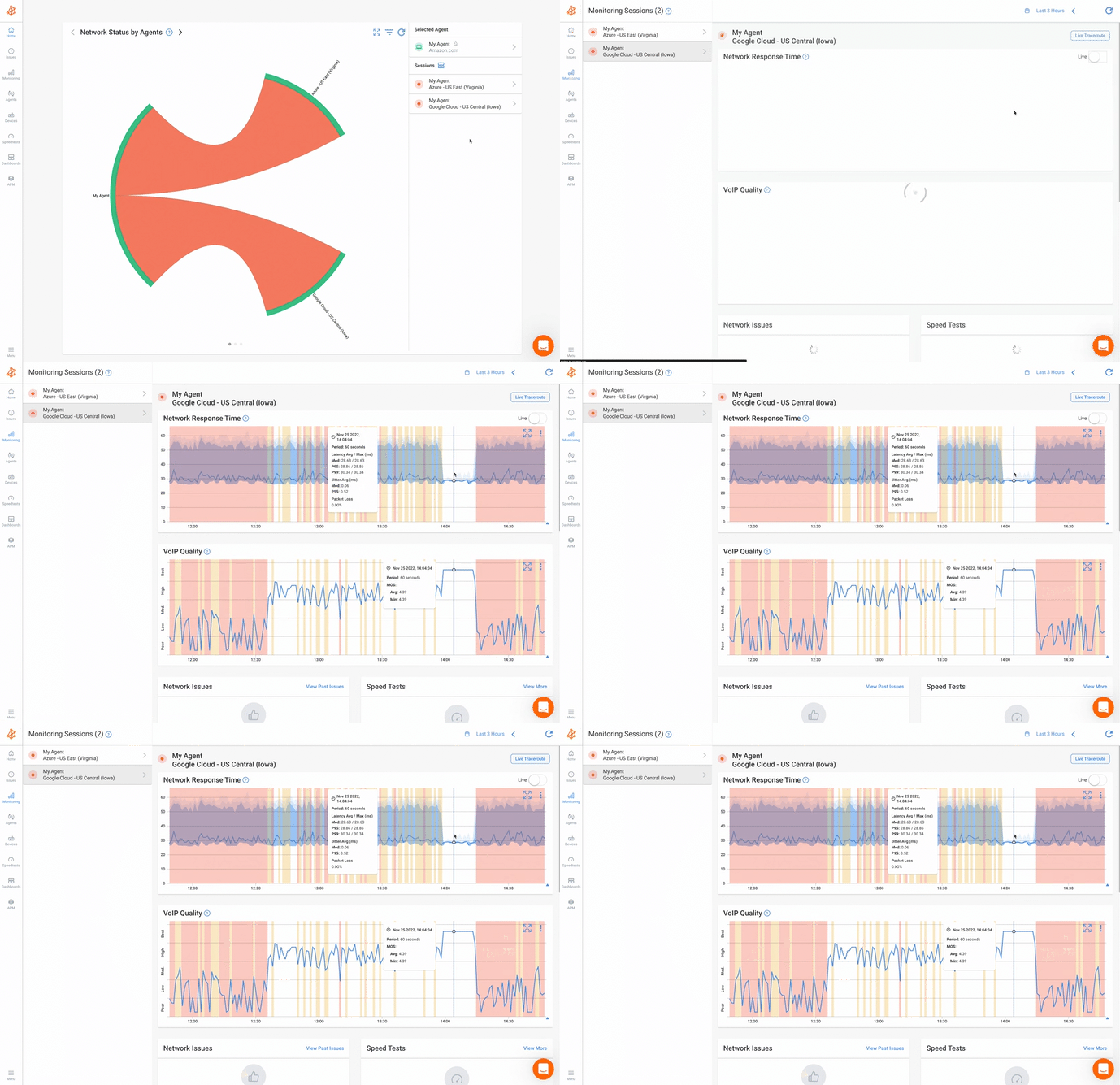 Graphs from Obkio's Network Monitoring Tool
4. Jitter
Jitter is the variable most people have never heard of but feel constantly. It's the consistency of latency, not the latency itself. A connection with a stable 60ms ping will often feel smoother in a video call than one that swings between 15ms and 150ms, even though the second one has a lower average. If a user says calls feel "choppy" or "glitchy" rather than just "slow," jitter is usually the more useful thing to check than raw latency.
5. SNR (Signal-to-Noise Ratio)
SNR (signal-to-noise ratio) captures something signal strength alone can miss: a device can show acceptable signal strength and still perform poorly if there's enough background interference. An SNR of 25 or higher is generally solid; below 20 is where interference starts actively degrading the connection even if the signal bars look fine.
No single metric tells the whole story on its own. A strong signal with high packet loss, or low latency with bad jitter, both point to real problems that a single-number "signal strength: good" reading would completely miss.
Common WiFi Issues Remote Teams Face
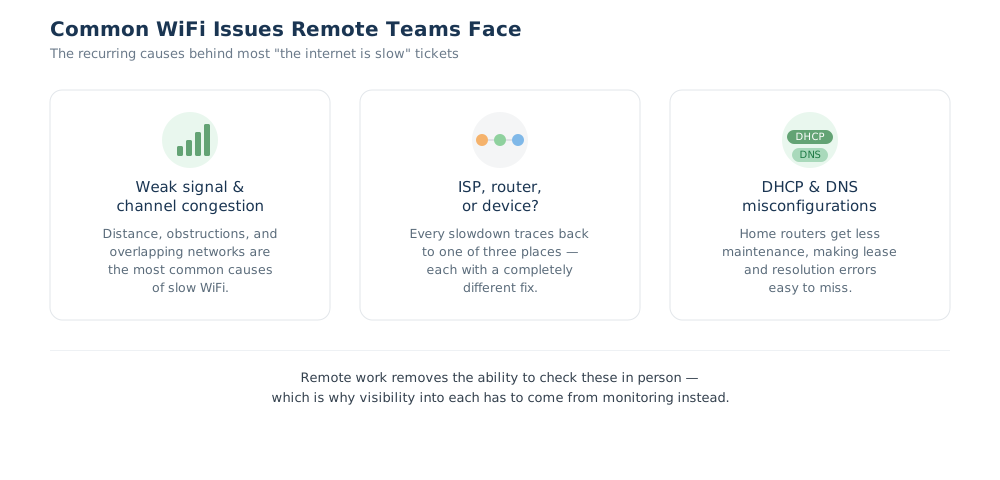
Most WiFi complaints trace back to a small handful of recurring causes. Here's what actually shows up most often when a remote or hybrid employee reports "the Internet is slow."
1. Weak signal and channel congestion
The most common cause by far. An employee working from a bedroom or basement, several walls away from the router, will often have a technically functional but genuinely weak connection, and won't necessarily know that's the problem, since "the WiFi icon shows I'm connected" doesn't mean the signal is actually strong. Channel congestion compounds this in apartment buildings and shared office spaces, where dozens of overlapping networks compete for the same limited spectrum.
Both are covered in more detail in the "How to Improve WiFi Performance" section later on in this article.
2. The three usual suspects: ISP, router, or device
When something feels slow, there are really only three places the problem can live: the ISP, the local network (router/WiFi), or the device itself. Distinguishing between them is often more valuable than any single metric, because the fix is completely different depending on which one it is. No amount of router troubleshooting will fix a genuinely bad ISP connection, and no ISP upgrade will fix a WiFi dead zone.
3. DHCP and DNS misconfigurations
Home routers don't get the same maintenance attention as enterprise network equipment, which makes them more prone to DHCP issues and DNS issues that go unnoticed for a long time. A device that fails to renew its DHCP lease properly, or that's stuck pointing at a slow or unreliable DNS server, can produce symptoms that look exactly like a WiFi problem, pages that hang, connections that feel unreliable, when the wireless signal itself is actually fine.
Why WiFi issues matter for remote teams specifically
In an office, IT can often narrow these down quickly: checking the router, testing a cable, walking over to look at the machine directly. Remote work removes that option. A help desk ticket that says "it's slow" could be any of the above, and without visibility into the employee's actual connection, IT is left asking the employee to run diagnostics they may not know how to interpret. This is the exact gap that ongoing WiFi monitoring is built to close.

Meta: Learn how to troubleshoot and fix common DHCP issues and DHCP server problems, from IP conflicts to scope exhaustion, and quickly spot real ISP outages.
Learn more
How to Check and Measure WiFi Performance
Before reaching for a network monitoring tool, some people may choose a manual process first. This is how to check WiFi performance manually. These are the fastest ways to get a real answer right now, using tools already built into the operating system.
These techniques won’t be able to help much with troubleshooting WiFi issues (that’s what a network monitoring and diagnostic tool like Obkio is for), but they’re a good starting point if you want to validate if you have a WiFi issue.
Windows
Open Command Prompt and run:
This returns the current SSID, signal quality (as a percentage), channel, receive/transmit rate, and radio type for the active connection. The signal percentage maps roughly to dBm: 90% is around -50 dBm, 60% is around -65 dBm, and 30% is around -80 dBm. This is useful if comparing against the benchmark table above.
For a quick visual check without the command line, clicking the WiFi icon in the system tray shows signal bars and lets you view connection properties.
macOS
Hold the Option key and click the WiFi icon in the menu bar. This reveals a diagnostic view most users never see, including the actual RSSI value in dBm, the channel, and the PHY mode. This is far more precise than the standard signal bars.
For a deeper look, macOS also includes Wireless Diagnostics: hold Option and click the WiFi icon, then select "Open Wireless Diagnostics." This tool can run a live signal scan as you walk around a space, which is the fastest way to find dead zones.
Router admin panel
Most routers expose connected-device signal readouts directly in their admin interface (typically accessed at 192.168.1.1 or 192.168.0.1 in a browser). This shows signal strength for every connected device from the router's perspective, not just the one you're checking from. This is useful for spotting whether a problem is isolated to one device or affects everything on the network.
The limitation
All three of these methods have the same blind spot: they're snapshots, not ongoing visibility. A manual check tells you how the connection looks in this exact moment. It won't catch the WiFi that drops out every day around 3 pm when a neighbouring network's schedule kicks in, or the signal that degrades gradually over a week as a router ages.
That's the gap network monitoring is built to close. Trading a single point-in-time reading for a continuous record of how a connection actually behaves over hours, days, or weeks. We'll come back to that distinction later in this guide when we look at what to check for in a network or Internet monitoring tool.
How to Perform a WiFi Speed Test
A speed test answers a different question than the checks in the previous section. Signal strength tells you about the connection's quality; a speed test tells you about its throughput- how much data can actually move through it. Both matter, and running them together gives a more complete picture than either alone.
Here's how to run one properly, in a way that actually isolates WiFi as a variable rather than just producing a number.
Step 1: Test the wired connection first
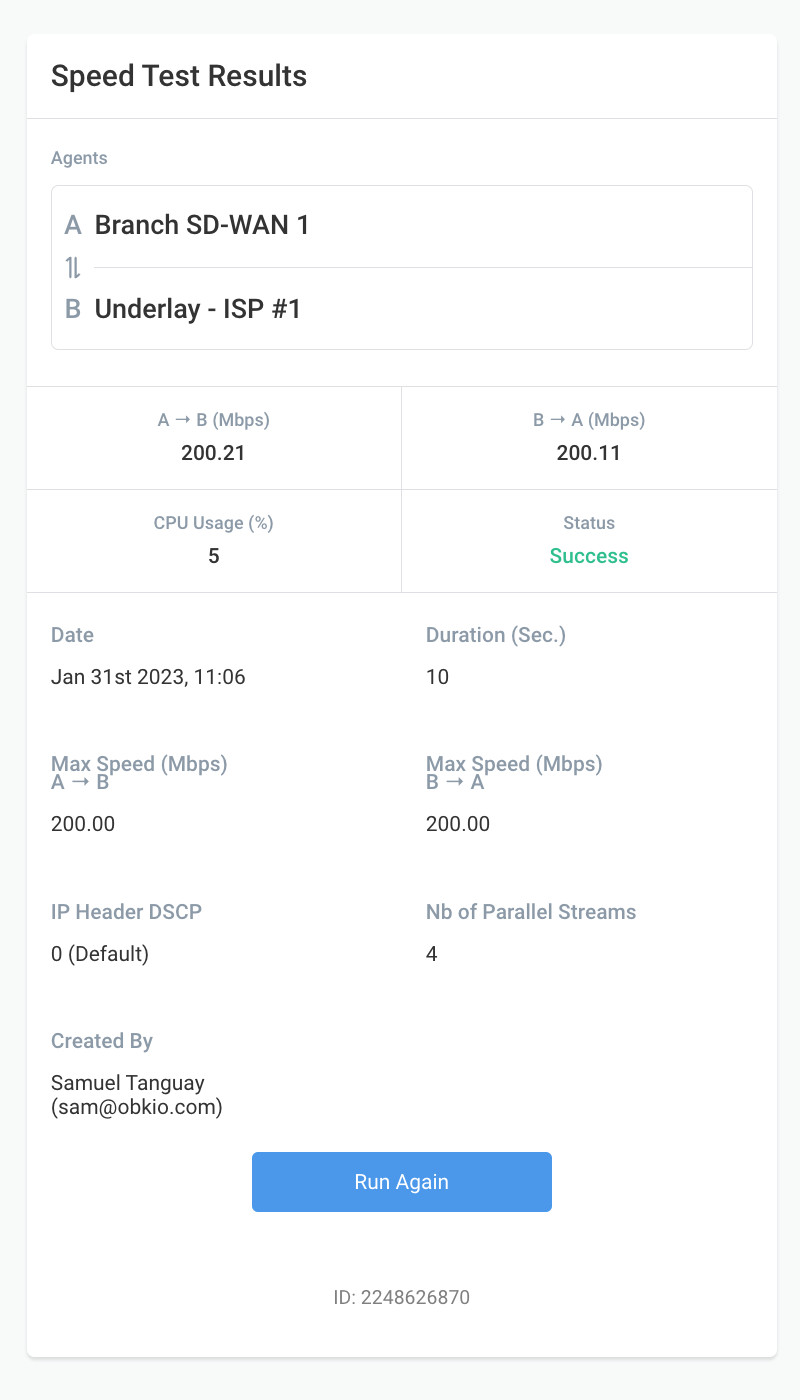
Before testing WiFi, connect a device directly to the router with an Ethernet cable and run a speed test (with an online speed test tool or Obkio’s speed test tool). This is the baseline; it tells you what your Internet connection is capable of delivering with WiFi entirely removed from the equation.
Step 2: Test WiFi from the same spot
Now disconnect the cable, connect to WiFi from that same physical location, and run the test again. Comparing this result to the wired baseline is the entire point of the exercise.
Step 3: Test at a few different distances
Run the test again from two or three other locations: further from the router, through a wall, in the room where the problem was actually reported. Signal degrades with distance and obstructions, and a test run standing next to the router won't reveal a dead zone in the back bedroom.
Reading the results
- Wired and wireless results are close → WiFi isn't the bottleneck. If speeds are still slow, the ISP or connection plan is the more likely culprit.
- Wired is fast, wireless is much slower → WiFi is the bottleneck. Time to look at router placement, channel congestion, or band selection (covered in the next section).
- Both are slow → Points toward the ISP or the plan itself, not the local wireless setup.
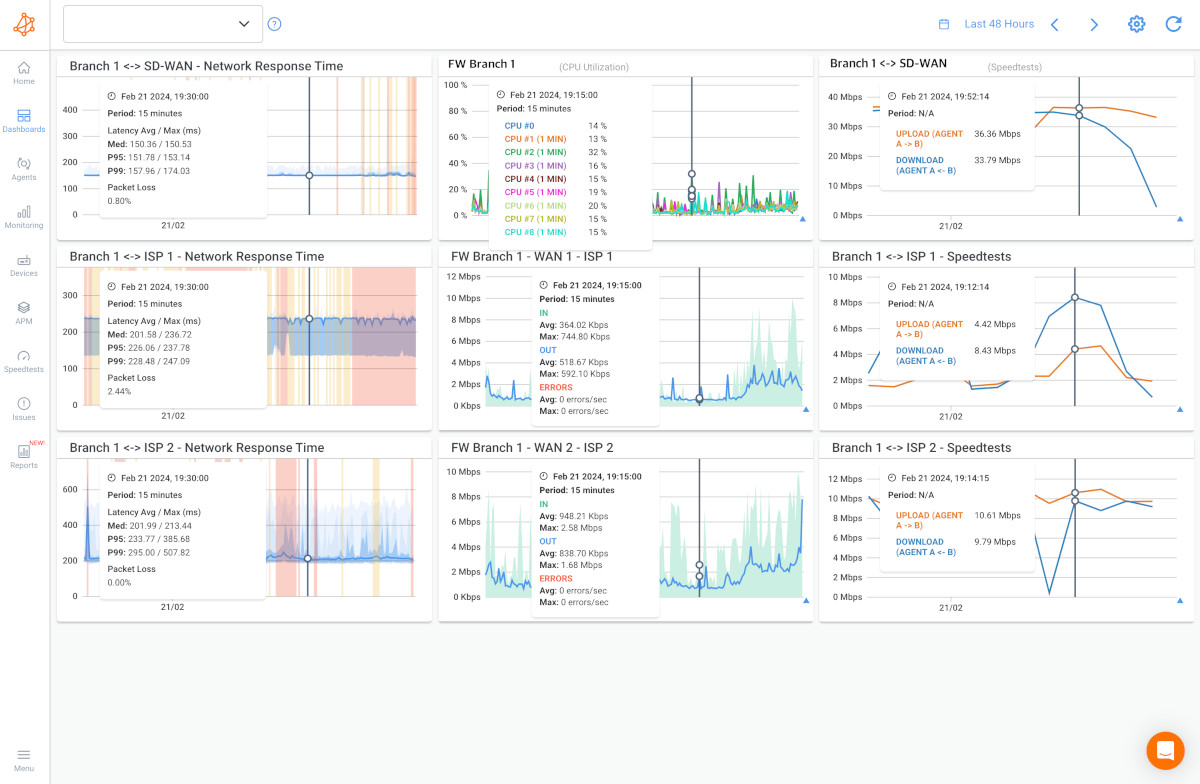 Screenshot from Obkio. Try Obkio for Free
The caveat
A speed test, even one run carefully across multiple locations, is still a snapshot. It measures throughput and network speed at one moment, under whatever conditions happened to exist during those 15-30 seconds. It won't catch the connection that's fine at 9 am and unusable at 9 pm when every household on the block is streaming video.
For a one-time diagnosis, a speed test is exactly the right tool. For understanding how a connection behaves over time, it's the wrong tool for the job. That's a monitoring problem, not a speed test problem.
How to Monitor WiFi Performance
A speed test still answers "what's my throughput right now." WiFi monitoring answers "how has this held up over the last week," and that's the question that actually matters for a team IT can't walk over and check on in person.
This isn't a replacement for the manual checks and speed tests covered earlier; it's what fills the gaps between them. Here's how that continuous visibility actually gets set up in practice, using Real User Monitoring (RUM).


Step 1: Deploy Monitoring Agents On User Devices
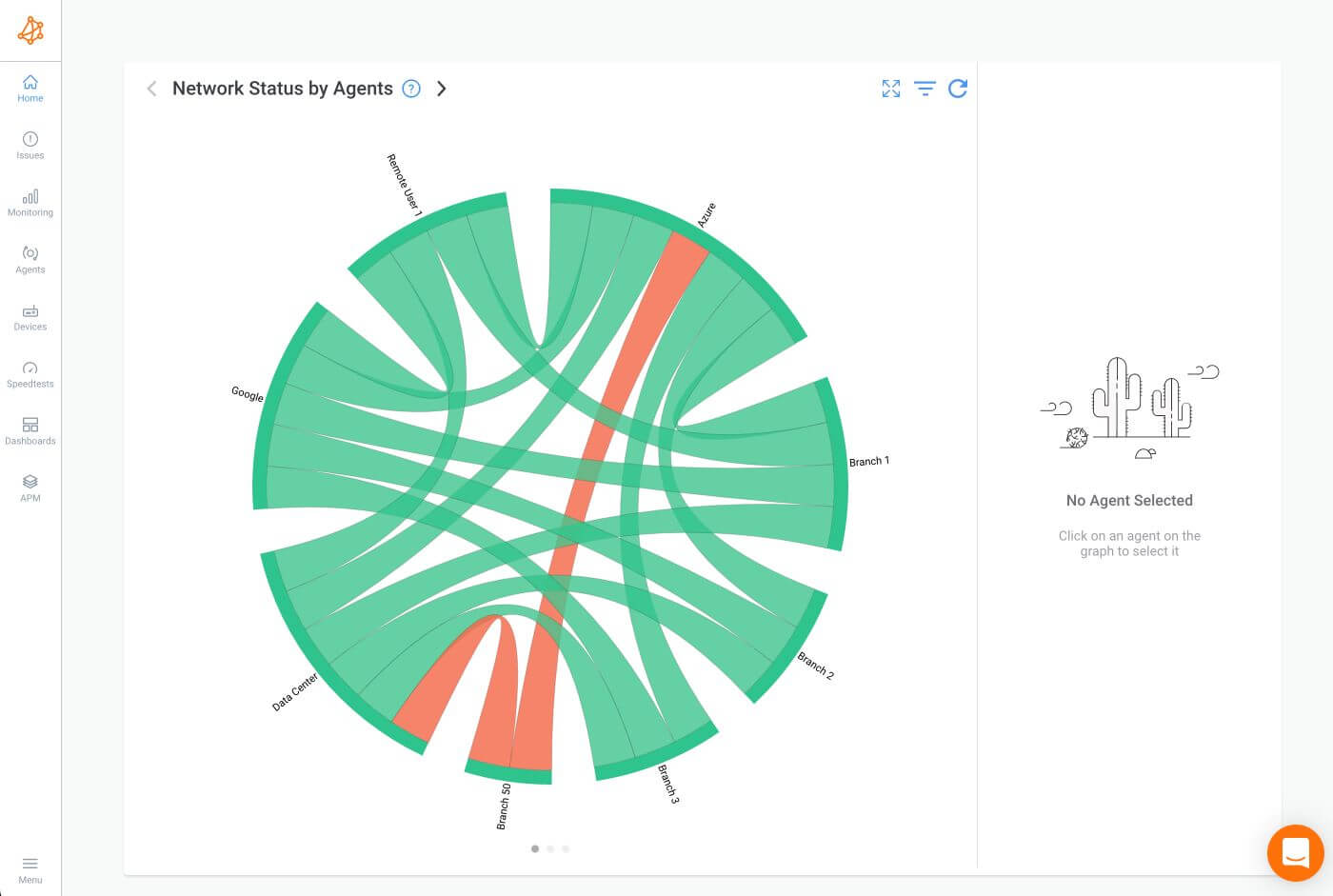
WiFi monitoring works by installing an agent directly on the devices people are actually using- laptops and desktops, wherever they happen to be working from. Rather than testing from a fixed location, this puts the monitoring on the actual endpoint, so it sees exactly what that user's connection looks like.
For a distributed team, this typically gets rolled out across the whole workforce at once rather than device by device.
Step 2: Let it run continuously in the background
Once installed, the agent runs quietly without interfering with normal device use, continuously collecting WiFi and network conditions, signal strength, latency, packet loss, jitter, over time. This is the core shift from a manual check: it's watching the connection during the quiet periods too, not just the moment someone happens to run a test.
Step 3: View WiFi performance from a centralized dashboard
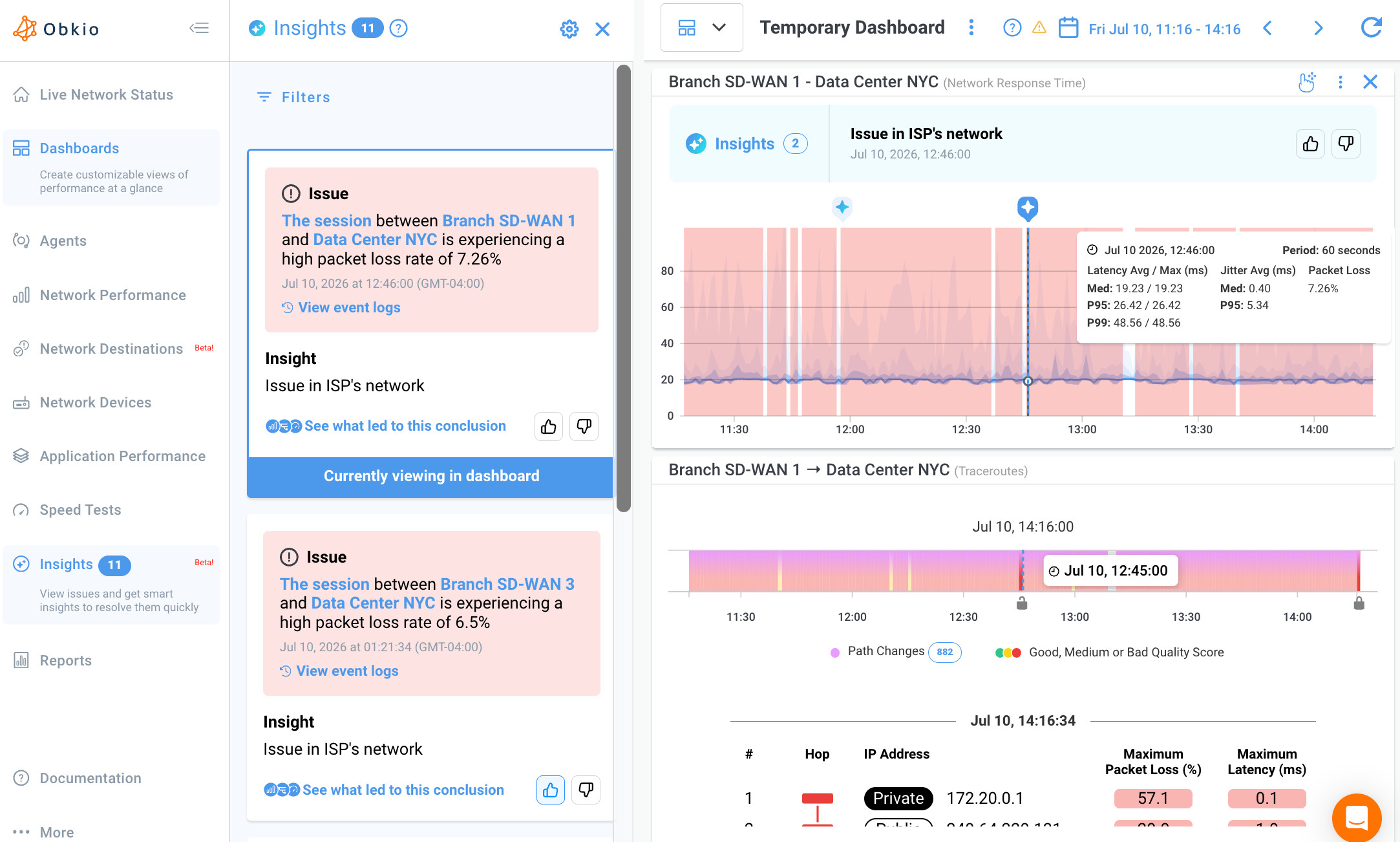
All of that data feeds into a single dashboard, providing visibility into every monitored user's connection in one place instead of checking machine by machine. This is where the patterns a one-time speed test can't catch (the daily dip, the gradual decline, the intermittent drop) actually become visible on a timeline.
Step 4: Set up alerts for WiFi issues
Rather than waiting for someone to notice a WiFi problem and file a ticket, thresholds can be set so IT gets flagged the moment a connection crosses into problem territory, often before the user has even noticed.
Why Real-User Monitoring (RUM)
Traditional network monitoring works by placing agents at fixed points (a router, a data center, a cloud location) and measuring performance from there. That works well for infrastructure IT owns. It doesn't work for WiFi.
The problem is vantage point. WiFi conditions are local to wherever the user physically is — their specific router, their specific signal strength, their specific interference from whatever else is running in that building. A fixed agent sitting in a data center has no way to see any of that; it can tell you the cloud application is healthy, but it can't tell you the employee's connection to their own router is degraded, because it was never on that connection in the first place.
Real User Monitoring solves this by putting the monitoring on the endpoint itself; the actual laptop the person is using, on the actual network they're connected to. It's the only vantage point that sees what the user's WiFi hop genuinely looks like, which is exactly why RUM (rather than traditional infrastructure monitoring) is the right fit for this specific problem
Tools like Obkio are built around this kind of network monitoring approach. Monitoring Agents generate synthetic traffic to continuously measure core network metrics to identify and diagnose Internet and WiFi issues before users even notice them.
- Signal strength, latency, jitter, and packet loss: Tracked continuously rather than checked once, so degradation shows up as a trend instead of a surprise
- Both the network and the device using it: Correlating WiFi conditions with device-side health so a slowdown gets attributed to the right cause
- Proactive alerting: Flagging issues the moment a threshold is crossed, rather than waiting for a user to notice and file a ticket
- Centralized visibility: One dashboard covering every monitored connection, instead of checking machine by machine
Can WiFi Monitoring Tell Me If It's My ISP or My Router?
Yes, and this is one of the most practically useful things WiFi monitoring does, because "is it my WiFi or my Internet connection" is the single most common diagnostic question behind a slow-internet complaint.
The core idea: compare latency at two different points
The way to tell the two apart is to measure latency at two separate hops rather than just one:
- Gateway latency: The round-trip time from the device to the local router. This measures only the wireless hop.
- Latency beyond the gateway: The round-trip time from the device to something further out, like a destination on the public internet.
If gateway latency is low but latency beyond the gateway is high, the wireless connection itself is fine; the problem is downstream, on the ISP side. If gateway latency is also high, the problem is local: the WiFi connection, the router, or something between the device and the router.
Why a single speed test can't tell you this
A standard speed test gives you one number: overall throughput to some far-off server. It doesn't break out which segment of the path is responsible for that number.
If the result comes back slow, a speed test alone leaves you no way to know whether that's a WiFi problem or an ISP problem. You'd have to separately test a wired connection from the same location to start isolating it, which is exactly the workaround covered in the speed test section earlier in this guide.
Continuous monitoring solves this more directly, because it's tracking gateway latency and downstream latency as separate, ongoing metrics rather than one blended number.
What this looks like in practice
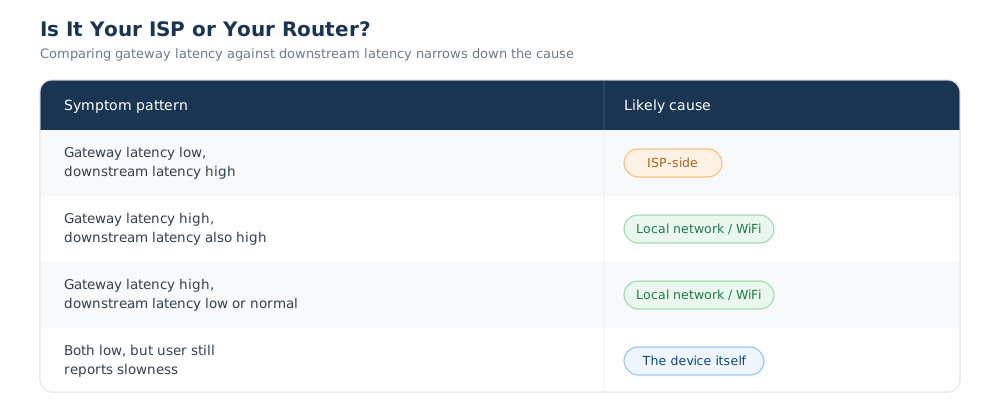
That last row is worth calling out: if both latency measurements look clean and the user is still experiencing problems, the issue has probably shifted to the device side of the equation: CPU, memory, or another host-level factor covered earlier in this guide, rather than the network at all.
Why this matters more for remote teams
In an office, this used to get diagnosed by process of elimination: swap a cable, test from a different desk, call the ISP. Remote employees don't have IT physically present to do that. Being able to see gateway latency and downstream latency as two distinct, continuously tracked metrics is what lets IT make this call remotely, without needing the employee to run and interpret a series of tests themselves.

Master router monitoring for Network Admins! Learn how to monitor router performance, detect faults, and optimize WAN connectivity using SNMP device monitoring.
Learn more
How to Improve WiFi Performance
Once you've confirmed WiFi is actually the bottleneck, via a speed test, a signal check, or ongoing monitoring, here are the fixes that address the most common causes, roughly in order of effort required.
1. Reposition the router
Signal degrades with distance and physical obstructions, like walls, floors, metal appliances, and even large furniture. A router placed in a closet or basement corner will underperform the same router placed centrally and elevated off the floor. Moving it to a more open, central location is often the single highest-impact fix, and it costs nothing.
2. Switch channels
In dense environments like apartment buildings, office parks, anywhere with a lot of overlapping networks, routers on the same channel as their neighbours compete for airtime, which shows up as inconsistent speeds and higher latency. Most routers auto-select a channel on setup and never revisit it, even as neighbouring networks change. Manually checking for a less congested channel through the router's admin panel (or letting it re-scan) can meaningfully reduce interference. A WiFi analyzer app makes this easier by showing which channels are already crowded.
3. Choose the right band: 2.4GHz vs. 5GHz
Most modern routers broadcast both. 2.4GHz travels farther and penetrates walls better, but is slower and more prone to interference (it's also the band used by cordless phones, microwaves, and baby monitors). 5GHz is faster with less interference, but has a shorter range and struggles more with obstructions. As a rule of thumb: use 5GHz for devices near the router doing bandwidth-heavy work (video calls, large file transfers), and 2.4GHz for devices farther away or with a lot of walls in between.
4. Update router firmware
Outdated firmware can carry unpatched bugs that affect stability and performance, and manufacturers periodically release updates that improve exactly this. Most routers check for updates automatically, but it's worth confirming. This is an easy fix that gets overlooked because it doesn't feel urgent until it's the actual cause.
5. Reduce the number of connected devices competing for bandwidth
Every connected device, including ones sitting idle in the background, like smart home gadgets or an old tablet nobody uses anymore, is sharing available bandwidth and airtime. Disconnecting unused devices, or moving heavy users (like a smart TV streaming in 4K) onto their own band, can free up meaningfully more capacity for the devices that actually need it.
6. Consider router age and hardware limits
If none of the above helps, the router itself may simply be underpowered for the current household or office's number of devices and usage patterns. Routers more than four to five years old often lack support for newer, more efficient WiFi standards. At some point, replacement is the more effective fix than continued troubleshooting.

Uncover the secrets of measuring CPU usage in networking. Navigate high seas of performance with insights. Optimize with Obkio's Monitoring tool.
Learn more
WiFi Monitoring Software: What to Look For
If you've concluded that a distributed team needs ongoing WiFi visibility rather than manual checks, the next step is knowing what actually separates a useful tool from one that just adds another dashboard nobody checks. A few questions worth asking before choosing one:
Does it monitor continuously, or only on demand?
Some tools are essentially glorified speed tests; you trigger a check, you get a result. That's not meaningfully different from the manual methods covered earlier in this article. What you actually want is something running in the background, collecting data whether or not anyone remembers to look, so the daily dip or slow decline actually gets caught.
Does it separate network issues from device issues?
This is the distinction covered earlier in this guide: a tool that only reports "signal strength: poor" is guessing at causation. A network device with a struggling CPU or a battery in power-saving mode can produce symptoms that look identical to a genuine WiFi problem. A tool worth using correlates the two, so you're not chasing a router problem that's actually a hardware problem.
Does it cover users wherever they actually are?
Office-based monitoring tools were built for a world where "the network" meant one building. If your team is remote or hybrid, the tool needs visibility on the actual endpoint: the employee's laptop, on their actual home network, not just the infrastructure inside a building most of your team isn't sitting in anymore.
This is why it’s key to use a distributed network monitoring tool; a tool like Obkio that can monitor network and WiFi performance from multiple different endpoints.

Does it alert proactively, or only report after the fact?
There's a meaningful difference between a tool you have to remember to check and one that flags a problem the moment it crosses a threshold. The latter is what actually shortens the time between "something's wrong" and "IT knows about it," often before the user has filed a ticket at all.
Synthetic WiFi monitoring is the best technique to ensure you’re being proactive. Synthetic monitoring tools generate and monitor synthetic traffic, so you can identify issues before users notice, even during times of low or no real user behaviour.
Does it respect user privacy?
Monitoring runs on someone's personal device, which raises a fair question: what exactly is being collected? This is worth asking directly of any vendor. Look for tools that are transparent about what's gathered, and that offer control over data collection by category (network conditions versus device health, for instance) rather than an all-or-nothing approach. Employees are more likely to trust a tool (and IT is on firmer ground rolling it out) when opt-in and opt-out controls exist at that level of granularity, rather than collecting everything by default.
The best way to respect user privacy is to use a tool that monitors using synthetic traffic instead of packet capture (real user traffic). Synthetic monitoring tools, like Obkio, generate and monitor synthetic traffic, which mimics real-user behaviour without capturing real user data. This not only ensures user privacy, but it also allows you to identify network, device, application, Internet and WiFi issues before users notice.
Frequently Asked Questions About WiFi Monitoring
1. What's the difference between WiFi monitoring and network monitoring?
Network monitoring typically watches infrastructure IT owns and controls: routers, switches, WAN links. WiFi monitoring specifically watches the wireless connection, which is often on a network IT doesn't own at all, like an employee's home router. WiFi monitoring is really a subset of the broader network monitoring category, focused on the hop that's hardest for IT to see.
2. How do I check my WiFi performance?
On Windows, run netsh wlan show interfaces in Command Prompt to see signal quality, channel, and connection details. On macOS, hold Option and click the WiFi icon in the menu bar for a diagnostic view with the actual signal strength in dBm. Both give a snapshot; for ongoing visibility, continuous monitoring is the better fit.
3. What's a good WiFi speed test result?
It depends on what you're comparing against. S speed test result is only meaningful next to a wired baseline from the same connection. If wireless speeds are close to the wired result, WiFi isn't the bottleneck. A large gap between the two points to the WiFi connection itself as the problem.
3. Can WiFi monitoring tell me if it's my ISP or my router?
Yes, that's one of its main uses. By comparing gateway latency (the hop to your own router) against latency to destinations further out, monitoring can isolate whether a slowdown is happening locally or further upstream.
4. Does WiFi monitoring work for remote and hybrid teams specifically?
Yes, and arguably more so. Remote and hybrid setups are exactly where manual, in-person troubleshooting breaks down. Continuous monitoring on the actual device fills the visibility gap that used to require IT physically checking a connection.
5. Is WiFi monitoring the same as a VPN monitoring?
No. VPN monitoring watches the health and performance of the encrypted tunnel between a device and a corporate network. WiFi monitoring watches the wireless connection itself, which is a separate (and earlier) hop in the path — a VPN can be performing perfectly while the underlying WiFi connection is what's actually causing the slowdown.
WiFi Monitoring Needs to be Proactive
WiFi problems are frustrating precisely because they're hard to pin down. A weak signal, an ISP issue, a struggling laptop, and a DHCP misconfiguration can all produce the exact same complaint, "the Internet is slow," and without the right visibility, IT is left guessing which one it actually is.
This guide covered what WiFi monitoring measures and why it needs to look at both the wireless connection and the device using it, how to check and measure performance manually when you need a quick answer, and how continuous monitoring closes the gap those manual checks can't: the daily dip, the slow decline, the issue that's gone by the time anyone looks.
For a single household or a one-off troubleshooting session, the manual methods in this guide will usually get you there. For a distributed or remote team, where IT can't walk over and check a connection in person, that's where ongoing visibility stops being a nice-to-have and starts being the only practical way to catch problems before they become tickets.
If you're evaluating tools for that kind of visibility,Obkio's Network Performance Monitoring Tool is worth a look.

- 14-day free trial of all premium features
- Deploy in just 10 minutes
- Monitor performance in all key network locations
- Measure real-time network metrics
- Identify and troubleshoot live network problems


