











 Obkio Blog


 Subscribe
Table of Contents
Table of Contents
You restart the router. You call your ISP. You wait on hold for twenty minutes just to hear "everything looks fine on our end." And yet, devices on your network still can't get online.
Before you point the finger at your Internet Service Provider, it's worth asking a different question: is this actually an ISP outage, or is it a DHCP problem hiding in plain sight?
DHCP, or Dynamic Host Configuration Protocol, is the behind-the-scenes service responsible for assigning IP addresses to every device that joins your network. When it works, it's invisible. When it doesn't, the result looks a lot like your Internet is down, even though the actual fault has nothing to do with your provider at all.
In this article, we'll break down what DHCP is, the most common DHCP and DHCP server issues, and how to troubleshoot and fix them, so you can tell the difference between a local network problem and a real ISP outage.
(If DNS is more your speed, we've got a dedicated handbook for that too. DHCP and DNS often get confused for one another, but they fail in very different ways.)
What Is DHCP (Dynamic Host Configuration Protocol)? 
Let's start with a quick definition to make sure we're all on the same page.
DHCP, or Dynamic Host Configuration Protocol, is a network service that automatically assigns IP addresses and other configuration settings to devices as they join a network. Instead of manually typing an IP address into every laptop, phone, printer, and smart device on your network, DHCP hands out that information automatically, along with details like the subnet mask, default gateway, and DNS server addresses.
In simpler terms, DHCP is the reason you can connect to Wi-Fi and start browsing within seconds, without anyone having to configure your device by hand.
I. How DHCP Works
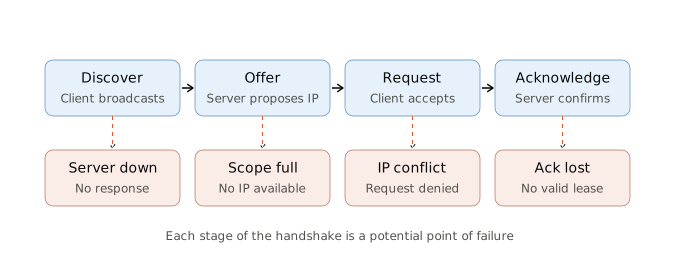
When a device joins a network, it goes through a four-step exchange with the DHCP server known as DORA:
- Discover: The device broadcasts a request, essentially asking, "Is there a DHCP server out there that can give me an IP address?"
- Offer: A DHCP server on the network responds with an available IP address and configuration details.
- Request: The device replies, confirming it wants to accept that specific offer.
- Acknowledge: The DHCP server finalizes the assignment, and the device is now configured to communicate on the network.
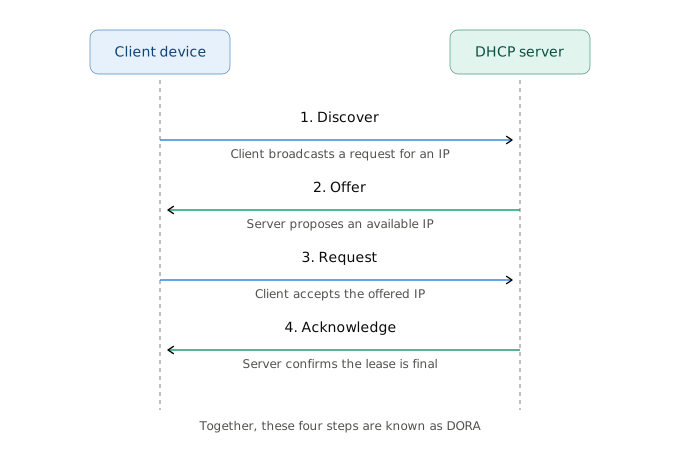
This entire exchange typically happens in a fraction of a second. The device is issued a lease; the IP address is assigned for a set period of time, after which the device needs to renew it. If any step in this process breaks down, the device may fail to get an address at all, or it may fall back to a self-assigned address (often in the 169.254.x.x range) that can't actually reach the internet.
II. What is DHCP on the Network?
Without DHCP, every device on a network would need a manually assigned, static IP address. That might be manageable for a handful of servers, but it quickly becomes unworkable in any environment with laptops, phones, IoT devices, and guest users coming and going.
DHCP matters because it:
- Eliminates manual configuration errors — no more duplicate or mistyped IP addresses from manual entry.
- Scales with the network — new devices can join and leave without administrative overhead.
- Centralizes network configuration — gateway, DNS, and subnet settings are managed from one place, not device by device.
- Keeps address pools efficient — leases expire and get reassigned, rather than addresses being permanently tied up.
This is also exactly why DHCP failures are so disruptive. Because it operates before a device has any real network connectivity, a broken DHCP process doesn't just slow things down; it can prevent a device from getting online at all. And to the person experiencing it, "no Internet" and "no IP address" look identical.

What Are the Fundamentals of DHCP Issues?
Before diving into what can go wrong with DHCP, it helps to understand a few core concepts that most DHCP issues trace back to: where DHCP actually lives on your network, and how scopes and leases work.
I. Where DHCP Lives on Your Network
DHCP doesn't run in one universal location; it depends on your setup. In most small office or home networks, the router itself acts as the DHCP server. In larger or more complex environments, DHCP is typically handled by:
- A dedicated DHCP server: Common in enterprise networks, often running on the same infrastructure as other core services.
- A DHCP relay agent: Used when clients and the DHCP server sit on different subnets or VLANs. The relay agent forwards DHCP broadcasts across network segments that wouldn't otherwise reach the server.
This matters for troubleshooting because the fix for "no device can get an IP" looks very different depending on whether the problem is the router itself, a dedicated server three hops away, or a relay agent quietly failing to forward requests in between.
II. What Are Scopes, Leases, and Renewal Cycles?
A few terms come up constantly when troubleshooting DHCP, so it's worth defining them clearly:
- Scope: the range of IP addresses a DHCP server is allowed to hand out (e.g., 192.168.1.100–192.168.1.200). If every address in the scope is already leased out, new devices can't get one — this is scope exhaustion, one of the most common DHCP issues.
- Lease: the length of time a device is allowed to keep an assigned IP address before it needs to check back in with the server. Leases exist so that addresses used by devices that leave the network (a visitor's phone, a decommissioned laptop) eventually get reclaimed and reassigned.
- Renewal: before a lease expires, the device attempts to renew it with the DHCP server. If renewal fails (because the server is unreachable, overloaded, or misconfigured) the device may lose its IP address entirely, even though it had one moments earlier.
Most day-to-day DHCP issues are really just problems with one of these three things: a scope that's run dry, a lease that expired at the wrong time, or a renewal that silently failed.
A Quick Note on DHCP vs. DNS
DHCP doesn't just hand out IP addresses; it typically pushes DNS server settings to clients at the same time. That means a DHCP misconfiguration can sometimes look exactly like a DNS problem, even though the root cause is upstream. If you're troubleshooting an issue that seems DNS-related (pages not loading, but the connection otherwise appears fine) it's worth checking out our DNS issues handbook as well, since the two are closely related but fail in different ways.

Learn how to identify and fix common DNS issues, from resolution failures and cache poisoning to server outages, and keep your network running smoothly.
Learn more

7 Common DHCP Issues That Mimic ISP Outages
Several common DHCP issues can disrupt your network and leave devices unable to connect, often in ways that look identical to an ISP outage. Before we get into how to troubleshoot and fix them, let's break down what these issues actually are and why they happen.
1. IP Address Conflicts
An IP address conflict occurs when two devices on the same network end up with the same IP address, causing one or both to lose connectivity.
- Causes: Usually happens when a device is manually assigned a static IP that falls within the DHCP scope, or when a device holds onto a lease longer than the server expects (common after abrupt disconnections, like closing a laptop lid mid-session).
- Symptoms: One or both devices experience intermittent connectivity or drop offline entirely. Windows often displays an explicit "IP address conflict" notification; other devices may simply fail silently.
2. DHCP Scope Exhaustion
Scope exhaustion happens when every IP address in the DHCP server's available range has already been leased out, leaving no addresses for new devices.
- Causes: Too many devices joining the network relative to the size of the configured scope. This is common in offices with heavy BYOD use, guest Wi-Fi, or IoT device sprawl that wasn't accounted for when the scope was originally sized.
- Symptoms: New devices fail to connect at all, often falling back to a self-assigned 169.254.x.x address, while existing devices with active leases continue working normally.
3. Lease Expiration and Renewal Failures
A device's lease can expire without successfully renewing, causing it to lose its IP address even though it had one moments earlier.
- Causes: The DHCP server is unreachable at the moment of renewal, overloaded with requests, or misconfigured. Network congestion or a temporary outage on the path to the server can also cause renewal attempts to fail.
- Symptoms: A device that was previously online suddenly loses connectivity without any obvious trigger, often described as the network "randomly dropping."
4. Rogue or Unauthorized DHCP Servers
A rogue DHCP server is any unauthorized device on the network handing out its own IP addresses and configuration settings, competing with the legitimate DHCP server.
- Causes: Often accidental, like a consumer router plugged into the network with DHCP still enabled, or a misconfigured virtual machine or hotspot. Occasionally malicious, used to redirect traffic.
- Symptoms: Devices intermittently receive incorrect gateway or DNS settings, resulting in some devices working fine while others on the same network can't reach the internet at all.
5. Misconfigured DHCP Relay Agents
When clients and the DHCP server sit on different subnets, a relay agent is responsible for forwarding DHCP broadcasts between them. A misconfigured relay breaks that path.
- Causes: Incorrect relay agent IP configuration, firewall rules blocking DHCP traffic on UDP ports 67/68 between subnets, or VLAN misconfigurations that isolate clients from the server.
- Symptoms: An entire subnet, office, or VLAN loses the ability to get IP addresses, while other segments of the network remain unaffected. A strong signal the issue is DHCP-related rather than an ISP problem.
6. Incorrect Scope Options
Scope options are the additional settings (default gateway, DNS servers, subnet mask) that DHCP pushes to clients alongside the IP address itself. If these are wrong, devices get an IP but still can't function properly.
- Causes: Manual configuration errors on the DHCP server, or outdated scope options left over after a network change (e.g., a gateway IP that was updated on the router but not in the DHCP scope).
- Symptoms: Devices appear connected to the network (they have a valid IP) but can't reach the internet or resolve websites. It’s a classic "connected but not really connected" symptom that's frequently mistaken for an ISP issue.

Learn how to troubleshoot ISP issues step by step: confirm the problem, find the faulty hop, get an automatic diagnosis, then share proof with your provider.
Learn more
7. DHCP Starvation Attacks
A DHCP starvation attack is a deliberate attempt to exhaust a DHCP server's scope by flooding it with bogus requests, denying legitimate devices any available addresses.
- Causes: A malicious actor (or compromised device) on the network sends a high volume of DHCP Discover requests using spoofed MAC addresses, consuming the entire address pool.
- Symptoms: Sudden, network-wide inability for new devices to obtain an IP address, often accompanied by unusually high DHCP traffic visible in monitoring or packet captures.
Addressing these DHCP issues generally comes down to proactive monitoring, well-sized scopes, and keeping an eye on unauthorized devices joining the network. We'll get into the specifics of identifying and fixing each of these shortly.
Say Goodbye to DHCP Issues with Obkio's Network Performance Monitoring Tool
Manually diagnosing DHCP issues after the fact means you're always playing catch-up. A device drops offline, someone files a ticket, and only then does the troubleshooting start. By the time you're checking scope utilization or hunting for a rogue server, users have already been affected.
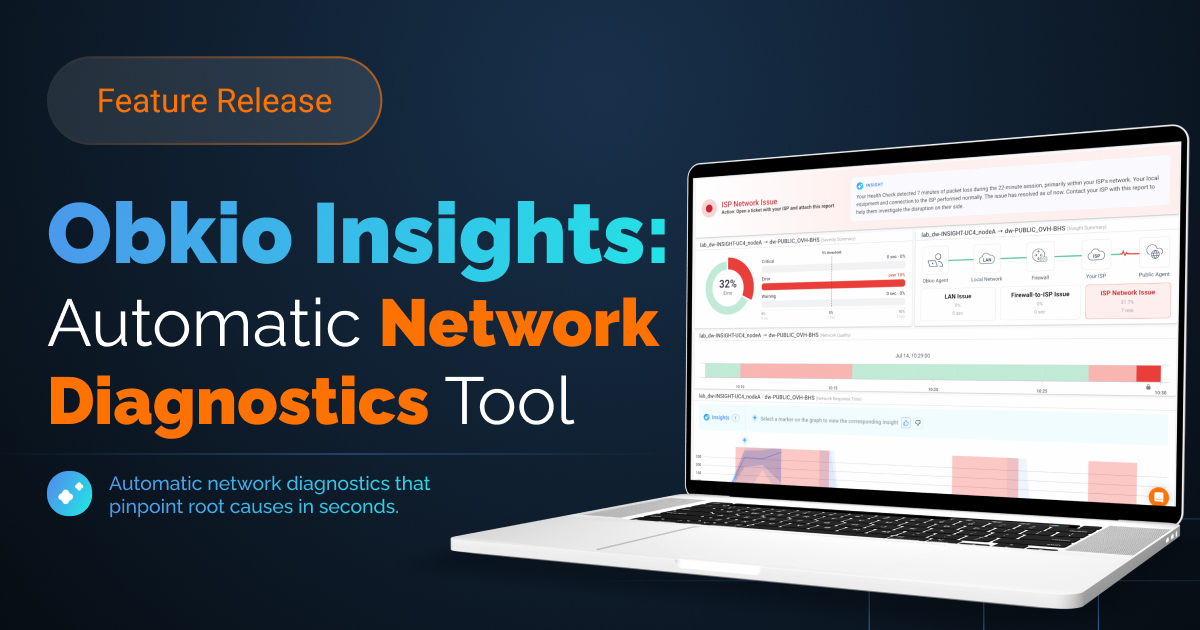
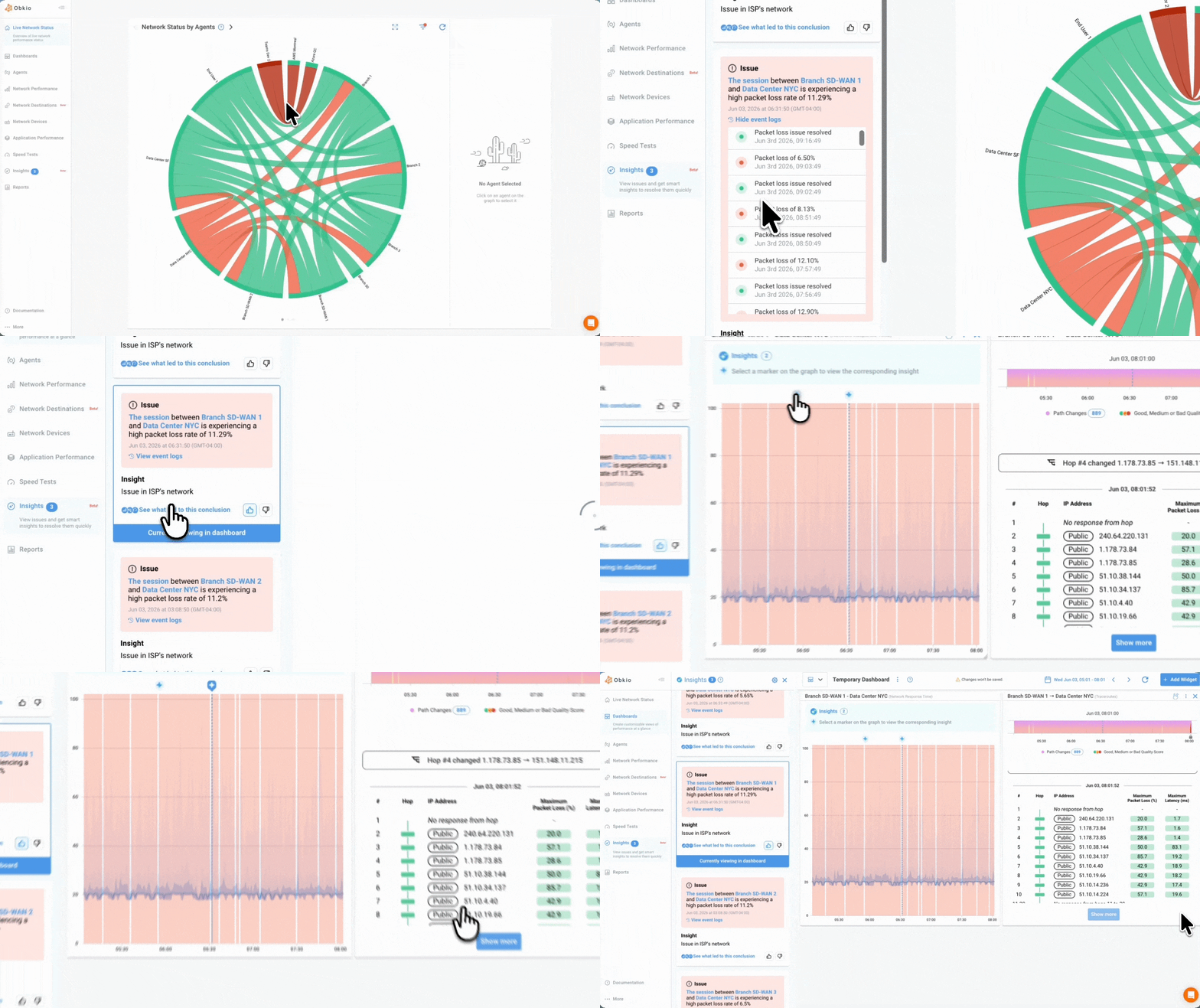
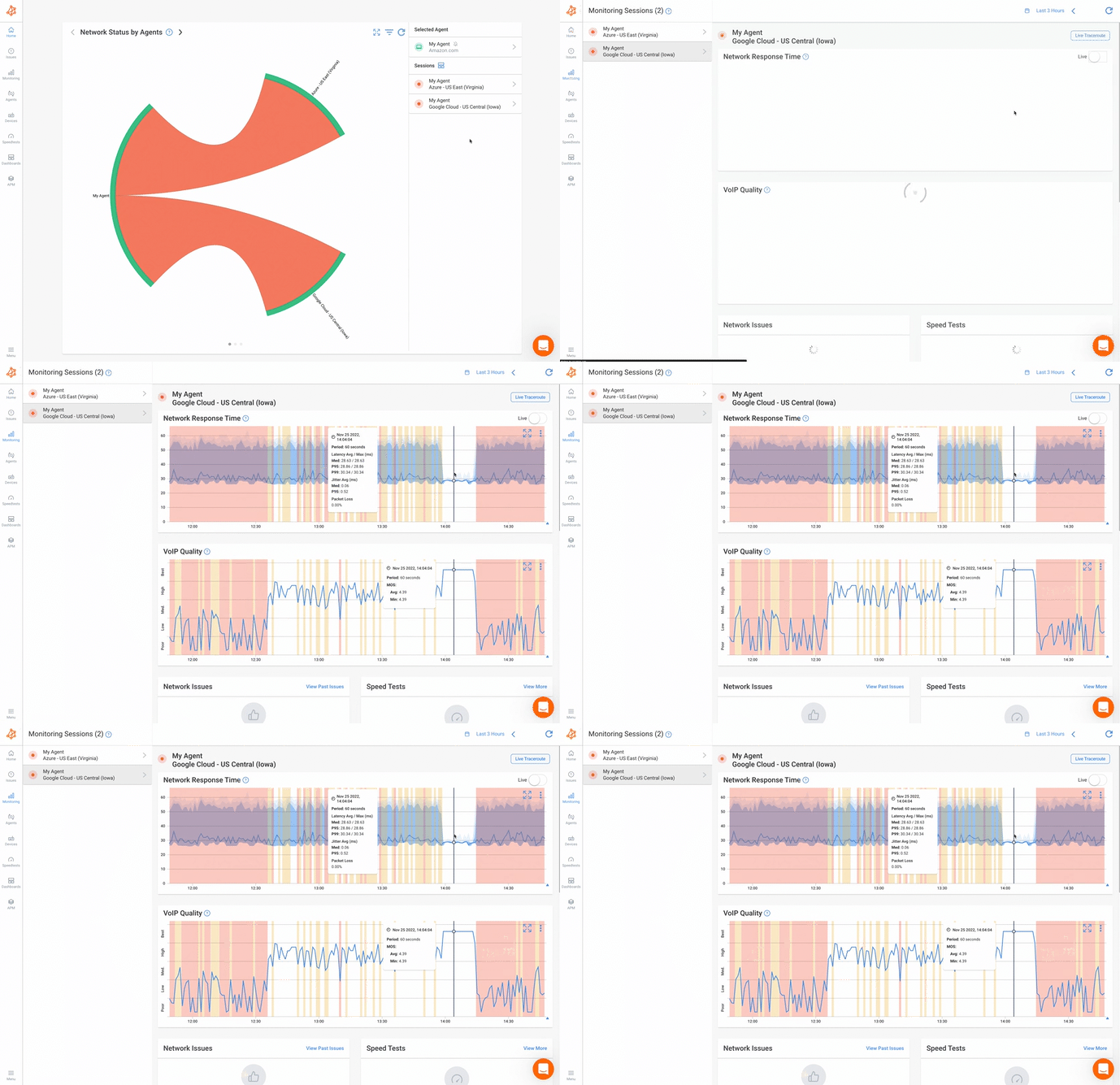
Obkio's Network Performance Monitoring tool takes a proactive approach instead, continuously monitoring your network from end to end so DHCP-related problems get caught before they turn into a flood of "the internet is down" tickets.
Why choose Obkio?
- End-to-end visibility: Obkio monitors performance across every part of your network (from client devices to core infrastructure) so you can see exactly where a DHCP issue originates, rather than guessing.
- Instant issue identification: Real-time alerts flag anomalies like unexpected connectivity drops or unusual network behaviour, so you're not relying on user complaints to know something's wrong.
- Distinguish local issues from ISP issues: Obkio helps you quickly determine whether a connectivity problem is happening inside your network or further upstream. The exact distinction this article is all about.
- User-friendly interface: No steep learning curve; built for both experienced network admins and people troubleshooting DHCP for the first time.
Don't let DHCP issues get mistaken for ISP outages. Get proactive visibility into your network with Obkio, and stop guessing where the problem really is.


6 Common DHCP Server Issues
While the previous section covered DHCP issues that show up anywhere on the network, this section zooms in specifically on the DHCP server itself. Server-side problems tend to have a much larger blast radius; when the server goes down or misbehaves, it doesn't just affect one device, it can take out an entire network segment.
1. DHCP Server Crashes or Becomes Unresponsive
The DHCP server process stops running or stops responding to requests, even though the underlying machine may still be online.
- Causes: Software bugs, resource exhaustion (memory or CPU), corrupted service files, or an unexpected reboot without the DHCP service restarting automatically.
- Symptoms: New devices can't obtain an IP address, and existing devices lose connectivity as their leases come up for renewal and get no response.
2. Server Overload from High Query Volume
The DHCP server becomes overwhelmed by the sheer number of requests it's handling, slowing down or dropping responses.
- Causes: A sudden spike in devices joining the network at once (common at the start of a workday, in large offices, or after a network-wide reboot), or inadequate server resources for the size of the network.
- Symptoms: Slow IP assignment, intermittent failures to obtain a lease, and devices that eventually connect but only after a noticeable delay.
3. Failover Pair Misconfiguration
Many organizations run DHCP in a failover pair, a primary and secondary server that share the workload and back each other up. When that pairing is misconfigured, the redundancy doesn't actually work.
- Causes: Mismatched configuration between the primary and secondary server, replication failures between the pair, or incorrect failover relationship settings.
- Symptoms: When the primary server goes down, the secondary doesn't take over as expected, leading to a full outage instead of a seamless failover, often only discovered during an actual incident.
Learn how to monitor and identify network and Internet outages, like the nationwide Rogers outage, to stay updated on your ISP network status.
Learn more
4. Corrupted or Misconfigured DHCP Database
The DHCP server maintains a database of active leases, scopes, and reservations. If that database becomes corrupted or misconfigured, the server can't reliably track what's been assigned.
- Causes: Improper shutdowns, disk errors, failed updates, or manual editing of configuration files without following proper procedures.
- Symptoms: Duplicate IP assignments, devices being denied leases despite available addresses in the scope, or the server failing to start entirely.
5. Scope Conflicts Between Multiple DHCP Servers
When more than one DHCP server is active on the same network segment, intentionally or not, their scopes can overlap and conflict with each other.
- Causes: Two legitimate DHCP servers configured with overlapping address ranges, or a legitimate server unknowingly competing with a rogue one (see Section 3).
- Symptoms: Devices receiving conflicting or inconsistent configuration depending on which server responds first, leading to unpredictable connectivity issues that are hard to reproduce.
6. Server-Side Logging and Audit Failures
DHCP servers generate logs that are essential for troubleshooting, but if logging itself breaks down, you lose visibility into what's actually happening.
- Causes: Logging service failures, disk space issues preventing new log entries, or logging configured at too low a verbosity level to capture useful detail.
- Symptoms: No direct connectivity impact on its own, but it significantly slows down troubleshooting when other DHCP issues occur, since there's no historical record to diagnose from.
A quick pattern worth noting: server-side issues often masquerade as widespread "network outages" rather than isolated device problems, which is exactly the kind of scenario that gets blamed on the ISP when the real cause is sitting on your own DHCP server.
How to Identify DHCP Issues with Network Monitoring Tools: A Step-by-Step Process
Now that you know what can go wrong with DHCP, both on the network broadly and on the server itself, the next question is how you actually catch these issues before they turn into a wave of "the Internet is down" complaints.
Manually checking lease status or scope utilization only tells you what's happening right now. To catch DHCP issues as they develop, you need continuous visibility into your network. Here's how to set that up.
Step 1. Choose a Network Monitoring Tool
DHCP issues aren't something you can see with the naked eye, and by the time users start noticing them, you're already behind on troubleshooting. You need a tool that continuously monitors your network so you can understand what's happening, what's causing it, and when and where it started.
Obkio's end-to-end Network Monitoring tool continuously monitors network performance from every part of your network — client devices, network infrastructure, and everything in between — helping identify connectivity issues, including those originating from DHCP.

Step 2. Monitor Network Locations Where DHCP Issues Hide
To identify DHCP issues effectively, you need visibility into each stage of the DHCP request path, from the client device requesting an address, through any switches or relay agents, to the DHCP server itself.
This typically requires:
- Local Agents: Installed in the office location or network segment experiencing issues, to monitor performance from the client's perspective.
- Public Monitoring Agents: Deployed over the internet to help distinguish whether a problem is isolated to your local network or something further upstream (the core distinction this whole article is built around).
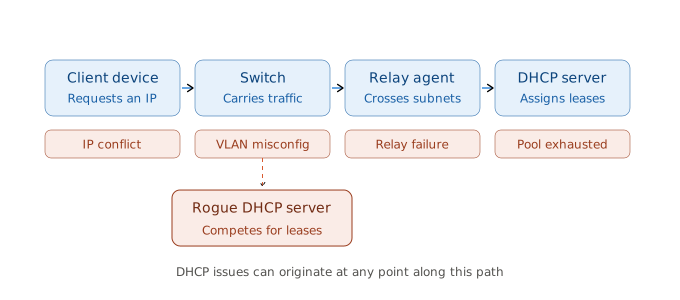
Where DHCP Issues Happen: What to Monitor
- Client Devices: Devices requesting IP addresses. Misconfigured static IPs, expired leases, or fallback addresses (169.254.x.x) show up here first.
- Network Switches and Infrastructure: The path DHCP broadcasts travel across. VLAN misconfigurations or connectivity issues here can silently block requests from ever reaching the server.
- DHCP Relay Agents: Critical when clients and the server live on different subnets. A relay failure takes out an entire subnet's ability to get an address.
- DHCP Servers: Where leases are actually assigned. Server crashes, overload, or database issues here have the widest blast radius.
- Rogue DHCP Servers: Unauthorized devices competing with the legitimate server. Monitoring can help flag unexpected DHCP traffic from unrecognized sources.
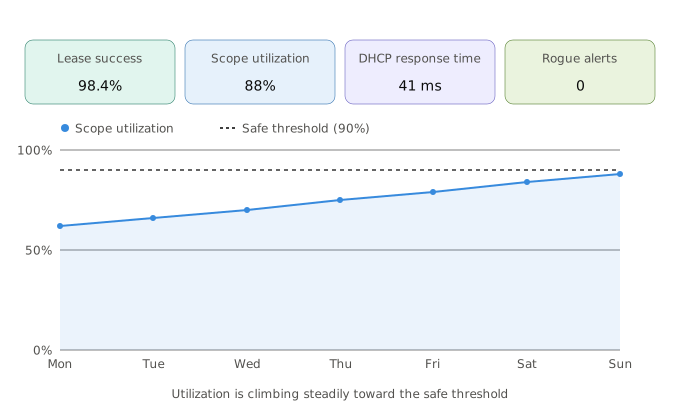
Step 3. Monitor DHCP Metrics to Uncover Issues
Once monitoring is in place, tracking the right metrics is what actually surfaces DHCP issues before they escalate:
- Lease Success Rate: The percentage of DHCP requests that successfully result in an assigned IP. A declining rate often points to scope exhaustion or server problems.
- Lease Renewal Failures: Tracks how often devices fail to renew an existing lease, a strong signal of server unavailability or network path issues.
- Scope Utilization: How much of the available address pool is currently in use. Consistently high utilization is an early warning sign of upcoming scope exhaustion.
- DHCP Response Time: The time it takes for a server to respond to a request. Slower response times can indicate server overload or network congestion.
- Unexpected DHCP Server Sources: Flags DHCP responses coming from unrecognized servers on the network, a key indicator of a rogue DHCP server.
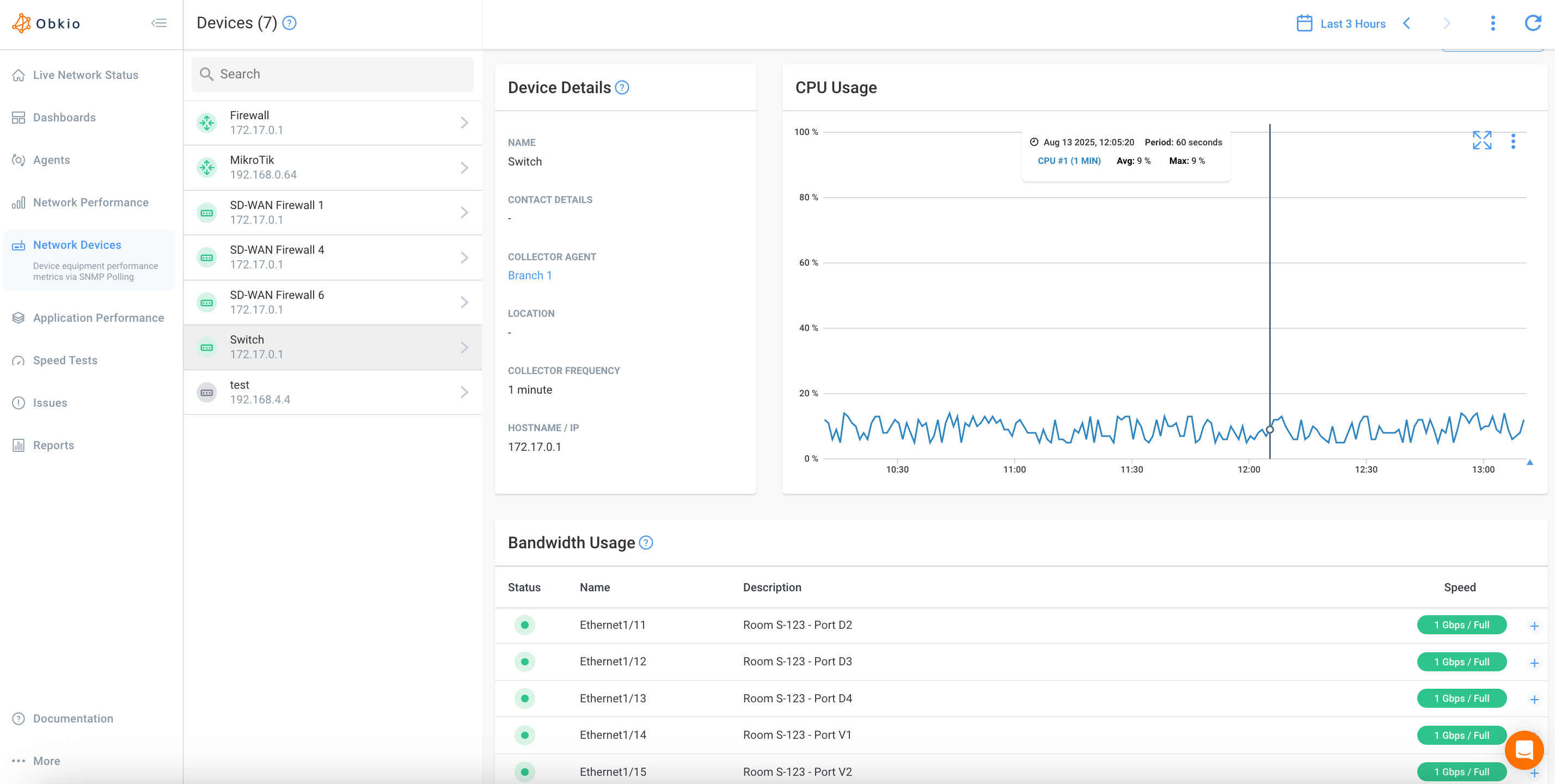
Step 4. Identify DHCP Issues Affecting Network Devices
Monitoring the health of network devices routers, switches, and firewalls is just as important as monitoring the DHCP server itself, since DHCP traffic has to pass through all of them.
- Traffic Analysis: Helps identify unusual patterns, such as a spike in DHCP broadcast traffic that could indicate a starvation attack.
- Device Health: High CPU or memory usage on routers or switches carrying DHCP traffic can degrade performance for every device relying on them.
- Redundancy and Failover Monitoring: For networks using failover DHCP pairs, monitoring ensures the secondary server is actually ready to take over if needed, rather than discovering a misconfiguration during a real outage.
Step 5. Set Up Alerts for DHCP Issues
Being notified the moment something goes wrong is what turns monitoring into something genuinely proactive rather than reactive.
- Scope Utilization Alerts: Get notified before a scope runs out of available addresses, not after.
- Lease Failure Rate Alerts: Catch a spike in failed lease requests early, before it affects a large number of users.
- Rogue Server Detection Alerts: Get flagged the moment an unrecognized device starts responding to DHCP requests on your network.
With this kind of setup in place, you move from reactively troubleshooting DHCP complaints to proactively catching issues before your users ever notice something's wrong.
What is the Impact of DHCP Issues on User Experience?
Let's talk about how DHCP issues actually feel from the other side. The end user who has no idea what DHCP even is, just that their device won't connect.
Unlike DNS issues, where a device is connected but can't resolve website names, DHCP issues often mean a device never gets meaningfully connected at all. That distinction matters, and it shapes how these problems show up in day-to-day network use.
1. Complete Inability to Connect: When a device can't obtain an IP address at all, it doesn't just load slowly. It doesn't connect to the network in any functional sense. To the user, this looks identical to "the Internet is down," even though every other device in the building might be working fine.
2. Intermittent Connectivity Drops: Devices that lose their lease mid-session, due to a renewal failure or an expiring lease with no available replacement, appear to randomly disconnect and reconnect. Intermittent connectivity is often mistaken for Wi-Fi hardware issues or an unstable ISP connection, when the real cause is a DHCP renewal problem.
3. Slow Onboarding to the Network: In environments where the DHCP server is overloaded or the scope is nearly exhausted, devices may take much longer than usual to get online, even if they eventually succeed. Users experience this as a network that feels sluggish the moment they arrive, not just once they're already connected.
4. Inconsistent Behaviour Across Devices: When a rogue DHCP server or a scope conflict is in play, different devices on the same network can end up with different, inconsistent configurations. Some devices work perfectly fine while others on the exact same Wi-Fi network can't reach the Internet; a pattern that's confusing for users and often misdiagnosed as a device-specific problem rather than a network-wide one.
How to Diagnose DHCP Issues
Before jumping into the step-by-step process, it's worth taking a moment to think about troubleshooting DHCP the right way, because how you approach the problem determines how quickly you actually find the cause.
Diagnosing DHCP issues comes down to answering a few key questions upfront:
1. Is this affecting one device, several devices, or the entire network?
A single device failing to connect points toward a client-side issue or an IP conflict. Multiple devices on the same subnet failing at once points toward the relay agent or the server itself. An entire network going down points toward the DHCP server or a broader infrastructure problem.
2. When did the issue start, and did anything change?
DHCP issues rarely appear out of nowhere. A recent network change, a new device joining the network, a server update, or even a simple power outage can all be the underlying trigger.
3. Is the issue consistent or intermittent?
A device that never connects behaves very differently from one that connects, then randomly drops. The former usually points to scope exhaustion or a hard server failure; the latter often points to lease renewal problems or an unstable relay path.
4. Is it really DHCP, or could it be the ISP?
This is the central question of this entire guide. If other devices on the same network are working fine, or if a wired connection works while Wi-Fi doesn't, the ISP is almost certainly not the problem. DHCP is a much more likely suspect.
Gathering answers to these questions before diving into command-line tools and server logs saves time and helps you avoid chasing the wrong cause. With that framing in mind, let's walk through the actual troubleshooting process step by step.
How to Troubleshoot DHCP Issues
Now let's get into the actual troubleshooting process. Follow these steps in order. Each one narrows down where the problem actually lives, so you're not guessing.
Step 1: Identify the Symptom
Start by pinning down exactly what's happening, since the symptom points you toward the likely cause:
- No IP address at all, often showing a self-assigned 169.254.x.x address — points toward scope exhaustion or a server that isn't responding.
- An IP conflict warning — points toward a duplicate address, often from a static IP overlapping the DHCP scope.
- Intermittent drops — points toward lease renewal failures rather than a hard connection failure.
- One device affected vs. the whole network — narrows down whether this is a client-side issue or something further upstream.
Step 2: Check the Client Side
Before assuming the problem is upstream, confirm what the device itself is seeing:
- Windows:
ipconfig /all— check whether the device has a valid IP or a 169.254.x.x fallback address. - macOS/Linux:
ifconfigorip addr— same idea, confirming whether a real lease was ever assigned.
If the device shows no valid lease, the issue is happening before the device successfully completes the DORA process. Move to the next step.
Step 3: Release and Renew the Lease
A quick way to force the device to attempt the DHCP process again from scratch:
- Windows:
ipconfig /releasefollowed byipconfig /renew - macOS: Toggle Wi-Fi off/on, or renew the DHCP lease from Network preferences
- Linux:
sudo dhclient -rfollowed bysudo dhclient
If this succeeds, the original issue may have been a temporary glitch. If it fails, that's a strong signal the problem is with the server or the path to it, not the device itself.
Step 4: Check for IP Conflicts
If the symptom pointed toward a conflict, confirm it:
- Windows/macOS/Linux:
arp -a— lists devices and IP addresses currently visible on the network, helping spot duplicates. - Check DHCP server logs for conflict detection entries, if your server logs this.
Step 5: Check the DHCP Server
If client-side checks didn't resolve things, move to the server itself:
- Scope utilization: How much of the address pool is currently leased out. If it's near 100%, scope exhaustion is likely the cause.
- Server logs: Look for errors, failed leases, or signs the service crashed or restarted unexpectedly.
- Server uptime and responsiveness: Confirm the server process is actually running and reachable from the affected network segment.
Step 6: Look for Rogue DHCP Servers
If devices are receiving inconsistent or incorrect configuration (wrong gateway, wrong DNS), a rogue DHCP server may be responding to requests before the legitimate one does.
- Use
arp -aor packet capture tools to identify which device is actually issuing the DHCP responses. - Cross-reference the responding MAC address against your known network hardware.
Step 7: Test DHCP Performance with a Static IP
To definitively separate a DHCP issue from a broader network or ISP problem, temporarily assign the device a static IP within the correct range:
- If the device connects fine with a static IP, the issue is isolated to DHCP.
- If the device still can't connect even with a static IP, the problem is likely elsewhere — the network itself, or genuinely the ISP.
This single test is often the fastest way to confirm or rule out DHCP as the root cause.
Step 8: Use Network Monitoring Tools for Ongoing DHCP Performance Visibility
Manual troubleshooting is useful once an issue has already occurred, but it doesn't help you catch problems before users notice them. Setting up continuous monitoring (as covered in Section 5) means scope exhaustion, lease failures, and rogue servers get flagged automatically, long before someone files a ticket blaming the ISP.
How to Fix DHCP Issues
Troubleshooting tells you what's wrong, but this section is about actually fixing it. Each fix below maps back to the issues covered earlier in this guide.
1. Fix IP Address Conflicts
- Reserve static IPs outside the DHCP scope. If certain devices (printers, servers) need a fixed address, assign it outside the range DHCP hands out, not inside it.
- Shorten lease times in high-turnover environments. This reduces how long a stale lease can sit unused before being reclaimed, lowering the odds of a conflict.
- Use DHCP reservations instead of manual static IPs when a device needs a consistent address. This way, the DHCP server itself keeps track of it and won't hand it to someone else.
2. Resolve Scope Exhaustion
- Expand the scope size if the network has genuinely grown beyond what the original range accounted for.
- Shorten lease durations for networks with high device turnover, like guest Wi-Fi, so addresses get reclaimed faster from devices that have left.
- Segment the network with VLANs to separate device types (guest, IoT, corporate) into their own scopes, rather than competing for one shared pool.
3. Fix Lease Renewal Failures
- Check firewall rules to confirm DHCP traffic isn't being blocked on UDP ports 67 and 68, especially after a firewall or security appliance update.
- Verify relay agent configuration if clients and the server are on different subnets — a misconfigured relay is one of the most common causes of renewal failures.
- Confirm server capacity isn't being exceeded during peak renewal periods, such as the start of a workday when many leases renew simultaneously.
4. Remove Rogue DHCP Servers
- Enable DHCP snooping on switches, which allows switches to distinguish trusted DHCP server ports from untrusted ones, blocking rogue responses before they reach clients.
- Implement port security to control which devices are allowed to act as DHCP servers on the network in the first place.
- Physically locate and disconnect the rogue device, using the MAC address identified during troubleshooting.
5. Fix DHCP Server Outages
- Set up a failover pair with a properly configured primary and secondary server, so a single point of failure doesn't take down DHCP entirely.
- Monitor server health proactively so issues like resource exhaustion or crashes are caught before they cause an outage.
- Restore from a clean database backup if server corruption is the root cause, rather than attempting to manually repair a damaged lease database.
6. Correct Scope Options
- Audit scope options after any network change — a new gateway IP, DNS server change, or subnet adjustment needs to be reflected in DHCP settings, not just on the router.
- Standardize scope configuration across servers in networks with multiple DHCP servers, to avoid devices receiving inconsistent settings depending on which server responds.
When It's Actually the ISP, Not DHCP
After working through these fixes, if devices still can't connect even with a valid IP, correct scope options, and no conflicts, the issue may genuinely be upstream. At that point, confirming a healthy DHCP setup (using the static IP test from Section 8) gives you the evidence needed to escalate confidently to your ISP, rather than guessing.
This is really the heart of what this guide has been building toward: DHCP issues and ISP outages can look identical on the surface, but a systematic approach to troubleshooting and fixing DHCP problems means you'll know, with confidence, which one you're actually dealing with.

Learn what a network outage is, its common causes, symptoms, and fixes. Discover how to prevent downtime and keep your business running smoothly.
Learn more
DHCP Issues vs. ISP Issues: Why DHCP Problems Get Misdiagnosed as ISP Outages
By now it should be clear that DHCP issues and ISP outages can produce nearly identical symptoms. But it's worth spelling out why that misdiagnosis happens so often, because understanding the reason makes it much easier to avoid.
1. Most people test "is the Internet down" by opening a browser:
This is the single biggest source of confusion. Opening a browser and seeing nothing load doesn't tell you why; it doesn't distinguish between "my device never got a valid IP address" and "my ISP's connection is down." Both produce the exact same blank page. Without knowing to look one layer deeper, DHCP failures and ISP outages are functionally indistinguishable to the average user.
2. There's no visibility into the local network layer versus the WAN/ISP layer:
Most home and small office setups don't separate these layers in any way a non-technical user could inspect. The router blends local network management (DHCP, DNS, switching) and the WAN connection (the actual ISP link) into a single black box. When something fails, there's no obvious signal pointing to which side of that box the problem is on.
3. There's no easy way to isolate "is this my network or theirs" without the right tooling.
Diagnosing this properly requires checking things like lease status, scope utilization, or testing with a static IP; steps most people don't know exist, let alone how to perform. Without visibility into what's actually happening at the network layer, calling the ISP is often the only action that feels available, even when it's not actually where the problem lives.
This is exactly the kind of blind spot that better visibility into local network performance is designed to close; catching and identifying issues at the network layer before they ever get escalated as an "ISP problem."
How to Tell ISP vs. DHCP Issues: A Quick Troubleshooting Checklist
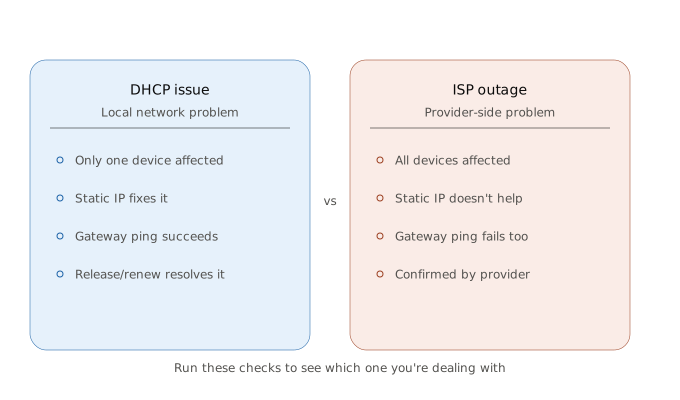
If you're not sure whether you're dealing with a DHCP issue or a genuine ISP outage, run through this checklist before picking up the phone to call your provider:
1. Check if other devices on the same network are affected: If one device can't connect but others are working fine, the ISP is very unlikely to be the cause. An ISP outage affects everything behind it, not just one laptop. This points squarely at a client-side or IP conflict issue.
2. Check DHCP lease status, or try releasing and renewing it: Run ipconfig /release followed by ipconfig /renew on Windows (or the equivalent dhclient commands on macOS/Linux). If the device successfully obtains a new lease and connects, the original problem was DHCP, not your ISP.
3. Try assigning a static IP temporarily: Manually configure the device with a static IP within your network's valid range. If it connects immediately, DHCP was the point of failure. If it still can't connect, the issue is elsewhere, possibly genuinely upstream.
4. Check router or firewall logs for DHCP errors or scope exhaustion: Most routers and firewalls log DHCP activity. Look for entries indicating the scope is full, the DHCP service failed to start, or requests are being denied; all of which point to a local cause, not an ISP one.
5. Ping the gateway directly to confirm local connectivity is fine: If you can successfully ping your router's gateway IP address but still can't reach the internet, your local network connection is healthy; the failure is happening further out, which is a much stronger signal that the issue could genuinely be your ISP.
Running through even a few of these steps takes just a couple of minutes, but it can save you from an unnecessary support call, or worse, confirm that you should be making that call after all.
DHCP Issues vs. DNS Issues: What's the Difference?
DHCP and DNS get confused with each other constantly, and it's easy to see why: DHCP is often the one handing a device its DNS server settings in the first place. When something goes wrong, it's not always obvious which one is actually at fault.
The good news is that the two fail in noticeably different ways, once you know what to look for.
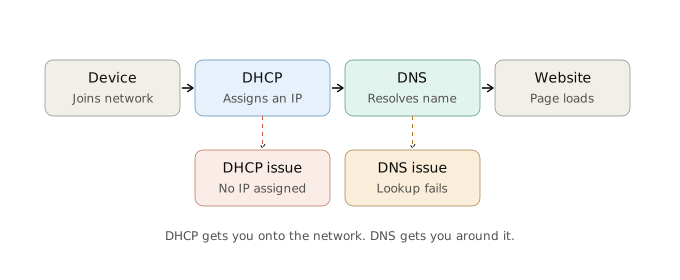
DHCP issues typically mean a device never gets properly connected to the network at all:
No IP address, a self-assigned 169.254.x.x fallback, or a connection that drops entirely. From the user's perspective, the device doesn't just fail to load websites; it doesn't appear to be on the network at all.
DNS issues typically mean the device is connected just fine, but can't translate website names into addresses:
The device has a valid IP, can reach the gateway, and may even be able to reach specific IP addresses directly, but typing a URL into a browser fails or hangs.
That distinction is also the fastest way to tell them apart in practice:
1. Check if the device has a valid IP address: If it doesn't, or it's showing a 169.254.x.x address, that's DHCP, not DNS. DNS issues only happen after a device already has valid network configuration.
2. Try pinging an IP address directly instead of a domain name: Pinging something like 8.8.8.8 bypasses DNS entirely. If that succeeds but pinging a domain name (like google.com) fails, the issue is DNS. If neither works, the problem is more likely DHCP or a broader connectivity issue.
3. Check what DNS servers the device is actually using: Since DHCP often pushes DNS settings to clients, an incorrect or unreachable DNS server here can sometimes trace back to a DHCP scope option misconfiguration rather than a DNS server problem itself, worth keeping in mind since the two can be connected.
4. Try a different DNS server temporarily: Manually switching to a public DNS server, like 1.1.1.1 or 8.8.8.8, can confirm whether the issue is with DNS resolution specifically, separate from anything DHCP-related.
If you're dealing with DNS-specific symptoms, our DNS issues handbook goes deep into exactly this, from common causes to a full troubleshooting walkthrough. Think of this guide and that one as covering two different failure points along the same connection process: DHCP gets you onto the network, DNS gets you around it.
How to Avoid DHCP Issues: 6 Tips to Put Into Place
We've covered a lot of ground, so here's the condensed version: the habits that keep DHCP problems from happening in the first place, rather than just reacting to them after the fact.
- Regularly audit scope sizing: As networks grow, especially with more IoT devices, guest users, and BYOD traffic, scopes that were fine a year ago can quietly become too small. Review utilization periodically, not just when something breaks.
- Set up DHCP failover or redundancy: A single DHCP server is a single point of failure. A properly configured failover pair means one server going down doesn't take the whole network with it.
- Enable DHCP snooping on switches: This is one of the most effective defences against rogue DHCP servers, since it lets switches recognize and block DHCP responses from untrusted ports.
- Keep lease times appropriate to the environment: Long leases work well for stable environments with a fixed number of devices; shorter leases make more sense for guest Wi-Fi or other high-turnover networks.
- Document scope options and configuration changes: When a gateway or DNS setting changes on your router, make sure it's reflected in DHCP scope options too; a surprising number of DHCP issues trace back to configuration drift like this.
- Monitor proactively rather than reactively: As covered earlier, continuous monitoring catches scope exhaustion, lease failures, and rogue servers before they turn into help desk tickets.

How to Optimize DHCP Performance
- Size server resources for peak load, not average load: DHCP demand spikes at predictable times, like the start of a workday, so plan capacity around those bursts rather than typical daily averages.
- Segment device types with VLANs and dedicated scopes: Separating corporate devices, guest Wi-Fi, and IoT hardware into their own scopes prevents one category of device from exhausting shared address space.
- Use DHCP reservations for devices that need consistency: Printers, servers, and other fixed infrastructure benefit from reservations rather than static IPs configured outside of DHCP entirely, since it keeps everything visible and managed in one place.
- Regularly review DHCP logs, even when nothing's broken: Logs often show early warning signs (climbing scope utilization, repeated renewal failures) well before they become disruptive.
Put together, these practices shift DHCP from something you troubleshoot after users complain to something that quietly works in the background, exactly the way it's supposed to.
Conclusion: Don't Let DHCP Fool You Into Blaming Your ISP
DHCP is one of those parts of your network that's invisible right up until it isn't. Most of the time, it just quietly assigns IP addresses in the background, and nobody thinks about it at all. But when it breaks, it produces one of the most convincing impressions of an ISP outage you'll ever see: no connection, no explanation, and an easy assumption that the fault lies somewhere outside your control.
Throughout this article, we've covered what DHCP actually is, the most common issues that affect it, both on the network broadly and on the server itself, and how to systematically troubleshoot and fix them. More importantly, we've covered why these issues get misdiagnosed as ISP problems in the first place, and how a few quick checks can tell you, with confidence, whether the fault is local or genuinely upstream.
The next time a network device won't connect, and the instinct is to call your provider, take a moment first: check if other devices are affected, try releasing and renewing the lease, or test with a static IP. More often than you'd expect, the answer is sitting inside your own network, not on the other end of a support line.
Ready to stop guessing where your network problems are coming from?
Obkio's Network Performance Monitoring tool gives you the visibility to catch DHCP issues, DNS issues, and everything in between, before they ever get mistaken for something they're not. Take the first step toward a network that tells you exactly what's wrong, instead of leaving you to guess.


