











 Obkio Blog


 Subscribe
Table of Contents
Table of Contents
A full outage is the easy version of this job. Something goes down, someone notices immediately, you fix it, and you move on. Everyone understands that problem, including the users complaining about it.
Intermittent network connectivity issues are a different animal. Your network connection works, then it doesn't, then it does again, all on its own, usually before you've had a chance to open a single tool. By the time you sit down to look, the network is behaving perfectly. You start to wonder if the user imagined it. They didn't.
This is one of the most common tickets an IT team gets, and one of the hardest to close properly. "The Wi-Fi keeps cutting out," "my VPN drops randomly," "the connection to the file server keeps timing out for a few seconds," these all describe the same underlying pattern: a network connection that's unstable rather than dead. Treat it like a dead connection, and you'll spend hours checking things that were never broken in the first place. Treat it like the intermittent problem it actually is, and the troubleshooting path looks completely different.
This article is focused specifically on that pattern: network connections that drop and reconnect on their own rather than staying down or staying broken. We'll cover what counts as intermittent versus a full network outage or a static misconfiguration, the signs that tell you which one you're dealing with, where these drops usually originate, and a step-by-step process for catching and isolating the issue instead of chasing it after the fact.
What Are Intermittent Network Connectivity Issues (vs. Constant & Full Network Outages) 
Intermittent network connectivity issues happen when a connection between devices, network segments, or resources repeatedly drops and reconnects on its own, rather than failing completely or staying degraded.
The connection works, fails briefly, then recovers, often before anyone can diagnose it, which is exactly what makes it easy to miss with point-in-time checks and hard to reproduce on demand.
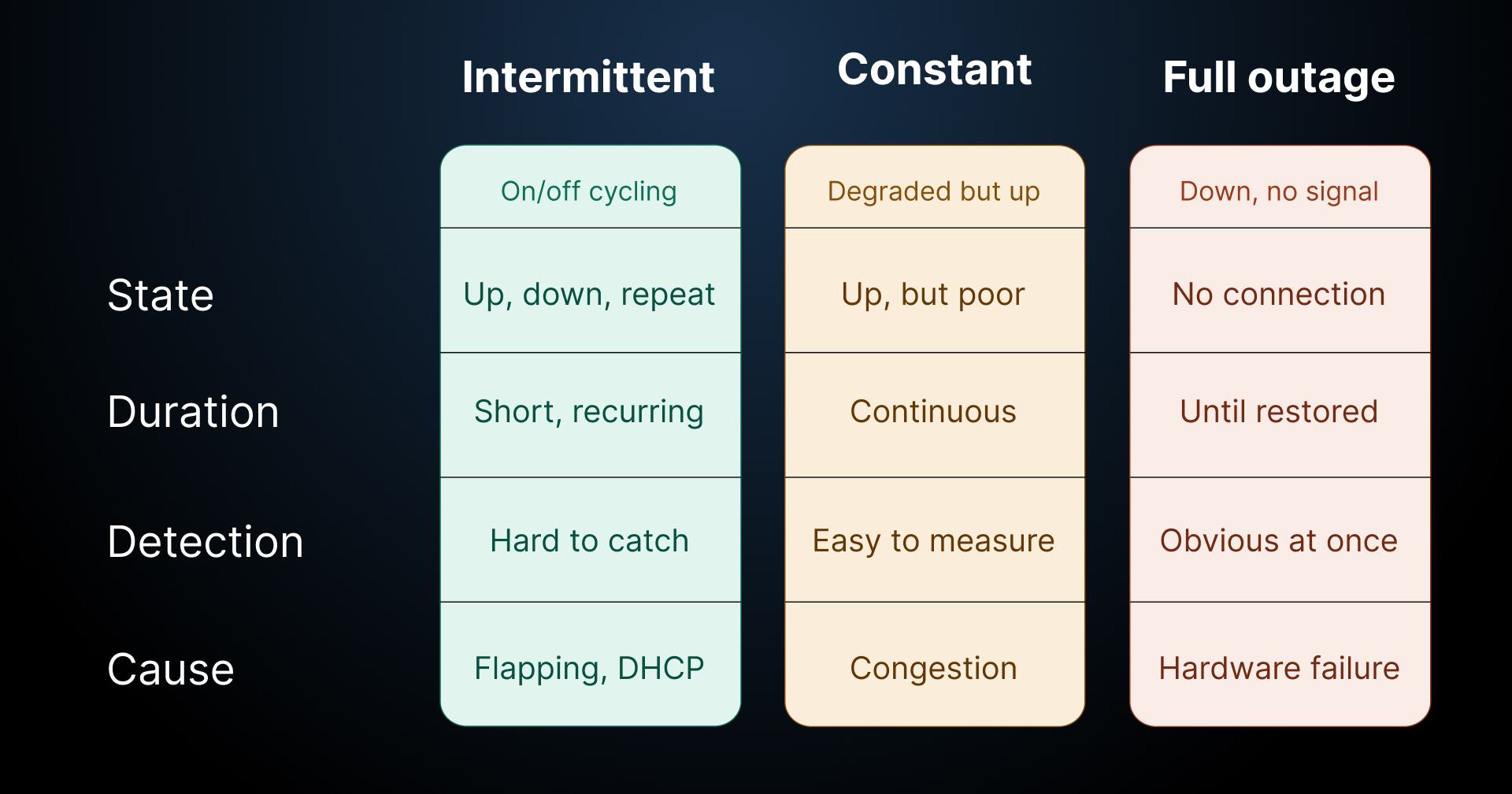
A complete network outage is binary. The link is down, it stays down, and it comes back up only after someone intervenes or a component is restored. There's no ambiguity and no need to catch it in the act, because it's still broken when you go looking.
A static misconfiguration behaves differently again. An IP conflict or a bad DNS entry produces a consistent, reproducible failure. Same symptom, every time, until someone fixes the setting. You can test for it on demand because it doesn't go away on its own.
Intermittent network connection loss sits in between those two. It's not permanently broken, and it's not consistently broken. It's a network connection that's unstable under specific conditions, and those conditions come and go, which means the failure comes and goes with them. That instability is what separates this problem from the other two, and it's why it needs its own troubleshooting approach instead of a standard network uptime check.

What Are Signs Your Network Connectivity Issues Are Intermittent?
Here's what typically points to intermittent network connection issues rather than a hard failure or a static config problem:
1. The connection drops and reconnects on its own, without any action from the user.
2. It resolves before you can open a monitoring tool or start diagnosing it.
3. It follows a pattern, like the same time of day, the same activity, or the same location, rather than happening at random.
4. Only one device, application, or network segment is affected while others stay connected.
5. Ping or connectivity tests come back clean minutes after users report a drop.
6. The same issue keeps recurring over days or weeks instead of happening once and staying resolved.
If you're seeing two or three of these together, you're not dealing with a dead cable or a misconfigured gateway. You're dealing with losing network connection intermittently, something that needs to be caught while it's happening, not investigated after it's already resolved itself.
Why Is My Network Connection Dropping Intermittently?
Intermittent network connection drops usually trace back to a device or segment that's failing under specific conditions rather than failing outright. The most common causes are:
- Switch port flapping: A port repeatedly going up and down, often caused by a bad cable, a failing NIC, or a loose connection that only fails under vibration or thermal load.
- Wireless roaming and handoff: Devices briefly dropping connectivity as they switch between access points, especially in environments with overlapping coverage or poorly tuned roaming thresholds.
- VPN tunnel renegotiation: Short drops when a tunnel re-establishes itself, which can happen on a schedule, after an idle timeout, or in response to a change in the underlying connection.
- DHCP lease expiry: A brief disconnect when a lease renews and runs into a conflict or delay, particularly on networks with a tight IP pool or overlapping static reservations.
- Duplex mismatches: A speed or duplex setting mismatch between two connected devices produces inconsistent drops and retransmissions rather than a clean failure.
- Intermittent interference: Wireless interference from a device that cycles on and off, like a microwave, a cordless phone, or a neighbouring network's access point, causes drops that appear and disappear with the interference source itself.
Notice that none of these are "your Internet is down" or "your DNS is misconfigured." They're all conditions that come and go, which is exactly why the resulting connectivity issue comes and goes with them.
Each of these has a different fix, and applying the wrong one wastes time you don't have:
- Switch port flapping → Start with the cable and the SFP or transceiver, not the switch. Swap the cable first, then check the port's error counters over a few hours. If flapping continues after a cable swap, move the connection to a different port to isolate whether the switch itself is the problem.
- Wireless roaming and handoff → Review AP placement and signal overlap. Too much overlap causes clients to bounce between APs unnecessarily; too little causes a dead zone before the handoff. Tightening roaming aggressiveness settings and ensuring consistent channel and power configuration across APs usually resolves chronic handoff drops.
- VPN tunnel renegotiation → Check the tunnel's rekey interval and idle timeout settings. If the underlying Internet connection is itself unstable, the tunnel will renegotiate more often than it should. Fixing the underlying connection often fixes the tunnel symptom along with it.
- DHCP lease expiry → Look at your lease duration relative to your pool size. A short lease time on a busy subnet increases the odds of a renewal colliding with a conflict. Widening the pool or extending lease duration reduces how often this becomes visible to users.
- Duplex mismatches → Audit both ends of the connection. Auto-negotiation failures are the most common source of this problem, and forcing matching speed and duplex settings on both the switch port and the connected device eliminates it outright.
- Intermittent interference → Use a Wi-Fi analyzer to correlate signal quality drops with the timing of the reported issue. If the drops line up with a predictable schedule (a shared kitchen microwave at lunchtime, for instance), moving to a less congested channel or a different frequency band usually clears it.
Where Do Intermittent Network Connectivity Drops Usually Happen?
Intermittent drops can originate in a few distinct places, and knowing which segment is involved changes how you troubleshoot it:
- LAN: Switch port flapping, duplex mismatches, and failing cables or NICs inside your own infrastructure
- Wireless: Roaming between access points, channel interference, and brief de-authentication events as clients move around a building
- VPN or remote access tunnels: Renegotiation events, idle timeouts, and unstable underlying connections feeding into the tunnel
- Between office or branch and cloud or data center: Path issues that only appear under certain traffic conditions, often tied to congestion or routing changes several hops away from your edge
The point of this list isn't to memorize causes. It's to remind you that "my network is dropping" isn't a single problem with a single fix. It's LAN, wireless, VPN, or the path beyond your edge, and each of those needs a different kind of evidence before you can act on it.
Learn how to detect intermittent network problems to troubleshoot performance issues that are hard to catch with Obkio Network Monitoring software.
Learn more

How to Troubleshoot Intermittent Network Connectivity with Ease: Step-by-Step
The steps below follow that logic in order: confirm the intermittent pattern, monitor continuously so you're capturing data the moment a drop occurs, correlate that data with your devices and network path, then isolate exactly which segment it's coming from.
Step 1: Reproduce the Network Connectivity Pattern, Not the Problem
Since the problem disappears before you can act on it, the first real step isn't fixing anything. It's establishing when and how often it happens.
Start a simple log. Note the time of each reported drop, which users or devices were affected, how long it lasted, and what was happening at the time (a video call, a large file transfer, a specific application). You're not trying to catch the failure itself yet. You're trying to catch its pattern.
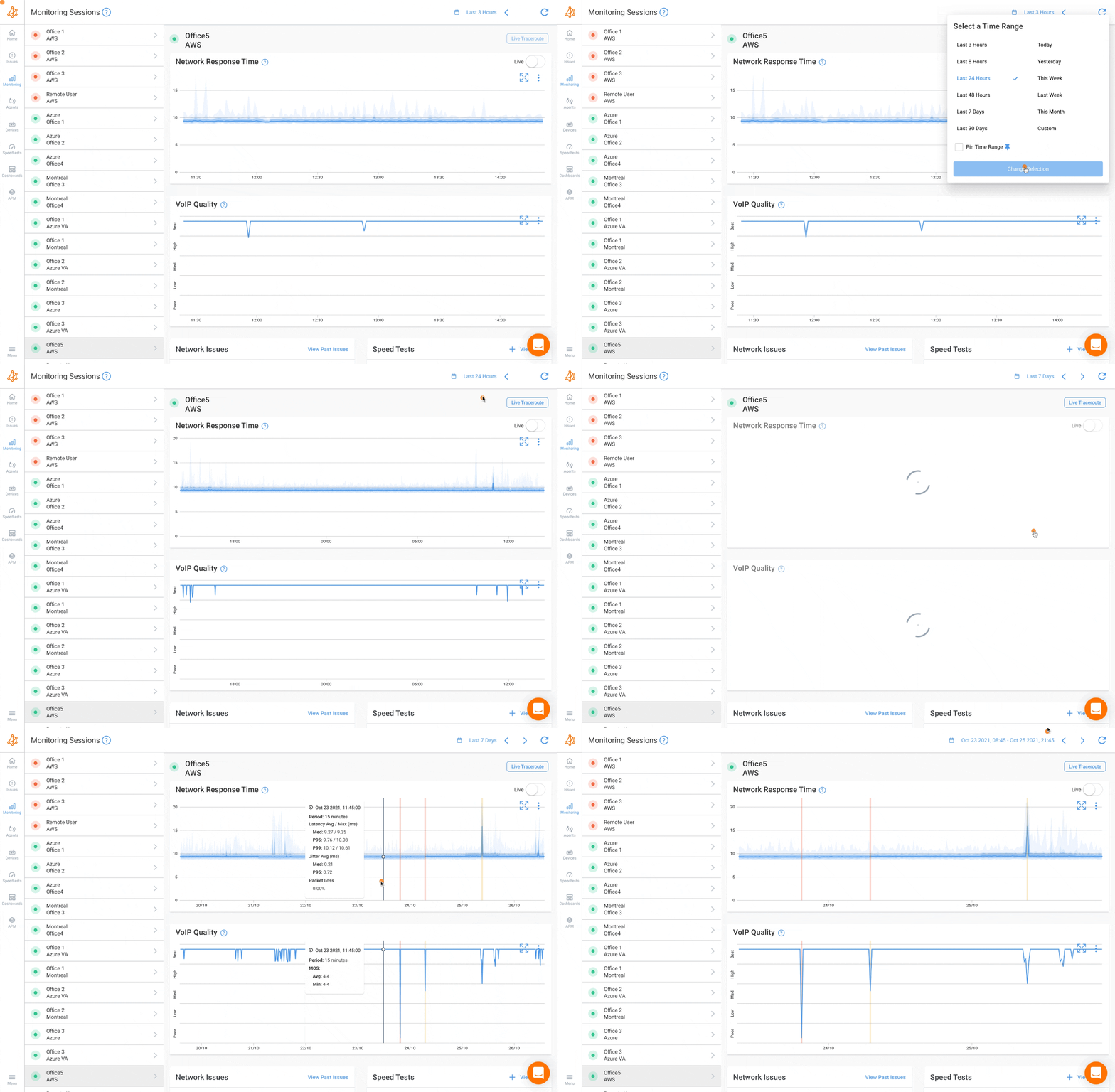
Ask a few pointed questions while you build that log:
- Does it happen at a consistent time of day, or does it seem random?
- Is it tied to a specific activity, like joining a call or starting a large download?
- Does it affect one person, one office, or everyone at once?
- Did it start after a specific change, like a firmware update, a new AP, or a new VPN client version?
A drop that happens every day around 1pm points toward congestion. A network drop that only affects one office points away from your ISP. A drop that started right after a firmware update points at the update. None of that is visible from a single incident. It only becomes visible once you have several data points to compare, which is why rushing straight to a fix before you've logged a pattern usually means fixing the wrong thing.
Step 2: Monitor Continuously to Catch the Intermittent Network Connectivity Problems in the Act
A single ping, run once, tells you almost nothing about intermittent network connection problems. By definition, the issue isn't happening at the exact moment you decide to check. You could ping a destination fifty times over five minutes and still miss a two-second drop that happened four minutes ago. Point-in-time checks are built for problems that stay broken long enough to be tested. Intermittent issues aren't that.
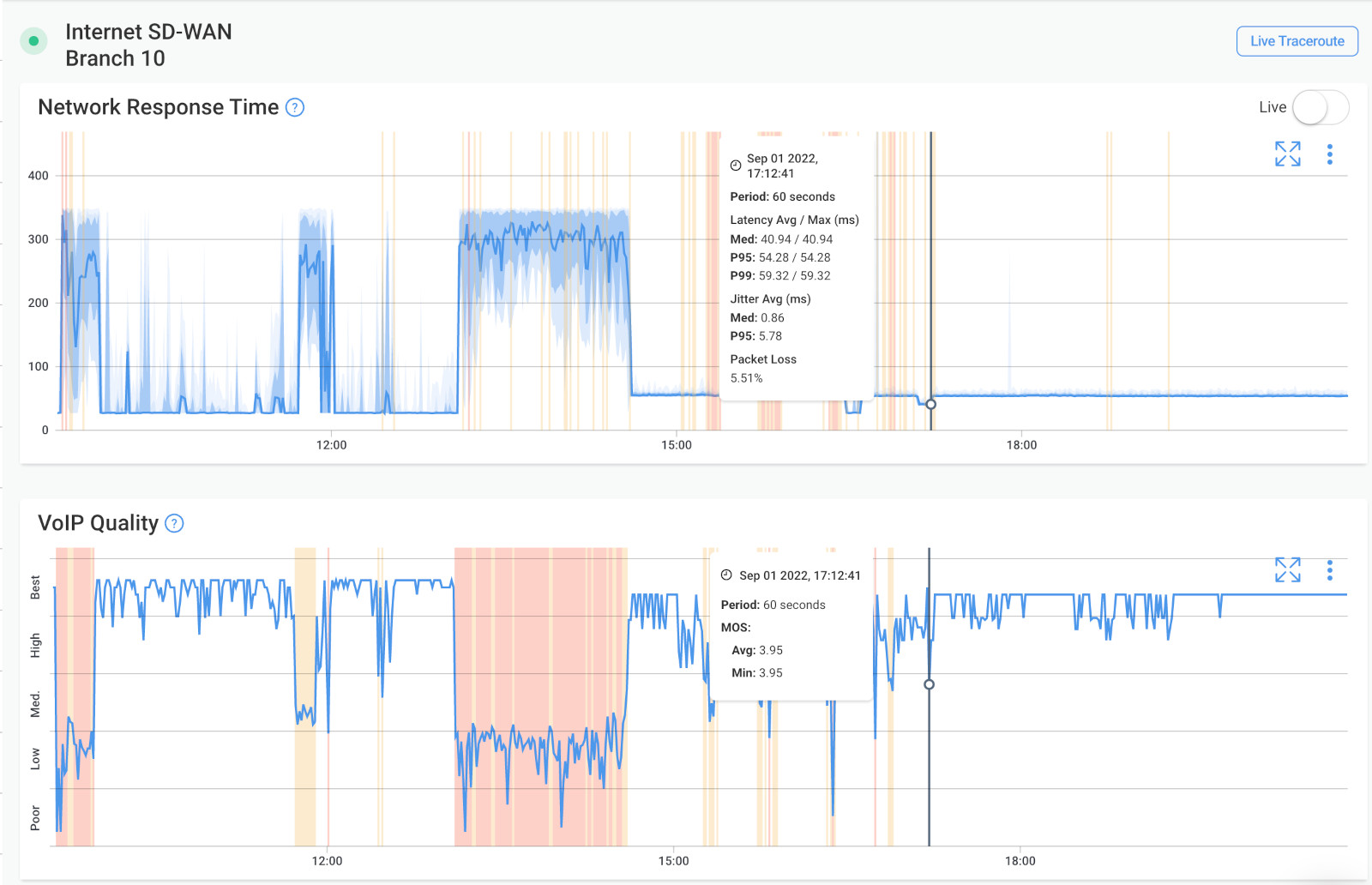
This is where continuous monitoring earns its place, and it's the difference between troubleshooting and guessing.
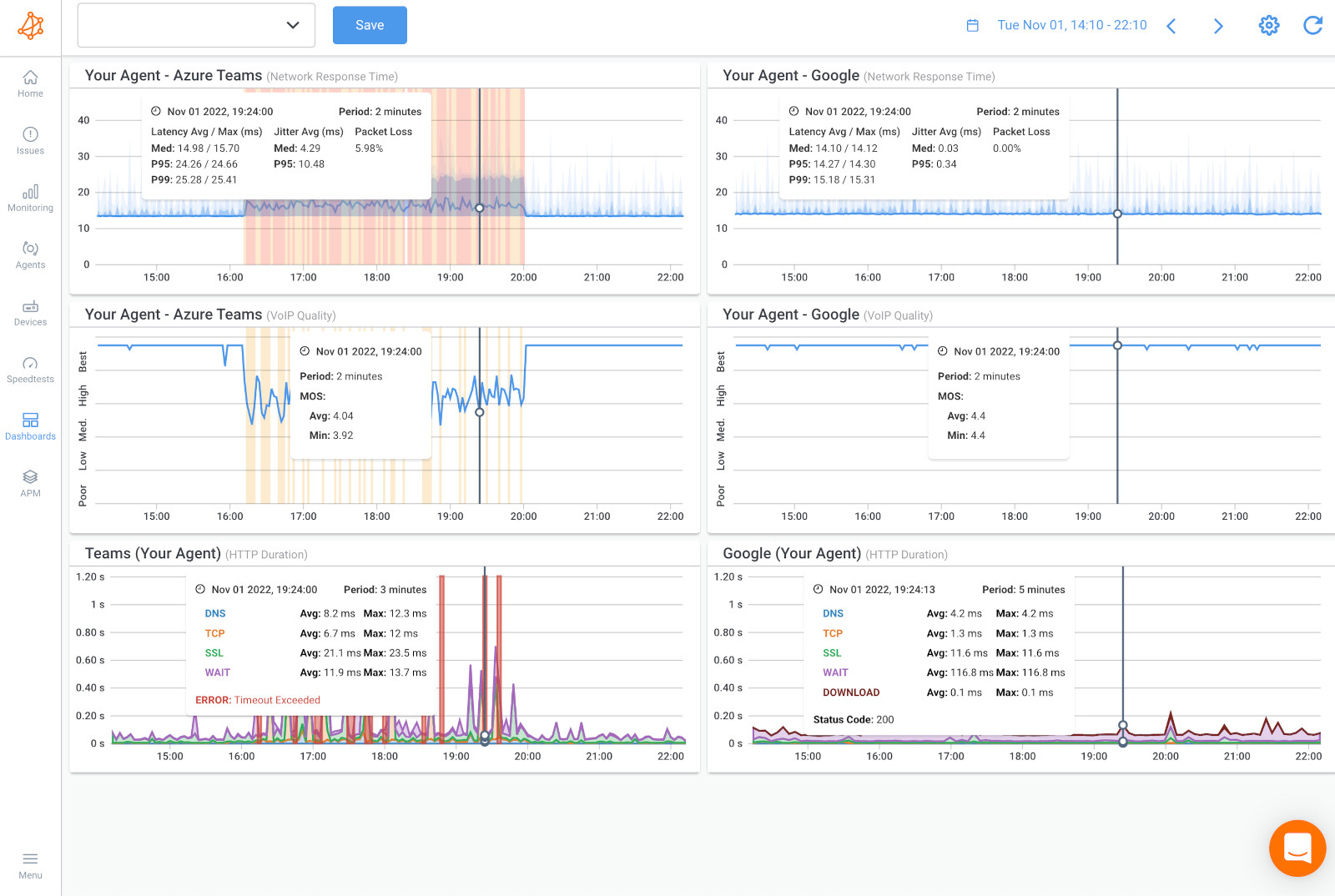
Obkio is a network performance monitoring tool built to catch exactly this kind of problem. It works by deploying lightweight Network Monitoring Agents at the locations that matter: your head office, branch offices, data center, cloud environment, and even remote worker connections. These agents generate continuous synthetic traffic between each other and measure packet loss, latency, and jitter every 500ms, around the clock, not just when you happen to be looking.

- 14-day free trial of all premium features
- Deploy in just 10 minutes
- Monitor performance in all key network locations
- Measure real-time network metrics
- Identify and troubleshoot live network problems


That constant measurement is what makes intermittent drops visible. Instead of hoping you're testing at the right second, you already have a timeline running in the background. When a drop happens at 2:14am, or during a specific user's video call, or right as a branch office's VPN tunnel renegotiates, it's captured in the data whether anyone was watching or not. You go from "the user said it dropped sometime this morning" to a graph showing the exact second it happened and how long it lasted.

Deploying agents at the segments you identified in Step 1 matters here. If the reports are coming from one branch office, an agent at that branch (paired with one at head office or in the cloud) isolates whether the drop is local to that site or shared across the network. Guessing at deployment locations defeats the purpose. Put agents where the pattern says the problem is.
Step 3: Correlate the Intermittent Issue with Device and Interface Data
Continuous monitoring tells you when a drop happened. It doesn't automatically tell you why. For that, you need to look at what your network devices were doing at the exact same moment.
This is where SNMP-based Network Device Monitoring comes in. By polling your routers, switches, and firewalls over SNMP, you can pull interface error counts, CPU utilization, memory usage, and bandwidth consumption, and line all of it up against the timestamp of the connectivity drop. A spike in interface errors on a specific switch port at the exact minute the connection dropped is a very different finding than a clean interface log with no errors anywhere. One points at hardware. The other sends you looking elsewhere.
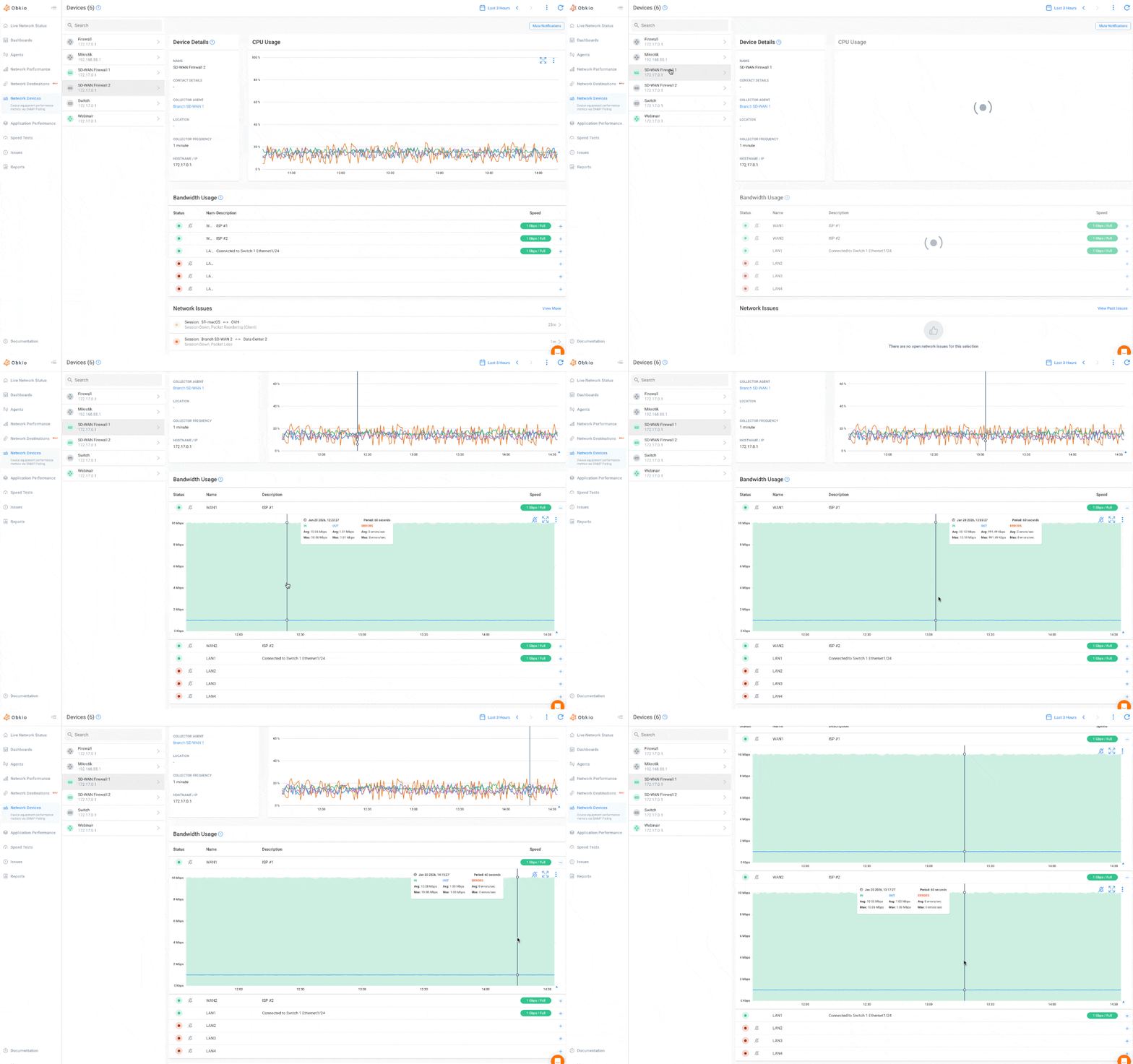
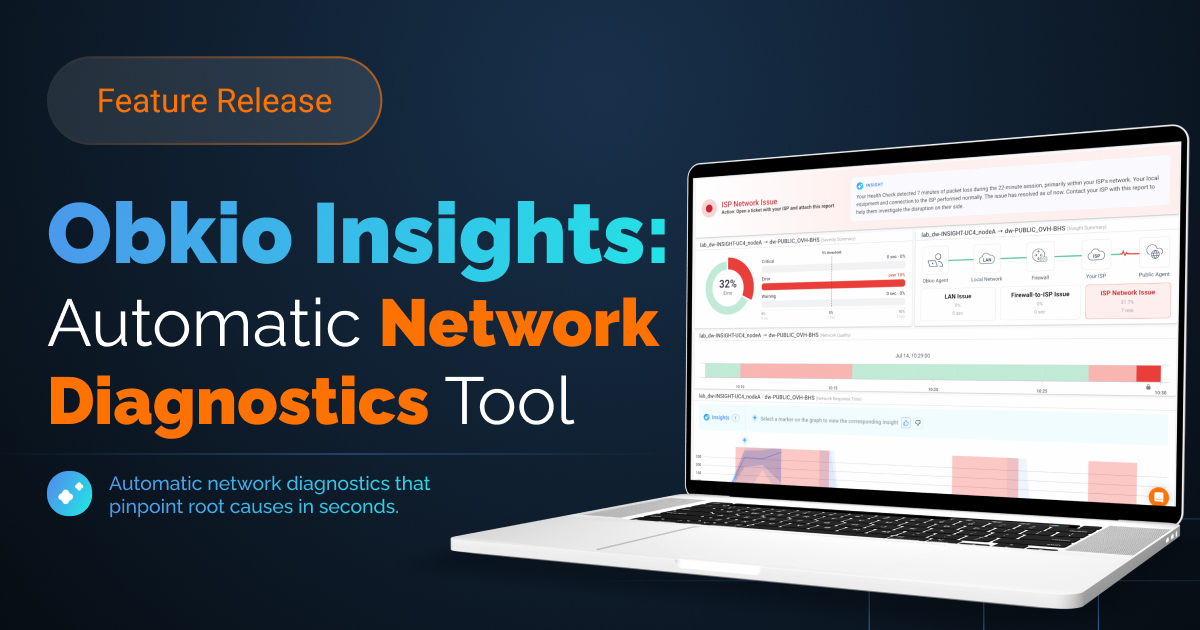
Manually cross-referencing an SNMP graph with a packet loss graph works, but it's slow, and it's easy to miss a five-second overlap buried in a day's worth of data. This is exactly the kind of correlation that Obkio Insights, Obkio's automatic network diagnostics engine (now in beta), is built to handle for you.
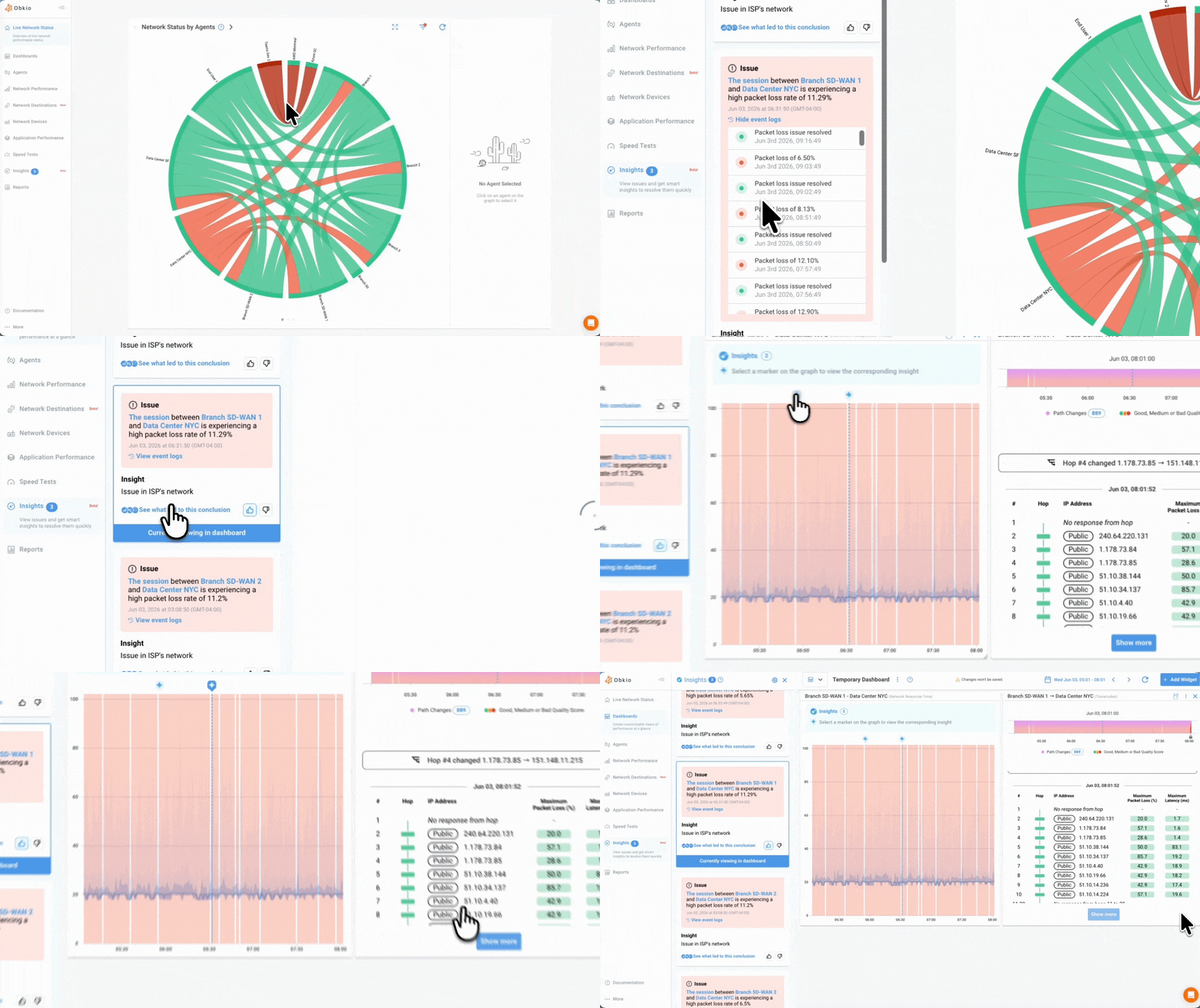
When Obkio's monitoring detects a connectivity issue, like a spike in packet loss or a sudden latency jump, Insights' correlation engine immediately analyzes the monitoring data from that same time window. It checks whether the Monitoring Agent had the resources it needed to run its test properly (ruling out a false positive on the user's end), examines CPU, memory, and bandwidth usage across your network devices to flag congestion or resource constraints, and cross-references traceroute data from the same period to identify which hops along the path were affected.
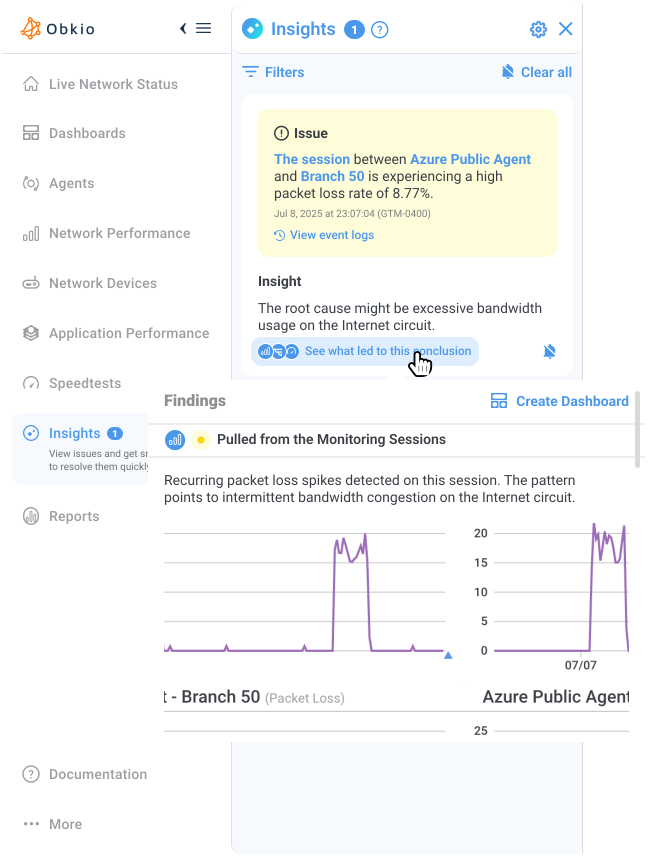
Instead of an alert that just says "packet loss detected," you get a probable root cause delivered alongside it: a congested device, an issue inside your LAN, high bandwidth usage on your Internet circuit, or a problem inside your ISP's network. Clicking into the diagnosis opens a generated dashboard with all the correlated data from that exact timeframe, so you can see the evidence behind the conclusion instead of rebuilding it yourself from three different graphs.
For a problem that disappears the moment you go looking for it, that automated correlation is the part that actually saves time. You're not manually lining up an SNMP graph with a packet loss timeline at 11pm trying to figure out if they overlap. The system already did it the moment the issue occurred.
Step 4: Isolate the Network Segment: LAN, Wireless, VPN, or Beyond Your Network
Once you know when the drop happened and what your devices were doing, the last piece is confirming exactly where in the path it occurred. LAN, wireless, VPN, or somewhere upstream in WAN past your edge are four very different problems with four very different fixes and four very different owners.
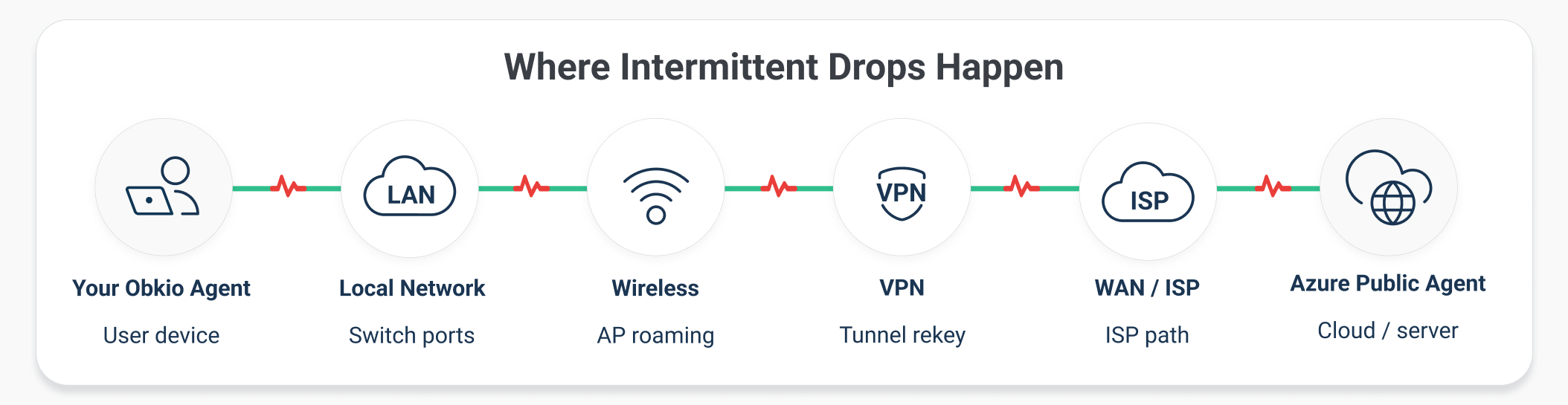
A hop-by-hop traceroute run during (or as close as possible to) the drop window will usually show you where things degrade. If the first few hops inside your own network are clean and the packet loss or latency spike appears right after your edge router, that points at your ISP. If it's already showing up on an internal hop, the problem is yours to fix, not theirs.
Running a single traceroute manually after the fact is a coin flip, since the issue may have already cleared by the time you run it. This is where having path data captured automatically and continuously matters.

What Are Common Causes of Intermittent Network Connectivity Issues?
To bring it back together, the causes that specifically produce this cycling, drop-and-reconnect behaviour are:
- Switch port flapping
- Access point roaming and handoff issues
- VPN tunnel renegotiation
- DHCP lease expiry
- Duplex mismatches
This list is intentionally narrower than a general "why is my network slow" list. Slow speeds and total connection loss have their own causes and their own articles. What's listed here are specifically the conditions that produce a connection that comes and goes rather than one that's simply degraded or simply gone.
How to Prevent Intermittent Network Connection Issues from Coming Back
Fixing one drop is straightforward once you've isolated the cause. Keeping the pattern from reappearing is the part most teams skip, and it's usually why the same ticket comes back three months later with a different user attached to it.
1. Keep continuous monitoring running, not just during the investigation:
The value of catching the first occurrence quickly is that you can leave monitoring in place afterward and get an alert automatically if the same pattern starts again, instead of waiting for the next complaint.
2. Document what you find:
A duplex mismatch fixed on one switch port doesn't mean every port is configured correctly. A single instance of AP roaming issues in one hallway doesn't mean the rest of the building is fine. Keep a short record of what caused each intermittent issue and where, so a repeat somewhere else in the network doesn't start the investigation from zero.
3. Set alert thresholds before problems become chronic:
A link that occasionally touches 2% packet loss for a few seconds isn't an emergency, but it's worth watching. Catching that trend early using set alert thresholds, before it becomes a daily occurrence that generates tickets, is the difference between proactive and reactive network management.
4. Review firmware and driver versions on a schedule:
Particularly on access points, VPN concentrators, and switches, a meaningful share of intermittent issues trace back to a known bug in an old firmware version that's already been fixed in a later release.
Learn how to troubleshoot intermittent Internet connection issues with Network Monitoring. Find & fix the cause of intermittent Internet issues.
Learn more
Frequently Asked Questions About Losing Network Connection Intermittently
What's the difference between intermittent connectivity issues and an intermittent Internet connection?
Intermittent connectivity issues can affect any segment of your network, including internal LAN connections, wireless clients, VPN tunnels, or the path between your office and a cloud resource. An intermittent Internet connection specifically refers to the connection between your network and the Internet itself dropping and recovering on its own, which is a subset of the broader issue covered in this article.
Can Wi-Fi roaming cause intermittent connectivity issues?
Yes. As a wireless device moves between access points, there's a brief handoff period where connectivity can drop for a moment before re-establishing on the new AP. In environments with overlapping coverage, poorly tuned roaming thresholds, or too few access points for the number of clients, this handoff period becomes noticeable and repetitive rather than seamless.
How do I know if a dropped connection is a device problem or a network problem?
Check whether the drop is isolated to a single device or affects multiple devices on the same segment at the same time. If only one device drops while everything else stays connected, look at that device's NIC, drivers, and local connection first. If multiple, unrelated devices drop at the same time, the problem is more likely in the shared infrastructure: a switch, an access point, or the upstream link they all depend on.
Should I troubleshoot this myself or escalate to IT or networking?
If you've confirmed the pattern (when it happens, what's affected, how often) and you have monitoring data showing packet loss or latency spikes at those same timestamps, you already have what a networking team needs to act on it. Escalate with that evidence rather than a description of the symptom alone. It turns "the Wi-Fi keeps cutting out" into a specific, time-stamped, segment-isolated finding that gets addressed faster.
Why does my connection test come back clean right after a drop is reported?
Because the underlying condition causing the drop has usually already cleared by the time you test. A port that flapped for three seconds, an AP handoff that took two seconds longer than usual, a tunnel that renegotiated and re-established, all of these resolve themselves quickly, which is exactly why a manual test run minutes later shows nothing wrong. This is the core reason intermittent issues need continuous monitoring instead of point in time checks: you need data from the moment it happened, not from five minutes after.
Stop Losing the Pattern Before You Can Fix It
The hardest part of an intermittent connectivity issue isn't fixing it once you've found it. Most of the causes on this list, a bad cable, a duplex mismatch, a roaming threshold, a congested link, have well understood fixes. The hard part is catching the problem long enough to know which one you're dealing with.
That's the piece that continuous monitoring solves. Instead of chasing a drop that's already gone by the time you open a tool, you have a timeline that was already running when it happened, device data lined up against that exact moment, and a path analysis showing exactly where in the network it occurred. With Obkio Insights correlating that data automatically, you're not stitching graphs together at midnight trying to prove something you can already feel is happening. You get the probable cause delivered alongside the alert, evidence included.
Stop waiting for the issue to happen again just so you can watch it. Start capturing it the first time.

- 14-day free trial of all premium features
- Deploy in just 10 minutes
- Monitor performance in all key network locations
- Measure real-time network metrics
- Identify and troubleshoot live network problems
