











 Obkio Blog


 Subscribe
Table of Contents
Table of Contents
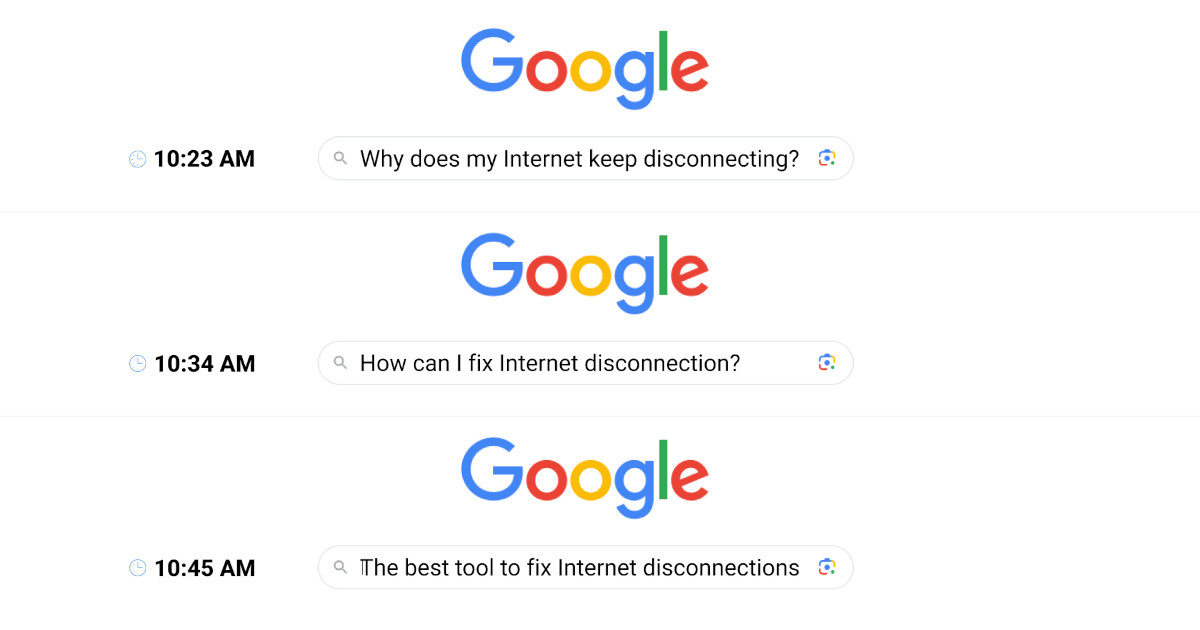
Your Internet usually keeps disconnecting because of one of five things: a weak or congested Wi-Fi signal, a failing modem, router or cable, an overloaded firewall, a device-level setting or driver, or a problem on your ISP’s line or network. To fix it, first find where the drop happens: on one device, across your LAN, or past your firewall.
“The Internet keeps droppin” is one of the most common tickets IT teams get, and one of the hardest to close. By the time anyone looks, the connection is back and there’s nothing left to troubleshoot.
Disconnections can start on a single laptop, in the Wi-Fi, on a router or firewall, or deep in your ISP’s network. Each one has a different fix, so the real work is finding where the drop happens before you start changing things.
This article covers the most common causes of internet disconnections, how to diagnose where they’re happening, and how to fix each one, whether the problem is on your side or your ISP’s.
What Counts as an Internet Disconnection? 
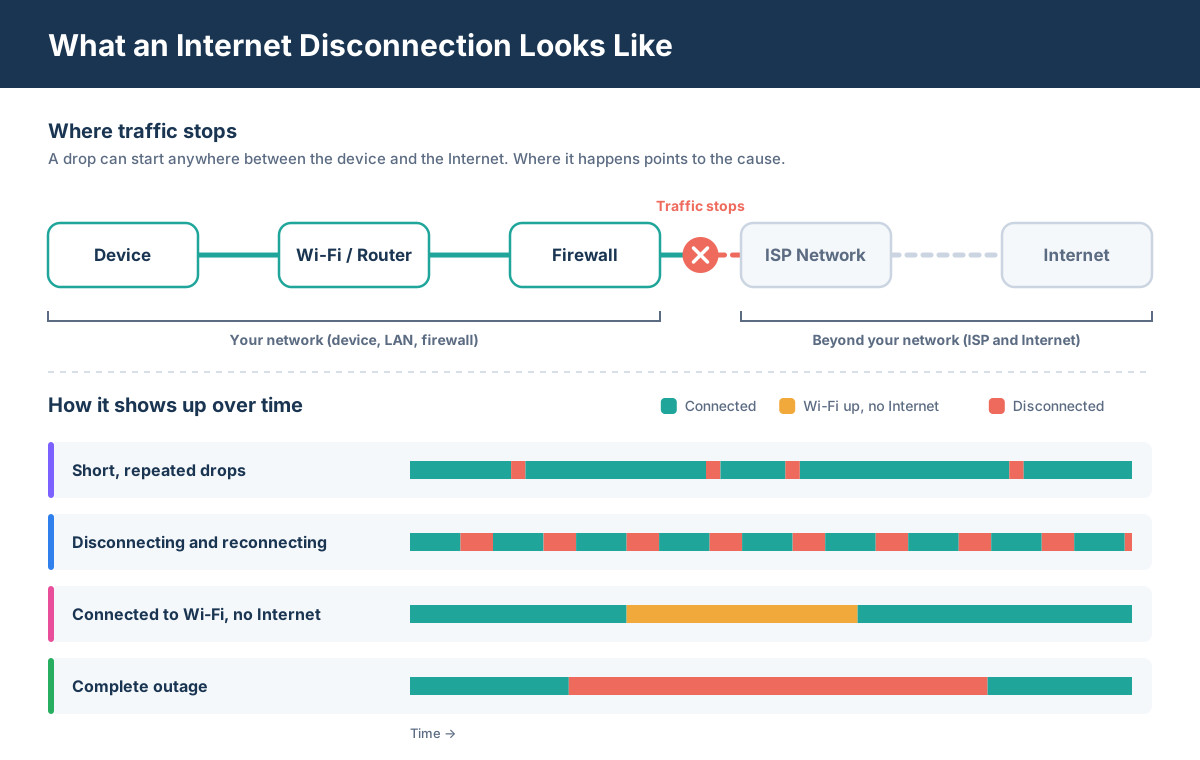
An Internet disconnection is any period where traffic stops flowing between your device and the Internet, whether it lasts two seconds or two hours. How it shows up is a clue to where it's coming from:
- Short, repeated drops: The connection cuts out for a few seconds, then recovers on its own. Calls freeze or end, and VPN sessions reconnect. These are the hardest to catch manually, and they often point to Wi-Fi interference, an overloaded firewall, or packet loss on the ISP's line.
- Disconnecting and reconnecting in a loop: The device keeps dropping and rejoining the network, sometimes every few minutes. This usually points to the device or the local network: Wi-Fi signal, adapter power-saving settings, DHCP lease problems, or IP address conflicts.
- Connected to Wi-Fi, but no Internet: The device still shows a Wi-Fi connection, but nothing loads. The local network is up, and the break is further along the path: the router, the firewall, DNS, or the ISP.
- Complete outages: Every device at the site loses access until someone restarts equipment or the ISP restores service. This points to the modem, the router, the ISP's local loop, or a wider network outage.
If the drops come and go with no obvious pattern, you're dealing with an intermittent Internet connection, which needs continuous monitoring to diagnose. For the networking definition of a single drop, see what is a network drop.
Why Does My Internet Keep Disconnecting? Common Causes
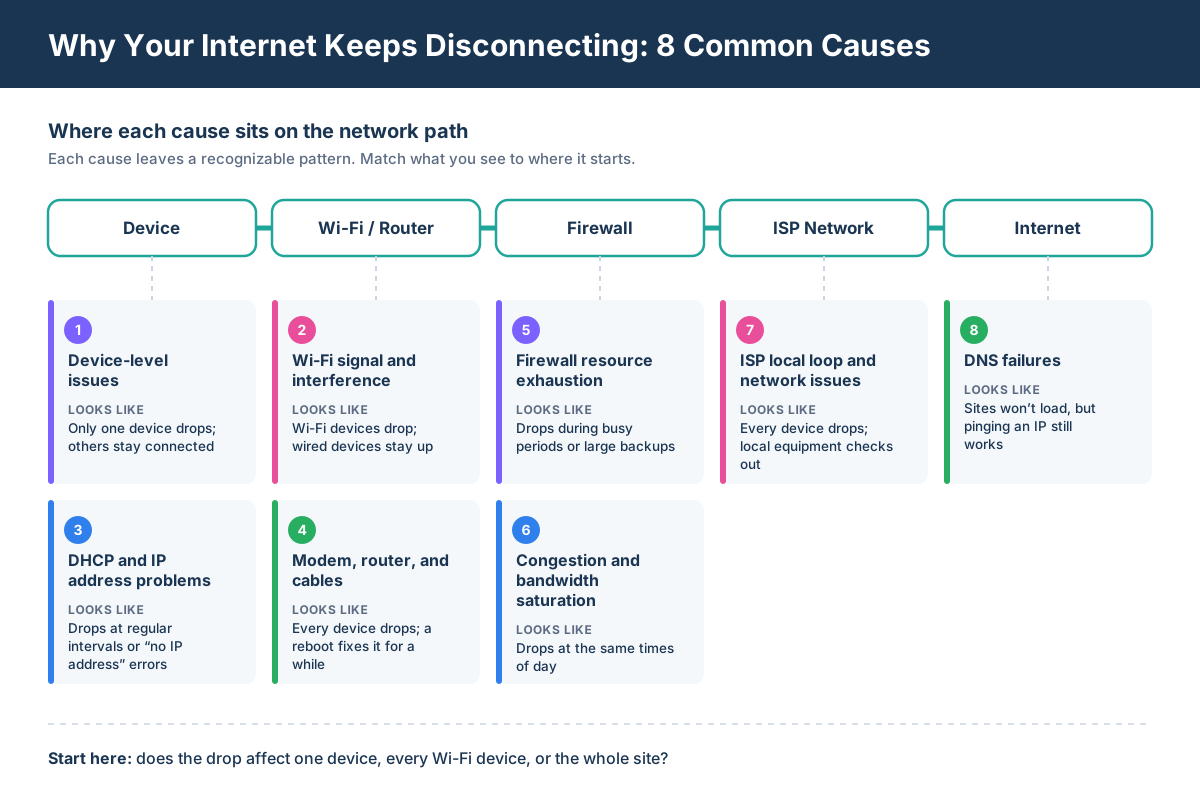
Most Internet disconnections come from one of eight causes, and each one tends to leave a recognizable pattern. Start with where the drop shows up: one device, every Wi-Fi device, or the whole site.
1. Device-Level Issues
Outdated or buggy network drivers, OS updates, VPN clients, and security software can all drop a single device's connection. Network adapters with power-saving enabled may also switch off to save energy, then take several seconds to reconnect.
Usually looks like: one laptop or desktop drops while every other device stays connected.
2. Wi-Fi Signal and Interference
Distance from the access point, walls and floors, neighbouring networks on overlapping channels, and congestion on the 2.4 GHz band all weaken the signal until devices lose their association. In multi-AP setups, poor roaming between access points causes the same effect as users move around.
Usually looks like: wireless devices drop while wired devices stay connected.
3. DHCP and IP Address Problems
When a device fails to renew its DHCP lease, it loses its IP address and with it network access. IP address conflicts cause similar drops when two devices end up with the same address.
Usually looks like: drops at regular intervals, or "limited connectivity" and "no IP address" errors.
4. Modem, Router, and Cable Problems
Overheating equipment, failing hardware, firmware bugs, and damaged or loose Ethernet cables all interrupt the connection for every device behind them. A restart often brings the connection back temporarily, which hides the real problem.
Usually looks like: every device at the site drops at once, and a reboot fixes it until the next time.
5. Firewall Resource Exhaustion
A firewall that runs out of CPU, memory, or session capacity can't process traffic in real time. Packets get dropped, and connections time out even though the Internet circuit itself is fine.
Usually looks like: drops during busy periods, large backups, or when many users are online.
6. Network Congestion and Bandwidth Saturation
When traffic exceeds the capacity of your Internet circuit or a link inside your LAN, packets queue and then get dropped. Heavy enough network congestion makes calls, VPN tunnels, and other real-time sessions disconnect.
Usually looks like: drops at the same times of day, or whenever a bandwidth-heavy task runs.
7. DNS Failures
If your DNS server stops responding, websites and apps fail even though the connection is still up. It looks like a disconnection, but the fix is completely different. See how to identify DNS issues.
Usually looks like: sites won't load, but pinging an IP address (like 8.8.8.8) still works.
8. ISP Local Loop and Network Issues
Problems on the line between your site and the ISP can drop the connection for everything behind your modem: signal issues, modem sync loss, or PPPoE session resets. So can problems deeper in the ISP's network, like maintenance, routing changes, or outages. See how to troubleshoot ISP issues for the full process.
Usually looks like: every device drops, local equipment checks out, and the problem starts past your firewall.
Quick reference: match the pattern to the likely cause

How to Diagnose Why Your Internet Keeps Disconnecting
Fixing a disconnection starts with finding where it happens. These six steps narrow it down: from the quick checks you can run in minutes, to continuous monitoring that catches drops when nobody is watching.
Step 1. Isolate the Scope of the Internet Disconnection
Before changing anything, answer three questions:
- Who is affected? One device, every Wi-Fi device, or the whole site?
- When does it happen? At random, at regular intervals, or at the same times of day?
- What was running? Video calls, large uploads, backups, or a VPN session?
The answers point to a short list of likely causes. One device suggests a driver or DHCP problem. Wi-Fi only points to signal or interference. The whole site at busy hours points to the firewall, congestion, or the ISP.
Step 2. Run Quick Local Checks
Rule out the simple causes first:
- Restart the modem, router, and affected device: If that fixes it only temporarily, keep going. A restart that "fixes" drops for a few days often hides failing hardware or firmware.
- Inspect cables and connections between the modem, router, switches, and devices.
- Compare Wi-Fi and Ethernet: If a wired connection stays up while Wi-Fi drops, focus on the wireless network.
- Ping three targets in order: your router's IP, a public IP like 8.8.8.8, then a domain name. If the router fails, the problem is local. If the public IP fails, it's past your router. If only the domain fails, it's DNS.
These checks only show what's happening right now. Drops that come and go need continuous monitoring to catch.
Step 3. Monitor Your Internet Connection Continuously
Most disconnections are short and unpredictable, so they're gone before anyone runs a test. Continuous monitoring records every drop as it happens: when it started, how long it lasted, and what the network looked like at the time.
A solution like Obkio's Internet Performance Monitoring does this with Network Monitoring Agents deployed at the affected site, as hardware, software, or virtual agents.
The agents exchange synthetic traffic with Public Monitoring Agents in AWS, Azure, and Google Cloud, and measure packet loss, latency, and jitter continuously. Because the traffic is synthetic, the agents detect issues without capturing user data.


Step 4. Let Obkio Insights Pinpoint Where the Drop Happened
Monitoring tells you a drop happened. Diagnosis tells you why, and that used to mean pulling device metrics and traceroutes by hand and lining them up against the time of the issue.
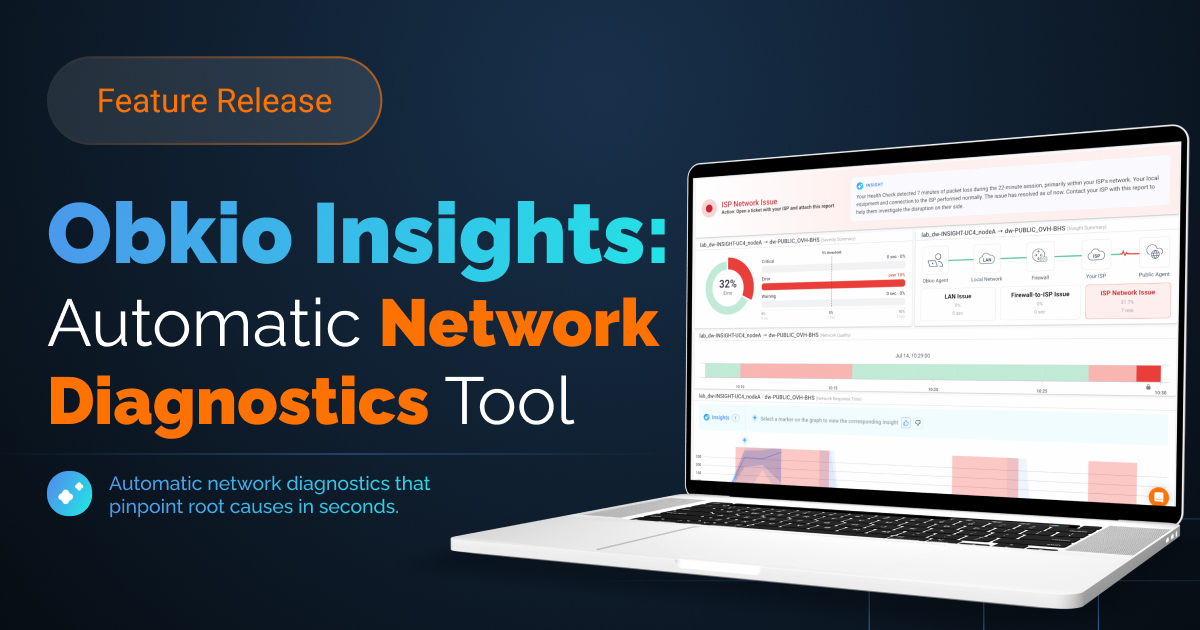
Obkio Insights automates that step. When a monitoring session detects packet loss, latency, or jitter, Insights correlates Network Performance Monitoring, SNMP Device Monitoring, and Visual Traceroute data from the same time window, then shows a probable root cause directly on the issue. Traceroute-based Insights for LAN and ISP issues work out of the box, with no configuration.
Each Insight points to a segment of the network path and to who needs to fix it:
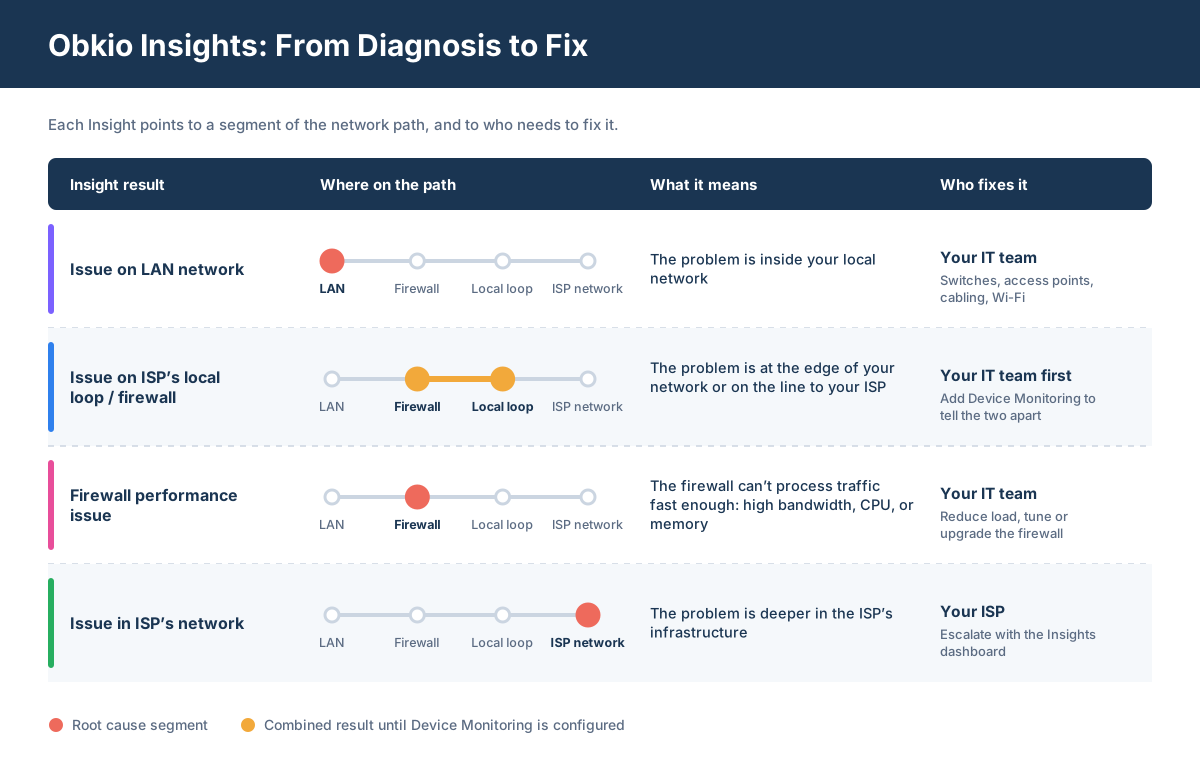 , where each sits on the network path, what it means, and who needs to fix it”)
To see the evidence, click "See what led to this conclusion." Insights opens an automatically generated dashboard with the performance, device, and traceroute data from the issue's time window, with the root cause marked on the graph.
Step 5. Check Your Network Devices
Firewalls and routers cause more drops than most teams expect, especially under load. Network Device Monitoring uses SNMP to poll firewalls, routers, switches, and access points every 30 seconds (Ultra-Fast) or 60 seconds (Fast). It tracks CPU, memory, and bandwidth usage.
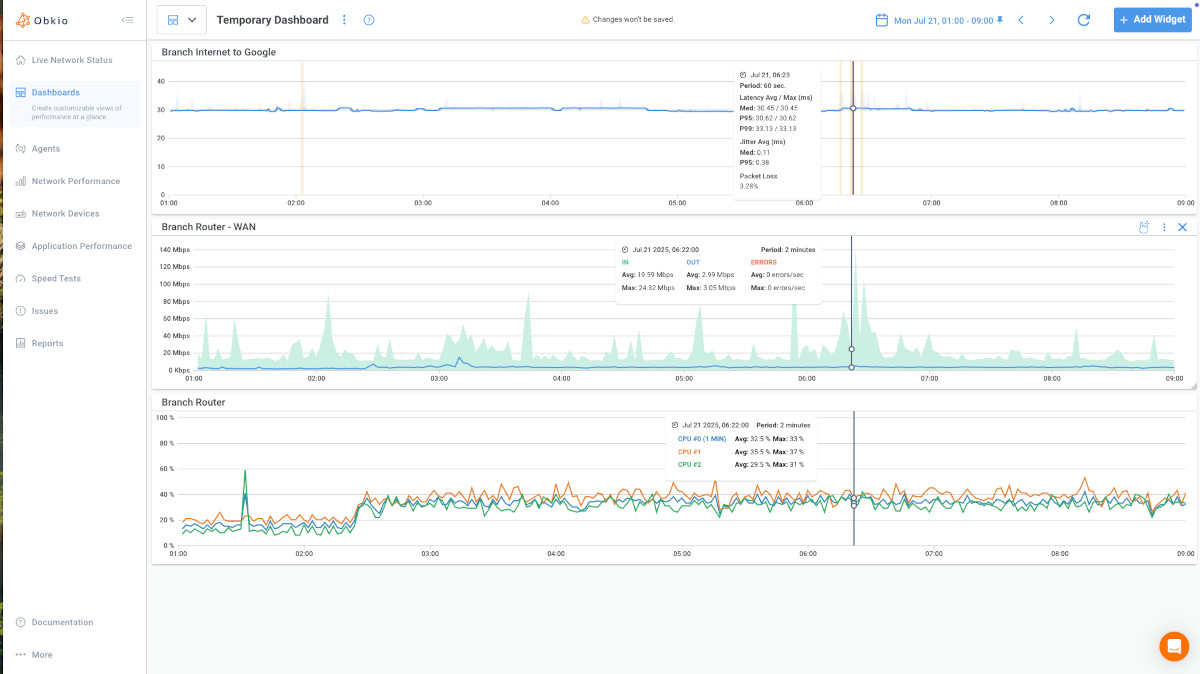
Device data also unlocks device-based Insights. Once you pair a Monitoring Agent with its firewall and set the Internet-facing interface's maximum download and upload speeds, Insights can separate a firewall issue from an ISP local loop issue. It can also identify whether the firewall is struggling with bandwidth, CPU, or memory.
Step 6. Look for Patterns Over Time
One drop is an incident. A pattern is a diagnosis. Historical data lets you go back to disconnections that already happened, even ones nobody reported, and compare them by time of day, location, and cause.
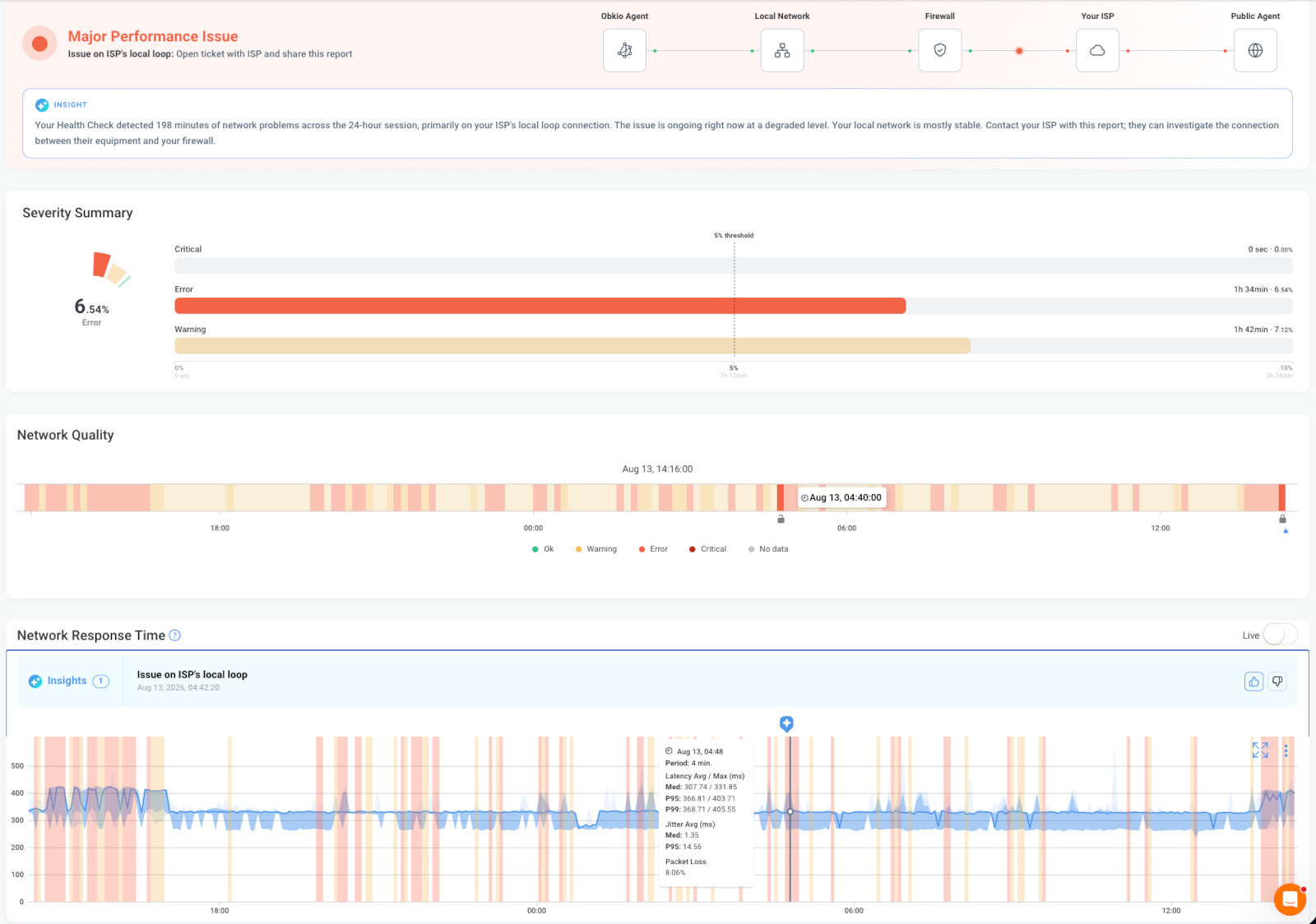
In Obkio, the Network Quality Timeline gives a colour-coded view of network health over any time range, so you can spot when drops cluster and jump straight to the diagnosis. The Severity Summary shows how much time a session spent in Warning, Error, and Critical states, which helps you judge how serious the problem really is.
How to Fix Internet Disconnections, by Cause
Once you know where the drop happens, the fix is usually straightforward. Jump to the section that matches your diagnosis: issues on a single device and on the LAN are yours to fix, while issues in the ISP's network need to be escalated.
Fix Device-Level Internet Disconnections
If only one device drops:
- Update network drivers and the OS: Get the latest network adapter driver from the manufacturer, not just the OS update channel.
- Turn off adapter power-saving: In the adapter's power management settings, stop the system from turning the device off to save power.
- Check VPN clients and security software: Temporarily disable them to see if the drops stop, then update or reconfigure the one responsible.
- Forget and rejoin the network to clear a corrupted Wi-Fi profile.
Fix Wi-Fi Disconnections
If wireless devices drop but wired devices stay up:
- Move the access point or the device: Keep the access point central and away from walls, metal, and appliances like microwaves.
- Switch to 5 GHz (or 6 GHz, if supported) for less interference than the crowded 2.4 GHz band.
- Change the Wi-Fi channel to one that neighbouring networks aren't using.
- Add access points or a mesh system where coverage is weak. In multi-AP setups, check roaming settings so devices hand off cleanly between access points.
Fix DHCP and IP Address Problems
If drops happen at regular intervals or show "no IP address" errors:
- Check the DHCP server on the router or firewall for exhausted address pools and short lease times.
- Resolve IP address conflicts by making sure static IPs sit outside the DHCP range.
- Renew the lease on the affected device to confirm the fix. See how to fix DHCP issues.
Fix Modem, Router, and Cable Problems
If every device drops at once and a reboot only helps for a while:
- Update the firmware on the modem and router.
- Check for overheating. Give the equipment airflow and keep it out of closed cabinets.
- Replace damaged or loose Ethernet cables, and swap components one at a time to find the faulty one.
- Replace aging hardware. Equipment that needs frequent reboots is usually close to failing.
Fix Firewall and Congestion Problems
If drops happen at busy times, or Insights flags a firewall performance issue:
- Find what's consuming bandwidth. Move backups, large syncs, and updates to off-peak hours.
- Set up QoS to prioritize real-time traffic like voice, video calls, and VPN.
- Review firewall load. High CPU or memory usage points to too many sessions, heavy inspection features, or a firewall undersized for your traffic.
- Upgrade the firewall or the Internet circuit if usage regularly hits capacity.
Fix DNS Failures
If sites won't load but pinging an IP address still works:
- Flush the DNS cache on the affected device.
- Switch to a reliable DNS resolver, such as your ISP's secondary server or a public resolver like 1.1.1.1 or 8.8.8.8.
- Check DNS settings on the router, firewall, or DHCP server, in case devices are being handed an unreachable resolver.
When the Problem Is in Your ISP's Network
If your local equipment checks out and the problem starts past your firewall, the fix is in your ISP's hands. Your job is to get them the evidence they need to act on it, covered in the next section.

When the Internet Disconnection Is Your ISP's Problem
If the drops affect every device, your local equipment checks out, and the problem starts past your firewall, it's time to involve your ISP. The faster you can show them when, where, and how often the connection drops, the faster they can fix it.
Signs the ISP Is Responsible
- Every device drops at the same time, even after you've ruled out the modem, router, cables, and firewall.
- The problem starts past your network. Pings to your router succeed while pings to public IPs fail, or Obkio Insights reports an issue in the ISP's network.
- Other customers report the same thing. Check your ISP's status page or outage map, or a site like DownDetector, to see if the problem is widespread.
What to Send Your ISP
Support teams get "my Internet keeps dropping" calls all day. A ticket with data behind it is much harder to close with "restart your modem." Include:
- When the drops happened: dates, times, and how long each one lasted.
- What the network looked like at the time: packet loss, latency, and jitter during each event.
- Where on the path the problem sits: traceroute results showing the hops where packets are lost or delayed.
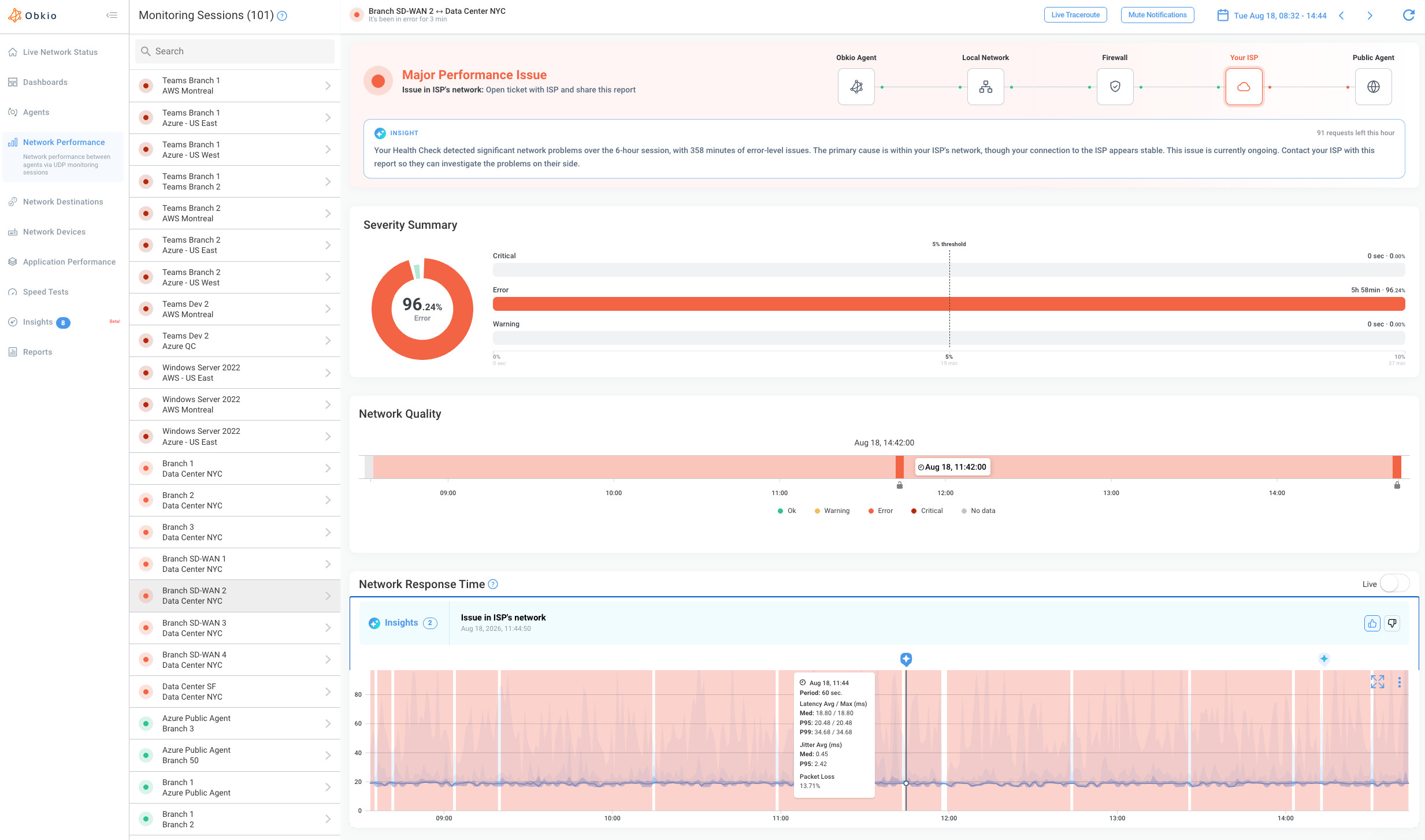
Obkio Insights brings this together on one generated dashboard, with the performance, device, and traceroute data from the issue's time window. Use a Shareable Link to send it straight to your ISP. They don't need an Obkio account, they can change the time range to see the events themselves, and you set when the link expires, up to two years out.
For the full escalation process, including SLAs and what to do when your ISP pushes back, see how to troubleshoot ISP issues.

Learn how to identify and resolve ISP-related Internet issues using Obkio’s Network Performance Monitoring tool.
Learn more

How to Stop My Internet From Disconnecting: Fixes for Internet Disconnection
Most recurring disconnections come back because the cause was never confirmed, only worked around. These habits keep a stable connection stable.
Maintain Your Network Equipment
Schedule firmware updates for modems, routers, firewalls, and access points, and check equipment for heat and dust every few months. Replace cables that have been moved, bent, or pinched, since damaged cables cause drops that are easy to miss.
Size Your Hardware and Circuit for Real Usage
A firewall or Internet circuit that was right-sized three years ago may not be today. Review CPU, memory, and bandwidth usage against peak load, and plan upgrades before usage regularly hits capacity. Check Wi-Fi coverage whenever the office layout or headcount changes.
Monitor Proactively, Not After the Ticket
The hardest disconnections to fix are the ones nobody saw. Continuous monitoring catches drops as they happen, including the short ones users never report, and builds the history you need to spot patterns.
With Obkio, Network Monitoring Agents monitor your connection around the clock, and Obkio Insights diagnoses each issue as it's detected. When the next "the Internet keeps dropping" ticket comes in, the root cause and the evidence are already waiting.

Find out why your Internet keeps disconnecting
Deploy Obkio in minutes, monitor your connection from every location, and let Insights pinpoint the root cause of every drop, on your network or your ISP's.
- 14-day free trial of all premium features
- Deploy in just 10 minutes
- Monitor performance in all key network locations
- Measure real-time network metrics
- Auto-diagnose the root cause of network issues with Obkio Insights
- Find and share proof of Internet issues with your ISP
FAQ: Why Your Internet Keeps Disconnecting
1. Why does my Internet keep disconnecting and reconnecting?
A connection that drops and rejoins in a loop usually points to the device or the local network. Common causes are a weak Wi-Fi signal, network adapter power-saving settings, outdated drivers, or DHCP lease problems. If only one device is affected, start with its drivers and power settings. If every Wi-Fi device does it, check the wireless network.
2. Why does my Wi-Fi keep disconnecting but Ethernet doesn't?
If wired devices stay connected while Wi-Fi devices drop, your Internet connection is fine and the problem is the wireless network. Typical causes are distance from the access point, walls and interference, a crowded 2.4 GHz band, or overlapping channels with neighbouring networks. Switching to 5 GHz, changing channels, or adding access points usually fixes it.
3. Is my router or my ISP causing the disconnections?
Ping your router's IP address, then a public IP like 8.8.8.8. If pings to the router fail, the problem is on your local network. If the router responds but the public IP doesn't, the problem is past your router, either on your firewall, the line to your ISP, or inside the ISP's network. A traceroute shows which hop fails.
4. How do I prove to my ISP that my Internet keeps dropping?
Give your ISP data, not descriptions: the dates and times of each drop, how long it lasted, packet loss and latency during the event, and traceroute results showing where packets were lost. Network monitoring tools like Obkio record this continuously, and Obkio Insights identifies whether the issue is in the ISP's network. You can then share the data through a Shareable Link.
5. Why does my Internet disconnect at the same time every day?
Drops at the same time each day usually mean something on a schedule is overloading the network: backups, software updates, cloud syncs, or peak usage when everyone is online. Congestion on your ISP's network during busy evening hours can cause the same pattern and can mean your Internet is slower at night. Monitoring over several days shows whether the drops line up with your own traffic or with the ISP's.


