







 Obkio Blog


 Subscribe
Table of Contents
Table of Contents
The speed test shows 500 Mbps. Yet Microsoft Teams calls keep turning into people talking over each other, the CRM pauses on every click, and remote employees are opening tickets because the Internet is lagging. Nothing looks broken, which is exactly what makes lag so hard to troubleshoot.
Why is my Internet lagging? If your Internet is lagging, your connection is slow to respond, not necessarily slow to download. Lag comes from high latency, jitter, or packet loss somewhere between users and the applications they use. To fix it, find where on the network path the problem starts (local network, firewall, ISP, or destination server), then fix or escalate that segment.
That's because lag comes from how quickly the network responds, not how much data it can move. Latency, jitter, and packet loss can build up on the local network, at the firewall, inside the ISP's network, or at the destination server, and a one-time test from one location won't show you where. When the lag comes and goes, it's often gone by the time anyone investigates.
Below, we break down why your Internet is lagging even with good speeds, how to pinpoint where the problem starts, and how to share proof with your ISP, MSP, or vendor so the right team fixes it.
Why Is My Internet Lagging When the Speed Is Good? 
Internet lag is a delay in how quickly your connection responds, caused by latency, jitter, or packet loss between users and the applications they use.
A speed test measures throughput: how much data your connection can move in a few seconds, usually to a nearby server picked for the test.
Lag is about responsiveness: how long each packet takes to reach the application and come back, and how consistent that is from one packet to the next.
The two don’t move together. A 1 Gbps connection can still add 150 ms of delay on the path to a SaaS app, drop packets at a congested ISP hop, or jitter enough to break up a call. Interactive traffic like voice, video, remote desktop, and web apps that make many small requests feels that immediately. A bulk download barely notices.
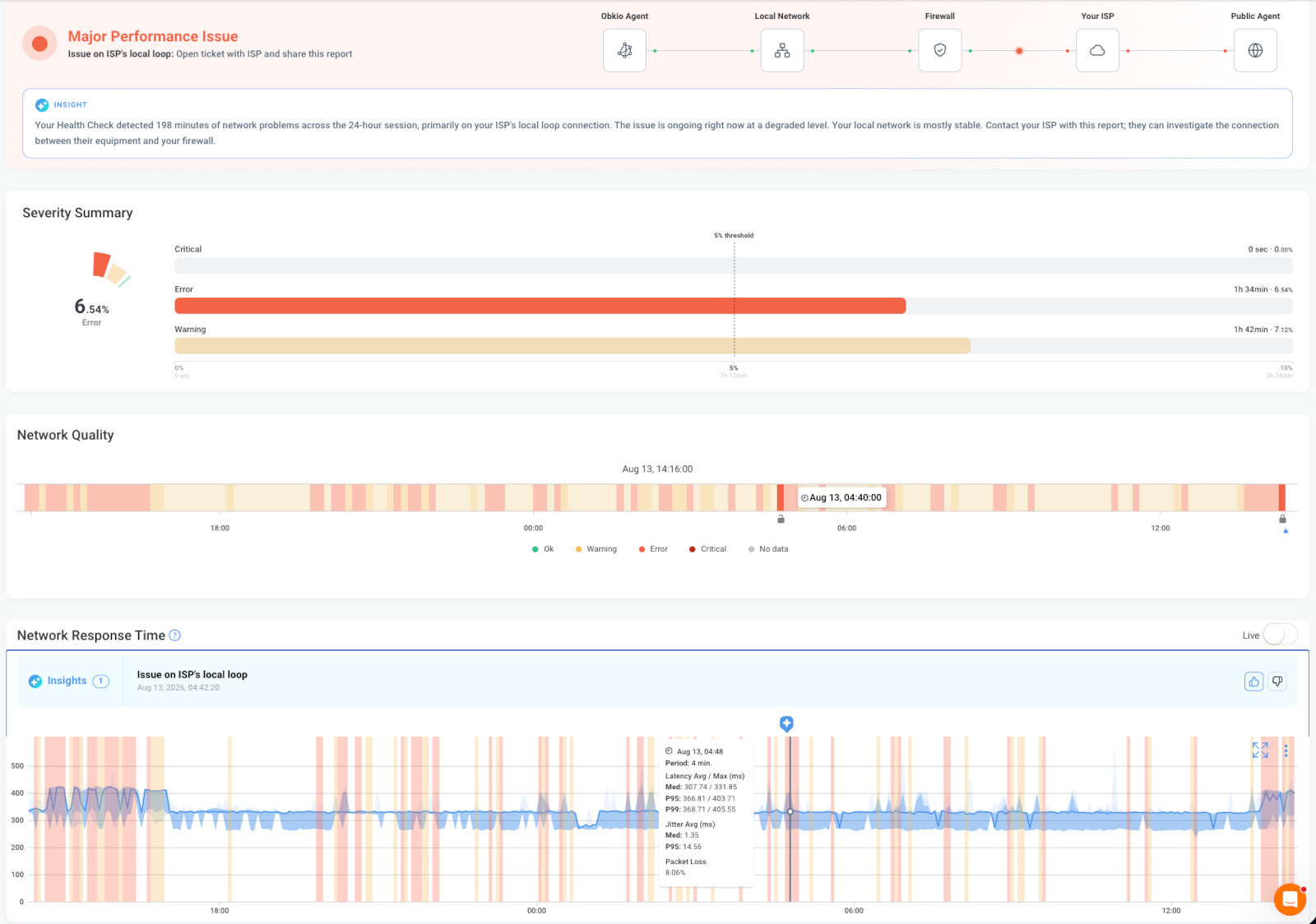 Screenshot from Obkio Network Monitoring and Diagnostics
Timing matters too. A speed test is a 30-second snapshot from one device. It won’t show lag that only appears when the link is busy, at peak hours, or on the path to one specific destination.
So when users say the Internet is lagging and the speed test looks good, both are right. The question isn’t how much bandwidth you have. It’s where on the path latency, jitter, or packet loss is being added.
If it’s downloads and uploads that are slow rather than responsiveness, see Why Is My Internet So Slow? for throughput troubleshooting.
Why Is My Internet Lagging? Causes by Network Segment
Internet lag feels the same to users wherever it comes from: calls break up, apps hesitate, remote sessions stutter. What changes is where on the network path the delay is added. Grouping the causes by segment, from the user's device out to the application, tells you who owns the fix.
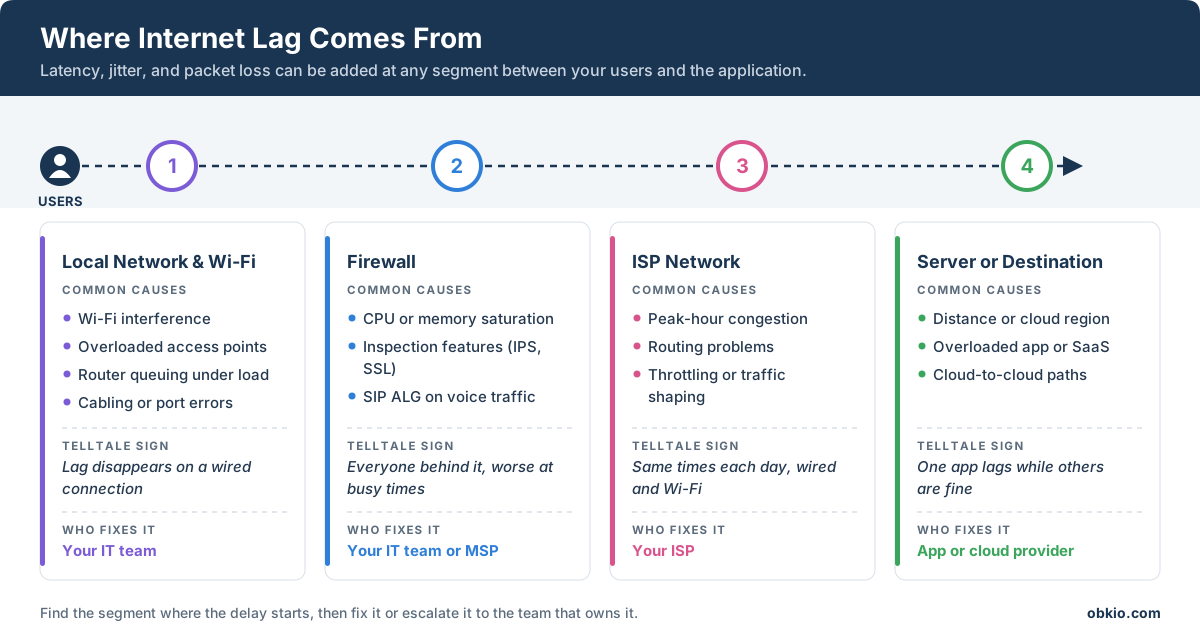
Local Network or Wi-Fi
1. Wi-Fi interference and overloaded access points: Dense offices create overlapping channels, crowded 2.4 GHz bands, and access points serving more clients than they were sized for. Each collision or retransmission adds latency and jitter.
How to tell: lag happens on Wi-Fi and disappears on a wired connection.
2. Router or switch queuing under load: When a backup, software update, or large upload fills the link, packets wait in device buffers before they're forwarded. Idle latency looks fine, but latency under load climbs.
How to tell: lag appears when the link is busy and clears when the heavy transfer finishes.
3. Cabling and port issues: Damaged cables, duplex mismatches, and errors on a switch port cause retransmissions that show up as lag for whoever is connected to them.
How to tell: lag is limited to one desk, one area, or one switch.
Firewall
1. Resource saturation: Traffic volume, VPN tunnels, and inspection features like IPS or SSL inspection all consume firewall CPU and memory. When either runs high, every packet passing through waits longer.
How to tell: lag affects everyone behind the firewall and gets worse during busy periods. See how to monitor firewall performance.
2. VoIP-specific settings: SIP ALG rewrites SIP packets as they pass through the firewall, and on many networks that causes choppy, delayed, or one-way audio.
How to tell: calls are affected while other traffic seems normal.
ISP Network
1. Peak-hour congestion: Links inside the ISP's network can be oversubscribed, so performance drops when demand peaks during business hours or in the evening.
How to tell: lag starts at the same time each day, on wired and wireless, for multiple users.
2. Routing problems: Traffic can take a longer path than necessary or pass through a congested peering point. Latency jumps at a specific hop outside your network.
How to tell: lag affects some destinations but not others.
3. Throttling or traffic shaping. Some providers deprioritize certain types of traffic, which adds delay only to that traffic.
How to tell: lag follows specific applications or traffic types. See How to tell if your ISP is throttling your business Internet.
For a full ISP troubleshooting walkthrough, see how to troubleshoot ISP Internet issues.
Server or Destination
1. Distance and cloud region: An application hosted far from your users has a higher baseline latency that no local fix will remove.
How to tell: latency to one application is consistently high, while other destinations are normal.
2. An overloaded application or SaaS provider: Sometimes the network performs well all the way to the destination and the server is slow to respond.
How to tell: network metrics are healthy up to the destination, but the application still lags.
3. Cloud-to-cloud paths: Workloads that span providers, such as AWS to Azure, add latency on paths you don't control directly.
Lag can come from more than one segment at once, but the "how to tell" patterns usually point to a starting place. The next step is confirming it with data.

Is your Internet slow? Learn how to tell if the problem is your network, your ISP, or your machine, and how to fix slow Internet fast.
Learn more

How to Check If Your Internet Is Lagging (and Where)
Every cause in the previous section produces the same complaint: "the Internet is lagging." Users can't tell you whether it's the Wi-Fi, the firewall, the ISP, or the application, and guessing wrong costs time. Adjust the router when the problem is upstream, or escalate to the ISP when it's a local access point and the lag keeps coming back.
The way out is to work along the path from the user outward, ruling out one segment at a time. The first few steps take minutes and need nothing more than a laptop and a command line. The last one catches what quick tests miss: lag that comes and goes, or only shows up at certain times of day. Together, they show where the delay starts and who needs to fix it, with evidence you can share.
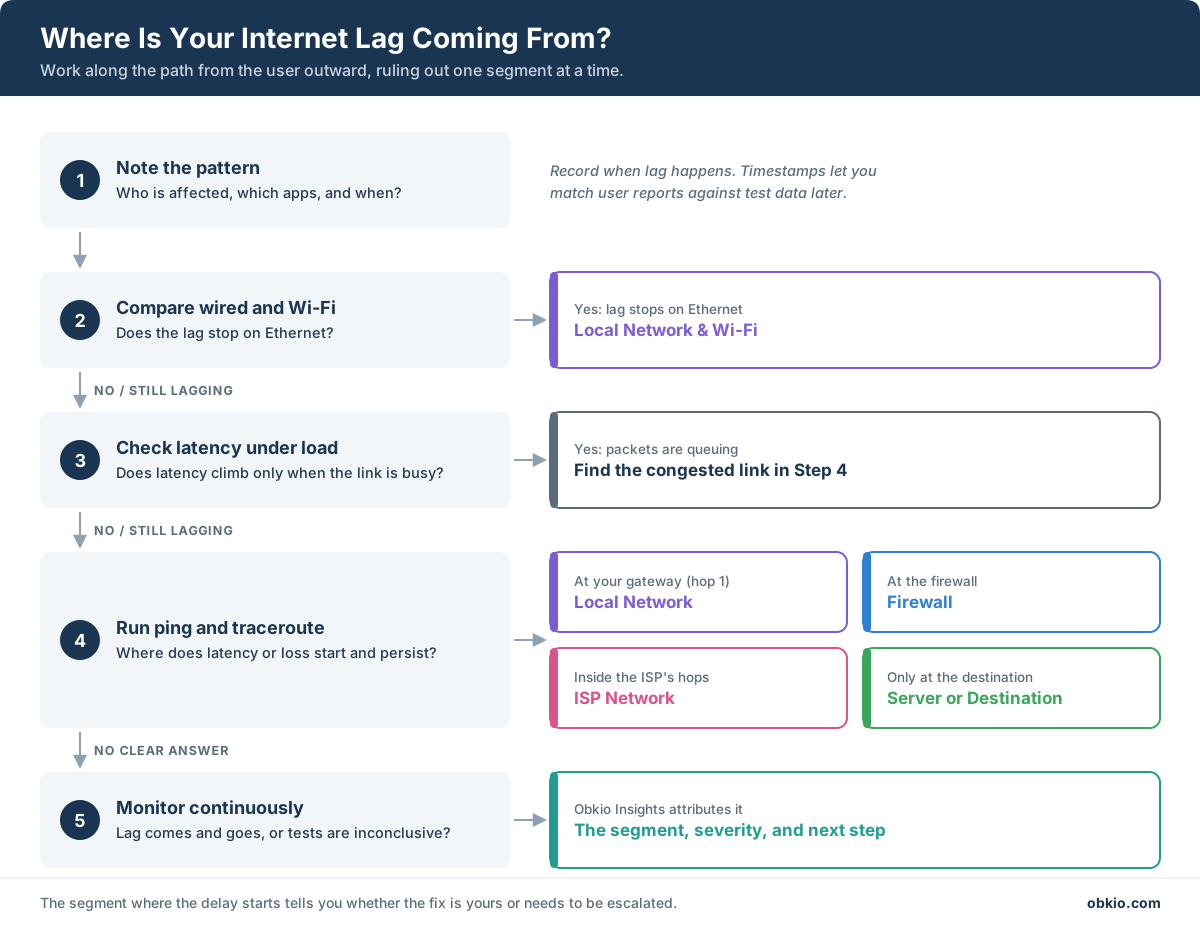
Step 1: Note the pattern
Before running any tests, answer three questions: who is affected, which applications, and when. One user on Wi-Fi points somewhere very different than every office lagging on calls at 2 p.m. Ask users to note the time whenever the lag happens. Those timestamps are what you'll match against test data later.
Step 2: Compare wired and Wi-Fi
Connect an affected device by Ethernet and use the same applications. If the lag disappears, the cause is on the local network, most likely Wi-Fi interference or an overloaded access point. If it persists on a wired connection, look further along the path.
Step 3: Check latency and jitter, not just speed
Run a speed test, but read the ping and jitter results instead of the download figure. Then repeat it while a large upload or download is running. If latency climbs sharply under load while bandwidth stays high, packets are queuing somewhere, usually at the router or another congested link.
For voice and video, common guidance is one-way latency under 150 ms, jitter under 30 ms, and packet loss under 1%. Lag usually becomes noticeable as you approach those limits.
 Screenshot from Obkio Network Monitoring and Diagnostics
Step 4: Run ping and traceroute to the affected destination
Test the application that's lagging, not a generic server. Run an extended ping (ping -n 100 on Windows, ping -c 100 on macOS and Linux) to see latency variation and packet loss over time. Then run a traceroute (tracert or traceroute), or MTR/WinMTR, to see each hop on the path.
Look for the hop where latency rises and stays elevated through every hop after it. That's where the delay is being added. A spike at a single hop that doesn't carry forward is usually a router deprioritizing test packets, not a real problem.
These tools have limits. They show one moment, from one device, in one direction. If the lag comes and goes, or only happens at peak hours, a manual test often misses it.
Step 5: Monitor continuously, from both ends of the path
Intermittent lag needs data collected over time, from the locations your users actually work from. That calls for a network performance monitoring solution like Obkio, which is built to monitor end-to-end performance across offices, remote workers, data centers, and the cloud, and to diagnose where problems start.
Monitoring starts with Network Monitoring Agents, which deploy as hardware, software, or virtual agents at your offices, on remote employees' machines, and in public clouds like AWS, Azure, and Google Cloud. The agents exchange synthetic traffic with each other continuously, measuring latency, jitter, and packet loss in both directions and building a baseline of normal performance. When lag starts, you can see when it began, which path it affected, and how far it moved from that baseline.
Three other data sources fill in the rest of the path:
- Visual Traceroute maps each hop between locations and shows where degradation begins, including hops inside the ISP's network.
- SNMP device monitoring tracks the CPU, memory, and bandwidth usage of your firewalls, routers, switches, and access points, so you can tell whether a device on your side is the bottleneck.
- Speed tests add a throughput reading alongside the latency data, which helps separate lag from slow Internet.
Together, they answer the question manual tests can't: whether the lag is coming from your network, the ISP, or the destination. Reading all of it yourself still takes time, which is where automated diagnostics come in.


How Obkio Insights Identifies the Cause of Internet Lagging Automatically
Continuous monitoring gives you the data. Interpreting it still means comparing latency graphs, traceroutes, and device metrics across locations and time ranges, which is slow when users are waiting. Obkio Insights is the automated diagnostics feature that does that analysis for you.

Insights cross-references monitoring sessions, traceroutes, SNMP device data, speed tests, and agent system stats. It then tells you three things: how severe the problem is, which segment of the path it's coming from (local network, firewall, ISP, or destination), and what to check next. It also places markers on the performance graphs, so you can jump to the moment each issue was detected.
Example: Lag between a branch office and the data center
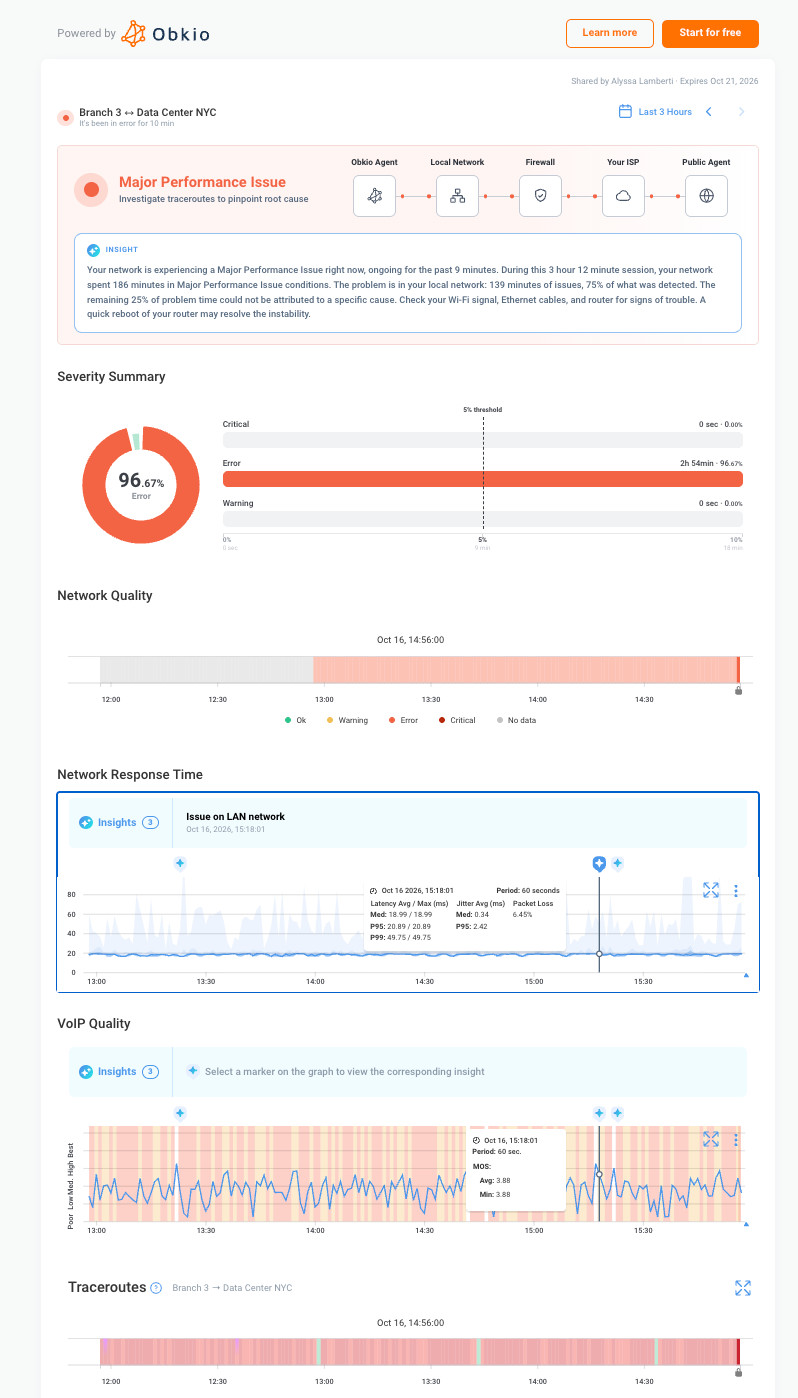
This session monitors the path between a branch office (Branch 3) and a data center in New York over three hours. An Obkio agent at the branch exchanges traffic with an agent at the destination, so the whole path is tested: local network, firewall, ISP, and destination.
The data shows what lag looks like when it's measured. Response time holds around 20 ms but spikes past 80 ms again and again throughout the session. The VoIP Quality score swings between high and poor for most of the window, which users would experience as choppy, delayed calls. Over the three hours, the connection spent almost 97% of its time in an Error state.
Insights flags it as a Major Performance Issue and attributes it. Of the 186 minutes of problem time, 139 minutes, about 75%, trace back to the local network. Markers on the response time graph pinpoint individual events, such as an "Issue on LAN network" at 13:23. The recommendation is specific: check the Wi-Fi signal, Ethernet cables, and router.
The traceroute confirms it. Packet loss already reaches 28% at hop 1, the branch's own gateway, before traffic leaves the local network, and loss continues through the hops after it. It also shows the false lead described in Step 4. Hop 5 records a maximum latency of more than 1,600 ms, but hop 6 drops back under 1 ms, so the spike doesn't carry forward and isn't the source of the problem.
The result changes who fixes it. Opening a ticket with the ISP would have wasted time, because the problem starts inside the branch. Insights also reports what it couldn't attribute: the remaining 25% of problem time isn't tied to a specific cause, so you know where the evidence is strong and where to keep looking.
When the result is "All Good"
A healthy result is still useful. If Insights shows the network performing normally while users report lag, you can stop troubleshooting the network and focus on the device, the application, or the provider. That often saves hours of looking in the wrong place.
How to Fix Internet Lag Based on the Cause
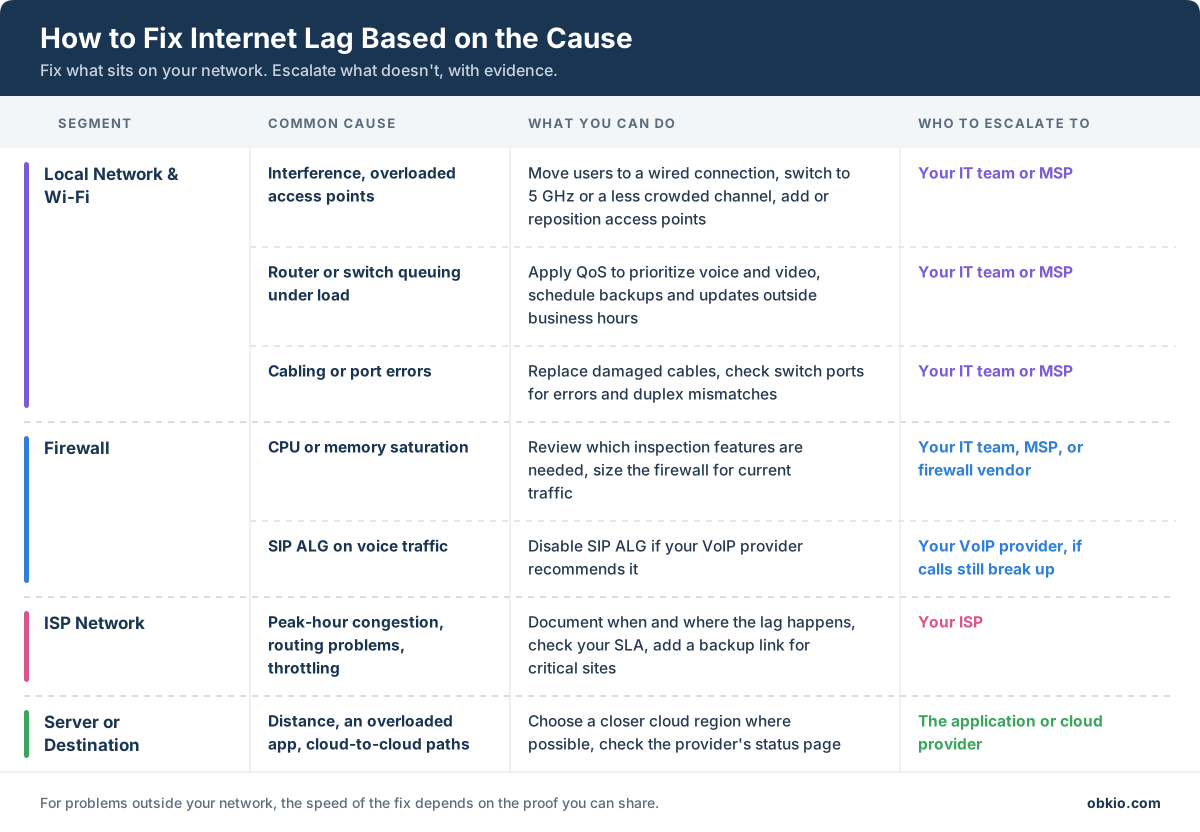
Once you know which segment is adding the delay, the fix is usually straightforward. What changes is who carries it out. Network problems on your own network you can fix directly. Problems at the ISP or the destination you have to escalate, and how fast they get fixed depends on how well you can prove them.
How to Fix Internet Lag on Your Own Network
Most local fixes come down to reducing contention. Get stationary devices like desktops, meeting room systems, and phones onto wired connections. Spread Wi-Fi users across access points and less crowded channels. Use QoS so a large upload doesn't push voice and video traffic into a queue.
If latency climbs under load even after that, the router or firewall may simply be undersized for the traffic it now handles. SNMP device monitoring will show it: CPU or memory running high during the same windows the lag appears.
For lag that comes in sudden bursts rather than staying constant, see how to fix latency spikes.
How to Fix Internet Lag Outside Your Network
When the problem is inside the ISP's network or at the destination, there's nothing to reconfigure on your side. The fix is getting the provider to act, and that's where many escalations stall. The ISP runs a speed test, the result looks fine, and the ticket closes. Lag that comes and goes is often gone by the time a technician checks.
What moves a ticket forward is evidence: when the lag happened, which path it affected, how far performance moved from normal, and the hop where it started.
How to Prove Internet Lag to Your ISP, MSP, or Vendor
Lag is one of the hardest problems to escalate. It rarely shows up in a speed test; it often comes and goes like an intermittent Internet issue, and by the time a support technician looks, the connection may be performing normally. Without data, a ticket that says "the Internet is lagging" usually ends with a reboot recommendation and a closed case.

Learn how to fix intermittent Internet issues, find out if the cause is your network or your ISP, and collect the evidence your ISP needs to fix it.
Learn more
What good proof of Internet lag includes
Whoever owns the fix needs enough detail to find the problem on their side without reproducing it first. Strong evidence shows:
- When it happened: the time range, and whether it repeats at the same times each day
- Where it happened: the affected path, from which location to which destination
- How bad it was: latency, jitter, and packet loss compared to the normal baseline
- Where it started: the hop or segment where degradation begins, ideally with a traceroute
- What was ruled out: that your local network and firewall are performing normally, if the problem is upstream
Screenshots and exported traceroutes can cover some of this. They're also easy to misread, hard to verify, and lose context once they're pasted into a ticket.
Share the session with a Shareable Link
Obkio's Shareable Link feature turns a monitoring session into a link you can send to anyone. The recipient sees the same view you do:
- The Insights result: severity, the segment where the problem was detected, and the recommended next step
- A severity summary and network quality timeline for the selected period
- Network response time and VoIP quality graphs, with Insights markers at each detected issue
- Traceroutes for the path, with packet loss, latency, and a quality score for each hop
Recipients don't need an Obkio account to open the link, and they can change the time range themselves, so they can zoom in on a single event or look at the hours before and after it. You choose when each link expires, for up to two years, so access to the data lasts only as long as you need it.
Instead of describing the problem and hoping the support team reproduces it, you send the measurements themselves, and the recipient can explore the data rather than relying on a single snapshot. The ISP can see the hop inside its network where packet loss begins. An MSP can see which branch and which time window to investigate. An application vendor can see that the network was healthy all the way to its servers.
Send it to the team that owns the fix
The segment Insights identifies tells you where the link goes:
- Local network or firewall: your internal IT team or the MSP that manages the site. In the Branch 3 example, the session goes to whoever manages that branch's network, not the ISP.
- ISP network: your ISP's business support, with your account and circuit details
- Server or destination: the application, SaaS, or cloud provider
- All Good: the device or application owner, since the network has been ruled out
A short message with the link is enough. For example:
We're seeing lag between our [office/site] and [destination] from [time range], affecting calls and [applications]. Monitoring shows [packet loss/latency] starting at [hop or segment], while our local network and firewall are performing normally. Here's the session with the full data: [link]. Can you investigate on your side?

Frequently Asked Questions About Internet Lag
Why am I lagging with good Internet?
A good speed test result only means your connection has enough bandwidth. Lag comes from latency, jitter, or packet loss, which a speed test barely measures. A fast connection can still lag if Wi-Fi is congested, a router or firewall is queuing traffic under load, or the ISP's network or the application's server is adding delay. To find out which, measure latency and packet loss on the path to the application that's lagging.
Why is the Internet lagging today?
When lag appears suddenly and wasn't there before, the cause is often something that just changed. That could be a problem inside your ISP's network, an outage or slowdown at the application's provider, or a new load on your own network, like a large backup or update. Check your ISP's and the provider's status pages, then compare current latency and packet loss to your normal baseline to see where the change started.
How do I check if my Internet is lagging?
Run a speed test and look at the ping and jitter results, not just the download speed. Then repeat the test while a large file is uploading or downloading. Use an extended ping and a traceroute to the application that's lagging to see packet loss and where latency rises. For lag that comes and goes, continuous network monitoring catches what one-time tests miss.
Is Internet lag caused by my Wi-Fi or my ISP?
Connect an affected device by Ethernet and compare. If the lag disappears on a wired connection, the cause is your Wi-Fi. If it continues, run a traceroute: latency or packet loss that starts at your own gateway points to your local network, while degradation that starts inside the ISP's hops and persists to the destination points to the ISP. Lag that only appears at peak hours, on both wired and Wi-Fi, also usually points to ISP congestion.
Will more bandwidth fix Internet lag?
Usually not. Bandwidth determines how much data your connection can move. Lag depends on how quickly and consistently each packet makes the round trip. More bandwidth helps only when the link is saturated, and traffic is queuing because of it. If lag comes from Wi-Fi interference, an overloaded firewall, the ISP's routing, or a distant server, a faster plan won't change it.
Why does my Internet lag at night?
Lag that consistently appears in the evening usually points to congestion in your ISP's network, when more customers are online at once. If it affects both wired and Wi-Fi connections at the same times each day, document the pattern with continuous monitoring and share it with your ISP.
Find Out Where Your Internet Lag Is Coming From
Internet lag is rarely a mystery once it's measured. The hard part is collecting the right data in the right places, at the moment the problem happens.

With Obkio, you can deploy Network Monitoring Agents at your offices, remote sites, and cloud environments, let Insights identify which segment is causing the lag, and share the session with whoever needs to fix it. Start with Obkio's free trial and see where the delay is coming from on your own network.