







 Obkio Blog


 Subscribe
Table of Contents
Table of Contents
Your Internet circuit is up. The firewall shows the WAN link as connected, your ISP's status page is green, and a speed test comes back at full provisioned bandwidth. Meanwhile, Teams calls at one branch break up for ten minutes every afternoon, and every user at that site sees Salesforce slow to a crawl at the same moment. Then everything recovers before anyone can capture it.
That's an intermittent Internet issue: a connection that never drops, but whose performance degrades somewhere between your network and the Internet, then clears on its own.
The question that decides everything else is ownership. Is the problem at your edge, like a saturated circuit or an overloaded firewall? Or is it in your ISP's network, at a congested peering point, or on a route that changed three hops past your router?
This article covers how to answer that question with evidence. It walks through the signs that point beyond your LAN, the common causes and what each one looks like in monitoring data, a step-by-step process for isolating the segment responsible, and what to send your ISP when the problem is on their side.
If your connection is fully disconnecting and reconnecting, start with How to Troubleshoot Intermittent Internet Connection. If connections are dropping inside your own network, from causes like Wi-Fi roaming, switch port flapping, or VPN tunnel renegotiation, see How to Troubleshoot Intermittent Network Connectivity Issues.
What Are Intermittent Internet Issues? 
Intermittent Internet issues are periods of degraded performance, such as packet loss, latency spikes, or jitter, on the path between your network and the Internet. They appear and clear on their own while the connection itself stays up.
Because the link never goes down, simple uptime checks and link-state alerts don't flag them. By every binary measure, the circuit is available, even while the applications running over it are unusable. And because the degradation often lasts minutes rather than hours, it's usually gone by the time someone runs a ping or a traceroute.
That makes them a different problem from the other intermittent issues IT teams deal with:
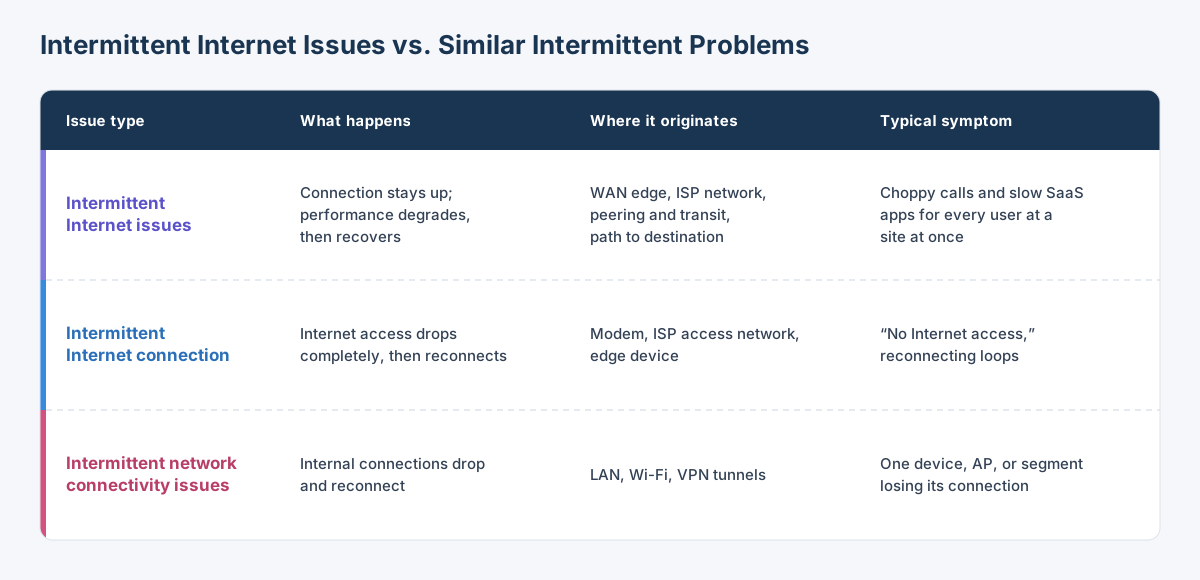
The distinction matters because each one needs different evidence. A disconnection shows up as a gap. An internal drop shows up on one segment. An intermittent Internet issue shows up as degradation on a path that's still passing traffic, and finding it means measuring that path continuously, from the inside out.
What Are Signs Your Internet Issues Are Intermittent (Not Local)?
Intermittent Internet issues look different from local network problems. They affect Internet-bound traffic across a whole site while internal traffic stays healthy, and the degradation clears without anyone touching the network. These are the signs that point beyond your LAN:
1. Real-time applications degrade but don't disconnect:
Calls turn choppy and video freezes, but sessions never drop into a reconnecting state. The path is still passing traffic, just not passing it well.
2. Every user at a site is affected at the same moment:
When the whole office complains within the same five minutes, a single device, NIC, or access point is unlikely to be the cause.
3. Internal resources stay fast while Internet-bound traffic suffers:
If file shares and internal applications respond normally during the event, the LAN is carrying traffic fine, and the problem sits at or beyond your edge.
4. Speed tests pass while applications struggle:
A speed test measures available capacity to one server at one moment. It doesn't show sustained packet loss or jitter, so a clean result during an event doesn't clear the path.
5. Degradation clusters at predictable hours:
Problems that appear at mid-morning login, over lunch, or at the same point in the afternoon point to capacity limits, either on your own circuit or inside your ISP's network.
6. Only some destinations are affected:
When Microsoft 365 slows down, but Google Workspace and your SaaS CRM stay responsive, the issue is likely on the path to that provider, often at a peering or transit point, rather than on your connection as a whole.
7. Multiple sites on the same ISP degrade together:
If branches on one provider degrade at the same time while sites on a different provider stay clean, the common factor is the ISP.
Taken together, these signs narrow the search. Signs 2 and 3 rule out the LAN. Signs 6 and 7 point past your edge. Signs 4 and 5 point to capacity, but they don't tell you whose capacity: your own circuit can saturate at peak hours just as easily as your ISP's network. That's why confirming edge utilization is one of the first troubleshooting steps below.
Why Does My Internet Have Intermittent Issues?
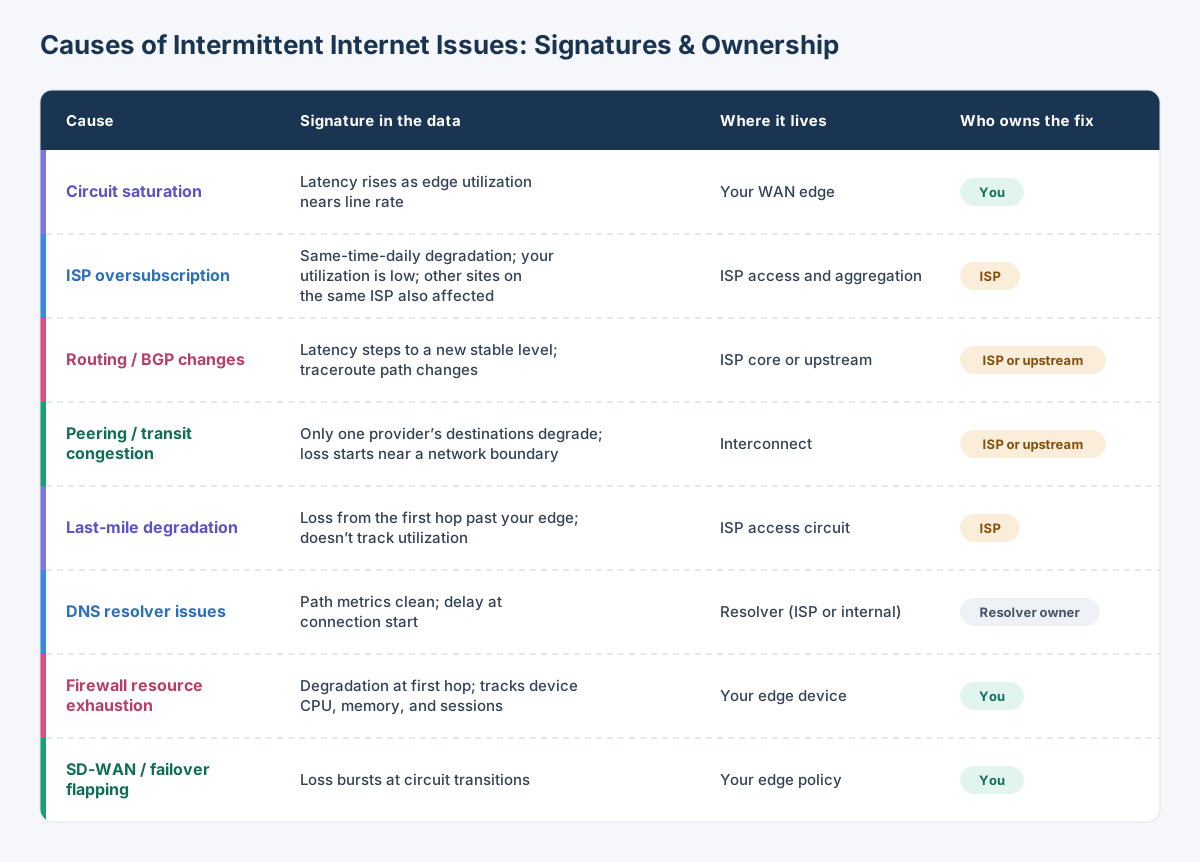
Intermittent Internet issues usually come from something on the Internet path that degrades under specific conditions: capacity at your edge, congestion or routing changes in your ISP's network, or a problem at the handoff to another provider. Each cause leaves a different signature in monitoring data, and that signature is what tells you who owns the fix.
1. Circuit saturation from traffic bursts
Backups, OS updates, and cloud sync jobs can fill your uplink for seconds or minutes at a time. Queues fill, latency rises, and packet loss follows. Five-minute utilization averages usually hide these bursts entirely.
In the data: latency climbs as edge interface utilization approaches line rate, often in the upload direction first.
For more on catching these peaks, see How to Monitor Bandwidth Usage.
2. ISP oversubscription at peak hours
ISPs share access and aggregation capacity across many customers. When demand on that shared segment exceeds capacity, every customer on it degrades at once.
In the data: degradation appears at the same time each day while your own edge utilization stays well below capacity, and other sites on the same ISP degrade in parallel.
3. Routing and BGP path changes
When an upstream route changes, traffic can shift onto a longer or more congested path, sometimes for hours.
In the data: latency steps up to a new, stable level instead of spiking, and traceroutes show different hops or a different hop count than your baseline path.
4. Peering or transit congestion
The handoff between your ISP and another network, such as a cloud provider or transit carrier, can congest independently of everything else.
In the data: only destinations behind one provider degrade, and the loss or latency begins at a hop near the boundary between networks.
5. Last-mile degradation
Last-mile issues, noise on the cable plant, DSL line errors, damaged or wet cabling, and weather on fixed-wireless links degrade the access circuit without taking it down.
In the data: Packet loss appears from the first hop past your edge, it doesn't track your utilization, and it often correlates with weather or rises gradually over days. Modem error counters usually confirm it.
6. DNS resolver latency or timeouts
A slow or overloaded resolver delays every new connection, even though the path itself is healthy.
In the data: latency, packet loss, and jitter on the path stay clean, but users report pages that hang before loading and then load quickly.
7. Edge firewall resource exhaustion
Deep inspection, SSL decryption, and session table pressure can push a firewall's CPU or memory to the point where it delays or drops traffic, even when the circuit behind it has room to spare.
In the data: degradation begins at the first hop, the firewall, and lines up with spikes in device CPU, memory, or sessions, while circuit utilization stays below saturation.
8. SD-WAN or failover flapping
When health-check thresholds sit too close to normal performance, traffic can bounce between circuits and pick up a brief disruption at every transition.
In the data: short bursts of packet loss line up with path changes between circuits, often recurring whenever one circuit's performance hovers near its threshold.
Pinpoint Intermittent Internet Issues with Obkio
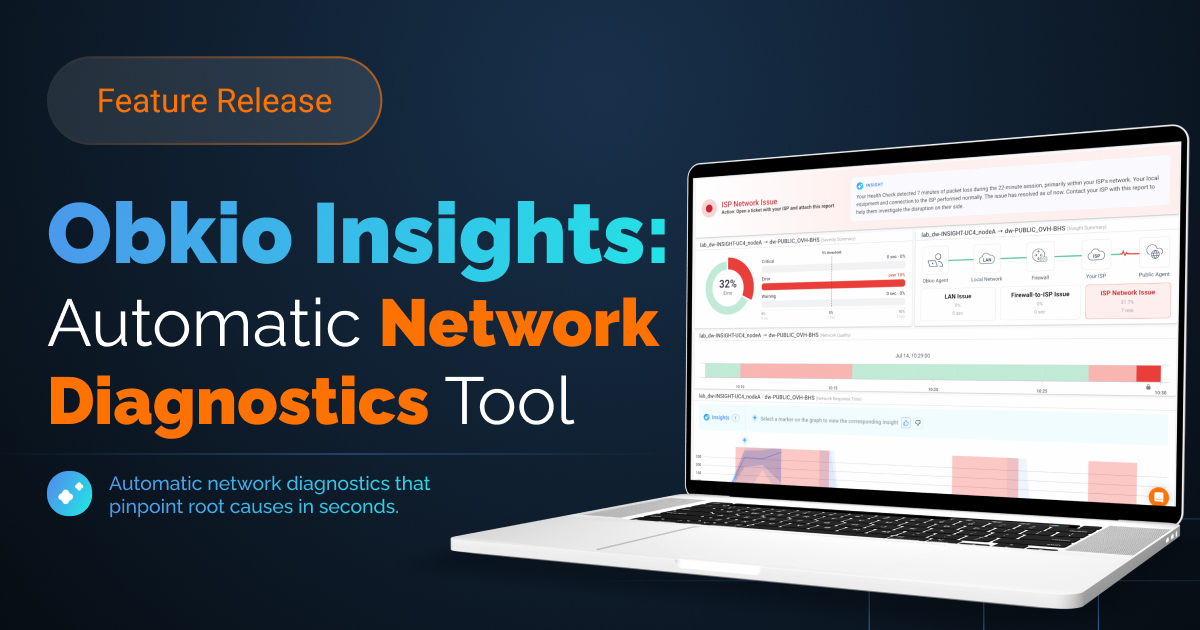
Intermittent Internet issues are hard to fix because they're gone before you can measure them. Obkio's Network Monitoring and Diagnostics tool measures packet loss, latency, and jitter on your Internet path continuously, from each site to public and cloud destinations, so every degradation event is captured with a timestamp and a location.
When an event happens, Obkio Insights analyzes the data and identifies the probable cause, whether that's a local device, bandwidth saturation, or your ISP's network. That gives you an answer to "is it us or the ISP?" and the evidence to act on it.


How to Tell If Intermittent Internet Issues Are Coming From Your Network or Your ISP
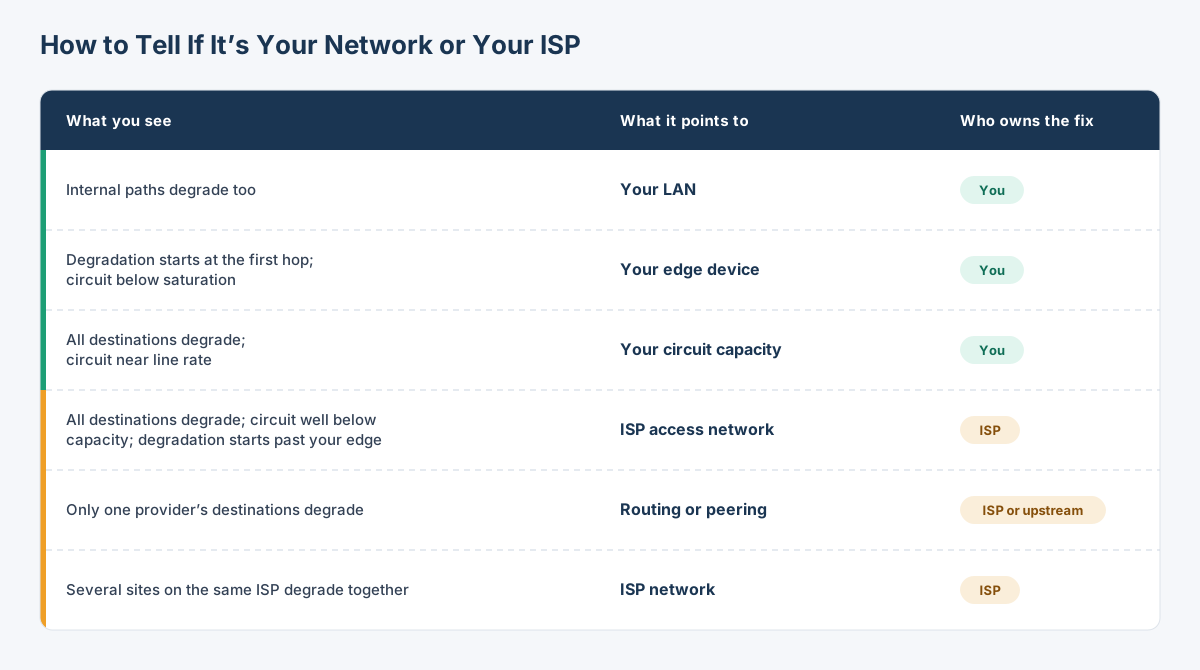
To tell whether intermittent Internet issues come from your network or your ISP, measure the Internet path in segments and compare the results across destinations and sites. If degradation begins at or before your edge, the problem is yours. If it begins past your edge while your circuit has capacity to spare, it's in your ISP's network or further upstream.
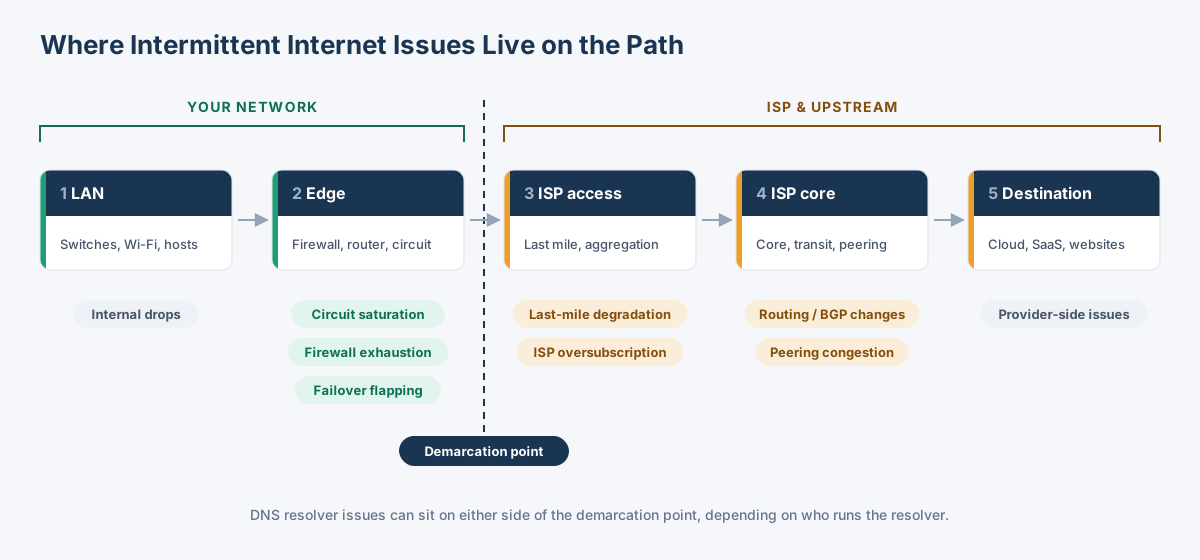
The Internet path breaks into five segments: your LAN, your edge (firewall and router), the ISP access network, the ISP core and its transit and peering links, and the destination. The line that matters most is the demarcation point where your edge hands traffic to the ISP, because it decides who has to act.
Three comparisons answer most of the question:
- Internal vs. external: Measure paths inside your network and paths to the Internet at the same time. If internal paths stay clean while Internet-bound traffic degrades, the LAN is ruled out.
- One destination vs. many: If every destination degrades together, the problem is on the part of the path they all share: your edge or the ISP access network. If only one provider's destinations degrade, look at routing or peering.
- One site vs. many: If several sites on the same ISP degrade at the same moment, the ISP is the common factor. If only one site degrades, focus on that site's edge and circuit.
One check comes before any ISP escalation. A saturated uplink produces latency and packet loss on every hop past your edge, which can look exactly like an ISP problem. Confirm your circuit wasn't near line rate when the degradation started.
The steps below walk through collecting each of these comparisons.
How to Troubleshoot Intermittent Internet Issues (Step-by-Step)
To troubleshoot intermittent Internet issues, first rule out the LAN. Then monitor the Internet path continuously from each site, check your circuit's utilization and your edge device's resources, locate the hop where degradation begins, and confirm the pattern over time.
Each step narrows the problem to one segment of the path and one owner.
Step 1: Rule Out the LAN First
Run a test between two internal hosts at the same time as a test to an Internet destination. If internal traffic stays clean while Internet-bound traffic degrades, the LAN is out of the picture, and you can move on. If internal paths degrade too, the problem is inside your network.
How to Troubleshoot Intermittent Network Connectivity Issues covers that case.

Learn how to troubleshoot intermittent network connectivity issues. Find out what causes network drops, where they happen, and how to fix them fast.
Learn more

Step 2: Monitor the Internet Path Continuously From Each Site
An event that lasts eight minutes won't show up in a ping someone runs after the complaint comes in. You need measurements running before, during, and after the event.
Obkio does this with Network Monitoring Agents deployed at each site, paired with Public Monitoring Agents hosted by Obkio and in AWS, Azure, and Google Cloud. The agents exchange synthetic traffic continuously and measure packet loss, latency, and jitter on each path, so every degradation event is recorded with the exact time it started and ended.
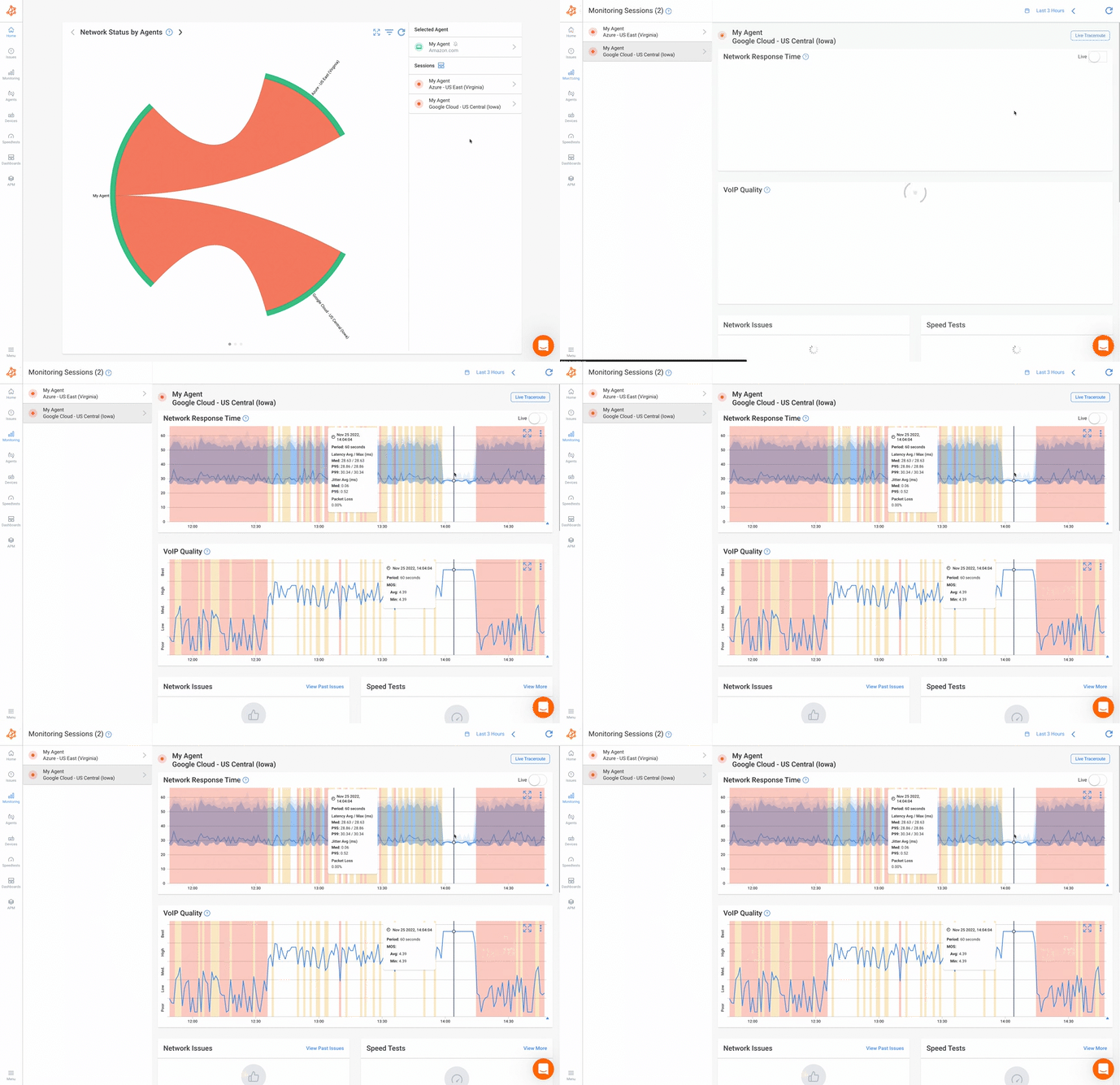
Monitor several destinations from each site, not just one. If every destination degrades together, the problem is on the shared part of the path: your edge or the ISP access network. If only one provider's destinations degrade, the problem is further out, in routing or peering. Comparing sites on different ISPs gives you the same separation at the provider level.
Step 3: Check Whether Your Circuit Is Saturating
Before anything points to the ISP, rule out your own uplink. Poll your edge interface through Device Monitoring at 30-second (Ultra-Fast) or 60-second (Fast) intervals. Then line up its utilization timeline against the degradation timeline from Step 2.
If bandwidth utilization is near line rate when latency starts climbing, the circuit is the cause. Check the upload direction first, because backups and cloud sync saturate it well before the download side. If utilization stays well below capacity during the event, you can rule out saturation.

Learn how to monitor bandwidth usage: how utilization is measured, 6 monitoring techniques, the best tools, and ways to troubleshoot common bandwidth issues.
Learn more
Speed tests are a poor check here. They consume the bandwidth they measure, and they only show capacity to one server at one moment. Use them to confirm provisioned bandwidth during off-peak hours, not to diagnose an active event.
Step 4: Correlate Intermittent Degradation With Your Edge Device
A firewall can degrade traffic even when the circuit behind it has room to spare. This happens most often under SSL inspection, IPS, or heavy session loads. Pull CPU, memory, and session counts for your edge devices through Device Monitoring, and check them over the same window as the degradation.
Obkio Insights automates this correlation. It analyzes network performance and device metrics across the event window and identifies the probable cause: a local device, bandwidth saturation, or the ISP's network. If Insights points to a device, check that device's resource metrics. If it points past your edge, move on to Step 5 to find where the degradation begins.

Step 5: Locate the Hop Where Intermittent Internet Issue Begins
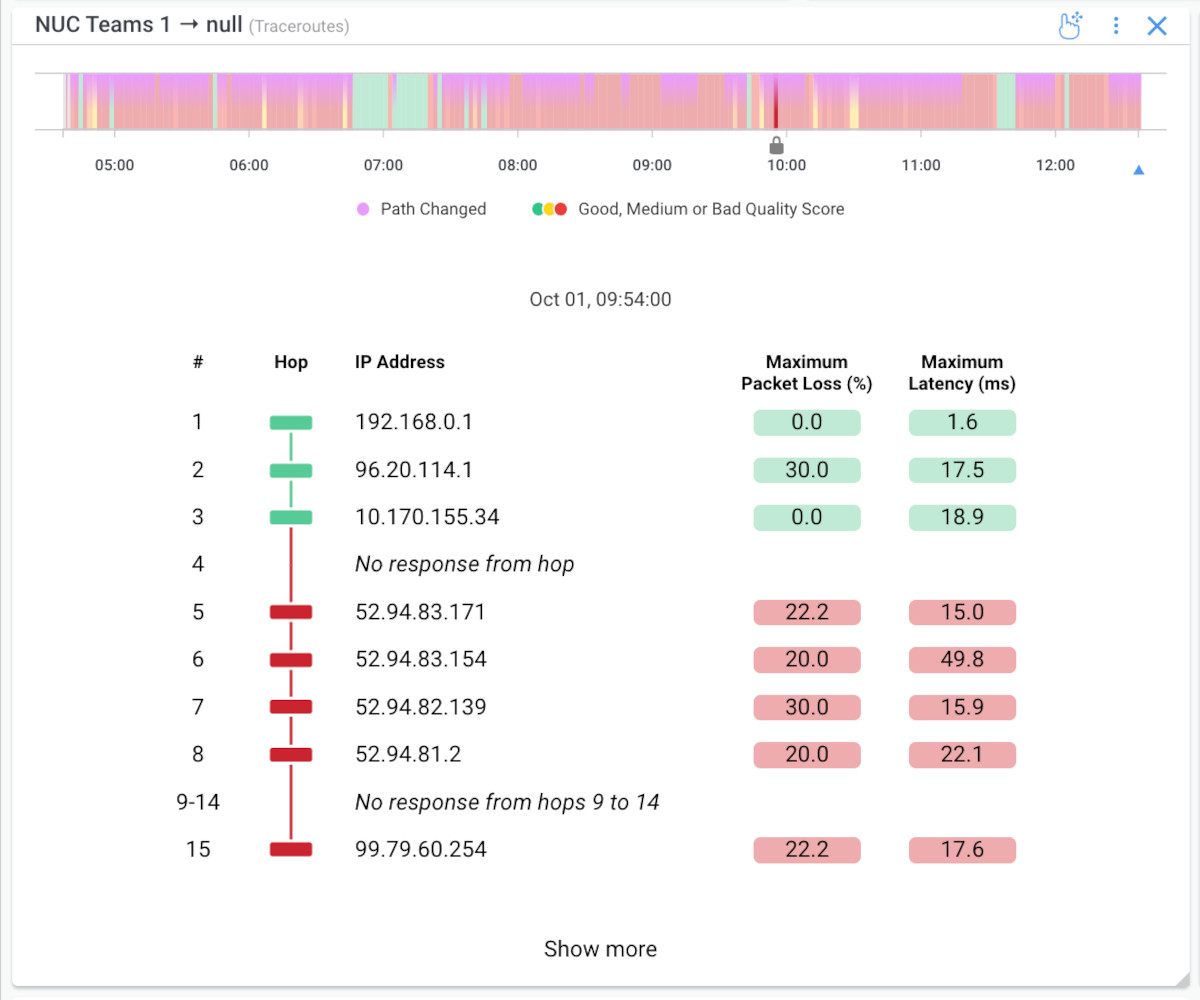
Obkio’s Visual Traceroutes record traceroutes between agents and destinations over time. That lets you compare the path during an event against the same path when performance was normal. Three patterns tell you what you're looking at:
- Loss that starts at a hop and continues to the destination is real: The hop where it begins is where the problem lives.
- Loss at a single mid-path hop that doesn't carry forward is usually ICMP rate-limiting: Routers deprioritize traceroute replies under load. This is one of the most common reasons ISPs dismiss tickets, so don't escalate on it.
- A latency step that coincides with new hops in the path is a routing change: Compare the event traceroute against your baseline path to confirm it.
Step 6: Confirm the Pattern Over Time
A single event tells you where. The pattern across events tells you why. Review historical data by time of day, day of week, site, and ISP:
- Degradation that recurs at the same hours points to capacity, either your circuit or your ISP's shared segment.
- Degradation that starts and ends abruptly points to routing changes.
- Degradation that worsens gradually over days points to last-mile problems.
For how to keep short events visible in long-range graphs, see How to Identify Intermittent Network Problems, which covers worst-value aggregation.
If the pattern points past your edge, the next step is getting your ISP to act on it.
Learn how to detect intermittent network problems to troubleshoot performance issues that are hard to catch with Obkio Network Monitoring software.
Learn more
How Do You Prove Intermittent Internet Issues to Your ISP?
Most intermittent tickets fail at the first tier of support. The agent runs a line test while you're on the phone; the test comes back clean because the event already ended, and the ticket closes as "no fault found." To get past that, your evidence has to show what happened while the degradation was happening, and show that nothing on your side caused it.
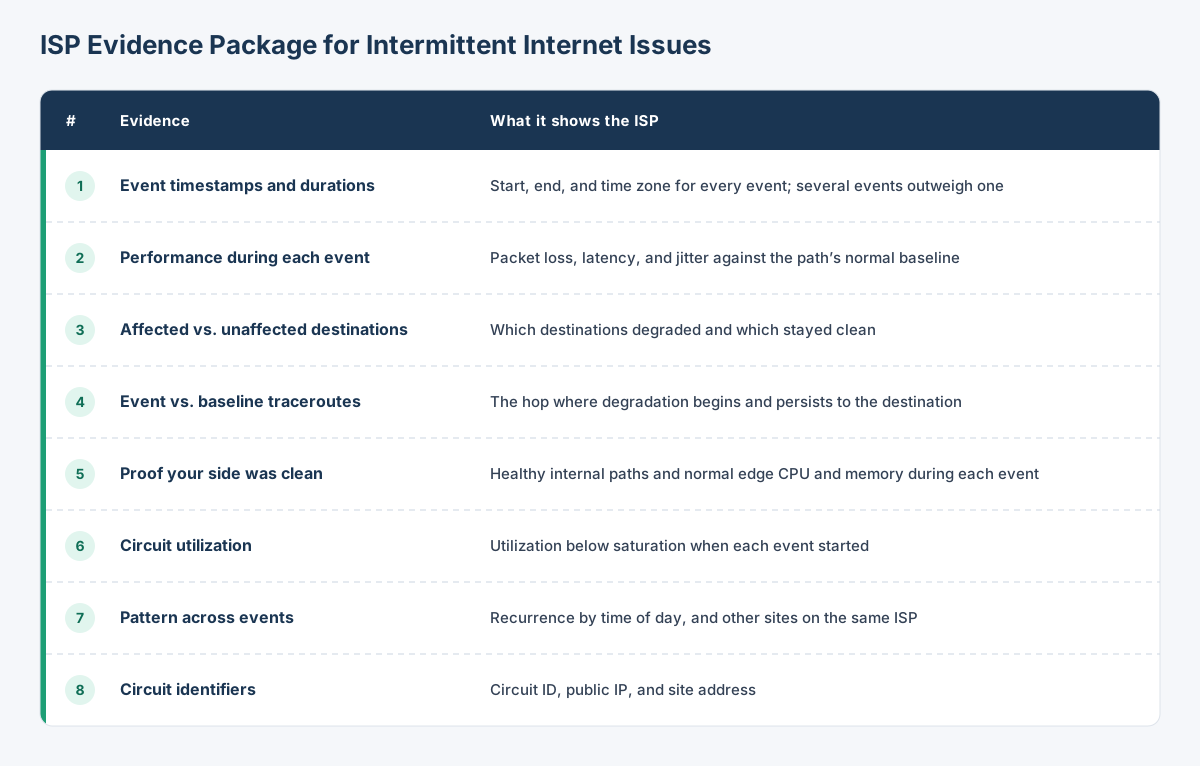
To prove intermittent Internet issues to your ISP, send evidence that places the problem inside their network. That means timestamps and durations for each event, loss, latency, and jitter values, traceroutes showing where degradation begins, and data showing your LAN, edge devices, and circuit utilization were clean at the same moment.
What to include in your ISP evidence package:
- Event timestamps and durations: List every event with start and end times and the time zone. Several documented events carry far more weight than one.
- Performance values during each event: Include packet loss, latency, and jitter, compared against your normal baseline for the same path.
- Affected and unaffected destinations: Showing which destinations degraded and which stayed clean helps the ISP locate the problem in their network.
- Traceroutes from during the event and from baseline: Mark the hop where degradation begins and persists to the destination. Leave out single-hop loss that doesn't carry forward, because it's usually ICMP rate-limiting and weakens the case.
- Proof your side was clean: Show that internal paths stayed healthy and edge device CPU and memory were normal during each event.
- Circuit utilization at the time of each event: Show that utilization was below saturation. This is the first thing a competent NOC will ask about.
- The pattern across event:. Include recurrence by time of day, and whether other sites on the same ISP degraded at the same moments.
- Circuit identifiers: Include your circuit ID, public IP, and site address so the ticket reaches the right part of their network.
How to escalate effectively:
- Open the ticket with the full package attached, not a description of symptoms. It gives first-tier support a reason to escalate instead of rerunning a line test.
- Ask for escalation to the NOC when your traceroutes show degradation inside the ISP's network. NOC engineers can read hop-level data and act on it. For how to prepare traceroutes for that handoff, see How to Share Traceroutes With Your ISP's NOC.
- Reference your SLA if your contract includes latency, loss, or availability commitments, and tie each event to the specific term it breaches.
- Keep monitoring while the ticket is open. New events strengthen the case, and continuous data is how you confirm the fix actually held.
How to Reduce Intermittent Internet Issues
Even when an intermittent issue lives in your ISP's network, most of the prevention happens on your side of the demarcation point. How much headroom your edge has, how many paths your traffic can take, and what your ISP is contractually on the hook for all decide how often degradation reaches your users.
To reduce intermittent Internet issues, give your edge enough headroom to absorb peaks and prioritize real-time traffic on the segment you control. Add a diverse second circuit with performance-based failover, and hold your ISP to performance commitments, not just uptime.
- Size circuits for peak demand, not average: Plan capacity around the busiest 15 minutes of the day, in both directions. Upload saturation is the most common self-inflicted cause of intermittent degradation, and it hides in daily averages.
- Move bulk traffic out of business hours: Schedule backups, OS updates, and large cloud syncs off-peak, or rate-limit them, so they can't fill the uplink during working hours.
- Apply QoS at the edge for real-time traffic: Prioritize voice and video on your outbound link so bursts don't queue behind them. QoS only works on the segment you control, though. It can't fix congestion inside your ISP's network.
- Size edge devices for inspection throughput: Firewall throughput with SSL inspection and IPS enabled is often a fraction of the raw figure on the datasheet. Buy against the inspected number, and track CPU and memory trends so you see the ceiling coming.
- Add a diverse second circuit: A second circuit only helps if it doesn't share the same failure. Use a different ISP, and where possible, a different last-mile medium or physical entry path.
- Steer on performance, not link state: Configure SD-WAN or failover policies to move traffic when loss, latency, or jitter crosses a threshold, not only when a link goes down. Add hold-down timers so traffic doesn't flap when a circuit hovers near the threshold.
- Use redundant DNS resolvers: Configure resolvers from two different providers so one slow or failing resolver doesn't stall every new connection.
- Negotiate performance-based SLAs: Business-grade circuits can carry commitments on latency, loss, and jitter as well as availability using Internet SLAs. Those commitments give you contractual leverage when intermittent issues recur.
- Keep monitoring after the fix: Intermittent issues come back as traffic grows and routes change. Baseline-driven alerts catch the next occurrence while it's still small.

FAQs About Intermittent Internet Issues
What is an intermittent outage?
An intermittent outage is a loss of connectivity that happens repeatedly and resolves on its own: the connection drops, comes back, and drops again. It's different from an intermittent Internet issue, where the connection stays up, but performance degrades. If your connection is fully dropping, see How to Troubleshoot Intermittent Internet Connection.
Why is my Internet slow only at certain times of day?
Internet slowdowns at the same time each day usually point to capacity limits. Either your own circuit saturates during peak usage, or your ISP's shared network segment becomes congested as demand rises across its customers. Checking your edge interface utilization during the slowdown tells you which one it is.
Can my ISP cause intermittent packet loss?
Yes. ISPs cause intermittent packet loss through congestion in shared access networks, last-mile problems like line noise or damaged cabling, routing changes, and congested peering points. If loss begins past your edge while your circuit has capacity to spare, the cause is likely in your ISP's network.
Why do speed tests pass when users still report Internet problems?
Speed tests measure available bandwidth to one server at one moment. They don't measure sustained packet loss, jitter, or latency spikes, which are what break calls and slow applications. A connection can deliver its full provisioned speed and still degrade real-time traffic.
Is packet loss on one traceroute hop always a problem?
No. Packet loss that appears at a single hop and doesn't continue to later hops is usually ICMP rate-limiting, meaning the router is deprioritizing traceroute replies, not dropping your traffic. Packet loss is only meaningful when it starts at a hop and persists all the way to the destination.
Can a firewall cause intermittent Internet issues?
Yes. A firewall running SSL inspection, IPS, or heavy session loads can run short on CPU or memory and delay or drop traffic. The circuit behind it can have the capacity to spare the whole time. The signature is degradation that starts at the first hop and lines up with spikes in the firewall's resource usage.
How long should I monitor before escalating to my ISP?
Monitor long enough to capture several events and the pattern between them. For issues that recur daily, a week of continuous data usually covers both weekday and weekend behaviour. Multiple documented events are much harder for an ISP to dismiss than a single occurrence.
Start Fixing Intermittent Internet Issues Now
Intermittent Internet issues are frustrating because the connection never goes down. Everything looks up while calls break and applications stall, and by the time anyone checks, the evidence is gone. Fixing them starts with answering one question: is the problem on your side of the demarcation point or your ISP's?
The process in this article answers it:
- Rule out the LAN.
- Measure the Internet path continuously.
- Check your circuit and edge devices.
- Find the hop where degradation begins.
- Confirm the pattern over time.
If the problem is yours, you'll know which part of your edge to fix. If it's your ISP's, you'll have the timestamps, traceroutes, and utilization data to get past first-tier support and get it resolved.
Catch the next intermittent Internet issue while it's happening

Obkio gives IT teams and MSPs continuous visibility into Internet performance at every site. Network Monitoring Agents measure packet loss, latency, and jitter from each location to public and cloud destinations, and Device Monitoring tracks your circuit utilization and edge device resources alongside them. When performance degrades, Obkio Insights identifies the probable cause and whether it sits on your side or your ISP's, and your ISP evidence is already recorded.
Deploy your first agents in minutes and see what your Internet path is doing between complaints.