











 Obkio Blog


 Subscribe
Table of Contents
Table of Contents
Latency spikes that come and go. Packet loss that shows up for a few minutes, then disappears. None of it traces back to anything on your LAN, your firewall, or your switches because it isn't happening there. It's happening on the physical link between your building and your ISP's network: the local loop.
This article covers what the ISP local loop is, what typically goes wrong with it, the most common root causes, and how to diagnose a local loop issue using traceroute data and Obkio Insights.
What Is an ISP Local Loop (Last Mile)? 
The local loop is the physical connection between your premises and your ISP's nearest access point; the piece of infrastructure that carries your traffic from your building to the ISP's network before it reaches the wider internet. Depending on your connection type, this segment might be a copper telephone line, coaxial cable, fibre, or a fixed wireless link.
This segment is also commonly referred to as the "last mile" connection, since it covers the final stretch of the path between the ISP's infrastructure and the end customer.
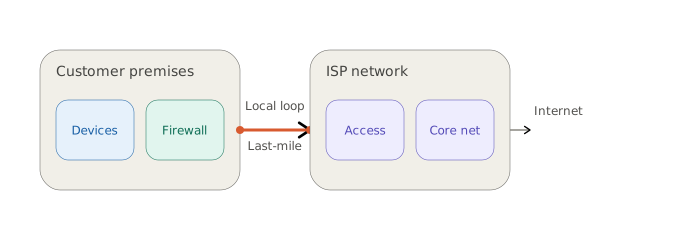
In terms of where it sits in your network path: the local loop comes right after your own equipment (your router, firewall, and LAN) and right before your ISP's core network. It's the boundary between what you control and what your ISP controls.
It's also one of the more fragile parts of the path. Unlike the ISP's core network, which is typically redundant and centrally maintained, the local loop is a single physical line running to one location. It's exposed to weather, physical wear, and aging equipment, and depending on the connection type, it may be shared or contended with other subscribers in the area.
That combination makes it a common point of failure, and a common source of intermittent, hard-to-pin-down performance issues.
What Is an ISP Local Loop Issue?
A local loop issue is a performance problem (latency, packet loss, or jitter) that originates specifically on that last-mile link, rather than in your own network or deeper inside your ISP's infrastructure.
This is a narrower and more specific claim than "an issue in my ISP's network." Both show up past your firewall, but they point to different places:
- A local loop issue means the degradation starts right at the boundary between your network and your ISP; on the physical line itself, or the equipment terminating it on either end.
- An issue in the ISP's network means the connection to your ISP is fine, but the problem shows up further downstream, somewhere in the ISP's core network or beyond.
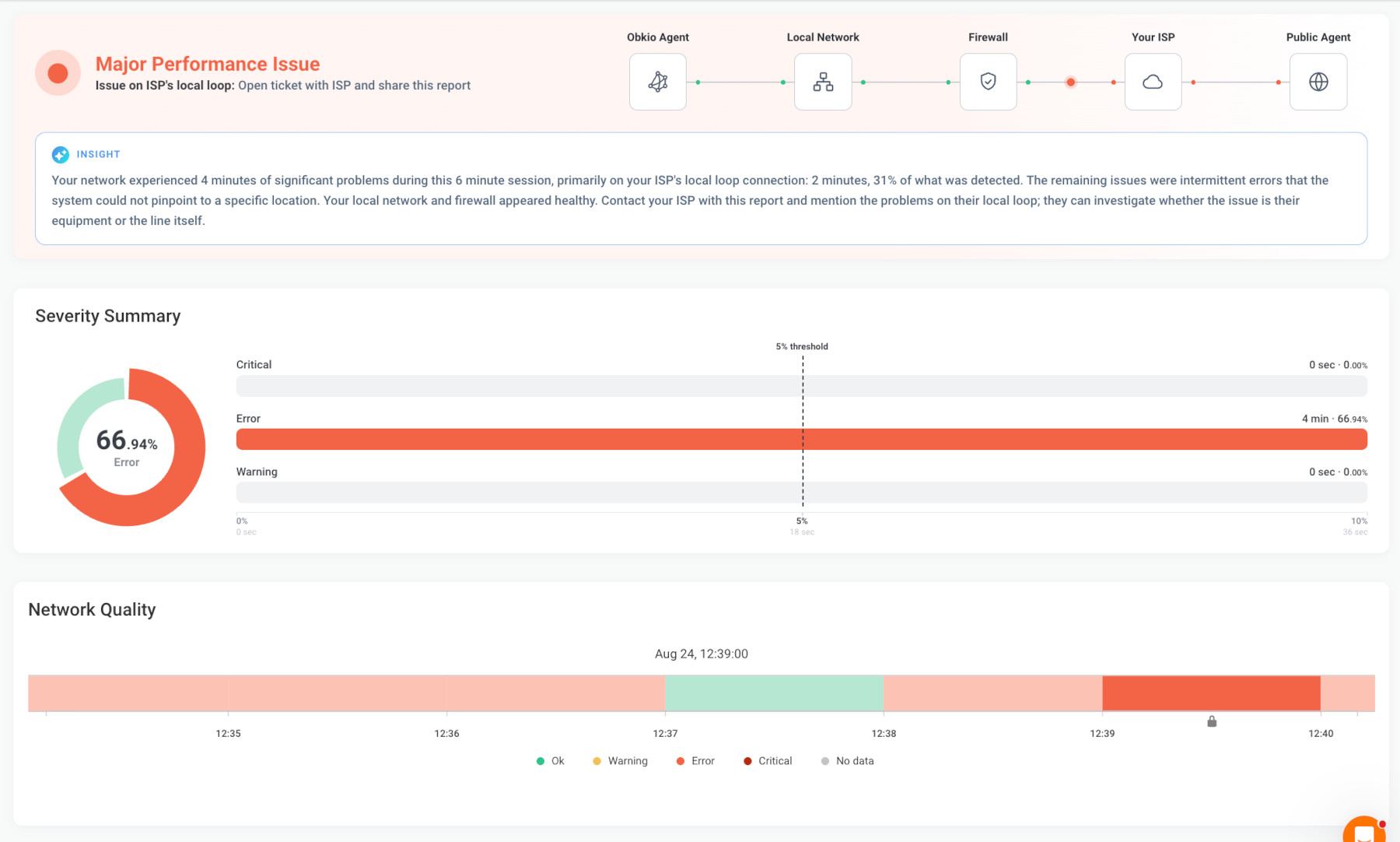 Screenshot from Obkio's Network Monitoring Tool
The distinction matters in practice. If the evidence points to the local loop, the fix is usually a technician visit, a line test, or equipment replacement at your address.
If the evidence points further downstream, that's a different conversation with your ISP, and sharing the wrong diagnosis can send a support ticket in the wrong direction, or get it bounced back to you as "your equipment is fine, not our problem."
What Are Common Symptoms of ISP Local Loop Issues?
Local loop issues tend to show a consistent pattern: your internal network and firewall look clean, but performance degrades somewhere past that point. Specific symptoms include:
- Intermittent latency spikes: Response times jump for a few minutes because of latency spikes, then return to normal, with no clear trigger from your side
- Packet loss that comes and goes: Packet loss comes and goes often in short bursts rather than a sustained, steady loss rate
- Elevated jitter: Jitter, inconsistent delay between packets, which shows up most visibly in VoIP calls (choppy audio, dropped syllables) or video conferencing (freezing, pixelation)
- Problems that don't correlate with internal activity: The issue doesn't line up with high bandwidth usage on your LAN, firewall CPU spikes, or any change on your side of the network
- Recurring at similar times or conditions: Some local loop issues correlate with weather events, time of day (peak contention), or physical disturbances near the line
None of these symptoms are unique to the local loop on their own. The same latency spike or packet loss pattern could originate at the firewall, deeper in the ISP's network, or even at the destination server. What distinguishes a local loop issue is where the degradation starts along the path, which is why symptom recognition alone isn't enough. You need path-level data to confirm it. That's covered in the diagnosis sections below.

What Are Common Causes of ISP Local Loop Issues?
Local loop issues generally trace back to one of a handful of root causes, most of them tied to the physical nature of the last-mile connection rather than anything happening on the ISP's broader network.
1. Degraded physical lines
Copper and coaxial lines degrade over time: corrosion at connection points, water intrusion, worn insulation, or physical damage from construction, rodents, or age. Fibre local loops are more resistant to this but aren't immune to physical damage or poor-quality splices.
2. Faulty or aging ISP-side equipment
The equipment terminating the local loop on the ISP's end (a DSLAM for DSL, an OLT for fibre, a cable modem termination system for coax) can develop faults over time. A failing line card or port can produce intermittent errors that look identical to a line problem from the customer side.
3. Line contention and oversubscription
Some connection types, particularly cable and older DSL deployments, share capacity across multiple subscribers on the same segment. During peak usage hours, contention on that shared segment can produce latency and packet loss that has nothing to do with the physical line quality itself.
4. Weather-related degradation
Copper and coax lines are particularly sensitive to moisture, temperature swings, and storm activity. Rain intrusion into aging cable sheaths or temperature-driven expansion/contraction at connection points can cause issues that appear and disappear with weather conditions.
5. Distance from the access point
For DSL in particular, signal quality degrades with distance from the exchange or cabinet. Lines further from the access point are more prone to interference and errors, especially as equipment ages.
Identifying which of these causes is behind a given issue requires the ISP's own line diagnostics: testing the physical line, checking their equipment logs, or sending a technician. What network monitoring from your side can establish is that the problem is occurring on the local loop segment, which is the evidence you bring to that conversation.

Why ISP Local Loop Issues Are Intermittent
Local loop issues rarely present as a constant, sustained failure. More often, performance is fine for stretches of time, then degrades for a few minutes, then recovers, which is part of what makes them easy to dismiss or miss entirely if you're not monitoring continuously. This intermittency isn't random; it follows from the physical nature of the causes behind it.
Marginal physical connections
A corroded connection point or a partially degraded line doesn't necessarily fail outright. It can sit in a marginal state where it works under most conditions but drops packets or introduces errors under small additional stress: a temperature shift causing slight expansion or contraction, vibration from nearby construction or traffic, or moisture changes affecting resistance at a splice point. The line isn't broken; it's degraded enough to fail intermittently rather than constantly.
Weather-driven variability
Rain intrusion into aging cable sheaths, humidity affecting connection points, and temperature swings on exposed lines don't produce constant effects. They correlate with weather conditions that come and go. A local loop issue tied to weather will often appear during or after rain and clear up once conditions stabilize.
Contention that varies with usage
On shared connection types like cable or older DSL, contention isn't constant; it scales with how many subscribers are actively using the segment at a given time. This is why local loop issues caused by contention often follow a predictable daily pattern, worsening during evening peak hours and clearing overnight.
Equipment nearing failure
ISP-side equipment terminating the local loop (a DSLAM port, an OLT, a line card) doesn't always fail cleanly. A failing component can produce intermittent errors for weeks or months before it fails completely, which is one reason a "one-time glitch" reported to an ISP sometimes turns out to be an early symptom of hardware that needs replacing.
This is also why a single traceroute or a one-off speed test is rarely enough to catch a local loop issue: if you happen to check during a clean window, everything looks fine. Confirming the issue reliably requires continuous monitoring over time, which is exactly what the diagnosis approach in the next two sections is built around.
Learn how to troubleshoot intermittent Internet connection issues with Network Monitoring. Find & fix the cause of intermittent Internet issues.
Learn more

Why ISP Local Loop Issues Are Hard to Diagnose Without the Right Data
From the outside, a local loop issue and a deeper ISP network issue look almost identical. Both show up as latency spikes or packet loss somewhere past your firewall. Both are, technically, "not your equipment's fault." And most basic monitoring tools stop at exactly the point where the distinction actually matters. They can tell you that performance degraded, but not where along the path it happened.
ISP Local Loop Issues vs. ISP Network Issues
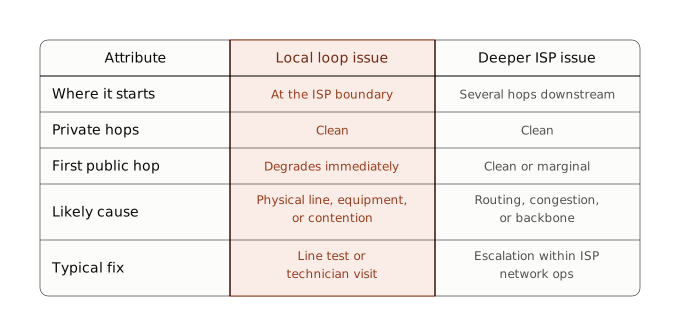
This creates a recurring problem when it's time to raise it with your ISP. Without hop-by-hop visibility, you're left with a single aggregate number (average latency, total packet loss), and no way to say whether that number reflects a problem on the line running to your building or something happening several hops further into the ISP's network.
ISPs are understandably reluctant to act on "my Internet is slow" without evidence pointing to a specific segment, and it's easy for a ticket to get bounced back with "we tested our network, and it's fine" when the real issue was never in dispute, just unlocated.
The only way to close that gap is path-level data: a breakdown of performance hop by hop, so the segment where degradation begins is visible rather than inferred. That's what the diagnosis approach in the next two sections is built around.
How to Diagnose an ISP Local Loop Issue Manually
The core method for isolating a local loop issue is a traceroute, run consistently over time, not just as a one-off snapshot, since local loop issues are often intermittent.
1. Identify the boundary between your network and your ISP
In a traceroute, the first few hops are typically private IP addresses (10.x.x.x, 172.16-31.x.x, 192.168.x.x) — your router, internal gateways, or equipment still inside your network or your ISP's private infrastructure. The point where the hops switch to public IP addresses is generally the boundary where you leave your local network and enter the ISP's public-facing infrastructure. This is where the local loop terminates.
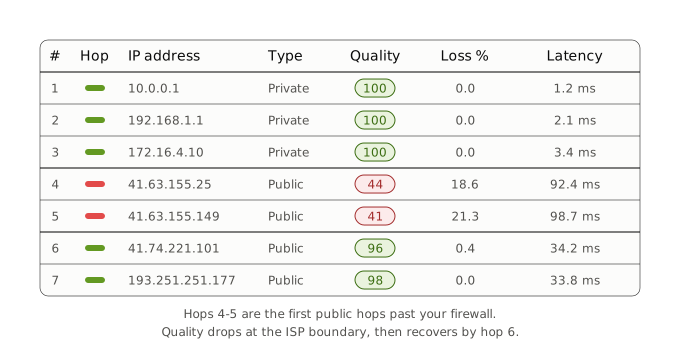
2. Look for degradation starting exactly at that boundary
If the private hops show clean results (no packet loss, stable latency), and the degradation (packet loss, elevated latency, high jitter) begins right at the first public hop and continues into the next one or two hops, that's the signature of a local loop issue. If the private hops are already showing problems, the issue is more likely inside your own network, not the local loop.
3. Correlate over time, not from a single traceroute
A single traceroute only captures a moment in time. Since local loop issues are frequently intermittent, run traceroutes continuously (or at short intervals) and compare them against your latency/packet loss graphs. Confirm that the timing of degraded traceroute hops lines up with the timing of the performance dips — this rules out coincidence and confirms the location is consistent across multiple occurrences.
4. Rule out contention-based causes
If the degradation is present but shows a pattern tied to time of day (worse during evening peak hours, for example), that points toward line contention rather than a physical fault. Still a local loop issue, but a different conversation with your ISP than a line defect would be.
Doing this by hand means running traceroutes repeatedly, timestamping them, and cross-referencing against separate latency data manually.
Obkio's visual traceroute feature makes this practical by displaying each hop (private and public) alongside quality scores per hop, so the private-to-public transition and where degradation begins are visible at a glance rather than parsed from raw traceroute output. Section 9 covers how Obkio Insights takes this a step further and automates the full correlation.
How Obkio Identifies ISP Local Loop Issues
Obkio is a network monitoring and observability platform that continuously tracks network performance between your locations, your applications, and the Internet. Obkio Insights is its automatic diagnostics engine, built to identify why a performance issue is happening, not just that one occurred.
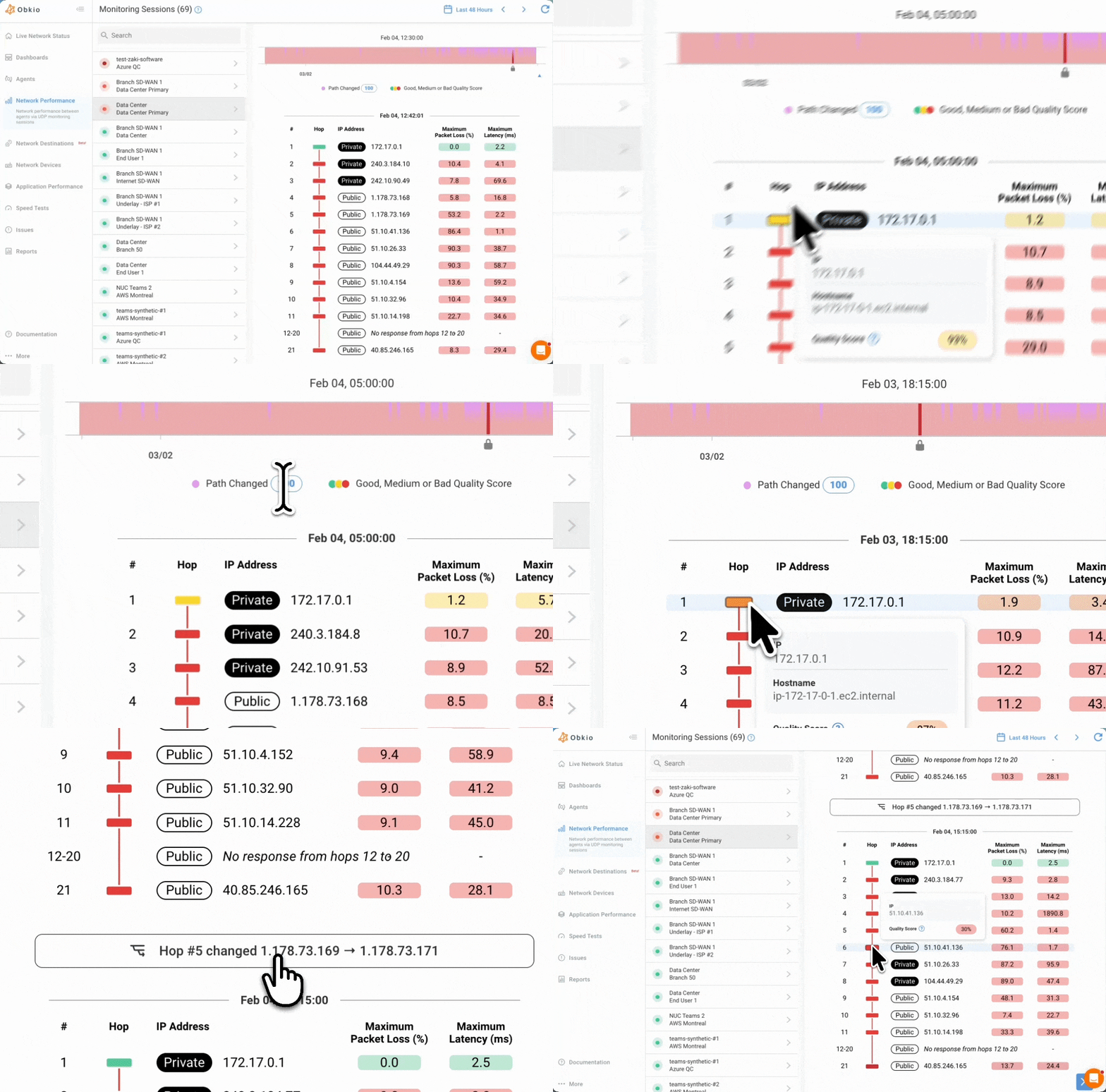
Obkio Insights automates the correlation described in section 8. Instead of manually cross-referencing traceroutes against latency graphs, Insights surfaces the diagnosis directly, in real time.
Path-based detection of ISP Local Loop Issues
Every session is monitored across the full path: Obkio Agent → Local Network → Firewall → Your ISP → Public Agent.
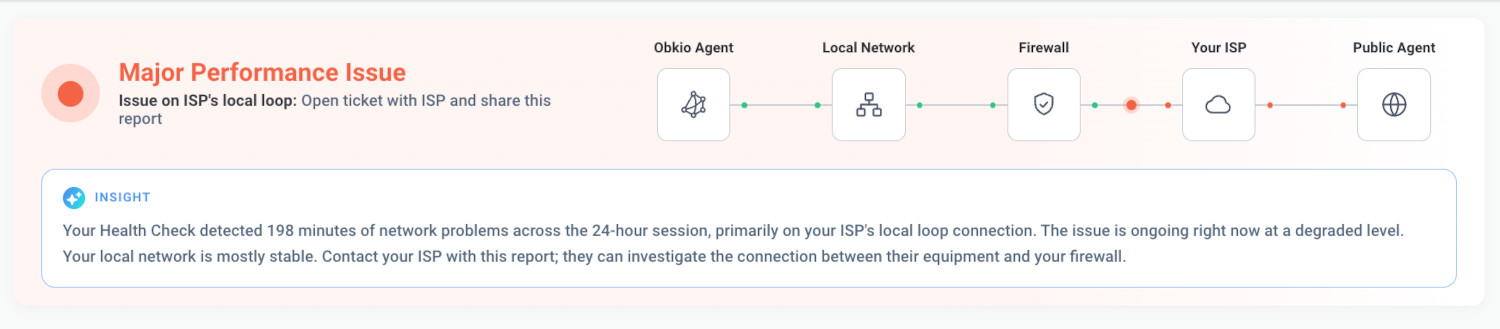
When degradation is detected, the path visualization highlights exactly where along that path the problem is occurring. So a local loop issue shows up flagged specifically at the boundary between "Your ISP" and the rest of the path, not somewhere further along it.
What Insights correlates
Insights pulls together three data sources automatically: network response time (latency, jitter, packet loss), the severity classification at each point in time, and traceroute hop data. Rather than requiring you to manually line these up, Insights checks for the signature pattern directly — clean private hops, degradation starting at the first public hop, and surfaces it as a named issue: "Issue on ISP's local loop."
No setup required
Because this detection is based on traceroute data rather than device-level polling, there's no configuration needed on your end. It works out of the box for any monitored session.
What this looks like in practice
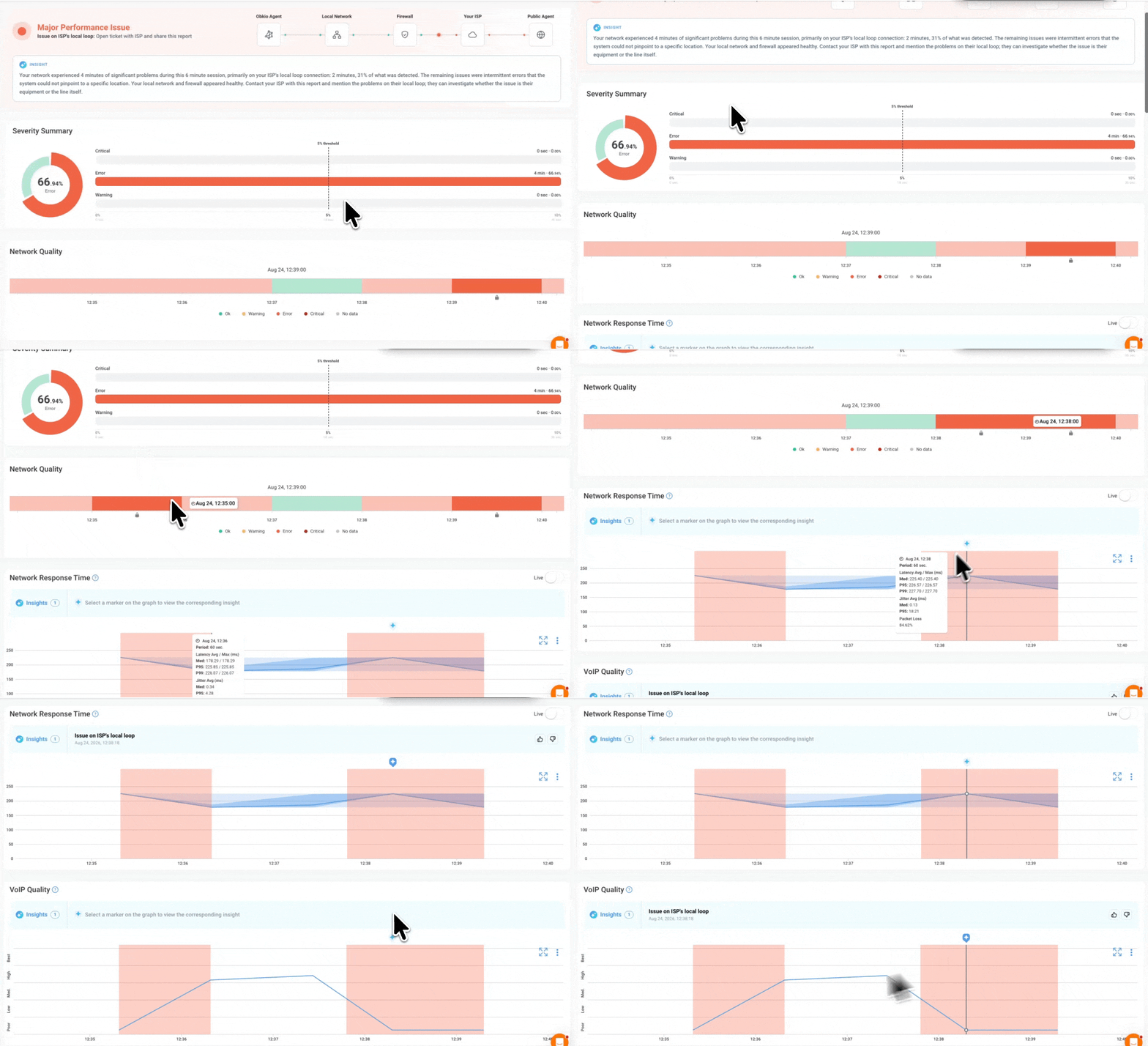
In the Severity Summary widget, a local loop issue shows up as time spent in the error state with the exact duration and percentage of the session affected.
The Network Quality Timeline shows this visually over time: a colored band marking exactly when the error state was active, so you can see whether it was a brief spike or a sustained problem.
In the Network Response Time graph, the Insight appears directly on the chart at the point it was detected, alongside the traceroute panel showing the hop-by-hop breakdown. Private hops are clean, with degradation beginning at the first public hop into the ISP's network. This is the same private-to-public transition described in section 8, but surfaced automatically rather than read off manually.


A note on the generated summary
Alongside the flagged issue, Insights generates a plain-language summary describing what happened and pointing to a likely cause. For example, calling out that the evidence points to the ISP's equipment or line rather than your own network. This summary is a helpful starting point, not a final diagnosis. Treat it as a starting point rather than the final word, and use the underlying data (traceroute hops, severity breakdown) to confirm it before acting.
How to Troubleshoot ISP Local Loop Issues
Once the evidence points to the local loop clean private hops, degradation starting at the ISP boundary, confirmed across multiple occurrences, the next steps move outside your own network, since this segment is on your ISP's side of the boundary.
1. Confirm the pattern is consistent
Before opening a ticket, check that the pattern holds across more than one occurrence. A single traceroute or a single Insight is useful, but confirming the same signature (clean private hops, degradation starting at the first public hop) across multiple incidents makes for a stronger case and rules out a one-off anomaly.
2. Gather the evidence of the ISP Local Loop issue to share
Put together the specifics your ISP will need to act on the ticket rather than just take your word for it:
- Timestamps of each occurrence
- Packet loss and latency figures at the affected hop(s)
- The traceroute output showing the private-to-public transition
- Any recurring pattern (same time of day, correlates with weather, etc.)
You can use screenshots from Obkio’s app to prove the issue to your ISP without a doubt. Save graphs and full dashboards with concrete data.
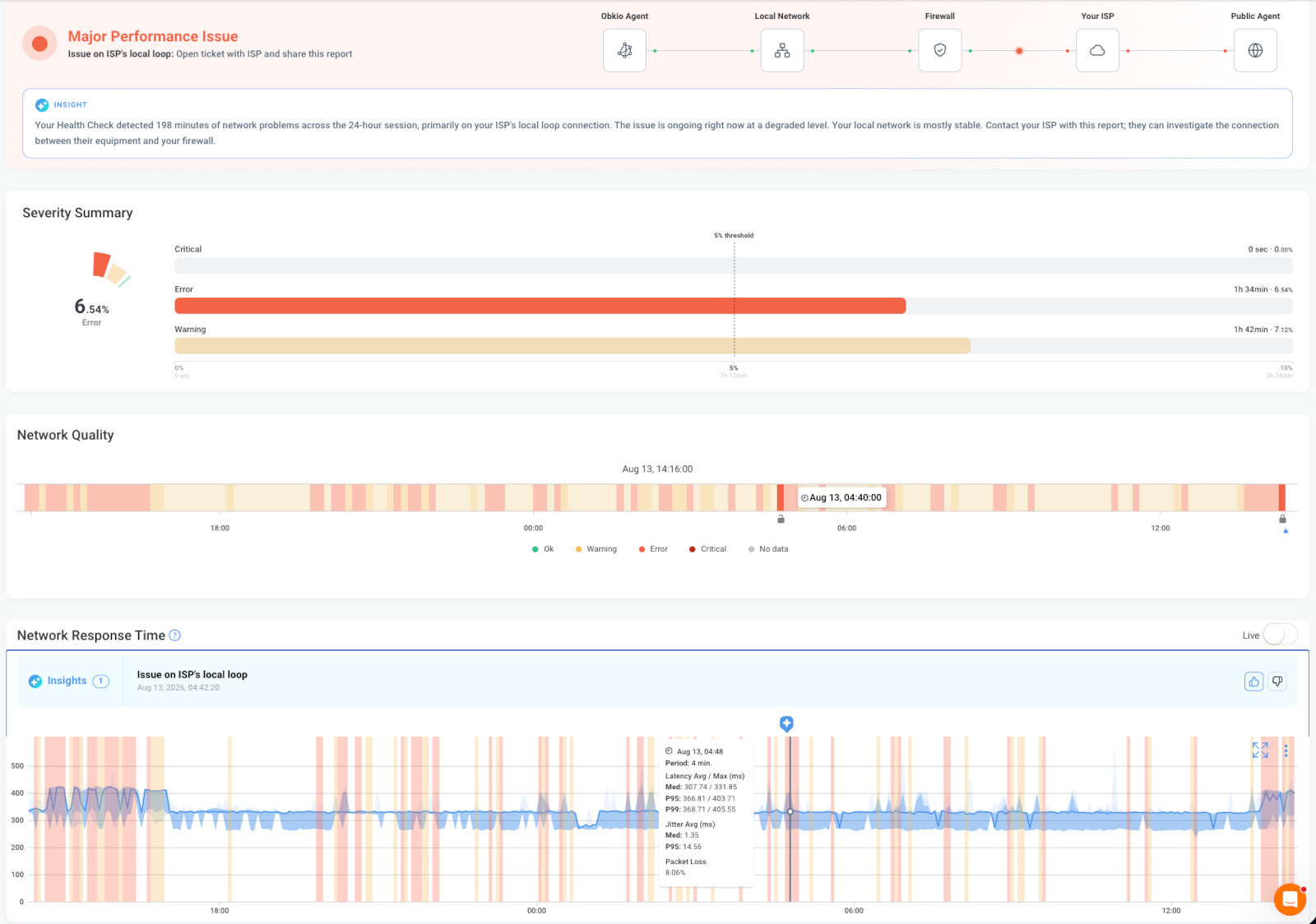
3. Open a ticket with your ISP
Share the evidence directly rather than describing the symptom in general terms ("my Internet is slow"). Framing it as "the local loop segment shows packet loss starting at hop X" gives their support team a specific, verifiable claim to investigate rather than a vague complaint to triage.
4. Know what to expect from the ISP
Typical next steps on their end include a remote line test, a check of their access equipment, or dispatching a technician to inspect the physical line at your location. Line issues on copper or coax sometimes require a truck roll to resolve; fibre issues are more often resolved remotely unless there's physical damage.
5. Re-verify after the fix
Once the ISP reports the issue resolved, confirm it on your end. Run the same traceroute pattern and check that the previously degraded hop is now clean. If the same signature reappears, the underlying cause likely wasn't fully addressed, and the ticket may need to be reopened or escalated.
Start Troubleshooting ISP Local Loop Issues
An ISP local loop issue is easy to misdiagnose because it looks identical to a broader ISP network problem from the outside. Both show up as latency or packet loss past your firewall. The distinction comes down to where along the path the degradation actually starts, which requires hop-by-hop visibility rather than a single aggregate number.
Whether you're confirming it manually with traceroutes or letting Obkio Insights flag it automatically, the goal is the same: bring your ISP evidence that points to a specific segment, not just a general complaint.
See how Obkio Insights detects local loop issues automatically. Start monitoring your network for free.

Frequently Asked Questions About ISP Local Loop Issues
1. What is an ISP local loop?
The ISP local loop is the physical connection between a customer's premises and their ISP's nearest access point — the last stretch of line carrying traffic before it reaches the ISP's core network.
2. What is an ISP local loop issue?
An ISP local loop issue is a performance problem (latency, packet loss, or jitter) that starts specifically on that last-mile segment, rather than in the customer's own network or further downstream in the ISP's core network.
3. Is a local loop issue the same as a last mile issue?
Yes. "Local loop" and "last mile" refer to the same segment of the network: the physical link between a customer's premises and their ISP's access point. The terms are used interchangeably.
4. How do I know if my ISP is causing network issues?
Run a traceroute and check where degradation begins. If the hops inside your own network are clean but packet loss or latency starts right at the first public hop past your firewall, that points to a problem on your ISP's side, specifically the local loop connecting you to them.
5. Can weather affect my internet connection?
Yes, particularly for copper and coaxial local loops. Rain, humidity, and temperature swings can affect aging cable and connection points, causing intermittent latency or packet loss that correlates with weather conditions. Fibre connections are more resistant to this but not entirely immune to physical damage.

