




 Obkio Blog


 Subscribe
Table of Contents
Table of Contents
You call your ISP because calls keep dropping and the Internet crawls every afternoon. Support asks you to restart the modem. Then they test the line from their side, see nothing wrong, and tell you everything looks fine on their end. By the time a technician shows up, the problem is gone, and the ticket gets closed.
The issue usually isn't that your ISP doesn't care. First-line support is trained to rule out the customer's network first, and most complaints arrive with nothing they can check. "The Internet is slow" is easy to dismiss. "8% packet loss starting at the fourth hop, every weekday from 2 to 3 p.m." is not.
You prove your ISP is the problem with evidence they can verify: continuous measurements showing metrics like packet loss, latency, or jitter that start after your gateway, with timestamps, duration, and a traceroute pointing to the hop inside their network. A speed test screenshot isn't enough. Rule out your own network first, then share the data directly.
This article walks through how to build that kind of evidence: how to rule out your own network, what data ISPs act on, how to share it so they can verify it themselves, and how to escalate when the first ticket goes nowhere.
If you'd rather skip ahead to the email templates, grab the ISP escalation toolkit.
Why a Speed Test Isn't Proof Your ISP is the Problem 
A speed test is usually the first thing ISP support asks for, and the first thing they'll set aside. That's not because speed tests are useless. It's because they answer a different question.
A speed test measures how much throughput you get during a 30-second window. Most problems people escalate to their ISP don't show up that way:
- It's one moment: Intermittent packet loss or a slowdown that hits every afternoon won't appear in a test you run at 10 a.m. A good result proves nothing, and a bad one can be blamed on bad timing.
- It often tests the wrong path: Speed tests usually pick the nearest server, which is often inside your ISP's own network. If the congestion is further along, at a peering point or on the way to a cloud app, the test never crosses it.
- It measures the wrong metric: Choppy calls and laggy apps come from packet loss,latency and jitter, not from a lack of bandwidth. You can get your full plan speed and still have calls that cut out.
- It doesn't show where the problem is: A low result doesn't say whether the cause is your Wi-Fi, your firewall or the ISP. Support will assume it's on your side, because nothing in the result says otherwise.
Speed tests do have a place. If uploads or downloads stay far below your plan at all hours, repeated tests over several days help show a provisioning issue or ISP throttling. For everything else, your ISP needs evidence that covers the full period of the problem and points to a specific place on the path.
What Counts as Proof Your ISP is the Problem
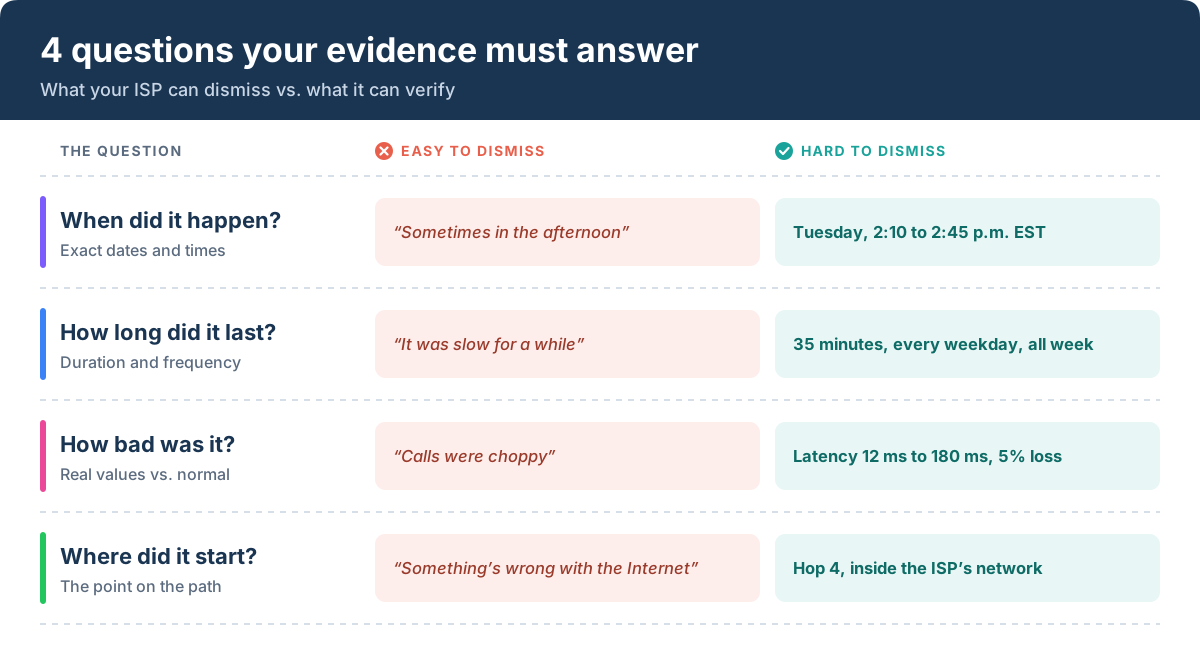
To an ISP, proof means data they can verify on their side. Their network team can't act on how slow the connection felt, but they can check a timestamp against their logs, compare your numbers with their own monitoring, and look at the hop you point to. Evidence that holds up answers four questions:
- When did it happen? Exact dates and times, with the time zone. "Tuesday from 2:10 to 2:45 p.m. EST" gives the ISP something to look up in their own logs. "Sometimes in the afternoon" doesn't.
- How long did it last? The duration of each episode, and how many times it happened. A 35-minute degradation that repeats every weekday tells a very different story than a single blip.
- How bad was it? The actual values for packet loss, latency and jitter, compared with what's normal for that connection. "Latency rose from 12 ms to 180 ms" shows how far performance dropped from your usual level.
- Where in the path did it start? The point where quality drops, ideally a specific hop inside the ISP's network shown by a traceroute. This is the piece that moves a ticket past first-line support, because it shows the problem isn't on your side.
Three things make that evidence much harder to dismiss:
- A pattern over several days: One bad measurement can be blamed on anything. A week of data showing the same issue at the same hours can't.
- Multiple destinations: If the problem shows up no matter where your traffic is going, it isn't one website or app. It's the connection.
- A healthy baseline for comparison: Data from a period when the same path was performing normally shows that what changed is the network, not your setup.
The rest of this guide shows how to collect each of these and get them in front of the right people at your ISP.
How to Prove your ISP is the Problem in 5 Steps
Building a case your ISP will act on follows the same order every time: rule out your own network, collect the evidence, share it, send it in writing, and escalate if the first ticket stalls. Let’s get started.
Step 1: Rule Out Your Own Network
Your ISP will ask whether the problem is on your side before anything else, so have that answer ready before you call. A few quick tests will cover the most common local network causes:
- Test on a wired connection, not Wi-Fi: If the problem disappears on a cable, look at your Wi-Fi before you look at your ISP.
- Connect a device directly to the modem, bypassing your router or firewall. If performance recovers, the cause is likely between the modem and your users, such as an overloaded firewall.
- Check whether it happens when someone is uploading: Large backups, file syncs or video uploads can saturate your own connection and slow everything down. That's a bandwidth usage problem on your side, not your ISP's.
- Check whether it affects multiple devices and users: One slow laptop points to the laptop.
- Check whether it affects multiple sites: If several locations on the same ISP degrade at the same time, that's a strong sign the problem is upstream.
- Note when it happens: all the time, at certain hours, or at random.
These quick tests catch the obvious causes, but they share the same weakness as a speed test: they only tell you about the moment you run them. Intermittent Internet problems rarely show up while you're testing.
That's where continuous monitoring helps. With a network monitoring and diagnostics solution like Obkio,Monitoring Agents on your network run synthetic tests around the clock, both inside your network and out to public agents beyond your ISP, so problems are recorded when they happen, even at 3 a.m.
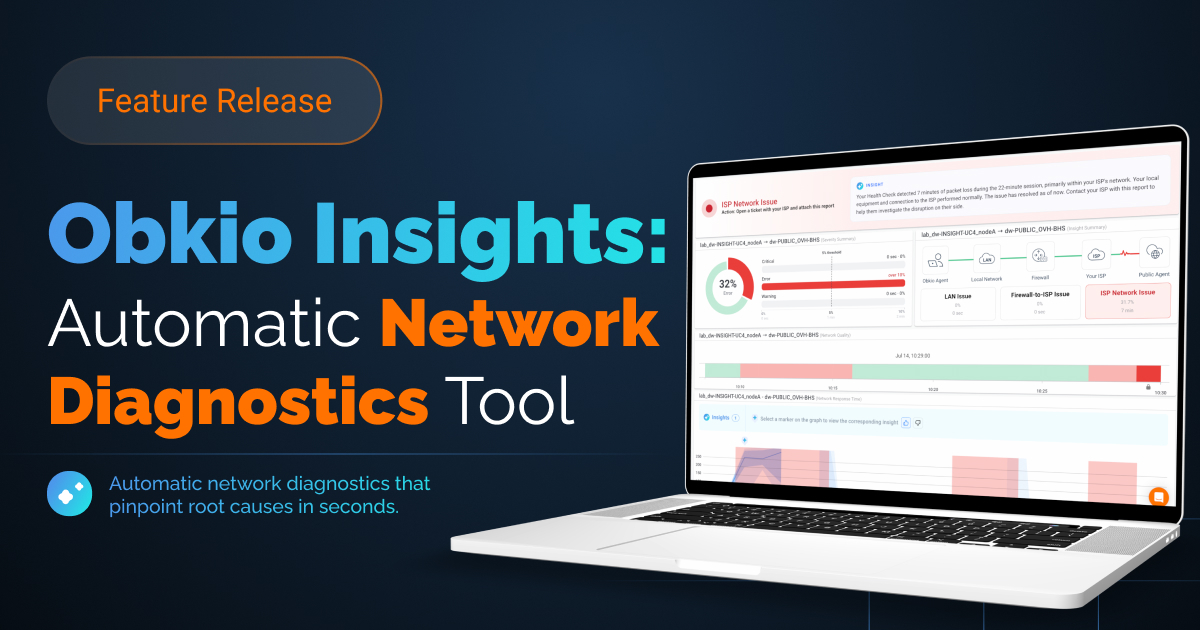
Insights then analyzes that data automatically and tells you where the problem is: your local network, your ISP, or the destination you're trying to reach. If you also monitor your firewall or router over SNMP, Insights can factor in its CPU, memory and bandwidth usage to rule your own equipment in or out.
If Insights points to your local network, you've saved yourself a frustrating call, and the section on what to do when it's not your ISP covers where to look next. If it points to your ISP, leave the agent running. It's now collecting the proof you'll send them.


Step 2: Know What Data to Give Your ISP
ISP support teams respond to specific metrics with timestamps, not to general complaints. The data that proves your case depends on what you're seeing, so match the symptom to the metric:
- Calls drop, video freezes, the connection feels unstable. Show packet loss over time. Ask your ISP to investigate loss at the failing hop or on your line.
- Lag on calls, apps and remote sessions. Show latency and jitter. Ask them to check routing and congestion between your site and their network.
- The Internet slows down at the same time every day. Show performance over time, broken down by hour. This usually points to congestion during peak hours, so ask them to confirm a capacity issue in your area and give you a date for the fix.
- The problem starts past your router. Show a traceroute, hop by hop. Ask them to escalate to the team that manages that part of their network.
Alongside the metrics, have the source and destination IP addresses ready, along with traceroutes in both directions. Internet traffic is asymmetric, so the problem may only show up on the return path. If you can, include a period when the same path was healthy, so the ISP can see what changed.
Collecting all of this by hand means running tests at the right moment and matching them up afterwards. With continuous monitoring, it's already recorded.
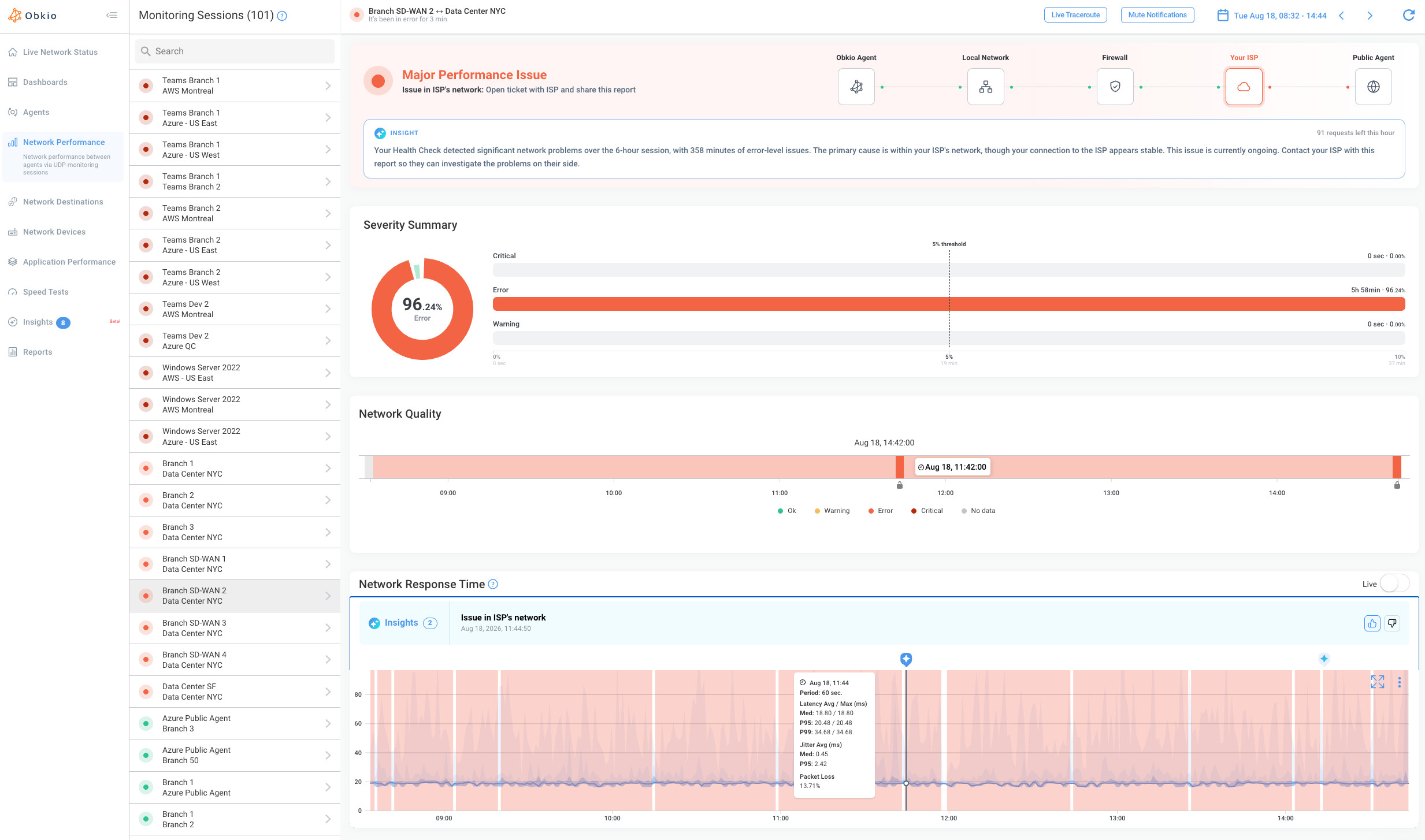
When Obkio Insights detects an “Issue in ISP Network”, the Monitoring Session shows the full path, from the Monitoring Agent through your local network and firewall to your ISP and out to the public agent, with the segment where the problem was found highlighted. It also says how much of the degraded period it could attribute to the ISP.
For example, it might tie 15 of 30 minutes of degraded performance to your ISP's network and leave the other 15 unattributed, while confirming your local network and firewall were healthy throughout.
That precision works in your favour. A ticket that claims only what the data supports is much harder to argue with than one that blames the ISP for everything.
One caution before you send a traceroute: loss at a single hop that doesn't continue to the hops after it usually isn't a problem. Many routers deprioritize or rate-limit the replies to traceroute probes while forwarding real traffic normally. The loss that matters starts at one hop and carries through to the destination. Pointing your ISP to the wrong hop is one of the fastest ways to lose credibility with their network team.
Step 3: Share the Proof with a Shareable Link
Screenshots get forwarded, cropped and ignored. They also show only the moment you picked, which makes it easy for the ISP to argue that the problem was a one-off.
A Shareable Link gives your ISP read-only access to the Monitoring Session itself, with no Obkio account or login needed on their side. They see what you see: the Insights diagnosis, the network quality and response time graphs, and the traceroutes in both directions. They can also change the time range themselves, so they can look at the hours before and after an episode or check how often it comes back. They see only that one session, not the rest of your account, and your organization's name isn't shown on the page.
To create one, open the Monitoring Session that shows the issue, click Share, name the link and choose when it expires. ISP tickets can stay open for weeks, so set an expiry that covers the full life of the ticket. You can extend it, shorten it or revoke it at any time. If you don't see a Share button, an Administrator first needs to allow public share links in your organization's settings. The Shareable Links documentation covers the details.
What to point out when you send it
Don't make your ISP search for the problem. Tell them exactly where to look:
- The Insights diagnosis: The status overview at the top of the page shows what was detected and where. Lead with it.
- The timeline: Point to the specific dates and times the issue occurred, and how long each episode lasted.
- The failing hop: If the traceroute shows the problem starting inside their network, name the hop and its IP address.
- The pattern: If the issue repeats at the same hours or on the same days, say so.
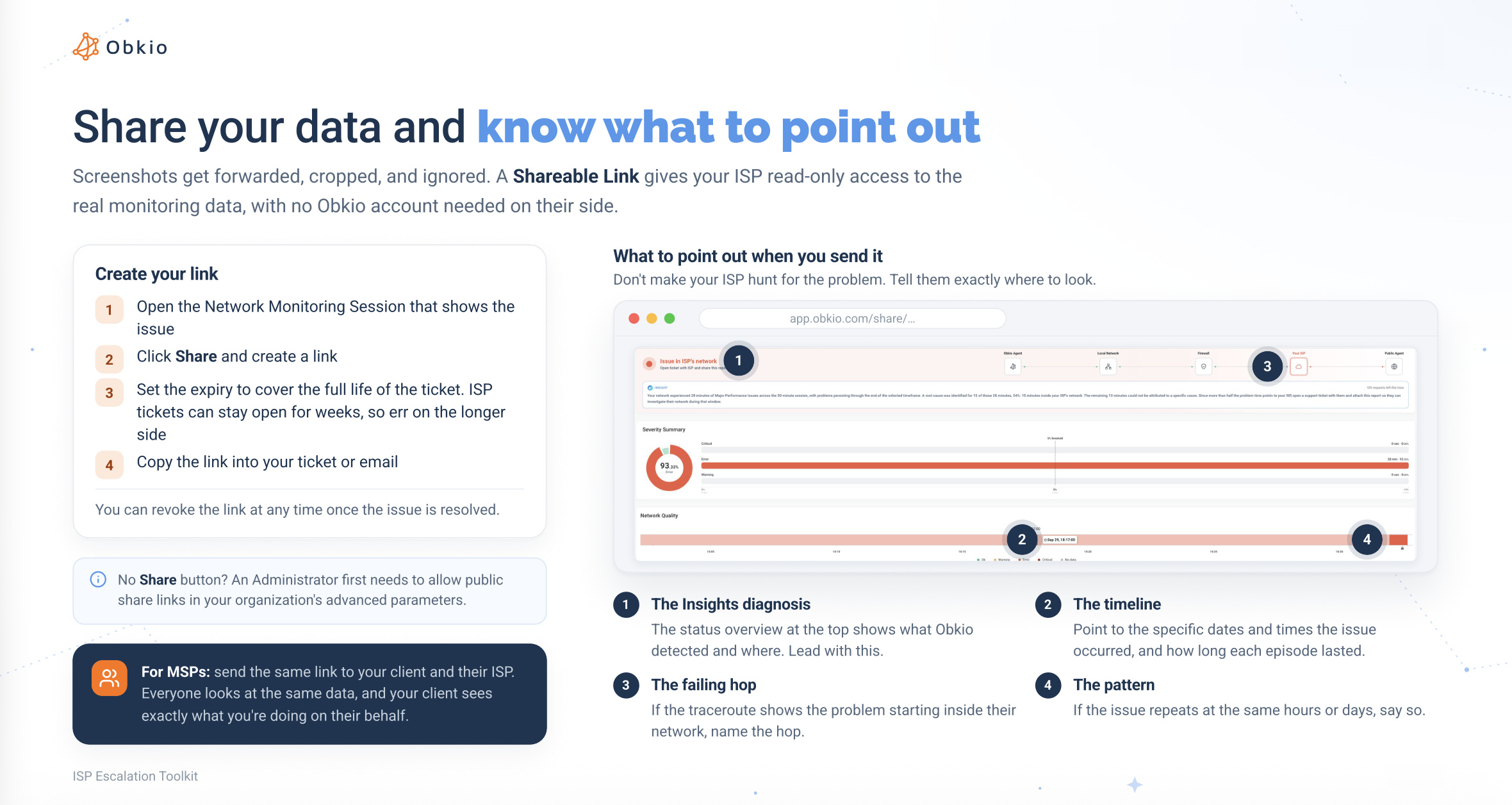
ForMSPs: send the same link to your client and to their ISP. Everyone looks at the same data, and your client sees exactly what you're doing on their behalf.
Step 4: Send an Email With the Proof
Put your case in writing, even if you also make a call. An email gives the ISP something to forward to their network team, and it gives you a record of what you sent and when.
Keep it short. Support agents skim, so lead with three things in this order: the problem, the proof, and what you need from them.
- The problem: what's happening, where, and since when. Put your account number and the site address in the subject line so the ticket gets matched to your line right away.
- The proof: one or two sentences with the actual numbers, then the Shareable Link. Say that you've already ruled out your own network, and how. This heads off the first round of "have you tried restarting your modem?"
- What you need: an investigation, a ticket number and the next steps. A clear ask is harder to close without action.
Here's what that looks like for a packet loss issue:
**Subject:** Ongoing packet loss at 125 Main St., account 4471-2209


Hi,


We've been experiencing packet loss at our head office since October 6. We've already ruled out our internal network: the issue persists on a wired connection with the router bypassed, across multiple devices.


Our monitoring recorded 6% packet loss from 2:10 to 2:45 p.m. on October 7, 8 and 9. It appears on every destination we test, and the traceroute shows it starting at hop 4, inside your network.


You can view the live monitoring data here, no login required: [Shareable Link]


Could you investigate and let us know the next steps and a ticket number?


Thanks,
Jordan Lee, Acme Logistics, 555-0142
Reply on the same thread every time you follow up, so the full history stays with the ticket.
The ISP escalation toolkit includes this template plus two more, for when you're told the problem is on your side and for escalating past first-line support. It also has fill-in evidence paragraphs for latency and jitter, peak-hour slowdowns, throughput and connection drops.
Step 5: Escalate and Stay on Record
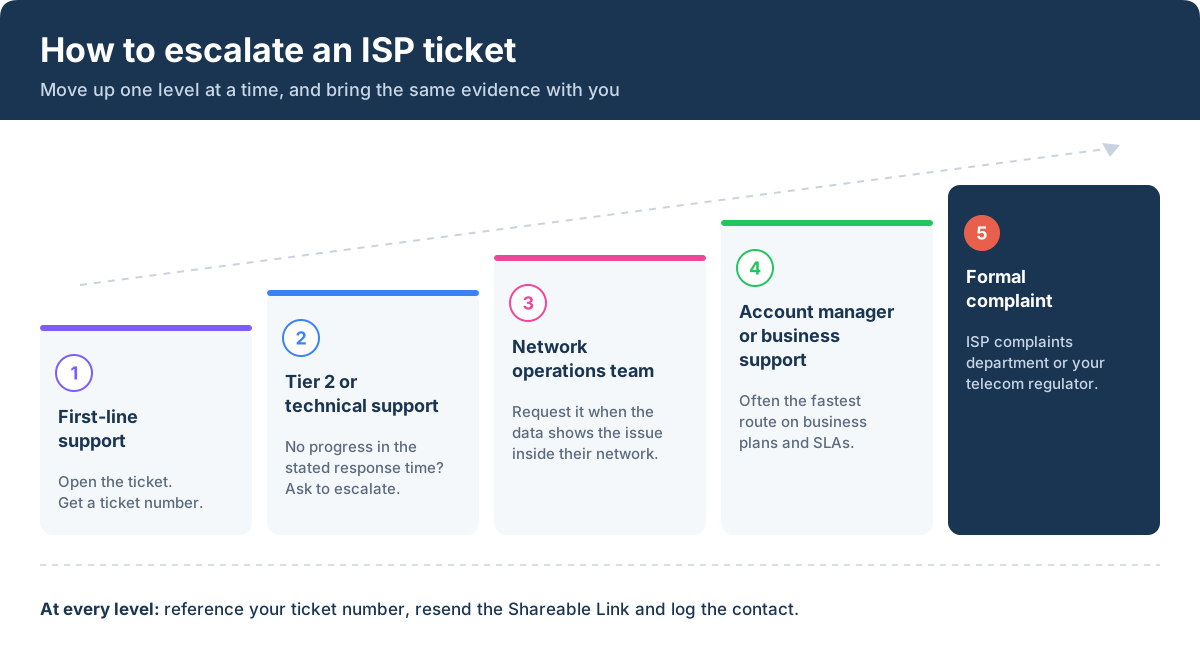
Most network issues get resolved at the first or second level once the evidence is clear. If yours doesn't, move up one level at a time and bring the same link with you:
- First-line support: Open the ticket with your email and get a ticket number. Every later contact should reference it.
- Tier 2 or technical support: If there's no progress within your ISP's stated response time, ask for the ticket to be escalated. Point to the specific evidence again, such as the hop where the loss starts.
- Network operations team: When the data shows the problem inside their network, ask for the ticket to go to the team that manages that part of it. These are the engineers who can read a traceroute and act on it.
- Account manager or business support: On a business plan, this is often the fastest route to action, especially if the issue affects your SLA.
- Formal complaint: If nothing works, file a complaint with your ISP's complaints department or your local telecom regulator.
Stay polite at every level. The people reading your ticket aren't the ones who caused the problem, and the engineers you need on your side are more willing to dig in for a customer who comes with good data and a good attitude.
Keep a ticket log
Record every contact with your ISP: the date and time, the ticket number, who you spoke to and at what level, what they said or did, and your next step with a follow-up date. Phone calls in particular leave no trace on your side unless you write them down.
The log keeps follow-ups on schedule, and it shows the full history when you ask for an escalation. If you ever reach a formal complaint, it becomes your case file. The ISP escalation toolkit includes a ready-to-fill tracking log.
Your ISP Says it's Fixed: What to do Next
Don't close the ticket the moment your ISP says the problem is resolved. Intermittent issues can look fixed for a day and come back the following week, and a closed ticket means starting over.
- Confirm it with data: Keep monitoring for a few days and check that the issue is really gone, especially at the hours it used to happen. If the problem showed up every weekday afternoon, a quiet Saturday doesn't prove much.
- Show the before and after: The same Monitoring Session now shows when the problem stopped. Share it with your team, your client or leadership as proof of resolution, using the Shareable Link you already sent or a new one.
- Request credits if they apply: If your plan includes an SLA, your monitoring data documents exactly when service was degraded and for how long. Send it with your credit request, along with the ticket number.
- Keep watching: If the problem comes back, the second escalation is much faster. You already have the history, the ticket and the link, and your ISP has already seen the evidence once.
The next time something goes wrong, you won't start from a phone call and a guess. You'll start with proof.

Unlock the secrets of Internet SLA monitoring, optimize your online experience, and hold your ISP accountable. Empower your Internet journey!
Learn more

Get the ISP Escalation Toolkit
Everything in this guide, ready to use. The ISP escalation toolkit includes:
- The 5-step escalation process, from ruling out your own network to a formal complaint
- The full evidence table, matching six common symptoms to the metric that proves each one and what to ask your ISP
- Three email templates for opening a ticket, pushing back when you're told the problem is on your side, and escalating past first-line support
- Fill-in evidence paragraphs for packet loss, latency and jitter, peak-hour slowdowns, throughput and connection drops
- A ticket tracking log
- An after-the-fix checklist
What if the Data Says It's Not Your ISP?
Sometimes the evidence points back inside your own network. That's still a good outcome: you've found the real cause without spending a week on a ticket your ISP would have closed anyway. The most common culprits:
Your own connection is full: Backups, file syncs and large uploads can saturate the link and slow everything else down, which looks a lot like an ISP problem from the inside. Check your bandwidth usage at the times the issue occurs.
Your firewall is overloaded: High CPU or memory on the firewall, often from security features like IDS/IPS under heavy traffic, adds latency and drops packets before traffic ever reaches your ISP. Firewall performance monitoring shows whether it lines up with the slowdowns.
Wi-Fi: Weak signal, interference or a struggling access point only affect wireless users, which is why testing on a cable comes first. Wi-Fi monitoring helps confirm it.
- The destination itself: If only one app or service is slow and the rest of the path is healthy, the problem is likely on the provider's side. In that case, the same approach works with the app vendor: send them a Shareable Link showing your network was healthy all the way to their servers.

Share Obkio network monitoring data with your ISP, MSP clients or other IT teams. Shareable Links give anyone read-only access; no account or login needed.
Learn more
Build the Case Before the Next ISP Ticket
Getting an ISP to act isn't about how persistent you are on the phone. It's about how easy you make it for them to verify the problem. Their network team needs to know when it happened, how long it lasted, how bad it was and where in the path it started, along with proof that your own network isn't the cause.
The hardest part is having that data when you need it. Intermittent problems are usually gone by the time you open a ticket, and a speed test run after the fact can't bring them back. That's why the strongest cases start before the problem does, with monitoring that's already running.

With a network monitoring and diagnostics solution like Obkio, Monitoring Agents record performance across your network and out past your ISP around the clock. Insights pinpoints where each problem starts, and a Shareable Link puts the evidence in front of your ISP without screenshots or back-and-forth. For MSPs, the same link shows your client that the problem is with the ISP, not with your work.
Have the proof ready the next time your Internet slows down.
Monitor your network, let Insights find the cause and share the evidence with one link.


