











 Obkio Blog


 Subscribe
Table of Contents
Table of Contents
If your network has been feeling sluggish, connections keep dropping, or you're getting alerts that don't point to an obvious cause, high bandwidth usage is one of the most common culprits and one of the hardest to pin down without the right visibility.
The tricky part is that "slow network" can mean a dozen different things depending on where the congestion is actually happening. In this article, we'll break down what high bandwidth usage is, what causes it, how to diagnose exactly where it's occurring, and how to fix it; both in general and in the specific (and surprisingly common) case where the bottleneck is your firewall.
What Is High Bandwidth Usage? 
Every network connection, whether it's your office's internet circuit, a link between two sites, or the connection between your firewall and your ISP, has a maximum amount of data it can carry at once. That's its bandwidth capacity. High bandwidth usage simply means the traffic flowing through that connection is approaching, or has reached, that limit.
Before getting too into detail, it's worth separating two things that terms get conflated: bandwidth usage and bandwidth capacity. A link isn't inherently "bad" or "broken" when usage climbs; it's just full. The problem isn't the connection itself; it's that demand has outpaced what it can carry at that moment.
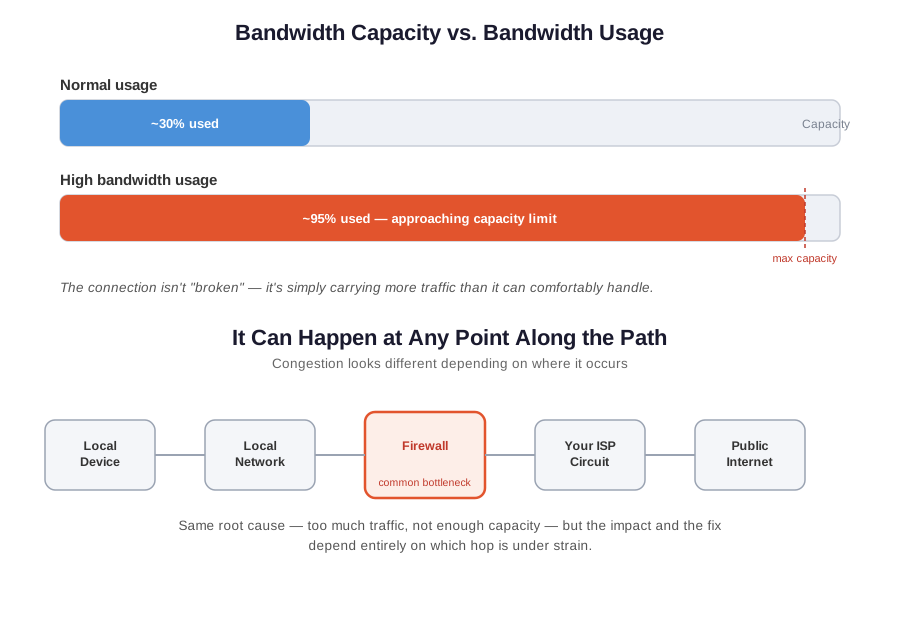
High bandwidth usage can happen at any point along a network path: on a local switch, an Internet circuit, a firewall, or an ISP connection.
Where it happens matters, because the same underlying issue (too much traffic, not enough capacity) can look and behave very differently depending on which part of the network is under strain. Later in this article, we'll look at one specific and common case: high bandwidth usage on a firewall.
What Is the Impact of High Bandwidth Usage?
Once a connection is carrying close to its full bandwidth capacity, the effects show up quickly, and they compound on each other.
- Latency increases: When a link is full, packets have to queue before they can be sent. That queuing delay is what shows up as higher latency, even if nothing else about the network has changed.
- Jitter increases: Under sustained load, that queuing delay isn't consistent from one packet to the next. Some packets get through quickly, others wait longer, and that inconsistency, jitter, is what makes real-time traffic like voice and video sound choppy or break up.
- Packet loss appears: If usage stays high long enough, buffers along the path eventually overflow, and packets get dropped rather than delayed. When packet loss happens, this is usually the point where the problem stops being a minor slowdown and starts actively breaking connections.
In a real network, this shows up as things like pages taking longer to load, video calls freezing or dropping, VPN sessions disconnecting, or cloud applications timing out, usually intermittently at first, which is part of what makes high bandwidth usage frustrating to track down without visibility into exactly when and where it's happening.

Discover the key differences between network bandwidth and capacity, and how they impact your network performance. Learn how to monitor & measure them.
Learn more

What Causes High Bandwidth Usage?
High bandwidth usage almost always comes down to one of two things: more traffic than usual, or the same traffic with less capacity to absorb it.
There's rarely a single universal cause, but most cases trace back to one of a handful of familiar patterns, which makes them worth knowing before you start troubleshooting. Here are a few of the common causes that you should look out for.
- Legitimate traffic spikes: Large file transfers, scheduled backups, software or OS updates, video conferencing, and cloud sync jobs can all consume significant bandwidth, especially when several of them happen to overlap.
- Unexpected or unauthorized usage: A rogue device on the network, malware generating traffic in the background, or an application that's misconfigured and sending far more data than it should can all quietly eat up capacity without anyone noticing until performance degrades.
- A circuit that's outgrown its usage: Sometimes there's no single culprit. The connection was sized for a level of demand the network has since grown past, and everyday usage is now enough to saturate it.
- No traffic prioritization: Without rules in place to prioritize critical traffic (like QoS policies, for example), a single bandwidth-heavy task can crowd out everything else sharing that connection, even if overall usage isn't unreasonable.
- Predictable time-based patterns: Usage often spikes during business hours, overnight backup windows, or end-of-month reporting cycles. These are recognizable patterns that make it easier to plan around once you know they're there.
How to Measure High Bandwidth Usage
Once you suspect bandwidth is the issue, the next question is how to actually confirm it and that's where a lot of troubleshooting stalls out. Knowing bandwidth usage is high is one thing; measuring it in a way that's specific enough to act on is another.

How to measure bandwidth, identify issues & optimize network performance. Use Obkio's Network Performance Monitoring tool for easy bandwidth monitoring.
Learn more
1. Check Router and Switch Interface Counters:
Most network hardware tracks basic throughput stats (bytes in/out) that can show you total usage on a given link. Useful for a quick check, but limited, since they show volume but not who or what is generating it.
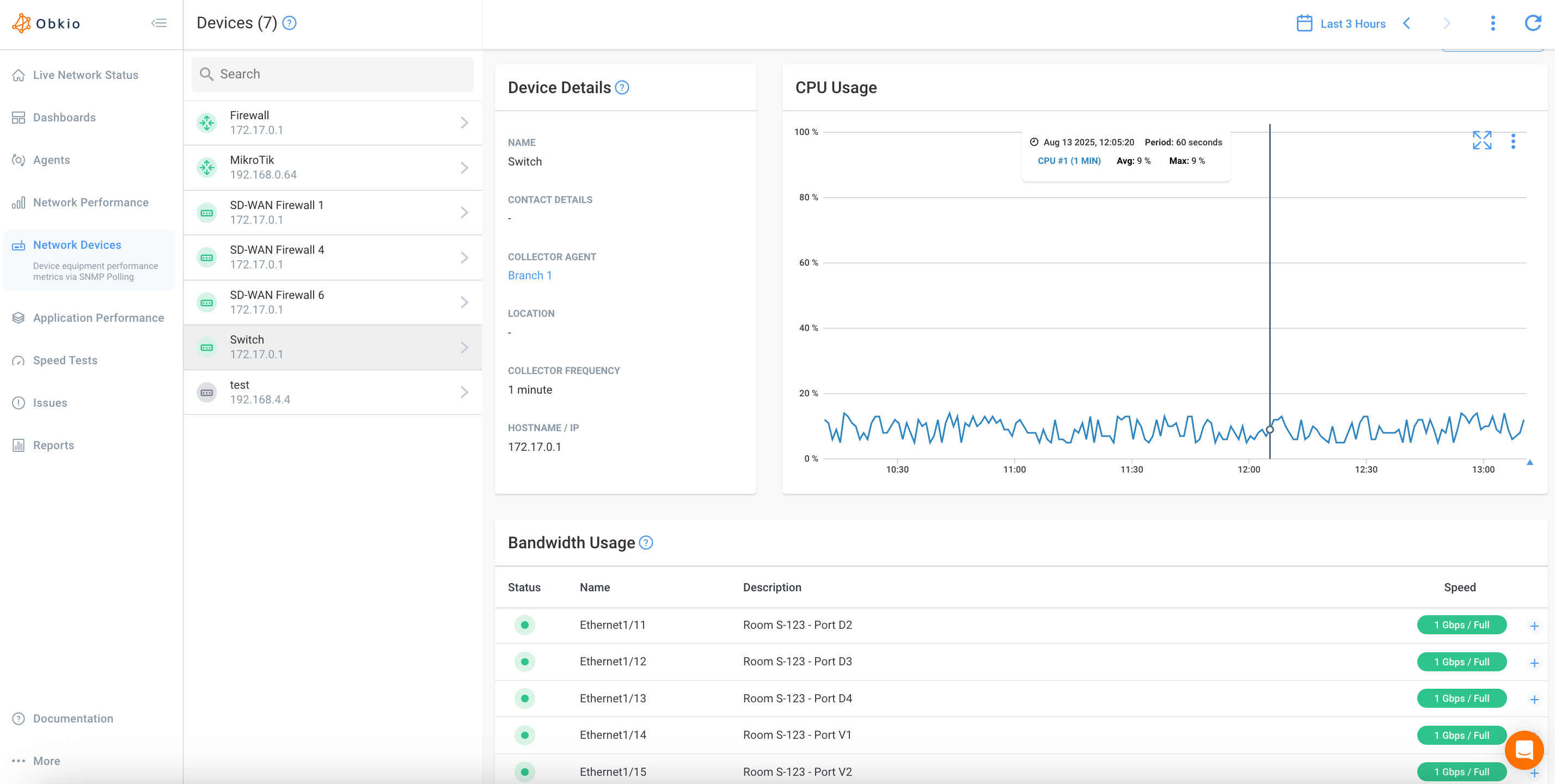
2. SNMP Monitoring for Bandwidth Usage on Devices
Polling network devices via SNMP gives you ongoing visibility into interface utilization over time, rather than a single snapshot. This is a good way to catch sustained usage trends or recurring peaks on your critical network devices.
Platforms like Obkio integrate SNMP monitoring directly, so device-level utilization data can be correlated with other network metrics (latency, jitter, packet loss) rather than living in a separate tool you have to check on its own.
3. Run Speed Tests to Measure Bandwidth Usage
Speed tests are useful for confirming how much capacity is actually available at a point in time, but they only tell you about that one moment, not what happens during the rest of the day when the real congestion occurs.
4. Deploy Continuous Network Monitoring
Because bandwidth spikes are often intermittent, the most reliable way to catch them is to monitor continuously rather than checking manually after users start complaining. A platform like Obkio tracks bandwidth usage alongside latency, jitter, and packet loss around the clock, so when a spike happens, there's already a record of exactly when it occurred and what else was affected. Which is what makes it possible to trace a slowdown back to its actual cause instead of guessing.
That last point matters more than it might seem: measuring usage in isolation tells you that something spiked, but not where in your network it mattered, or why it affected performance.
This is where Obkio comes in. Beyond tracking bandwidth usage over time, Obkio Insights automatically interprets that data, pinpointing which part of your network path was affected and explaining what likely caused it, in plain language rather than raw graphs. We'll walk through exactly what that looks like later in this article, once we've covered the firewall-specific side of the problem.


High Bandwidth Usage on a Firewall: What Makes This Case Specific
Everything covered so far applies to bandwidth usage generally, but firewalls deserve their own section for a simple reason: unlike a plain link or switch, a firewall doesn't just pass traffic through; it inspects it. That extra work changes how bandwidth pressure shows up, and it means a firewall can become the bottleneck even when the circuit behind it still has room to spare.
A standard network link is essentially a pipe: its capacity is a fixed ceiling on how much data can flow through. A firewall adds a processing step on top of that: every packet gets inspected, filtered, and logged according to whatever rules are configured, which takes CPU and memory, not just bandwidth. Push enough traffic through it, and the firewall itself can become saturated handling that inspection work, independent of how much headroom exists on the Internet circuit behind it.
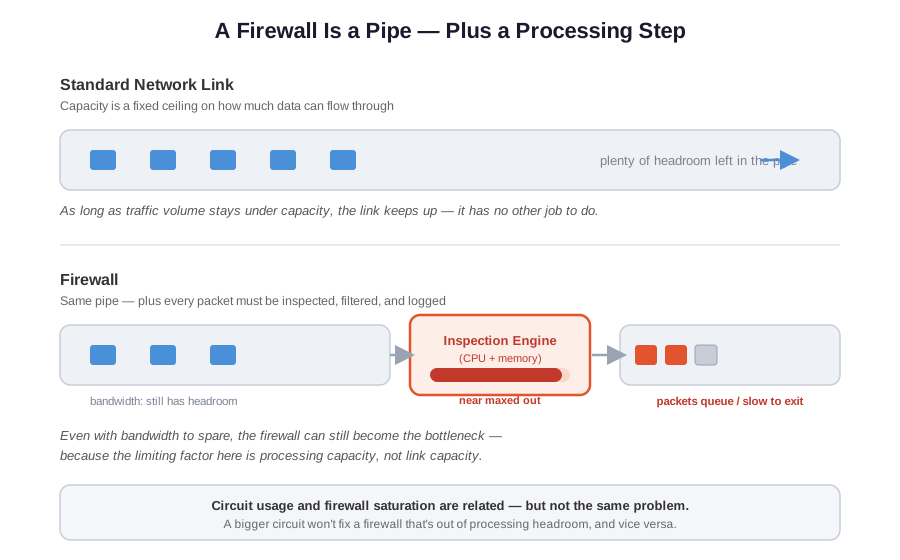
This is why it's worth separating two related but distinct problems: high usage on the circuit (too much traffic for the link itself), and firewall saturation (too much traffic for the firewall to process, regardless of link capacity).
In practice, these often show up together: heavy outbound traffic drives up circuit usage, and processing that same traffic saturates the firewall at the same time, which can make it hard to tell, without the right visibility, whether the fix is a bigger circuit, a bigger firewall, or neither.
Direction matters here too. Outbound traffic (data leaving the network) and inbound traffic (data arriving) put different kinds of load on a firewall, and a spike in one doesn't necessarily mean the other is affected. Knowing which direction is under strain is often the first real clue to what's actually causing the problem.
What Are the Impacts of High Bandwidth Usage and Firewall Saturation?
When a firewall becomes the bottleneck rather than the circuit behind it, the effects tend to be broader and less predictable than a simple bandwidth crunch. Because everything passing through that firewall is affected, not just the traffic that triggered the saturation in the first place.
1. Every session through that firewall slows down:
A saturated link usually degrades traffic proportionally. Everyone shares the same reduced capacity. A saturated firewall can behave differently: because it's a processing bottleneck, all sessions passing through it can be affected simultaneously, regardless of which application or device is generating the load that caused the problem. One noisy source can end up degrading performance for everyone.
2. VPN and tunnel stability suffers
VPN tunnels are particularly sensitive to the kind of inconsistent latency and jitter that firewall saturation produces, since they depend on a steady connection to stay up. Remote users are often among the first to notice a firewall issue, before it's obvious anywhere else on the network.
3. Inspected sessions can drop entirely:
If the firewall is overwhelmed, it isn't just slow to process traffic. It may fail to keep up with tracking active sessions, causing established connections to drop and need to be re-established.
4. Security monitoring can be affected too:
A firewall under heavy load is doing more than routing traffic. It's also logging and inspecting it. When it's saturated, that logging and inspection work can fall behind or get skipped, which means the moments when visibility matters most are exactly when it's most likely to be incomplete.

Learn how to effectively monitor firewall performance, identify common issues, troubleshoot, and choose the right toolset.
Learn more
4 Common Causes of High Bandwidth Usage on a Firewall
Many of the causes here overlap with the general list earlier in this article, but a few show up more often, or hit harder, specifically at the firewall. Since the firewall sits at the edge of the network, it tends to bear the full weight of anything driving traffic in or out, which is worth keeping in mind as you work through the list below.
1. Bandwidth-heavy devices or applications sending high-volume outbound traffic: Backups, sync tools, large uploads, and streaming from internal devices all have to pass through the firewall on their way out. And because they're outbound, they're the traffic type most directly tied to firewall processing load in the scenario this article started with.
2. No traffic prioritization at the firewall: Without QoS rules in place, a single bandwidth-heavy task competes for the same processing resources as everything else. A large backup job can end up degrading a video call passing through the same firewall at the same time.
3. Circuit capacity outgrown by demand: As with general bandwidth issues, sometimes the firewall is simply processing more legitimate traffic than it was sized for as the network has grown.
4. Unauthorized or unexpected devices generating traffic: A device that shouldn't be on the network, or one that's been compromised, can quietly generate significant outbound traffic. And because it's passing through the firewall, it adds directly to the processing load, not just the link.

Struggling with slow network speeds? Learn what low bandwidth is, how it impacts performance, and the best ways to troubleshoot and fix it.
Learn more
How to Diagnose High Bandwidth Usage on a Firewall with Obkio Insights
Everything up to this point explains what to look for, but actually finding it on your own network usually means separating a lot of normal-looking noise from the one thing that's actually causing the slowdown. Manually correlating latency graphs, circuit usage, and firewall logs across multiple tools takes time, and by the time you've pieced it together, the issue may have already resolved on its own, only to come back later with no clearer answer.
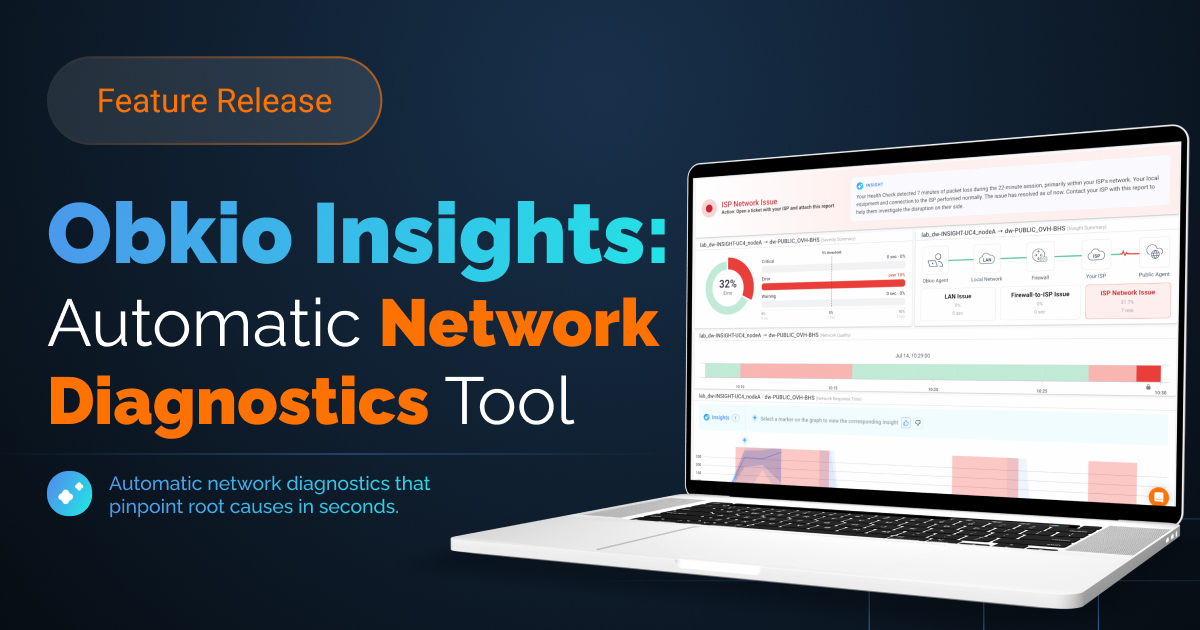
This is the gap Obkio Insights is built to close. Rather than requiring you to interpret raw graphs across separate monitoring points, it automatically detects where in the network path a problem occurred, explains what likely caused it, and ties that explanation directly to the underlying data. This turns a slowdown that would normally take an hour of digging into something you can diagnose in the time it takes to read one insight.
Step 1: Create a free Obkio account and deploy monitoring agents
Sign up for a free account and deploy Obkio Agents at the points that matter for your network, typically one at your local network and one as a public agent representing the Internet-facing side of the connection. Obkio’s onboarding wizard handles this process for you. You’ll just need to download the agent.
This is what makes it possible to later isolate whether a slowdown is happening at the firewall specifically, rather than somewhere else on the path. If you also want device-level visibility into what's driving usage, this is a good point to add SNMP monitoring on the firewall itself.
Once your setup is complete, Obkio will start collecting data on key network metrics, like bandwidth, and start identifying issues for you. This means building dashboards, populating graphs, and alerting you on issues.
Step 2: Detect Which Hop the High Bandwidth Usage is Happening At
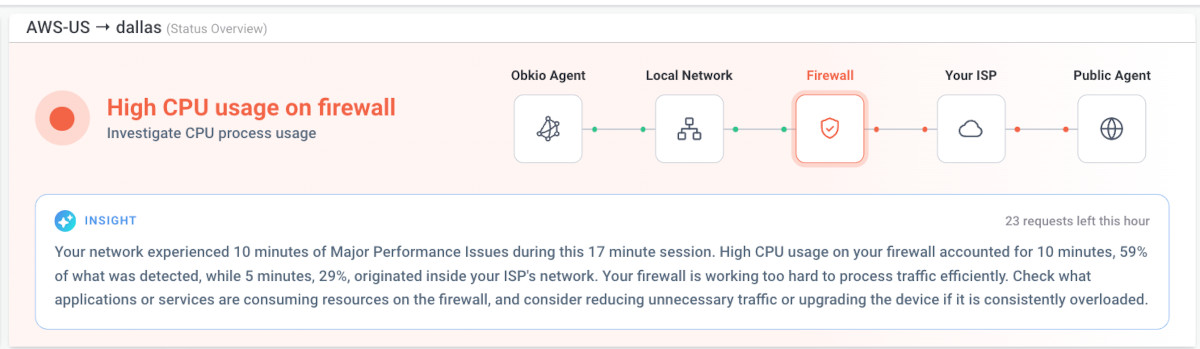
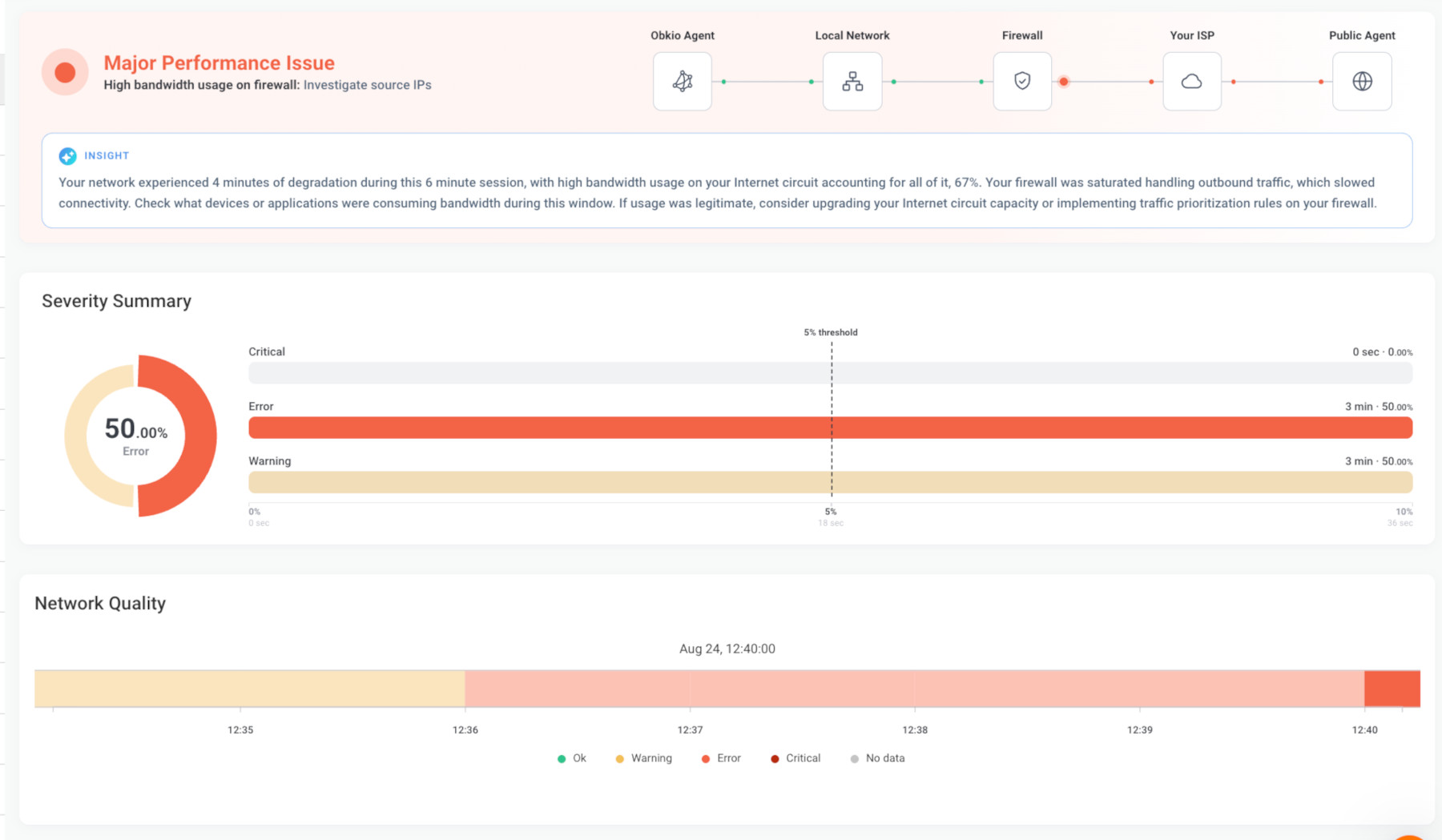
Obkio monitors each segment of the path (Obkio Agent, Local Network, Firewall, Your ISP, Public Agent) independently, so a bandwidth-related slowdown gets attributed to the specific hop it's occurring at rather than reported as a single, path-wide "network is slow" alert.
In the example below, the issue is isolated to the Firewall segment specifically, which immediately rules out the local network or the public Internet as the source.
Step 3: Find the Cause of the High Bandwidth Usage
Rather than just showing that latency or packet loss spiked, Obkio Insights generates a written explanation of what happened and why.
In this case, the Insight identifies that the session experienced several minutes of degradation, attributes the majority of it directly to high bandwidth usage on the Internet circuit, and explains that the firewall was saturated handling that outbound traffic. This distinguishes a bandwidth-driven slowdown from other possible firewall issues (like a misconfiguration or hardware fault) right from the first read.
Step 4: Understand the Impact of High Bandwidth Usage on Your Network and Devices
Beyond identifying the cause, Obkio shows you how much of your network was actually affected, and for how long. The Severity Summary quantifies this for the session in question (in this case, a 50/50 Warning/Error split, with no Critical impact), while the broader monitoring session shows whether other devices or applications sharing that firewall were degraded at the same time.
This gives you a fuller picture than "bandwidth was high." It tells you how disruptive that actually was across your network, which is what determines whether this needs immediate action or just monitoring going forward.
Step 5: Correlate the Bandwidth Spike to Latency, Jitter, and Packet Loss
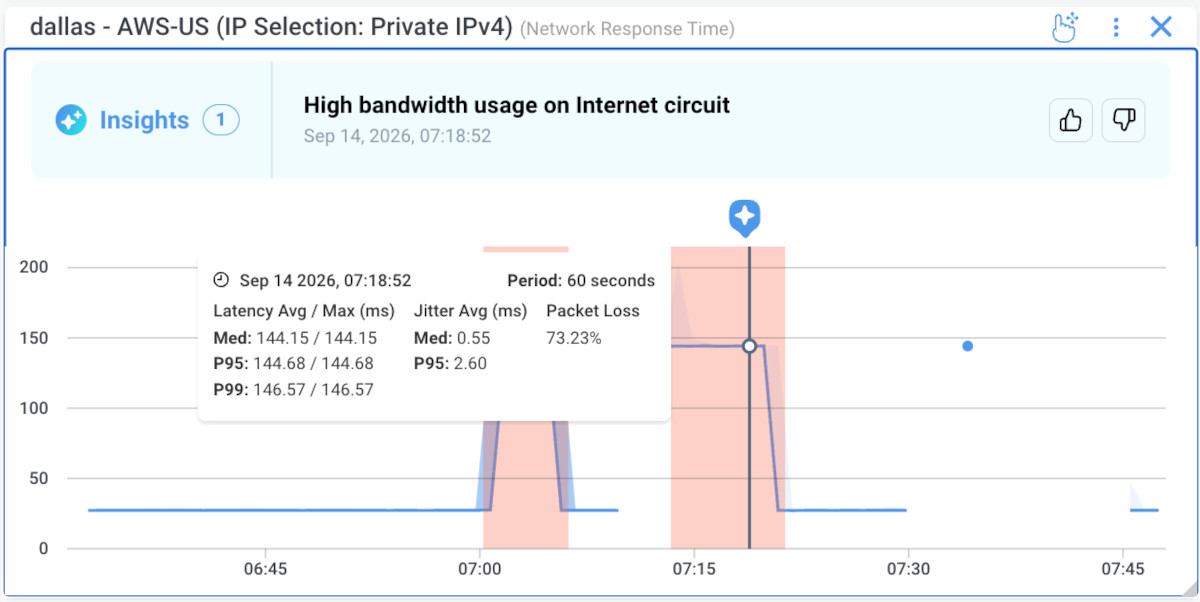
You’ll then need to understand how the high bandwidth usage affected your network performance at that moment. You’ll be able to see that in Obkio’s Network Response Time graph.
For example, median latency climbed past 300ms and jitter spiked to 270ms during the flagged window. This confirms the bandwidth event actually degraded performance, rather than just being a usage spike that the firewall absorbed without issue.

Step 6. Troubleshoot the High Bandwidth Usage Internally or Externally
With the cause identified, troubleshooting splits into two directions depending on where the traffic is coming from.
Internally, check which devices or applications on your network were generating the outbound traffic during the flagged window, using SNMP data if you have it, or firewall logs directly, and confirm whether that usage is legitimate.
Externally, if the traffic is tied to a specific destination or service outside your network, that points instead toward circuit capacity or provider-side factors rather than something to fix on a local device. Either way, this is the point where diagnosis turns into a specific action, covered in more detail in the solve section below.
How to Solve High Bandwidth Usage In Your Network
Once you've identified where the bandwidth pressure is coming from, solving it typically comes down to a few concrete steps. The details vary case by case, but the sequence tends to be consistent.
Step 1: Confirm whether the bandwidth usage is legitimate:
Before making any changes, determine whether the traffic driving usage is expected (a backup job, a sync process, normal business activity) or something that shouldn't be there. This determines everything that follows; legitimate usage gets accommodated, unexpected usage gets removed.
Step 2: If it's legitimate and time-based, reschedule it:
Backups, large transfers, and software updates don't usually need to run during business hours. Shifting them to overnight or off-peak windows is often the simplest fix, since it removes the conflict without requiring any new infrastructure.
Step 3: If it's legitimate and sustained, prioritize or expand capacity:
When high bandwidth usage reflects genuine, ongoing demand rather than a one-off spike, the fix is structural: implement QoS rules so critical traffic isn't starved by lower-priority usage, or upgrade circuit capacity if the network has simply outgrown what it was originally sized for.
Step 4: If it's not legitimate, isolate and remediate the source:
A rogue device, malware, or a misconfigured application generating unexpected traffic needs to be addressed directly (removed from the network, cleaned up, or reconfigured) rather than worked around with more bandwidth.
Step 5: Set up continuous monitoring so high bandwidth spikes don’t happen invisibly again:
Bandwidth issues are often intermittent, which makes them easy to miss until users start complaining. Ongoing monitoring means the next spike gets caught and explained as it
How to Solve High Bandwidth Usage on a Firewall
The general steps above still apply, but solving high bandwidth usage at the firewall specifically requires a couple of extra considerations, since, as covered earlier, the firewall's bottleneck can be processing capacity as much as bandwidth itself.
Step 1: Investigate the source IPs driving the traffic:
Since the firewall sees every packet crossing it, it's usually the fastest place to identify exactly which internal source is generating the outbound volume. Rather than trying to infer it from circuit-level usage alone. This is the direct, actionable version of "confirm whether usage is legitimate" for a firewall specifically.
Step 2: Confirm legitimacy before blocking or throttling anything:
It's tempting to shut down whatever's generating the traffic as soon as it's identified, but blocking a legitimate business process (a backup job, a sync tool, a scheduled transfer) can cause more disruption than the original slowdown. Confirm what the traffic is and why it's happening before acting on it.
Step 3: If it's legitimate, apply traffic prioritization rules at the firewall:
QoS rules configured at the firewall ensure critical traffic (voice, video, business-critical applications) isn't starved by lower-priority usage sharing the same connection, even during periods of high demand.
Step 4: If the firewall itself is the bottleneck, look at firewall throughput, not just circuit capacity:
This is the distinction that matters most here: if the circuit has bandwidth to spare but the firewall is saturated processing that traffic, upgrading the internet circuit won't fix anything. The fix in that case is increasing the firewall's processing capacity, a higher-throughput device, or distributing inspection load, rather than paying for more bandwidth that was never the limiting factor.
Step 5: If the traffic isn't legitimate, isolate the source and tighten firewall rules:
Unauthorized devices or compromised systems generating outbound traffic should be removed from the network or blocked directly at the firewall, closing off the specific rule or source rather than making broad changes that could affect legitimate traffic too.
Step 6: Re-check the affected hop after making changes:
Once a fix is in place, confirm that the firewall–ISP segment is no longer showing saturation. This closes the loop on the diagnosis and confirms the change actually resolved the issue rather than just seeming to.
Stop High Bandwidth Usage from Bottlenecking Your Network
High bandwidth usage is one of those problems that's easy to suspect and hard to confirm, especially when it's happening specifically at the firewall, where the real bottleneck might be processing capacity rather than the circuit itself. Knowing what to look for helps, but actually catching it as it happens, and getting a clear explanation of where and why, is what turns a recurring mystery slowdown into something you can fix once and move past.
That's the gap Obkio Insights is built to close, automatically detecting where in your network path an issue is occurring, explaining the likely cause in plain language, and pointing you toward a specific next step rather than a pile of raw graphs to interpret on your own.

If you're dealing with a slowdown you suspect is bandwidth-related, start a free Obkio trial to see exactly where it's happening on your own network.


