





 Obkio Blog


 Subscribe
Table of Contents
Table of Contents
A VPN keeps disconnecting when its keepalive messages stop reaching the other end. On business networks, the usual causes are an overloaded firewall (CPU or memory), a problem on the link between your firewall and your ISP, packet loss on the ISP's network, or a weak user connection. Start by checking whether only the VPN drops, or the whole connection.
"The VPN dropped again" is one of the hardest tickets to close. The user reconnects, everything works, and by the time you look, there's nothing to see. Then it happens again the next morning, or to three people at once, or every time the branch office runs its backups.
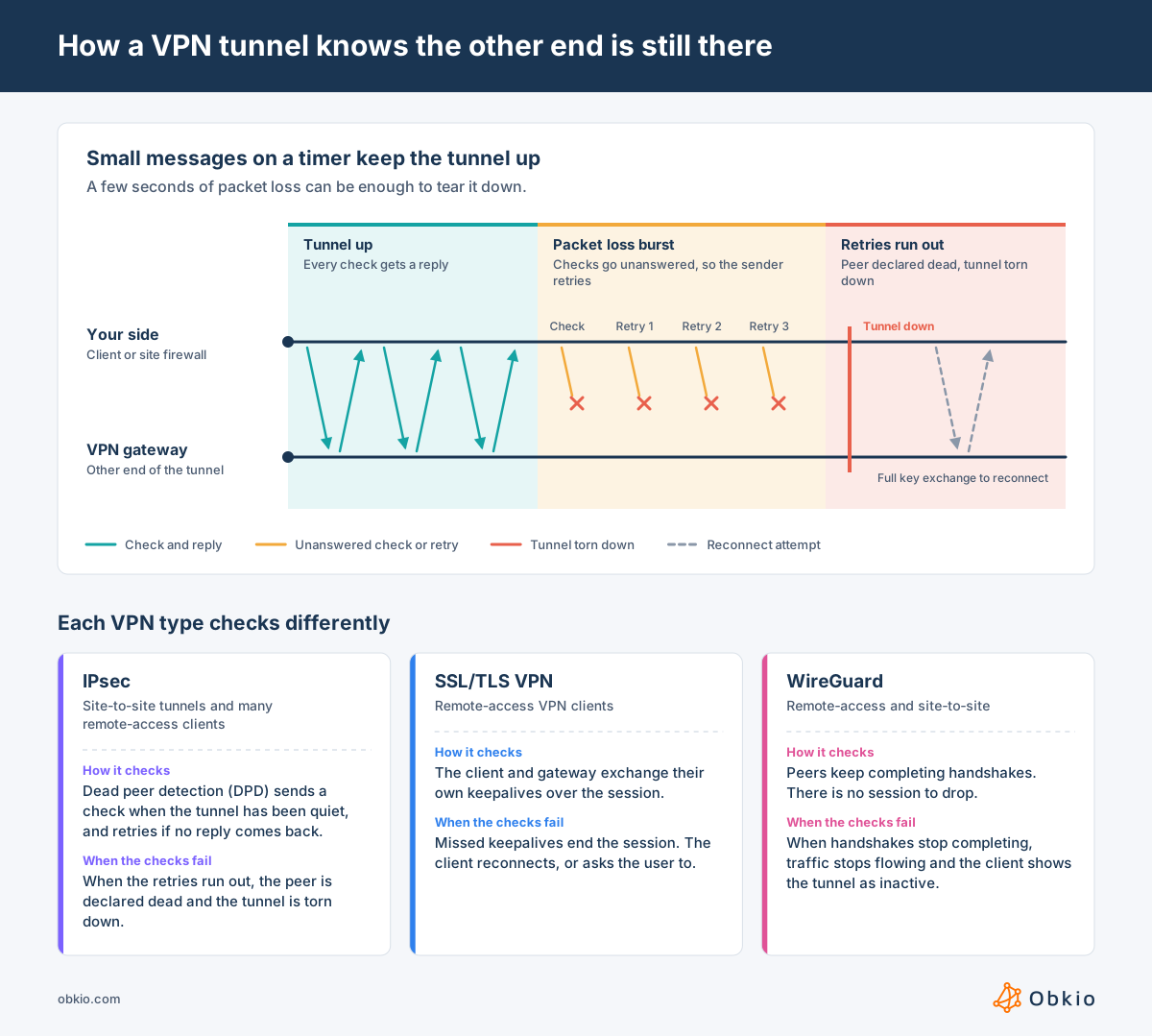
The VPN client is usually not the cause. It's the first thing to notice when packets go missing. A tunnel only stays up while both ends keep hearing from each other, so a few seconds of packet loss that a user wouldn't notice while browsing is enough to tear it down.
This article covers the network causes behind those drops, for both remote-access VPNs and site-to-site tunnels: the firewall, the link to your ISP, the ISP's network, and the user's own connection. It also shows how to tell which one you're dealing with.
Why a VPN Disconnects: The Keepalive Problem 
A VPN tunnel has no physical connection to lose. It stays up as long as both ends keep confirming the other one is still there. Each VPN type does this differently, but they all rely on small messages sent on a timer:
- IPsec (site-to-site and many remote-access clients): dead peer detection (DPD) sends a check when the tunnel has been quiet, and retries a few times if no reply comes back. When the retries run out, the peer is declared dead and the tunnel is torn down.
- SSL/TLS VPN clients: the client and gateway exchange their own keepalives over the session. Missed keepalives end the session, and the client reconnects (or asks the user to).
- WireGuard: there's no session to drop, but when handshakes stop completing, traffic stops flowing and the client shows the tunnel as inactive.
This is why VPNs are so sensitive to short network problems. Web browsing hides packet loss: TCP retransmits what was lost, and the page loads a second later. Keepalives get no such protection. When the few packets that keep the tunnel alive are lost in a row, the tunnel goes down, even if the connection was working fine a few seconds before and after.
It also explains why the drops are hard to catch. A burst of loss lasting a few seconds can disappear in a 5-minute average, so the connection can look healthy on paper while it keeps breaking the tunnel. These short Internet brownouts often fall well within what most teams treat as acceptable packet loss, because the average hides the burst.
Reconnecting can make things worse. Bringing a tunnel back up means a full key exchange, which needs a clean path and a firewall with spare capacity. If the original cause is still there, the renegotiation fails too, and users see repeated disconnects instead of one.
So "the VPN keeps disconnecting" usually means "something is dropping packets in short bursts." The next step is to find where that packet loss happens.
First, Narrow It Down: Only the VPN Disconnecting, or Everything?
Before looking at the firewall or calling your ISP, answer three questions. The answers rule out most of the causes in the next section.
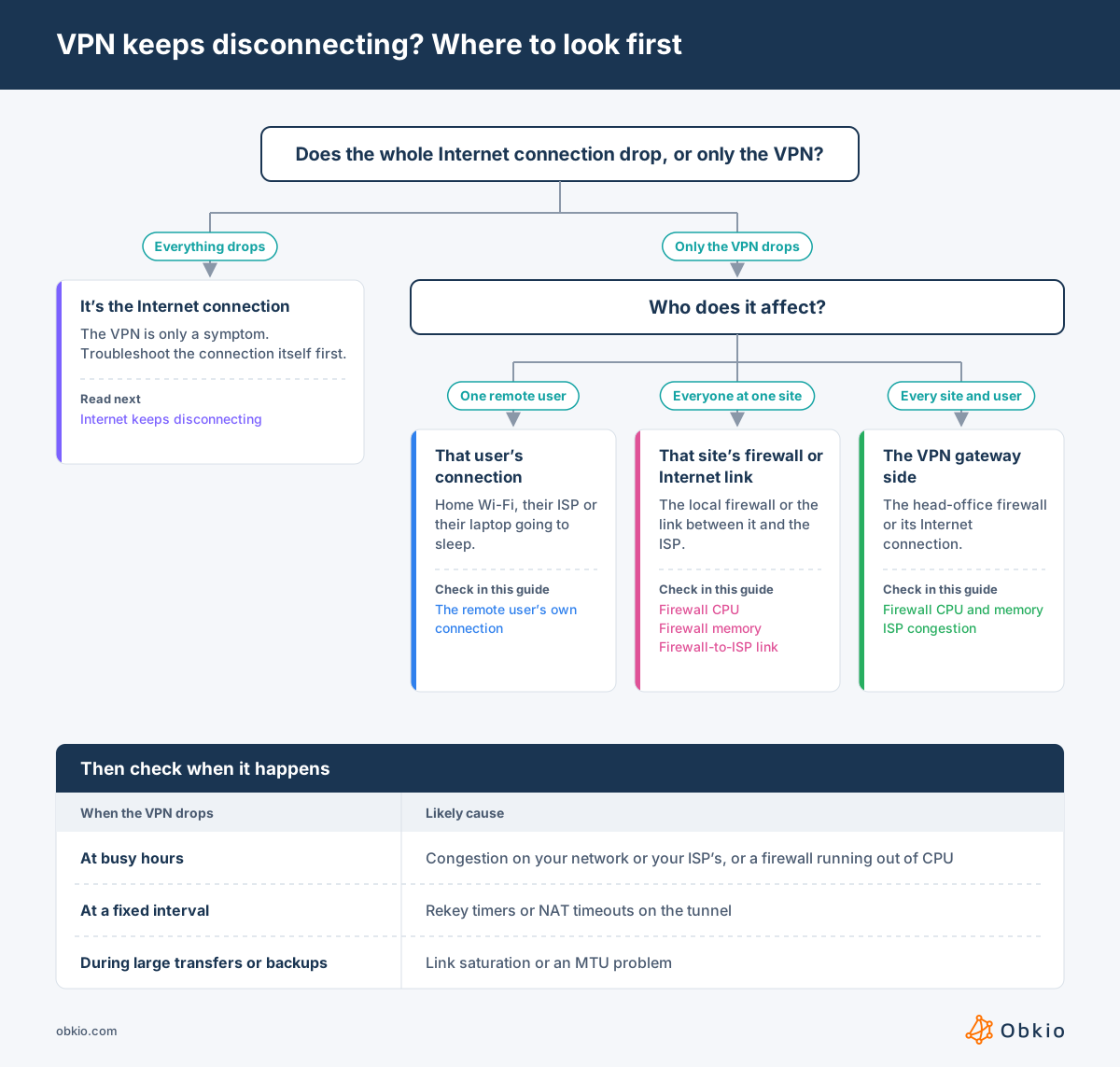
- Who does it affect? If only one remote user drops, look at their connection first: home Wi-Fi, their ISP, or their laptop. If everyone at a site drops at the same moment, look at that site's firewall or Internet link. If every site and every remote user drops at once, the problem is on the VPN gateway side: the head-office firewall or its ISP.
- What drops? If the whole Internet connection goes down along with the tunnel, the VPN is just a symptom. Troubleshoot it as an Internet connection that keeps disconnecting. If browsing and calls keep working while only the tunnel drops, the cause is either short packet loss that only the VPN notices, or something specific to the tunnel: the firewall, NAT, MTU or configuration.
- When does it happen? If drops cluster at busy hours, think network congestion on your network or your ISP's, or a firewall running out of CPU. If they happen at a fixed interval (every 30 minutes, every hour), think rekey timers or NAT timeouts. Drops during large transfers or backups point to saturation or MTU.
Then check the VPN gateway's logs for the moment of the drop. "Peer not responding" or a DPD timeout means the keepalives stopped getting through, so the network is the suspect. An authentication or proposal mismatch error points to configuration instead.
Compare the VPN with the Connection Under It
The quickest way to separate the VPN from the network is to measure both at the same time. With dual-session VPN monitoring, one monitoring session runs through the tunnel and a second one runs over the same Internet connection outside it:
- Both sessions degrade together: the underlying network is the cause. That could be the firewall, the link to the ISP, or the ISP itself.
- Only the VPN session drops: the problem is in the tunnel itself: the firewall's encryption load, NAT, MTU, or the tunnel settings.
A solution like Obkio runs both sessions continuously from monitoring agents at the user's location and on the corporate network. The comparison is already there when the next drop happens, instead of being rebuilt from a user's description afterward. Here's how to set up dual-session VPN monitoring.

Network Causes Related to VPN Disconnections to Check
Each cause below follows the same format: what happens to the tunnel, how to recognize it, and what to check first. Most of them can only be confirmed with data from the moment of the drop, so if you don't have that yet, start collecting it before you start changing settings.
Your Firewall's CPU Is Overloaded
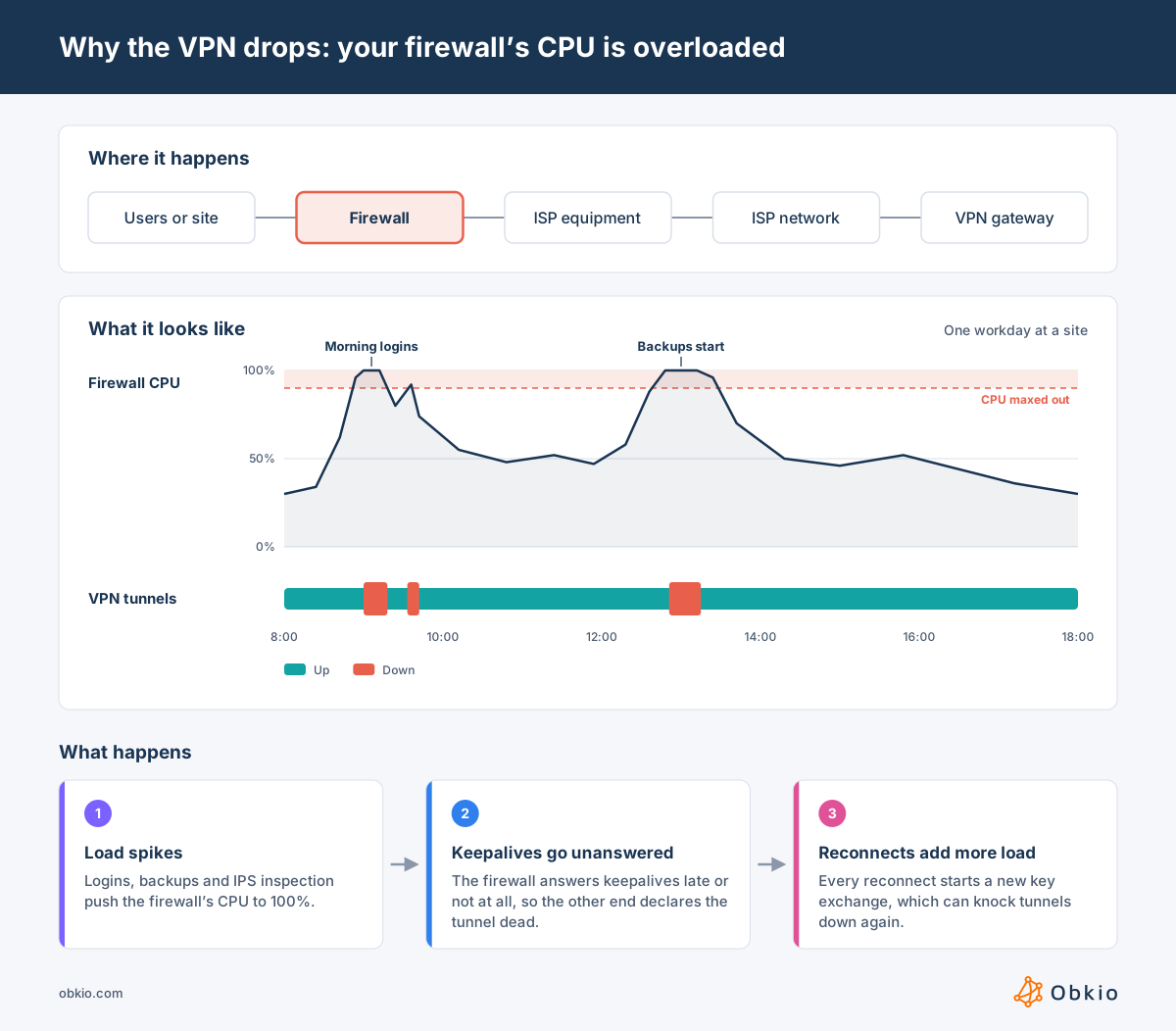
VPN traffic is expensive for a firewall. Every packet in the tunnel is encrypted or decrypted, and every new tunnel or rekey starts with a key exchange, which is one of the most CPU-heavy things a firewall does. On top of that, IDS/IPS inspection and SSL inspection compete for the same CPU. When the CPU maxes out, the firewall answers keepalives late or not at all, and the other end treats the tunnel as dead.
This can also snowball. When many users reconnect at once, each one triggers a new key exchange, which adds more load to a firewall that was already struggling. This is why VPN drops often come in waves, such as Monday morning, right after an outage, or when a branch office's backups start.
How to recognize it:
- Every tunnel on the same firewall drops at the same time, not just one user or one site.
- The drops cluster at busy hours, during backups or during large transfers.
- Latency through the firewall rises in the minutes before a drop.
- Traffic that doesn't go through the VPN also slows down, even though it stays connected.
What to check:
- CPU at the moment of the drop, not the daily average: A firewall that averages 40% can still hit 100% for the 30 seconds that matter. Five-minute polling averages often hide these spikes, so look for data at a 30- or 60-second interval.
- Which process is using the CPU: It could be the IKE/VPN daemon, the IPS engine or SSL inspection, and each one points to a different fix.
- Whether hardware crypto offload is enabled on firewalls that support it.
- Your actual load compared to the firewall's rated throughput with VPN and threat protection both turned on. Datasheet numbers with every feature turned off are much higher.
For the full diagnosis, including the IDS/IPS throughput cap and how to fix an undersized firewall, see how to troubleshoot high CPU usage.

Learn how to find and fix high CPU usage on network devices. Identify the causes, spot the symptoms, and troubleshoot CPU overload step by step.
Learn more

Your Firewall Is Running Out of Memory
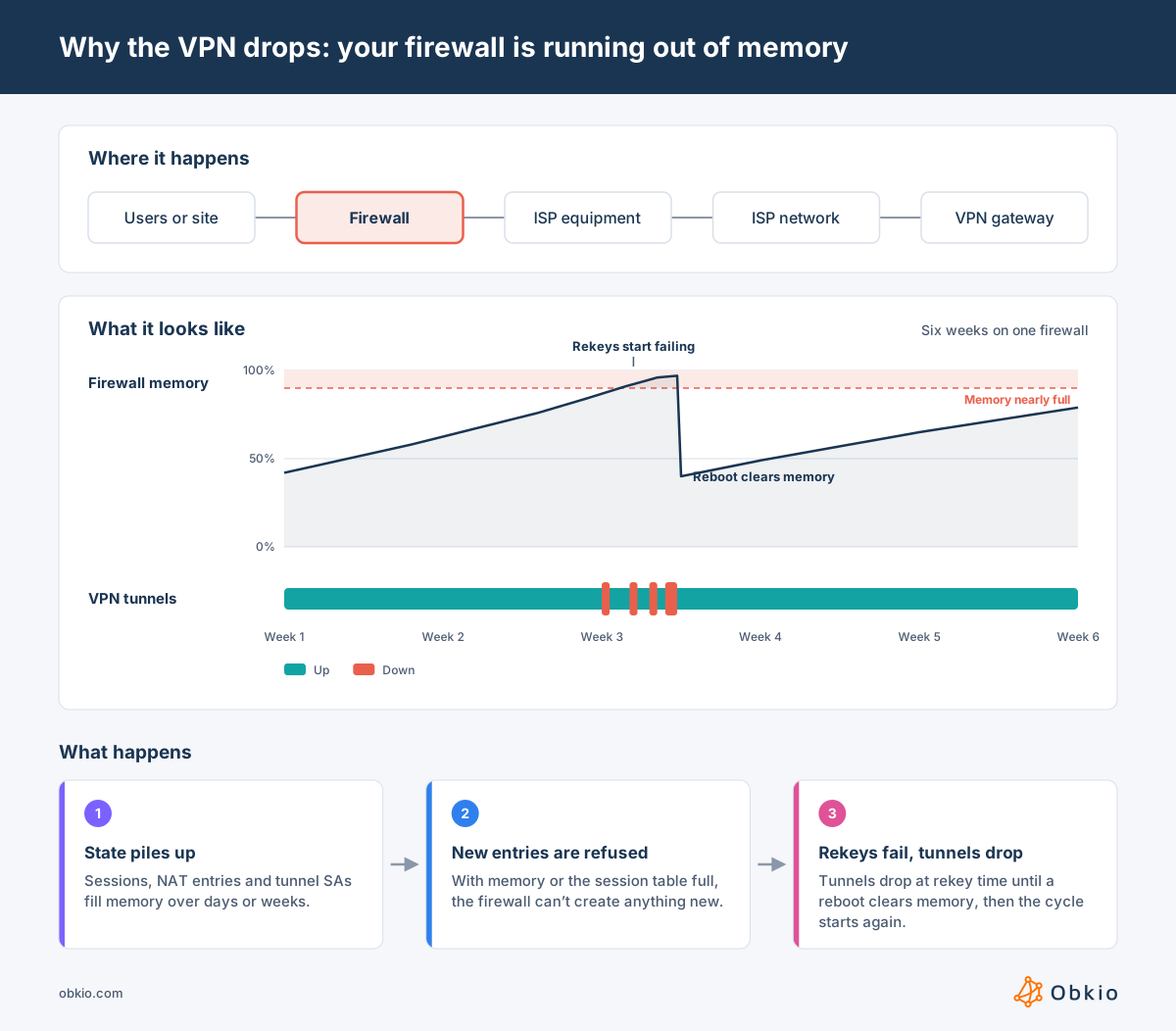
A firewall keeps track of everything going through it: active sessions, NAT translations, and the security associations (SAs) that define each VPN tunnel. All of it lives in memory.
When memory runs low, or the session table reaches its limit, the firewall can't create new entries. Existing tunnels can stay up for a while, but anything new fails. That includes a user connecting, a site re-establishing its tunnel, or a scheduled rekey, which replaces the tunnel's SAs with new ones. If the rekey can't complete, the tunnel drops.
Some firewalls protect themselves when memory gets critical by refusing new sessions or turning off features until usage comes back down. From the user's side, this looks like the VPN dropping and refusing to reconnect.
How to recognize it:
- The problem builds up over days or weeks, and a reboot fixes it for a while. This is the clearest sign, and the main way to tell it apart from a CPU problem, which comes and goes with load.
- Drops happen at rekey time or when new users connect, while users who are already connected stay up longer.
- New VPN connections fail with timeouts or resource errors, even when the Internet connection looks healthy.
What to check:
- The memory trend over weeks, not a snapshot: A steady climb that resets at every reboot points to a memory leak, often tied to a specific firmware version. Check the vendor's release notes for known issues.
- The session table count compared to the firewall's maximum, and the number of active tunnels and VPN users compared to what the model supports.
- Session timeouts. Timeouts that are too long keep stale sessions in the table and fill it up faster.
For more on what fills a firewall's memory and how to free it up, see firewall high memory usage.

Firewall memory usage climbing? Learn the common causes of high firewall memory, how to diagnose the root cause, and how to fix it before it drops connections.
Learn more
There's a Problem Between Your Firewall and Your ISP
The link between your firewall's WAN port and the ISP's equipment (modem, ONT or router) is short, but a lot can go wrong on it, and a tunnel can't survive any of it. A cable, port or transceiver that fails intermittently makes the WAN interface go down and come back up (flap).
A speed or duplex mismatch with the ISP's equipment causes interface errors and steady packet loss. The ISP's equipment can reboot on its own. Any of these interrupts traffic for a few seconds, which is long enough for keepalives to fail.
The WAN IP address is another common cause. If your connection gets its address through DHCP or PPPoE, a lease renewal or reconnection can change the address. Every tunnel built on the old address breaks, and the other end keeps trying to reach an address that no longer exists. Dual-WAN failover can have the same effect if the tunnel isn't set up to move to the backup link.
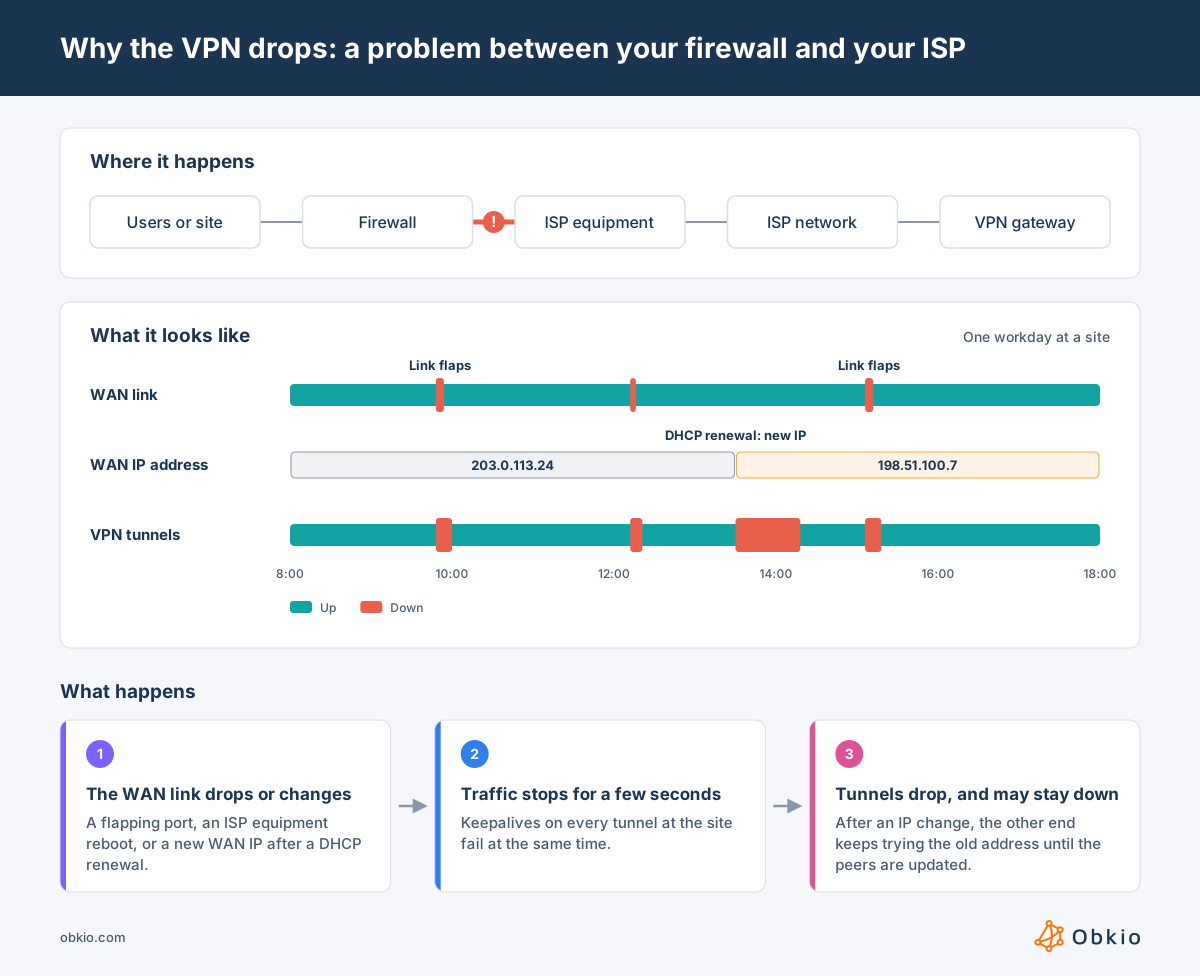
How to recognize it:
- Every tunnel at that site drops together, but not at any particular time of day.
- The firewall's logs show the WAN interface going down and up, or a new WAN IP, at the time of the drop.
- Error counters on the WAN interface keep rising.
- Users at the site notice brief hiccups on everything, not only the VPN, but these short outages often go unreported.
What to check:
- The WAN interface logs for link changes, DHCP or PPPoE renewals, and failover events at the time of each drop.
- Error counters on the WAN port. CRC and input errors that keep climbing point to cabling, a faulty transceiver or a duplex mismatch. Here's how to read network error rates.
- The negotiated speed and duplex, compared with what the ISP's equipment expects.
- Whether the tunnel depends on a dynamic IP address. If it does, use a static IP, or set up the peers with a hostname (FQDN) instead of an address.
If the handoff is clean but the packet loss starts right after it, the problem is likely farther out, on the ISP's local loop, and the fix is on the ISP's side.

Learn how to fix ISP local loop issues (last mile issues). Discover the most common root causes, and how to diagnose a local loop issue using Obkio Insights.
Learn more
Packet Loss or Congestion on Your ISP's Network
Sometimes your firewall and the link to the ISP are both fine, and the problem is inside the ISP's network. A busy link, an overloaded peering point or a faulty router drops packets in short bursts, usually at peak hours. Browsing barely suffers, because TCP resends what was lost. The VPN's keepalives aren't present, so a burst that lasts a few seconds is enough to take the tunnel down. Remote users are especially exposed, because home Internet plans tend to get congested at busy times of day.
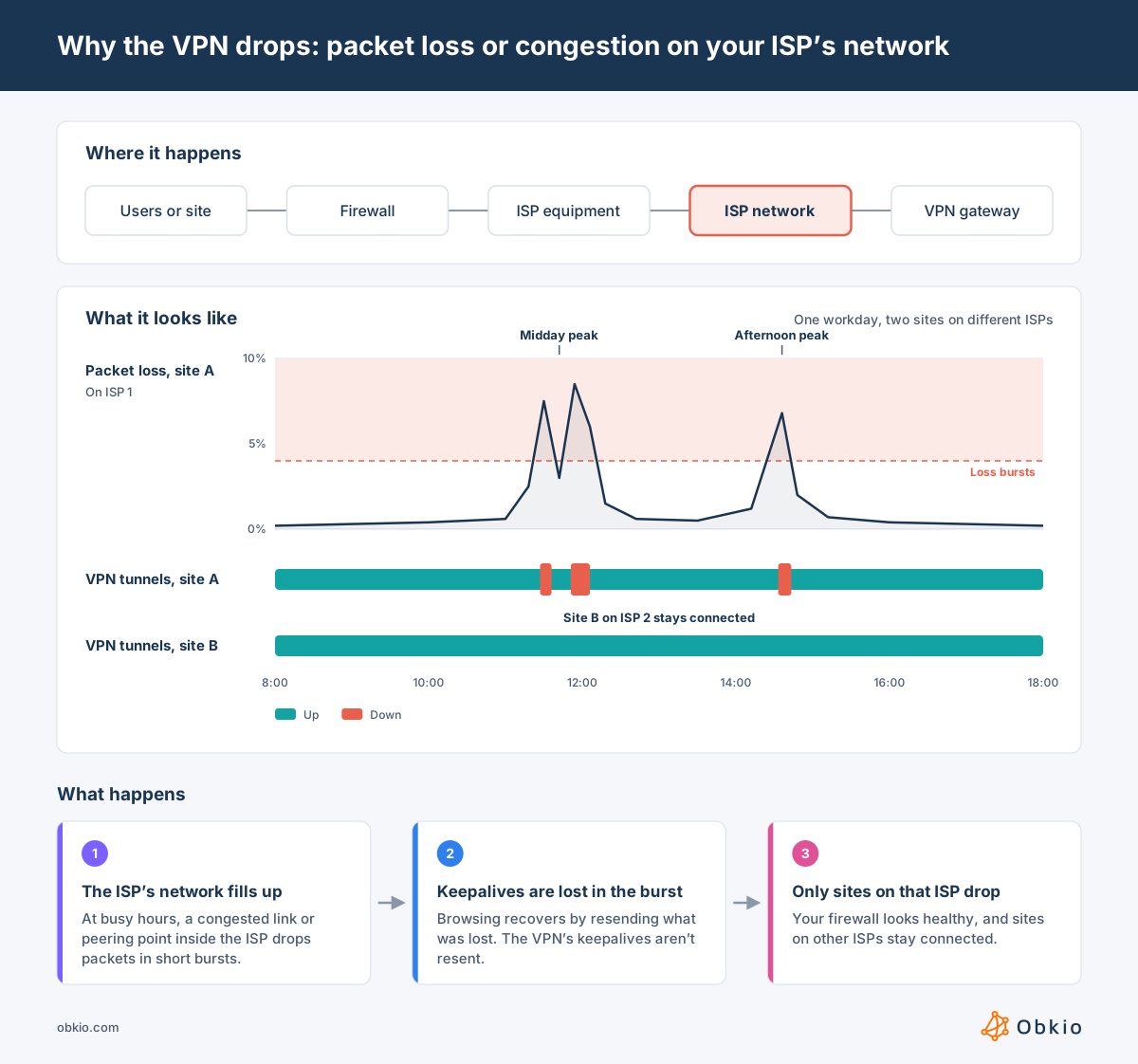
How to recognize it:
- Drops cluster at busy hours, but the firewall's CPU, memory and WAN interface all look normal.
- Sites or users on the same ISP drop, while sites on other ISPs stay connected.
- Latency, jitter and packet loss rise in the minutes before a drop, measured to destinations outside your network as well as through the tunnel.
- Users complain about choppy calls at the same time, even when the VPN holds.
What to check:
- Sites on different ISPs. If only the sites on one provider drop, that's strong evidence. If every site drops at once, look at the VPN gateway side instead.
- Continuous measurements to a point outside your network, not occasional speed tests. Loss bursts lasting seconds disappear from a speed test or a 5-minute average.
- A traceroute taken during a drop. Loss that starts at one hop inside the ISP and carries through to the destination points to the ISP. Loss at a single hop that doesn't continue to the next ones is usually ICMP rate limiting on that router, not a real problem.
The fix is on your ISP's side, and they'll ask for proof that the problem is in their network. To build that proof and escalate, see the ISP escalation toolkit.
NAT and UDP Timeouts
Most VPNs run over UDP. IPsec uses it when there's NAT on the path (NAT traversal), WireGuard always does, and many SSL VPN clients use it for their data channel. Any device doing NAT between the two ends, such as a home router, the ISP's equipment, or carrier-grade NAT inside the ISP, keeps a mapping that tells it where to send the return traffic.
UDP has no connection to track, so these devices delete the mapping after a short idle timeout, sometimes as little as 30 seconds. When a tunnel goes quiet for longer than that, the mapping disappears. Traffic from the other end can no longer get back through, and the tunnel is declared dead.
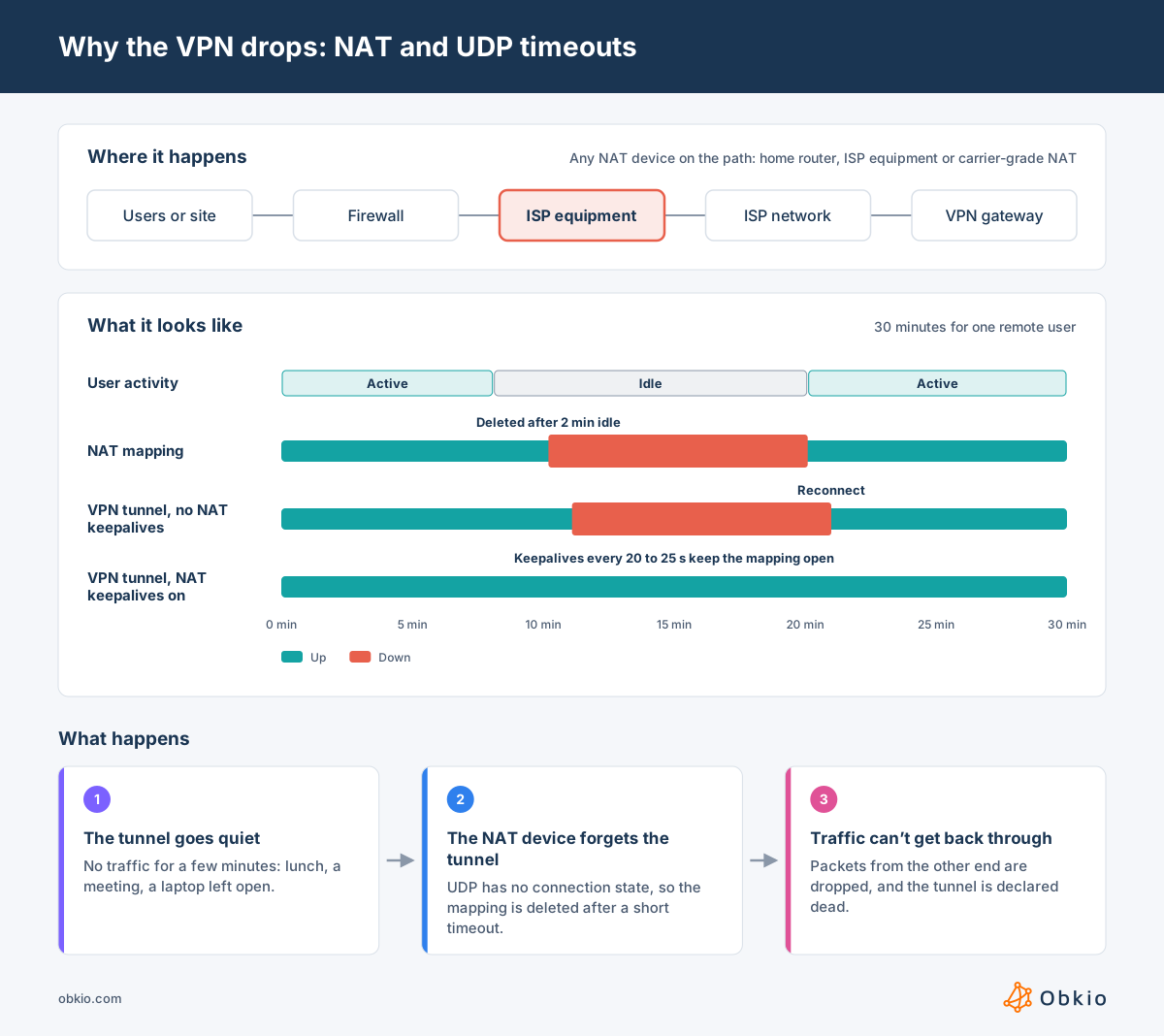
How to recognize it:
- Drops happen after idle periods: at lunch, after a long meeting, or when a user leaves the laptop open without using it.
- The drop comes roughly the same number of minutes into a quiet period each time.
- It happens on some networks and not others. Hotel Wi-Fi, mobile hotspots and home Internet plans that use carrier-grade NAT are typical.
- Reconnecting works right away, and the tunnel holds as long as there's traffic.
What to check:
- Whether there's NAT between the two ends: For a site, check whether the firewall's WAN address is private, which means the ISP's equipment is doing NAT in front of it. A WAN address in the 100.64.0.0/10 range means carrier-grade NAT.
- NAT keepalives: IPsec NAT-T keepalives (usually every 20 seconds) and WireGuard's persistent keepalive (25 seconds is the common setting) send small packets to keep the mapping open. They need to be on, and shorter than the shortest NAT timeout on the path.
- The UDP timeout on your own firewall or router, if it does NAT for the VPN traffic.
- For sites, the ISP's equipment: Putting it in bridge mode, or getting a public IP from the ISP, removes a NAT layer altogether.
For remote users who connect from different networks, see how to troubleshoot networks with employees working from home.

Learn how to use Obkio Network Monitoring to help IT Teams troubleshoot and solve a variety of network problems affecting users working from home.
Learn more
MTU and Fragmentation
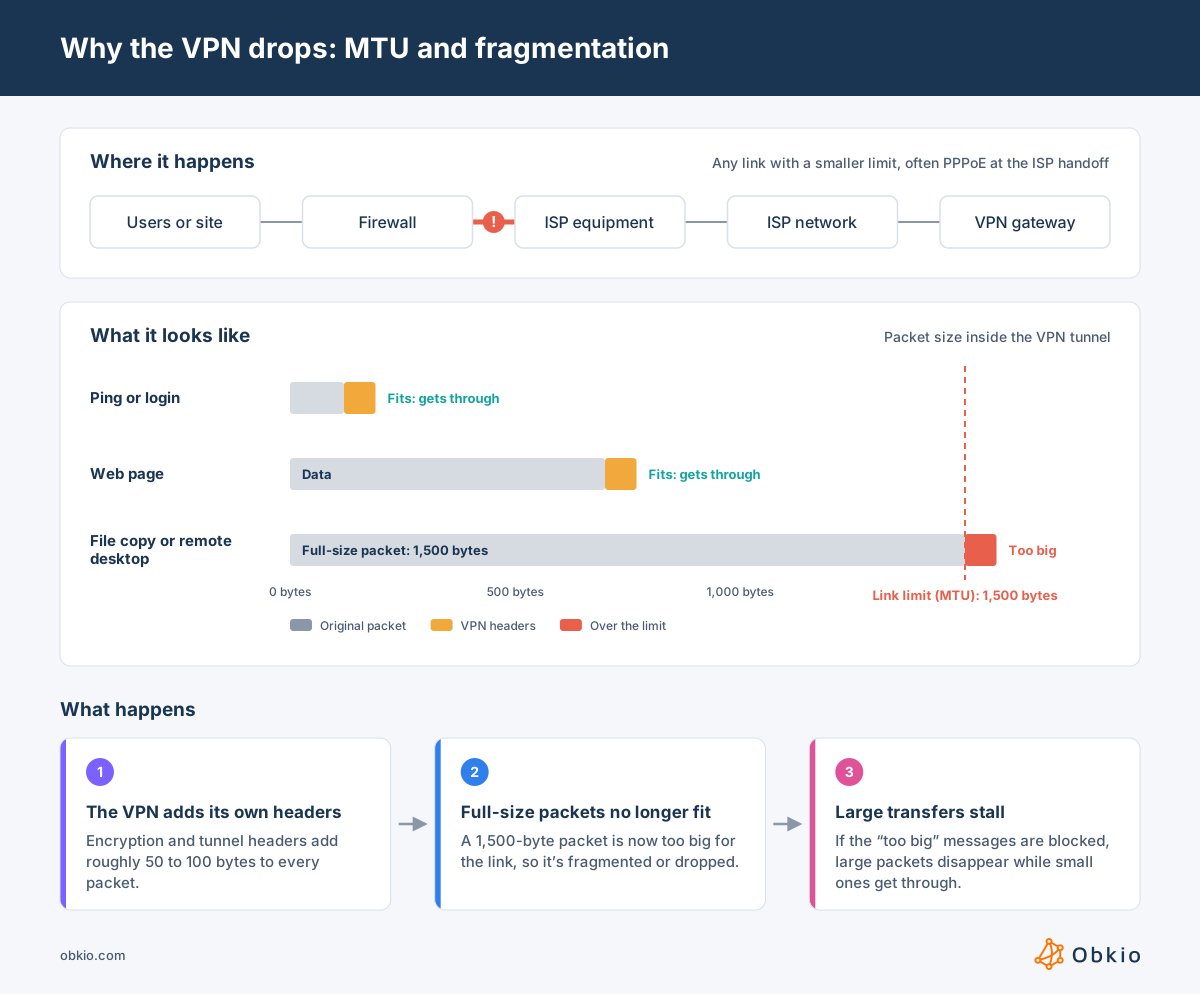
Every link has a maximum packet size, its MTU, which is usually 1,500 bytes. A VPN wraps each packet in its own headers, which add roughly 50 to 100 bytes depending on the VPN type.
A packet that was already full-sized no longer fits, so it has to be split into fragments or dropped. Normally, the device that can't forward it sends back an ICMP "too big" message so the sender can use smaller packets. If a firewall along the way blocks those messages, the large packets just disappear.
This causes a confusing pattern. The tunnel stays connected, because keepalives and logins are small, but anything that sends large packets stalls. Users see file copies freezing, remote desktop sessions hanging, and some applications timing out, and they report it as "the VPN keeps disconnecting." Lost fragments make things worse: if one fragment is lost, the whole packet is lost.
How to recognize it:
- Small things work (ping, logging in, loading light pages), but large transfers stall or time out.
- The problem is consistent and doesn't follow busy hours.
- It happens on certain connections, often PPPoE links (DSL and some fibre plans), which have a smaller MTU of 1,492 bytes, or mobile networks.
- Restarting the VPN helps briefly, until the next large transfer.
What to check:
- The path MTU, found with a ping test that sets the "don't fragment" flag at decreasing sizes. On Windows,
ping -f -l 1472 <host>. On Linux,ping -M do -s 1472 <host>. Lower the size until the pings get through. The largest size that works, plus 28 bytes of headers, is the path MTU. - The tunnel MTU and TCP MSS clamping on the firewall or VPN gateway. Clamping the MSS on the tunnel interface makes TCP sessions use packets small enough to fit with the VPN's headers.
- ICMP filtering. Allow ICMP "fragmentation needed" messages (ICMPv6 "packet too big") through your firewalls so path MTU discovery can work.
The Remote User's Own Connection
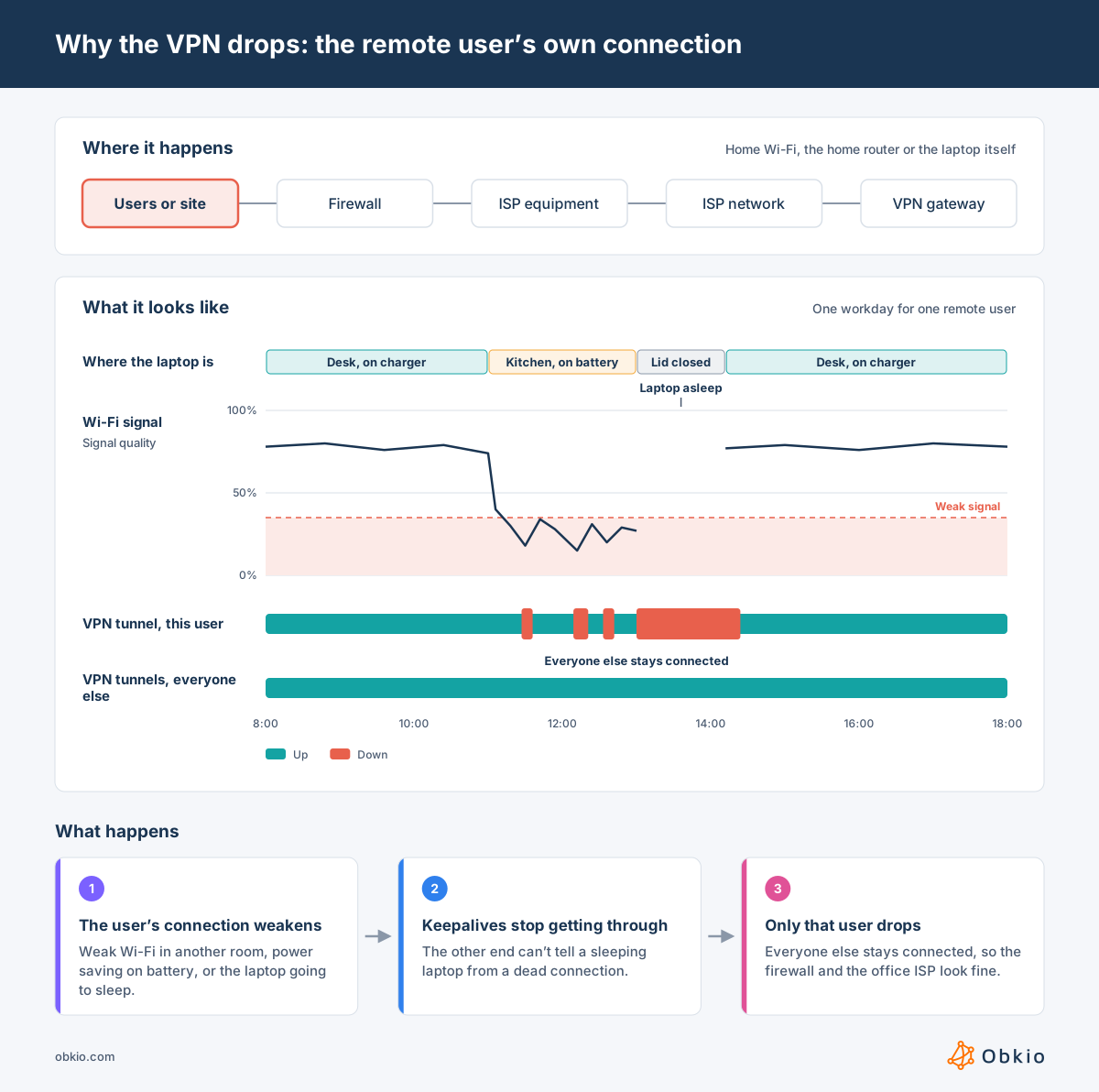
When only one person keeps dropping, the cause is usually at their end. Home Wi-Fi is the most common one. A weak signal in another room, interference from neighbours' networks, or a laptop switching between mesh access points all cause short bursts of packet loss, which is enough to break the tunnel.
The laptop can also cause drops itself. Power saving on battery can slow down or turn off the network adapter, and sleep or a closed lid stops keepalives completely. Switching networks, such as from Wi-Fi to Ethernet or to a phone hotspot, gives the laptop a new address, which breaks the tunnel unless the VPN client handles the change.
How to recognize it:
- Only one user drops, while everyone else, at the office and at home, stays connected.
- The drops follow the user: on battery, in a certain room, or after the laptop wakes from sleep.
- Other devices in the home also glitch: video calls freeze and streams buffer.
- On a wired connection, or close to the router, the tunnel holds.
What to check:
- Wired versus Wi-Fi: Ask the user to work on Ethernet for a day. If the drops stop, the problem is the Wi-Fi.
- Wi-Fi signal and link rate at the time of the drops, not when IT checks the next day.
- Power management on the network adapter: On Windows, the "Allow the computer to turn off this device to save power" setting is a common cause. Also check the sleep settings and the Wi-Fi power-saving mode on battery. On Macs, location services can cause their own Wi-Fi latency spikes.
- Whether the VPN client can survive a network change: IKEv2 with MOBIKE and WireGuard can move to a new address without dropping the tunnel. Older clients tear the tunnel down and reconnect.
If the home connection itself is the problem, the ISP congestion checks above apply to the user's ISP too. For more on computers that keep dropping off the network, see troubleshooting network disconnections.

Uncover the secrets to troubleshooting network disconnections and optimizing performance. Learn to navigate network connectivity with confidence & NPM tools.
Learn more
If the Network Is Clean: Configuration Causes of VPN Disconnections
If the firewall, the ISP link, the ISP's network and the user's connection all check out, the cause is probably in the VPN's own settings. These drops usually have a giveaway pattern: they come at fixed intervals, or right after a change.
- Mismatched rekey lifetimes: If the two ends of an IPsec tunnel are set to different lifetimes, a rekey can fail, and the tunnel drops at the same interval every time, such as every hour or every eight hours. Make sure both sides use the same IKE and IPsec lifetimes.
- Dead peer detection that's too aggressive: A short DPD interval with only a few retries declares the tunnel dead after a few seconds of loss. Relaxing the timers won't fix packet loss, but it stops brief loss bursts from ending the tunnel.
- Idle and session timeouts on the VPN gateway: Many SSL VPN gateways disconnect users after a set idle time or a maximum session length, by design. If users drop after exactly the same amount of time, check these settings before the network.
- Changes after an upgrade: A firmware or client update can change the default encryption proposals or timers, so the two ends no longer agree. If the drops started right after an update, compare the settings on both sides.
- Client version and license limits: Outdated clients can have reconnect bugs. A gateway at its concurrent user limit can refuse new connections or disconnect sessions.
The VPN gateway's logs usually make these obvious. Errors about proposals, authentication, timeouts or licenses point to configuration. Logs that only show the peer going silent point back to the network.
How to Find the Cause of VPN Disconnections with Obkio
Every cause in this guide has the same problem: by the time someone looks, the drop is over. Finding the cause of VPN disconnections means having data from the moment it happened, from both sides of the tunnel and from the devices in between.
A network monitoring solution like Obkio collects that data continuously:
Measure both sides of the tunnel: Monitoring agents at each site, at the head office and on remote users' computers, run continuous monitoring sessions between each other, measuring latency, jitter and packet loss every few seconds. With dual-session VPN monitoring, one session runs through the tunnel and one outside it, so you can see right away whether the VPN or the network underneath it degraded first.
Watch the firewall at the moment of the drop: SNMP Network Device Monitoring polls the firewall's CPU and memory every 30 or 60 seconds. That's often enough to catch the short spikes that 5-minute averages hide, and to line them up with the exact moment a tunnel went down.
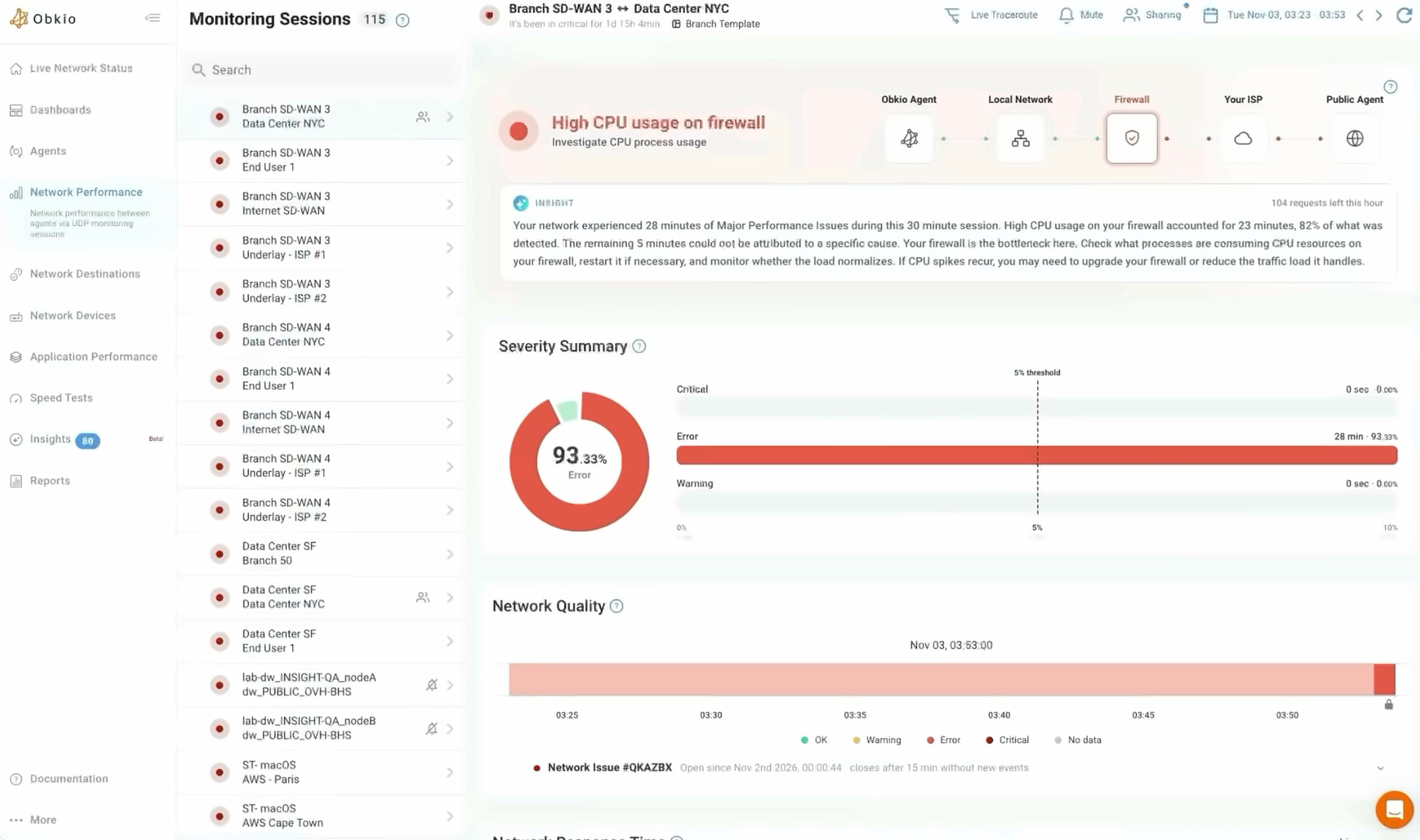
Get the cause named for you: Obkio Insights analyzes the sessions and device data together and points to the root cause, whether that's high CPU or memory on the firewall or an issue in the ISP's network. You don't have to piece it together from five graphs.
See where on the path the loss starts: Visual Traceroute runs continuously alongside the sessions, so when a drop happens you can see whether the loss starts at your firewall, at the ISP's handoff or deeper inside the ISP's network.
Send the proof to your ISP: When the cause is on the ISP's side, a Shareable Link gives them the monitoring session and its traceroutes, with no Obkio account needed. Pair it with the ISP escalation toolkit to make the ticket hard to dismiss.

How to Keep Your VPN from Disconnecting
Fixing your VPN disconnecting depends on the cause, so the order matters. Changing VPN settings won't help an overloaded firewall, and replacing the firewall won't help a user with weak home Wi-Fi. Follow these steps in order, and only move on to a fix once the data points to it.
Narrow down where the drops happen: Work out who is affected (one user, one site or everyone), what drops (only the tunnel or the whole connection), and when it happens. Run a monitoring session through the tunnel and one outside it to see whether the VPN or the network underneath it fails first.
Capture data from the moment of the drop: Set up continuous measurements of latency, jitter and packet loss, poll the firewall's CPU and memory every 30 to 60 seconds, and keep the VPN gateway's logs. Without data from the moment of the drop, every fix is a guess.
Take the load off the firewall: If CPU or memory spikes line up with the drops, turn on hardware crypto offload, narrow IPS and SSL inspection for VPN traffic, shorten overly long session timeouts, and check for firmware with known memory leaks. If the firewall is simply too small for its load with VPN and security features turned on, replace it.
Clean up the link to your ISP, and escalate when it's on their side: Fix interface errors, speed or duplex mismatches and flapping WAN ports. Use a static IP or hostname-based peers so a new WAN address doesn't break the tunnel. If the loss starts inside the ISP's network, open a ticket with the monitoring data and traceroutes as proof.
Tune the tunnel's settings: Turn on NAT keepalives so idle tunnels survive NAT timeouts. Clamp the TCP MSS so packets fit inside the tunnel. Match rekey lifetimes on both ends, and relax dead peer detection timers that end the tunnel after a few seconds of loss.
Fix the remote user's setup: Test the user on a wired connection, improve their Wi-Fi coverage, turn off power saving on the network adapter, and use a VPN client that can survive a network change without dropping the tunnel.
Most VPN disconnections come down to one of these causes, and the hardest part is usually proving which one. Once you have data from the moment of the drop, the fix tends to be straightforward: a firewall setting, a ticket with your ISP or a change to one user's laptop. Without that data, teams keep changing VPN settings while the real cause keeps knocking the tunnel down.
Frequently Asked Questions About VPN Disconnections
1. Why does my VPN disconnect every few minutes?
A VPN that drops every few minutes is usually losing its keepalives. The cause can be short bursts of packet loss, a firewall running out of CPU, or a NAT device deleting the tunnel's mapping when it goes idle. If the drops come at exactly the same interval each time, check the tunnel's rekey lifetimes and the gateway's idle timeouts.
2. Can my firewall cause VPN disconnections?
Yes. Encryption and key exchanges are CPU-heavy, and a firewall that hits 100% CPU answers keepalives late or not at all, so tunnels drop. A firewall running out of memory, or with a full session table, can't complete rekeys or accept new connections. Check CPU and memory at the moment of the drop, not the daily average.
3. Why does my site-to-site VPN tunnel keep going down?
When a site-to-site tunnel keeps dropping, look at the firewalls at both ends, the link between each firewall and its ISP, and the ISP's network. A flapping WAN port, a WAN IP that changes on DHCP renewal, or packet loss inside the ISP can all bring the tunnel down. Mismatched rekey lifetimes between the two ends cause drops at a fixed interval.
4. Is it my VPN or my Internet connection?
Check whether the whole connection drops or only the VPN. If browsing and calls also cut out, the Internet connection is the problem and the VPN is just a symptom. If only the tunnel drops, look at the firewall, NAT, MTU or the tunnel settings. Monitoring a session through the VPN and one outside it shows which one fails first.
5. Why does my VPN disconnect when my computer is idle?
Most VPNs run over UDP, and NAT devices like home routers delete UDP mappings after a short idle period, sometimes 30 seconds. When the tunnel goes quiet longer than that, traffic can't get back through and the tunnel drops. Turning on NAT keepalives in the VPN settings keeps the mapping open. Sleep and power-saving settings on the laptop can cause the same drops.
Find the Cause Before Your VPN Disconnects Again
A VPN that keeps disconnecting is rarely a VPN problem. The tunnel is simply the first thing to break when packets go missing, whether that's because the firewall is out of CPU or memory, the link to the ISP is flapping, the ISP's network is congested, a NAT device is timing out, packets are too big for the path, or a remote user's Wi-Fi can't keep up.
Each cause leaves a different pattern: who drops, when it happens, and whether the whole connection goes down with the tunnel. Start there, then confirm it with data from the moment of the drop instead of the user's description the next morning. Once you know which part of the path is failing, the fix is usually clear, and when the cause is on your ISP's side, you have the proof to get it fixed.

Obkio's monitoring agents measure both sides of the tunnel continuously and track the firewall in between. Insights then points to whether the problem is the firewall, the ISP or the user's connection. Deploy your first agents in minutes and catch the next drop as it happens.


