





 Obkio Blog


 Subscribe
Table of Contents
Table of Contents
Bufferbloat is high latency and jitter, caused when a router, modem or firewall holds too many packets in its buffer while the connection is busy. It usually happens when someone uploads a large file: speed tests look fine, but calls break up, and everything lags. The fix is smart queue management (SQM), which keeps those queues short.
Your speed test says 500 Mbps. The Internet connection is up, the firewall shows no errors, and yet most afternoons the Microsoft Teams calls on one floor break up for twenty minutes. Then it stops, and nobody can reproduce it.
That pattern usually isn't a bandwidth problem. It's a queue problem. When a cloud backup, a OneDrive sync or a large file upload fills the upload link, the device at the bottleneck starts holding packets in a buffer that's far too large. Everything else, voice and video included, waits behind that traffic. Latency climbs from 20 ms to several hundred, and real-time applications fall apart while the connection technically keeps working.
This is bufferbloat. This article covers what it is, what causes it, how to test for it and how to fix it on a business network.
What is Bufferbloat? 
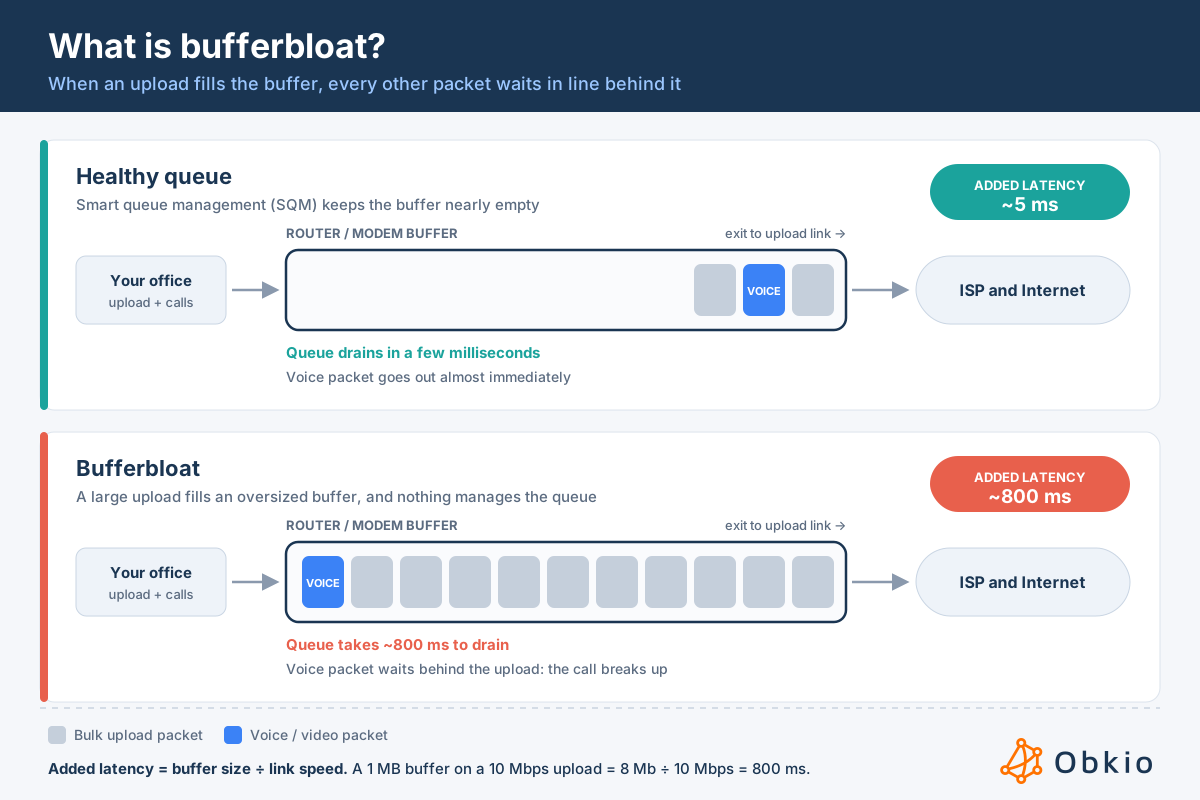
Bufferbloat is excess latency caused by oversized packet buffers in network equipment. When a link is busy, a router, modem or firewall stores incoming packets in a buffer until it can send them. If that buffer is too large, packets sit in it far longer than they should, and the delay shows up as high latency and jitter for every application sharing the link.
The term was coined by Jim Gettys in 2010, after he traced the lag on his home connection to a modem buffering several seconds of traffic.
How Router Buffers Are Supposed to Work
Traffic doesn't arrive at a steady rate. A buffer absorbs short bursts so the device doesn't drop packets every time a few arrive at once. A small buffer that drains in a few milliseconds does this job well: bursts get smoothed out, and latency barely moves.
The problem is that many devices, especially ISP modems and consumer routers, ship with buffers sized for throughput benchmarks rather than latency. Memory is cheap, and a device that never drops a packet looks good in a speed test.
Why Oversized Buffers Add Lag
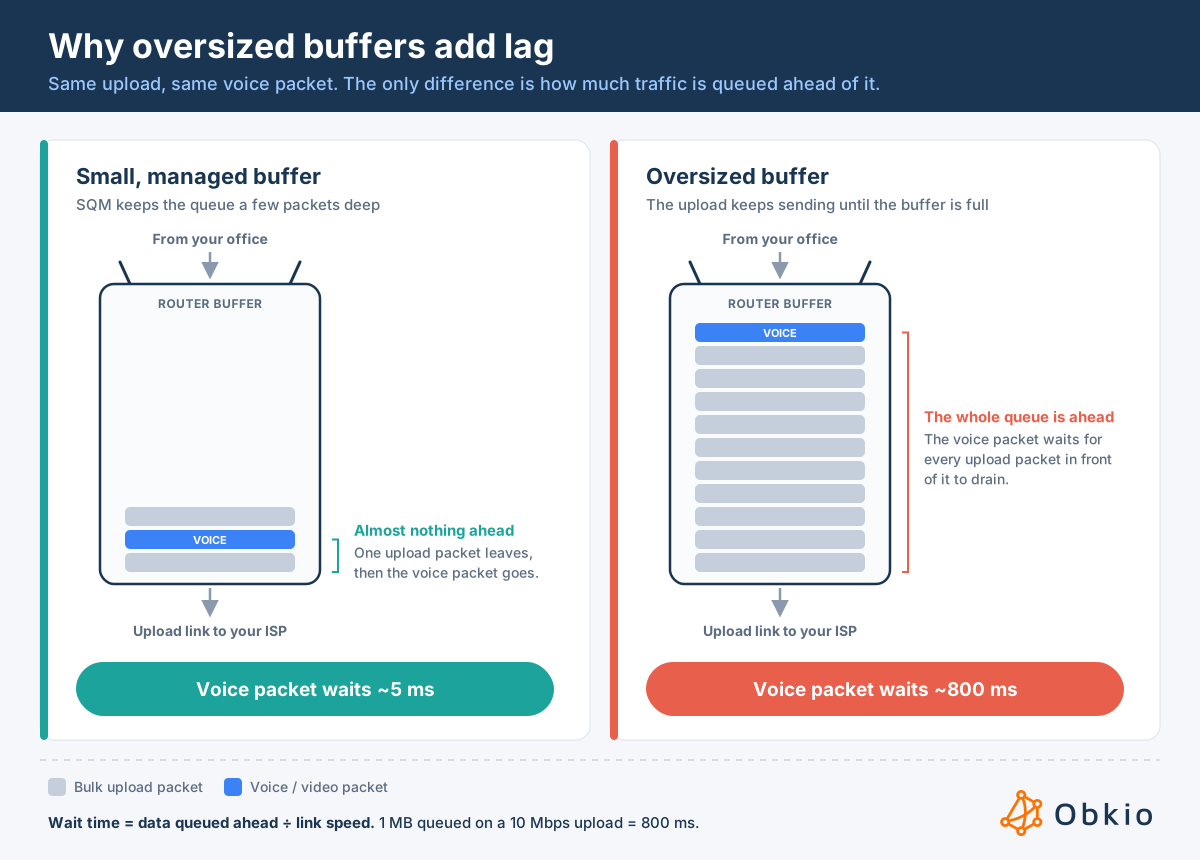
Most TCP traffic increases its sending rate until it sees packet loss, then backs off. A large buffer delays that loss, so a single upload keeps pushing until the buffer is completely full. From then on, every packet that enters the queue, including a voice packet from a Teams call, waits behind everything already in it.
The delay is simple to calculate: buffer size divided by link speed. A 1 MB buffer on a 10 Mbps upload holds 8 megabits of data, which takes 800 ms to drain. That's 800 ms added to every packet crossing the link, for as long as the upload runs. Real-time traffic starts to degrade past about 150 ms of one-way delay, so the call breaks up long before the upload finishes.
This is why bufferbloat hits upload hardest. Upload links are usually much smaller than download links, so the same buffer takes far longer to drain.
Why Not Just Use a Smaller Buffer?
If big buffers cause lag, the obvious fix would be to make them small. The screenshot below shows why that doesn't work on its own. It's the same connection under the same congestion, tested three times with three buffer sizes.
With a large buffer, latency jumps from about 15 ms to over 100 ms, but Obkio flags no warnings or errors: nothing is dropped, every packet just waits. With a medium buffer, latency rises to about 70 ms and the first warnings appear. With a small buffer, latency only reaches about 40 ms, but the buffer overflows constantly and packets get dropped, which shows up as a dense run of warnings and errors.
So buffer size alone only trades one problem for another: a large buffer turns congestion into delay, and a small one turns it into packet loss. Real-time traffic suffers either way.
What fixes bufferbloat is managing the queue rather than just resizing it, which is what SQM does: it keeps the queue short by dropping or marking packets from the flows causing the backlog, so bulk transfers slow down slightly while calls and interactive traffic go through without waiting.
 Screenshot from Obkio's Network Monitoring and Diagnostics tool. The same congestion with three buffer sizes in Obkio. A large buffer adds delay, a small buffer adds packet loss, and neither fixes the underlying queue.
Bufferbloat vs. High Ping
Both show up as latency, but they behave differently:
- High ping at idle: latency is high all the time, even when nobody is using the connection. The cause is distance, routing or a problem in the ISP's network.
- Bufferbloat: latency is normal at idle and climbs only when the connection is loaded, then drops back as soon as the transfer ends.
That load-dependent pattern is the clearest sign of bufferbloat, and it's why a speed test at a quiet moment won't catch it.
What Causes Bufferbloat?
Bufferbloat needs two things at once: a link that's full, and a device at that link with a large buffer that nothing manages. Take away either one and latency stays normal.
In networks, these are the usual causes of bufferbloat that you should look out for:
- Upload-heavy traffic: Cloud backups, OneDrive, SharePoint and Dropbox sync, video uploads, large email attachments and security cameras that stream to the cloud. One large transfer is enough to fill a business upload link.
- Asymmetric connections: Cable, DSL and fixed wireless plans often have an upload 10 to 20 times smaller than the download. A 1 Gbps cable plan might upload at 35 or 50 Mbps, so the upload fills first and drains slowest.
- Large default buffers: ISP-supplied modems and many routers ship with buffers sized to avoid dropping packets, not to keep latency low.
- No active queue management: Without AQM, a buffer is a simple first-in, first-out line. It accepts packets until it's full and has no way to keep the queue short or let small, time-sensitive packets through.
- A fast network feeding a slow link: Your office network runs at 1 Gbps, but the Internet connection uploads at 50 Mbps. Wherever that speed drops, traffic piles up.
Router Bufferbloat: Where the Queue Actually Forms
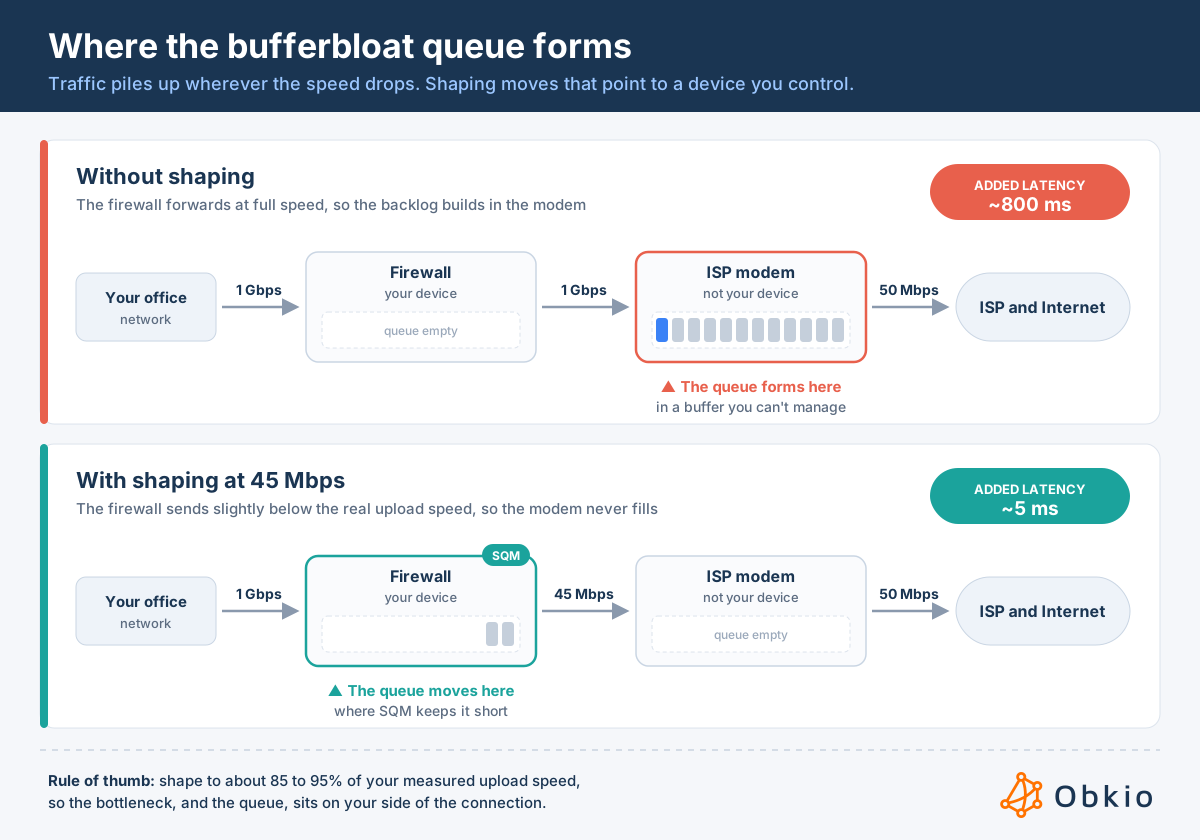
The queue always forms at the slowest point on the path, which is usually where your network hands off to the ISP. If your firewall sends traffic at 1 Gbps to a modem that can only upload at 50 Mbps, the backlog builds in the modem, not the firewall.
This is why changing settings on your firewall often does nothing on its own. The firewall isn't where the queue is. The fix is to shape traffic on the firewall to just below the real upload speed, so the queue moves to a device you control and can manage. The How to Fix Bufferbloat section covers how.
Download works the same way in reverse: the queue forms in the ISP's equipment before traffic reaches you. That's harder to control, which is why download bufferbloat usually needs shaping on your side plus a conversation with the ISP.
Signs You Have Bufferbloat
Bufferbloat rarely shows up as "the Internet is down." It shows up as issues that are hard to pin down, like calls that were fine this morning and choppy after lunch, a VPN that feels heavy for twenty minutes and then recovers, a user who swears the network is slow while every test you run says it's fine.
That's what makes it easy to misdiagnose. The connection stays up, throughput looks normal, and by the time someone checks, the upload that caused it has often finished. The usual suspects get blamed instead: the ISP, the Wi-Fi, the laptop, or Teams itself. Meanwhile, the real cause is a queue that only exists while the link is full.
The pattern to look for is responsiveness, not speed. A bufferbloated connection is fast when you measure it and slow when you use it. If any of these sound familiar, bufferbloat is worth checking:
Speed tests look fine, but everything feels slow: A speed test measures throughput, how much data the connection can move. Bufferbloat affects latency, how long each packet takes. You can have both a 500 Mbps result and a connection that lags.
Calls break up when someone uploads: Voices turn robotic, video freezes, or Teams and Zoom warn about network quality, usually at the same moment a backup, sync or large upload is running. See why your Teams calls keep dropping for the other causes to rule out.
Latency is normal at idle and spikes under load: Ping is 15 ms when the office is quiet and jumps to several hundred milliseconds during a transfer, then drops back as soon as it finishes. This is the clearest sign of all.
Problems happen at predictable times: Scheduled backups, end-of-day file syncs and meeting recordings uploading afterward all trigger it. If the slowdown follows your own traffic rather than the time of day, look at bufferbloat before peak-hour congestion at your ISP.
Pages are slow to start loading: DNS lookups and connection setup are small packets that wait in the same queue, so websites hang for a second before loading, even though downloads still run fast.
Remote desktop and VPN sessions feel sluggish: Typing lags, the mouse stutters, and Citrix or RDP sessions feel heavy. Interactive traffic suffers first because it needs quick round trips, not bandwidth.
Jitter climbs during busy periods: As the queue fills and drains, delay changes from one packet to the next, and jitter is exactly what real-time audio and video can't tolerate.
If several of these match, the next step is to confirm it: measure latency while the connection is loaded, not while it's quiet.

How to Test for Bufferbloat
Bufferbloat only exists while the connection is busy, so testing for it means measuring latency twice: once when the link is idle, and again while it's fully loaded. The difference between the two is your bufferbloat. You can do this by hand with a ping and a large upload, or with an online test that does both for you.
Test for Bufferbloat Manually with Ping
This takes about two minutes and works from any computer on the network. Use a wired connection if you can, so Wi-Fi doesn't skew the results.
- Start a continuous ping to a reliable public server.
- Windows:
ping -t 1.1.1.1 - macOS and Linux:
ping 1.1.1.1
- Windows:
- Let it run for 30 seconds with the network as quiet as possible, and note the typical latency. This is your idle baseline.
- Start a large upload. Upload a file of 1 GB or more to OneDrive, Google Drive or Dropbox, or run the upload portion of a speed test in another window.
- Watch the ping while the upload runs. If latency climbs from 15 ms to 150 ms or more, and stays there, you have upload bufferbloat.
- Stop the upload and confirm latency drops back to the baseline within a few seconds.
- Repeat with a large download to check the download direction.
Stop the ping with Ctrl+C. Windows and macOS both print a summary with minimum, average and maximum times, which is useful to save if you need to show someone the result.
Online Bufferbloat Tests
Several free tests measure latency under load automatically:
- Waveform Bufferbloat Test grades your connection from A+ to F based on how much latency increases during download and upload. It's the test most bufferbloat guides point to.
- Cloudflare Speed Test shows latency measured during download and upload alongside the usual speed results.
- Fast.com shows "loaded latency" next to "unloaded latency" once you click "Show more info."
- Speedtest by Ookla reports latency separately for idle, download and upload.
Look at the latency during upload and download, not the speed. A connection can score 500 Mbps and still get a D or F for bufferbloat.
How to Read Your Results
What matters is how much latency increases under load, not the idle number. As a rule of thumb:
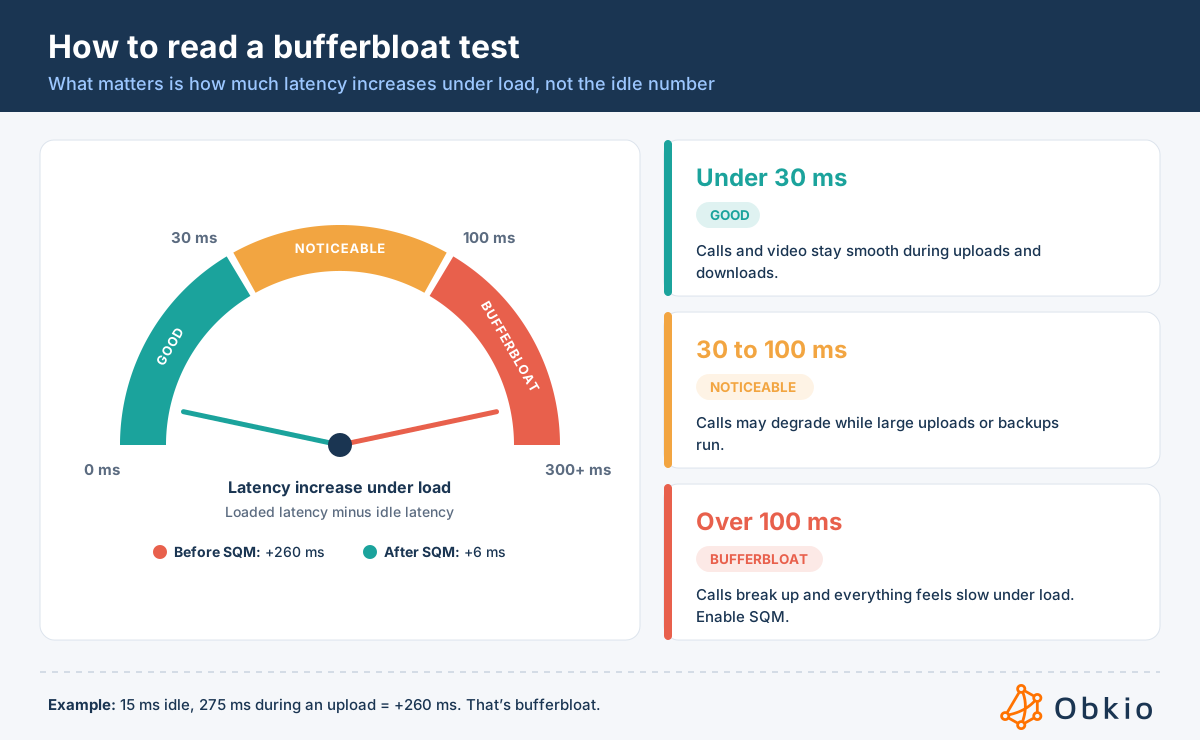
Waveform's grading uses similar thresholds, with A+ reserved for an increase under 5 ms.
Why a One-Time Bufferbloat Test Isn't Enough
A manual or online test only shows what your connection is doing at that moment. Bufferbloat comes and goes with your traffic, so a test run at a quiet time can come back clean while calls still break up every afternoon. This is where continuous monitoring helps. Obkio measures latency, jitter and packet loss between your sites and the Internet around the clock, and monitors bandwidth on your firewall's Internet interface at the same time.
When latency spikes, you can see whether it lines up with a saturated upload, when it happened and how long it lasted, without needing someone to run a test at the right moment.
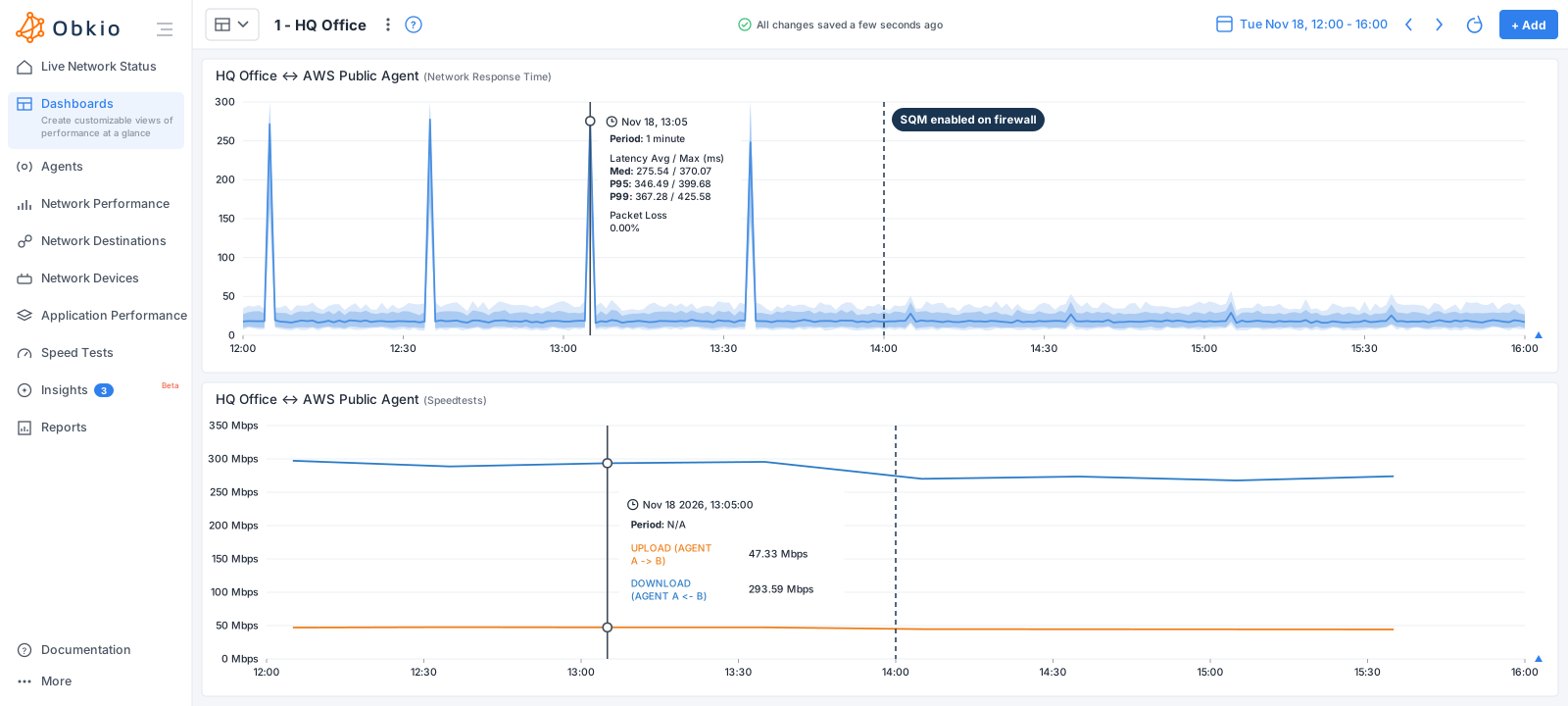
You can also run a controlled bufferbloat test between two Obkio agents. Put the Speed Test and Network Response Time widgets for the same pair of agents side by side on a dashboard, then run a speed test. The speed test fills the link in both directions, and the response time graph shows how much latency rose while it ran. Schedule speed tests to run during business hours, and you get a record of how your connection behaves under load over days or weeks, which makes it easy to compare before and after enabling SQM.

How to Fix Bufferbloat
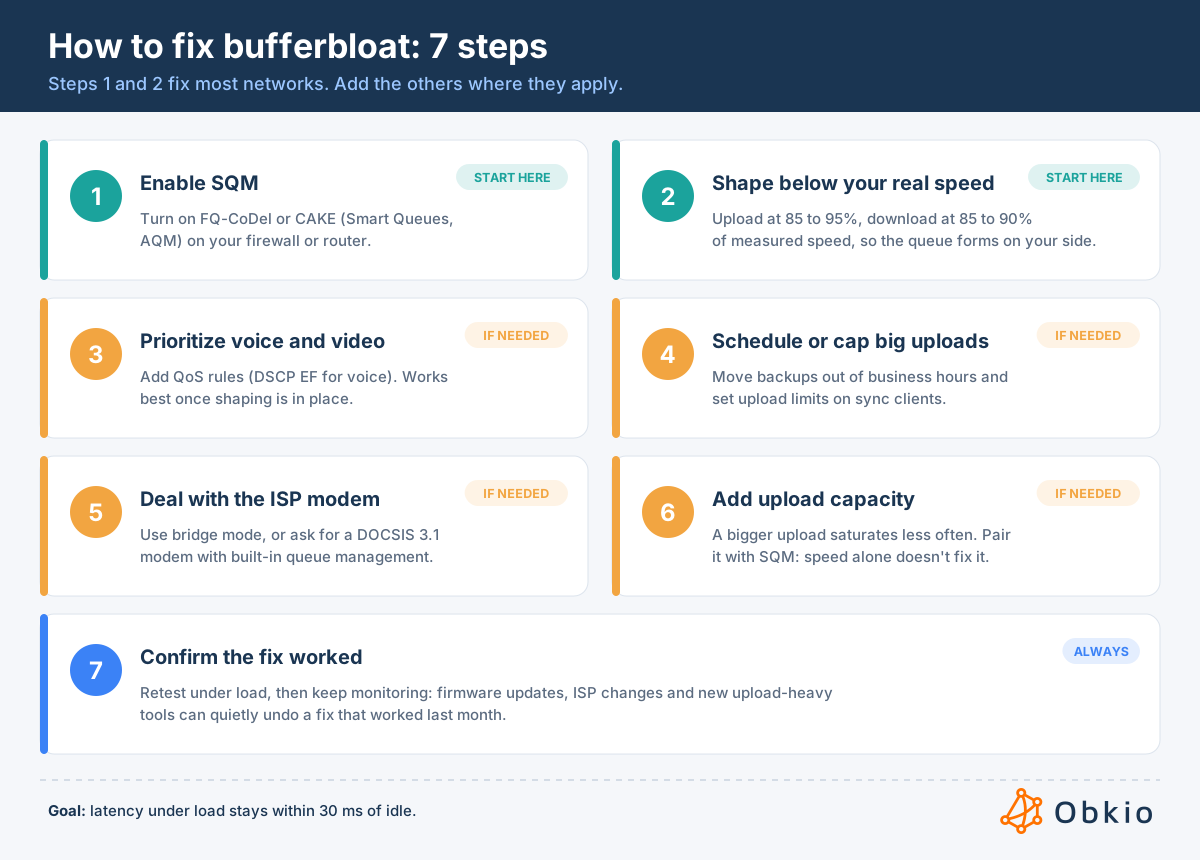
Fixing bufferbloat comes down to one idea: keep the queue short, and make sure it forms in a device that can manage it. The steps below are in order of impact. Most networks only need the first two.
1. Enable Smart Queue Management (SQM)
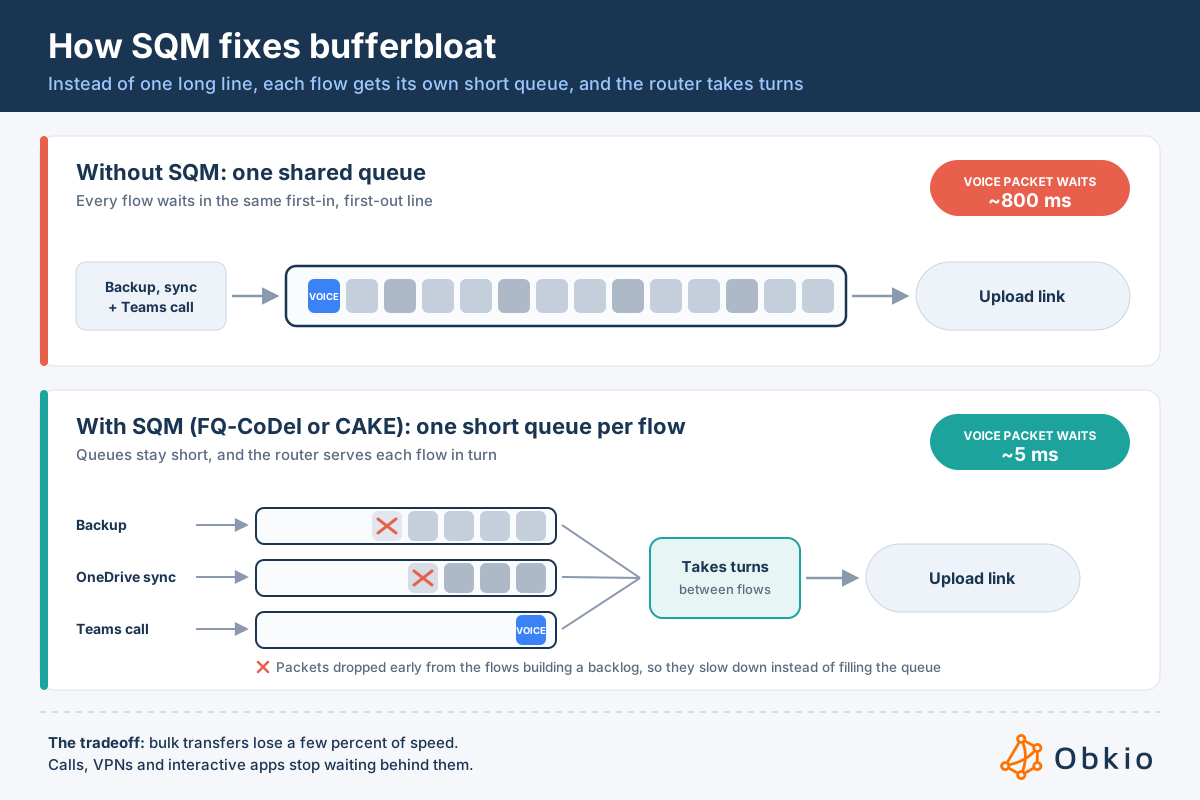
SQM replaces the simple first-in, first-out queue with active queue management. Instead of letting a buffer fill until it overflows, it keeps queues short by dropping or marking packets from the flows causing the backlog. Bulk transfers slow down slightly; small, time-sensitive packets go through almost immediately.
The two most common SQM algorithms are:
- FQ-CoDel: separates traffic into flows so one large upload can't hold up everything else, and drops packets from any flow whose queue starts adding delay.
- CAKE: builds on FQ-CoDel with shaping included, simpler setup and fairer sharing between devices. It's the default on many open-source router platforms.
Either one will fix most bufferbloat. Look for settings named SQM, Smart Queues, FQ-CoDel, CAKE or AQM on your firewall or router.
2. Shape Traffic Just Below Your Real Connection Speed
SQM only works if the queue forms on the device running it. If your firewall forwards traffic as fast as it arrives, the backlog still builds in the ISP modem, where SQM can't touch it.
The fix is to shape traffic slightly below the real speed of the connection:
- Measure your actual speed at a quiet time, in both directions. Use measured speeds, not the plan's advertised speeds.
- Set the upload shaper to 85 to 95% of the measured upload. On a 50 Mbps upload, that's roughly 43 to 47 Mbps.
- Set the download shaper to 85 to 90% of the measured download. Download shaping is less precise, because the queue forms in the ISP's equipment before traffic reaches you, so it needs more margin.
- Retest under load and adjust. If latency still climbs, lower the shaper a few percent. If it stays flat, try raising it until it starts to climb, then back off.
This trades a few percent of peak speed for a large drop in latency under load. For calls, VPNs and interactive applications, it's almost always the right trade.
3. Prioritize Voice and Video with QoS
QoS rules give real-time traffic priority over bulk transfers, typically by matching DSCP markings (EF, or 46, for voice) or application rules for Teams, Zoom and your VoIP platform. On a network with SQM in place, QoS adds a second layer of protection for calls.
QoS doesn't fix bufferbloat on its own, though. Priority only matters on the device where the queue forms, so if the backlog is building in the ISP modem, your firewall's QoS rules never get a chance to act. Combine it with shaping so the queue moves to the firewall first. See QoS for VoIP for how to set it up.
4. Schedule or Cap Large Uploads
If you know what fills the link, you can control it at the source:
- Move backups out of business hours: Cloud and offsite backups are the most common trigger on business networks.
- Cap sync clients: OneDrive, Google Drive and Dropbox all have upload rate limits in their settings, and most can be managed centrally.
- Throttle backup software: Most backup tools have bandwidth limits or schedules built in.
This doesn't remove bufferbloat, but it reduces how often it happens and limits it to times when fewer people are on calls.
5. Deal With the ISP Modem
If the ISP's modem holds the oversized buffer, you have a few options:
- Put the modem in bridge mode so your firewall handles routing and shaping.
- Ask for a newer modem. Cable modems built to the DOCSIS 3.1 standard include active queue management on the upload side, which reduces bufferbloat before traffic reaches your firewall's shaper.
- Ask your ISP about bufferbloat directly. Some will swap equipment or adjust provisioning if you show them latency data under load.
6. Add Upload Capacity if the Link is Too Small
A faster connection doesn't fix bufferbloat: buffers still fill when the link is saturated. But a bigger upload drains the same buffer faster, and it's saturated less often. If your office regularly runs out of upload bandwidth, moving to a symmetric fibre plan reduces both how often bufferbloat happens and how bad it gets. Pair it with SQM so the remaining queue stays short.
7. Confirm the Fix Worked
Repeat the tests from How to Test for Bufferbloat: the manual ping test, an online bufferbloat test, or a scheduled Obkio speed test with the Network Response Time widget next to it. Latency under load should now stay within 30 ms of idle.
Then keep an eye on it. Firmware updates can reset shaping settings, ISPs can change provisioning, and new upload-heavy tools can show up. A fix that worked in November can quietly stop working by spring.

Optimize VoIP performance with QoS implementation. Explore best practices for QoS for VoIP, overcome challenges, and elevate clarity with Obkio's NPM tool.
Learn more

Which Devices and Tools Reduce Bufferbloat?
Bufferbloat is fixed on the device that sits at the bottleneck, usually your firewall or router at the Internet edge. The device needs either built-in smart queue management (FQ-CoDel or CAKE) or, at minimum, traffic shaping you can set below your connection speed. Here's where to find it on common platforms.
Routers and Firewalls with Built-in SQM
- OpenWrt supports CAKE and FQ-CoDel through its SQM package, under Network → SQM QoS.
- pfSense supports FQ-CoDel through limiters, under Firewall → Traffic Shaper → Limiters.
- OPNsense supports FQ-CoDel through its traffic shaper, under Firewall → Shaper.
- Ubiquiti UniFi and EdgeRouter gateways include Smart Queues, found in the gateway or WAN settings.
- MikroTik routers running RouterOS 7 support CAKE and FQ-CoDel as queue types, under Queues → Queue Types.
- Linux-based gateways support CAKE and FQ-CoDel as queuing disciplines, configured with
tc.
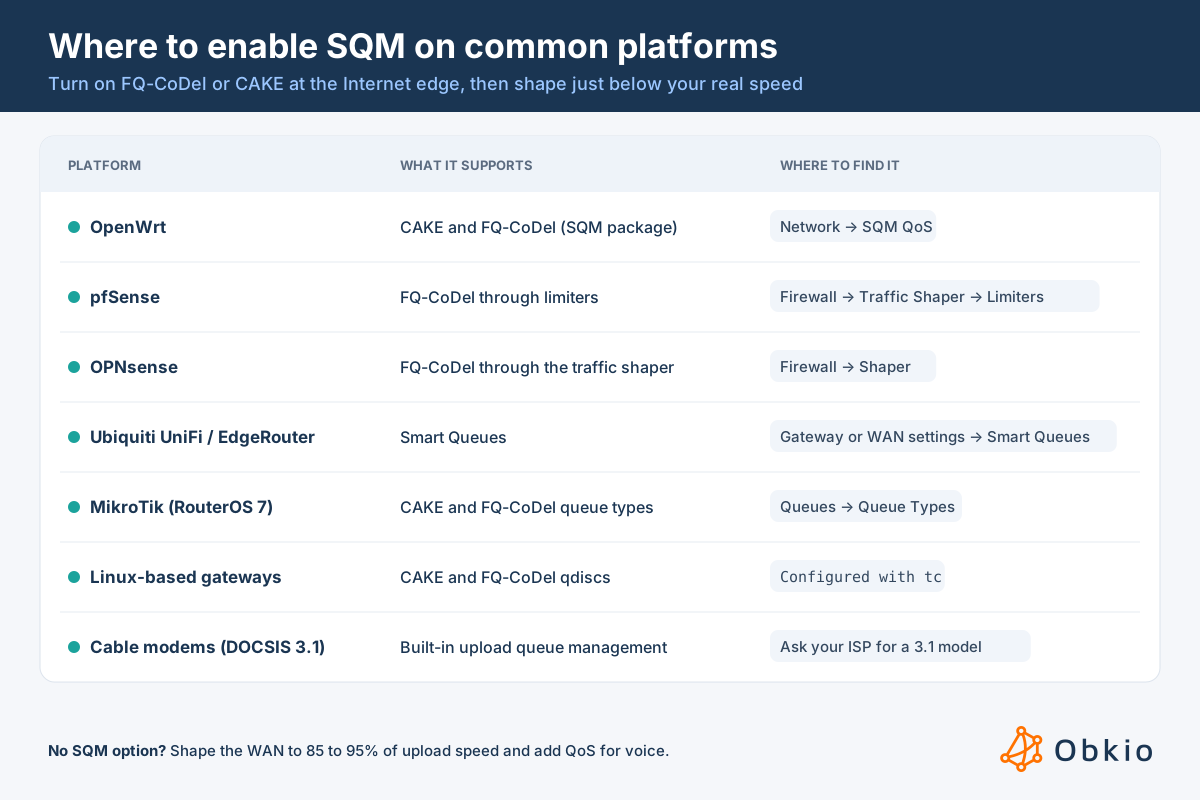
Turning these on takes a few minutes, and in most cases it's all a network needs, combined with the shaping speeds from step 2.
Business Firewalls
Most business firewalls offer traffic shaping and QoS, but fewer expose FQ-CoDel or CAKE directly. If yours doesn't, you can still get most of the benefit:
- Shape the WAN interface below its real speed (85 to 95% upload, 85 to 90% download) so the queue forms on the firewall rather than the ISP modem.
- Add QoS rules that give voice and video priority within that shaped queue.
- Check your vendor's documentation for "AQM," "fair queuing" or "FQ-CoDel," since support has been added to some platforms in recent releases.
If none of this is available and calls keep breaking up under load, a small SQM-capable device in front of the ISP modem is a common workaround.
ISP Equipment
Cable modems built to the DOCSIS 3.1 standard include active queue management on the upload side. If your ISP supplied an older modem, asking for a DOCSIS 3.1 model can reduce upload bufferbloat before traffic even reaches your firewall. For other connection types, putting the ISP's device in bridge mode lets your own firewall handle shaping.
Tools to Measure Bufferbloat
- Waveform Bufferbloat Test: a quick browser test that grades latency under load from A+ to F.
- Flent: an open-source testing tool for network engineers. Its RRUL test loads the link in both directions while measuring latency, and it's the standard tool used to evaluate SQM settings.
- Obkio: continuous monitoring of latency, jitter and packet loss across your sites, alongside bandwidth on your firewall's WAN interface, so you can see bufferbloat when it happens during the workday and confirm a fix holds over time.
How to Detect Bufferbloat On A Business Network With Obkio
Bufferbloat is hard to catch because it only exists while the link is full, and the link is rarely full when someone is looking. Detecting it on a business network means measuring latency and bandwidth all the time, then lining the two up. Here's how that works in Obkio’s Network Monitoring and Diagnostics tool.
1. Measure Latency Continuously From Inside Your Network
Obkio Monitoring Agents installed at each site send synthetic traffic to other agents and to Obkio's public monitoring agents, measuring latency, jitter and packet loss around the clock. Because the measurements never stop, the slowdown is recorded whenever it happens, whether it's the 2 p.m. backup, the end-of-day sync or a large upload nobody mentioned.
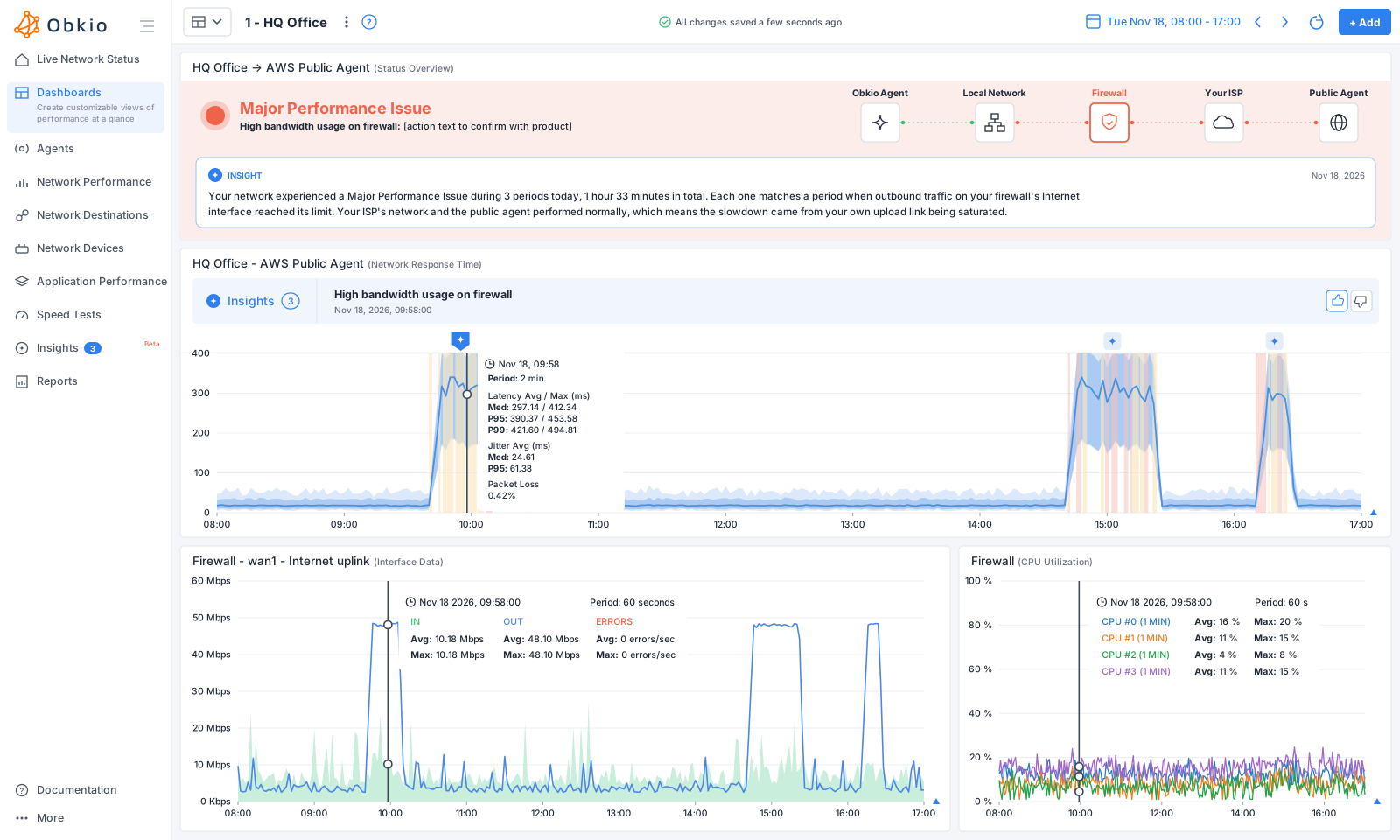
On the Network Response Time graph, bufferbloat has a recognizable shape: latency sits flat at its normal level, jumps sharply for the length of a transfer, then drops straight back.

2. Monitor Bandwidth On Your Firewall's Internet Interface
Network Device Monitoring collects bandwidth, CPU and memory from your firewall over SNMP. On the WAN interface, bufferbloat shows up as outbound traffic that climbs to the top of your upload speed and stays flat there, because the link can't carry any more.
Put the two graphs on the same dashboard, and the cause is visible at a glance: latency rises at exactly the moment the upload is full. The firewall's CPU graph sits next to them to rule out a firewall that's simply overloaded.
3. Let Obkio Insights: Automatic Diagnostics Name the Cause
Obkio Insights analyzes the measurements along the whole path, from the agent through your local network and firewall to your ISP and the public agent, and identifies where the problem starts. When latency rises because your Internet uplink is saturated, Insights reports “High bandwidth usage on firewall” rather than blaming your ISP, your Wi-Fi or the application. That distinction matters: it tells you the fix is on your side, in shaping and SQM, before anyone opens a ticket with the ISP.

4. Confirm the Fix With Scheduled Speed Tests
After enabling SQM, schedule speed tests between two agents during business hours and keep the Network Response Time widget next to them. Each test fills the link on purpose, so you can see whether latency stays flat under load, and keep a record to compare against if it changes later.
5. Share the Proof
Bufferbloat often needs someone else to act: management approving a faster plan, an MSP client agreeing to move backups, or an ISP replacing a modem with an oversized buffer. A Shareable Link gives them the same graphs you're looking at, without needing an Obkio account, so the conversation starts from data instead of "the Internet feels slow."
Bufferbloat vs. ISP Congestion vs. Bandwidth Saturation
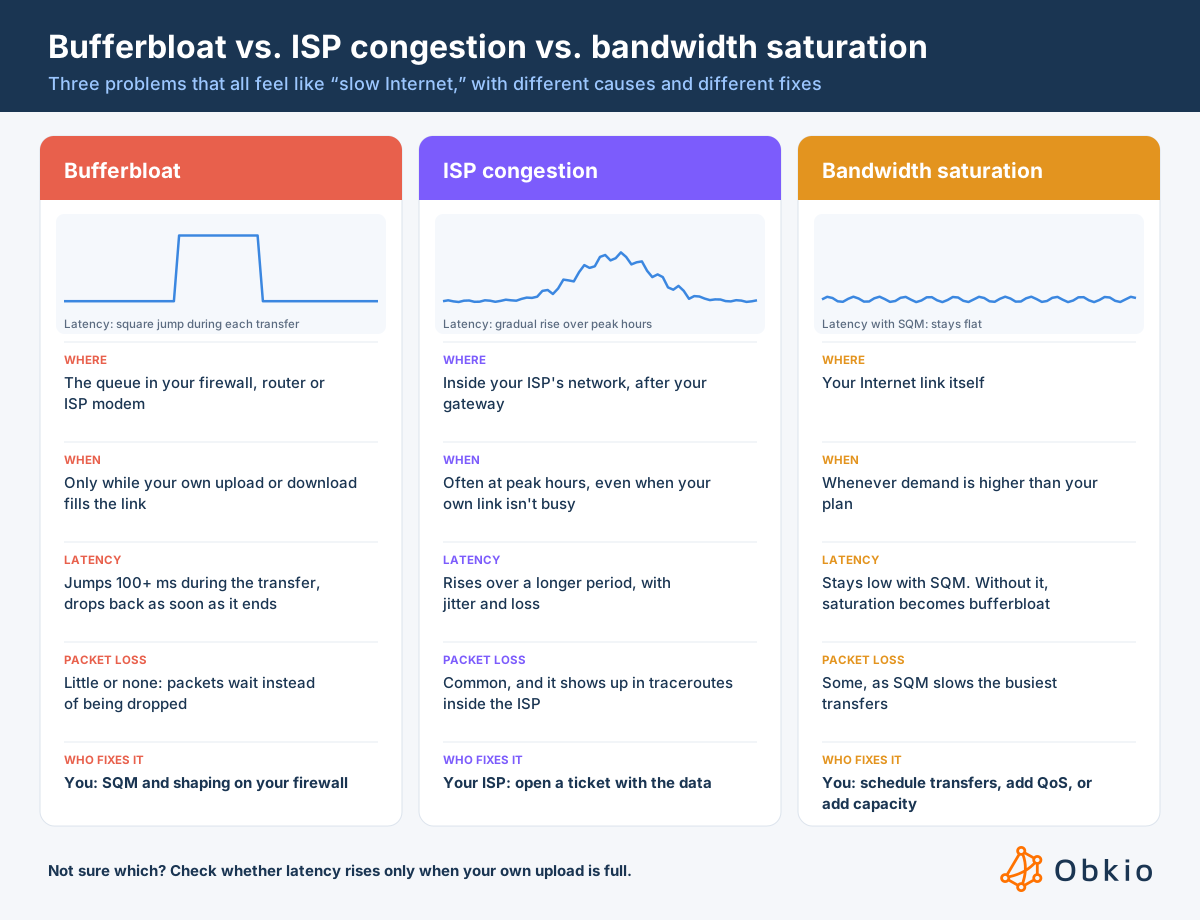
Bufferbloat, ISP congestion and bandwidth saturation all feel the same to users: the Internet is slow, calls break up, pages hang. But they happen in different places and need different fixes, so it's worth knowing which one you're looking at before you change settings or call your ISP.
Bufferbloat
Bufferbloat happens in the queue of your own firewall, router or ISP modem, and only while your own traffic fills the link. Latency jumps by 100 ms or more the moment a large transfer starts and drops back as soon as it ends, usually with little or no packet loss, because packets wait instead of being dropped. The fix is on your side: SQM and shaping on your firewall.
ISP Congestion
ISP congestion happens inside your provider's network, after traffic leaves your gateway. It often follows peak hours rather than your own activity, so it can appear even when your link is nearly idle. Latency tends to rise over a longer period along with jitter and packet loss, and traceroutes show the quality drop between hops inside the ISP.
You can't fix it with shaping: it takes a ticket with your ISP, backed by data. See why your Internet is slow at night for the peak-hour pattern.
Bandwidth Saturation
Bandwidth saturation simply means your link is full: demand is higher than what your plan can carry. On its own, that slows down transfers but doesn't have to hurt calls. With SQM in place, a saturated link stays responsive because queues stay short.
Without SQM, saturation is exactly what triggers bufferbloat. The fixes are about demand and capacity: schedule large transfers, prioritize real-time traffic, or move to a larger plan.
How to Tell Which One You Have
The quickest test is to compare latency with your own bandwidth use. If latency rises only when your upload or download is full, and drops back the moment it isn't, it's bufferbloat. If latency and packet loss rise while your link has plenty of room, look at your ISP.
In Obkio, Insights makes this call for you: “High bandwidth usage on firewall” points to your own link, while “Issue in ISP's network” points to your provider.
One more cause to rule out: a firewall running out of CPU or memory also adds latency under load, especially with IDS/IPS enabled. If the firewall's CPU climbs alongside latency, see how to monitor firewall performance.
Catch Bufferbloat While It's Happening
Bufferbloat rarely announces itself. It shows up as a call that breaks up at 2 p.m., a VPN that feels heavy for twenty minutes, a ticket nobody can reproduce. Once you can see latency and bandwidth side by side, the pattern is obvious, and the fix is usually a setting away.
Monitor latency and bandwidth across your network, and see exactly when your Internet uplink starts adding lag.

Frequently Asked Questions About Bufferbloat
Does bufferbloat affect upload or download?
Both, but upload is usually worse. Most business connections have a much smaller upload than download, so the upload link fills first, and its buffer takes longer to drain. That's why bufferbloat so often appears during backups, file syncs and large uploads rather than downloads.
Does QoS fix bufferbloat?
Not on its own. QoS prioritizes traffic, but only on the device where the queue forms. If the backlog builds in your ISP modem, your firewall's QoS rules never get to act. Shape traffic just below your real speed first so the queue forms on your firewall; then QoS and SQM can manage it.
Will a faster Internet plan fix bufferbloat?
Not by itself. A faster plan drains buffers faster and fills them less often, so bufferbloat becomes less frequent and less severe. But any link that gets saturated with an oversized, unmanaged buffer will still add lag. Pair a bigger plan with SQM to fix it properly.
Can my ISP fix bufferbloat?
Sometimes. If the oversized buffer is in the ISP's modem, they can replace it, for example, with a DOCSIS 3.1 cable modem that includes queue management, or let you use bridge mode. Download bufferbloat in the ISP's own equipment is harder to fix from your side, so showing them latency data under load helps.
What is a good bufferbloat score?
What matters is how much latency increases under load. An increase under 30 ms is good, 30 to 100 ms is noticeable on calls, and over 100 ms is bufferbloat. On the Waveform test, A or A+ means your connection handles load well.
Can Wi-Fi cause bufferbloat?
Yes. Wi-Fi access points and drivers have their own queues, and a congested wireless network can add delay under load just like a wired bottleneck. If latency rises on Wi-Fi but not on a wired connection during the same transfer, look at the access point. Some platforms support FQ-CoDel or airtime fairness for Wi-Fi.
Does bufferbloat cause packet loss?
Usually very little. Oversized buffers hold packets instead of dropping them, which is why bufferbloat shows up as high latency rather than loss. Once a buffer finally overflows, some packets are dropped, but the delay is what users notice first.


