






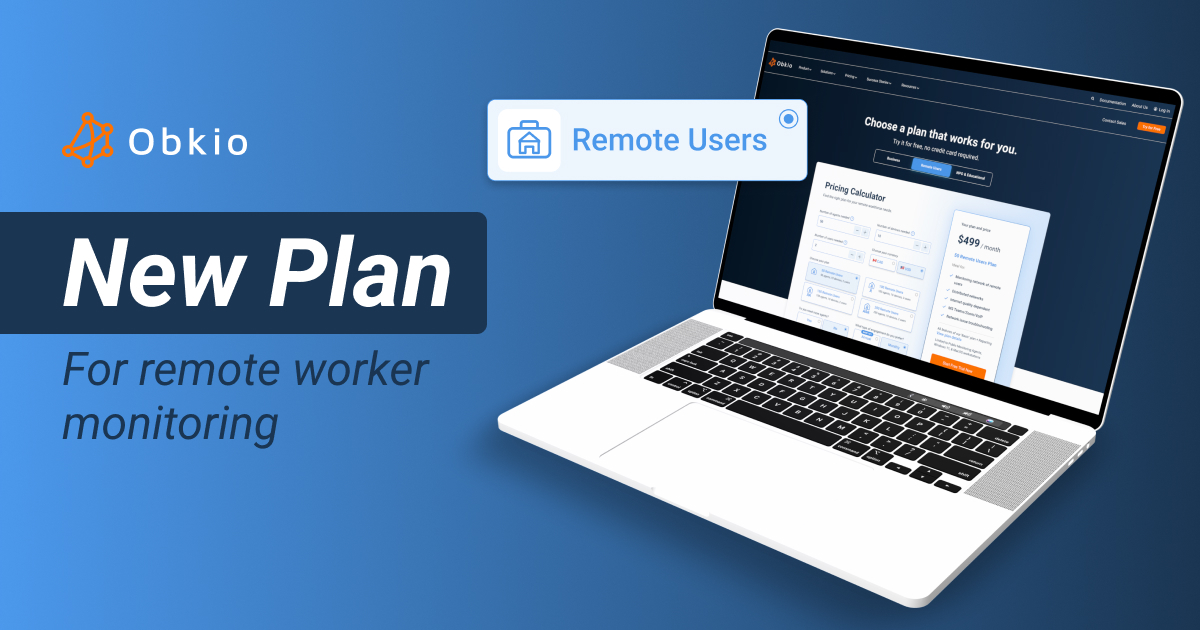


Remote Worker Monitoring
- How to configure remote worker monitoring
- How to create a monitoring template for remote workers
- How to monitor remote worker performances
What you are going to learn:
Remote worker monitoring provides end-to-end visibility into network performance for employees working from home, coffee shops, or any remote location. Obkio monitors from the remote worker's device to corporate applications and services, identifying issues with home networks, ISPs, VPNs, or corporate infrastructure.
Deploy lightweight Monitoring Agents directly on remote workers' workstations and start monitoring FROM their perspective rather than trying to monitor TO them.
How Remote Worker Monitoring Works 
Remote worker monitoring requires:
- Local Agent: Monitoring Agent installed on the remote worker's device (Windows, macOS, or Linux)
- Public Agents: Public Monitoring Agents for testing Internet connectivity
The local agent on the remote worker's device continuously tests network performance Internet endpoints, providing real-time visibility into:
- Home network performance (
packet loss,latency,bandwidth) - ISP connectivity and performance
- Application response times
- VoIP call quality metrics (
jitter,packet loss,MOS score)
Note: Testing VPN connection stability and throughput from the remote worker is possible, but requires additional configuration steps. Reach out to Obkio support to get assistance with this use case.
Configuring Remote Worker Monitoring
Step 1: Choose Agent Type
Remote worker monitoring uses Software Agents installed on employee devices.
- Windows Agent: For Windows desktops and laptops (64-bit)
- macOS Agent: For MacBook, iMac, Mac Studio
- Linux Agent: For the geeks company using Linux OS on corporate desktops and laptops
Step 2: Configure Agent Groups
Organize remote worker agents into Agent Groups for easier management. Two groups are required for the use case :
- My Agents: Use this group for agents deployed on remote workers workstations
- Public Agents: Use this group for Internet based agents provided by Obkio in the form of Public agents
Note: These groups are part of the default configuration obtained after creating an Obkio organization.
Step 3: Configure Network Monitoring Templates
Network Monitoring Templates automatically create monitoring sessions between remote workers and Internet endpoints. At least one Network Monitoring Template is required for the use case:
- My Agents to Public template: Assign the
My Agentsgroup in the first list of the template and thePublic Agentsgroup in the second list.
Note: A Network Monitoring Template configured this way is part of the default configuration obtained after creating an Obkio organization.
Step 4: Configure Application MonitoringTemplates
Application Performance Monitoring (APM) templates test application reachability and response time from remote workers. Create one Application Monitoring Template for each SaaS applications, web site and web applications that are critical for the application and assign the My Agents group for each template.
Note: An Application Monitoring Template to https://www.google.com is part of the default configuration obtained after creating an Obkio organization. Application Monitoring Templates for Microsoft Teams, Zoom, Google Meet and Cisco Webex are also offered as options when onboarding.
Step 5: Create and Install Agents
Once the groups are available and configured, agents can be created and assigned the My Agents group. Here’s how to create an agent in the application for Windows, macOS and Linux.
Once installed, the agent starts monitoring immediately. Monitoring sessions and APM tests are created automatically based on configured templates and groups.
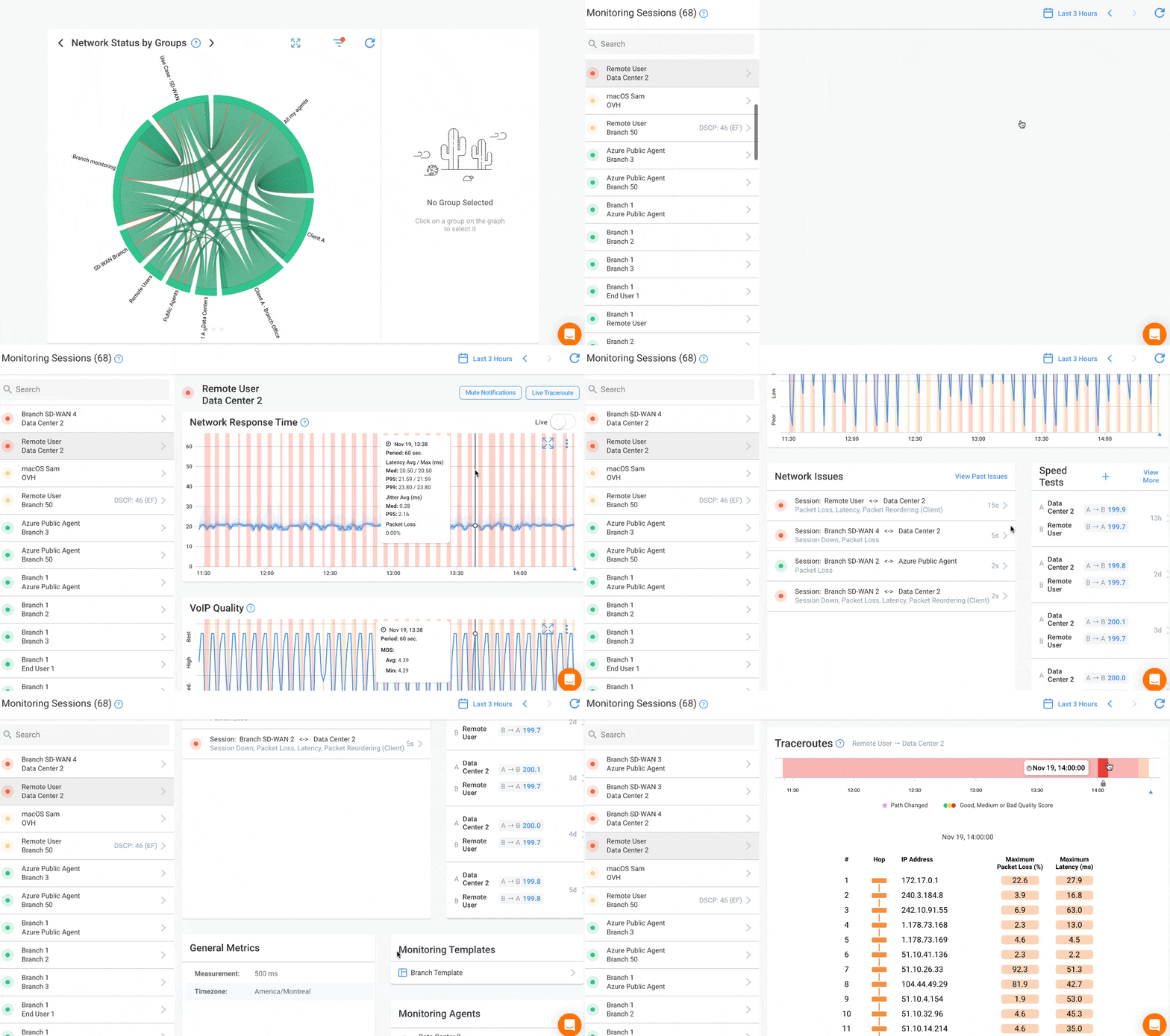
Monitoring Remote Worker Performance
Once agents are installed and gathering data, identify which remote workers are experiencing performance issues.
The simplest method is to select any Public Agent from the Network Performance tab and click the Dynamic Dashboard button next to the session list. This displays historical network performance for all remote worker agents toward the Internet.
For larger deployments, generate a Severity Report to identify agents with the worst performance. The report provides a list in JSON or spreadsheet format of all remote worker agents in the account over the selected time period, ranked by performance issues.
Mass Deployment with Deployment Profiles
Deployment Profiles enable mass installation of agents across multiple remote worker devices without creating each agent individually in the Obkio application. Silent installation allows unattended agent deployment without user interaction, perfect for deploying to many remote workers.