







 Obkio Blog


 Subscribe
Table of Contents
Table of Contents
If your video calls keep dropping, your VoIP calls sound choppy, or your cloud applications feel sluggish, the problem probably isn't your Internet speed. It's your network quality. And those are two very different things.
A network quality test measures the metrics that actually determine how well your network performs in the real world: latency, packet loss, jitter, bandwidth, and availability. Unlike a basic speed test, which only tells you how fast data can theoretically travel, a network quality test gives you the full picture of whether your network can reliably support business-critical applications.
This guide walks you through exactly how to run a network quality test: what to measure, which tools to use, how to interpret your results, and what to do when something's wrong.
What Is a Network Quality Test? 
A network quality test is a diagnostic process that measures the key performance indicators of a network to assess its ability to deliver data accurately, consistently, and within acceptable time limits. It goes beyond bandwidth measurement to capture the real-world reliability of a network under actual or simulated traffic conditions.
Network quality tests typically measure:
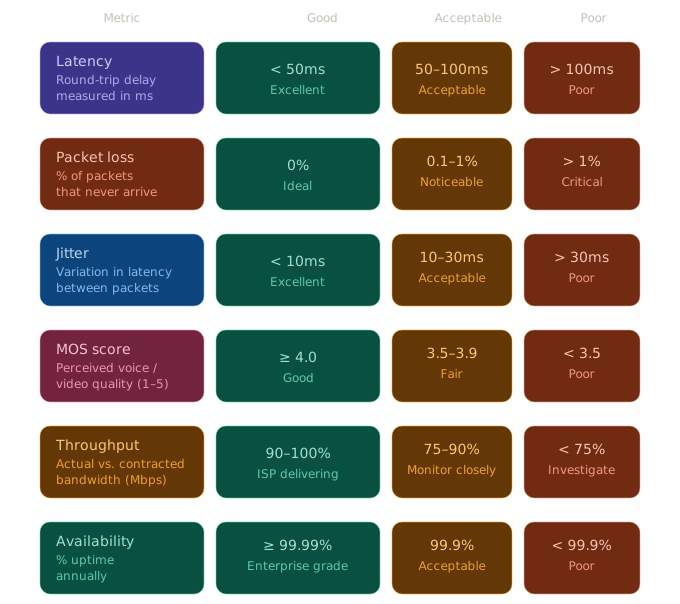
- Latency: the delay between sending and receiving data (target: under 100ms for WAN)
- Packet loss: the percentage of data that fails to arrive (target: under 1%)
- Jitter: the variation in latency between packets (target: under 30ms)
- Throughput: the actual data transfer rate under real conditions
- MOS score: a composite quality rating for voice and video (target: above 4.0)
These metrics collectively determine whether a network is capable of supporting VoIP, video conferencing, cloud platforms, and remote work, and where problems originate when it isn't.
What Is Network Quality?
Before we get into the details about how to run a network quality test, let's just specify what network quality actually refers so.
Network quality refers to the overall performance and reliability of a network in delivering data accurately, consistently, and within acceptable time limits. Unlike raw network speed, which only measures how fast data can travel, network quality captures the full picture of how well a network supports real-world applications, from VoIP calls and video conferencing to cloud platforms and remote access tools.
A network can have high bandwidth and still deliver poor quality if it suffers from packet loss, unstable latency, or excessive jitter. These issues are invisible to a basic speed test but have a direct impact on application performance and user experience.
What Defines Network Quality?
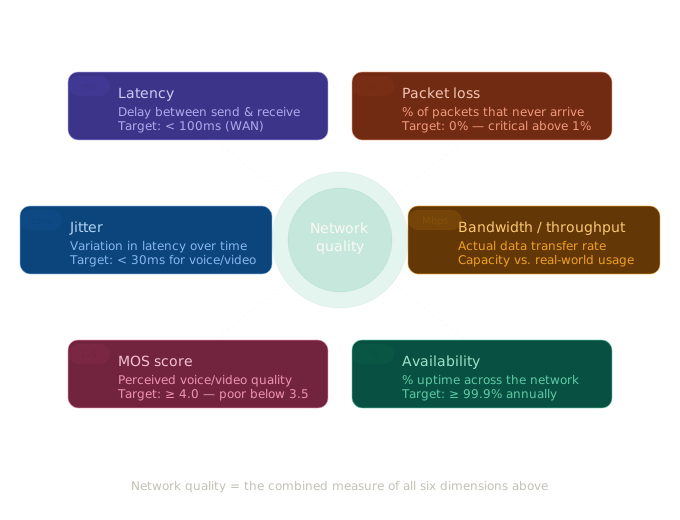
Network quality is defined by six core performance metrics, each measuring a different dimension of how data moves across your network:
- Latency: Latency is the time it takes for data to travel from source to destination, measured in milliseconds (ms). High latency causes delays in real-time applications like VoIP and video calls. Acceptable latency is typically under 100ms for WAN connections.
- Packet Loss: Packet loss is the percentage of data packets that fail to reach their destination. Even 1% packet loss can cause noticeable degradation in voice quality and application responsiveness. Anything above 2–3% is considered a serious network issue.
- Jitter: Jitter is the variation in latency between consecutive packets. While some latency is acceptable, inconsistent latency (jitter) disrupts time-sensitive traffic. Jitter should stay below 30ms for stable voice and video performance.
- Bandwidth / Throughput: Throughput refers to the actual volume of data successfully transferred over the network, as opposed to the bandwidth, which is the theoretical maximum. Throughput bottlenecks can cause slowness even when bandwidth appears sufficient on paper.
- MOS Score (Mean Opinion Score): MOS Score is a composite score from 1 to 5 that rates the perceived quality of voice or video calls based on latency, jitter, and packet loss. A MOS score above 4.0 is considered good; below 3.5 signals poor call quality.
- Network Availability: Network Availability is the percentage of time a network remains operational and accessible. Enterprise networks typically target 99.9% uptime or higher, equating to less than 9 hours of downtime per year.

What Is a Good Network Quality Score?
There is no single composite "network quality score." Network quality is assessed across six individual metrics, each with its own thresholds. A network is performing well when all six metrics fall within acceptable ranges simultaneously. A problem with any one of them can degrade application performance regardless of how the others score.
As a general benchmark, a network with good quality maintains:
- Latency below 50ms (acceptable up to 100ms for WAN)
- Packet loss at 0% (problematic above 1%, critical above 2.5%)
- Jitter below 10ms (acceptable up to 30ms for voice and video)
- Throughput above 90% of contracted bandwidth
- MOS score above 4.0 (fair between 3.5–4.0, poor below 3.5)
- Availability at 99.9% or above annually
If your network consistently hits good thresholds across all six, your infrastructure is well-positioned to support VoIP, video conferencing, cloud applications, and remote work without quality-related complaints.
The most important word in that sentence is consistently. A network that hits good numbers during a one-time test but degrades during peak hours, at specific sites, or on certain paths is not a high-quality network; it's a network with unmeasured problems.
What is Perceived Network Quality vs. Measurable Network Quality?
One of the most important distinctions in network management is the gap between what users perceive and what the network is actually doing.
Users experience network quality as a feeling; calls sound fine until they don't, applications load quickly until they don't, and video meetings run smoothly until they freeze. This subjective experience is real, but it's a lagging indicator. By the time a user notices degradation, the underlying metrics have often been out of an acceptable range for some time.
Measurable network quality, the actual values of latency, packet loss, jitter, and throughput, tells you what's happening before the user experience deteriorates. It gives you objective data to:
- Distinguish between a network problem and an application problem: is Salesforce slow because of packet loss on your WAN, or because of a platform-side issue?
- Identify intermittent issues that users can't reliably reproduce, but that show up clearly in historical monitoring data
- Hold ISPs accountable with timestamped performance data that proves degradation occurred on their segment of the network
- Measure the impact of changes, infrastructure upgrades, ISP switches, and QoS configurations, with before-and-after data rather than user feedback alone
Without measurable quality data, network troubleshooting becomes a guessing game. With it, you have a precise, defensible picture of what your network is actually doing at every moment.
Network Quality vs. Network Speed: What's the Difference?
A common misconception is that faster Internet equals better network quality. It doesn't. Speed is only one dimension of network performance, and for most business applications, it's not even the most important one.
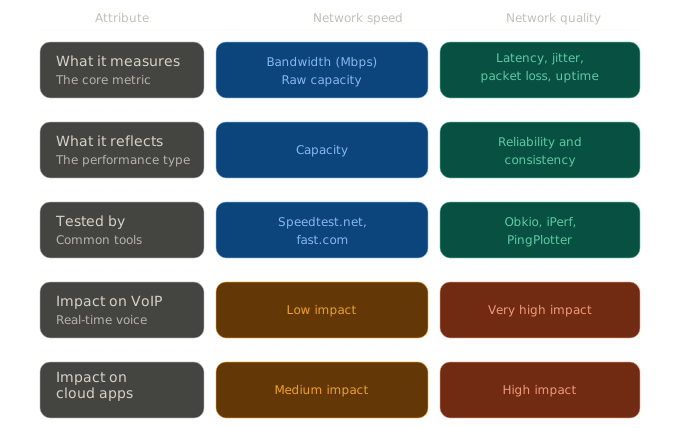
Network speed measures how much data can move across a connection at a given moment. It's expressed in megabits per second (Mbps) and reflects raw capacity. Network quality, on the other hand, measures how reliably and consistently that data actually arrives, capturing the dimensions of performance that speed tests are blind to.
Think of it like a highway. Speed is the number of lanes. Network quality is whether the road is smooth, whether cars are arriving in the right order, and whether any of them are disappearing before they reach the destination.
Why Speed Tests Aren't Enough
Speed tests have one job: measure peak throughput between your device and a nearby test server under ideal conditions. That's useful for verifying that your ISP is delivering the bandwidth you're paying for, but it tells you almost nothing about how your network will actually perform under real-world conditions.
Here's what a speed test won't catch:
- Packet loss that causes VoIP calls to cut out and applications to stall, even on a 500 Mbps connection
- High jitter that makes video calls pixelate and freeze despite strong download speeds
- Latency spikes during peak hours that slow cloud application response times
- Intermittent degradation that only appears during business hours or under load
- Path-specific issues between your network and a cloud provider, a remote site, or a SaaS platform
A network can pass a speed test with flying colours and still deliver a poor experience for every user on it.
The Real-World Impact of Prioritizing Speed Over Network Quality
Let's look at two examples:
Network A has 500 Mbps download speed, 3% packet loss, and 80ms average latency.
Network B has 100 Mbps download speed, 0% packet loss, and 20ms average latency.
For video streaming or large file downloads, Network A wins. But for VoIP, video conferencing, real-time collaboration tools, or cloud-hosted ERP platforms, Network B delivers a significantly better experience, despite having one-fifth the bandwidth.
This is why enterprises running Microsoft Teams, Zoom, Salesforce, or hosted VoIP systems often find that upgrading bandwidth doesn't fix their performance problems. The issue isn't capacity. It's quality.
Network Speed vs. Network Quality: Which Metrics Matter for Your Applications?
Different applications are sensitive to different performance dimensions. Understanding this helps you test for the right things and prioritize the right fixes.
If your users are on real-time communication tools or cloud-hosted applications (which most business users are), network quality matters more than raw speed. Testing for speed alone leaves the most business-critical performance gaps undiagnosed.

Learn about the differences between network speed, bandwidth & throughput. Find out why your business should measure them and how!
Learn more

How to See the Difference Between Network Speed and Network Quality
Most network problems aren't caused by slow Internet. They're caused by packet loss, latency spikes, and jitter that only show up under real traffic conditions, and only when you're measuring continuously.
Obkio is a network monitoring and observability tool that gives IT teams and MSPs end-to-end visibility into network performance across every segment of their infrastructure. Using lightweight software agents deployed at key network locations (offices, data centers, cloud environments, and remote sites) Obkio continuously generates synthetic traffic to measure real-time network quality between every point on your network.
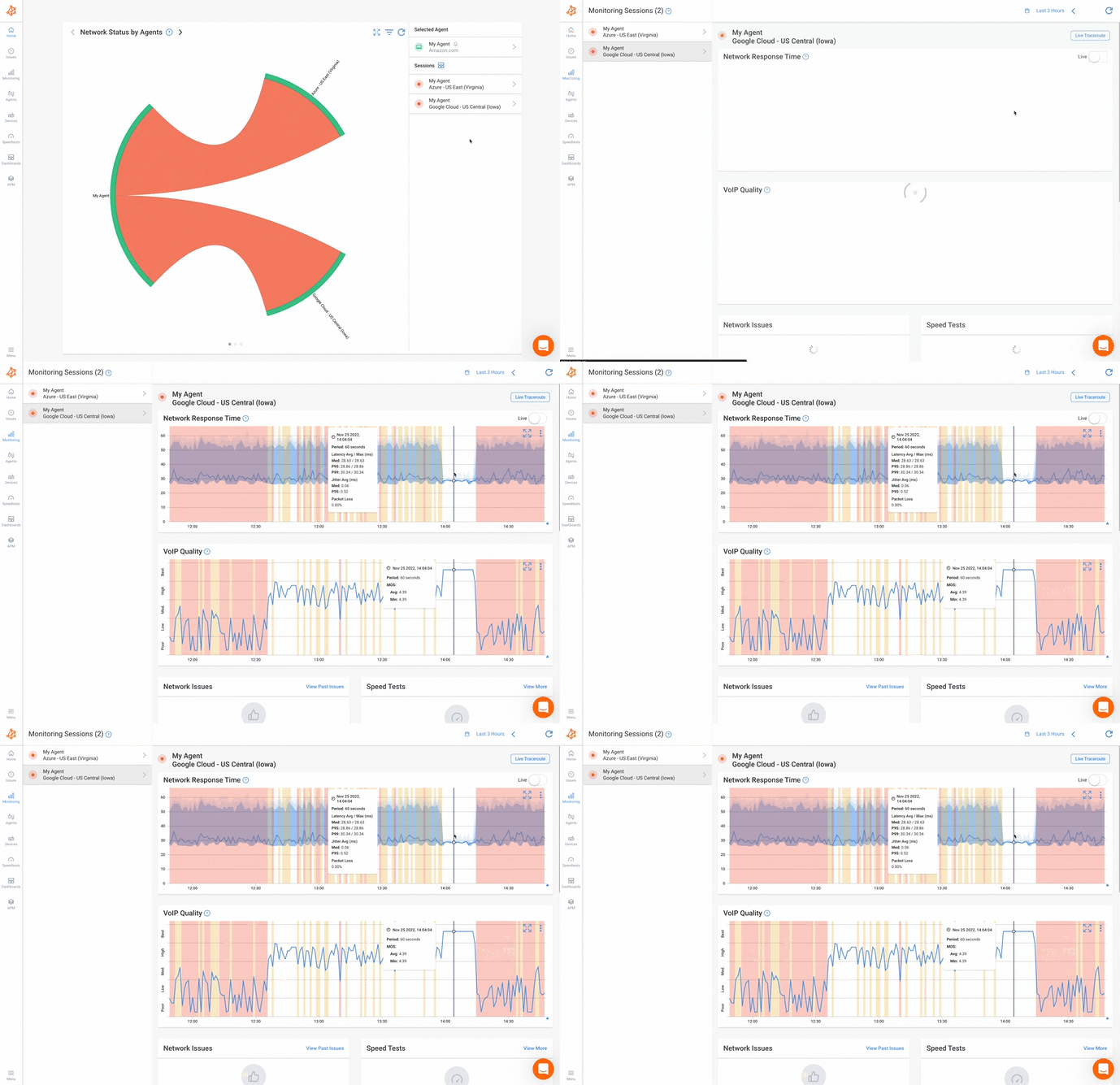
With Obkio, you can:
- Monitor latency, packet loss, jitter, and bandwidth continuously — not just when something breaks
- Pinpoint exactly where degradation is happening — whether it's your LAN, your ISP, your WAN, or a specific cloud path
- Get alerted automatically before users start complaining
- Visualize network performance trends over time to identify recurring issues and plan capacity
- Correlate network quality data with real user experience across VoIP, video conferencing, and cloud applications
Unlike one-time speed tests or manual ping checks, Obkio gives you a continuous, historical, and network-wide view of quality, so you're never diagnosing problems in the dark.


Why Network Quality Testing Matters
Network performance problems rarely announce themselves with a clear error message. More often, they show up as frustrated users, dropped calls, sluggish applications, and help desk tickets that say "the Internet feels slow." By the time those complaints reach IT, the issue has already been impacting productivity. Sometimes for hours, sometimes for days.
Network quality testing gives you the visibility to catch those problems before users do, diagnose them accurately when they happen, and prove to stakeholders and ISPs exactly where the fault lies.
What is the Business Impact of Poor Network Quality?
Poor network quality doesn't just slow things down. It disrupts the specific applications that modern businesses depend on most.
VoIP and unified communications are the first to suffer. Voice calls require consistent, low-latency delivery of small data packets in real time. Even 1% packet loss or 50ms of jitter is enough to cause choppy audio, dropped syllables, or calls that disconnect entirely. No amount of bandwidth fixes a jitter problem.
Video conferencing platforms like Zoom and Microsoft Teams are similarly sensitive. High latency causes participants to talk over each other. Packet loss causes video to freeze and pixelate. Jitter makes both worse. A meeting that degrades mid-presentation isn't just an inconvenience. It's a reflection on the professionalism of the team running it.
Cloud-hosted applications: Salesforce, Microsoft 365, hosted ERP systems, and remote desktop environments rely on a low-latency, stable connection between the user and the cloud. Latency above 150ms makes these applications feel noticeably sluggish. Intermittent packet loss causes page loads to stall, transactions to time out, and sessions to drop.
Remote and hybrid workers introduce additional complexity. Every remote user is essentially connecting over a network path you don't control. WAN links, VPN tunnels, and last-mile ISP connections all introduce potential quality degradation that only becomes visible when you're actively measuring it.
The cumulative impact is significant. Studies consistently show that network performance issues rank among the top causes of employee productivity loss, yet most organizations only discover them reactively, after users complain.
When Is Network Quality Testing Important?
Network quality testing is especially important when your business is planning or going through the following use cases:
- Before and after infrastructure changes: New ISP, SD-WAN deployment, firewall upgrade, or network redesign
- When onboarding new cloud applications: Validating that your network meets the latency and bandwidth requirements of a new SaaS platform
- During VoIP or UCaaS migrations: Ensuring the network can support real-time voice traffic before decommissioning legacy phone systems
- At remote or branch office locations: Where WAN performance is harder to monitor and problems are often reported late
- When SLA compliance needs to be verified: generating documented performance data for ISP or vendor contracts
- During rapid headcount growth: Validating that existing network capacity can absorb increased traffic loads
- When users report intermittent issues: capturing data on problems that don't reproduce on demand
- As part of regular IT audits: Establishing performance benchmarks to track network health over time
How to Run a Network Quality Test: Step by Step
Running a network quality test isn't a single action; it's a process. Done correctly, it gives you a precise, reproducible picture of how your network is performing and exactly where problems originate. The following steps apply whether you're running a one-time diagnostic or setting up continuous monitoring across your entire infrastructure.
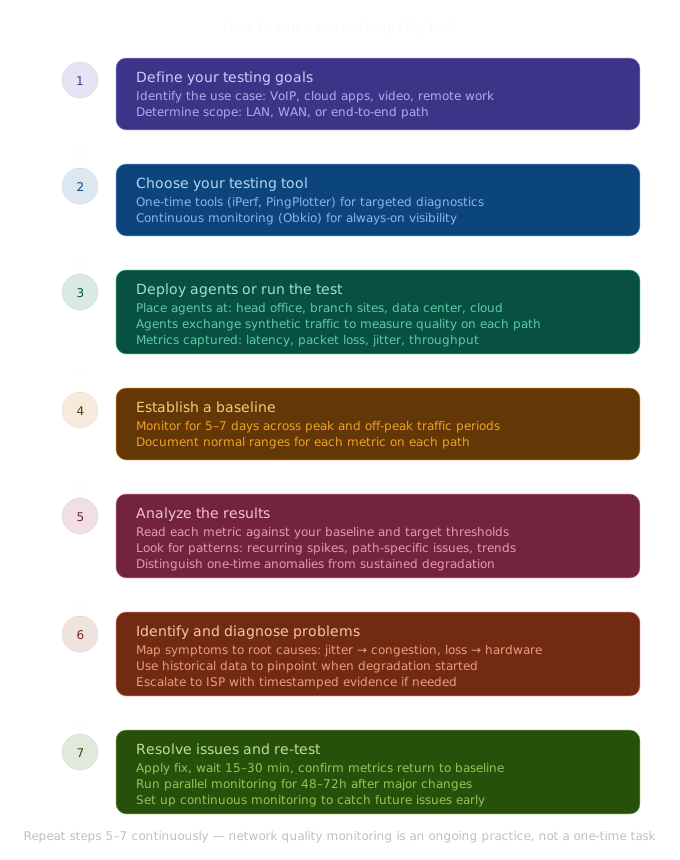
Step 1: Define Your Network Quality Testing Goals
Before you run a single test, define what you're trying to learn. Network quality testing without a clear objective produces data without context, and data without context doesn't lead to actionable conclusions.
Start by identifying the application or use case driving the test:
- Are you troubleshooting choppy VoIP calls or dropped video conferences?
- Is a cloud application like Salesforce or Microsoft 365 responding slowly?
- Are remote workers reporting inconsistent performance over VPN?
- Are you preparing for a new application deployment and need to validate baseline performance first?
Next, determine the scope of the test. Network quality problems can originate at any layer of your infrastructure, so knowing where to look saves time:
- LAN testing: Are issues isolated to your local network, specific switches, or internal segments?
- WAN testing: Is the problem on your connection between sites or to the Internet?
- End-to-end testing: Is degradation happening on the path between a user and a specific cloud service or application?
Defining your goals and scope upfront determines which metrics matter most, where to place your monitoring points, and how to interpret the results once they come in.
Step 2: Choose Your Network Quality Testing Tool
Not all network testing tools are built for the same purpose. The right tool depends on whether you need a quick point-in-time snapshot or continuous, ongoing visibility into network performance.
One-time / manual testing tools: ICMP tools like Traceroute and Ping are useful for running targeted diagnostics on a specific path or segment. They're free, lightweight, and effective for reactive troubleshooting. The limitation is that they only capture what's happening at the exact moment you run them. They won't catch intermittent issues that appear and disappear throughout the day.
Continuous monitoring tools: Platforms like Obkio are built for ongoing, automated network quality measurement. Rather than running a test manually when something goes wrong, continuous monitoring tools measure your network around the clock, capturing performance data across every segment so you have historical context when issues arise.
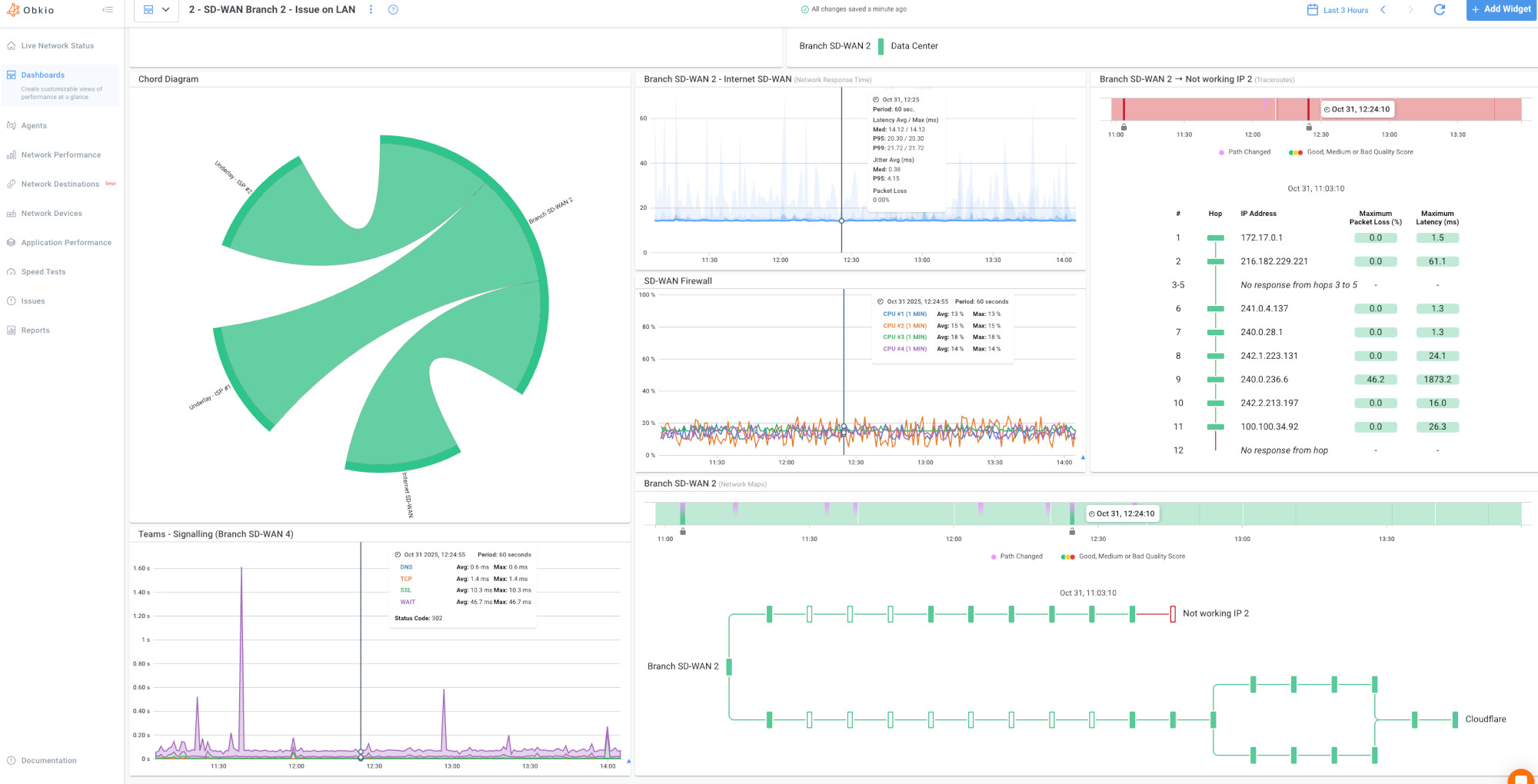
For organizations that rely on VoIP, video conferencing, cloud applications, or multi-site connectivity, continuous monitoring is the more effective approach. Intermittent packet loss, latency spikes during peak hours, and gradual performance degradation are nearly impossible to catch with manual tests alone.
Obkio uses lightweight monitoring agents deployed at key points across your network, offices, data centers, remote sites, and cloud environments. These agents continuously exchange synthetic traffic between each other to measure real-time latency, packet loss, jitter, and bandwidth on every network path, without requiring any changes to your existing infrastructure.
The result is a live, end-to-end map of your network quality that updates continuously and alerts you the moment something falls outside acceptable thresholds.
Step 3: Deploy Monitoring Agents or Run the Network Quality Test
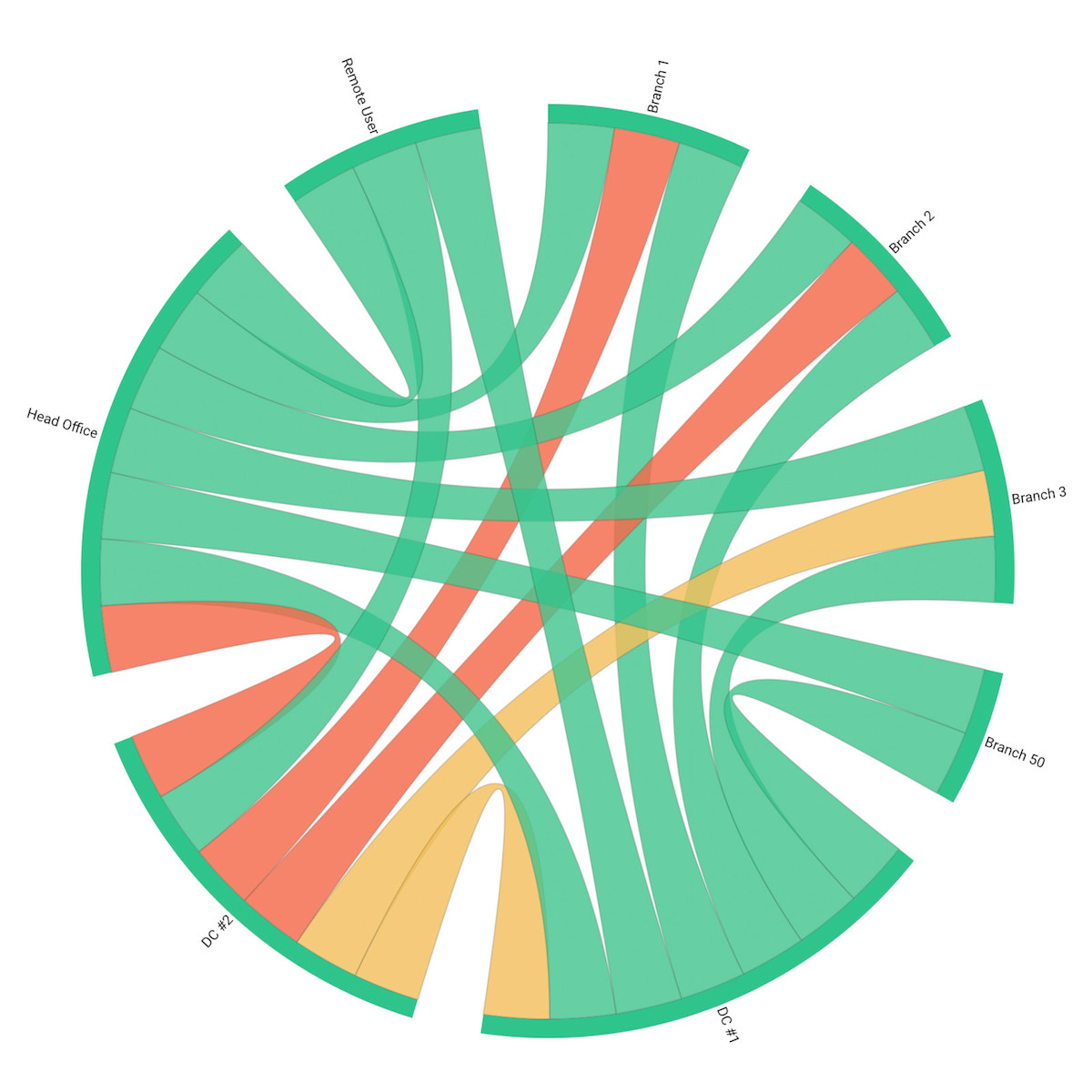
Once you've chosen your tool, the next step is deploying it at the right points across your network. For one-time tests, this means selecting your source and destination endpoints. For continuous monitoring with Obkio, it means placing agents at every network location that matters.
Where to place monitoring agents:
- Head office or primary site: Your central reference point for all network paths
- Branch offices and remote sites: Where WAN performance issues are most likely to surface
- Data center or server room: To measure internal network performance and upstream connectivity
- Cloud environments: Obkio offers public monitoring agents in major cloud regions (AWS, Azure, Google Cloud) to measure performance on the path between your network and your cloud services
- Home offices or remote workers: For organizations with distributed workforces, agents at the remote end reveal whether WAN or last-mile ISP issues are affecting specific users
What the test generates:
Once deployed, Obkio agents automatically exchange UDP and TCP synthetic traffic between each other at regular intervals. This continuous stream of test packets measures round-trip latency, packet loss, jitter, and throughput in real time, simulating real application traffic without impacting your production network.
Every measurement is timestamped and stored, giving you a continuous performance timeline across every monitored path.
For one-time tools like iPerf, you'll run the test manually between two endpoints, specifying the protocol, duration, and traffic volume. The output gives you a point-in-time snapshot of throughput and basic quality metrics on that specific path.
Step 4: Establish a Network Quality Baseline
Before you can identify a problem, you need to know what normal looks like. A baseline is a documented record of your network's performance under typical conditions, the reference point against which all future measurements are compared.
Without a baseline, you're making judgment calls based on gut feel. With one, you can say with confidence that latency on your WAN link has increased by 40ms over the past two weeks, or that packet loss on your ISP connection spikes every weekday between 8am and 10am.
To establish a meaningful baseline:
- Run monitoring continuously for at least 5–7 days before drawing conclusions, capturing both peak and off-peak traffic periods
- Record performance across different times of day,morning rush, midday, end of day, to understand how traffic load affects your metrics
- Note any scheduled events that affect baseline performance, such as nightly backups, batch jobs, or software update windows
- Document the normal ranges for each key metric on each network path, not just averages, but the typical high and low values
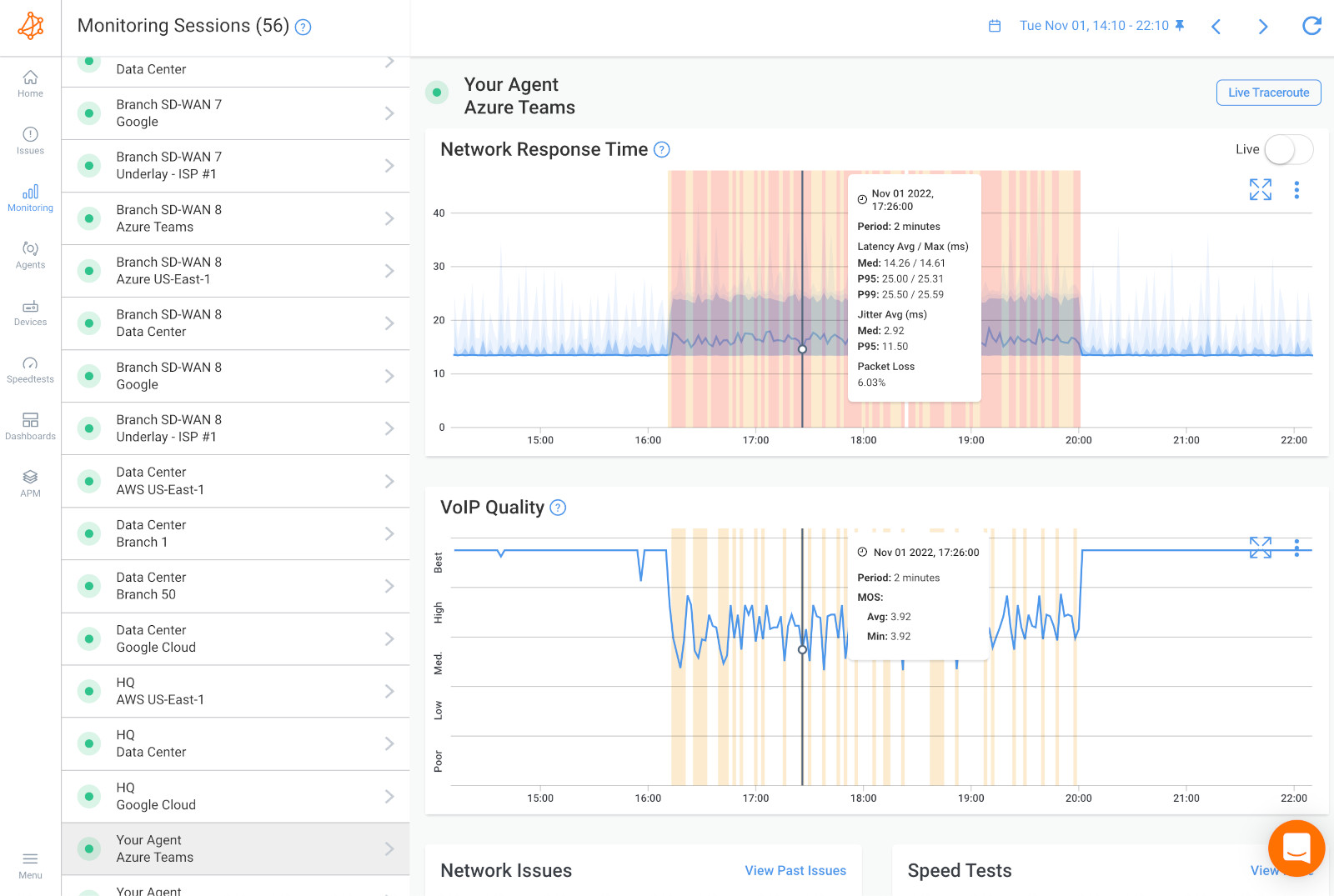
Obkio automatically builds a performance baseline over time, flagging deviations from normal behaviour and alerting you when metrics drift outside their expected range. This removes the manual effort from baseline management and ensures you're always comparing current performance against a statistically meaningful reference point.
Step 5: Analyze the Network Quality Data
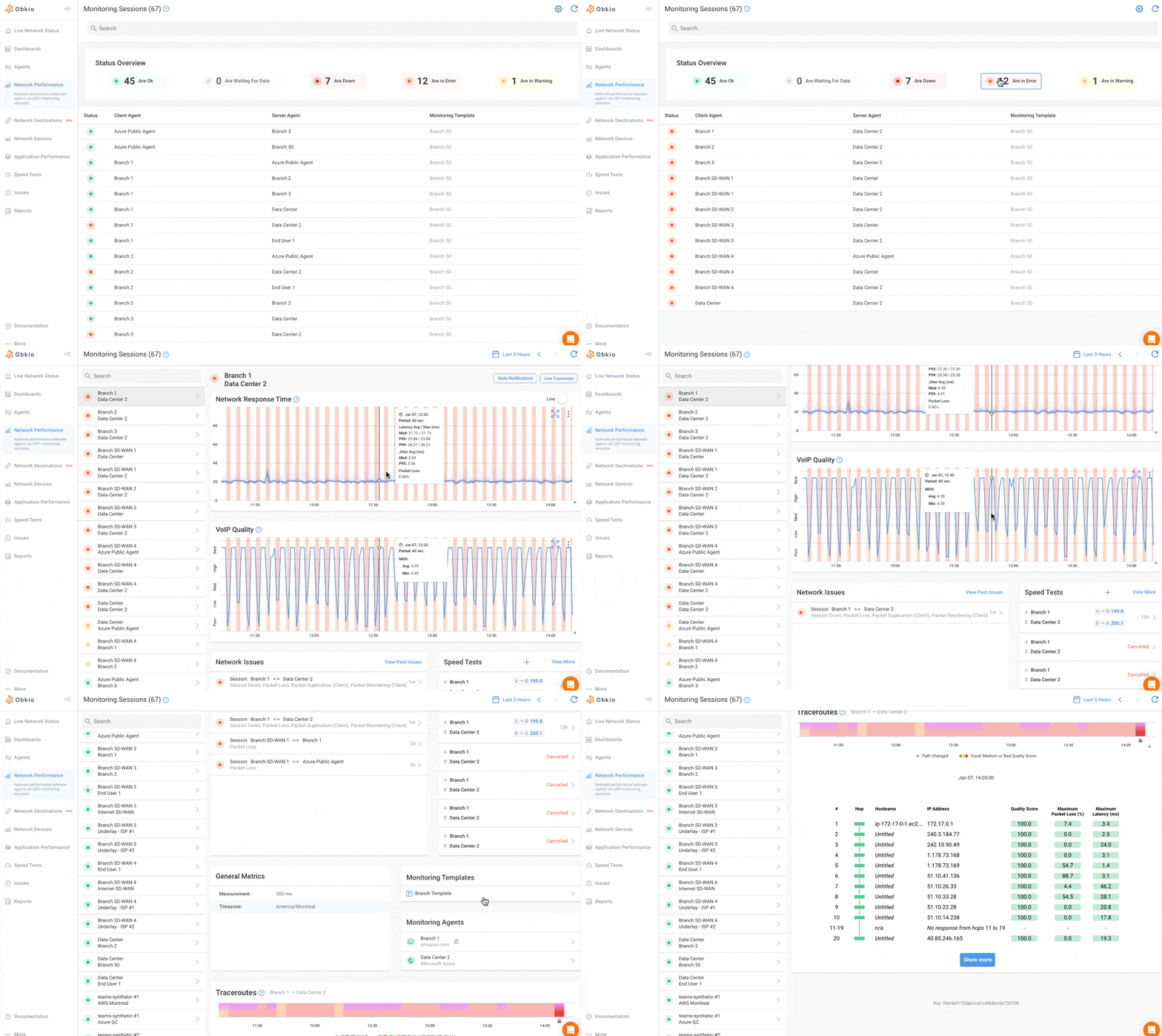
With network monitoring running and a baseline established, the next step is understanding what your data is telling you. Network quality results need to be read in context; a single high-latency reading means something very different from a sustained pattern of elevated latency on a specific path.
How to read each metric:
- Latency: Look at average values, but pay close attention to spikes. A 200ms latency spike that appears every day at 9am points to congestion during peak hours, not a chronic infrastructure issue.
- Packet loss: Even small amounts are significant. Consistent 0.5% packet loss on a WAN link will degrade VoIP quality noticeably. Sporadic 5% spikes suggest a different issue than steady 1% loss.
- Jitter: High average jitter is a problem, but high jitter variance (where values fluctuate wildly) is often worse for real-time applications than consistently elevated jitter.
- Throughput: Compare measured throughput against your contracted bandwidth. A consistent gap between the two, particularly during off-peak hours, may indicate an ISP provisioning issue.
- MOS score: Use this as a composite health indicator for voice and video paths. A MOS score that has dropped from 4.2 to 3.4 over two weeks is a clear signal that something has changed on that path.
Patterns vs. one-time spikes:
A single anomalous reading is rarely actionable on its own. What matters is the pattern. Look for:
- Recurring degradation at specific times: Points to congestion or scheduled processes
- Degradation on one path but not others: Helps isolate whether the issue is local, ISP-side, or destination-specific
- Gradual deterioration over days or weeks: Often indicates hardware degradation, growing traffic volume, or a developing ISP issue
- Sudden step-change in performance: Typically correlates with a configuration change, hardware failure, or ISP event
Step 6: Identify and Diagnose Network Quality Problems
Once you've identified an anomaly, the next step is pinpointing its root cause. Network quality problems often produce similar symptoms but originate in very different places, and treating the wrong cause wastes time and leaves the real issue unresolved.
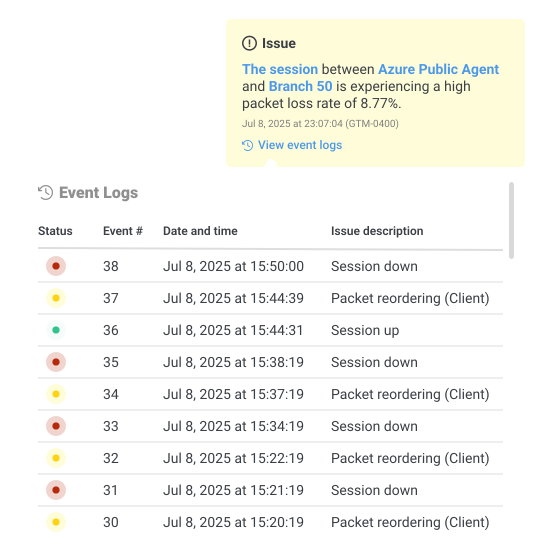
Obkio Insight: Automatic Network Diagnostics Feature
Using historical data to confirm issues:
Historical monitoring data is your most powerful diagnostic tool. When a user reports a problem, you can pull up the performance timeline for their network path and see exactly when degradation started, how severe it was, and whether it correlates with any known events: a configuration change, a traffic spike, or an ISP maintenance window.
This is also how you build an airtight case when escalating to an ISP. Timestamped packet loss and latency data from a continuous network monitoring tool is far more compelling than a user complaint, and most ISPs respond significantly faster when presented with documented evidence.
Step 7: Resolve Issues and Re-Test
Diagnosing a network problem is only half the job. Once you've identified the root cause and applied a fix, you need to validate that the fix actually worked and that it didn't introduce new issues elsewhere.
After applying any change (replacing hardware, adjusting QoS policies, switching ISP circuits, or updating routing configurations), give the network 15–30 minutes to stabilize, then review your monitoring data to confirm that the affected metrics have returned to baseline levels.
Look at the specific path where the issue occurred, and verify that the improvement is consistent across different times of day, not just immediately post-change.
For major changes like ISP migrations or SD-WAN deployments, run a parallel monitoring period of at least 48–72 hours before declaring the issue resolved. Short-term improvements can mask underlying instability that only appears under load or during peak traffic periods.
Set up Continuous Network Monitoring Post-Troubleshooting
Every resolved incident is an opportunity to improve your monitoring coverage. After closing out an issue, review whether your existing monitoring would have caught it earlier, and if not, add monitoring points, adjust alert thresholds, or extend coverage to the affected segment.
Continuous network monitoring isn't just a troubleshooting tool. Over time, it becomes your network's operational baseline, giving you the data you need to plan capacity, enforce SLAs, justify infrastructure investments, and demonstrate the value of your network operations to

How to Interpret Network Quality Test Metrics & Results
Running a network quality test generates data. Interpreting that data correctly is what turns numbers into insights. A single metric reading in isolation rarely tells the whole story, and that’s because network quality problems are usually multi-dimensional.
Understanding what your results mean requires reading each metric in context, comparing across paths, and recognizing the patterns that point to specific root causes.
Latency
Latency measures the round-trip time for data to travel between two points, expressed in milliseconds. Low and consistent latency is the baseline expectation for any well-functioning network.
- < 50ms: Excellent, suitable for all applications, including real-time voice and video
- 50–100ms: Acceptable, most applications perform well, some sensitivity in real-time tools
- 100–150ms: Degraded, noticeable delay in voice calls, cloud app responsiveness affected
- > 150ms: Poor, real-time applications suffer significantly, and VoIP calls become difficult
What matters as much as the average value is the variance. A network that averages 60ms but spikes to 200ms several times per hour will cause more user-facing problems than one that sits consistently at 80ms.
Packet Loss
Packet loss is the percentage of data packets that fail to reach their destination. It is one of the most impactful quality metrics because even small amounts cause disproportionate degradation in real-time applications.
- 0%: Ideal, all data arriving intact
- 0.1–0.5%: Minor, barely perceptible in most applications, noticeable in VoIP
- 0.5–1%: Moderate, VoIP quality degrades, video conferencing affected
- 1–2.5%: Significant, calls break up, applications stall, retransmissions increase
- > 2.5%: Critical, severe disruption to all real-time and cloud-based applications
Unlike latency, where some baseline delay is unavoidable, any consistent packet loss above 0% warrants investigation. Intermittent spikes to 1–2% are often more disruptive than a steady 0.5% because applications can adapt to consistent conditions more easily than unpredictable ones.
Jitter
Jitter measures the variation in latency between consecutive packets. A network can have acceptable average latency and still deliver poor voice and video quality if its latency fluctuates significantly from packet to packet.
- < 10ms: Excellent, smooth, consistent packet delivery
- 10–30ms: Acceptable, minor variation, most voice and video applications handle this well
- 30–50ms: Degraded, noticeable audio artifacts, video quality inconsistency
- > 50ms: Poor, significant disruption to VoIP, video conferencing, and streaming
When evaluating jitter, look at both the average and the maximum values. A low average jitter with frequent high spikes indicates a congestion problem that appears and resolves quickly — exactly the kind of intermittent issue that one-time tests miss but continuous monitoring catches.
Throughput
Throughput is the actual rate at which data is successfully transferred, as opposed to the theoretical maximum bandwidth your ISP has provisioned. The gap between contracted bandwidth and measured throughput is one of the most common and most overlooked network quality issues.
- 90–100% of contracted speed: Excellent, ISP delivering as agreed
- 75–90%: Acceptable, minor overhead and contention, within normal range
- 50–75%: Degraded, investigate link utilization, check for congestion
- < 50%: Poor, significant underdelivery, escalate to ISP or review configuration
Throughput readings need to be interpreted alongside utilization data. Low throughput during peak hours on a heavily loaded link is a capacity problem. Low throughput during off-peak hours on a lightly loaded link is likely an ISP provisioning or configuration issue.
MOS Score
The Mean Opinion Score rates the perceived quality of voice and video calls on a scale of 1 to 5, calculated from latency, jitter, and packet loss combined. It is the most user-experience-oriented metric in network quality testing.
- 4.3–5.0: Excellent, imperceptible quality issues
- 4.0–4.3: Good, minor imperfections, acceptable for business use
- 3.5–4.0: Fair, noticeable quality issues, users may begin to complain
- 3.0–3.5: Poor, significant degradation, calls are difficult to conduct
- < 3.0: Unacceptable, calls frequently unintelligible or dropped
A MOS score below 3.5 is a clear signal that one or more underlying metrics (latency, jitter, or packet loss) have crossed a threshold that is materially affecting the user experience. The MOS score tells you that there is a problem; the individual metrics tell you what is causing it.
How to Correlate Multiple Network Quality Metrics
Individual metrics tell part of the story. The full picture emerges when you look at multiple metrics together. Certain combinations point strongly to specific causes. Knowing these patterns dramatically reduces diagnostic time.
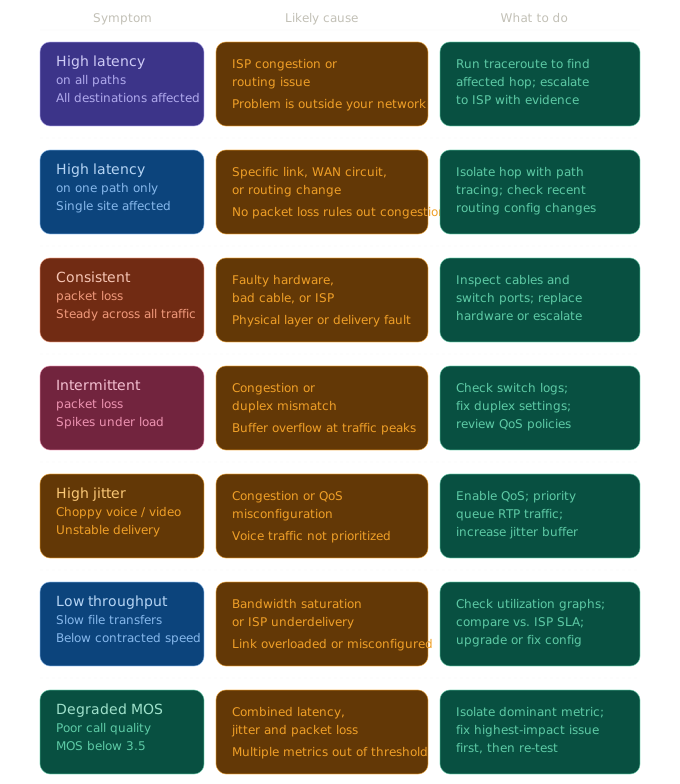
High jitter + intermittent packet loss → network congestion
When jitter and packet loss spike together, particularly during peak traffic hours, the most likely cause is congestion somewhere on the network path. Buffers fill up, packets are delayed inconsistently, and the overflow gets dropped. Check link utilization on your core switches, WAN circuit, or ISP handoff point during the period when spikes occur.
High latency + packet loss on all monitored paths → ISP or upstream issue
When every monitored path degrades simultaneously (regardless of destination) the problem almost certainly lies upstream of your network. Your internal infrastructure is common to all paths, but consistent multi-path degradation at the same time points to your ISP, your border router, or your internet handoff. Run a traceroute during the degradation window to identify which hop the latency increase begins at.
High latency on one path only + no packet loss → routing or circuit issue
Elevated latency isolated to a single network path, with no packet loss, typically indicates a suboptimal routing change, a misconfigured link, or a WAN circuit issue on that specific segment. The absence of packet loss rules out congestion as the primary cause.
Packet loss + no latency increase → physical layer issue
Packet loss without a corresponding latency increase often points to a physical layer problem: a degraded cable, a faulty switch port, a failing NIC, or a duplex mismatch. When packets are being dropped locally, they don't contribute to round-trip time measurements, which is why latency can appear normal even while loss is occurring.
Degraded MOS + acceptable individual metrics → codec or application issue
If your MOS score is declining but latency, jitter, and packet loss all appear within normal ranges, the problem may lie at the application layer rather than the network layer, codec misconfiguration, insufficient jitter buffer settings on your VoIP platform, or an application-side issue with your UC platform.
Gradual latency increase over days or weeks → growing congestion or hardware degradation
A slow, steady upward trend in latency across multiple paths often indicates growing traffic volume approaching link capacity, or the early stages of hardware degradation, a router CPU under increasing load, a switch with memory issues, or a WAN circuit beginning to fail. This pattern is almost impossible to catch without historical monitoring data and is one of the strongest arguments for continuous measurement.
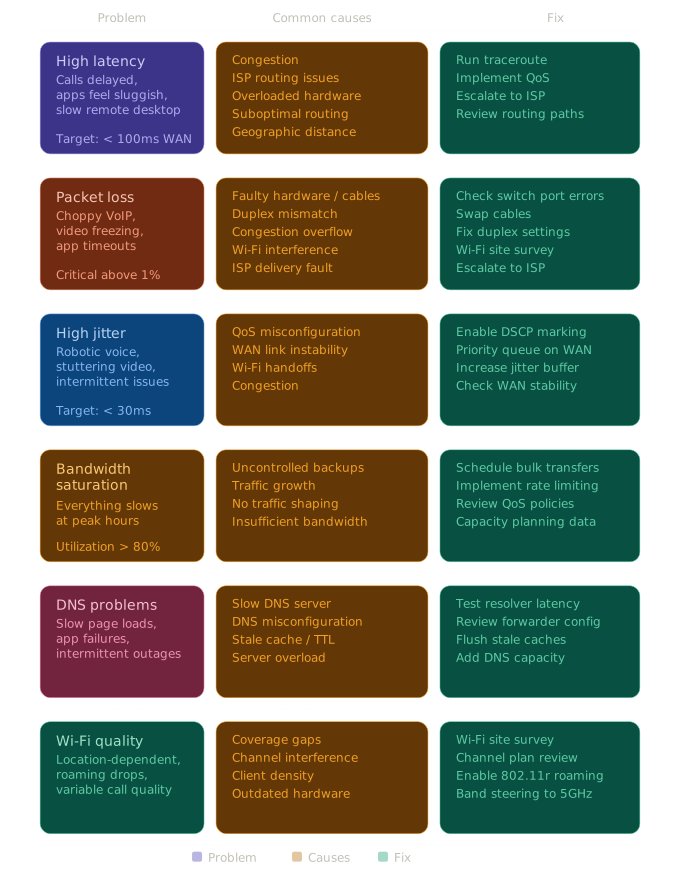
6 Common Network Quality Problems and How to Fix Them
Network quality problems rarely fix themselves. Left unaddressed, they worsen, leading to a degrading user experience, increasing support tickets, and eroding confidence in your infrastructure. The good news is that most network quality problems follow recognizable patterns, and once you know what to look for, the path from symptom to resolution is usually straightforward.
This section covers the six most common network quality problems IT teams encounter, what causes them, and how to troubleshoot them.
1. High Latency
Users report that applications feel sluggish, web pages take longer than usual to load, video calls have noticeable delays, and remote desktop sessions feel unresponsive. VoIP callers talk over each other because of the delay between speaking and being heard.
What causes it:
- Network congestion: Too much traffic competing for available bandwidth on a link, causing queuing delays.
- Suboptimal routing: Traffic taking an unnecessarily long path between the source and the destination.
- ISP issues: Congestion or routing problems on your ISP's network, particularly during peak hours.
- Overloaded hardware: A router or firewall with high CPU utilization, introducing processing delays
- Geographic distance: For cloud-hosted applications, physical distance between users and data centers adds unavoidable latency.
How to fix it:
Start by determining whether high latency is affecting all paths or just specific ones. Run a traceroute to identify which hop the latency increase begins at. This tells you immediately whether the problem is internal, ISP-side, or further upstream.
For congestion-related latency, review link utilization during peak hours and implement or refine QoS policies to prioritize latency-sensitive traffic.
For ISP-related latency, document the degradation with timestamped your network monitoring data and escalating with evidence.
For cloud application latency, evaluate whether traffic is routing through an optimal path. SD-WAN solutions can route cloud-bound traffic directly to the internet rather than backhauling it through a central site.
2. Packet Loss
VoIP calls develop audio gaps, dropped syllables, or robotic-sounding voice quality. Video conferences freeze and pixelate. File transfers stall or time out. Web applications display errors or fail to load certain elements. Even small amounts (as little as 0.5%) are perceptible in real-time applications.
What causes it:
- Network congestion: When buffers overflow, packets get dropped rather than queued, causing network congestion.
- Faulty physical hardware: Degraded cables, failing switch ports, or a NIC with errors introducing drops at the physical layer
- Duplex mismatches: When two network devices disagree on whether to use full or half duplex, collisions cause packet loss
- Wireless interference: On Wi-Fi networks, interference, weak signal, or channel congestion causes packet retransmission failures
- ISP delivery issues: Packet loss occurring on the path between your network edge and the ISP handoff point
How to fix it:
First, determine whether packet loss is consistent or intermittent, and whether it affects all paths or specific segments. Consistent packet loss on a specific segment usually points to a physical layer problem. Start by swapping cables, checking switch port error counters, and looking for duplex mismatches on the affected interfaces.
Intermittent packet loss that correlates with traffic peaks points to congestion. Review buffer and queue configurations, implement QoS, or increase link capacity.
For wireless packet loss, run a Wi-Fi site survey to identify coverage gaps, interference sources, and channel congestion.
For ISP-side packet loss, run continuous monitoring on the path between your edge and the ISP handoff and escalate with the data.
3. High Jitter
High jitter causes voice calls to sound choppy or robotic, even when the call quality seemed fine moments earlier. Video conferences stutter and freeze unpredictably. The problem often appears and disappears, making it difficult to reproduce on demand, which is exactly why it's so frustrating to diagnose without monitoring data.
What causes it:
- Network congestion: Uneven queuing delays cause packets to arrive at irregular intervals
- QoS misconfiguration: Voice and video traffic not being prioritized over bulk data traffic, causing it to compete with large file transfers and backups
- Wireless instability: Wi-Fi clients experiencing varying signal quality or handoffs between access points
- WAN link instability: Fluctuations in latency on a WAN circuit translate directly into jitter for all traffic crossing that link
- Insufficient jitter buffering: On VoIP platforms, an undersized jitter buffer that can't absorb normal variation in packet arrival timing
How to fix it:
Check your QoS configuration first. In most enterprise environments, high jitter on voice and video traffic is a QoS problem. Real-time traffic is competing with bulk transfers for the same queue. Implement DSCP marking for voice and video traffic and configure priority queuing on your WAN-facing interfaces.
If QoS is already in place, review your WAN link stability using historical monitoring data. A jitter pattern that tracks closely with overall traffic volume points to congestion.
A jitter pattern that appears regardless of traffic load suggests WAN link instability. Escalate to your ISP with monitoring data showing the correlation.
For VoIP platforms specifically, review jitter buffer settings and increase the buffer size if the platform allows it.
4. Bandwidth Saturation
Everything slows down simultaneously; web browsing, application performance, file transfers, and video calls all degrade at the same time. The problem typically appears at predictable times: morning login surges, end-of-day backup windows, or whenever a large file transfer or software update is in progress.
What causes it:
- Insufficient bandwidth for current traffic volumes. This is the most straightforward cause.
- Uncontrolled bulk traffic, like backups, software updates, or large file transfers, that are consuming available bandwidth without rate limiting.
- Traffic growth, like gradual increases in application usage, headcount, or data volumes, slowly consumes headroom until the link saturates
- Lack of QoS, so all traffic types compete equally for bandwidth, with bulk traffic crowding out latency-sensitive applications.
- Misconfigured or missing traffic shaping, so no policies are in place to manage how bandwidth is allocated between application types.
How to fix it:
Start by confirming that the problem is actually bandwidth saturation and not something else. Review your throughput graphs during the degradation window. If utilization is consistently hitting 80% or above during peak periods, saturation is the likely culprit.
Before upgrading bandwidth, implement traffic shaping and rate limiting to control bulk traffic. Schedule backups and large transfers for off-peak windows. Implement QoS to ensure latency-sensitive traffic gets priority during congestion. These steps often resolve the user-facing impact without requiring a bandwidth upgrade.
If utilization remains high after traffic shaping, use your historical throughput data to build a capacity planning case. A trend showing consistent growth toward your link's ceiling, with a projected date when it will be regularly exceeded, is a compelling justification for a bandwidth upgrade or SD-WAN deployment.
5. DNS Resolution Problems
Specific websites or cloud applications fail to load or take noticeably longer than expected to resolve. DNS issues often appear intermittent and difficult to reproduce. Users may report that "some things work and some things don't" without an obvious pattern. Applications that rely on dynamic DNS for load balancing or failover may behave erratically.
What causes it:
- Slow or unresponsive DNS servers: Internal or ISP-provided DNS servers with high response times or intermittent failures
- DNS misconfiguration: Incorrect DNS settings are pushing queries to a suboptimal resolver
- DNS server overload: A DNS server handling more queries than it can process, particularly in larger environments
- Split-horizon DNS issues: Misconfigurations causing internal resources to resolve incorrectly from specific network segments
- TTL and caching problems: Overly aggressive caching, serving stale records after infrastructure changes
How to fix it:
Run DNS resolution time tests from affected client machines to identify whether resolution latency is elevated. Compare resolution times against a known-good public DNS server. If your internal DNS is significantly slower, the resolver itself is the issue.
Check DNS server performance metrics for CPU utilization, query volume, and error rates. For environments with high DNS query volumes, consider deploying additional DNS infrastructure or moving to a managed DNS service.
Review DNS forwarder configurations to ensure queries are being directed to the most performant upstream resolvers. After any infrastructure change involving IP addresses or hostnames, verify TTL values are appropriate and flush caches where needed.
6. Wi-Fi Quality Problems
Performance varies significantly depending on where users are located. Users near access points have no issues, while those further away experience latency, packet loss, and disconnections. Problems may also appear when users move between areas, a sign of poor roaming behaviour. Video calls that work at a desk fail in a conference room.
What causes it:
- Insufficient coverage: Access points too far apart or obstructed by walls, furniture, or building materials
- Channel interference: Neighbouring networks or other wireless devices competing on the same channel
- Client density: Too many devices associated with a single access point, degrading per-client throughput
- Roaming issues: Clients holding onto a distant access point rather than roaming to a closer one, or dropping briefly during handoffs
- Co-channel interference: Multiple access points in the same area are configured on the same channel
- Outdated hardware: Aging access points that don't support current Wi-Fi standards or lack adequate processing capacity
How to fix it:
Start with a Wi-Fi site survey to map signal strength, channel utilization, and interference across your coverage area. Most enterprise Wi-Fi management platforms provide built-in tools for this. Identify dead zones, coverage gaps, and areas with high interference and address them through access point repositioning, power adjustment, or additional hardware.
Review your channel plan and implement automatic or manual channel assignment to minimize co-channel and adjacent-channel interference.
For high-density environments, reduce access point transmit power so clients connect to the nearest AP rather than staying associated with a distant one. Enable band steering to push capable clients to 5GHz. Review roaming thresholds and ensure 802.11r fast roaming is enabled on access points and supported by your clients.
For persistent issues, implement continuous Wi-Fi monitoring alongside your network quality monitoring. Many enterprise monitoring platforms support wireless performance metrics alongside wired infrastructure, giving you a unified view of quality across both environments.

Learn about some of the most common network problems that businesses face every day, like high CPU, bandwidth, equipment issues, Internet failures, and more.
Learn more
How Obkio Helps You Run Continuous Network Quality Tests
Running a network quality test once gives you a snapshot. Running it continuously gives you the full picture: how your network performs across every hour, every segment, and every path between your users and their applications.
Most monitoring tools are passive. They watch existing traffic and report on what they observe. This means they only detect problems that have already affected users, and only on paths where traffic is actively flowing.
Obkio uses synthetic monitoring. Lightweight software agents deployed across your network continuously generate their own test traffic (every 500 milliseconds), measuring latency, packet loss, jitter, and throughput on every monitored path, whether anyone is actively using it or not. Your network is being tested at 3am on a Sunday, the same way it's tested at 9am on a Monday.

What Obkio Gives You
- End-to-end path visibility: Agents deploy at offices, data centers, remote sites, and cloud environments. Obkio's public cloud agents cover major AWS, Azure, and Google Cloud regions, so you can measure the quality of every path without additional infrastructure.
- Real-time alerts: The moment a metric crosses a threshold, Obkio notifies you before users start complaining.
- Historical data: Every measurement is stored and searchable. When an incident occurs, you can pull up the exact performance timeline, see when degradation started, and build an airtight escalation case for your ISP.
- Fast deployment: Agents install on Windows, macOS, Linux, or as virtual appliances in minutes. No hardware, no complex configuration, no changes to your existing infrastructure.
Start your free trial and deploy your first monitoring agent in minutes — no credit card required.
Conclusion
Network quality isn't the same as network speed. The metrics that determine whether your applications actually work, such as latency, packet loss, jitter, throughput, and MOS score, are invisible to a speed test and only reveal themselves through continuous, deliberate measurement.
The organizations that manage network quality well don't wait for something to break. They monitor continuously, establish baselines proactively, and treat every incident as data. Network quality monitoring isn't a project you finish, it's a practice you build.
The next step is simple: deploy a monitoring agent, establish your baseline, and see your network for what it actually is.
Frequently Asked Questions About Network Quality Testing
What is a network quality test?
A network quality test measures the performance metrics that determine how reliably a network delivers data. Unlike a speed test, it assesses whether a network can support real-world applications like VoIP, video conferencing, and cloud platforms.
What is the difference between a network speed test and a network quality test?
A speed test measures bandwidth capacity. A network quality test measures reliability and consistency, latency, packet loss, jitter, and availability. A network can deliver excellent speed test results and still perform poorly for VoIP, video, and cloud applications.
What metrics does a network quality test measure? The six core metrics are: latency (target: under 100ms WAN), packet loss (target: under 1%), jitter (target: under 30ms), throughput (vs. contracted bandwidth), MOS score (target: above 4.0), and network availability (target: 99.9% or above).
What is a good network quality score?
A healthy network maintains latency below 50ms, zero packet loss, jitter below 10ms, throughput above 90% of contracted speed, and a MOS score above 4.0. Any consistent packet loss above 1% is problematic regardless of other metrics.
How often should I run a network quality test?
Network quality should be monitored continuously, not periodically. One-time tests miss intermittent issues that appear and disappear throughout the day. Continuous monitoring tools measure quality around the clock, capturing the historical data needed to identify patterns and diagnose problems accurately.
What causes poor network quality?
The most common causes are network congestion, packet loss from faulty hardware or ISP issues, QoS misconfiguration, WAN link instability, bandwidth saturation, Wi-Fi interference, and DNS problems. Poor quality is often caused by a combination of factors that only become visible when multiple metrics are analyzed together.
Can poor network quality affect cloud applications?
Yes. Cloud applications are highly sensitive to latency and packet loss. Latency above 150ms makes applications like Salesforce and Microsoft 365 feel sluggish. Intermittent packet loss causes transactions to stall and sessions to drop. Cloud application performance depends on consistent, low-latency connectivity, not just bandwidth.