




 Obkio Blog


 Subscribe
Table of Contents
Table of Contents
Internet buffering happens when video data reaches your device more slowly than the player uses it, so the buffer runs empty and playback pauses. The most common causes are a saturated connection, someone uploading, ISP congestion at peak hours, packet loss and weak Wi-Fi. If the network checks out, the streaming service or the device is the cause.
A remote employee opens a ticket with IT because the training video won't play without stalling, but "the Internet works fine." Meanwhile, the company webinar freezes for half the viewers at head office and plays perfectly for the rest.
Internet buffering is a symptom, not a cause. It means the network didn't deliver data fast enough, for long enough, to keep the player ahead of playback. Several different problems can do that: a full connection, an upload hogging the link, congestion inside your ISP's network, packet loss or a weak Wi-Fi signal.
A speed test rarely tells you which one, because a few seconds of good results don't show what happens over the length of a stream. That's why this article covers what causes Internet buffering, how to find the cause you're dealing with, and how to fix each one.
What Does Buffering Mean on the Internet? 
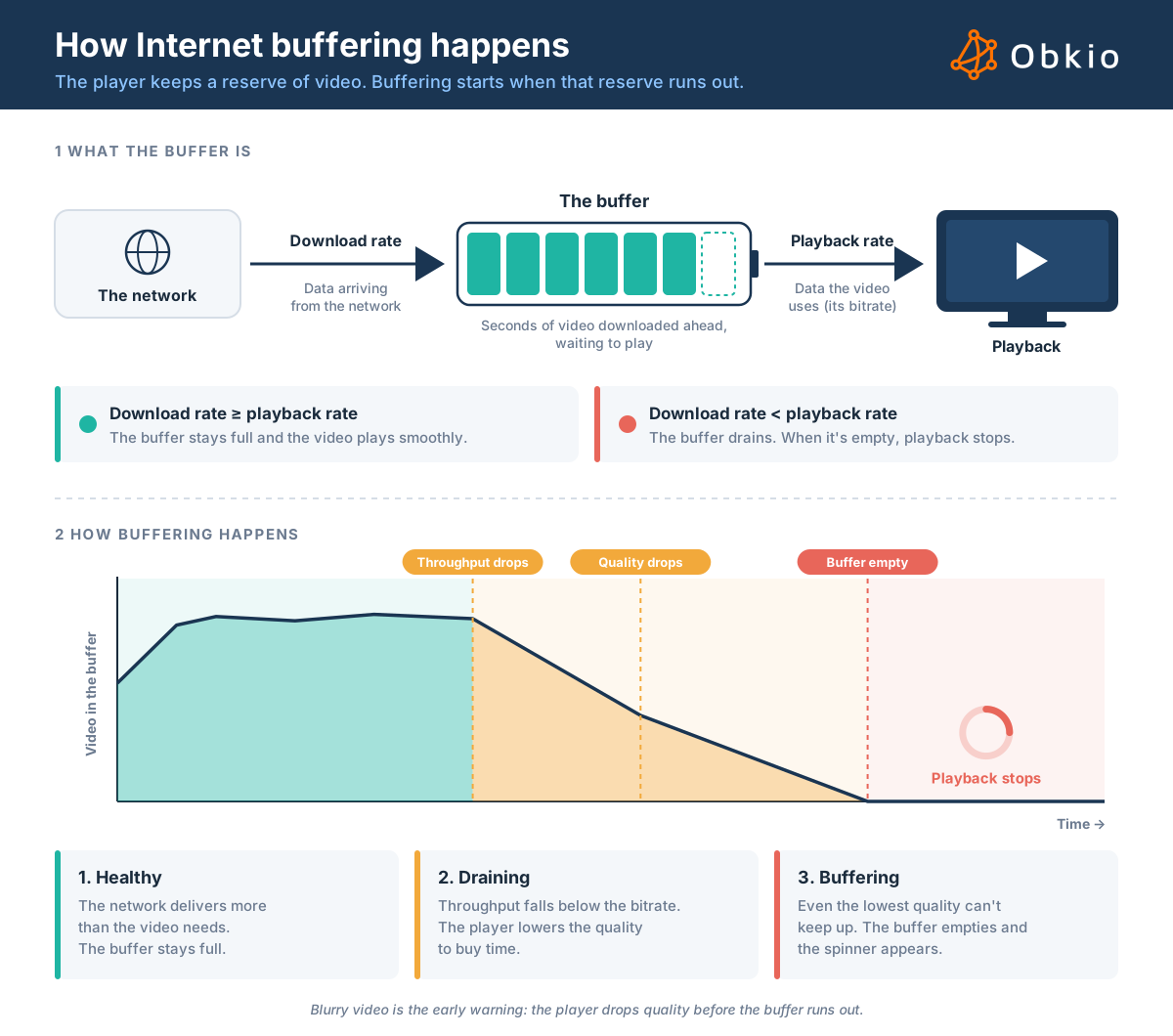
Internet buffering happens when a video or audio player pauses playback to wait for more data. Streaming players download a few seconds ahead of what you're watching and hold it in a reserve called the buffer. When data arrives more slowly than the player uses it, the reserve runs out, and the spinner appears.
The player tries to avoid that moment. Most streaming services use adaptive bitrate, which means the player drops to a lower quality when the data starts arriving too slowly. That's why a video often turns blurry before it stalls: the lower quality is the early warning, and the spinner means even the lowest quality couldn't keep up.
What matters is sustained throughput, not peak speed. An HD stream needs roughly 5 Mbps, every second, for as long as the video plays. Forty people watching the same all-hands from one office need about 200 Mbps of steady capacity, on top of everything else using the connection. If the network delivers less than that for long enough, the buffer empties, even if a speed test five minutes earlier looked great.
Buffering often gets lumped in with lag and jitter, but they're different problems:
- Buffering is a throughput problem. Data doesn't arrive fast enough over seconds or minutes, so playback stops.
- Lag is a latency problem. Each round trip takes too long, so interactive things like calls, remote desktop and games feel delayed.
- Jitter is a variation in latency. Packets arrive at uneven intervals, which matters most for live calls.
The three can share a cause, like a congested ISP, so fixing one often helps the others.
What Causes Internet Buffering?
Why does your Internet keep buffering? In almost every case, something keeps the network from delivering a steady stream of data for as long as the video plays. These are the most common causes, starting with the ones IT teams run into most.
1. Your connection is saturated
Your connection has a fixed amount of capacity, and everything on the network shares it: cloud backups, OS updates, file sync, and every other stream. When the total demand reaches the limit, each stream gets a smaller share, and video falls below its bitrate.
This is the usual cause when a whole office buffers during a company-wide stream, and it's easy to confirm once you monitor bandwidth usage on your gateway or firewall. If the graph keeps hitting the ceiling, the next step is finding what's driving the high bandwidth usage.
What you'll notice: Internet buffering hits everyone at one site at the same time, and bandwidth sits near the plan's limit.

Learn how to monitor bandwidth usage: how utilization is measured, 6 monitoring techniques, the best tools, and ways to troubleshoot common bandwidth issues.
Learn more

2. Someone is uploading (bufferbloat)
A large upload can cause buffering even when the download side has room to spare. When the upload link is full, the router queues the outgoing packets, including the acknowledgements that downloads depend on. Those acknowledgements wait in line, so downloads slow down too. This is bufferbloat, and it's one of the most common reasons an otherwise fast connection stalls.
What you'll notice: buffering starts when someone sends a large file, joins a video call or starts a backup, and stops when they finish.
3. Your ISP is congested, often at peak hours
Sometimes the bottleneck is inside your ISP's network, where too many customers share too little capacity. Your own connection can be nearly idle and still buffer, because the slowdown happens after your traffic leaves your gateway. ISP congestion tends to follow a daily pattern, which is why so many people find their Internet slows down at night.
What you'll notice: Internet buffering at the same times every day, usually late afternoon and evening, with latency and packet loss rising past your gateway. If several sites on the same ISP buffer at once, that points the same way.

Internet slows down at night when your ISP’s network, or your own, runs out of capacity at peak hours. Here’s how to find the cause & prove it to your ISP.
Learn more
4. Packet loss
Streaming runs over TCP, which reads lost packets as a sign of congestion and slows down to compensate. Even a small amount of steady packet loss can cap a stream's throughput well below what the connection could carry, especially on longer paths with higher latency.
An acceptable packet loss rate for browsing can still be enough to make video stall. A speed test can miss this because it opens several parallel connections that cover for each other, while a video stream usually relies on just a few.
What you'll notice: Internet buffering even though speed tests look fine, and a loss graph that never quite reaches zero.
5. Your Wi-Fi is weak or crowded
Wi-Fi buffering usually comes from a weak signal, interference from neighbouring networks, or too many devices on one access point. A weak signal forces the device to a lower link speed and causes more retransmissions, so the throughput that reaches the laptop can be a fraction of what the connection provides.
What you'll notice: Internet buffering in one room, on one floor or on one device, while wired machines at the same site are fine. Plugging the same laptop into Ethernet makes it disappear.
6. You're not getting the bandwidth you pay for
The plan says 500 Mbps, but the connection consistently delivers far less. The cause can be the ISP under-delivering or a misconfiguration on your side, like a speed or duplex mismatch at the handoff.
Either way, the capacity you planned around isn't there, and the only way to prove it is to monitor your Internet SLA over time instead of relying on a one-off test.
What you'll notice: throughput that never reaches the plan's rated speed, even at quiet times.

Unlock the secrets of Internet SLA monitoring, optimize your online experience, and hold your ISP accountable. Empower your Internet journey!
Learn more
7. The VPN is sending traffic the long way
With a full-tunnel VPN, a remote worker's video goes to head office first, then out to the Internet, then back. That adds latency and puts every stream through the same VPN concentrator and head office connection.
If the firewall's CPU is busy with encryption, throughput drops further, which is why it's worth tracking VPN performance separately from the Internet connection itself.
What you'll notice: Internet buffering only when the VPN is connected, often for every remote user at once.
8. It's not the network: the service, CDN or device
Not all buffering starts on your network. The streaming service or its content delivery network (CDN) can be overloaded, or your traffic can be steered to a distant server.
On the device side, an old laptop with a maxed-out CPU, or a browser with dozens of tabs open, can't decode video fast enough, and the result looks exactly like buffering. Before blaming the connection, check whether it's the network or the application, and whether it's the computer or the network.
What you'll notice: only one service buffers while others play fine, or only one machine has the problem on a network with clean numbers.

Why Does Video Buffer When my Speed Test is Fine?
A speed test measures how much data your connection can move in a short burst, to a nearby server, at one moment. Internet buffering happens over minutes, on a different path, often at a different time of day, so a good speed test result doesn't rule out the network.
A few things a speed test doesn't show:
- It's a burst, not a stream: A test runs for 10 to 20 seconds. A webinar runs for an hour, and a slowdown that lasts two minutes in the middle of it is enough to empty the buffer. A single test is unlikely to land on that window.
- It tests a different path: Speed tests usually pick the closest server, often inside or right next to your ISP's network. Your video comes from a streaming service or CDN that may sit several networks away, past the congested link or peering point the test never crosses.
- It runs at the wrong time: Most people test when they first notice the problem, or later when things have calmed down. If the cause is peak-hour congestion or a nightly backup, a test at 10 a.m. comes back clean.
- Parallel connections hide packet loss: A speed test opens several connections at once, so a slowdown on one is covered by the others. A video stream relies on just a few, and a small amount of loss caps its throughput.
- Mbps isn't the only number that matters: A speed test reports download and upload speed. It doesn't show latency spikes, jitter or packet loss over time, which are often what's actually behind the buffering.

A speed test is still useful for confirming that the connection can reach its rated speed. To find the cause of buffering, though, you need to measure latency and packet loss continuously, to the destinations your users actually stream from, and see when and where the quality drops. That's what the next section walks through.
How to Find What's Causing Internet Buffering
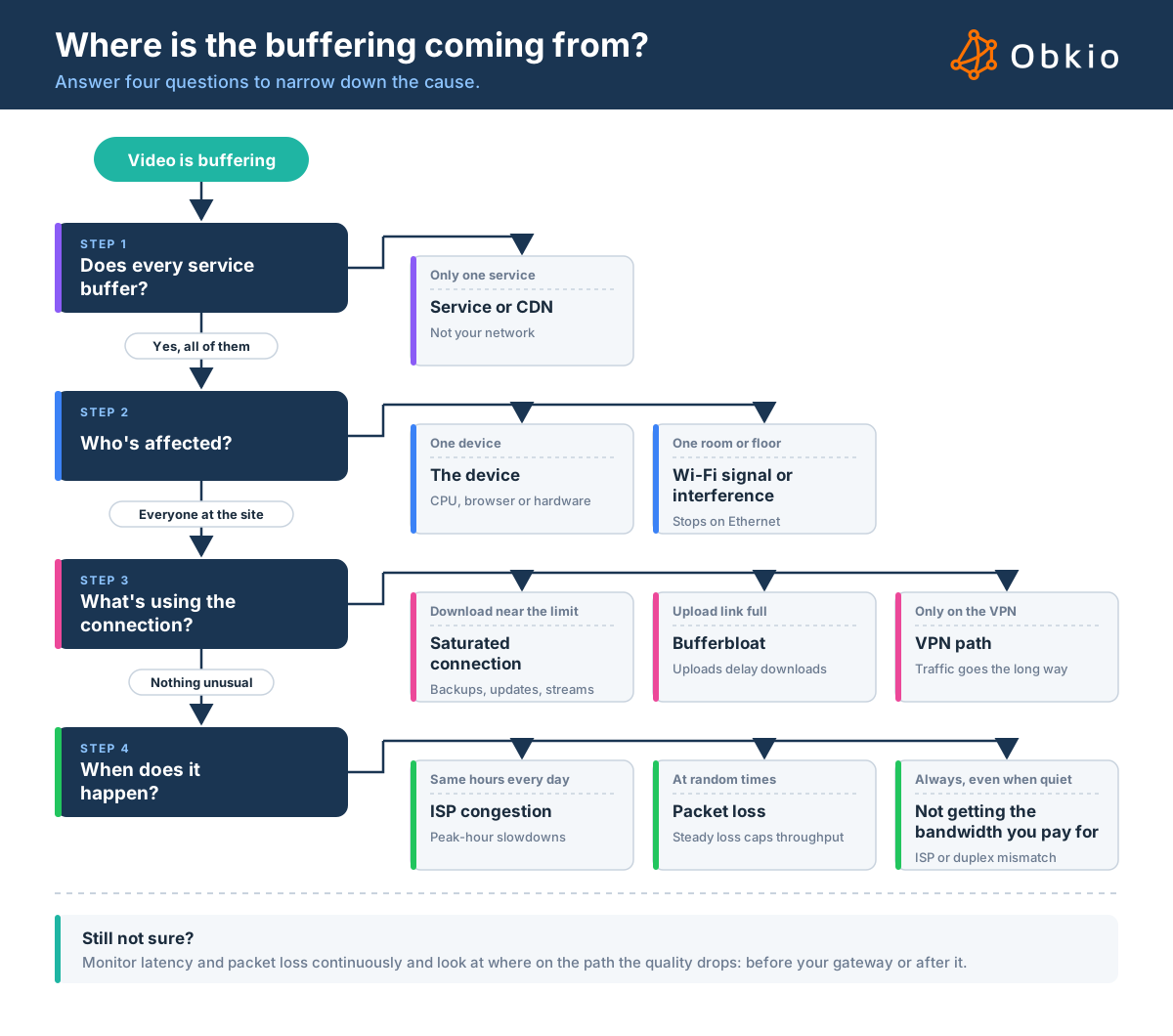
Each cause leaves a different pattern, so the fastest way to find the true cause of your Internet buffering is to narrow down who's affected, when, and where on the path the quality drops. Work through these steps in order. The first four take a few minutes and often settle it on their own.
Step 1: Check whether one service is buffering or all of them
Try another streaming service or video platform on the same device. If only one service buffers while the others play smoothly, the problem is most likely on the service or CDN side, not your network. If everything buffers, keep going.
Step 2: Check who's affected: one device, one area or everyone
Find out whether the problem follows a person, a place or the whole site. User reports alone won't tell you: one person opens a ticket, ten others don't bother, and by the time you ask around, the stream is over. Monitoring each location answers the question with data instead of guesswork.
A network monitoring solution like Obkio uses Monitoring Agents at each office, data center and remote location to measure latency, jitter and packet loss around the clock. When someone reports buffering, you can compare locations at that exact time. If quality dropped at every site together, the cause is shared, like your ISP or a cloud service. If only one site dropped, the problem is local to that site, which is exactly why monitoring multi-site networks location by location pays off.
If the site's agent shows clean results but users on one floor or in one room still buffer, plug an affected laptop into Ethernet. If the buffering stops, it's the Wi-Fi. If only one laptop buffers no matter how it connects, look at the device itself.

Step 3: Check what else is using the connection
Look at the traffic on your gateway or firewall while the buffering happens. A download link near its limit points to saturation. A full upload link, from a backup, a large file transfer or a busy video call, points to bufferbloat. If remote users only buffer on the VPN, the VPN path is the suspect.
Step 4: Note when the Internet buffering happens
Timing is one of the strongest clues. Buffering that shows up at the same hours every day, usually late afternoon and evening, points to ISP congestion. Buffering that lines up with scheduled jobs points to your own traffic. Random buffering at any hour points to packet loss or a line problem.
Step 5: Test latency and packet loss, not just speed
Speed alone doesn't explain buffering, so look at latency and packet loss while it's happening. Latency that jumps from 20 ms to 200 ms, or packet loss that never quite reaches zero, explains buffering that a clean speed test can't. If the speed test also falls well short of your plan even at quiet times, you may not be getting the bandwidth you pay for.
You can run a ping test by hand, but it only shows the moment you ran it, and buffering rarely waits for you.
Obkio runs these measurements automatically and continuously, so the data is already there when the complaint comes in. They track latency, jitter and packet loss to Obkio's public agents and between your sites, and alert you when quality degrades, often before users notice.

Step 6: Monitor Internet continuously and find where the quality drops
Buffering is often intermittent, so a test run after the fact can miss it. To catch it, you need data collected before, during and after the stream, from your site to the destinations your users rely on.
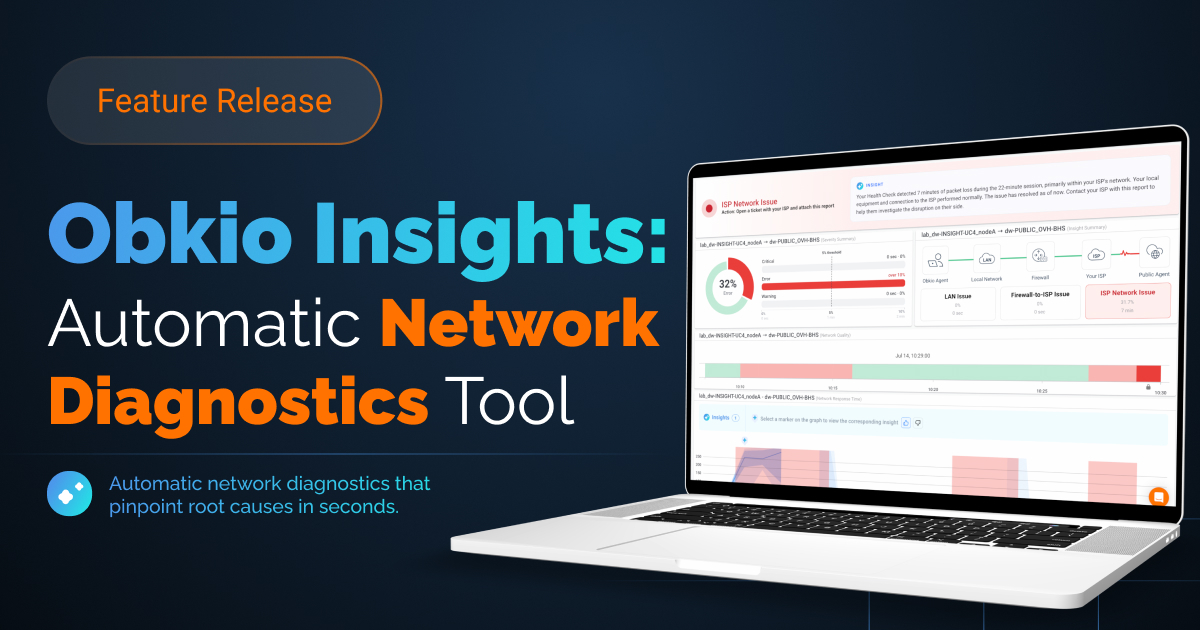
Once you know quality has dropped, the question is where. Obkio Insights reads the monitoring results and names the likely cause, such as an issue inside your ISP's network. Visual Traceroute shows the hop where latency or loss starts. If quality drops before your gateway, the problem is on your network. If it drops after, it's your ISP or beyond, and you have the data to show them.

How to Fix Internet Buffering
How to stop Internet buffering depends on what's causing it, which is why the diagnosis comes first. If you need the stream working right now, start with the quick fixes. They often help one viewer in the moment. If the buffering keeps coming back, or hits more than one person, the lasting fix happens on the network.
Quick fixes for one viewer
These won't fix an underlying buffering problem, but they can get one person through a meeting or webinar:
- Lower the video quality: Dropping from 1080p to 720p cuts the bitrate roughly in half, which often keeps the buffer ahead.
- Switch to Ethernet, or move closer to the access point: This rules out the Wi-Fi in seconds.
- Pause anything that uploads or syncs: Cloud backup, OneDrive or Dropbox sync and large file transfers compete with the stream and can trigger bufferbloat.
- Close other streams and heavy tabs: Every extra video on the same machine takes bandwidth and CPU.
- Restart the app or browser, then the device: This clears a stuck player and frees memory on an overloaded laptop.
- Disconnect from the VPN, if your policy allows it: If the buffering stops, the VPN path is the bottleneck.
Network fixes for IT teams
For Internet buffering that keeps returning, match the fix to the cause you found:
- Saturated connection: Schedule backups, updates and large syncs outside business hours, and use QoS to give video and real-time traffic priority. For company-wide live events, an enterprise CDN (eCDN), like the one Microsoft offers for Teams town halls, delivers one stream to the office and shares it locally instead of pulling dozens of copies over the same connection. If the link is full during normal work, it's time for more capacity or a second link.
- Bufferbloat: Enable smart queue management (SQM), such as fq_codel or CAKE, on your gateway or firewall, or shape upload traffic slightly below the line's real upload speed. This keeps queues short so acknowledgements, and the downloads that depend on them, keep moving.
- ISP congestion: You can't fix your ISP's network, but you can make them act on it. Open a ticket with data that shows the quality drop happening after your gateway, and if the problem keeps coming back, consider a second ISP for redundancy and leverage.
- Packet loss: Find where the loss starts first. If it begins on your side, check cabling, switch port errors and duplex settings. If it begins past your gateway, it goes to the ISP with the same evidence as congestion.
- Weak or crowded Wi-Fi: Add or move access points to cover dead zones, move clients to 5 GHz or 6 GHz, and change channels to avoid interference from neighbouring networks. For desks that stay put, a cable is still the most reliable fix.
- Not getting the bandwidth you pay for: Check the speed and duplex settings at the ISP handoff for a mismatch, then track the connection against your SLA so you can hold the ISP to what you're paying for.
- VPN path: Use split tunnelling so streaming and trusted SaaS traffic, like Microsoft 365 and Teams, go straight to the Internet instead of through head office. If the VPN has to carry everything, check whether the firewall's CPU is maxing out under the encryption load.
- Service, CDN or device: Check the service's status page and wait it out, or contact the vendor if it keeps happening. On the device side, update the browser or app, turn on hardware acceleration and close resource-heavy apps. Old hardware may simply need replacing.
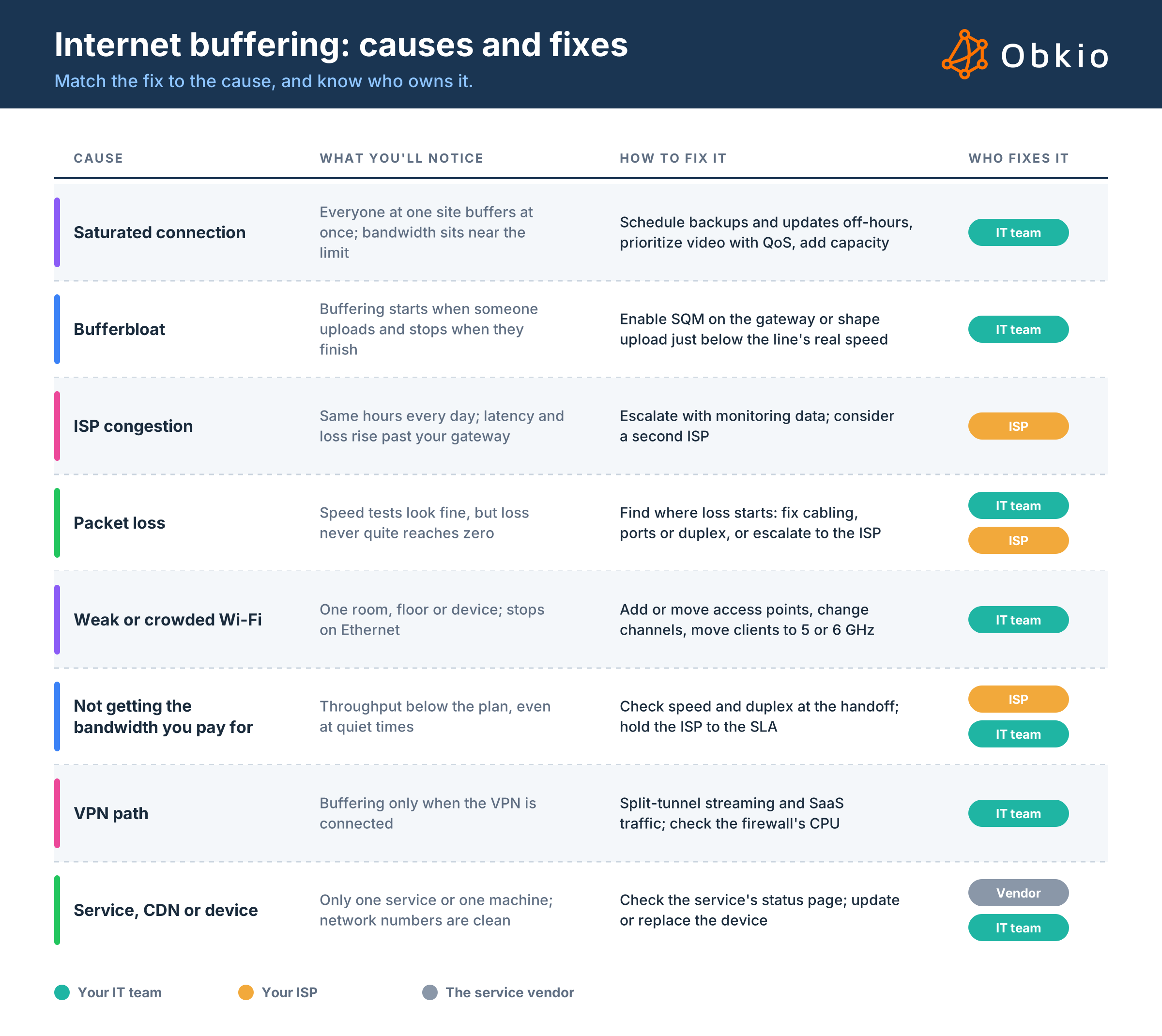
Causes and fixes for Internet buffering at a glance
- Saturated connection: everyone at one site buffers at once. Schedule heavy traffic off-hours, prioritize video, add capacity. Owner: your IT team.
- Bufferbloat: buffering starts when someone uploads. Enable SQM or shape upload. Owner: your IT team.
- ISP congestion: the same hours every day, with quality dropping past the gateway. Escalate with data and consider a second ISP. Owner: your ISP.
- Packet loss: speed tests look fine, but loss never reaches zero. Find where it starts, then fix cabling or ports, or escalate. Owner: your IT team or ISP.
- Weak or crowded Wi-Fi: one room, floor or device, and it stops on Ethernet. Add or move access points, change channels, use 5 or 6 GHz. Owner: your IT team.
- Not getting the bandwidth you pay for: throughput below the plan, even at quiet times. Check speed and duplex at the handoff and hold the ISP to the SLA. Owner: your ISP or IT team.
- VPN path: buffering only on the VPN. Split-tunnel streaming and SaaS traffic and check the firewall's CPU. Owner: your IT team.
- Service, CDN or device: one service or one machine, with clean network numbers. Check the service's status and update or replace the device. Owner: the vendor or your IT team.

How to Prove the Internet Buffering is Your ISP's Fault
"Our Internet keeps buffering" is the kind of complaint first-line support closes after a modem restart. What gets a ticket escalated is data that ties the buffering to their network: latency and packet loss that rise at the same times users reported buffering, starting past your gateway, inside the ISP's network. If other sites or destinations stayed clean at the same time, include that too, since it rules out the streaming service.
If you're already monitoring, most of that case is built for you. When Obkio Insights detects an issue in your ISP's network, it shows the full path with the failing segment highlighted, and a Shareable Link gives the ISP read-only access to the same data, with no Obkio account needed. The ISP escalation toolkit has the email templates to send with it. For the full process, from ruling out your own network to escalating past first-line support, see our guide on how to prove your ISP is the problem.
How to Catch Internet Buffering Before Users Complain
Most Internet buffering gets reported after the fact: the webinar is over, the ticket is vague, and by the time IT looks, the network seems fine. Network Monitoring flips that around. Instead of reconstructing what happened from user reports, you already have the data from the moment it started.
Obkio is a network monitoring and diagnostics solution built around this approach. Here's how its features map to the causes in this guide:
- Monitoring Agents at every location: Agents at your offices, data centers, cloud environments and remote workers' locations measure latency, jitter and packet loss continuously, both between your sites and out to public agents past your ISP. Intermittent problems like peak-hour congestion and steady packet loss get recorded when they happen, not only when someone is testing.
- Obkio Insights to name the cause: Insights analyzes that data automatically and says where the problem is: your local network, your ISP or the destination. Instead of working through every cause on the list, you start with the right one.
- Device monitoring over SNMP: Polling your firewall and router shows bandwidth usage on the WAN interface, along with CPU and memory. That's how you spot a saturated connection, an upload driving bufferbloat, or a firewall struggling with VPN encryption. Insights factors that data in when it rules your own equipment in or out.
- Visual Traceroutes to find the hop: When quality drops, traceroutes in both directions show where the drop starts, on your network or inside your ISP's.
- Scheduled speed tests to check what you pay for: Run speed tests at different times of day to see whether the connection delivers its rated bandwidth, including during peak hours.
- Shareable Links to send the proof: When the problem is your ISP's, one link gives them read-only access to the evidence, with no account needed.

This is especially useful before company-wide streams. A week of monitoring data shows how much headroom each site has at the time of the event, so you know whether the all-hands will play smoothly before 200 people tune in, not after.
Catch the next buffering problem before your users do. Deploy Monitoring Agents in minutes and let Insights find the cause.



