








Severity Summary Widget
- What the Severity Summary widget shows
- How the time in each severity is calculated
- How to add it to a session or dashboard
What you are going to learn:
Overview 
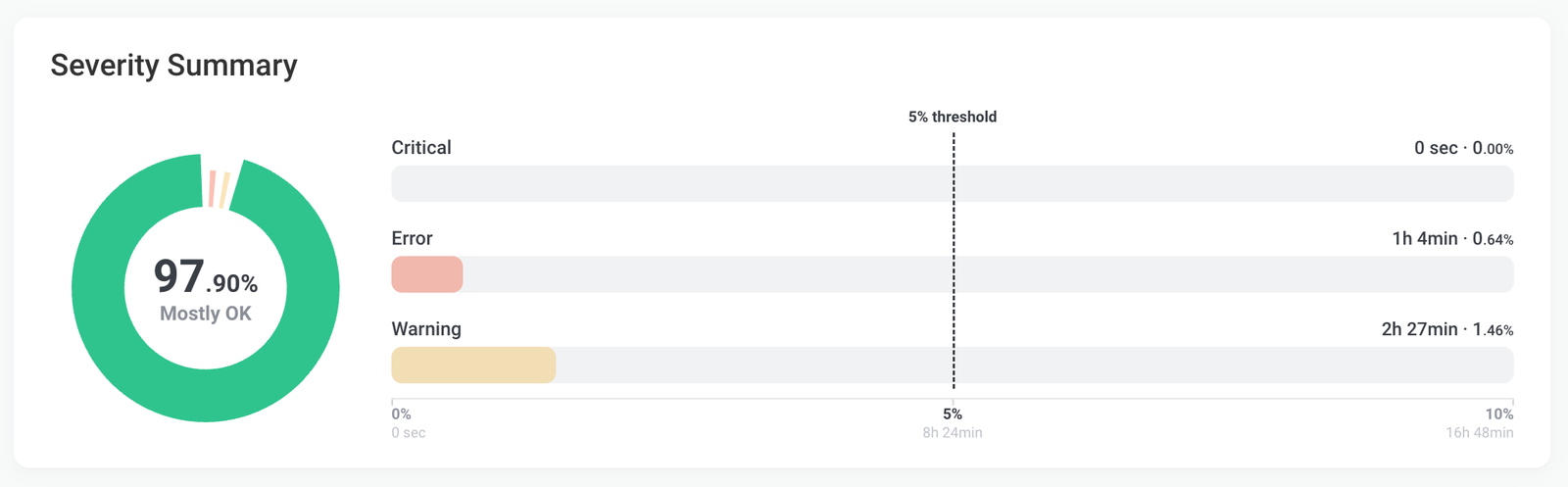
The Severity Summary widget displays how much of the selected time range a Network Monitoring Session spent in each severity level: Ok, Warning, Error and Critical. It shows the time as a percentage of the time range and as a duration, along with the 5% threshold used to select the status of the session.
This widget helps you:
- Understand how much time a session spent degraded during a period of time.
- See why the Status Overview widget selected a status.
- Compare the time in each severity with the 5% threshold.
What Is the Severity Summary Widget?
The widget shows the data of one session over the selected time range. It is made of two parts:
- Donut (left): The share of the time range spent in each severity, plus the time without data.
- Bars (right): The time spent in Critical, Error and Warning, compared with the 5% threshold.
Severity Levels
The widget uses four severity levels, based on the session's Network Monitoring Thresholds:
- Ok: Green
- Warning: Yellow
- Error: Light red
- Critical: Dark red
Time without data is displayed in grey as No data.
The Information severity is not included in the Severity Summary: time in Information is counted as Ok.
How the Severity Summary Widget Works
For each severity, the widget calculates the time the session spent in that severity during the selected time range, as a percentage of the time range. Durations are displayed in a short format, for example 45 sec, 12 min, 2h 43min or 1d 3h.
- Donut:
- Each segment is the share of the time range spent in a severity. The Ok segment is always displayed. Critical, Error and Warning are displayed when the session spent time in them.
- A grey
No datasegment is displayed for the part of the time range without data. - The centre of the donut shows the selected severity and its percentage (for example,
12.40%Error).
- Bars:
- One row each for
Critical,ErrorandWarning, with the duration and percentage (for example,2h 59min · 12.40%). - The scale goes from 0% to 10% of the time range, so short periods of degradation stay visible. A severity above 10% fills the whole bar.
- Under the scale,
0%,5%and10%are also shown as durations for the selected time range. For example, on a 24-hour time range, 5% is1h 12min. - A vertical line marks the
5% threshold.
- One row each for
Hover over a donut segment or a bar to display its percentage and severity in the centre of the donut. The other bars are faded.
How the Severity Summary Explains the Status Overview
The Severity Summary uses the same rule as the Status Overview widget to select a severity. Each severity has its own threshold of 5% of the selected time range, checked in this order:
- Critical for 5% of the time range or more: Critical is selected.
- Otherwise, Error for 5% or more: Error is selected.
- Otherwise, Warning for 5% or more: Warning is selected.
- Otherwise: the session is Ok.
The selected severity is shown in the centre of the donut, and its bar is the only one displayed in full colour. A bar that crosses the 5% threshold line is a severity that reached the threshold. The first one in the order above is selected.
For example, on a 24-hour time range, a session that spent 2 hours in Warning (8.33%) and 30 minutes in Error (2.08%) shows Warning in the centre: the Error bar stays before the threshold line, while the Warning bar crosses it. The Status Overview widget then displays Minor Performance Issue.
The centre of the donut can also show:
- Ok, with the percentage of time in Ok, when the session spent no time in Warning, Error or Critical. The bars are then replaced by
This session is healthyandNo time in warning, error or critical. - Mostly OK, with the percentage of time in Ok, when the session spent some time in Warning, Error or Critical, but none of them reached 5% of the time range.
- No data, with the percentage of time without data, when there is no data for the selected time range. The bars are then replaced by
There is no available data for this selection.
Time Range and Session Selection
The widget uses the time range of the page. On the session page, it follows the date selector at the top of the page. On a dashboard, it follows the dashboard's time range. There's no separate time picker inside the widget itself.
Each Severity Summary widget shows one session. On a dashboard, one widget is added for each session you select.
How to Use the Severity Summary Widget
On a Monitoring Session
- In the App, go to the
Network Performancetab and open a Network Monitoring Session. - The Severity Summary widget is displayed below the Status Overview widget and above the Network Quality widget.
- Use the date selector at the top of the page to change the time range.
The widget is also displayed on the shared session page of a shareable link. Learn more on Shareable Links.
On a Dashboard
- Navigate to the
Dashboardstab - Select the dashboard or create a new one
- Click
Add Widget. - Select
Severity and Insights Metrics. - Select the
Public Agentand theSessionsthat you'd like to visualize. - Select
Severity SummaryunderGraphs. You can also selectStatus Overviewto add both widgets at once. - The widget will then be added to your dashboard. You can resize or arrange the widget as needed; it automatically adapts to your screen size.
By default, the widget is named after the two agents of the session, followed by (Severity Summary). Click the name to open the session page. To set a custom name or change the session, click the three dots icon on the top right of the widget and then Edit Options. Learn more on Dashboard Widgets.
Pro-Tip: Add the Severity Summary next to the Status Overview widget of the same session: the Status Overview gives the status and the next step, and the Severity Summary shows the time behind it.
Severity Summary and Network Quality Timeline
The Severity Summary and the Network Quality Timeline use the same severities, but they don't measure them the same way, so they can look different for the same time range:
- The Severity Summary counts the exact time, in seconds, spent in each severity.
- The Network Quality Timeline splits the time range into buckets (one minute on a 3-hour time range, longer on longer time ranges) and colours each bucket with the worst severity reached in it, even if it lasted only a few seconds.
For example, a session with short Warning events spread over the day can show a mostly yellow timeline, while the Severity Summary shows 12% in Warning. Both are correct: the timeline shows when issues happened, and the Severity Summary shows how long they lasted. Use the Severity Summary percentages to understand the status of the session.
Requirements and Limitations
- The Severity Summary widget is available on Network Monitoring Sessions toward a Public Monitoring Agent or toward an agent in Private Internet Server mode. It is not displayed on other sessions.
- On dashboards, the
Public Agentfield only lists Public Monitoring Agents. - Users with the Billing User role can't see this widget. Learn more on User Roles.
- The widget shows the time spent in each severity, not the number of events.