








Network Quality Timeline Widget
- What the Network Quality Timeline widget shows
- How severity colouring is calculated for each bucket
- How to add it to a session or dashboard
What you are going to learn:
Overview 
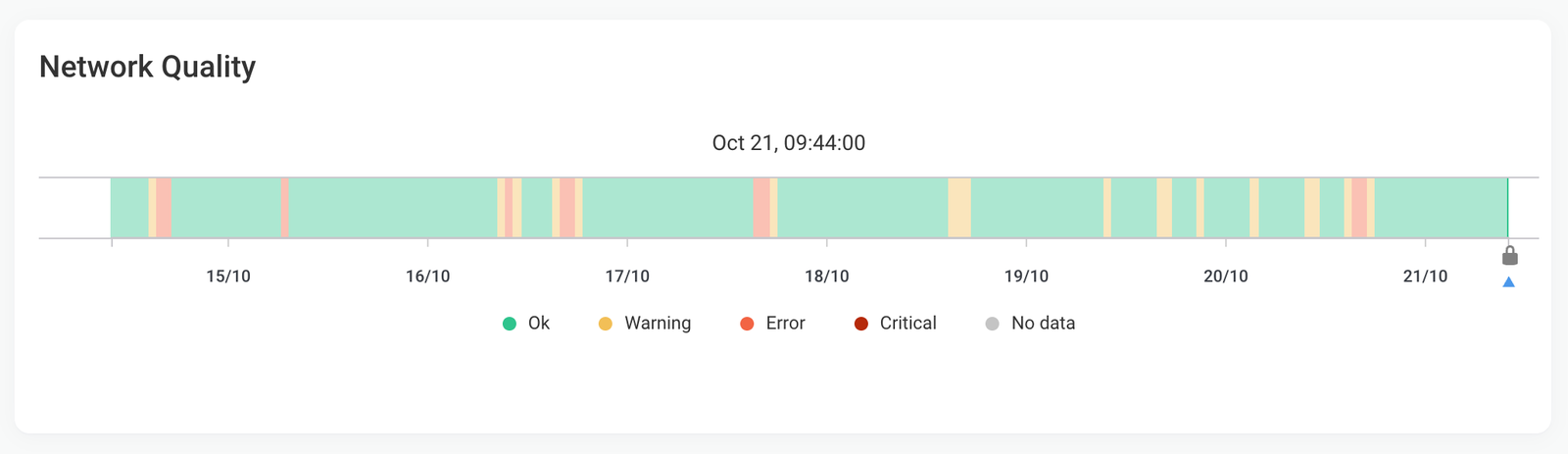
The Network Quality Timeline widget, displayed as Network Quality in the App, is a horizontal timeline made of small rectangular buckets, colour-coded by severity. It lets you scan a Network Monitoring Session over the selected time range and see when the network was healthy and when it wasn't.
It works like the uptime history of a status page, but for network performance.
This widget helps you:
- See when a session was degraded, without reading the latency, jitter and packet loss graphs first.
- Find the exact moment an issue started and look at the traceroutes at that moment.
- Spot periods without data.
What Is the Network Quality Timeline Widget?
Each bucket represents a period of time and is colour-coded with the worst severity recorded during that period. If a bucket contains more than one severity level, for example a Warning followed by an Error, the bucket displays the worst one. A short issue is never hidden by a good moment in the same bucket.
The size of the buckets depends on the selected time range. With the Last 3 hours time range, each bucket represents one minute. With longer time ranges, each bucket covers several minutes.
The severities come from the session's Network Monitoring Thresholds.
Severity Colour Scale
The legend below the timeline shows the colours:
- Ok (green): No degradation detected during that period.
- Warning (yellow): Performance reached the Warning threshold.
- Error (light red): Performance reached the Error threshold.
- Critical (dark red): Severe degradation, like a session down.
- No data (grey): No data was collected for most of that period.
The Information severity is not displayed on the timeline: time in Information is shown as Ok. Learn more on Notification Severity Levels.
No Data
A bucket is grey when:
- The session didn't exist yet, or was waiting for data.
- Less than half of the bucket has measurement data, for example because an agent was offline.
A gap shorter than half a bucket doesn't turn the bucket grey. Grey buckets can't be hovered or selected.
If the selected time range goes past the current time, the future part of the timeline is hatched and a small triangle marks the current time.
Interacting with the Network Quality Timeline
- Hover: Hover over a bucket to highlight it and display its start time in a tooltip (for example,
Oct 15, 14:32:00). On the session page, the same moment is marked on the other graphs of the page, like Network Response Time, so you can see the metrics at that moment. The tooltip doesn't show the severity: use the colour of the bucket and the legend. - Click: Click a bucket to select that moment. The selected time is displayed above the timeline. On the session page, the Traceroutes section then shows the traceroute at that moment. Click the selected bucket again to go back to the latest data.
- Drag: Click and drag across the timeline to zoom in on that period. The time range of the page or dashboard changes to the selected period, like on the other graphs.
On dashboards, tooltips are not synchronized between widgets.
How to Use the Network Quality Timeline Widget
On a Monitoring Session
- In the App, go to the
Network Performancetab and open a Network Monitoring Session. - The
Network Qualitywidget is displayed above theNetwork Response Timegraph, so you can compare them. When the session supports them, it is displayed below the Status Overview and Severity Summary widgets. - Use the date selector at the top of the page to change the time range.
The widget is also displayed on the shared session page of a shareable link. Learn more on Shareable Links.
On a Dashboard
- Navigate to the
Dashboardstab - Select the dashboard or create a new one
- Click
Add Widget. - Under the
Network Performance Metrics, select theAgentandSessionsthat you'd like to visualize. - Select
Network Qualityin theSingle metric graphslist underGraphs. - The widget will then be added to your dashboard. You can resize or arrange the widget as needed; it automatically adapts to your screen size.
One widget is added for each selected session. The widget follows the time range of the dashboard.
By default, the widget is named after the two agents of the session, followed by (Network Quality). Click the name to open the session page. To set a custom name or change the session, click the three dots icon on the top right of the widget and then Edit Options. Learn more on Dashboard Widgets.
Pro-Tip: Add the Network Quality widget above a Network Response Time widget of the same session to see when the session was degraded and which metric caused it.
Network Quality Timeline and Severity Summary
The Network Quality Timeline colours each bucket with the worst severity reached in it, even if it lasted only a few seconds. The Severity Summary counts the exact time spent in each severity.
A timeline can therefore look more yellow or red than the percentages of the Severity Summary. For example, short Warning events spread over the day can colour most buckets yellow while the Severity Summary shows 12% in Warning. Both are correct: the timeline shows when issues happened, and the Severity Summary shows how long they lasted.
Requirements and Limitations
- The Network Quality widget is available on all Network Monitoring Sessions.
- With time ranges longer than 3 hours, the buckets of the timeline and the aggregation of the
Network Response Timegraph can cover different periods, so their timestamps may not line up exactly. Learn more on Aggregation.