







Dashboard Widgets
- What are dashboard widgets
- How to manage multiple widgets in a dashboard
What you are going to learn:
Widgets are building blocks used to create your own dashboards. There are multiple ways to manage the widgets from a dashboard.
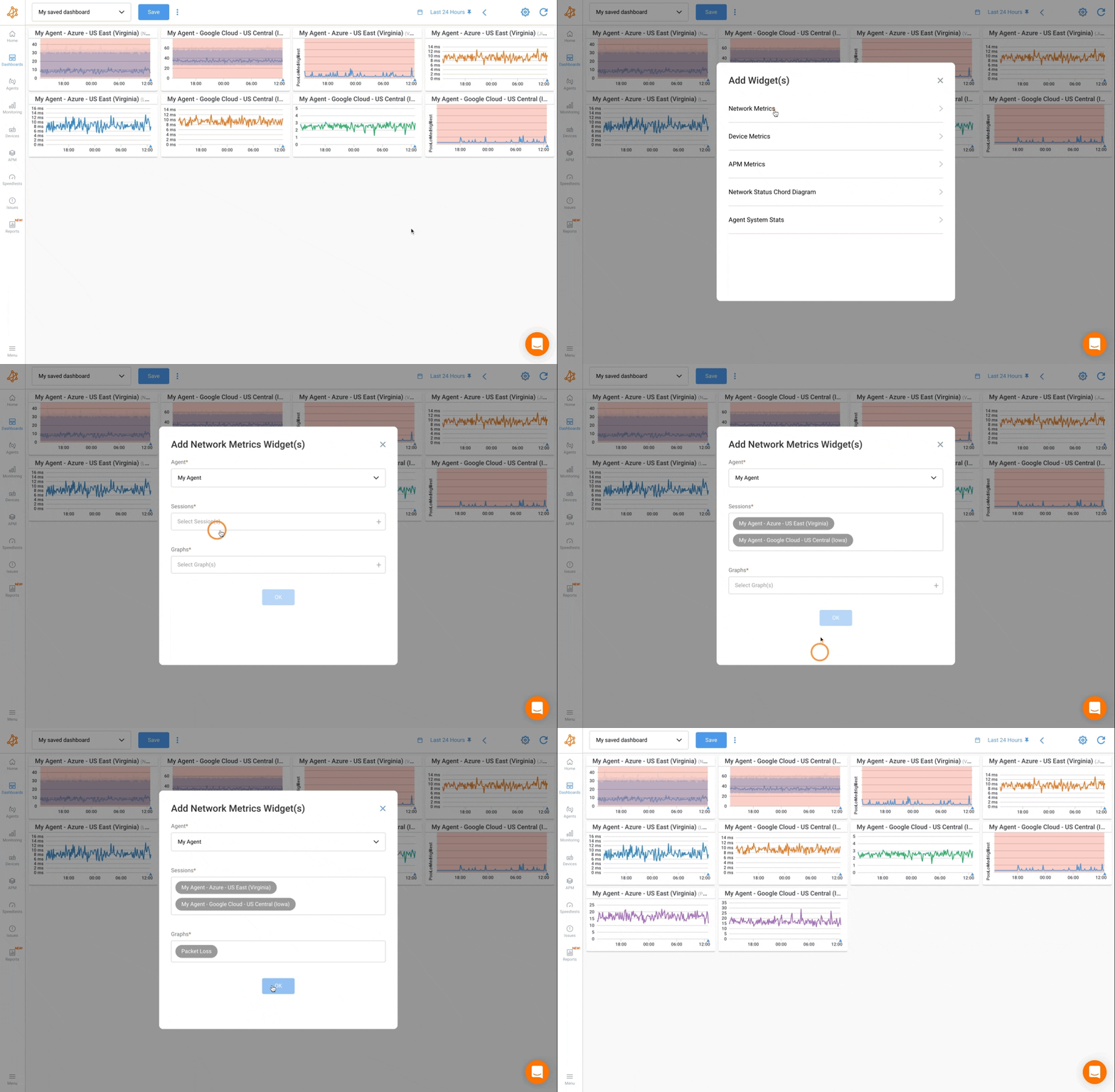
Add a widget 
A widget can be added by:
- Clicking on the top right gear icon
- Clicking on
Add Widgets - Selecting the type of widget
- Filling the information required and clicking on
Ok
The dashboards widget types documentation page provides detailed information about each type of widgets available.
Create a dynamic dashboard
Dynamic dashboards are a way to generate a dashboard with a predefined list of widgets common to something specific. Dynamic dashboards are available, from many location in the application, via a dashboard blue icon.
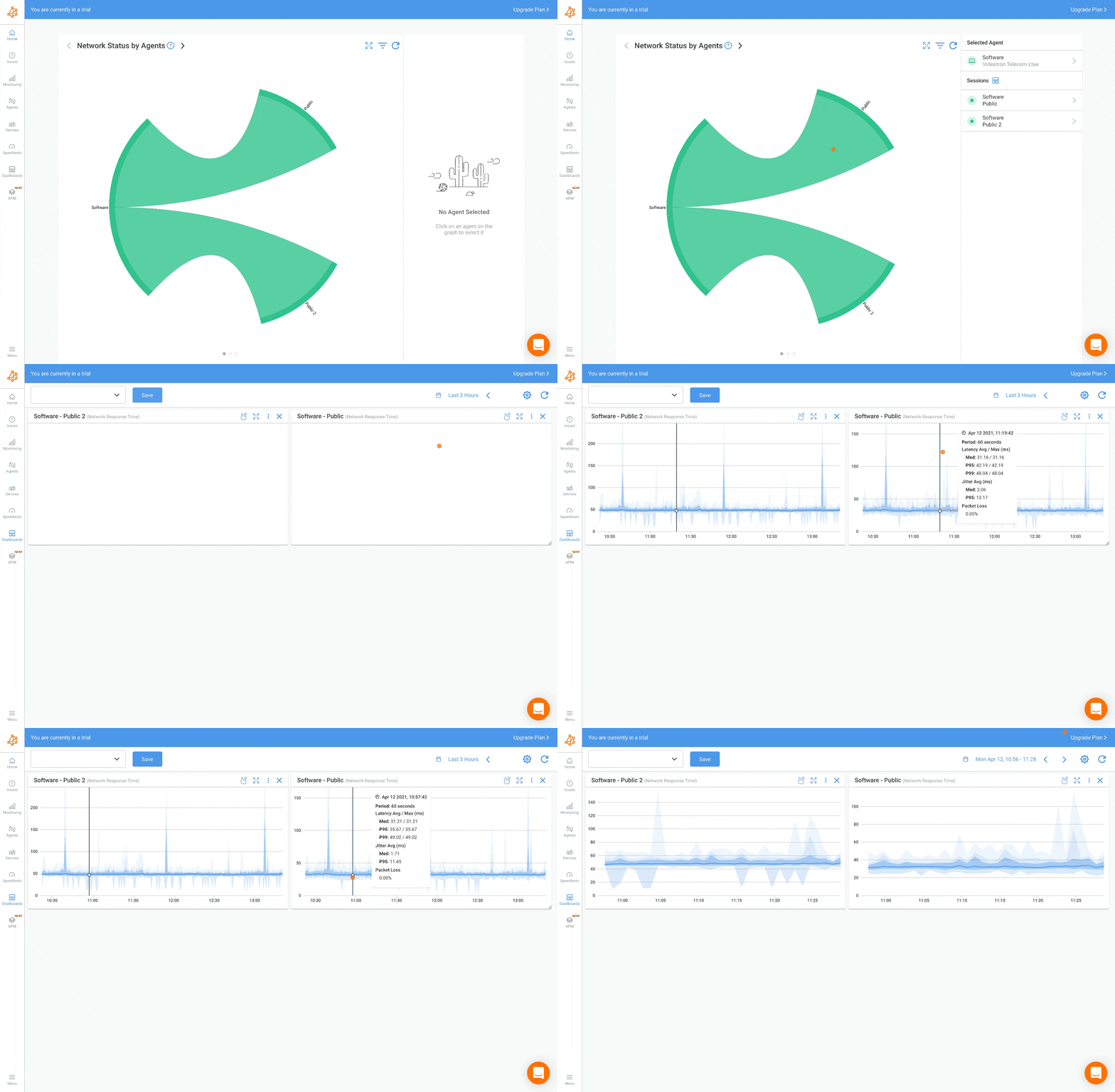
Move a widget
A widget can be moved by holding a mouse click on the hand icon located on the top right of each widget, moving the widget to the new location and releasing the mouse click.
Edit a widget
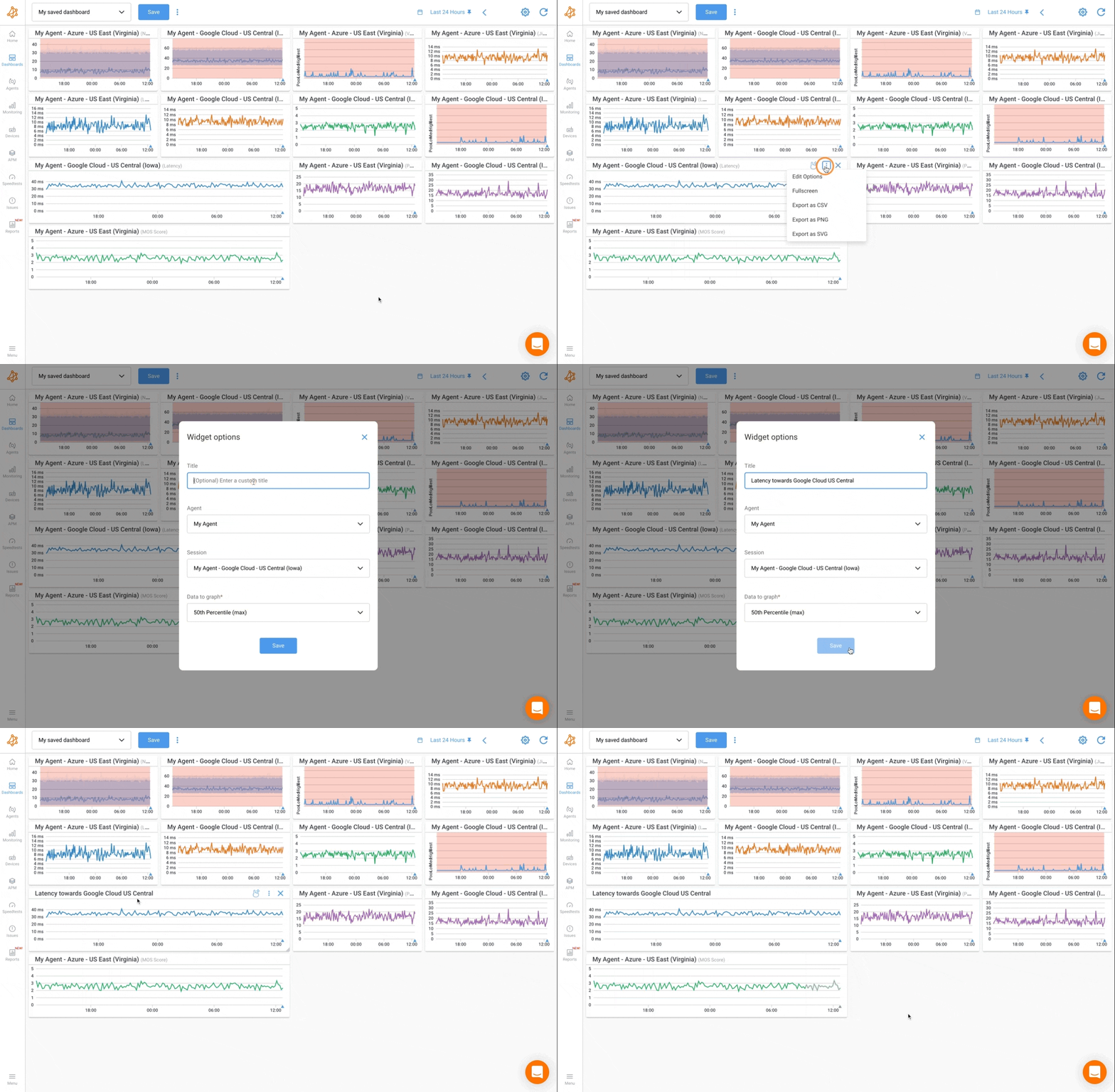
A widget can be edited by clicking on the three dots icon on the top right of a widget and then clicking on Edit Options to set a custom name or to modify the metric selected.
Resize widget
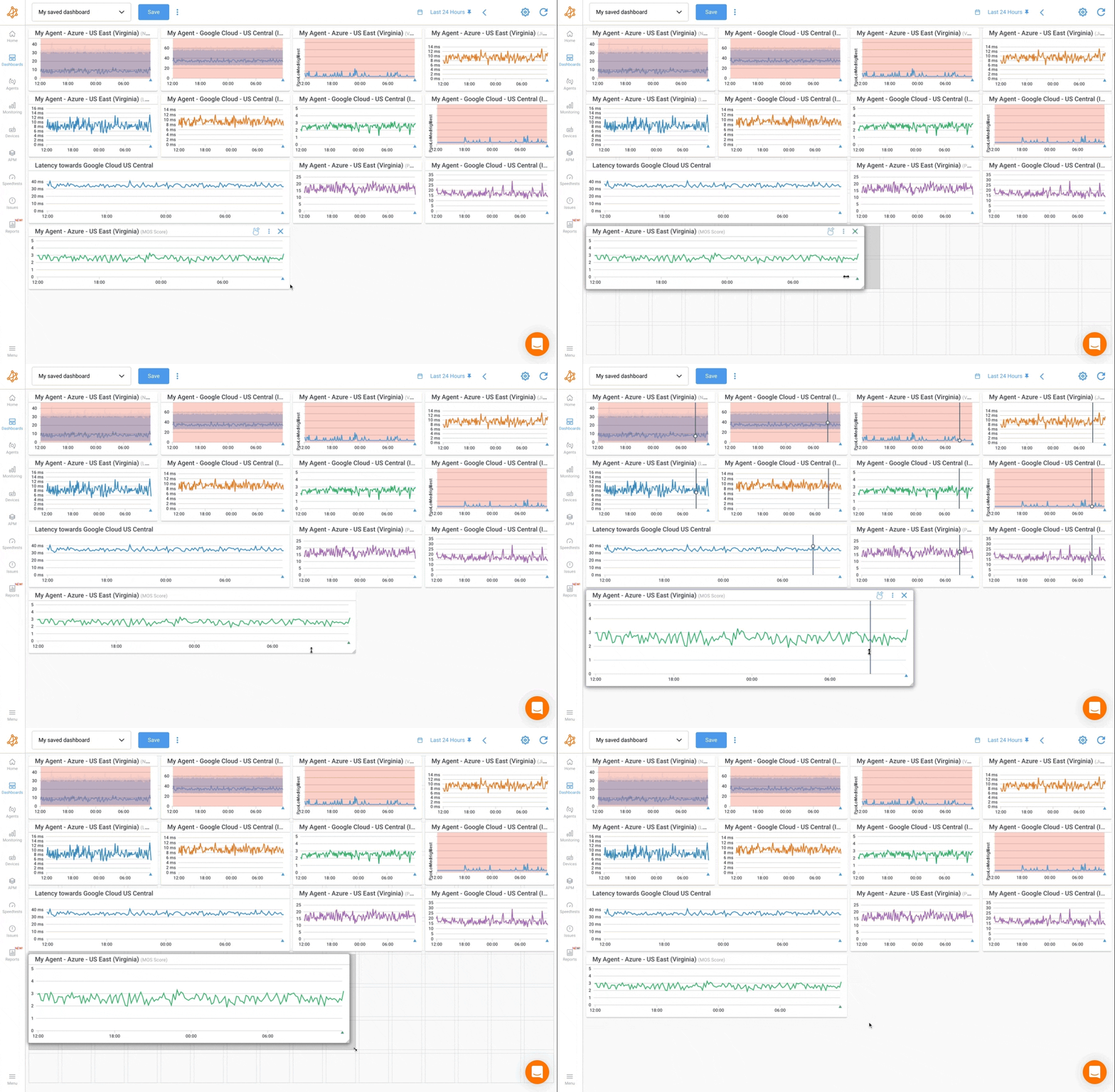
A widget can be resized by holding a mouse click on the edge of the widget, moving the mouse for the new widget size and releasing the mouse click.
Delete a widget
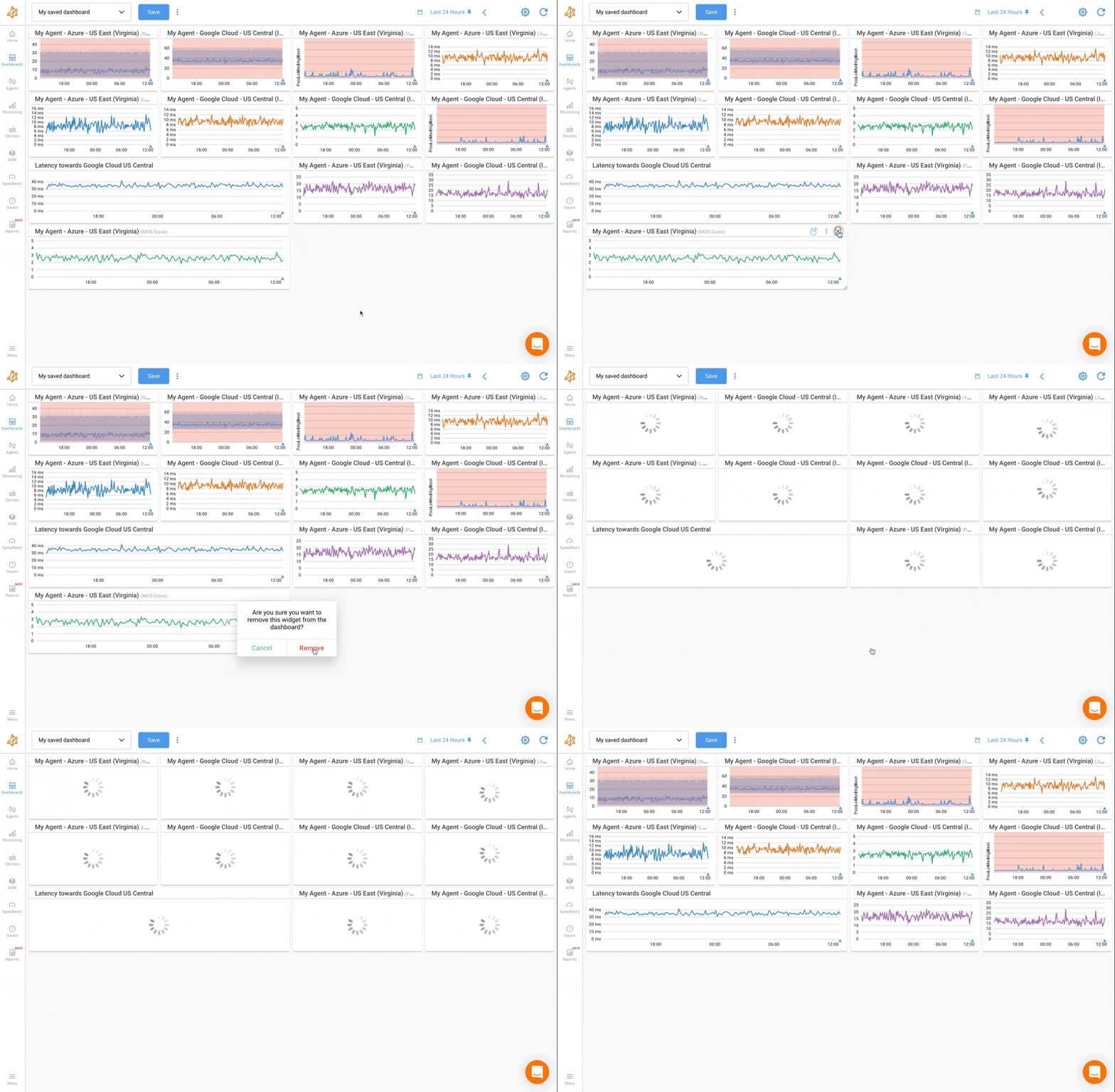
A widget can be deleted by clicking on the top right X icon and then clicking on Remove.