




 Obkio Blog


 Subscribe
Table of Contents
Table of Contents
To tell if the Internet is down or just you, check other devices on the same network. If only one device is offline, the problem is that device or its Wi-Fi. If every device is down, restart your router, then check your ISP's status page. If only one website won't load, the problem is that site, not your connection.
When the Internet goes down at work, the first question is always the same: is it just me, or is it everyone? The answer decides what you do next. If it's one device, you fix it in a minute. If it's the whole office, every call, cloud app and customer-facing service stops until someone finds the cause.
This article starts with a 2-minute check to find out how far the problem reaches. Then it covers the most common causes of network downtime, how to tell which one you're dealing with, and how to catch the next outage before your users do.
Is the Internet Down or Just You? A 2-Minute Check 
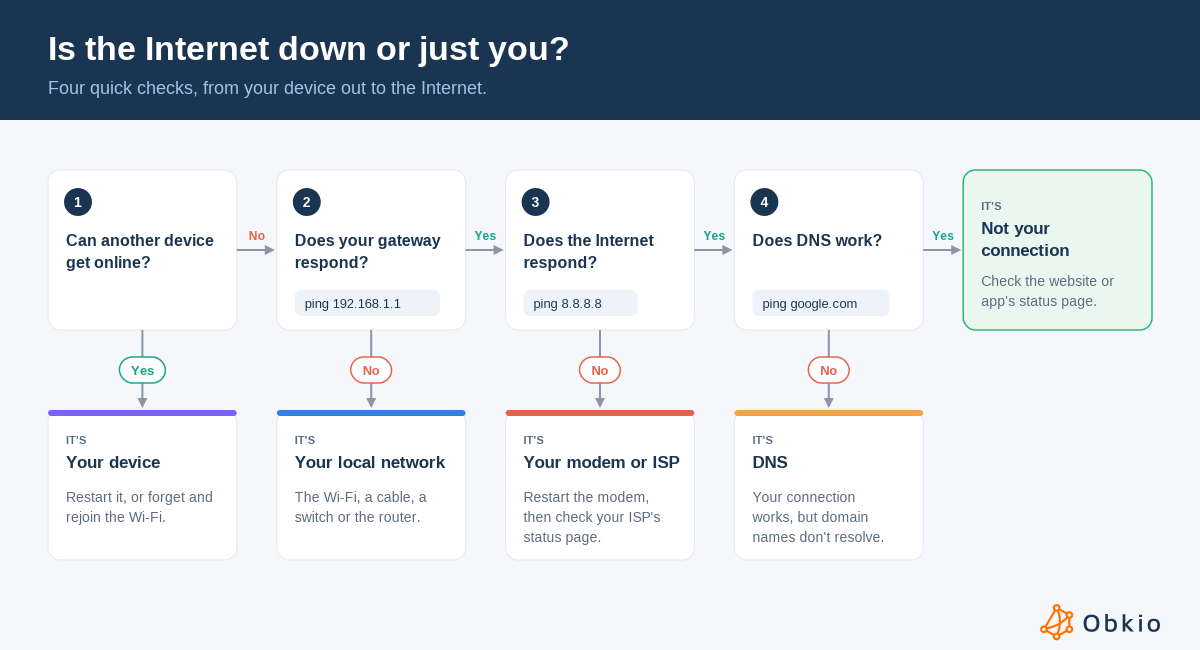
Before you dig into causes, find out how far the problem reaches. Each check below takes a few seconds and rules out a whole part of the network.
1. Try another device
Check whether a second phone, laptop or computer on the same network can get online.
- Only one device is offline: The problem is that device or its Wi-Fi connection. Restart it, forget and rejoin the Wi-Fi, or plug it in with a cable.
- Every device is offline: The problem is your router, your local network or your ISP. Keep going.
2. Try another website
If one site or app won't load but others do, the problem is that service, not your connection. Check its status page, or an outage tracker like Downdetector, to see if others are reporting it.
3. Check your router and modem
Look at the lights. A red, orange or blinking Internet light usually means the modem has lost its connection to your ISP. Restart the modem, then the router, and give them a couple of minutes to reconnect.
4. Ping your gateway, then the Internet
Open Command Prompt on Windows or Terminal on Mac, and run three ping tests:
ping 192.168.1.1: Your gateway (router). On Windows, runipconfigand use the "Default Gateway" address if yours is different.ping 8.8.8.8: A public IP address on the Internet.ping google.com: The same test, using a domain name.
What the results tell you:
- The gateway doesn't respond: The problem is inside your local network: the Wi-Fi, a cable, a switch or the router itself.
- The gateway responds, 8.8.8.8 doesn't: Your network is fine. The problem is your modem or your ISP.
- 8.8.8.8 responds, google.com doesn't: Your connection works, but DNS doesn't. See DNS issues below.
5. Check your ISP's status page
If everything points past your gateway, check your ISP's status page or support line for a known outage. If you manage several offices and they all go down at once, the cause is likely your ISP or a cloud service they share.
If none of these checks finds the problem, or it keeps coming back, the causes below are where to look next. And if you'd rather not run these checks by hand every time, network monitoring runs them for you continuously and shows where the connection failed.
What to Do When Your Network Is Down
When the network goes down, the instinct is to restart everything and hope. Sometimes that works, but it wastes time when the problem isn't where you're looking, and if the outage comes back, you've lost the clues that would have explained it.
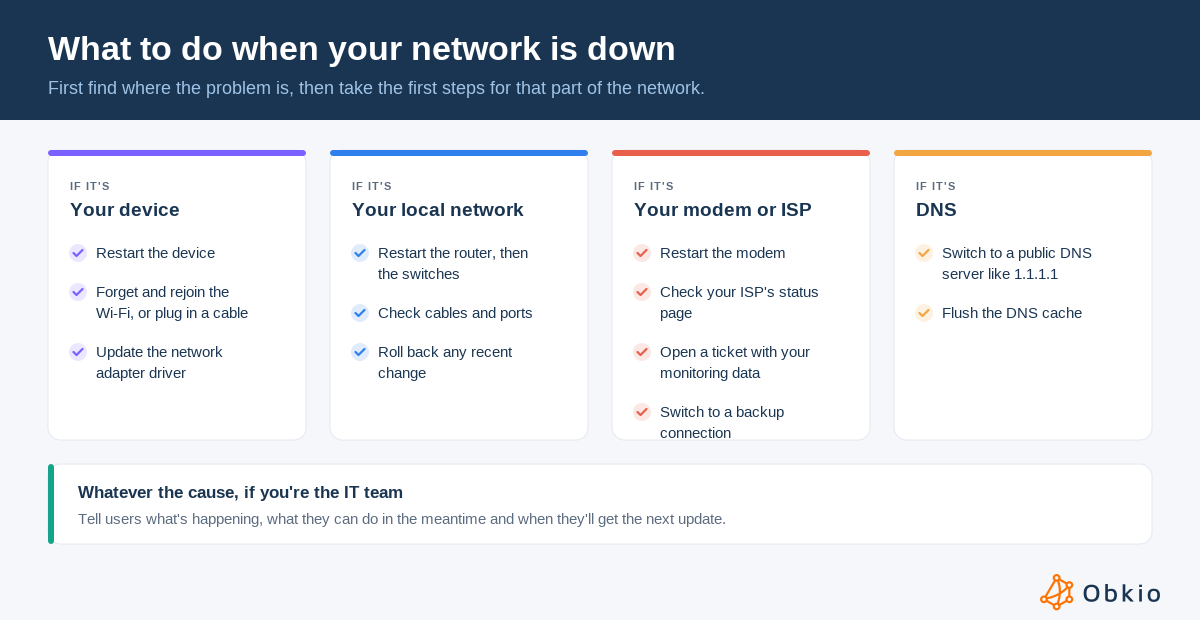
A better approach is to fix the part of the network the quick check pointed to. The steps below are the first moves for each one: what you can do in a few minutes to get people working again, before you dig into the root cause.
If it's your device
- Restart the device.
- Forget the Wi-Fi network and rejoin it, or plug in with a cable.
- Update the network adapter driver, especially if the problem started after a system update.
If it's your local network
- Restart the router, then any switch between the router and the affected devices.
- Check the cables and ports: a loose or damaged cable can take a whole floor offline.
- If someone changed a config, firmware or device recently, roll it back first. Recent changes are behind many outages.
If it's your modem or ISP
- Restart the modem and wait a few minutes for it to reconnect.
- Check your ISP's status page for a known outage.
- Open a ticket, and include your monitoring data as proof, such as a Shareable Link to the monitoring session. Evidence helps you skip first-level support.
- Switch to your backup connection if you have one. For a single user, a phone hotspot works in a pinch.
If it's DNS
- Switch to a public DNS server, like 1.1.1.1 or 8.8.8.8, until your DNS server is back.
- Flush the DNS cache: run
ipconfig /flushdnson Windows, orsudo dscacheutil -flushcache; sudo killall -HUP mDNSResponderon Mac.
If you're the IT team, whatever the cause
Tell users what's happening, what they can do in the meantime and when they'll get the next update. A short status message saves you dozens of "is the network down?" tickets.
If the network keeps going down, or you can't find the cause, the eight common causes below are the next place to look.
What Happens When Your Network Is Down
Network downtime is any period when your network, or part of it, goes offline: internal systems, websites, VoIP calls or cloud apps become unreachable. A full network outage is the most visible kind. The opposite is network uptime, the time your network runs without interruption. Most businesses aim for at least 99.9% uptime, which still allows about 8.76 hours of downtime a year.
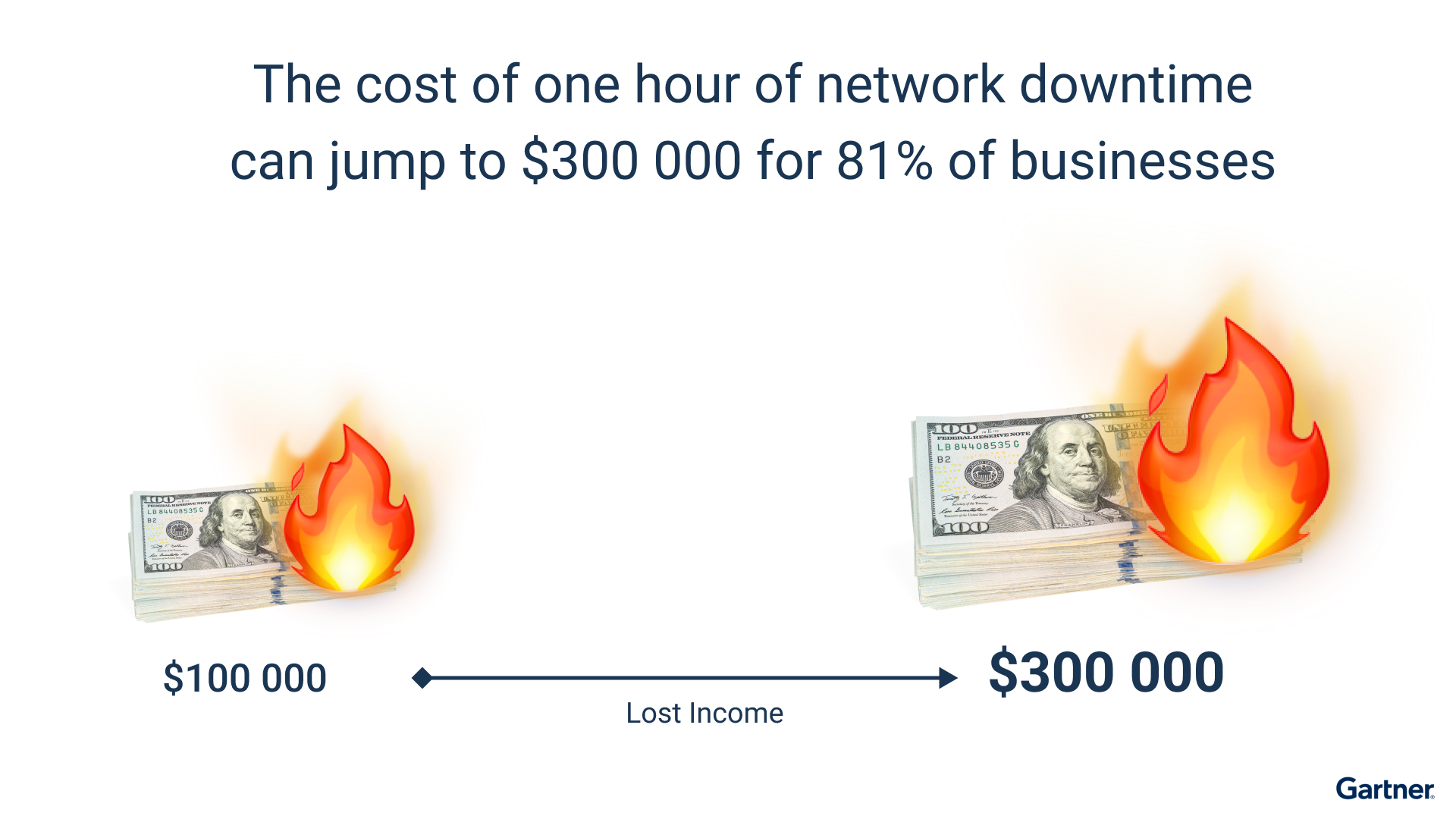
When the network goes down, the damage spreads fast:
- Productivity stops: Teams lose access to cloud tools like Microsoft 365, Google Workspace and CRMs, and to Teams, Zoom and Slack.
- Customers notice: Websites go dark, live chat drops and VoIP phones stop ringing.
- Revenue drops: Customers can't buy or book, and order processing stalls.
- IT goes into firefighting mode: Planned work stops while the team scrambles to find the cause, often without the visibility to know where to look.
- Security gaps open: Attacks like DDoS can cause outages or use them as cover, and delayed alerts slow the response.
- SLAs and trust take a hit: Repeat outages break SLAs and erode confidence with partners and customers.
- Background processes fail: Backups, cloud syncs, API integrations and software updates stop, often without anyone noticing.
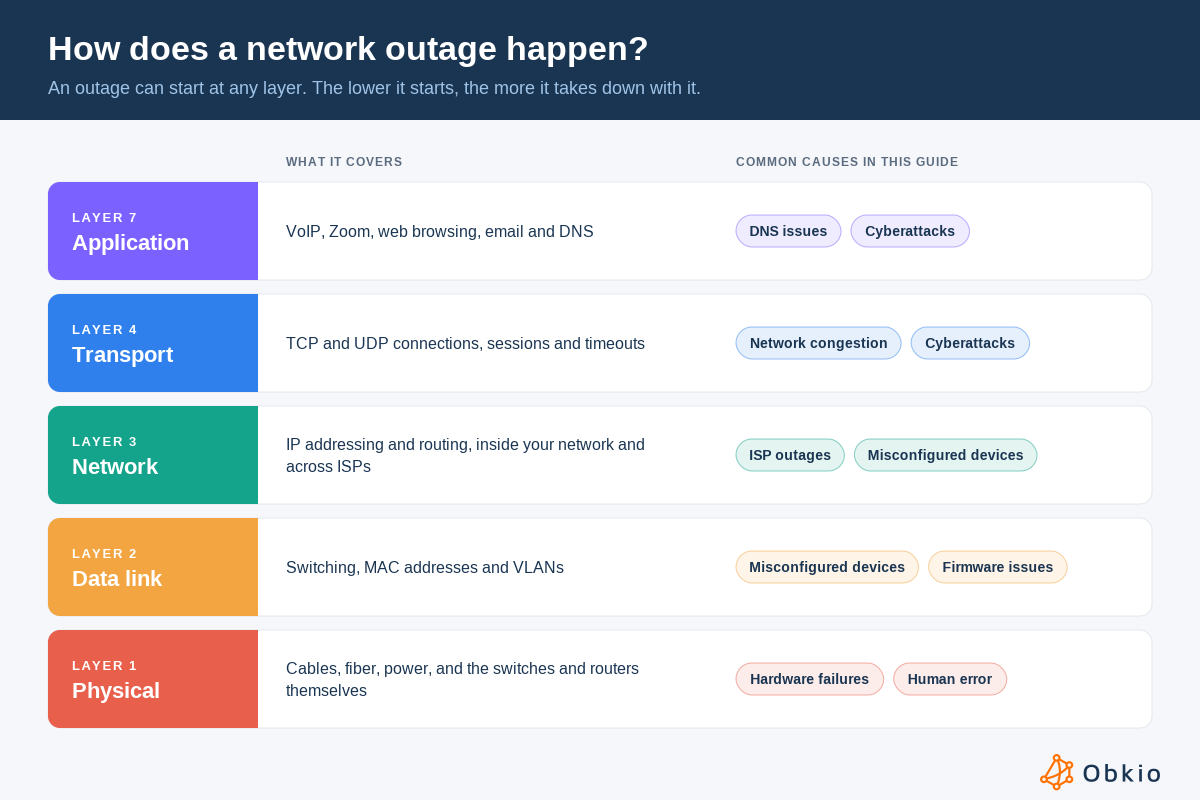
Most downtime isn't random. It comes from a handful of recurring causes, and each one leaves clues.
8 Common Reasons Your Network Is Down
Network downtime rarely comes out of nowhere. It usually traces back to one of eight recurring causes, some technical, some human. If the quick check pointed you to your local network, your ISP or DNS, start with that cause below.
1. Hardware Failures
Even enterprise-grade hardware fails. Switches, routers, firewalls and on-prem servers break down, and when a critical one does, it can take entire VLANs, sites or core routing offline. Common failure points include:
- Aging power supplies or fans
- Overheating from poor airflow or failed sensors
- Memory leaks or hardware interrupts
- Worn-out ports or transceivers
Hardware failures often hit during peak hours, or after a config change pushes older hardware past its limits.
How to prevent it:
- Track device health, such as CPU, memory and interface status, with a tool like Obkio's Network Device Monitoring.
- Keep a lifecycle inventory, and flag gear nearing end of life for replacement.
- Set up failover, dual power inputs and high-availability clustering for critical equipment.
2. Software or Firmware Issues
Software and firmware run every network device, and they're one of the most overlooked sources of instability. One bad update, outdated version or poorly tested patch can:
- Brick a switch mid-update
- Disrupt routing protocols like OSPF or BGP
- Introduce memory leaks or bugs in NAT and firewall rules
- Disable interfaces or drop VLAN tagging
Rushed updates are behind many "random" outages, and firmware bugs often appear in CVE databases only after your infrastructure is already exposed.
How to prevent it:
- Test updates in a staging environment before production.
- Keep a version-controlled config and rollback snapshot for each critical device.
- Follow a change management process with logged changes and post-implementation reviews.
- Subscribe to vendor firmware advisories and security bulletins.
3. ISP or External Service Provider Outages
Even if everything inside your network works, you still depend on your Internet Service Provider (ISP) and other providers to reach the outside world. When they go down, you're cut off from cloud apps, remote users, websites and external services.
ISP outages often look like internal failures. Without visibility past your network edge, teams can spend hours troubleshooting their own network before realizing the problem is external. Learn how to identify network and Internet outages, and tell an ISP outage from a problem on your side.
ISP outages come from:
- Upstream carrier failures
- BGP route leaks or hijacks
- Physical fiber cuts
- Provider-side misconfigurations
How to prevent it:
- Monitor performance beyond your LAN, from your sites to your ISP and the cloud services you use, with a tool like Obkio.
- Use multi-WAN or SD-WAN failover with performance-based routing.
- Keep a clear SLA with each provider, including escalation contacts and MTTR (mean time to resolution) expectations.
- When the problem is on your provider's side, send them your monitoring data as proof, so the ticket skips first-level support.
4. Network Congestion
Bandwidth isn't infinite. Usage spikes from video calls, backups or unauthorized file syncs can:
- Make latency-sensitive services like VoIP or VDI fail
- Introduce packet loss, jitter and timeouts
- Choke inter-office VPNs or cloud access
Network congestion often shows up as intermittent slowness or short outages, usually triggered by unscheduled events like backups, OS updates or a large upload.

How to prevent it:
- Monitor bandwidth usage and its trends over time.
- Apply QoS policies to prioritize business-critical traffic, like VoIP over file syncs.
- Schedule large transfers for off-peak hours.
- Review usage trends monthly, and plan upgrades before links saturate.
5. DNS Issues
DNS is the phonebook of the Internet: when it fails, devices can't find the servers they need, and the whole network can look down even though the connection works. Misconfigured records, failed DNS servers or DNS poisoning can leave users unable to reach SaaS apps or internal portals, and logins can fail when authentication servers can't be found.
DNS issues are hard to spot: devices appear online, and the failures are often intermittent and don't show up on simple ping tests to an IP address. They're often misdiagnosed as app problems.
How to prevent it:
- Monitor internal and external DNS server availability and response times.
- Set up redundant DNS providers with failover.
- Regularly audit DNS zones, TTLs and records.
- Include DNS resolution checks in your monitoring.

Learn how to identify and fix common DNS issues, from resolution failures and cache poisoning to server outages, and keep your network running smoothly.
Learn more

6. Cyberattacks and Security Breaches
Not all downtime is accidental. Cyberattacks can cause widespread outages, slowdowns or complete lockouts, and unlike hardware failures, they're targeted and designed to disrupt. Common attacks include:
- DDoS floods that overwhelm bandwidth or firewall sessions
- Malware that locks systems or disrupts routing
- Credential stuffing or brute-force attempts that trigger lockouts
The challenge is telling a legitimate traffic spike from an attack, and responding before it spreads.
How to prevent it:
- Use IDS/IPS, geofencing and anomaly detection to flag intrusions.
- Enforce MFA, segmentation and least-privilege access.
- Deploy DDoS protection at your network edge or through your ISP.
- Run penetration tests and tabletop exercises, and review log retention.
7. Human Error
Even experienced admins make mistakes, and human error is one of the most common causes of network downtime, especially during maintenance, last-minute changes and after-hours deployments. It only takes:
- A typo in a config
- A reboot that misses a live VLAN
- The wrong cable or power unit unplugged
The cause isn't always obvious. It may not show up in logs, and sometimes it isn't found until much later.
How to prevent it:
- Use approval workflows, peer review and templates for routine changes.
- Limit access to critical systems with role-based permissions.
- Keep network diagrams and procedures up to date, and run a post-mortem after every incident.
- Run failure drills so the team knows the response by heart.
8. Misconfigured Network Devices
Network devices are only as good as their configurations. Incorrect ACLs, duplicate IPs, wrong VLAN tags or asymmetric routing don't always break things right away. They often surface under load, after a new device rollout or when a remote site joins the network. They can:
- Cause split-brain behavior between subnets
- Block access to cloud or internal services
- Leak data or open security holes
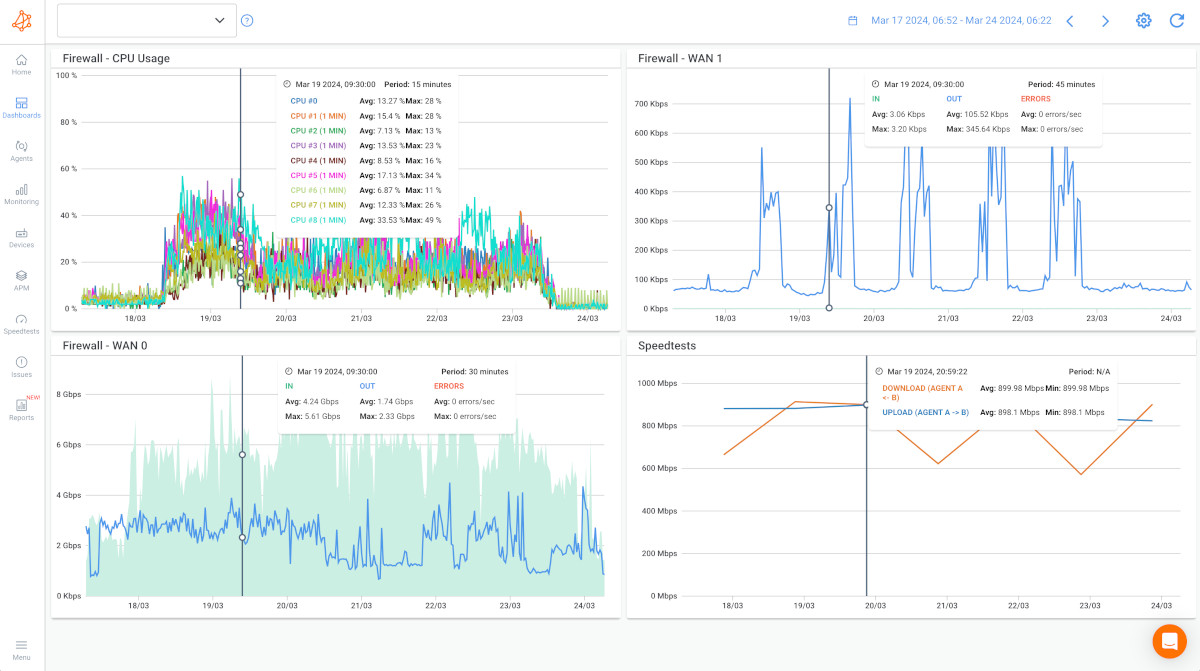
How to prevent it:
- Keep all configurations in version-controlled repositories.
- Validate changes with automated config tools like Ansible, Terraform or RANCID.
- Regularly audit ACLs, routing tables, NAT and VLAN settings.
- Run continuous synthetic tests to catch failures after changes.
How to Spot and React Fast When Your Network Goes Down
When the network goes down, everyone wants answers at once, and the first few minutes decide how long the outage lasts. The hard part is usually not the fix. It's knowing where to look:
- Is it the ISP, the firewall or a misconfigured switch?
- Is it one site or all of them?
- Did it start just now, or has it been building for an hour?
The 2-minute check answers the first question in the moment. To answer all three as soon as an outage starts, and to catch the warning signs before it does, you need continuous network monitoring.
How Obkio Helps You Find Why Your Network Is Down
Obkio is a network monitoring and diagnostics solution. Lightweight Network Monitoring Agents, deployed at your sites and in the cloud, exchange synthetic traffic continuously, so you can see performance from end to end and know where, when and why the network went down.

1. Continuous, End-to-End Monitoring
Obkio measures latency, packet loss and jitter between your Local Agents and Public Monitoring Agents, across your LAN, WAN and ISP connections, and to critical services like VoIP, Microsoft Teams and your cloud apps. That lets you:
- See exactly when performance started to degrade
- Spot warning signs, like rising latency or packet loss, before they turn into an outage
- Tell whether the root cause is inside your network or outside it
2. Automatic Diagnostics With Obkio Insights
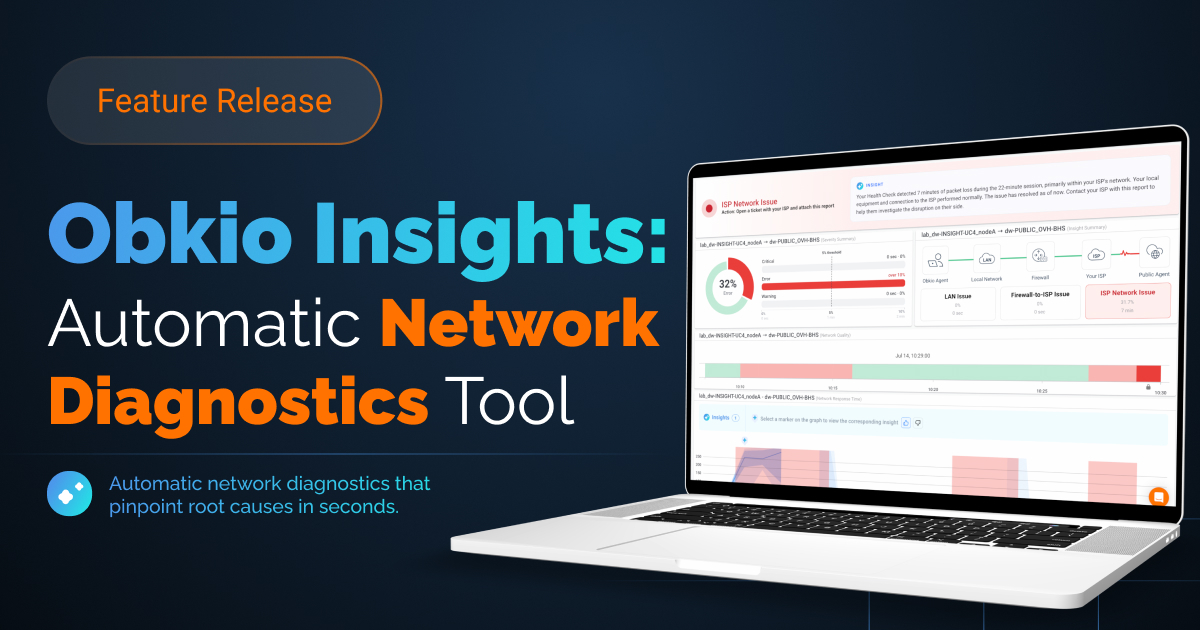
Obkio Insights analyzes your monitoring data and names the likely root cause of a problem, such as an issue in your ISP's network, a firewall running out of CPU or memory, or bandwidth saturation. Instead of starting from a blank screen, your team starts from a diagnosis.
3. Alerts When Something Breaks
Obkio alerts you as soon as performance crosses your thresholds, [CONFIRM: notification channels, e.g. email, Slack, Microsoft Teams, SMS], so your team can start on the problem before the first ticket comes in.
4. ISP Visibility
Obkio's monitoring doesn't stop at your firewall. By comparing your sites' connections with Public Monitoring Agents hosted in the cloud, it shows whether a problem is in your network or your provider's. The Chord Diagram shows the status of every path at a glance, so when several sites lose the same provider at once, you see it right away.

When the problem is on your ISP's side, send them a Shareable Link to the monitoring session as proof. They see the same data you do, with no Obkio account needed.
5. Historical Data to Find What Went Wrong
Obkio keeps your performance history, so after an outage you can:
- Investigate what caused it
- Find recurring weak points
- Validate fixes and vendor SLAs

Discover the competitive edge of proactive network uptime monitoring and get started with Obkio's Network Monitoring tool. Maximize uptime today!
Learn more
6. Deployment for Any Network
- Deploy Local Agents in head offices, branch offices and remote sites
- Install them on Windows, macOS, Linux or virtual appliances
- Compare paths to the Internet with Public Monitoring Agents to isolate local issues

For MSPs and multi-site businesses, that means visibility across every network from one place.
Conclusion: How to Prevent Network Downtime
When the network goes down, the first step is finding out how far the problem reaches: your device, your local network, your ISP or DNS. The 2-minute check answers that in the moment.
Preventing the next outage takes more. Most downtime comes from causes you can see coming, like failing hardware, risky changes, overloaded links or a struggling provider. With continuous monitoring and diagnostics, you catch the warning signs early, know where each problem starts, and have the data to prove it when the problem is your ISP's.

- Start for free
- Deploy in just 10 minutes
- Monitor every key network location, from your sites to your ISP and cloud services
- Get automatic diagnostics with Obkio Insights
- Share proof with your ISP using Shareable Links

Frequently Asked Questions About Network Downtime
How do I know if my ISP is down?
Check your ISP's status page or support line, or an outage tracker. To confirm it yourself, ping your gateway, then a public IP address like 8.8.8.8. If your gateway responds but 8.8.8.8 doesn't, your local network is fine and the problem is your modem or your ISP.
Why does my Internet keep going down?
Repeated drops usually come from Wi-Fi interference, a failing router, modem or cable, congestion, or an unstable line at your ISP. When the Internet goes down for a few seconds at a time, it's often a line or modem problem. Continuous monitoring shows when each drop happens and where it starts. Learn more about why your Internet keeps disconnecting.
How much network downtime is normal?
Most businesses aim for at least 99.9% uptime, which allows about 8.76 hours of downtime a year, or roughly 43 minutes a month. Critical services often target 99.99%, about 53 minutes a year. Your ISP's SLA should state the uptime they commit to.
What's the difference between network downtime and a network outage?
Network downtime is any period when your network, or part of it, is unavailable, including slowdowns bad enough that apps stop working. A network outage is the most severe kind: a complete loss of connectivity for a site, a service or the whole network, usually until someone fixes the cause.


