







 Obkio Blog


 Subscribe
Table of Contents
Table of Contents
Your headquarters runs flawlessly. Zero network complaints. But your remote offices? Constant connectivity problems, dropped video calls, and frustrated employees filing help desk tickets you can't solve.
Remote offices experience 3x more network issues than headquarters, yet most of the IT teams have zero visibility into what's actually failing.
Here's why: Remote locations face network issues that never touch your corporate infrastructure. These problems hide in the last mile between remote workers and their ISPs, in time zones you're not monitoring, and in local configurations you don't control. Your traditional monitoring tools stop at your corporate network edge. You can't see what's killing remote office network performance… or can you?
What you'll learn:
- The 5 network issues exclusive to remote locations
- Why your HQ monitoring completely misses these problems
- How to troubleshoot remote offices without flying someone on-site
- The monitoring approach that actually works for distributed teams
How to Monitor Remote Offices Like You Monitor HQ 
Traditional network monitoring was built for centralized offices. Monitor the data center, watch the core switches, and track WAN links to branch offices. Done.
That model breaks with distributed teams. Your remote offices aren't branches with managed infrastructure; they're employees working from residential ISPs with consumer-grade equipment you've never touched, can't access, and don't control.
The fundamental problem: You're trying to monitor remote offices from the outside in, and it doesn't work.
You can't ping remote worker IP addresses because 80% of ISPs block inbound ICMP traffic. You can't access their routers because consumer equipment has no SNMP, no remote management, no telemetry. You can't see their ISP's network because it's completely hidden from your corporate monitoring tools.
Your visibility stops at your network edge. Everything beyond that is a black box.
You need to flip the monitoring perspective entirely.
Obkio: Network Monitoring FROM Remote Offices, Not TO Them
Obkio is a distributed network monitoring solution that monitors from the end-user perspective. Instead of trying to monitor remote locations from your corporate network (which fails), Obkio monitors FROM remote office devices outward, testing the actual path their traffic takes.

Here's how it works:
1. Monitoring Agents Are Deployed to Monitor Remote Workstations
Install Obkio's Monitoring Agent software on Windows, macOS, or Linux devices at remote locations. The agent runs silently in the background, consuming minimal resources.
The agent continuously tests network performance by sending synthetic traffic to monitoring targets: Public Monitoring Agents, your corporate network, and cloud services your team depends on. Every minute, it measures latency, packet loss, jitter, and other network performance metrics, capturing the exact experience your remote workers have.

Silent deployment across all remote locations
Deploy agents to 10 remote offices or 1,000 using centralized deployment tools. No need for remote workers to manually download, install, and configure software. Deploy once, monitor everywhere. Add new remote offices as your team grows. Install the agent, and they start monitoring user experience immediately with the same visibility as everyone else.
2. Monitor Network Performance From Remote Workers’ Perspective
The agent is installed on the remote worker's device, experiencing the same network conditions they do. Same Wi-Fi connection, same ISP, same routing path, same everything. When they complain about "slow Internet," you're not guessing, you have objective data showing exactly what's happening on their network.
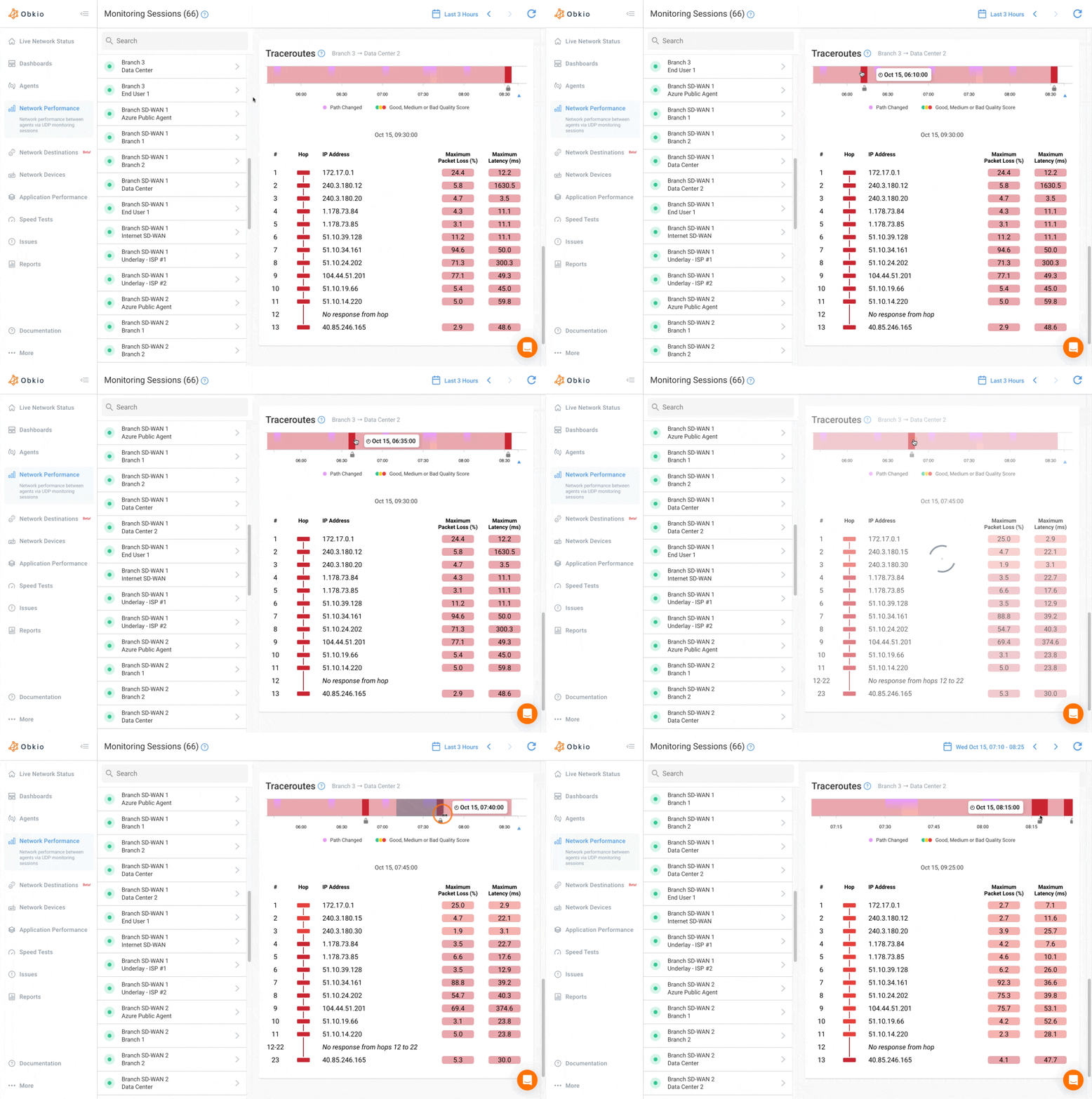
Run Visual Traceroutes from their location that show every hop their traffic traverses. Measure latency to each hop. Identify where packet loss occurs: their Wi-Fi, their router, their ISP's first hop, somewhere in the ISP's network, at peering points, or at your corporate gateway.
Test connectivity the way they actually use it. If they connect to Office 365, test the path to Office 365. If they VPN to corporate resources, test through the VPN. If they use Salesforce, test Salesforce endpoints. Monitor the actual applications and services they depend on.
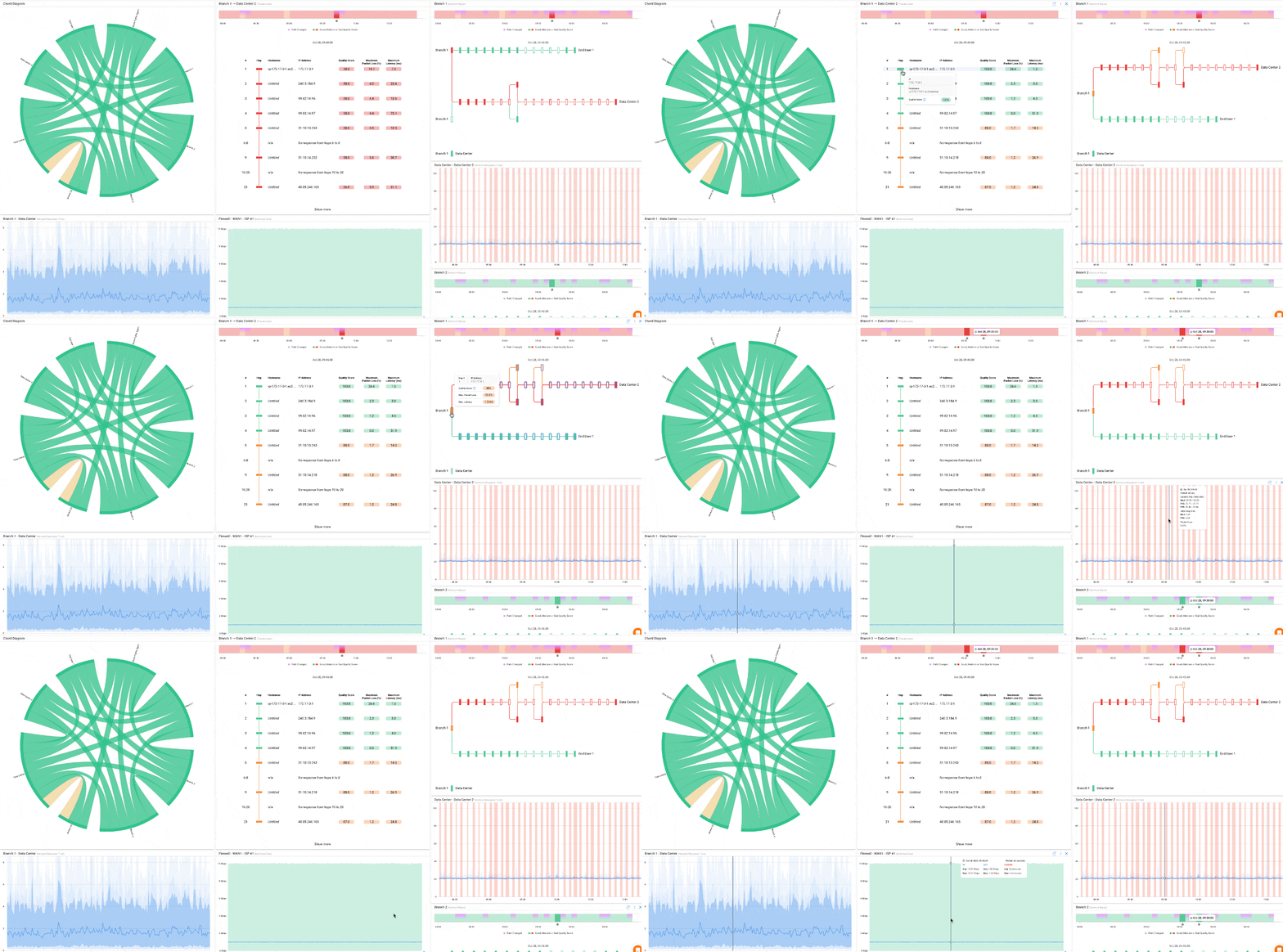
3. View Data on A Centralized Dashboard for Distributed Remote Network Visibility
View all remote offices in a single interface. Compare performance across locations in real-time. Your Montreal office shows 200ms latency, while Vancouver shows 20ms? You see it immediately.
Filter by location, time range, or specific issues. Graph historical performance over hours, days, or weeks. Identify patterns: Does this remote office always struggle on Monday mornings? Does performance tank every afternoon at 3 pm local time?

4. Run On-Demand or Scheduled Diagnostic Tests Remotely
Speed tests validate whether ISPs deliver advertised bandwidth: test download, upload, and compare to what remote workers are paying for. Visual traceroutes pinpoint the exact hop where problems occur. Network Destinations feature (ICMP Monitoring to any IP) tests specific endpoints where you can’t install an agent to verify the performance.
Network device monitoring shows CPU usage, memory consumption, disk space, and other device health metrics. When a remote worker reports "everything is slow," you immediately see if it's their device, their Wi-Fi, or their network.
5. IT Teams Get Proactive Alerts Before Remote Users Complain
Configure threshold-based alerts: latency above 100ms, packet loss above 2%, jitter above 30ms. When performance degrades, you get notified instantly.
Set up alerting rules per location with different thresholds for different remote offices. High-reliability sales office needs tight thresholds. General remote workers get standard alerting. Stop reacting to help desk tickets. Catch problems before they impact productivity.
- 14-day free trial of all premium features
- Deploy in just 10 minutes
- Monitor performance in all key network locations
- Measure real-time network metrics
- Identify and troubleshoot live network problems


5 Remote Office Network Issues
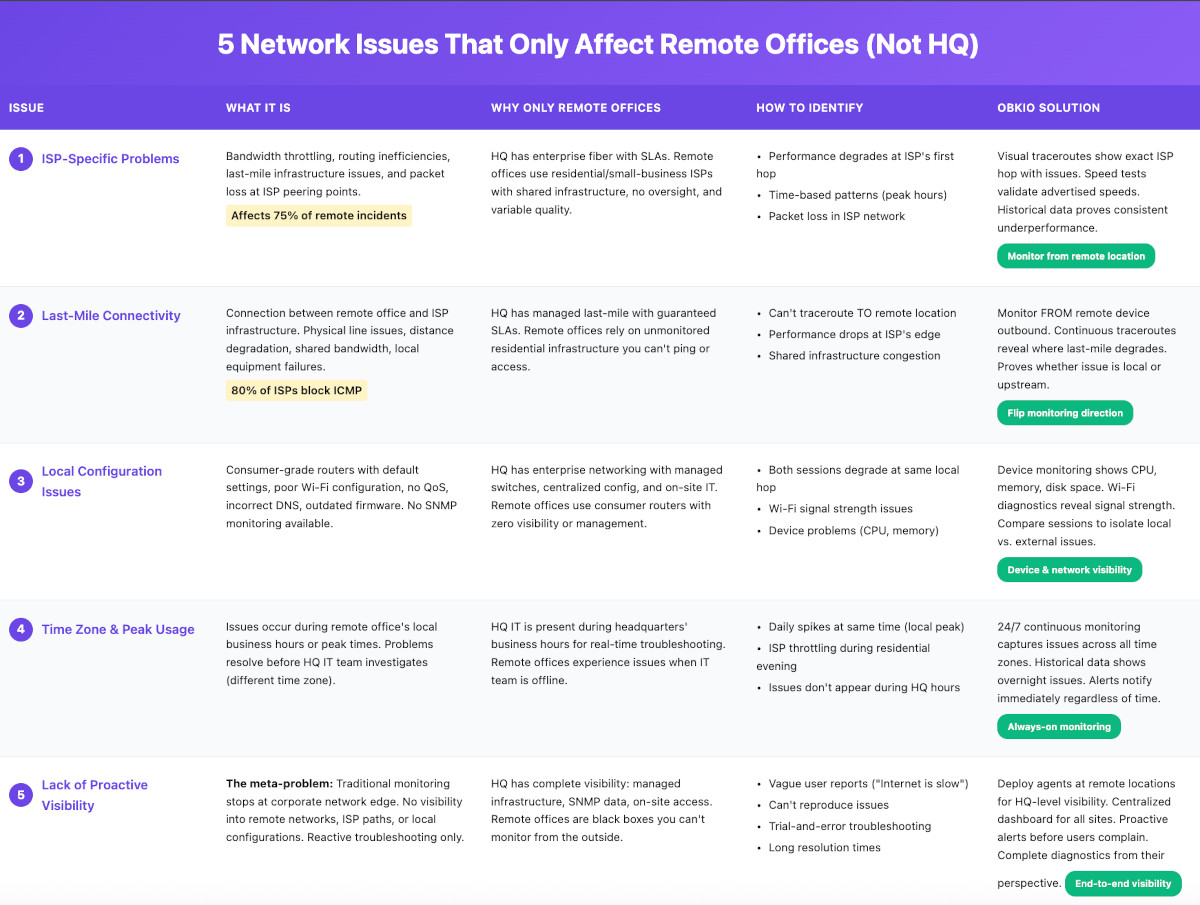
Remote Office Issue #1. ISP-Specific Problems: When Internet Providers Fail Remote Workers
ISP issues cause 75% of remote office connectivity problems. Your headquarters runs on enterprise fibre with strict SLAs, redundant connections, and carrier-grade infrastructure. Your remote workers? They're on residential ISPs that throttle bandwidth, suffer infrastructure failures, and treat business traffic like Netflix streaming.
Why Do ISP Issues Only Affect Remote Offices?
HQ has dedicated fibre lines, typically 99.9% uptime SLAs, and direct support channels with carrier account teams. When you report an issue, engineers respond within hours.
Remote workers use residential ISPs with shared infrastructure. Consumer ISPs oversell bandwidth, assuming not everyone uses their connection simultaneously. During peak hours (2-6 pm local time), performance tanks. Your remote office shares bandwidth with 50 neighbours.
- Consumer ISPs prioritize traffic differently: Your enterprise connection treats all packets equally. Residential ISPs throttle specific types of traffic (video conferencing, VPN connections, large uploads) to manage network congestion.
- No direct IT oversight of the equipment: ISP-provided modems use default configurations you can't access. When issues occur, you're stuck calling consumer support lines designed for "have you tried unplugging it?"
What Are the Most Common ISP Issues that Remote Offices Face?
1. Bandwidth throttling during peak residential hours.
Your remote sales office reports video calls freeze every afternoon at 3 pm. HQ connectivity is perfect. The culprit? Their ISP throttles bandwidth when neighbourhood usage spikes. Kids home from school, streaming YouTube, parents working from home, everyone gaming in the evening.
2. Last-mile infrastructure degradation.
Older copper lines, damaged cables, and corroded connections at utility poles. The physical infrastructure between the ISP's distribution point and your remote office slowly degrades. Performance drops from 100Mbps to 40Mbps over six months, but there's no dramatic failure that triggers an ISP service call.
3. Routing inefficiencies that add latency.
Your remote office traffic should take 8 hops to reach your data center. Instead, it takes 15 because the ISP routes through a regional hub 200 miles in the wrong direction. This adds 40-80ms of latency that makes real-time collaboration painful.
4. Packet loss at ISP peering points.
Where your ISP hands off traffic to backbone providers, congestion causes packet drops. 5-15% packet loss at hop 4 in the ISP's network destroys VoIP call quality and makes video conferencing unusable.
5. Oversold bandwidth in residential areas.
ISPs sell 100Mbps connections to entire neighbourhoods with only 40Mbps of actual capacity to the Internet. During peak usage, everyone gets 30-40Mbps maximum, regardless of what they're paying for.

Learn how to use network monitoring tools to identify ISP issues and work with your ISP to troubleshoot. Don't let ISP problems slow you down!
Learn more

How to Identify ISP Issues in Remote Offices:
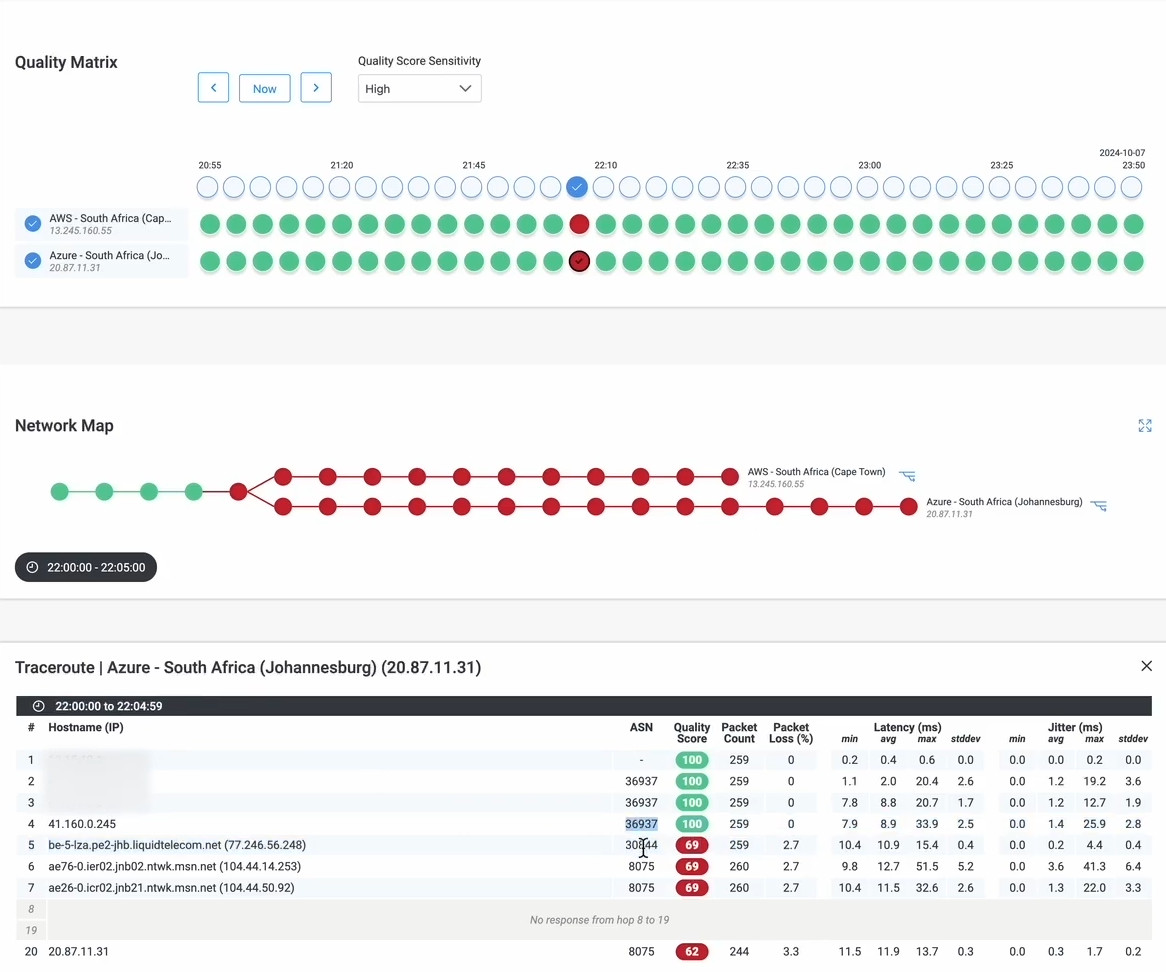
Deploy Obkio agents at remote locations to monitor FROM the worker's perspective. The agent runs continuous traceroutes and latency tests, revealing exactly where performance degrades.
1. Use Visual traceroutes to show the exact hop where problems occur:
Packet loss at hop 1 or 2? Local network or Wi-Fi issue. Packet loss at hops 3-6? ISP infrastructure problem. Packet loss at hop 10+? Backbone or destination issue.
2. Continuously monitor performance to reveal time-based patterns:
Graph latency over 24 hours. If performance tanks every afternoon between 2-6 pm, that's ISP congestion during peak residential hours. If it spikes at random intervals, that's an infrastructure problem.
3. Run Speed tests validate advertised vs. actual performance:
Your remote office pays for 100Mbps. Run scheduled speed tests throughout the day. If they consistently get 40Mbps during business hours, you have concrete proof the ISP isn't delivering.
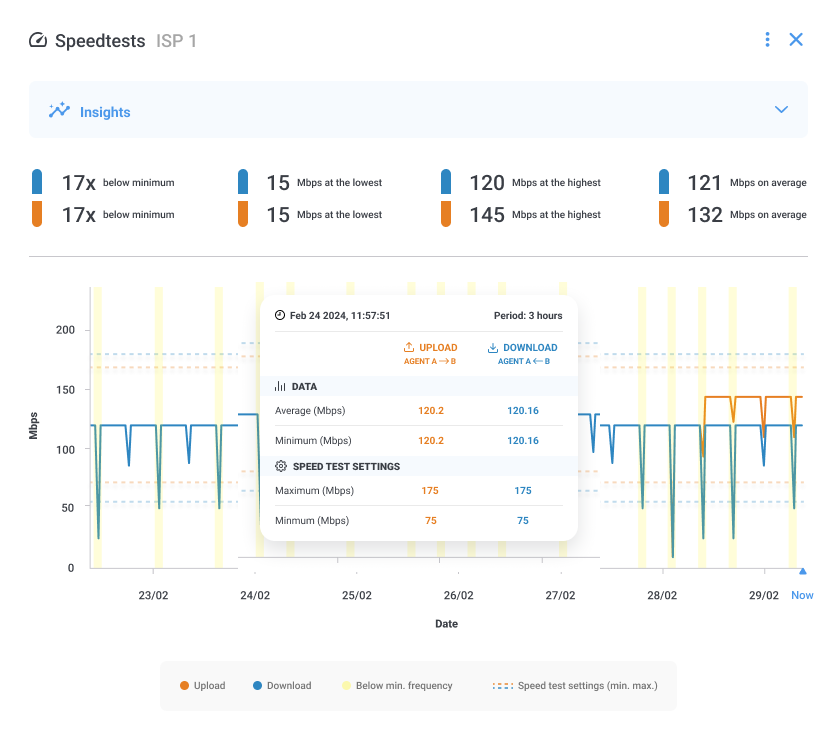
4. Analyze historical data to prove consistent underperformance: When opening support tickets with ISPs, you need evidence. "My Internet feels slow" gets scripted troubleshooting. "Your infrastructure at hop 4 (66.198.x.x) shows 15% packet loss between 2-4 pm daily for the past two weeks" gets escalated to engineers.
The Solution:
Open ISP support tickets with concrete network performance data. Show them the exact hop where degradation occurs, the specific times problems happen, and historical trends proving it's not a one-time event. This bypasses first-level support and gets your issue to someone who can actually fix it.
When ISPs consistently underperform, you have data to justify switching providers or upgrading to business-class service with real SLAs.
Remote Office Issue #2. Last-Mile Connectivity: The Invisible Problem Zone
The last mile (the physical connection between a remote office and the ISP's infrastructure) is where 60% of connectivity problems actually occur. This segment is completely invisible to traditional monitoring because you can't test it from your corporate network. 80% of residential ISPs block inbound ICMP traffic, so you can't ping or traceroute TO remote locations. Your monitoring stops at your network edge.
Why Do Corporate Networks Not Have This Problem?
Most corporate headquarters have enterprise-grade last-mile infrastructure, which means that dedicated fibre runs directly to your building with managed handoff. The carrier owns and maintains the entire path from their point of presence to your network equipment. When issues occur, they're covered under your SLA.
You have direct access to all network equipment for diagnostics. Smart hands-on-site can test physical connections, swap transceivers, and verify signal strength.
Multiple redundant paths provide network failover. Primary fibre fails? Traffic automatically switches to backup circuits.
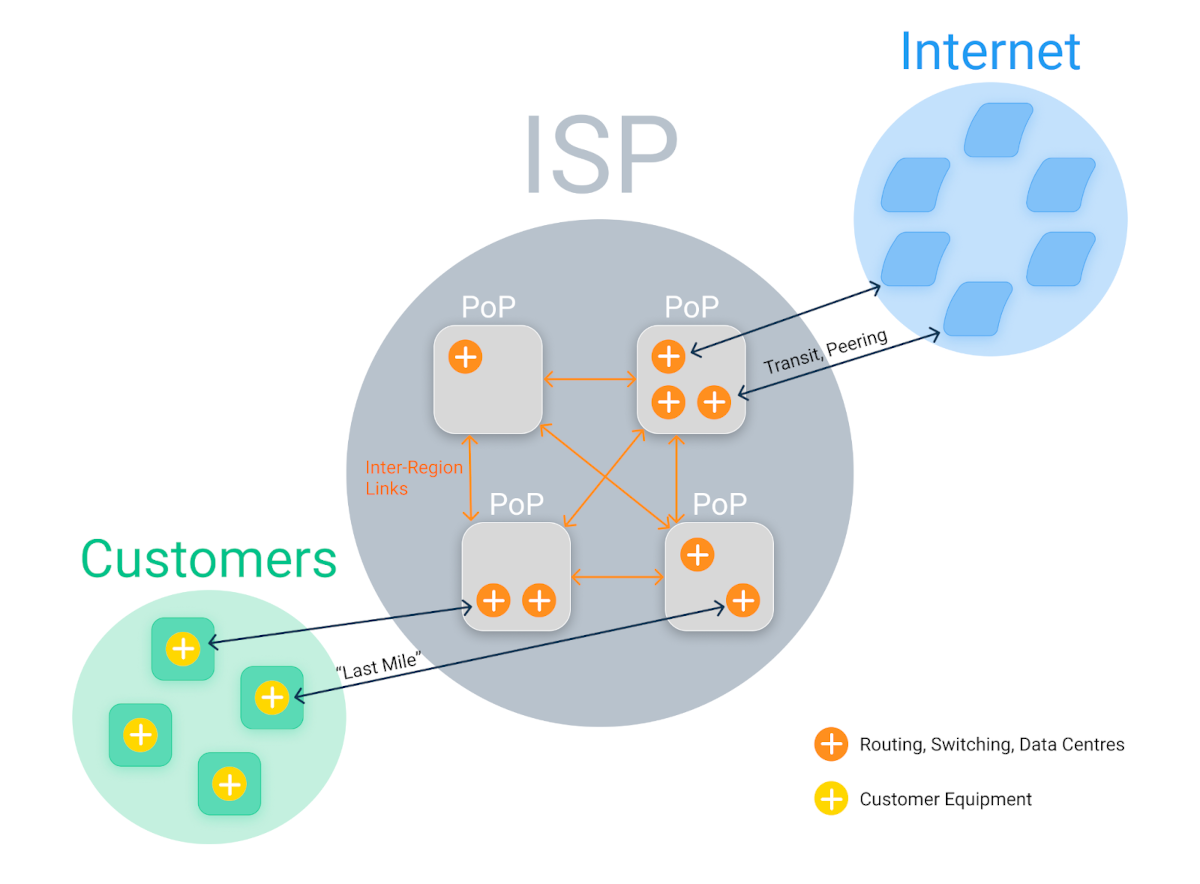
What Network Issues Happen in the Last Mile for Remote Offices?
- Physical line quality issues: Many residential connections still run on decades-old copper infrastructure. Water damage, corrosion, and electromagnetic interference from power lines all degrade signal quality. This manifests as intermittent packet loss that's impossible to diagnose without physical access.
- Distance from ISP infrastructure causes signal degradation: Remote offices located far from the ISP's distribution node suffer higher latency and lower effective bandwidth. A residential cable connection 2 miles from the node might get 90% of the advertised speed. At 5 miles, that drops to 60%.
- Shared bandwidth with neighbours: Residential last-mile infrastructure is shared. Your remote office's connection quality depends on what everyone else in the neighbourhood is doing. Friday evening, when everyone's streaming Netflix? Your remote worker's VPN crawls.
- Local ISP equipment failures: Neighbourhood distribution nodes, local switches, street-level amplifiers: when this equipment fails or degrades, it affects a small cluster of addresses. The ISP doesn't know there's a problem until enough customers call to trigger an investigation.
- Weather-related interference on wireless last-mile connections: Fixed wireless or microwave Internet connections degrade in heavy rain or fog. Performance drops 40-70% during storms.
The Monitoring Gap:
Traditional network monitoring tools try to test remote offices from the outside in. You ping remote worker IPs and get nothing because ISPs block it. You can't see the last mile from your corporate network.
You need to flip the monitoring direction.
How Obkio Provides Last-Mile Visibility for IT Teams:
The agent tests connectivity from the remote location to public monitoring points and your corporate network, capturing performance data for every hop.
This reveals:
- The exact hop where latency spikes or packet loss begins: If degradation starts at hop 1 (the remote worker's router), it's a local issue. If it starts at hop 3 (first ISP hop), it's a last-mile problem. If it starts at hop 8, it's beyond the ISP's network.
- Whether issues are in the last mile or further upstream: Compare performance to different destinations. If all sessions show degradation at the same ISP hop, that's a last-mile infrastructure problem. If some destinations perform fine while others struggle, the problem is elsewhere.
- Time-based patterns indicating shared infrastructure congestion: Graph latency over 24 hours. Consistent spikes during evening hours? Shared last-mile infrastructure is overloaded during peak residential usage.
- Physical layer problems affecting specific locations: One remote office consistently shows 3-5% packet loss, while others are clean. That's likely physical infrastructure degradation specific to that location's last mile.
This bypasses "restart your modem" scripts and gets the issue to engineers who can dispatch technicians to check physical infrastructure.
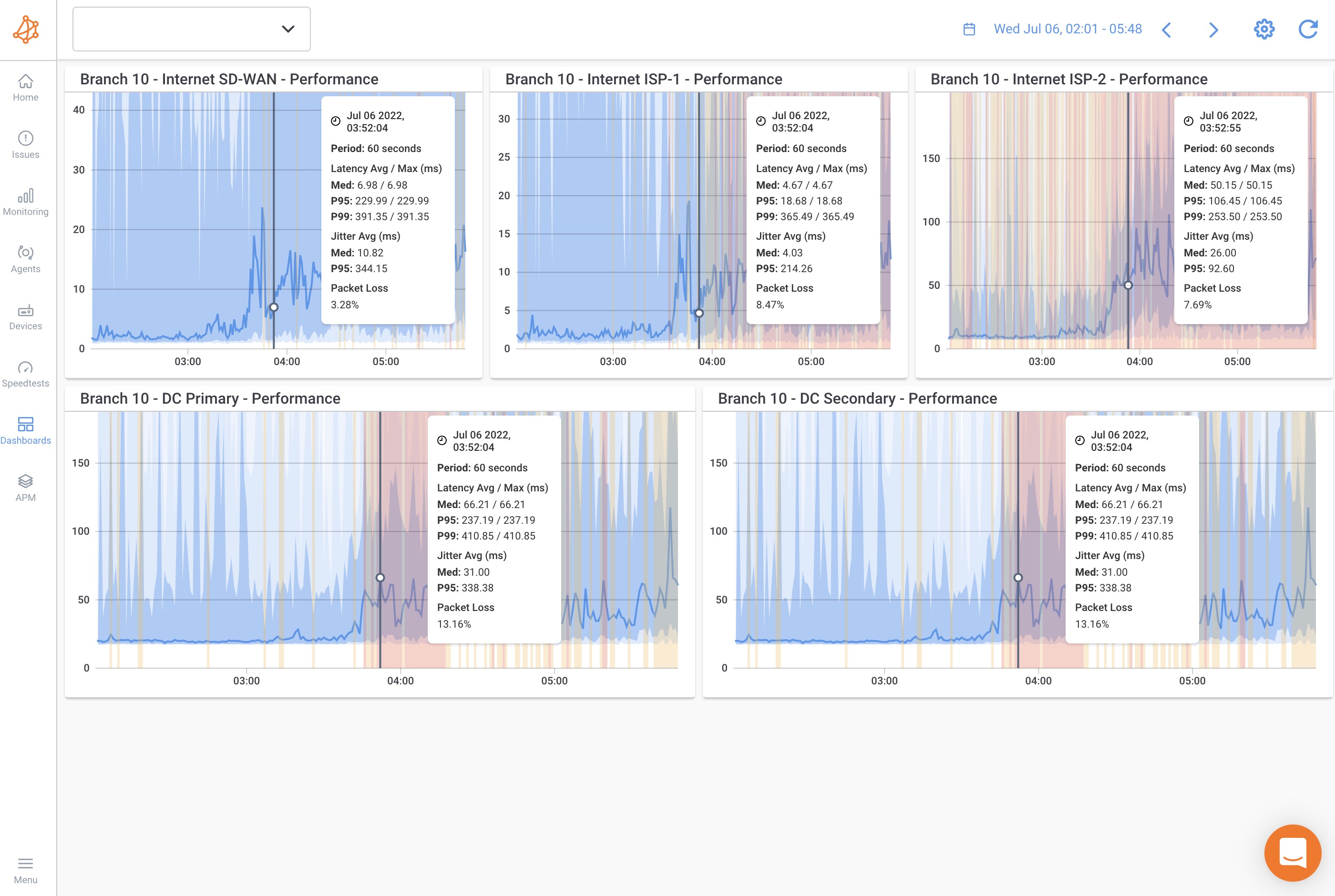
Remote Office Issue #3. Local Network Configuration: Unmanaged Equipment Chaos
Remote offices run on consumer-grade routers, unmanaged switches, and default configurations. This is equipment that your IT team never specified, never configured, and can't remotely manage. Your headquarters has enterprise networking gear sending telemetry data to your monitoring platform. Remote offices have $50 routers from Amazon with zero visibility.
What Are Common Configuration Problems Exclusive to Remote Offices?
1. Default router settings with no QoS
Quality of Service prioritization doesn't exist on consumer routers unless manually configured. File transfers compete equally with video calls for bandwidth. Someone uploads a 2GB file to SharePoint, and everyone's Zoom call freezes.
2. Poor Wi-Fi channel selection is causing interference
Consumer routers auto-select Wi-Fi channels, often picking the most congested one. Your remote worker's router sits on channel 6 with eight neighbours also on channel 6. Interference destroys throughput, a 200Mbps connection delivers 30Mbps actual performance on Wi-Fi.
3. Outdated firmware is creating security and performance issues
Consumer routers don't auto-update firmware. That router has been running the same firmware for 3 years, missing security patches and performance improvements. Known vulnerabilities sit unpatched. Firmware bugs that were fixed 2 years ago still cause random disconnections.
4. Incorrect DNS settings
Remote office router uses ISP's default DNS servers, which are slow and unreliable. DNS lookup adds 200-500ms to every connection. This manifests as "slow Internet" but it's actually DNS resolution delays.
5. No network segmentation
Remote workers' IoT devices (smart TVs, security cameras, gaming consoles, kids' tablets) all share the same network as work traffic. No VLANs, no traffic isolation. A security camera streaming 4K to the cloud consumes 25Mbps constantly, starving work applications.
6. Inadequate bandwidth for actual usage
Remote office has 50Mbps Internet connection. Seems fine until you calculate actual requirements: Two workers on simultaneous video calls (6Mbps up), cloud backup running (10Mbps up), kids streaming YouTube (15Mbps down), security cameras uploading (8Mbps up). Total upload demand: 24Mbps. Available upload: 5Mbps on typical residential connections. Everything struggles.
Why Configuration Issues Rarely Happen in Corporate Networks
Your headquarters runs a managed networking infrastructure. Enterprise routers and switches configured by your network team. QoS policies prioritize business-critical traffic. Firmware updates deploy automatically. SNMP monitoring provides complete visibility into device health and performance.
Centralized configuration management means consistency. Every switch has the same baseline configuration. Changes are deployed through controlled processes.
IT team on-site for immediate troubleshooting. Issue with a switch? Swap it in 15 minutes. Performance problem? Plug in a laptop and capture packets directly.
Proper network design and segmentation. VLANs separate voice, data, and guest traffic. Bandwidth allocation matches actual requirements with headroom.

Unlock the secrets to network device monitoring! From routers to switches, discover insights to monitor core network devices with tools, tips & techniques.
Learn more
How to Diagnose Local Configuration Issues:
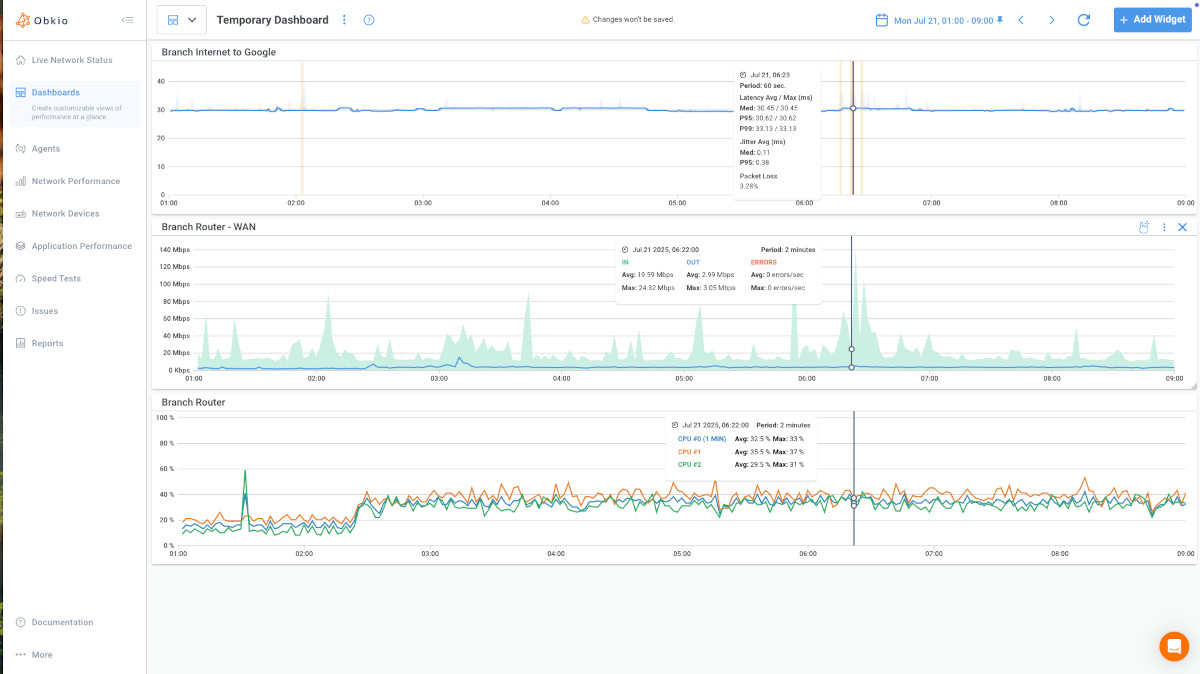
Obkio monitors from the remote worker's device, capturing device-level metrics and network path performance.
1. Device-level metrics show local problems: CPU usage consistently above 80%? Applications competing for resources. Memory at 95%? System swapping to disk, killing performance. Disk at 100% utilization? Storage bottleneck affecting all operations.
2. Wi-Fi metrics reveal connection quality: Signal strength below -70dBm indicates weak wireless connection, either too far from router or physical obstructions. Frequent disassociations and reassociations point to interference or marginal signal strength.
3. Network path analysis shows where degradation starts: Latency spike between the device and first hop (local router)? Local network issue. Clean performance from device to router, but degradation starts at hop 3? ISP problem, not local configuration.
4. Compare performance across multiple monitoring sessions: Run sessions to public monitoring agents (tests Internet path) and to your corporate network (tests VPN/corporate infrastructure). If both show degradation at the same local hop, it's configuration. If only corporate session shows issues, it's your infrastructure. If neither shows local problems, it's the ISP.
Remote Office Issue #4. Time Zone & Regional Peak Usage: When Problems Hide in the Clock
Remote offices operate in different time zones with different peak usage patterns. Network issues that occur at 3 pm in Tokyo never appear when your San Francisco IT team is working. By the time you start your day, the problem has resolved. You're troubleshooting ghosts, intermittent issues you can't replicate.
What is The Time Zone Troubleshooting Problem?
Your London office reports video conferencing issues every morning at 9 am GMT. Your New York IT team investigates at 9 am EST (2 pm GMT). They run tests, check performance, review logs, everything looks perfect. They close the ticket: "Unable to reproduce issue."
The next day, the same complaint. London reports problems at 9 am GMT. You investigate at 2 pm GMT. Again, everything's fine.
The issue occurs during London's morning peak, when the local ISP's network is congested with business traffic, and when residential broadband in that neighbourhood peaks before the workday. By 2 pm GMT, that surge has passed.
Without continuous monitoring, you're always investigating after the fact.
How Do Peak Usage Patterns Vary by Location?
1. Residential ISP congestion is tied to local time zones:
Residential broadband usage spikes in the evening (6-11 pm local time) when people stream video, game online, and browse the web. ISPs throttle bandwidth during these peaks to manage network load. Your remote office's 100Mbps connection drops to 40Mbps effective throughput.
2. Local network strain happen when remote teams synchronize activities:
Your Asia-Pacific remote offices all join the weekly team call at 9 am Singapore time. Suddenly, 20 remote workers are simultaneously on video calls through residential ISPs never designed for this load.
3. ISP maintenance windows are scheduled during local overnight hours:
Your ISP schedules maintenance for 2-5 am local time, reasonable for residential customers who are asleep. But your remote office in Sydney operates during those hours (5 pm -8 pm US Eastern). Connectivity drops to degraded backup paths, performance tanks, and your US team sees perfect metrics.
4. Regional infrastructure load peaking during local business hours:
Commercial districts see bandwidth demand spike 9 am to 5 pm local time. Residential areas peak evenings and on weekends. Your remote worker in a residential neighbourhood experiences different congestion patterns than your HQ in a business district.
5. Cloud service routing inefficiencies based on regional traffic patterns:
Your remote office in São Paulo connects to AWS us-east-1. During Brazil's business hours, Internet traffic from South America to North America peaks. BGP routing adjusts, sometimes selecting suboptimal paths that add 40-80ms latency.
Why Don’t Corporate Networks Experience This?
Your IT team is physically present during HQ's business hours. Someone reports an issue, you troubleshoot in real-time. You see the problem while it's happening.
Peak usage aligns with your working hours. You monitor during the times issues occur. When performance degrades, you're there to investigate.
Enterprise infrastructure handles predictable load patterns with proper capacity planning. Your HQ isn't competing with neighbours streaming Netflix.
How to Get Continuous Network Monitoring Across Time Zones:
Obkio provides 24/7 monitoring that captures issues whenever they happen, even when your IT team is offline.
- Historical data lets you review what happened hours or days ago. You review historical performance graphs the next morning, seeing exactly when degradation occurred, which hops showed problems, and what the latency patterns looked like.
- Automated alerts notify you the moment performance degrades. Issue occurs at 9 am your time when your Montreal office is working? You get an alert immediately. Review the data in the morning, diagnose the issue, and implement a fix before the next business day.
- Time-based pattern detection reveals recurring issues tied to specific times. Graph 30 days of latency data. Clear spikes every weekday at 9 am London time? That's a peak usage pattern. Degradation every evening, 7 - 10 pm Berlin time? ISP congestion during residential peak hours.
- Scheduled tests run diagnostics during remote office peak hours automatically. Configure monitoring sessions to run intensive tests, whenever your remote offices are most active. Capture performance data during the windows when problems actually occur.
Identifying Time-Based Patterns
Review historical performance graphs, looking for:
- Daily spikes at the same time. Latency jumps every day at 9 am local time, morning video call surge. Performance tanks every evening 6 - 8 pm local time, residential ISP congestion.
- Weekly patterns indicating business cycles. Monday mornings show worse performance than other days, everyone returns from the weekend, downloads email, and syncs files. Friday afternoons are better than mid-week, with reduced business activity.
- Correlation with local events. Performance degrades during school hours when kids are using the classroom bandwidth in the neighbourhood. Improves during school holidays.
- ISP throttling during predictable peak hours. Every day, 2 - 6 pm local time, bandwidth drops 40%. ISP manages network congestion by throttling during residential peak usage.

Remote Office Issue #5. VPN & Cloud Application Routing: The Distributed Architecture Problem
Remote offices connect to corporate resources and cloud applications through paths your HQ never uses. Headquarters might access Office 365 over a dedicated ExpressRoute connection. Your remote offices? They're routing through residential ISPs to regional cloud POPs, experiencing latency and connectivity issues your HQ infrastructure never sees.
Why Are VPN Issues Unique to Remote Offices?
- Different routing paths to cloud services: Your HQ has optimized connections to AWS, Azure, and Office 365, potentially direct peering or premium Internet circuits. Remote offices route through whatever path their residential ISP chooses, which is rarely optimal.
- VPN split tunnelling decisions create inconsistent experiences: Some remote offices use full tunnel VPN (all traffic routes through the corporate network), others use a split tunnel (only corporate traffic goes through VPN). Different configurations mean different performance characteristics and different failure modes.
- Cloud service POPs distribute unevenly: Your remote office in South America might route to cloud services through Miami or São Paulo, adding latency. Your European remote offices route to Amsterdam or Frankfurt. Different regions experience different performance to the same applications.
- ISP peering relationships affect cloud connectivity: Your remote worker's ISP might have poor peering with AWS or Microsoft's network. Traffic routes through multiple intermediate networks, adding latency and potential packet loss. Your HQ's carrier has direct peering, optimal performance.
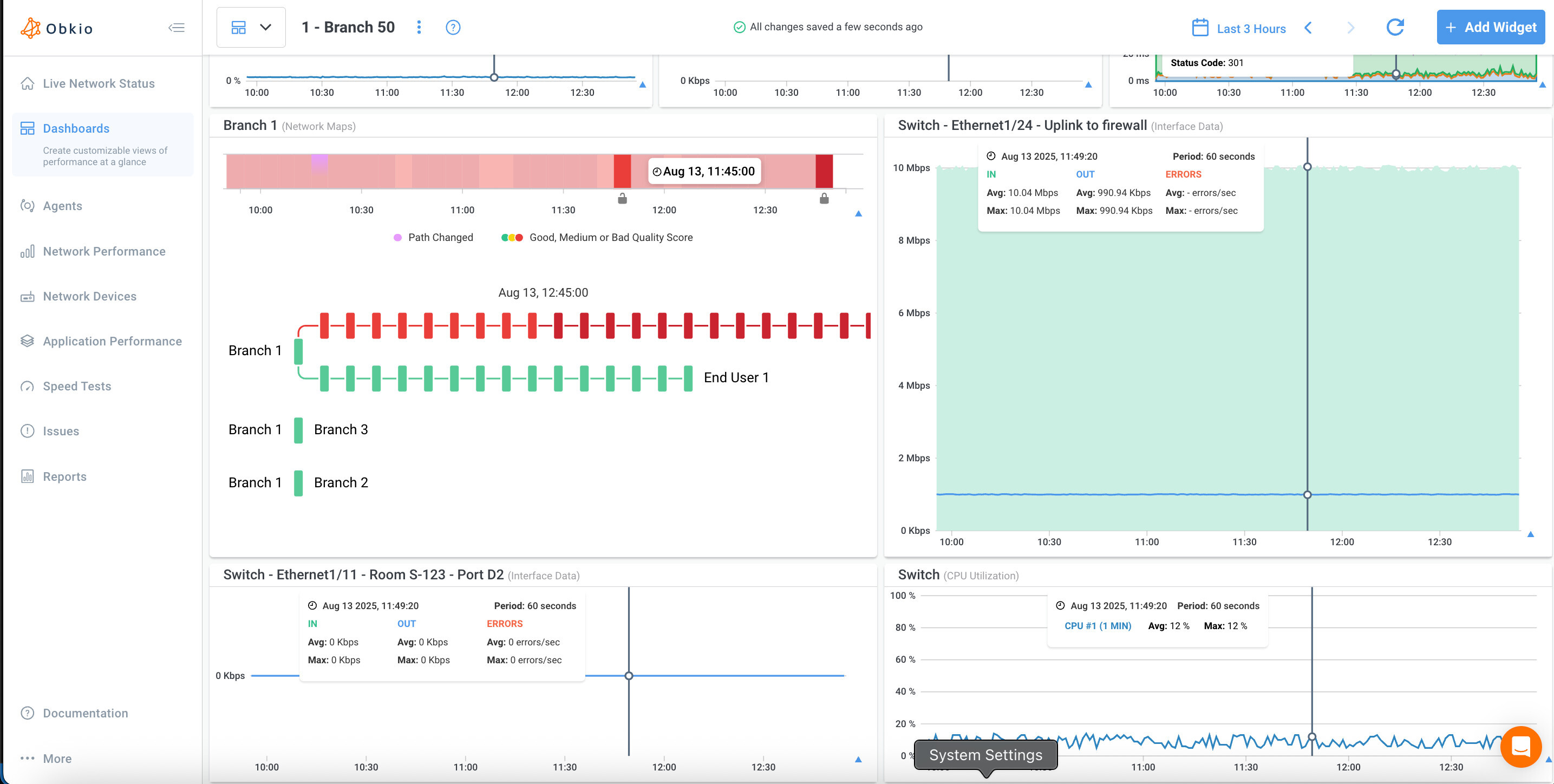
What Are Common Routing Issues Remote Offices Face?
1. Suboptimal BGP routing to cloud providers: Your remote office in Singapore should route to AWS Singapore (ap-southeast-1). Instead, their ISP routes through Hong Kong, adding 40ms latency and an extra 6 hops. Your application still works, but response times are noticeably slower.
2. VPN performance degradation under load: Remote office uses full tunnel VPN. All Internet traffic (not just corporate resources) routes through your corporate network. This saturates VPN capacity, adds latency to everything, and creates bottlenecks. VPN performance problems that look like ISP issues are actually VPN architecture decisions.
3. Split tunnel misconfiguration: Remote office is configured for split tunnel VPN, but the split criteria are wrong. Corporate resources aren't included in the tunnel definition, so they route across the public Internet instead of through a secure VPN. Or the opposite: consumer services accidentally route through VPN, wasting corporate bandwidth.
4. DNS resolution delays to cloud services: Remote office uses ISP's DNS servers, which are geographically distant or poorly maintained. DNS lookups for cloud services add 200-500ms to every connection. This manifests as slow application load times—initial connection to Office 365 takes 3 seconds instead of 300ms.
5. Cloud provider outages are affecting specific regions: AWS us-east-1 experiences degraded performance. Your HQ automatically fails over to multi-region architecture. Your remote offices in South America, whose ISPs preferentially route to us-east-1, experience service disruption because their traffic doesn't automatically reroute.
How to Identify VPN and Cloud Routing Issues
Deploy Obkio monitoring sessions from remote offices to multiple destinations: corporate network (VPN), public Internet (ISP path), and specific cloud services (Office 365, AWS, Salesforce).
- Compare performance across different destinations: Remote office shows perfect performance to public Internet monitoring agents, but terrible performance to the corporate network? VPN issue. Good performance to the corporate network, but poor performance to Office 365? Cloud routing problem. Bad performance to everything? ISP or local network issue.
- Measure VPN vs. direct Internet paths: Run monitoring sessions with VPN enabled and disabled (during testing window). If performance dramatically improves with VPN disabled, the VPN connection is the bottleneck, either insufficient capacity, routing inefficiency, or VPN gateway overload.
- Test routing to specific cloud services: Run traceroutes from remote offices to cloud service endpoints (Office 365, AWS, Azure). Count hops, measure latency to each hop, and identify where delays occur. Compare routing paths across different remote offices, do some regions route more efficiently than others?
- Identify DNS resolution delays: Monitor DNS lookup times from remote offices. If DNS queries consistently take 300-500ms, that's adding significant delay to every application connection. Switch remote offices to faster DNS servers (Google 8.8.8.8, Cloudflare 1.1.1.1, or corporate DNS) and retest.
- Track cloud provider regional performance: When remote offices report issues accessing cloud applications, check whether all regions are affected or just specific locations. Regional AWS outage affects your South American remote offices but not North American or European? That's cloud provider routing, not your infrastructure.

Learn how to monitor VPN performance for remote workers with dual-session monitoring. Identify VPN bottlenecks, latency issues, and connection problems fast.
Learn more
FAQs: Remote Office Network Performance Monitoring
Why does my remote office have connectivity issues, but my company’s headquarters doesn't?
Remote offices use residential ISPs with shared infrastructure, no SLAs, and consumer-grade equipment. HQ has enterprise fiber with guaranteed uptime. Remote locations face ISP throttling, last-mile problems, default router configs, and no on-site IT
How can I monitor remote workers' network performance?
Install monitoring agents on remote devices that test performance from their perspective. Agents measure latency, packet loss, and jitter every minute to corporate network, cloud services, and public Internet.
What causes slow VPN performance for remote employees?
Four causes: full tunnel VPN saturating capacity, insufficient VPN gateway resources, suboptimal ISP-to-VPN routing, or ISP throttling VPN traffic. Test with VPN on versus off.
Can I troubleshoot remote networks without site visits?
Yes. Monitor from remote devices to identify if issues are local, ISP, or corporate. Guide workers remotely: switch Wi-Fi channels, update firmware, use ethernet, close background apps.
Why do remote workers only have problems at certain times?
ISP congestion during peak hours. Residential ISPs throttle bandwidth at 2-6pm (afternoon peak) and 6-11pm (evening streaming). ISP maintenance during local overnight hours also causes time-specific issues.
How do I prove remote workers’ problems are the ISP's fault?
Run continuous traceroutes showing exact hop where packet loss occurs in ISP network. Collect historical data over days/weeks. Open tickets with specifics. This bypasses scripted support and escalates to engineers.
What network metrics matter for remote offices?
Latency (under 100ms good), packet loss (under 2% acceptable), jitter (under 30ms for VoIP), throughput (actual vs advertised). Device metrics: CPU, memory, Wi-Fi signal (above -67dBm good, below -70dBm poor). Test corporate VPN, Office 365, AWS, public Internet to isolate problems.
Why can't I ping remote workers from my company’s headquarters?
80% of ISPs block inbound ICMP for security. Remote workers sit behind carrier-grade NAT with dynamic IPs. You can't access from outside. Monitor FROM remote location outward (the direction traffic actually flows) not from corporate network inward.
How much bandwidth do remote workers need?
Video calls: 2-4Mbps down, 1-3Mbps up per call. Cloud backup: 5-10Mbps up. Two video calls plus backup needs 15-20Mbps upload, but residential connections provide only 5-10Mbps upload despite 100Mbps+ download. Account for household streaming, gaming, IoT competing for bandwidth.
What's the difference between monitoring remote versus branch offices?
Branch offices have managed infrastructure like enterprise routers, dedicated circuits, SNMP, on-site IT. Remote offices use residential ISPs and consumer equipment you don't manage.
Why do certain remote offices always have network problems?
Last-mile infrastructure degradation or regional ISP issues. Distance 5+ miles from ISP node causes signal loss. Aging copper, damaged cables, failing neighborhood equipment affects address clusters. Dense areas get ISP congestion. One location consistently bad while others fine means localized infrastructure, not corporate network.
Do network monitoring tools see inside home networks?
No. Agents see device experience like Wi-Fi signal, router latency, Internet path. Don't access router configs, can't see other devices, don't capture personal traffic. Test corporate and cloud destinations using synthetic traffic. Network performance visibility without monitoring personal activity.
What causes packet loss in remote networks?
Wi-Fi interference (loss at device), overloaded router (hop 1), ISP last-mile degradation, damaged cables, failing equipment (hops 2-6), ISP peering congestion (hops 7-10). Traceroute shows exact hop where loss begins: local, ISP infrastructure, or backbone.
Conclusion: Stop Flying Blind on Remote Office Network Issues
Remote offices face network issues that headquarters will never experience: ISP throttling and infrastructure failures, last-mile connectivity problems you can't see from your corporate network, chaotic local configurations on consumer equipment, time zone mismatches that hide intermittent problems, and routing inefficiencies affecting cloud application performance.
Traditional monitoring can't help you. Your tools stop at the corporate network edge. You can't ping remote locations, can't access their equipment, can't troubleshoot their ISP connections.
The solution is monitoring FROM remote office perspectives.
Deploy Obkio agents at remote locations. Gain complete visibility into network performance from their devices, through their ISPs, to your corporate network and cloud services. Troubleshoot with concrete data: exact hop where packet loss occurs, specific times performance degrades, measurable impact on business applications.
Catch issues before they become help desk tickets. Identify problems during off-hours in remote time zones. Prove whether issues are local configuration, ISP infrastructure, or your corporate network. Reduce mean time to resolution from hours of guessing to minutes of data-driven troubleshooting.
Stop letting remote offices struggle with invisible network problems.
Start your free 14-day trial of Obkio's remote network monitoring and see what you've been missing.
- 14-day free trial of all premium features
- Deploy in just 10 minutes
- Monitor performance in all key network locations
- Measure real-time network metrics
- Identify and troubleshoot live network problems