








Monitored Interfaces
- What are the default monitoring interfaces
- How to monitor more interfaces
- How to ignore some interfaces
What you are going to learn:
A network device usually has many network interfaces. Some of them are physical network ports (such as the Ethernet copper or fiber ports) and some are logical interfaces (such as routed VLANs or VPNs).
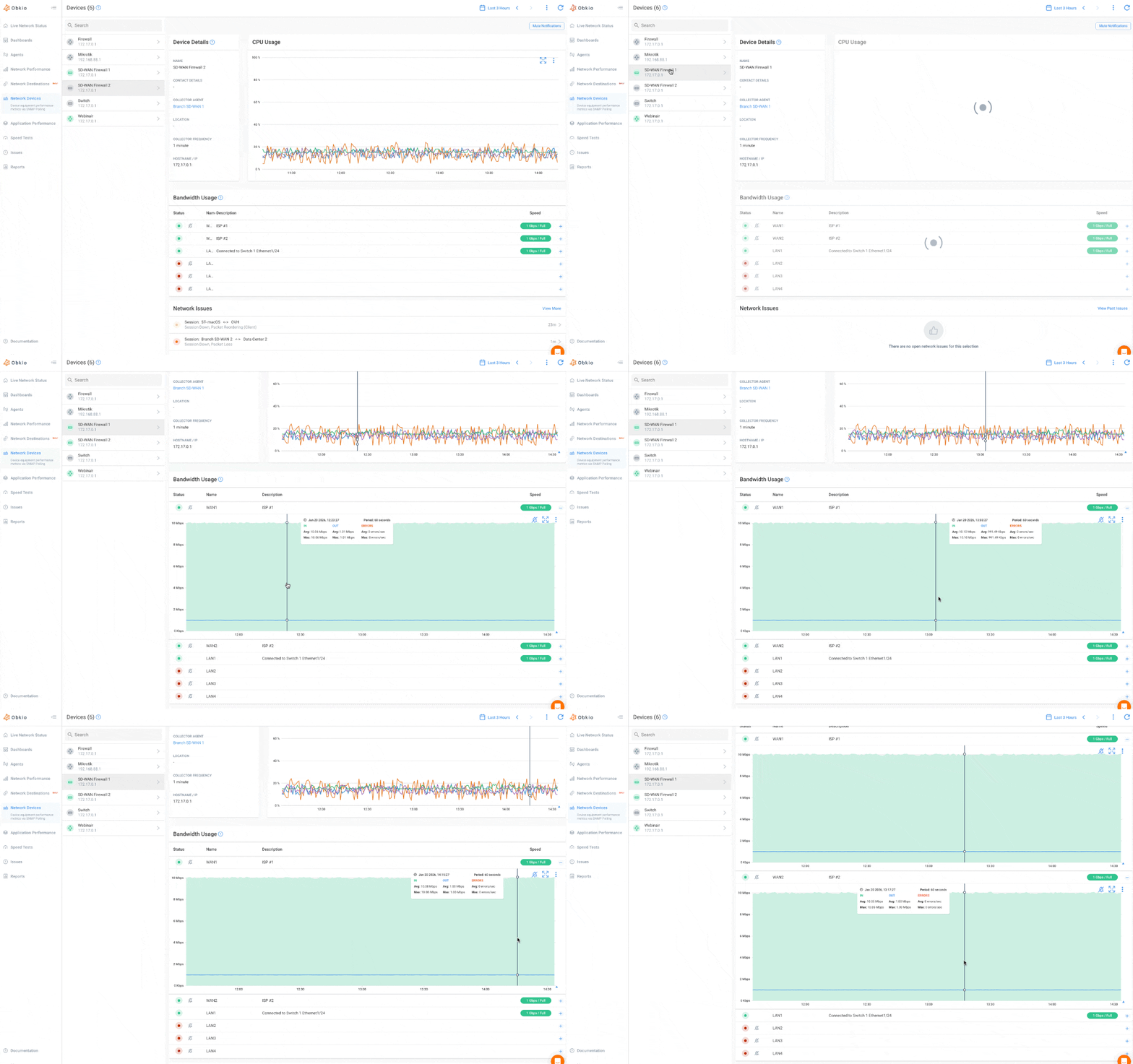
Obkio polls interfaces and graphs bandwidth usage (inbound / outbound traffic), as well as CRC errors on device interfaces. With ultra-fast polling, Obkio is able to get 10X the amount of data compared to traditional monitoring solutions, including detecting short bursts of traffic that can cause congestion.
Default Monitored Interfaces 
By default, the monitoring agent will collect all the Ethernet interfaces (ifType 6 - ethernetCsmacd) and the Aggregate interfaces (ifType 54 - propMultiplexor & 161 - ieee8023adLag) that are available on the device. This sometimes includes some management interfaces if the device reports them as standard Ethernet interfaces.
Monitor More Interfaces
If you want to monitor more than just the default interfaces, this can be configured in the Device Advanced Parameters. The option Interface SNMP types to collect is a list of comma-separated IANA ifTypes of the interfaces you want to collect. To collect all available interfaces, select the ifType 0 (zero).
Device Interface Alerts
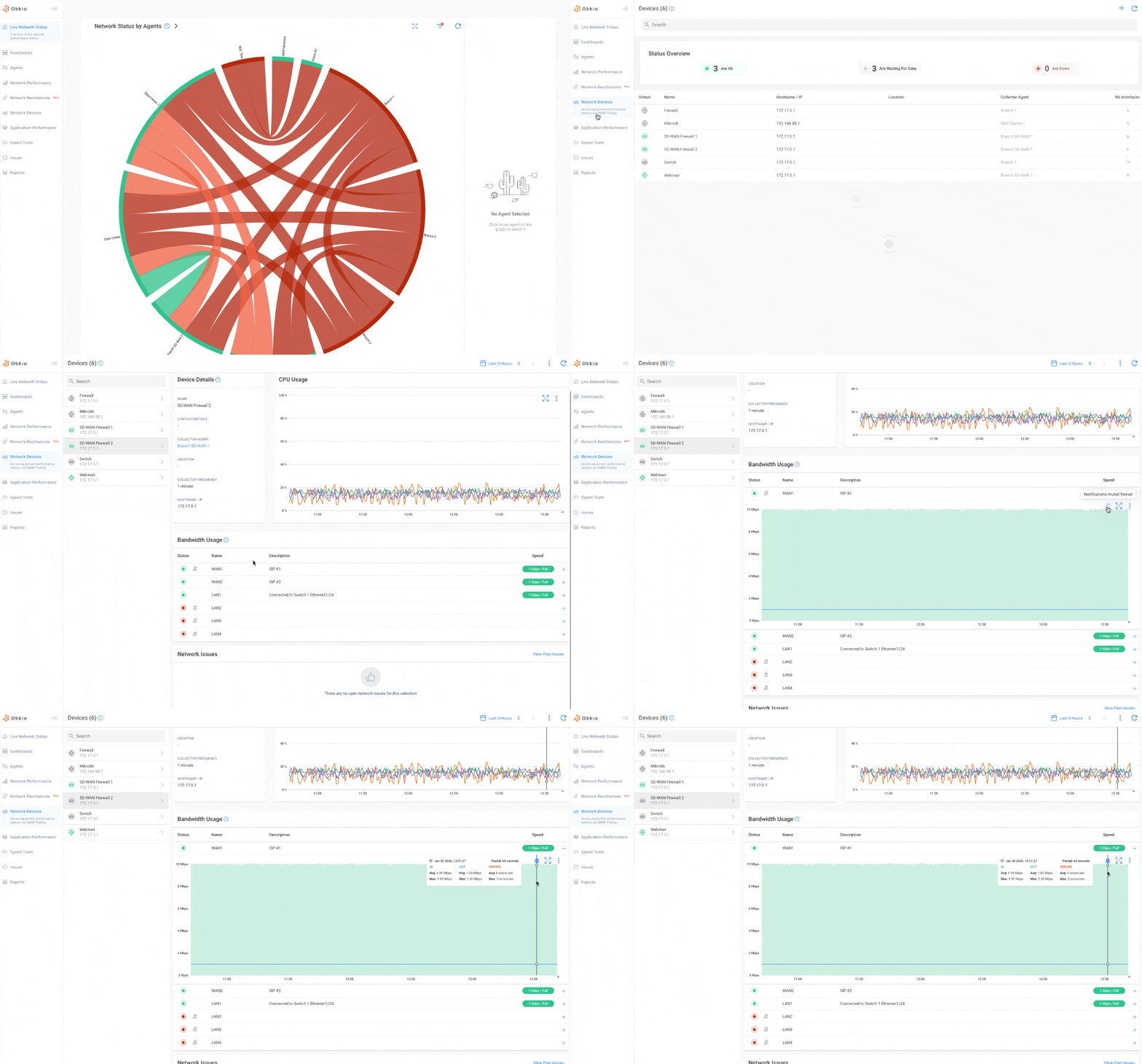
You'll automatically receive alerts when a port is up or down, so you can quickly identify and resolve connectivity issues.
How to Enable Interface Alerts
Interface alerts are deactivated by default. Here's how to turn them on:
- Navigate to the Device tab in your Obkio app
- Open the "Bandwidth Usage" graph for your device
- Click the icon to activate alerts for that specific interface
- Once activated, you'll automatically receive alerts when a port goes up or down
Ignore Some Interfaces
If there are some interfaces you want to ignore during the collection (ex: some management interfaces), this can be configured in the Device Advanced Parameters. The option Interfaces SNMP Indexes to ignore is a list of comma-separated indexes of the interfaces you want to ignore. A range of indexes is also supported (ex: 1,2,3,10-13 will ignore 1, 2, 3, 10, 11, 12, 13).
How to determine the Interface Index and Interface Type?
To know the exact index for the interface you want to ignore, put your mouse over the interface name and the index number will be displayed in the tooltip.