











 Obkio Blog


 Subscribe
Table of Contents
Table of Contents
Your users are flooding IT with tickets about "the Internet being down" (even though it's not). Your network monitoring dashboard is lighting up like a Christmas tree with alerts. Connections are dropping and reconnecting every few minutes or seconds. You check the logs and see the same network interface going up, down, up, down, up, down,
Welcome to network flapping.
Network flapping happens when a network interface or link rapidly toggles between up and down states, creating unstable connections that wreak havoc on everything from user productivity to your routing protocols. It's not a full outage, which honestly might be easier to troubleshoot. Instead, it's this maddening intermittent issue that makes your network behave like it can't decide whether it wants to work today or not.
The worst part? Network flapping can cascade. One flapping interface can destabilize routing tables, trigger spanning tree reconvergence, and create ripple effects across your entire network.
In this article, we'll break down what network flapping actually is, what causes it (spoiler: usually something physical), how to troubleshoot it without losing your mind, and most importantly, how to catch it before your users do.
What is Network Flapping? 
Network flapping is when a network interface repeatedly switches between operational (up) and non-operational (down) states in a short period of time. Instead of staying consistently connected or consistently disconnected, the network link keeps bouncing back and forth. Sometimes multiple times per minute.
Think of it like a light switch being rapidly toggled on and off. The light works, technically, but it's useless because it won't stay in either state long enough to be reliable. Same deal with network flapping: the connection exists, but it's so unstable that data can't flow consistently.
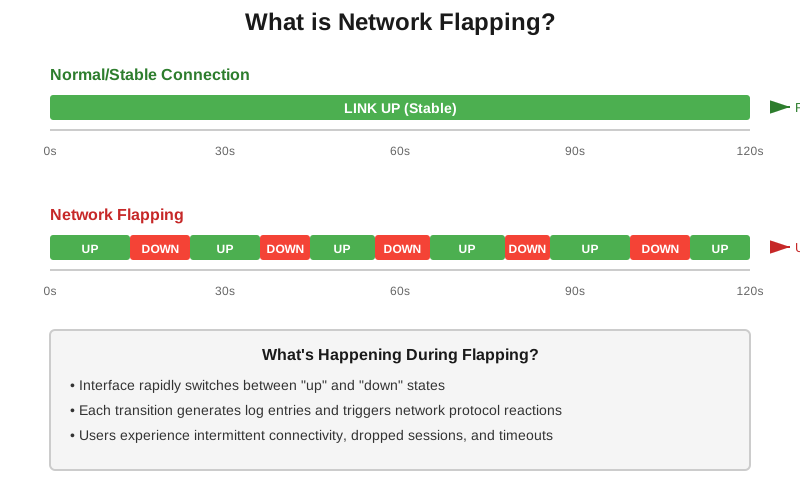
Now, not every interface state change is network flapping. Networks have legitimate reasons to transition states: maintenance windows, planned upgrades, and devices being powered down intentionally. That's normal. Network Flapping is specifically about unplanned, rapid, repeated state changes. If your interface log shows the link going down and coming back up 15 times in 10 minutes? That's network flapping.
Technically speaking, when an interface flaps, it's constantly transitioning between "link up" and "link down" states. Each transition generates log entries, triggers alerts, and forces network protocols to react: recalculating routes, dropping sessions, and generally creating chaos. Your switch or router isn't broken (usually), but something is making it unable to maintain a stable connection.
And that "something" is almost always traceable to a specific cause.
What Are the Types of Network Flapping?
While "network flapping" often refers to interface instability, the term actually covers a few different scenarios:
- Interface/Link Flapping (what this article focuses on): A physical network interface or link rapidly transitions between up and down states. This is the most common type and usually points to hardware, cabling, or physical layer issues.
- Route Flapping: A routing protocol (especially BGP) repeatedly withdraws and re-announces routes. This happens when routers can't agree on the best path or when upstream links are unstable. Route flapping can destabilize entire sections of the internet if it involves major BGP peers.
- MAC Flapping: A MAC address appears to "move" between different switch ports repeatedly. This usually indicates a network loop, misconfigured spanning tree, or duplicate MAC addresses on the network. Your switch gets confused about where to send traffic.
- Port Flapping: Similar to interface flapping but specific to switch ports, often triggered by devices that can't maintain stable negotiation with the switch (speed, duplex, power delivery issues).
For the rest of this article, we're focusing on interface/link flapping, the most common type that IT teams deal with daily.
When State Changes Aren't Actually Network Flapping
Not every interface state change is network flapping. Networks have legitimate reasons to transition states: maintenance windows, planned upgrades, and devices being powered down intentionally. That's normal.
Network Flapping is specifically about unplanned, rapid, repeated state changes. If your interface log shows the link going down and coming back up 15 times in 10 minutes? That's network flapping. One planned outage, followed by the interface staying up? Not flapping.
And that flapping is almost always traceable to a specific cause.

What Causes Network Flapping? (The Usual Suspects)
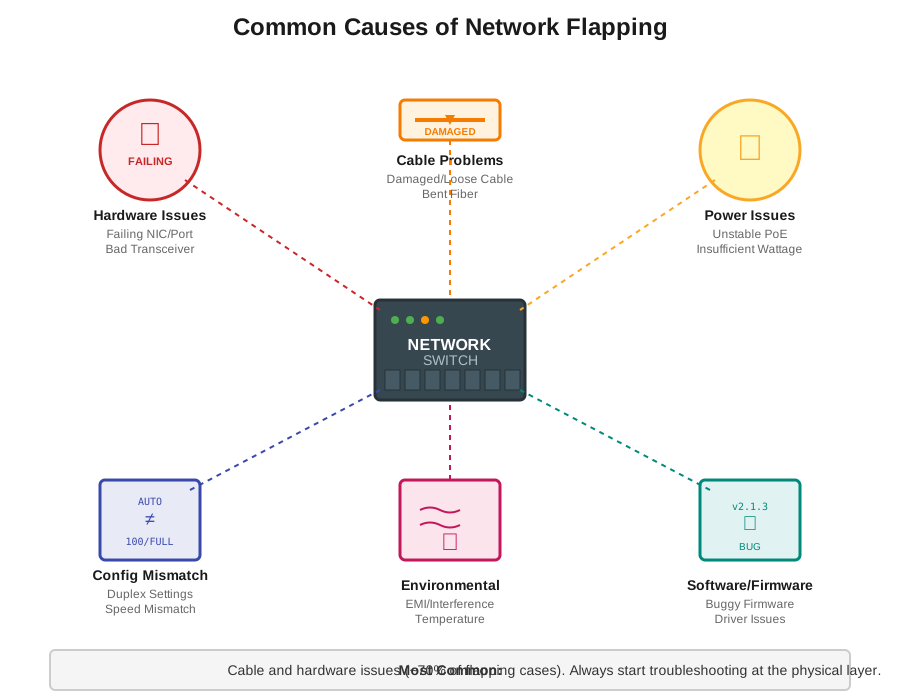
Network flapping rarely happens for mysterious reasons. In most cases, you can trace it back to one of these common culprits:
1. Hardware Issues
Failing network interface cards (NICs), dying switch ports, or degraded transceivers are prime suspects. Hardware doesn't always fail. Sometimes it just starts acting weird before it dies. A NIC might work fine one moment, lose connection the next, then randomly recover.
For Example: A server's onboard NIC starts flapping every few hours. Turns out the chip is overheating because the heatsink worked loose. Swap the NIC or fix the cooling, problem solved.
2. Cable Problems
This is the big one. Damaged Ethernet cables, loose connections, or cables that got pinched in a server rack door cause a huge percentage of flapping issues. Fibre optic cables are even more sensitive; a bent fibre or dirty connector can cause intermittent signal loss.
For Example: Someone closed a cabinet door on a Cat6 cable. The outer jacket looks fine, but the internal wires are partially severed. The link works... until someone walks by and causes just enough vibration to break the connection momentarily.
3. Power Delivery Issues
For Power over Ethernet (PoE) devices like access points, IP cameras, or VoIP phones, unstable power is a common flapping trigger. If the switch can't consistently deliver enough wattage, the device will power cycle, taking the link down with it.
For Example: An access point is rated for 802.3at (PoE+) but is plugged into an 802.3af (standard PoE) port. It works sometimes, but under load, it draws too much power, the port shuts down, the AP reboots, and the cycle repeats.
4. Configuration Mismatches
Duplex mismatches are classic culprits. One side of the link is set to auto-negotiate, while the other is hard-coded to full-duplex, or both sides are hard-coded to incompatible settings. The link comes up, collisions happen, errors accumulate, the interface goes down, auto-negotiation tries again, and... flap.
For Example: A legacy device only supports 100Mbps full-duplex. IT upgrades the switch and forgets to manually configure the port. The switch auto-negotiates to 1Gbps, the device can't keep up, and the interface flaps until someone manually sets the switch port to 100/full.
5. Environmental Factors
Electromagnetic interference (EMI) from nearby electrical equipment, temperature extremes causing expansion/contraction in connections, or even vibration in industrial environments can trigger flapping.
For Example: A network drop in a warehouse runs right next to a large motor. Every time the motor kicks on, the EMI disrupts the signal just enough to drop the link for a few seconds.
6. Software and Firmware Bugs
Outdated drivers, buggy firmware, or software conflicts can cause interfaces to behave erratically. This is less common than physical issues, but it happens, especially after updates.
For Example: A switch firmware update introduces a bug in the auto-negotiation code. Certain port combinations start flapping. Rollback to the previous firmware, flapping stops.
Bottom line: Most causes of network flapping trace back to Layer 1 (physical) problems. So when you’re looking at the root cause, start there. But don’t worry, we’ll cover how to identify network flapping issues more in the next section.

How to Identify Network Flapping (Spotting the Signs)
Network flapping announces itself pretty loudly, if you know what to listen for. There are certain signs and symptoms from the user perspective, and others from the Network admin perspective to look out for.
How Can End-Users Identify Network Flapping?
From the user side, network flapping looks like intermittent connectivity. Applications time out, then suddenly work again. Video calls freeze and reconnect. File transfers fail midway through. VPN connections drop randomly. It's the kind of issue where users say "the network is slow" or "the Internet keeps cutting out," even though technically the network is working... just not consistently.
The frustrating part? By the time a user reports it, and you start investigating, the interface might have stabilized temporarily. Then it flaps again an hour later.
How Can Network Admins Identify Network Flapping?
On the admin side, flapping creates a paper trail:
System Logs: You'll see repeated "interface down" and "interface up" messages in your switch or router logs. Timestamps show the pattern, sometimes seconds apart, sometimes minutes. The log volume itself is a red flag.
SNMP Traps: If you're using SNMP monitoring, you'll get flooded with linkUp and linkDown traps from the same interface. Your inbox becomes a crime scene.
Interface Statistics: The error counters tell the story. Look for increasing CRC errors, input errors, or frame errors. The "last flap" timestamp in your interface status shows recent instability.
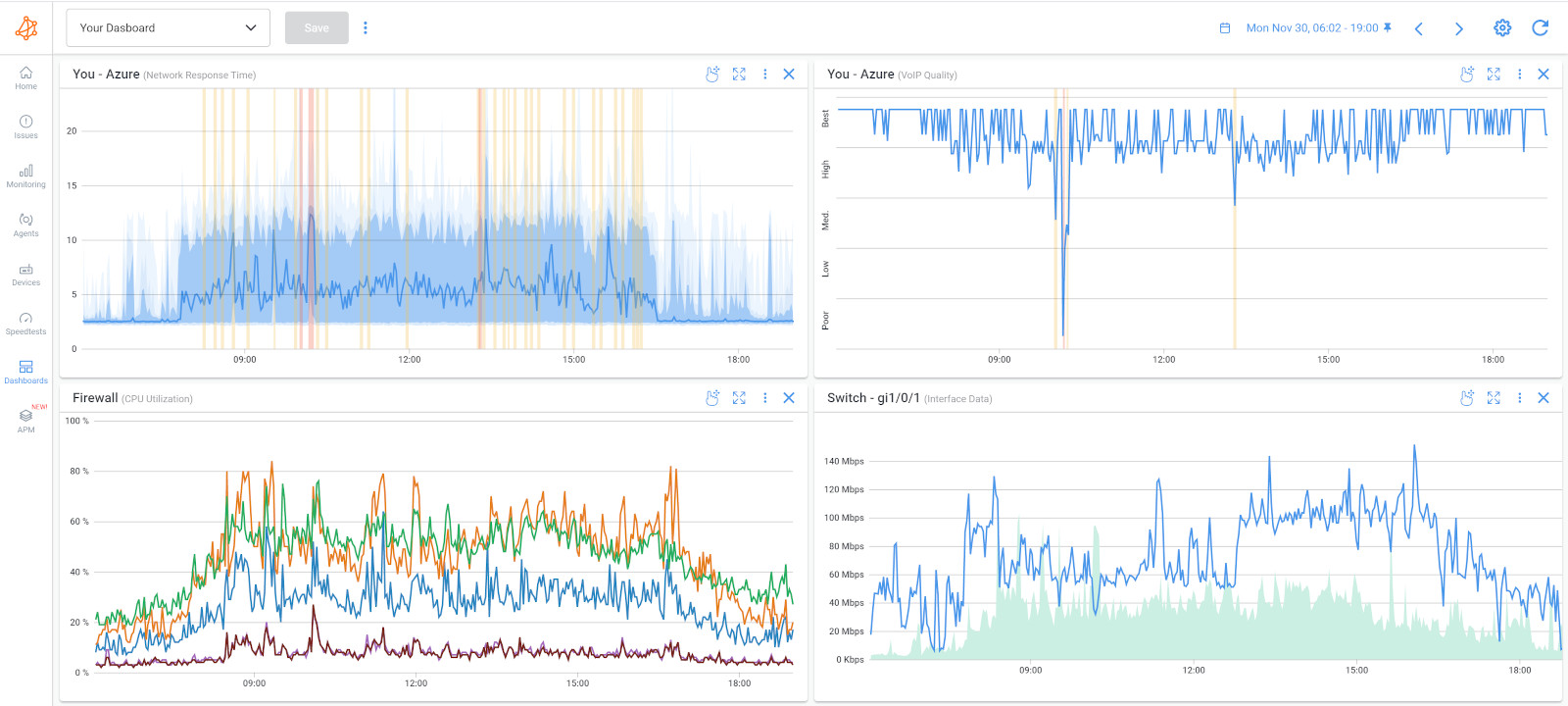
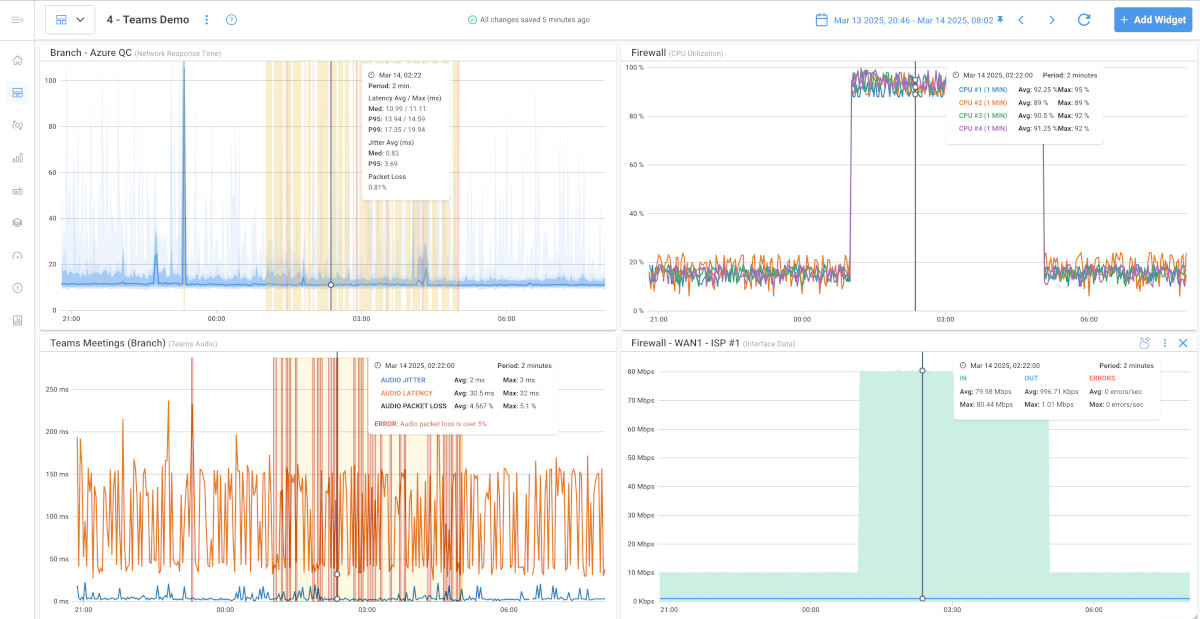
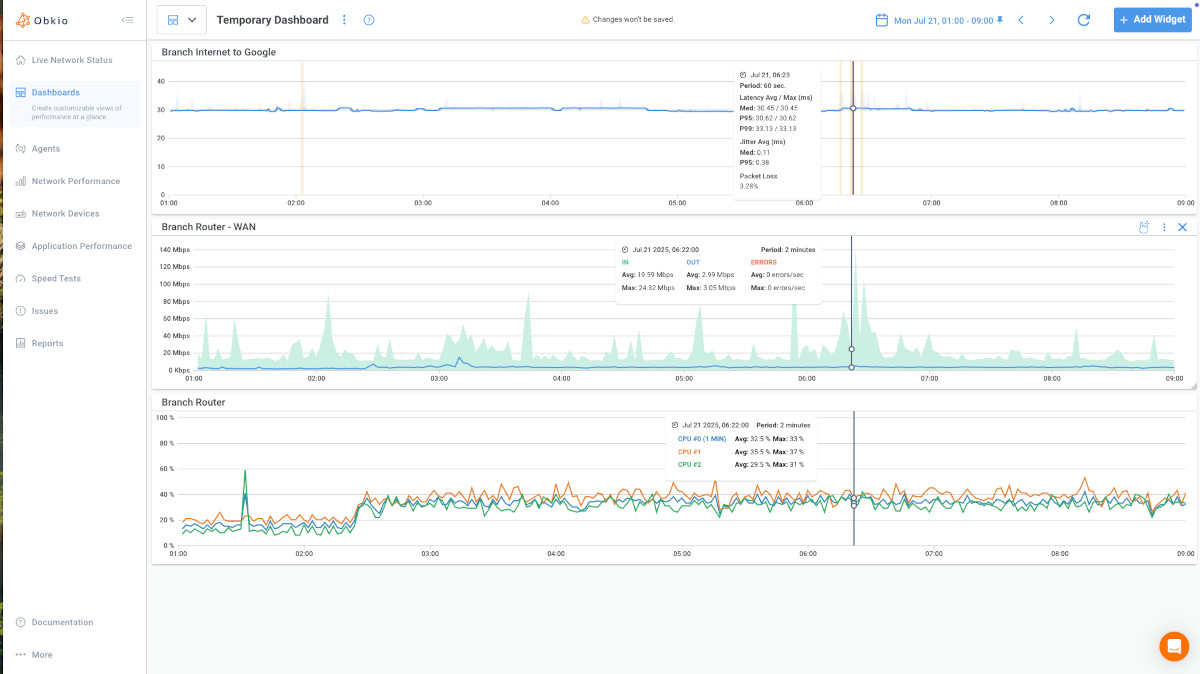
Network Monitoring Dashboards: Network monitoring platforms like Obkio track interface state changes in real-time and visualize when links go up and down. Instead of digging through logs, you can see the flapping pattern graphically: which interfaces are unstable, how frequently they're flapping, and whether it correlates with other network events. Continuous network monitoring catches flapping the moment it starts, often before users notice.
What is Network Flapping vs. Other Network Issues
Here's where it gets tricky: network flapping symptoms overlap with other problems.
- Packet Loss: Can be caused by flapping, but also exists independently. Flapping = link status changes. Packet loss = link stays up but drops traffic.
- High Latency: Flapping causes latency spikes during state changes, but consistent high latency points elsewhere (congestion, routing issues).
- Intermittent Connectivity: Flapping causes this, but so do DNS issues, firewall problems, or application bugs. Check if the link status is actually changing.
The key identifier: Is the physical link state changing? If yes, it's network flapping. If the link stays up but connectivity is unreliable, look at Layer 2/3 issues.
What is the Real Impact of Network Flapping (Why This Matters)?
Network flapping isn't just annoying; it has real consequences that extend way beyond a few dropped packets.
User Productivity Takes a Hit
When network links flap, users can't work consistently. That sales demo that keeps freezing? Lost opportunity. The file transfer that fails 80% through? Wasted time and frustration. Multiply that across dozens or hundreds of users, and you're looking at significant productivity loss. Even worse, users start losing trust in the network, so they blame IT for everything, even issues that have nothing to do with connectivity.
The Cascade Effect of Network Flapping
Here's where network flapping gets really problematic: one unstable link can destabilize your entire network.
Routing protocols hate flapping: OSPF recalculates routes every time a link changes state. If an interface flaps repeatedly, neighbouring routers spend resources constantly updating their routing tables instead of actually routing traffic. BGP is even more sensitive; route flapping can trigger dampening mechanisms that suppress routes, effectively taking paths offline even after the flapping stops.
Spanning Tree reconvergence happens every time a link state changes. If a link in your spanning tree topology flaps, switches have to recalculate the tree topology repeatedly. During convergence, traffic can be blackholed. In large networks, this creates cascading loops and broadcast storms.
Business Consequences
Flapping translates to money. Downtime affects revenue, especially for e-commerce or SaaS companies. Support tickets spike. IT spends hours troubleshooting instead of working on strategic projects. And if the flapping affects customer-facing services? That's reputation damage on top of everything else.
Network flapping might start as a single interface issue, but it rarely stays contained.

How to Troubleshoot Network Flapping (Step-by-Step)
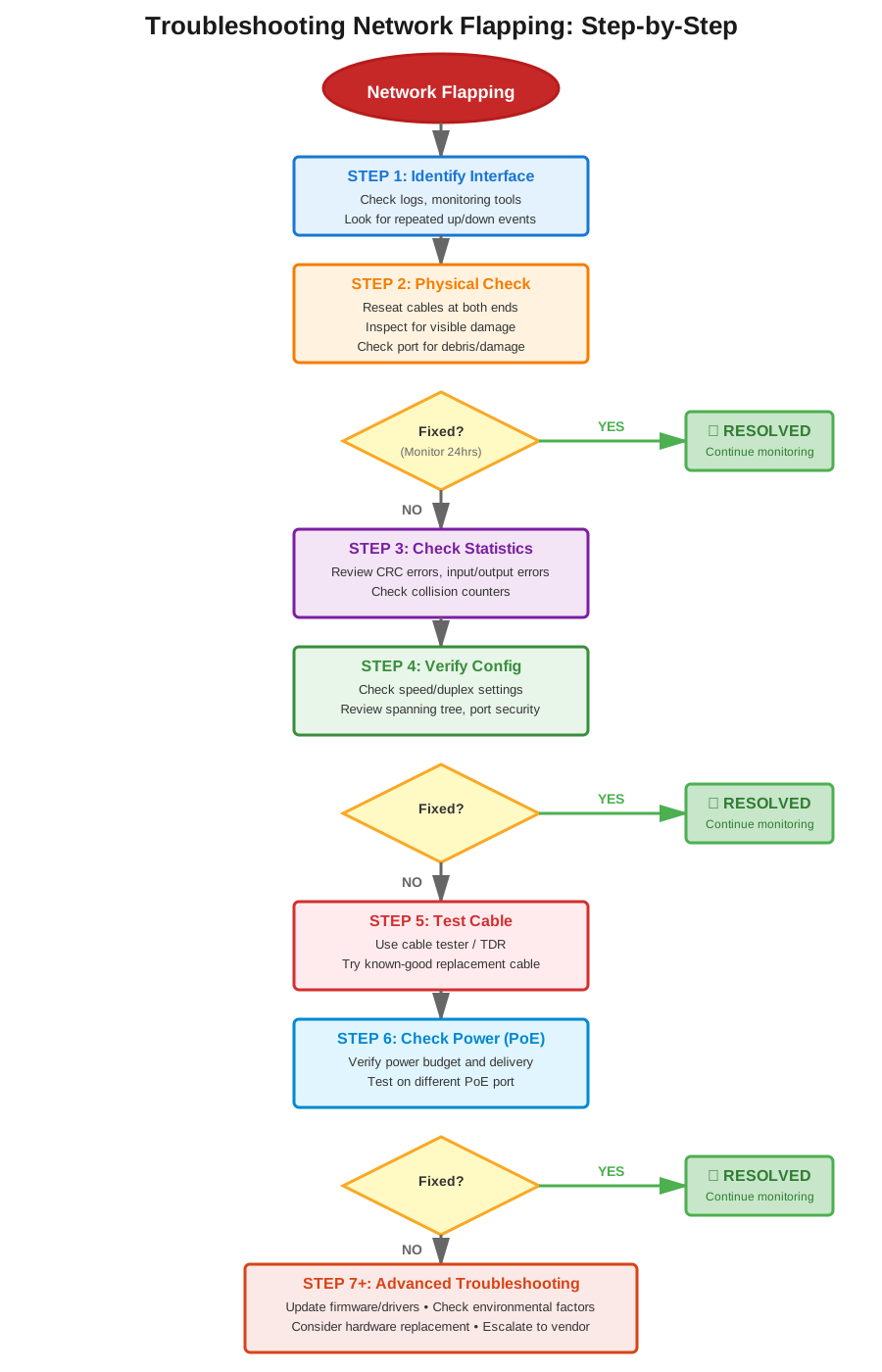
When you've got a flapping interface, work through these steps methodically. Don't skip ahead, since most network flapping issues are physical, so you need to rule out the obvious stuff first.
1. Identify the Network Flapping Interface
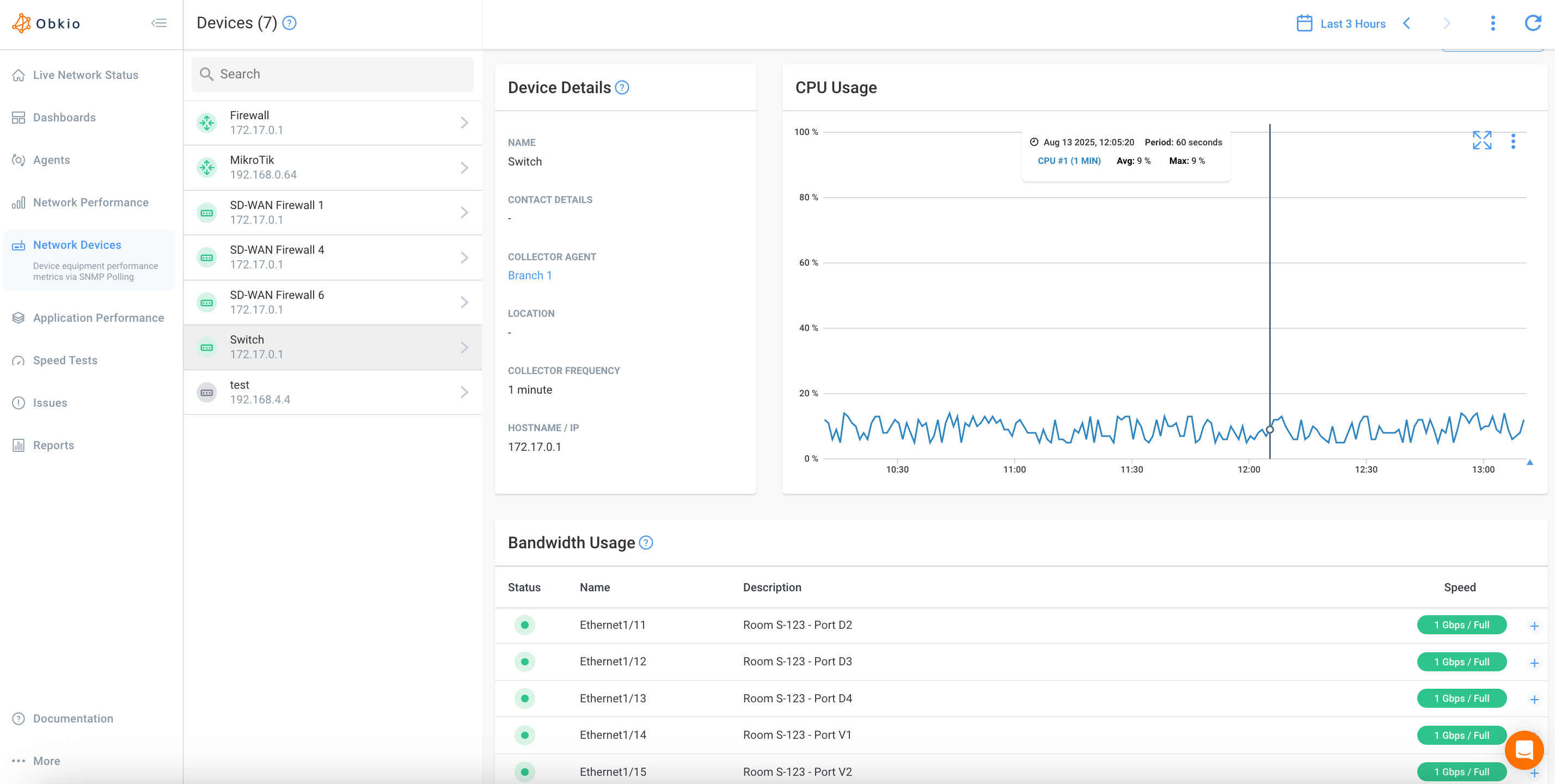
Start by confirming which interface is actually flapping. Check your network monitoring dashboard, review switch/router logs using SNMP Device Monitoring, or run show interface commands to see recent state changes. Look for:
- Interfaces with multiple "last flap" timestamps
- Syslog entries showing repeated linkUp/linkDown events
- High error counters relative to other interfaces
Document the pattern: How often is it flapping? Is it consistent or random? Does it happen at specific times?


2. Check Physical Connections
This solves 70% of flapping issues. Seriously.
- Reseat both ends of the cable. Unplug, inspect for bent pins or damage, and plug back in firmly.
- Inspect the cable for visible damage: kinks, cuts, pinch points, or places where it might be getting crushed.
- Check the port itself for dust, debris, or physical damage. For fibre, inspect the connectors for dirt or scratches.
- Wiggle test: Gently move the cable while watching the interface status. If it flaps when you move it, you've found your culprit.
If you find any issues here, stop. Fix it and monitor before moving to the next steps.
3. Review Interface Statistics
Pull up detailed interface stats. You're looking for clues:
Check for:
- CRC errors: Usually indicate cable or physical layer issues
- Input/output errors: Signal problems or misconfigurations
- Collisions (on half-duplex): Could point to duplex mismatches
- Runts/giants: Malformed frames, often from hardware issues
High error counts correlate strongly with flapping. If you see thousands of CRC errors, it's almost certainly a cable or transceiver problem.

4. Verify Configuration Settings
Configuration mismatches cause plenty of flapping:
- Speed and duplex: Are both sides set to the same settings? Auto-negotiate on both sides usually works best, but if one side is hard-coded, the other must match exactly.
- Spanning Tree: Is the port in the right mode (edge port, trunk, etc.)? Misconfigurations here cause flapping during topology changes.
- Port security: Overly restrictive settings can trigger shutdowns that look like flapping.
- EEE (Energy Efficient Ethernet): Some devices don't play nice with EEE. Try disabling it.
Compare the flapping port's config to similar working ports. Any differences?
5. Test Cable Integrity
If physical inspection didn't reveal obvious damage, test the cable properly:
- Use a cable tester to check for continuity, shorts, or crosstalk
- Try a known-good cable in the same run. If flapping stops, you've confirmed a cable fault
- For longer runs, consider using a TDR (Time Domain Reflectometer) to identify exactly where in the cable the fault exists
Cables fail in non-obvious ways. Just because it looks fine doesn't mean it is.
6. Check Power Delivery (For PoE Devices)
If you're dealing with a PoE device (access point, IP phone, camera):
- Verify the switch port is delivering enough power for the device's requirements
- Check
show power inlineto see the actual power draw vs. the available budget - Look for power-related error messages in logs
- Try moving the device to a different PoE port. If it's stable there, the original port might have failing power circuitry
Underpowered PoE devices will boot, try to operate, draw too much, shut down, reboot... flap, flap, flap.
7. Update Firmware and Drivers
If hardware checks out and configs are correct:
- Check for known bugs in your current firmware/software version
- Update switch/router firmware if available patches address stability issues
- Update NIC drivers on connected devices (especially servers)
- Important: Test firmware updates in a lab first if possible—bad updates cause more problems than they fix
8. Monitor Environmental Conditions
Don't overlook environmental factors:
- Is the equipment overheating? Check temperature sensors.
- Is there EMI nearby? (Large motors, industrial equipment, fluorescent lighting)
- In cold environments, check for condensation or ice on connectors
- Vibration in industrial settings can loosen connections over time
Pro tip: If flapping happens at predictable times (like when HVAC kicks on or during production shifts), look for environmental triggers.
How to Fix Network Flapping
Once you've identified the cause, here's how to fix network flapping. We’re offering both short-term workarounds and permanent solutions, depending on how quickly the network flapping issue is affecting your network.
Short-Term Fixes for Network Flapping
Sometimes you need to stabilize things immediately while you plan a proper fix:
Interface Dampening: Configure your switch or router to suppress repeated state changes. This doesn't fix the underlying problem, but it prevents routing protocol churn and reduces log spam. Use this as a temporary band-aid, not a solution.
Disable/Re-enable the Interface: Sometimes a full reset clears transient issues. Shut the interface down, wait 30 seconds, bring it back up. If it stays stable, great. But monitor it closely because the root cause might still be lurking.
Move to a Different Port: If a specific switch port is flapping and you suspect the port hardware itself, move the connection to another port temporarily. This at least gets users back online while you investigate further.
Long-Term Fix for Network Flapping by Cause
For Cable Problems:
- Replace the cable: Don't try to repair damaged Ethernet cables; just replace them
- Use quality cables appropriate for the distance and environment (Cat6A for longer runs, shielded cables in high-EMI areas)
- For fibre, clean connectors properly or replace damaged fibre strands
- Secure cables properly to prevent pinching, crushing, or excessive tension
For Hardware Issues:
- Replace failing NICs, transceivers, or switch modules
- If a switch port is dying, disable it and use another port. But plan to RMA the switch if multiple ports fail
- For overheating hardware, improve cooling or relocate equipment
- Don't ignore intermittent hardware failures. They always get worse
For Power Problems:
- Upgrade to higher-wattage PoE switches if devices need more power
- Balance PoE devices across the switch's power budget
- Replace failing PoE injectors or midspans
- Check and fix electrical issues (grounding problems, voltage fluctuations)
For Configuration Issues:
- Hard-code speed and duplex on both sides if auto-negotiation fails consistently
- Fix spanning tree configuration (set edge ports correctly, adjust timers if needed)
- Align settings on both sides of point-to-point links
- Disable unnecessary features like EEE if they cause compatibility problems
For Environmental Issues:
- Relocate equipment away from EMI sources
- Improve environmental controls (HVAC, humidity management)
- Use shielded cables in industrial or electrically noisy environments
- Secure cables against vibration in harsh environments
For Firmware/Software:
- Apply vendor-recommended firmware updates
- Roll back problematic updates if they introduced instability
- Update NIC drivers on connected devices
- Check vendor forums for known issues and workarounds
When to Replace vs. Repair
Replace when:
- Hardware is out of warranty or reaching end-of-life
- Multiple components are failing (don't keep patching)
- Repair costs approach replacement costs
- The equipment is creating an ongoing operational risk
Repair/reconfigure when:
- The issue is configuration-related
- Simple cable replacement or cleaning fixes it
- Firmware updates resolve the problem
- Equipment is current and under support contract
How to Prevent Network Flapping
Stop flapping before it starts:
- Use quality cables and hardware from the beginning; cheap cables cause expensive problems
- Document configurations so you can spot mismatches quickly
- Implement proper cable management to prevent physical damage
- Label everything so troubleshooting is faster
- Monitor proactively to catch flapping early (more on this next section)
- Follow vendor recommendations for environmental specs and power requirements
Learn about what SNMP monitoring is & how to use it to monitor performance of networking devices like firewalls, routers, switches and wifi access points.
Learn more

How to Monitor Network Flapping (Because Prevention > Reaction)
The best way to handle network flapping is to catch it before users start complaining. That requires continuous monitoring, not just reacting to alerts after things break.
Here's the thing: flapping often starts small. An interface might flap once or twice a day initially, then gradually worsen. If you're only checking logs when users report issues, you're missing the early warning signs. By the time it's affecting users, you're in reactive mode. Troubleshooting under pressure while tickets pile up.
Continuous network monitoring catches the first flap, not the hundredth.
What to Monitor for Network Flapping
- Interface State Changes: Track when interfaces transition between up and down states. A single state change isn't concerning, but multiple changes within minutes or hours indicate flapping.
- Error Rates: Monitor CRC errors, input/output errors, and frame errors on interfaces. Rising error counts often precede flapping; the interface is struggling before it fully fails.
- Link Status and Duration: How long does an interface stay up between flaps? If uptime between state changes is decreasing, the problem is getting worse.
- Protocol-Specific Indicators: Watch for BGP session flaps, OSPF neighbour state changes, or spanning tree topology changes that correlate with interface instability.
- Historical Patterns: Is flapping happening at specific times? During backups? When do certain applications run? Pattern recognition helps identify root causes.
How to Set Up Alerts for Network Flapping
Not every interface state change deserves a 2 AM page. Configure alerts with appropriate thresholds:
Threshold Examples:
- Alert if an interface flaps 3+ times within 10 minutes
- Warning if error rates exceed baseline by 200%
- Critical alert if an uplink or core interface flaps even once
- Notification if any interface shows repeated state changes over 24 hours
Tune thresholds based on interface criticality. Your internet uplink deserves more sensitive monitoring than a printer port.
Alert Fatigue Prevention: Group related alerts and suppress duplicate notifications during active incidents. Nothing's worse than getting 50 alerts about the same flapping interface—you'll start ignoring all alerts.
Using Network Monitoring Platforms to Monitor Network Flapping
Modern network monitoring solutions like Obkio provide continuous, real-time visibility into network health, making flapping detection automatic rather than manual.
What Obkio Monitors:
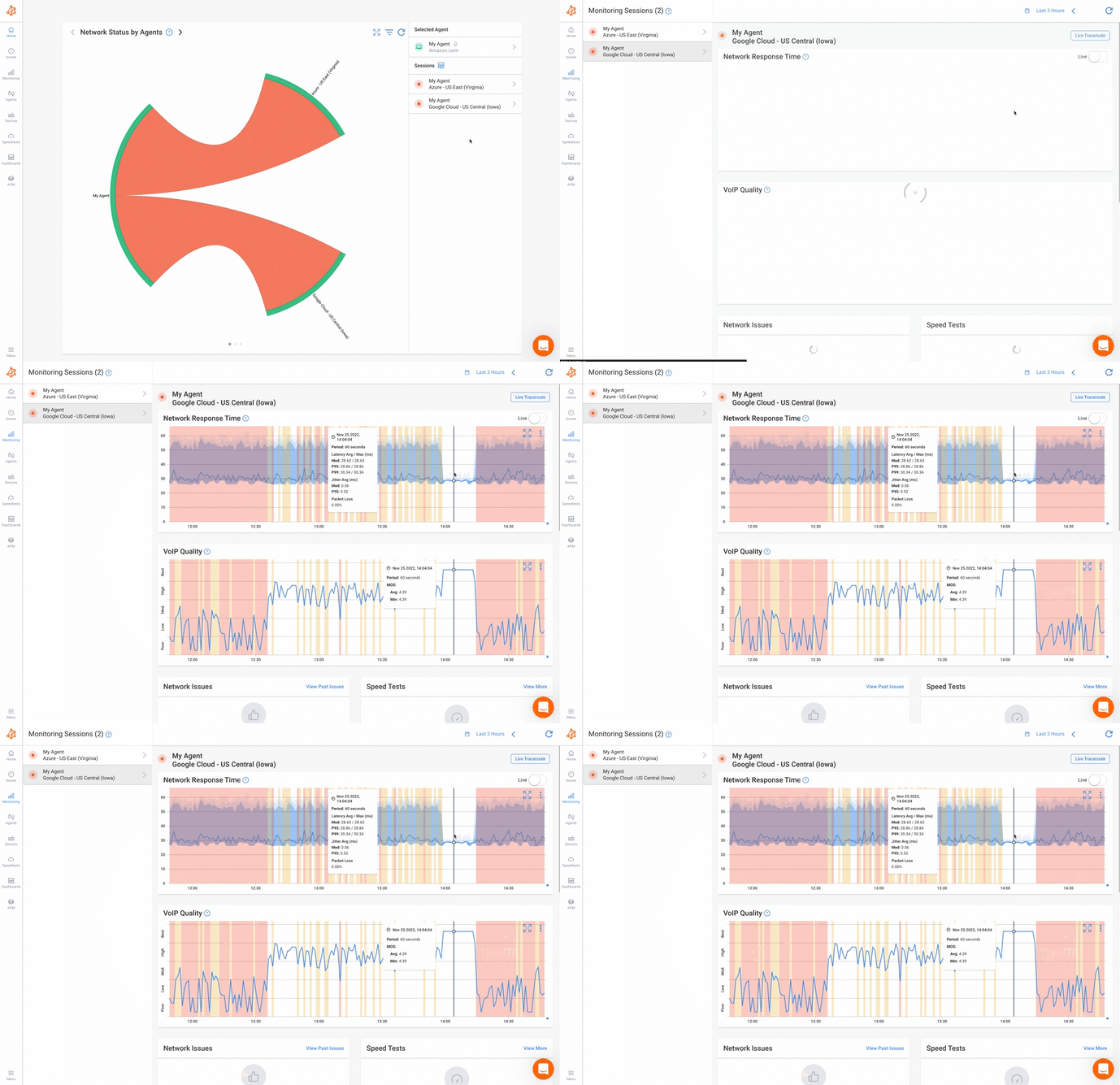
- Synthetic monitoring agents continuously test network paths, detecting when connections become unstable or experience state changes
- Real-time interface monitoring tracks link status, packet loss, latency, and jitter—all indicators of potential flapping
- Visual traceroute shows the entire path between endpoints, identifying exactly where flapping occurs (your network, ISP, or somewhere in between)
- Historical data visualization lets you see patterns over time—is flapping getting worse? Does it correlate with other events?
SNMP Network Monitoring:
Obkio combines both monitoring methods: synthetic testing for a user experience perspective and SNMP polling for infrastructure health. When flapping happens, you see both sides:
- Polls your network devices (switches, routers, firewalls) to collect interface statistics directly from the hardware
- Tracks interface status (up/down states), error counters (CRC errors, input/output errors), and utilization metrics
- Monitors SNMP traps for linkUp/linkDown events—the exact notifications your devices send when interfaces flap
- Collects data on interface speed, duplex settings, and other configuration details that might contribute to flapping
SNMP monitoring is crucial for flapping detection because it gives you device-level visibility. While synthetic monitoring shows you when performance degrades, SNMP monitoring tells you which specific interface is flapping and provides error counters that point to root causes.
- End-user impact (synthetic monitoring shows degraded performance)
- Infrastructure cause (SNMP shows which interface is flapping and error rates)
Instead of manually checking logs across multiple devices, network monitoring dashboards give you a centralized view of network health. When flapping starts, you see:
- Which interface is affected
- How frequently it's flapping
- What else is impacted (latency spikes, packet loss patterns)
- Historical context (has this happened before?)
The monitoring advantage: Obkio's continuous monitoring catches flapping the moment it starts, often before users notice degraded performance. You get alerted to the first flap, not after users have been struggling for hours.
Leverage Historical Data
Don't just react to real-time alerts. Use historical monitoring data to identify trends:
- Compare current behaviour to baseline performance
- Identify the slow degradation of the (interface that used to flap weekly, now flaps daily)
- Correlate flapping with network changes, upgrades, or external events
- Predict failures before they happen (error rates climbing = failure imminent)
Historical data also helps during troubleshooting. When did flapping start? What changed around that time? Did you push a firmware update, add new devices, or modify configurations?
Monitor the Entire Path, Not Just Your Equipment
Here's something people overlook: flapping might not be in your network at all. If you're experiencing connectivity issues to cloud services or remote sites, the flapping could be at your ISP, in transit networks, or at the destination.
Network monitoring that includes end-to-end path visibility (like Obkio's visual traceroute) helps you pinpoint whether the problem is:
- Your local network (your switches, routers, cabling)
- Your ISP's network (their edge equipment, WAN links)
- Transit providers or peering points
- The destination network
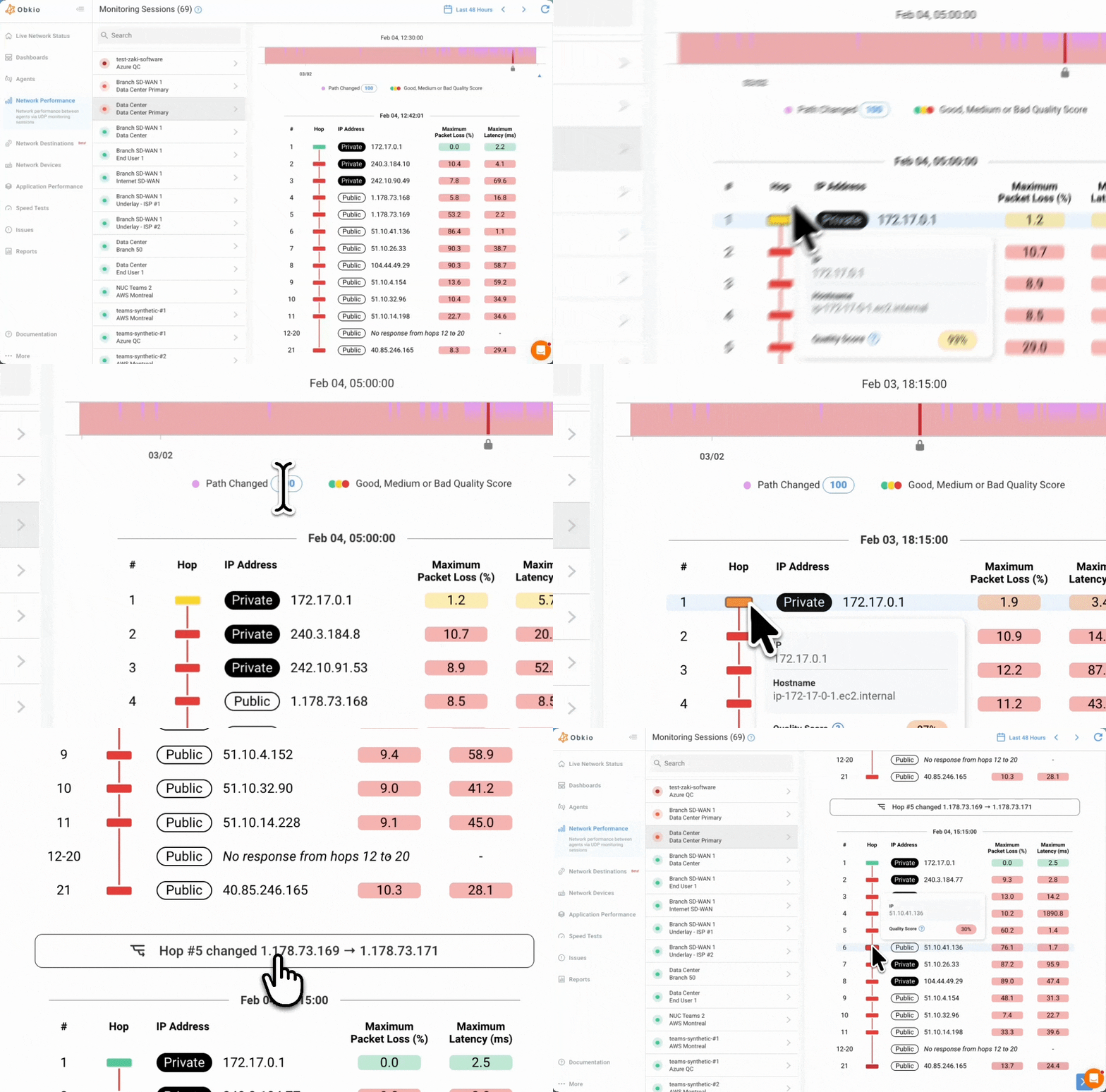
This matters because your troubleshooting approach depends on where the flapping occurs. You can't fix your ISP's flapping WAN link, but you can escalate with specific data showing exactly where the problem is.
Network Flapping vs. Other Network Issues
Network problems often look similar from the user's perspective, but the underlying causes and fixes are completely different. Here's how to tell what you're actually dealing with, and how to differentiate between network flapping and other common network problems.
Network Flapping vs. Packet Loss
Network flapping and packet loss both cause connectivity problems, but they're fundamentally different issues that require different troubleshooting approaches.
Network Flapping:
- The link status physically changes (up/down transitions)
- Shows up in interface logs as state changes
- Affects all traffic when the link is down
- Error counters may or may not be high
- Usually caused by physical layer problems
Packet Loss:
- The link stays up
- Packets get dropped in transit due to congestion, errors, or buffer overflows
- Shows up as input/output discards in interface statistics
- Typically affects traffic selectively (high-throughput streams suffer more)
- Caused by congestion, bufferbloat, hardware issues, or misconfigurations
The Connection: Flapping causes packet loss during state transitions, but you can have packet loss without flapping. Check the link status first. If it's stable but you're losing packets, it's not flapping.
Network Flapping vs. Intermittent Connectivity
Users experience both network flapping and intermittent connectivity as "the network keeps cutting out," but the root causes couldn't be more different.
Network Flapping:
- Physical link state changes
- Affects all devices on that link simultaneously
- Shows clear up/down pattern in logs
- Predictable (happens on a timeline you can measure)
- Fixed by addressing hardware/cable issues
Intermittent Connectivity (Non-Flapping):
- Link stays up
- Might affect only specific applications or destinations
- Could be DNS failures, routing issues, firewall problems, or application bugs
- Unpredictable or application-specific
- Fixed by troubleshooting Layer 3+ issues
The Connection: Both feel like "the network keeps cutting out" to users, but flapping is a physical link problem, while intermittent connectivity has dozens of other possible causes. Always check the interface status first.
Network Flapping vs. High Latency
Network flapping creates temporary latency problems, but sustained high latency indicates something else entirely.
Network Flapping:
- Creates latency spikes during state changes
- Latency returns to normal when the link is stable
- Causes dropped packets and connection resets
- Short bursts of extreme latency (timeouts)
- Graph shows latency spiking when the interface flaps
High Latency:
- Consistent or gradually increasing delay
- Link stays up continuously
- Packets arrive, just slowly
- Caused by congestion, routing inefficiency, distance, or processing delays
- Graph shows elevated latency without correlation to interface state changes
The Connection: Flapping creates temporary latency spikes as packets wait for the link to come back up or get dropped entirely. But sustained high latency with a stable link is a different problem, like network congestion, routing, or capacity issues.
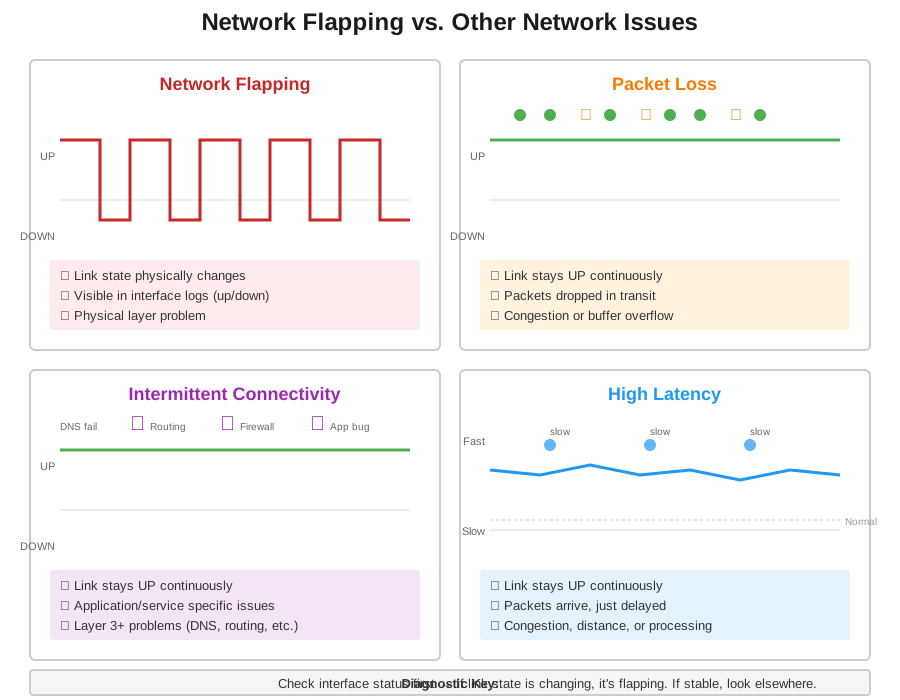
How Can Network Flapping Trigger Other Network Issues?
Here's where it gets messy: network flapping often causes other network issues, making diagnosis confusing.
Flapping causes packet loss because packets in flight get dropped when the interface goes down. Even after the link comes back up, some packets are gone.
Flapping causes intermittent connectivity because TCP sessions break during link-down periods. Applications time out, connections reset, and users see "intermittent" behaviour even though the root cause is flapping.
Flapping causes latency spikes because packets queue up waiting for the interface to stabilize, then get transmitted in bursts. The average latency might look okay, but the spikes kill application performance.
Flapping destabilizes routing, which causes packet loss and intermittent connectivity as traffic gets rerouted or blackholed during convergence.
How to Diagnose Network Flapping vs. Other Issues
When troubleshooting network issues, check the interface status first:
Is the link state changing? → You have flapping. Fix the physical layer.
Link is stable, but packets are dropping? → Packet loss problem. Check for congestion or hardware errors.
Link stable, packets arriving, but connections failing? → Intermittent connectivity. Look at routing, DNS, firewalls, or application issues.
Link stable, packets arriving, but slow? → Latency problem. Check for congestion, bandwidth saturation, or routing inefficiency.
Start with the physical layer and work your way up the OSI model. Flapping is Layer 1—fix it first, then see what problems remain.

Frequently Asked Questions About Network Flapping
1. Can network flapping fix itself? Sometimes, but don't count on it. Temporary issues like a loose cable that reseats itself or transient power fluctuations might resolve on their own. However, most flapping is caused by hardware degradation or persistent configuration issues that will only get worse over time. If you see flapping, investigate and fix it rather than hoping it goes away.
2. How do I know if my network is flapping without monitoring tools? Check your switch or router logs for repeated "interface up/down" messages for the same interface. You can also run show interface commands to see "last flap" timestamps and error counters. Users reporting intermittent connectivity that affects everyone on the same link is another telltale sign.
3. What's the most common cause of network flapping? Cable problems—damaged cables, loose connections, or improperly terminated ends—account for roughly 70% of flapping cases. Always start your troubleshooting by checking physical connections and cable integrity.
4. Can flapping damage my network equipment? Flapping itself won't damage hardware, but the underlying cause might. For example, electrical issues causing flapping could also harm equipment over time. More importantly, the constant state changes put stress on routing protocols and can destabilize your network, which has operational consequences even if the hardware survives.
5. What's interface dampening and should I use it? Interface dampening suppresses repeated up/down state changes by temporarily ignoring a flapping interface after it exceeds a threshold. It's a band-aid that prevents routing protocol churn but doesn't fix the underlying problem. Use it as a temporary measure while you troubleshoot, not as a permanent solution.
6. Will network flapping show up on all devices or just the affected link? Flapping directly affects only devices connected through the flapping interface. However, if that interface is a critical path (like an uplink or core switch connection), the impact cascades—routing protocols reconverge, traffic gets rerouted or dropped, and users across your network experience issues.
7. How many flaps per hour is considered a problem? Any unplanned flapping is a problem, but severity depends on context. A single flap might be acceptable for non-critical links. For uplinks or core interfaces, even one flap is concerning. More than 3 flaps within 10 minutes on any interface requires immediate investigation.
8. Can wireless networks experience flapping? Yes. Wireless access points can flap due to PoE power issues, unstable uplink connections, or radio interference. Client devices "flapping" between APs (roaming issues) is different—that's more about wireless handoff problems than true interface flapping.
9. Does flapping always appear in logs? Yes, interface state changes generate log entries on managed switches and routers. If you're not seeing flapping in logs but users report intermittent issues, the problem is likely not true interface flapping but rather packet loss, DNS issues, or application-layer problems.
10. Can a bad patch panel cause network flapping? Absolutely. Damaged punch-down connections, oxidized contacts, or loose jacks in patch panels are common culprits. The cable might test fine end-to-end, but a bad intermediate connection in the patch panel creates intermittent contact that causes flapping.
Get Ahead of Network Flapping Issues
Network flapping, when interfaces rapidly toggle between up and down states, is one of those issues that starts small but can cascade into major network instability if left unchecked. The good news? It's almost always traceable to a specific cause, and most of those causes are fixable.
The main causes: damaged cables, failing hardware, power delivery problems, and configuration mismatches. Start your troubleshooting at the physical layer, because that's where 70% of flapping issues live.
But here's the real takeaway: don't wait for flapping to become a crisis. Proactive monitoring catches interface instability in its early stages, before users complain, before routing protocols destabilize, and before you're troubleshooting under pressure with tickets piling up.
Continuous network monitoring with both SNMP polling and synthetic testing gives you the visibility you need to spot flapping immediately, identify root causes faster, and prove to your ISP exactly where problems exist when they're not in your network.
Catch the first flap, not the hundredth.
Ready to stop reacting to network issues and start preventing them? Learn how Obkio's network monitoring platform detects flapping and other performance issues in real-time.


