




 Obkio Blog


 Subscribe
Table of Contents
Table of Contents
Office Wi-Fi usually keeps disconnecting because of a weak signal, interference from overlapping channels, overloaded access points, poor roaming between access points, or a laptop's power-saving and driver settings. To find the cause, check whether the drops follow a person, a device or an area of the office, then compare Wi-Fi with a wired connection at the same desk.
"The Wi-Fi keeps dropping" is one of the most common tickets IT teams get, and one of the hardest to close. A laptop drops off the network in the middle of a Teams call and rejoins a few seconds later. By the time anyone looks, the signal is full, and there's nothing left to troubleshoot.
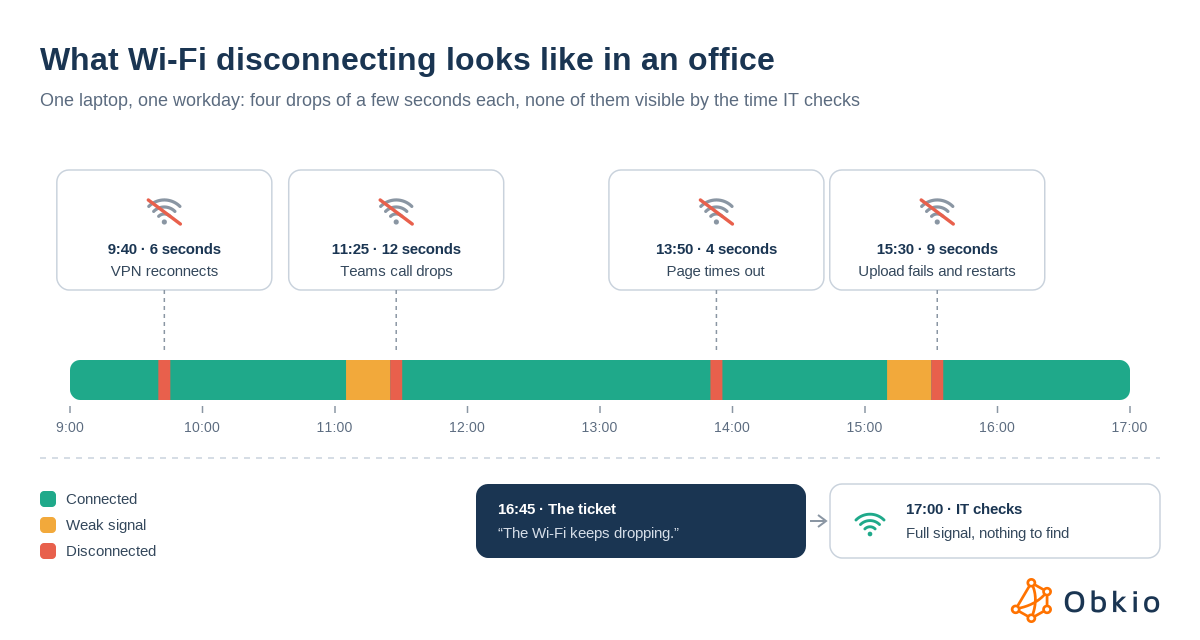
Office Wi-Fi is harder to troubleshoot than Wi-Fi at home. There are several access points instead of one, and dozens of clients compete for airtime on each. People walk between rooms mid-call, and neighbouring offices broadcast on the same channels. A disconnection can start in any of these places, but to the user it always looks the same: the Wi-Fi icon goes blank, then comes back.
This article covers how Wi-Fi disconnections show up in an office and the 9 most common causes. It also covers how to find which one you're dealing with and how to fix each one, including the laptop settings behind more drops than most teams expect.
What Does "Wi-Fi Keeps Disconnecting" Look Like? 
Users rarely describe a Wi-Fi drop precisely. The ticket says "the Wi-Fi is bad" or "my calls keep cutting out," and by the time IT checks, the connection is back. That makes the details around the drop the most useful evidence you have: who it happened to, where they were in the office and what time it was.
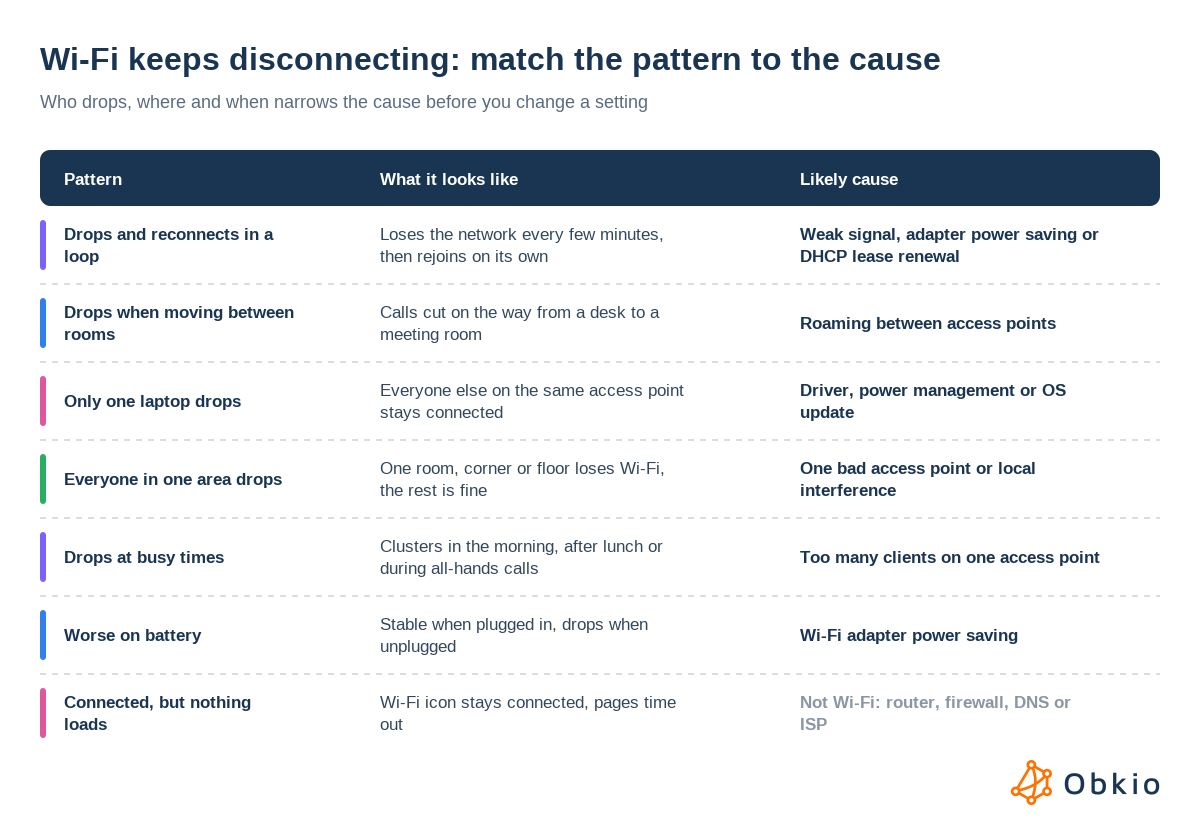
Wi-Fi drops that seem random usually fit one of a handful of patterns once you collect those details. Each pattern points to a short list of causes, so you can narrow the problem down before you change a single setting.
- Drops and reconnects in a loop: The device loses the network every few minutes and rejoins on its own. This usually points to a weak signal, power saving on the network adapter, or a DHCP lease that fails to renew.
- Drops when someone moves between rooms: Calls cut as the user walks from their desk to a meeting room. The laptop is holding on to an access point that's too far away, or the handoff to the next access point fails. This is a roaming problem.
- Only one laptop drops: Everyone else on the same access point stays connected. Start with that laptop's driver, power management settings and recent OS updates.
- Everyone in one area drops: One meeting room, corner or floor loses Wi-Fi while the rest of the office is fine. Look at the access point covering that area, or at interference near it.
- Drops at busy times: Disconnections cluster in the morning, after lunch or during all-hands calls. The access point has more clients than it can handle.
- Worse on battery: The same laptop holds its connection when plugged in and drops when unplugged. Power saving is throttling the Wi-Fi adapter.
- Connected, but nothing loads: The Wi-Fi icon shows a connection, but pages time out. The Wi-Fi is working, and the break is further along the path: in the router, the firewall, DNS or your ISP. See why your Internet keeps disconnecting.
If more than one pattern fits, start with the one that affects the most people. A whole floor dropping is more urgent than one laptop, and fixing it often clears up the smaller complaints too.
When the pattern isn't clear yet, keep a simple log for a few days. For every reported drop, write down the user, the device, the location and the time. Three or four entries are often enough to separate a laptop problem from an access point problem. The next section covers each cause in more detail, so you can confirm what the pattern suggests.
Why Does My Wi-Fi Keep Disconnecting? 9 Common Causes in Office Networks
Most office Wi-Fi disconnections come from one of nine causes. Some are in the air between the device and the access point, some are in the access points themselves, and some are on the laptop or in the network services behind the Wi-Fi. Each one tends to produce one of the patterns from the previous section, so the "Usually looks like" line under each cause is the quickest way to match them.
1. Weak Signal and Distance From the Access Point
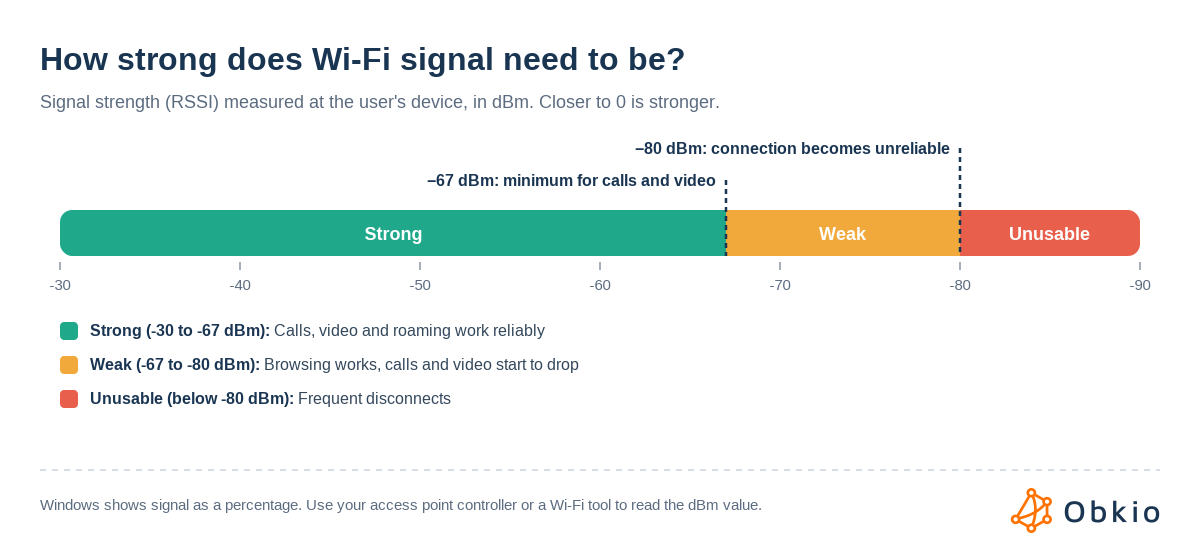
Signal strength drops with distance, and walls, floors, glass partitions and metal shelving cut it further. Once the signal at the device falls below about −67 dBm, real-time traffic like calls and video starts to suffer. Below −80 dBm, the device struggles to stay associated at all. Office layouts change more often than Wi-Fi designs do, so a desk that had good coverage two years ago can sit in a weak spot today.
Usually looks like: drops and reconnects in a loop, always from the same desks or rooms.
Signal strength at a glance:
- Strong (−30 to −67 dBm): Calls, video and roaming work reliably.
- Weak (−67 to −80 dBm): Browsing works, but calls and video start to drop.
- Unusable (below −80 dBm): Frequent disconnects.
2. Interference and Channel Overlap
The 2.4 GHz band has only three channels that don't overlap (1, 6 and 11). In a shared building, neighbouring offices' networks compete for them. Bluetooth devices, wireless presentation systems, and microwaves add more noise. On 5 GHz, access points using DFS channels must leave a channel when they detect radar, which disconnects every client on that access point while it switches.
Usually looks like: everyone in one area drops, or drops that come and go with no link to time or user.
3. Too Many Clients on One Access Point
Every device on an access point shares the same airtime. In a busy meeting room or open-plan area, dozens of laptops, phones and other devices compete for it. Older devices that transmit at slow rates take up more than their share. Once an access point is saturated, clients time out and fall off. This is Wi-Fi congestion, and it shows up at the times of day the office is busiest.
Usually looks like: drops at busy times, in the same rooms or areas.
4. Roaming Between Access Points
In a multi-access point office, the laptop decides when to switch access points, not the network. Many clients are "sticky": they hold on to a distant access point long after a closer one is available. Others switch too slowly. Networks using 802.1X authentication without fast roaming (802.11r) also have to re-authenticate on every handoff, and that pause is enough to drop a call.
Usually looks like: drops when someone moves between rooms, especially mid-call.
5. One Bad Access Point
A single access point can cause drops for everyone it serves. Failing hardware, a firmware bug, a damaged uplink cable or a switch port without enough PoE power can all make it reboot or run at reduced power. Because the rest of the office is fine, the problem often gets blamed on users or devices first.
Usually looks like: everyone in one area drops, sometimes all at once while the access point restarts.
6. Laptop Power Saving
To save battery, Windows and macOS can put the Wi-Fi adapter into a low-power state or turn it off when idle. The adapter then takes several seconds to wake up and reconnect, which looks like a disconnection. The effect is strongest on battery. We cover the specific settings in why your laptop keeps disconnecting from Wi-Fi.
Usually looks like: one laptop drops, and it's worse on battery.
7. Outdated Drivers and OS Updates
Wi-Fi adapter drivers have bugs, and older ones may not handle newer access point features like WPA3, Wi-Fi 6 or Wi-Fi 6E correctly. OS updates can also replace a working driver with a generic one. When drops start right after an update across one laptop model, the driver is the first suspect.
Usually looks like: only one laptop drops, or every laptop of the same model drops.
8. DHCP Lease and IP Address Problems
Every time a device joins or rejoins the Wi-Fi, it needs an IP address from DHCP. In a busy office, guest devices and phones can exhaust the address pool, and a device that can't renew its lease loses network access. IP address conflicts cause similar drops when two devices end up with the same address.
Usually looks like: drops and reconnects in a loop, or "no IP address" and "limited connectivity" errors.
9. Authentication and Security Settings
This cause is specific to office networks. Enterprise Wi-Fi often uses 802.1X with a RADIUS server, and a slow or unreachable RADIUS server, an expired certificate or a short re-authentication timer can all disconnect users. Mixed WPA2/WPA3 settings can confuse older clients. Randomized MAC addresses on newer devices can also clash with network access control (NAC) or MAC filtering.
Usually looks like: drops at regular intervals, or devices that can't rejoin after a drop until someone intervenes.
Most offices with a persistent Wi-Fi problem have more than one of these causes at the same time: a weak spot in one room and a roaming problem between floors, for example. Fix the one that matches the most complaints first, then check whether the remaining drops fit a different pattern. If the complaints come from individual laptops rather than areas of the office, start with the next section.
Why Does My Laptop Keep Disconnecting From Wi-Fi?
When Wi-Fi keeps disconnecting on one laptop while everyone around it stays connected, the access points are rarely the problem. The cause is almost always on the laptop: how it manages power, which driver it runs, or how the OS handles the network. These settings are easy to miss because they're different on every laptop model, and an OS update can change them without anyone noticing.
Before changing anything, confirm it really is the laptop. Have the user sit next to a colleague whose connection is stable. If the laptop still drops at the same desk on the same access point, keep going with this section.
Power Management on the Network Adapter
Power saving is the most common reason a single laptop drops. On Windows, two settings control it:
- Adapter power management: In Device Manager, open Network adapters, right-click the Wi-Fi adapter and select Properties. On the Power Management tab, uncheck "Allow the computer to turn off this device to save power." Some newer laptops don't show this tab, in which case the next setting does the job.
- Power plan settings: In Power Options, open Change advanced power settings, expand Wireless Adapter Settings > Power Saving Mode, and set both On battery and Plugged in to Maximum Performance.
Many adapters also have settings on the Advanced tab of the same Properties window. On Intel adapters, Roaming Aggressiveness controls how quickly the laptop switches to a stronger access point. Lowering it can make a laptop sticky, and raising it too far can make it switch back and forth. Medium is a sensible default for most offices.
Driver and Firmware Versions
Driver bugs cause drops that look exactly like signal problems. Get the driver from the laptop manufacturer or the Wi-Fi chipset vendor, not only from Windows Update, which can install a generic driver missing the vendor's fixes.
If drops started right after an update, roll back the driver: in the adapter's Properties, open the Driver tab and select Roll Back Driver. Across a fleet, pin a tested driver version through Intune or your MDM, so every laptop of the same model runs the same one. That way, a bad driver is found once instead of being troubleshot one ticket at a time.
On Macs, the Wi-Fi driver ships with macOS, so the fix is usually a macOS update. If Mac users report lag spikes rather than full drops, see macOS Wi-Fi latency spikes caused by Location Services.
Wi-Fi Keeps Disconnecting on Windows 11
Windows 11 adds a few settings of its own that can cause or hide disconnections:
- Random hardware addresses: In Settings > Network & internet > Wi-Fi, select the network and check Random hardware address. When it's set to change daily, the laptop appears as a new device each day, which can break DHCP reservations, network access control and MAC filtering. Turn it off for the corporate network.
- A corrupted Wi-Fi profile: In Manage known networks, forget the network and rejoin it. This clears saved settings that no longer match the access point's security configuration.
- Network reset: As a last step, Advanced network settings > Network reset reinstalls every network adapter and restores default settings. The user will need to reconnect to Wi-Fi and VPN afterwards.
To see what Windows recorded about each drop, run netsh wlan show wlanreport from an administrator command prompt. It generates an HTML report of every Wi-Fi session over the last three days, with the disconnect reason for each one. It's the quickest way to tell a driver problem from a signal problem without waiting for the next drop.
Once a fix works on one laptop, roll it out to every laptop of the same model through Group Policy or your MDM, instead of waiting for the next ticket. If the drops follow a location or affect several laptops at once, the cause isn't on the laptop, and the next section walks through how to find where it is.

Why does your Internet keep disconnecting? Learn the 8 most common causes, how to diagnose where drops happen, and how to fix them for good.
Learn more

How to Find Out Why Your Wi-Fi Keeps Disconnecting
The hardest part of a Wi-Fi ticket is that the problem is gone by the time you look at it, because most Wi-Fi problems are intermittent. These five steps work around that. The first four use tools you already have to narrow down where the drop happens. The last one makes sure you catch the next drop as it happens.
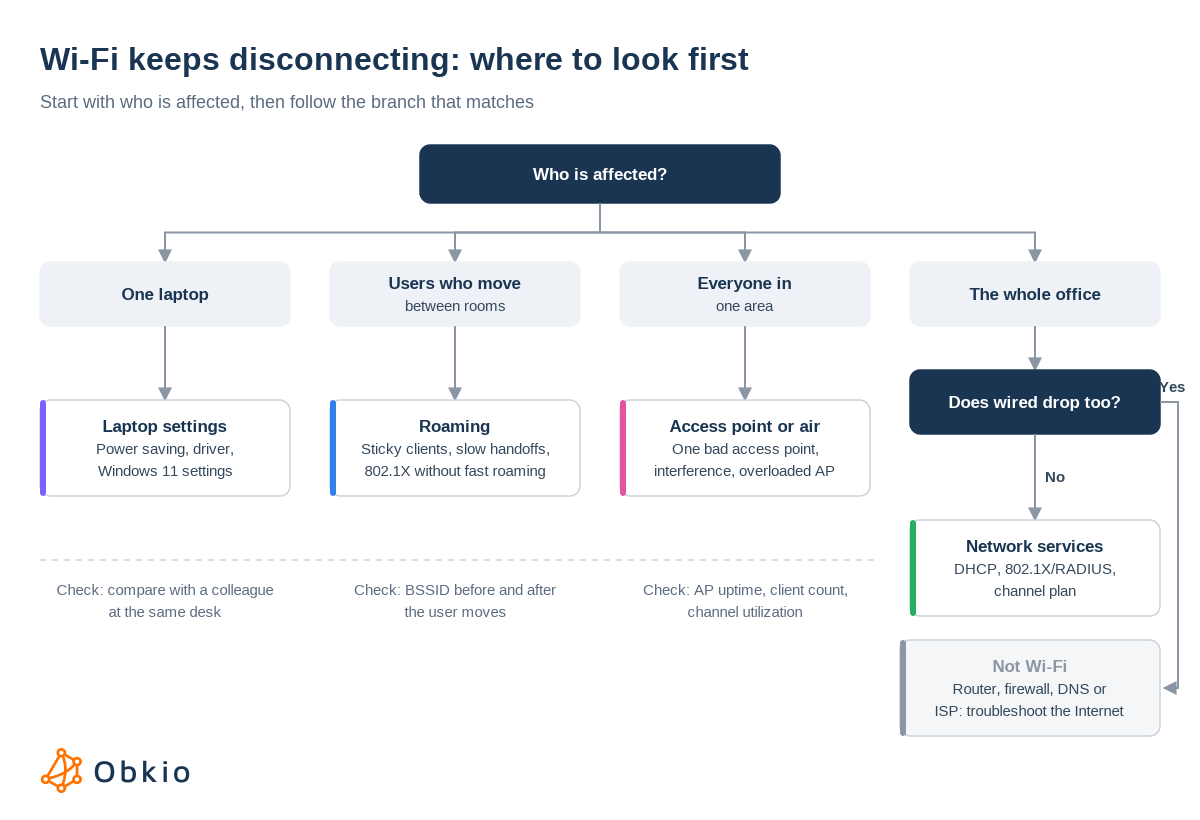
Where to look first:
- One laptop: Check the laptop's settings: power saving, drivers, and Windows 11 settings. Compare it with a colleague's laptop at the same desk.
- Users who move between rooms: Check roaming: sticky clients, slow handoffs, or 802.1X without fast roaming. Compare which access point the laptop is on before and after the user moves.
- Everyone in one area: Check the access point and the air around it: one bad access point, interference or an overloaded access point. Look at the access point's uptime, client count and channel utilization.
- The whole office, Wi-Fi only: Check the network services behind the Wi-Fi: DHCP, 802.1X/RADIUS and the channel plan.
- The whole office, wired too: It's not the Wi-Fi. Troubleshoot the router, firewall, DNS or ISP.
Step 1. Scope the Wi-Fi Problem
Before changing anything, answer three questions:
- Who is affected? One laptop, one laptop model, one area of the office, or everyone?
- Where were they? At their desk, in a meeting room, or walking between the two?
- When did it happen? At random, at regular intervals, or at the same times of day?
The answers match one of the patterns from earlier and cut the list of causes down to two or three.
Step 2. Compare Wi-Fi With a Wired Connection
Connect the affected laptop to Ethernet at the same desk, or through a dock, and run a continuous ping to the default gateway (ping -t followed by the gateway's IP on Windows). Do the same over Wi-Fi.
If the wired connection stays up while the Wi-Fi ping times out, the problem is the wireless network or the laptop's Wi-Fi adapter. If both drop, the Wi-Fi isn't the problem, and the cause is further along the path. See why your Internet keeps disconnecting.
Step 3. Check Signal, Link Rate and Access Point From the User's Device
The laptop knows more about its Wi-Fi connection than the user can describe. On Windows, run netsh wlan show interfaces. It shows:
- Signal: shown as a percentage. As a rough guide, anything under about 65% is in weak territory (around −67 dBm).
- Receive and transmit rate: the link rate the laptop negotiated with the access point. A low rate on a modern access point usually means a weak signal or interference.
- BSSID: the specific access point the laptop is connected to.
- Channel and band: which channel and frequency band it's using.
On a Mac, hold Option and click the Wi-Fi icon to see the RSSI in dBm, the noise level, the Tx rate, the BSSID and the channel. The gap between RSSI and noise is the signal-to-noise ratio, and anything under about 25 dB is likely to cause drops.
Run the check at the user's desk and again where they usually lose the connection. If the BSSID doesn't change as they move to a room with a closer access point, you're looking at a roaming problem.
Step 4. Check the Access Point or Wireless Controller
Your access points or wireless controller see the other side of every drop. Check:
- Client logs: Look up the affected device and check the deauthentication or disassociation reason. It tells you whether the access point dropped the client, the client left on its own, or authentication failed.
- Client count and channel utilization: An access point with far more clients than its neighbours, or a channel busy most of the time, points to congestion or interference.
- Access point uptime: An access point that rebooted recently, or reboots regularly, explains drops for everyone around it.
- RADIUS or authentication logs: If you use 802.1X, check for timeouts and rejected requests at the times users reported drops.
Step 5. Monitor Wi-Fi Continuously From the User's Side
Wi-Fi drops last a few seconds, so manual checks only work if you happen to be running them when the drop occurs. Continuous monitoring from the affected device records every drop as it happens, with the time, the duration and what the network looked like before and after.
A solution like Obkio's Network Monitoring and Diagnostics tool can run a software Monitoring Agent on a laptop that uses Wi-Fi, alongside a wired agent at the same site. When the Wi-Fi agent sees packet loss that the wired agent doesn't, the problem is on the wireless side. We cover this in more detail below.
By the end of these five steps, you should know whether the problem is the laptop, the access point, roaming, the network services behind the Wi-Fi, or something past the Wi-Fi altogether. The next section covers the fixes for each.


How to Fix Wi-Fi Disconnections, by Cause
Once you know which cause you're dealing with, most solutions are configuration changes you can make in an afternoon. Jump to the one that matches your diagnosis. Make one change at a time, and give it a few days before you judge it, since Wi-Fi drops rarely happen on demand.
Fix Weak Signal and Coverage Gaps
- Add or move access points where the signal at the desk is below −67 dBm. Ceiling-mounted access points in the middle of the area they cover work better than ones on walls or in closets.
- Don't run every access point at full power. When the access point is much louder than the laptop, the laptop hears it from far away but can't be heard back, and it holds on to a connection that no longer works. Matching access point power to what clients can send back reduces drops and helps roaming.
- Re-check coverage after layout changes. New walls, glass meeting rooms and moved desks all change where the signal reaches.
Fix Interference and Channel Overlap
- Use only channels 1, 6 and 11 on 2.4 GHz, at 20 MHz width.
- Use narrower channels on 5 GHz in dense offices. 20 or 40 MHz channels give you more of them, so neighbouring access points don't have to share.
- Check for radar events on DFS channels. If your controller logs them, move the affected access points to non-DFS channels.
- Move capable devices to 6 GHz if your access points and laptops support Wi-Fi 6E or Wi-Fi 7. It's far less crowded than 2.4 or 5 GHz.
Fix Overloaded Access Points
- Add access points in dense areas like meeting rooms, training rooms and open-plan spaces, rather than relying on a single access point to cover them.
- Enable band steering so dual-band devices connect on 5 GHz, leaving 2.4 GHz for the devices that need it.
- Disable the lowest legacy data rates (1, 2, 5.5 and 11 Mbps). Devices stuck at those rates take up airtime everyone shares, and removing them also pushes clients to roam sooner.
- Put guest and personal devices on their own SSID, so phones and visitors don't compete with work laptops for the same access points.
Fix Roaming Problems
- Enable 802.11k and 802.11v so access points can tell clients which neighbours are available and suggest when to move.
- Enable 802.11r (fast roaming) on 802.1X networks so clients don't re-authenticate from scratch on every handoff. Some older clients don't handle it well, so use a mixed or adaptive mode if your controller offers one.
- Use minimum RSSI settings carefully. They push clients off a weak access point, but set too aggressively, they cause the very disconnections you're trying to fix. Start around −75 dBm and adjust from there.
- Adjust roaming aggressiveness on the laptop if a specific model stays sticky.
Fix a Bad Access Point
- Update the firmware, and check the release notes for known disconnection bugs on your model.
- Check the switch port: look for errors and drops on the uplink, and confirm the switch has enough PoE budget to power the access point fully.
- Replace the cable, then the access point, if drops in that area continue after the firmware and port checks.
Fix Laptop Settings Across the Fleet
- Push the fixes from the laptop section through Group Policy, Intune or your MDM instead of fixing laptops one ticket at a time. That covers turning off adapter power saving, pinning a tested driver version, and turning off random hardware addresses on the corporate network.
- Test driver and OS updates on a few laptops of each model before rolling them out.
Fix DHCP and IP Address Problems
- Make the address pool bigger than the number of devices that can be on the network at once, including phones and guests.
- Use a shorter lease time on the guest network so addresses from visitors who have left are freed up faster.
- Keep static IPs outside the DHCP range to avoid conflicts. See how to fix DHCP issues.

Meta: Learn how to troubleshoot and fix common DHCP issues and DHCP server problems, from IP conflicts to scope exhaustion, and quickly spot real ISP outages.
Learn more
Fix Authentication and Security Settings
- Make sure the RADIUS server is reachable and redundant. Configure a secondary server so a slow or unreachable primary doesn't disconnect users.
- Track certificate expiry dates for the RADIUS server and client certificates, and renew them before they lapse.
- Lengthen short re-authentication timers if users drop at regular intervals that match the timer.
- Limit WPA2/WPA3 transition mode to the SSIDs that need it, and move older clients to a network configured for them.
After any fix, go back to the pattern that started the investigation. If the drops that matched it have stopped but others remain, you're likely dealing with a second cause. Check whether the remaining complaints fit a different pattern, and work through that branch the same way.
How to Catch Wi-Fi Drops Before Users Report Them
Most Wi-Fi drops never become tickets. Users reconnect, rejoin the call and move on, until the same thing has happened often enough that someone complains. By then, the drops that would have shown the pattern are gone, and IT starts from a vague description. Catching drops as they happen, from where users actually connect, turns "the Wi-Fi is bad" into a time, a place and a cause.
Monitor From Where Users Connect
Monitoring the network from the data center or the firewall doesn't show what happens between a laptop and the access point. To catch Wi-Fi drops, the measurement has to start on the Wi-Fi side.
A solution like Obkio does this with a software Monitoring Agent installed on a laptop that connects over Wi-Fi, in the area where users report drops. A second agent on a wired connection at the same site acts as the reference. Both send synthetic traffic every 500 ms and measure packet loss, latency and jitter continuously. When the Wi-Fi agent loses packets and the wired agent doesn't, the drop happened on the wireless side, not on the Internet connection.
Separate the Local Network From the ISP
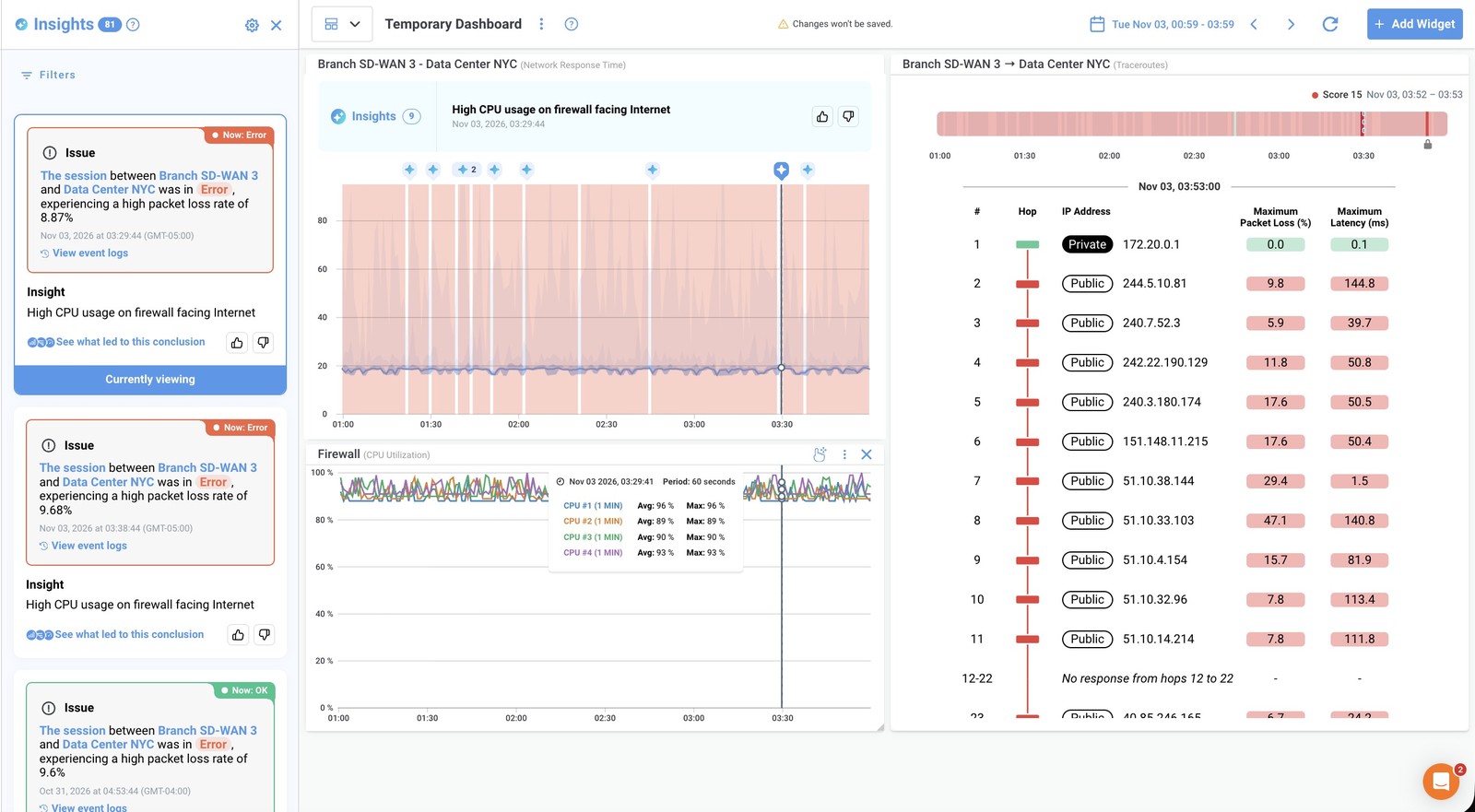
When a monitoring session detects an issue, Obkio Insights correlates performance and traceroute data from the same time window and identifies where on the path it happened. A drop between the laptop and the gateway is flagged as a local network issue, which rules out the ISP before anyone opens a ticket with them.
If you also monitor your access points or wireless controller with SNMP Device Monitoring, you can check their CPU, memory and bandwidth at the time of each drop.
Look Back at Wi-Fi Drops Nobody Reported
Historical data lets you go back to drops that happened last week and compare them by time of day and location. The Network Quality Timeline shows when drops cluster, which is often enough to tell a busy-hours capacity problem from a single failing access point. When the next Wi-Fi ticket comes in, you already have the evidence from that time window.
See the Wi-Fi From the User's Laptop
Obkio Wi-Fi Monitoring collects Wi-Fi data directly from users' laptops through the Monitoring Agent, so you see each connection the way the user experienced it. For every device, it records:
- Signal strength, so you can see which desks and rooms sit in weak spots.
- Link rate, to spot laptops that connect but negotiate a slow rate.
- The access point the laptop is connected to, so you can see when it roams, and when it doesn't.
- Wi-Fi or wired, to tell wireless complaints apart from everything else.
- Battery or power state, to catch drops caused by power saving.
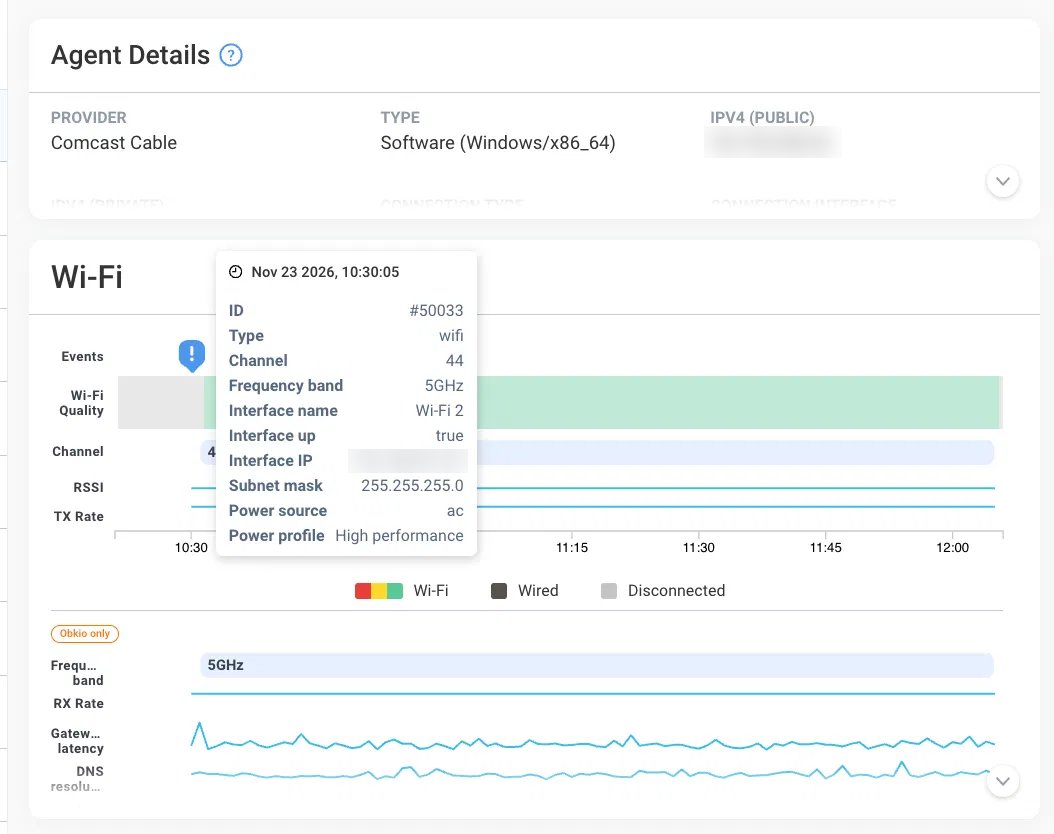
Because this data sits alongside the agent's packet loss, latency and jitter, a drop can be matched to what the Wi-Fi was doing at that moment, such as a weak signal or a roam to a distant access point.
How to Prevent Wi-Fi Disconnections in the Office
Fixing the current drops is only half the job. Office Wi-Fi tends to degrade quietly: headcount grows, rooms get rebuilt, new laptops arrive and access points age. Each change is small, but together they recreate the same problems a year later. These habits keep a stable network stable.
Re-Check Coverage When the Office Changes
A Wi-Fi design is only accurate for the layout it was designed for. New walls, glass meeting rooms, moved desks and extra headcount all change where the signal reaches and how many clients each access point serves. Run a quick coverage check after every layout change, not only when complaints start, and pay attention to the rooms where people take calls.
Plan Capacity Per Access Point, Not Per Floor
An access point that covers a whole area can still be overwhelmed by the number of devices in it. Plan for the number of devices in each space at its busiest, including phones, and add access points to meeting rooms and dense open-plan areas before they become the source of complaints.
Keep Firmware and Drivers on a Schedule
Access point firmware and laptop Wi-Fi drivers both receive fixes for disconnection bugs. Update access points on a regular schedule, and test driver and OS updates on a few laptops of each model before rolling them out across the fleet. A bad update caught on five laptops is a quick fix. Caught on 200, it's a week of tickets.
Monitor Wi-Fi Continuously, Not After the Ticket
The drops users report are only a fraction of the ones that happen. Continuous Wi-Fi monitoring catches the short drops nobody reports, builds the history you need to spot patterns, and tells you when a fix actually worked. It also shows you problems in a new area of the office before they become a stream of tickets.
Find out why your Wi-Fi keeps disconnecting
Deploy Monitoring Agents where your users connect, catch every drop as it happens, and let Obkio Insights show whether the problem is on your local network or your ISP's.

FAQ: Why Your Wi-Fi Keeps Disconnecting
1. Why does my Wi-Fi keep disconnecting and reconnecting?
A Wi-Fi connection that drops and rejoins in a loop usually has a weak signal, a network adapter that power saving keeps switching off, or a DHCP lease that fails to renew. If one laptop does it, check its power settings and driver. If everyone in one area does it, check the access point covering that area.
2. Why does my Wi-Fi disconnect when I move around the office?
Drops while moving between rooms are a roaming problem. The laptop holds on to a distant access point too long, or the handoff to the next one is too slow. On 802.1X networks, re-authenticating on every handoff can drop calls. Enabling 802.11k, 802.11v and 802.11r on your access points usually helps.
3. Why does only my laptop keep disconnecting from Wi-Fi?
When everyone else on the same access point stays connected, the cause is almost always on the laptop. The most common culprits are network adapter power saving, an outdated or generic Wi-Fi driver, and a recent OS update. Turn off adapter power saving, install the manufacturer's driver, and roll back any driver that changed just before the drops started.
4. Why does my Wi-Fi keep disconnecting on Windows 11?
On Windows 11, check power saving on the Wi-Fi adapter, the driver version, and the random hardware address setting, which can break DHCP reservations and network access control. Forgetting and rejoining the network clears a corrupted profile. To see why each drop happened, run netsh wlan show wlanreport from an administrator command prompt.
5. What Wi-Fi signal strength is too weak?
Wi-Fi signal strength is measured in dBm, and values closer to 0 are stronger. Around −67 dBm is the minimum for reliable calls and video. Between −67 and −80 dBm, browsing still works but calls start to drop. Below −80 dBm, the connection is unreliable and devices disconnect frequently.


