











 Obkio Blog


 Subscribe
Table of Contents
Table of Contents
A user opens a ticket: "The Internet is slow." IT checks the network. Bandwidth looks fine, no outages, no alerts firing. They check with the ISP, but nothing on their end either. Everything upstream checks out, and yet the user is still stuck watching a spinning wheel. What rarely gets checked is the one component sitting closest to the problem: the machine's own network interface.
A network interface is simply the point where a device connects to a network; the on-ramp your laptop, server, or phone uses to send and receive data in the first place. It sounds like a minor technical detail, but it's actually the first link in the chain, and if something's wrong there, nothing downstream matters.
That's exactly why it gets skipped. Troubleshooting usually starts with checking the network path, checking the ISP, and checking the DNS server. That’s because "the network" is where problems are assumed to live. The device sending the traffic rarely makes the list, which means a flapping interface, a duplex mismatch, or a maxed-out NIC can sit undiagnosed for weeks while everyone blames everything except the one place actually causing it.
In this article, we’re going to give the network interface some attention by diving into what it is, how it works, and how to identify and troubleshoot network interface issues.
What Is a Network Interface, Exactly? 
Think of the network as the road, and the interface as the on-ramp. The road carries the traffic; the interface is simply where your device merges onto it, and where it exits back off. Every packet a device sends or receives passes through this one point first, which is why its health matters more than most troubleshooting checklists give it credit for.
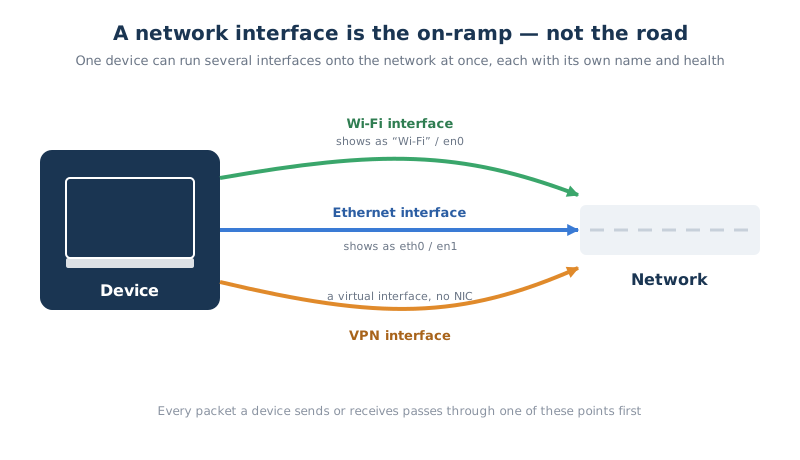
A network interface actually has two identities worth knowing. There's the hardware side, the physical component doing the work. And there's the software side, which is how the operating system represents that hardware so it can be configured, monitored, and used.
This is why the same physical adapter can show up as multiple named interfaces: a laptop's WiFi chip might appear as Wi-Fi in Windows or en0 on a Mac, while an Ethernet port might show as eth0 on Linux. The naming varies, but the concept is the same. The OS needs a way to address each connection point individually.
And most devices have more than one active at a time. A single laptop might be running its WiFi interface, a wired Ethernet interface, and a VPN interface simultaneously, each handling traffic differently, each with its own health to track independently. Not all of these interfaces behave the same way, though, which is where the type of interface starts to matter.
Network Interface vs. Network Interface Card (NIC): What's the Difference?
The terms get used interchangeably, but they're not quite the same thing. A network interface card (NIC) is the physical hardware (a card, chip, or built-in component) that actually gives a device the ability to connect to a network. It's the interface made tangible: something you could, in theory, hold in your hand.
Every NIC creates a network interface, but the reverse isn't true. Not every network interface has a NIC behind it. Loopback interfaces, VPN adapters, and other virtual interfaces are entirely software-defined; there's no physical card involved at all.
What Are the Types of Network Interfaces?
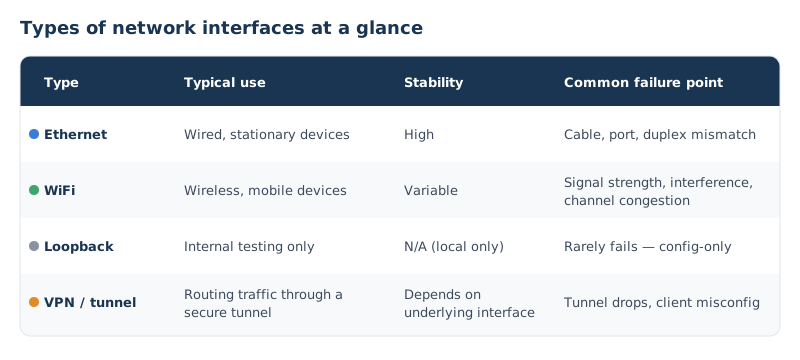
Not every network interface behaves the same way, and knowing which type you're dealing with is usually the first step in troubleshooting anything that touches it.
1. Wired (Ethernet)
An Ethernet interface connects a device to the network over a physical cable. It's generally the most stable and highest-throughput option available, since it isn't subject to the interference, distance limits, or shared-airwave congestion that wireless connections deal with. When a wired interface has problems, the cause is usually mechanical or configuration-based (a bad cable, a failing port, or a duplex mismatch) rather than environmental.
2. Wireless (WiFi)
A WiFi interface connects over a radio signal instead of a cable, which makes it far more convenient but introduces a set of dependencies wired connections don't have: signal strength, channel congestion, and SSID all directly affect how well it performs. A WiFi interface can be fully "up" and still deliver a poor connection if any of those conditions degrade. Something a simple status check won't catch.
3. Virtual and loopback interfaces
Not every interface has physical hardware behind it. A loopback interface (127.0.0.1) routes traffic back to the same device it's used for internal testing and doesn't touch the network at all.
4. VPN Interface
A VPN interface is another common virtual type: when a VPN is active, traffic gets routed through this software-defined interface rather than the physical NIC directly, which is a frequent source of "why can't I connect to anything" confusion when the VPN interface itself is misbehaving.
Key Network Interface Metrics to Monitor
Checking whether an interface is "up" only tells you it exists; it doesn't tell you whether it's actually healthy. These are the metrics that do. Of course, it’s hard to monitor all of these metrics yourself, so we recommend a network monitoring tool to do the job for you.
Status (up/down): Whether the interface is currently active and passing traffic. Sounds obvious, but the real risk isn't an interface that's simply down; it's one that's [flapping](/blog/what-is-network-flapping/): rapidly cycling between up and down, which shows up to users as intermittent connectivity rather than a clean outage, and rarely gets caught by a single point-in-time check.
Throughput/utilization: How much of the interface's available capacity is currently in use. An interface running near its ceiling becomes a bottleneck on its own, independent of anything happening elsewhere on the network, which means the network can be completely healthy and a user can still experience slowness, simply because their own interface is maxed out.
Errors and discards: Packets the interface couldn't process cleanly, packets dropped, corrupted, or discarded before they went anywhere useful. This is often the earliest warning sign of a failing NIC or a bad cable, showing up in the numbers well before a user notices anything wrong.
Duplex mode/mismatch: Whether the interface and whatever it's connected to (a switch, typically) agree on full- or half-duplex communication. A mismatch doesn't take the connection down; it just quietly degrades performance, which makes it one of the more frustrating issues to diagnose without visibility into this specific metric.
Connection type (wired vs. wireless): Which physical path is actually active. This matters less as a health signal on its own and more as a routing decision for troubleshooting. A wired interface issue and a wireless interface issue send you down completely different diagnostic paths, so knowing which one you're dealing with should be the first thing confirmed, not the last.

Learn how to measure network performance with key network metrics like throughput, latency, packet loss, jitter, packet reordering and more!
Learn more

5 Common Network Interface Issues
Most network interface problems fall into a handful of recognizable patterns, and because the network interface sits so close to the user, the symptoms often masquerade as "the network" or "the wifi" being flaky, when the real cause never leaves the device. Here's what actually causes that, and what it looks like when it does:
1. Interface flapping:
A loose cable, a failing switch port, or driver instability causes the interface to repeatedly drop and reconnect.
→ shows up as: intermittent connectivity, dropped sessions, calls or transfers that cut out randomly rather than failing outright.
2. Driver or firmware issues:
Outdated or corrupted drivers, often introduced by a recent OS update, stop the interface from initializing or communicating correctly.
→ shows up as: the interface not being recognized by the OS at all, or random disconnects with no obvious trigger.
3. Duplex mismatch:
One side of the link (the device or the switch) is manually set to half-duplex while the other expects full-duplex, so the two never fully agree on how to communicate.
→ shows up as: slow transfer speeds and high latency that gets worse under load, but never a full outage, which is exactly what makes it easy to misdiagnose as "just a slow network."
4. Saturated interface
The interface has hit its maximum throughput ceiling, a common scenario when older 100 Mbps hardware ends up carrying gigabit-era traffic demands.
→ shows up as: slowness that tracks predictably with usage, worse during peak hours or heavy transfers, and fine when demand drops.
5. Faulty hardware
Physical damage to the NIC, a bad switch port, or a damaged cable prevents the interface from functioning reliably at the hardware level.
→ shows up as: the interface failing to come up at all, or error/discard counts climbing continuously with no recovery.
None of these show up in a typical network-level dashboard; they all live on the device, which is exactly why they get missed. Knowing the pattern is only half the job, though; the next step is actually checking the interface yourself or using a tool designed to monitor from the network interface’s point of view.

How to Check Your Network Interface
Once you suspect the interface itself might be the problem, confirming it takes minutes, and you can use the commands already built into the OS. Here's how to check on each platform:
1. Windows
Run ipconfig /all in Command Prompt to see every interface's status, IP configuration, and connection type at once. For hardware-level detail, open Device Manager and expand Network adapters; a yellow warning icon there means the OS has flagged a driver problem. For live throughput, Task Manager's Performance tab shows real-time send/receive activity per interface.
- Healthy: interface listed with "Media State" as connected and a valid IP address.
- Red flag: "Media disconnected," no IP assigned, or a driver warning in Device Manager.
2. macOS
Check System Settings > Network for a plain-language status view of every interface. For more detail, run ifconfig in Terminal — it lists every interface with its status, IP, and flags. Activity Monitor's Network tab shows live throughput per process, useful for spotting saturation in the moment.
- Healthy: interface shows
status: activeandflags=<UP,RUNNING>inifconfig. - Red flag:
status: inactive, missing flags, or an interface that disappears entirely from the list after a driver crash.
3. Linux
Run ip link show to list every interface and its current state. For deeper diagnostics — speed, duplex, and error counters in one place — use ethtool <interface> (e.g. ethtool eth0).
- Healthy:
state UPinip link show;ethtoolreporting the expected speed andDuplex: Fullwith no climbing error counts. - Red flag:
state DOWNwhen it should be up, a duplex mismatch (e.g.Duplex: Halfon a gigabit link), orrx_errors/tx_errorscounts that keep climbing rather than sitting flat.
A one-time check like this is useful for confirming a problem at the moment, but it only shows you the interface's state right now. It won't catch a duplex mismatch that only appears under load, or an interface that was flapping five minutes before you ran the command. Catching that kind of intermittent issue is what continuous, device-level visibility is built for.
Why Your Network Monitoring Tool Should Care About Network Interfaces**
When something's slow, there are really only three places to look:
- The network path: routing, congestion, latency between hops
- The ISP: outages, throttling, upstream degradation
- The device itself: the user's own machine and its interfaces
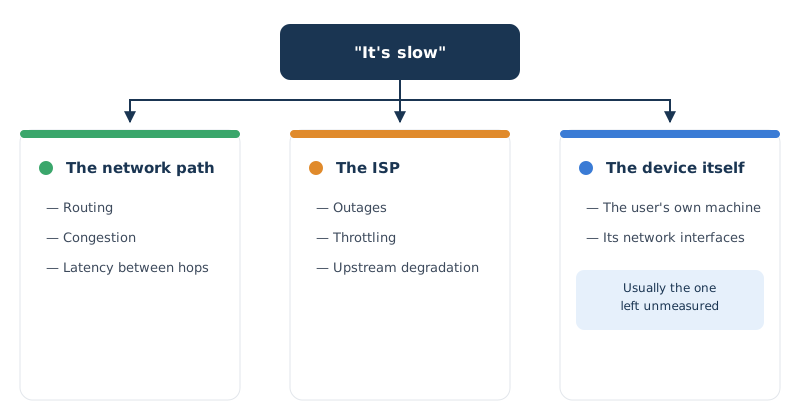
Most monitoring tools are built to watch the first two. That's genuinely useful, but it leaves a gap at exactly the point closest to the user.
The blind spot
A tool watching the network path has no way of knowing that the user's own interface is flapping, saturated, or stuck in a duplex mismatch. It just sees performance that's sometimes fine and sometimes not, with no visibility into why. By default, the network gets blamed, not because it's guilty, but because it's the only thing being measured.
What interface-level visibility actually answers
This is the same triage question that comes up across this whole series: is it the network, the ISP, or the machine? Interface-level metrics- status, errors, throughput, duplex- are what answer that question for the "machine" side. Without them:
- That entire category of root cause stays invisible, not ruled out, just unmeasured
- Troubleshooting defaults to checking the network first, even when the evidence points elsewhere
- Issues that live on the device (a failing NIC, a bad driver) can persist for weeks because nothing's watching that layer
Frequently Asked Questions About Network Interfaces
1. What's the difference between a network interface and a network interface card (NIC)?
A NIC is the physical hardware (a card, chip, or built-in component) that gives a device the ability to connect to a network. A network interface is the broader term: it's how the operating system represents that connection, whether or not there's physical hardware behind it, since virtual interfaces like loopback and VPN adapters have no NIC at all.
2. Can a device have more than one network interface?
Yes, and most devices do. A single laptop might run a WiFi interface, a wired Ethernet interface, and a VPN interface simultaneously, each one handling traffic independently and each with its own status and health to monitor.
3. What does it mean when a network interface is "down"?
It means the operating system has marked that interface as inactive, which can happen for a few different reasons: it was manually disabled, the physical connection was lost, or the interface failed due to a driver or hardware issue. Checking which of these it is, rather than assuming, is usually the fastest way to the actual fix.
4. How do I know if my network interface is the problem vs. my network?
Check the interface's local status, error counts, and throughput first, using the OS-level commands covered earlier in this guide. If those numbers look off on your device specifically while other devices on the same network are working fine, the issue is local to your interface rather than the network itself.
Start Monitoring Your Network Interface
A network interface might be the least glamorous part of the stack, but it's also the first thing every packet touches, which makes it one of the most consequential places for something to quietly go wrong. Flapping connections, duplex mismatches, saturated NICs: none of these show up as a clean outage, which is exactly why they get misattributed to "the network" for weeks at a time.
The fix isn't complicated. It just requires looking in the right place, like checking interface-level status, errors, and throughput alongside everything else you're already monitoring upstream, rather than assuming the device is fine by default.

That's the gap Obkio is built to close. With Obkio's Real User Monitoring, you get visibility into exactly these device-level metrics (interface status, throughput, errors) directly from the user's machine, alongside your existing network and ISP monitoring. So when something's slow, you're not left guessing between three possible causes; you can see which one it actually is.
Try Obkio free, start monitoring network interfaces, your network, and your ISP from one place.


