











 Obkio Blog


 Subscribe
Table of Contents
Table of Contents
IT teams are being held hostage in the return-to-office debate. They didn't even get a seat at the table.
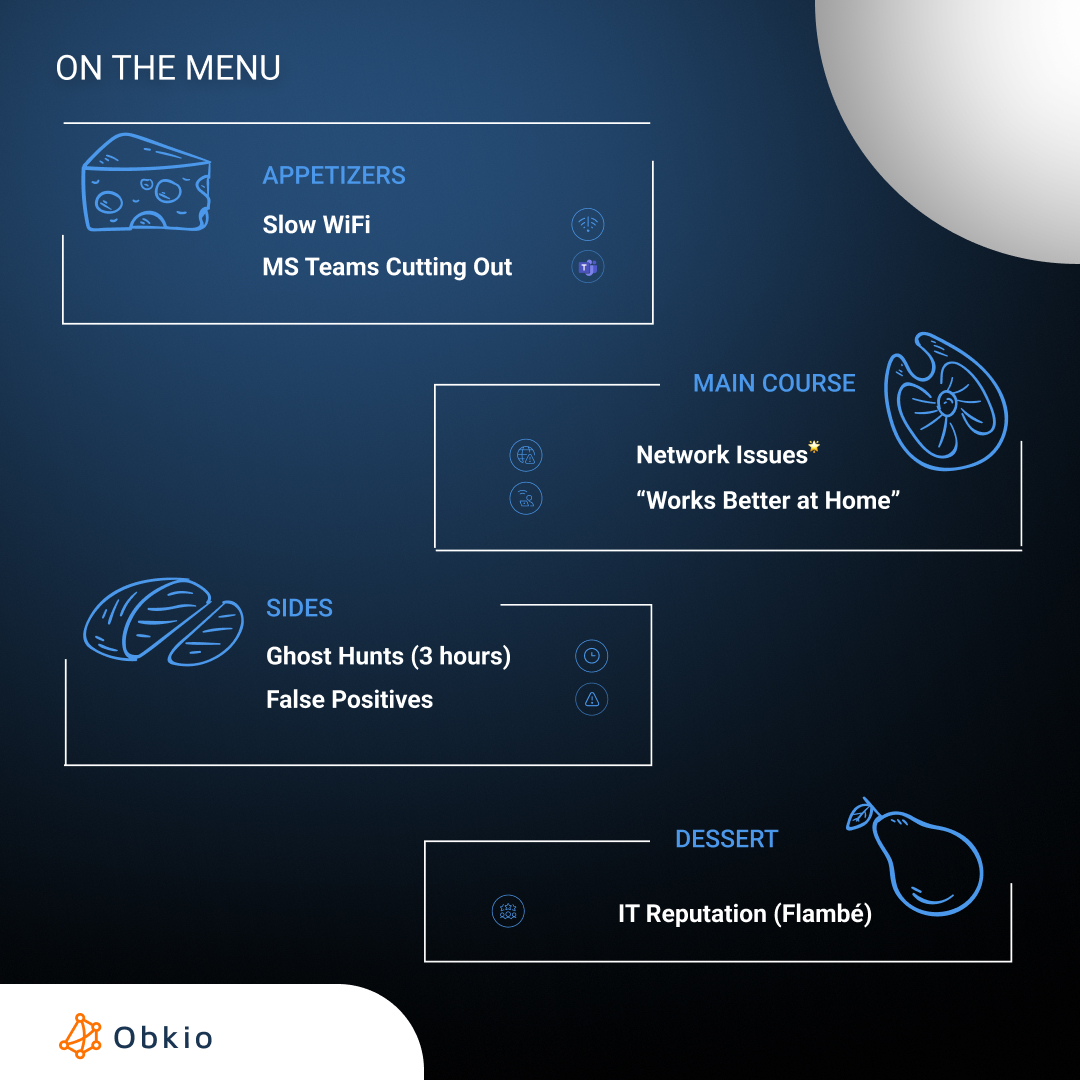
And if you're not at the table, you're on the menu.
The job market has cooled dramatically. Canada's unemployment rate hit 7.1% in August 2025, which is the highest since May 2016, excluding pandemic years. Employers noticed. And the RTO mandates started rolling out fast:
- Ontario: 5 days per week for 60,000 public servants starting January 2026
- Federal government: Ramping up to 4 days per week in summer 2026
- Amazon: Full-time back as of January 2, 2025
- Major Canadian banks: RBC, BMO, TD, and Scotiabank all mandate 4 days per week
The debate is heating up. Employees don't want to give up remote work. Executives want people in the office seats. HR is caught in the middle trying to manage the fallout.
But here's the brutal reality for IT: when those employees come back to the office, they're going to blame you (IT teams) for every network hiccup, every dropped Teams call, every slow file upload.
"Microsoft Teams keeps cutting out at the office."
"The WiFi is terrible compared to my home network."
"I'm way more productive working from home because the Internet is faster."
If you're in IT, that's a slap in the face. It sounds like you can't manage your own company's network. And here's the kicker: your network worked fine at 30% capacity during the pandemic. Will it work at 100%?
Without objective data to prove your network is ready (or to quickly diagnose problems when they occur), you're stuck arguing feelings in what's already a political battle. IT becomes the scapegoat, whether the problems are real or not.
In this article, we'll teach you how to prepare your network infrastructure, deploy the right monitoring, and protect your reputation before the return-to-office complaints start rolling in.
Why Return-to-Office Creates Network Performance Challenges for IT 
Let's be clear about what you're walking into. Your network worked fine during the pandemic because only 30% of your workforce was in the office at any given time. WiFi access points weren't overloaded. Bandwidth wasn't maxed out. VPN concentrators had plenty of headroom.
Now everyone's coming back. At the same time. With higher expectations than ever before.
They've spent years working from home where network problems were "their ISP's fault." Now when anything goes wrong at the office, it's your fault. And without objective data to prove otherwise, you're going to spend the next six months defending your competence instead of doing your actual job.
The Complaints IT Teams Will Face after RTO
You know what's coming. You've probably already heard some of these:
- "Microsoft Teams video keeps cutting out at the office."
- "WiFi is terrible compared to my home network."
- "I'm way more productive working from home because the Internet is faster."
- "Zoom calls keep freezing in conference rooms."
- "File uploads take forever here."
Here's why these hurt: It sounds like you can't manage your own company's network.
It doesn't matter if the problem is real or perceived. It doesn't matter if it's an ISP issue, a Microsoft 365 outage, or the user's laptop from 2017 struggling to handle modern workloads. When an employee says, "The network is slow," leadership hears "IT isn't doing their job."
And you're stuck defending yourself without proof.
Why These Become Political (Not Technical) Problems
Let's be honest about something most IT pros already know: Supporting end users is 80% psychology, 20% technical.
You've probably experienced this: You spend 3 hours troubleshooting a "network issue" only to discover the user had their VPN disconnected. Or their WiFi was connected to a guest network. Or they were trying to upload a 500MB file over a congested circuit during peak hours.
The problem gets solved. But the user walks away thinking "the network was slow," not "I made a mistake."
Now add return-to-office politics into that mix.
Employees who don't want to come back to the office will use network problems (real or imagined) as ammunition to argue for continued remote work. And the numbers show just how widespread this resistance is:
At Amazon, 73% of surveyed employees considered quitting over the RTO mandate. That's not a small minority. That's three-quarters of your workforce actively looking for the exit.
Even more telling is the fact that 87% of Amazon workers thought the new policy would make them less productive. They're walking into the office already convinced they'll be less productive. And when they experience any hiccup (a slow WiFi connection, a dropped Teams call, a laggy Zoom meeting), it confirms what they already believe.
"I can't get anything done at the office because the network is so slow" becomes a justification to stay home. Or to quit. Or to push back against leadership.
Without objective data, you're arguing feelings versus facts. And feelings always win in a political fight.
Here's how it plays out:
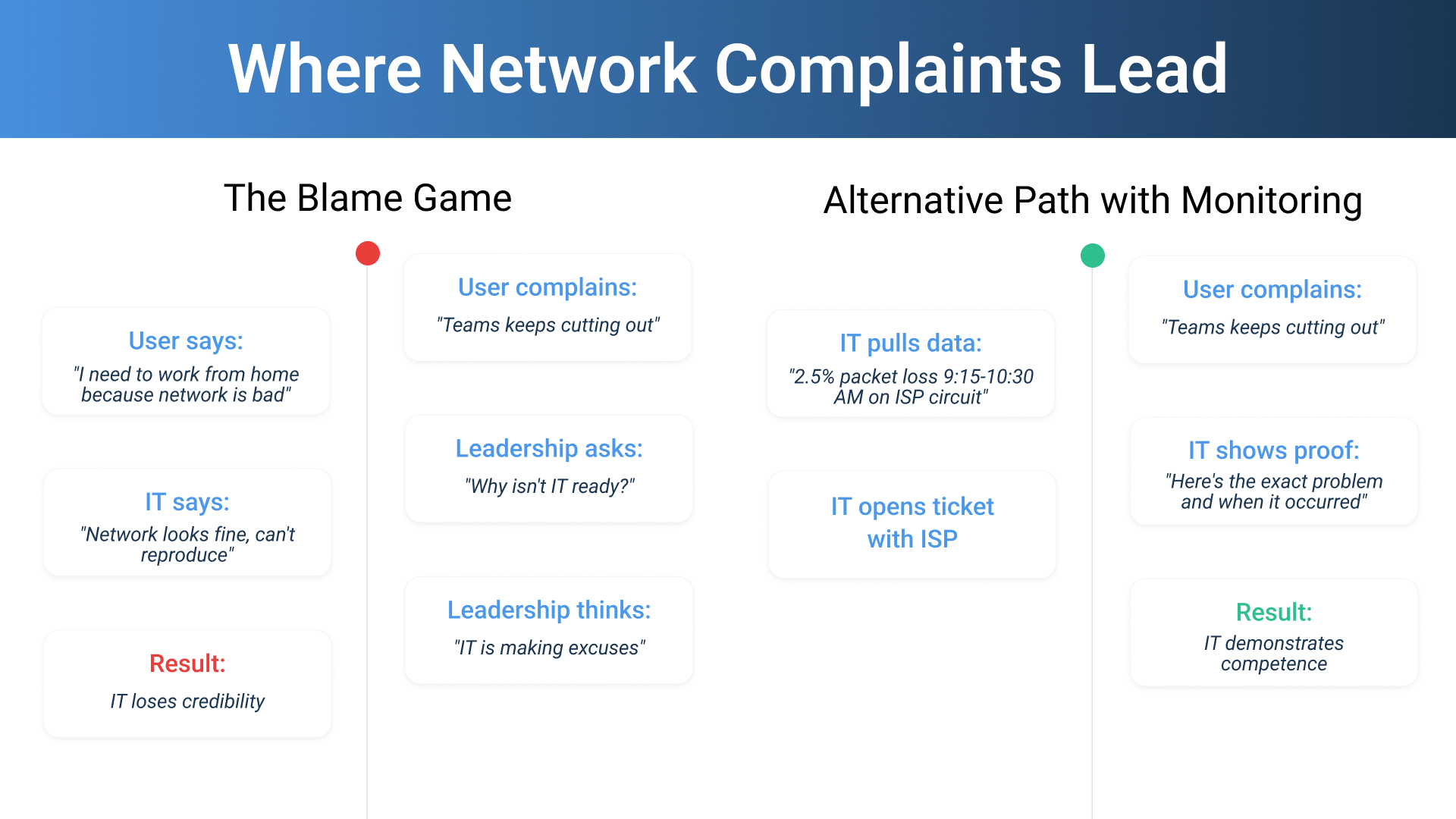
- Employee complains that "Teams keeps cutting out at the office."
- Employee uses this to justify why they should work from home
- Leadership questions why IT hasn't fixed the network
- IT says, "The network is fine, we can't reproduce the issue."
- Leadership perception: "IT is defensive and making excuses."
You lose. Every time.
The Real Risk to IT's Reputation
The danger isn't just one complaint. It's the pattern that emerges:
- Hours wasted on "ghost hunts" proving problems don't exist. You pull logs, run tests, check utilization, and everything looks fine. But the user swears it's a problem. You can't prove it's NOT a problem without data from their exact location at the exact time they experienced it.
- False positives erode trust. After the third time you tell someone "the network is fine on our end," and they insist it's not, they stop believing you. Even when you're right.
- True positives you can't prove are your fault. Sometimes the network DOES have issues. But without monitoring that captures the user experience, you're stuck saying "we think it might be the ISP" or "it could be Microsoft." Leadership hears uncertainty and assumes incompetence.
- Leadership perception: "Why wasn't this ready?" When the RTO mandate was announced, did anyone ask IT if the network could handle full capacity? Probably not. But when problems emerge, the question will be: "You knew this was coming. Why didn't you prepare?"
Prove Your Company’s Network Isn’t the Issue
You need proof, not promises.
You need objective data that shows:
- What "good" performance looks like before RTO hits
- Where problems occur when they happen (your network? ISP? cloud provider?)
- Evidence you can show leadership that says "we were proactive, not reactive"
Here's how to get it.
Monitor Your Office’s Network Performance Now
The best time to start monitoring your network was 30 days ago. The second-best time is now.
Before your employees return to the office, you need baseline data showing what "good" network performance looks like. Without it, you're flying blind when complaints start rolling in.
Obkio’s Network Performance Monitoring Tool uses distributed Agents and synthetic traffic to monitor network performance from the user's perspective, not just from your data center. It deploys monitoring agents at actual office locations where your employees work, continuously testing the real applications they use: Microsoft Teams, Zoom, cloud apps, VPN connections, and internet access.
Here's what makes it different for RTO preparation:
Unlike traditional SNMP monitoring that only tells you if routers are up, Obkio shows you what users actually experience. It runs synthetic tests 24/7 from employee desks, conference rooms, and different office floors. Exactly where your returning workers will sit.
When someone complains, "Teams keeps freezing in the conference room," you don't guess. You check Obkio's monitoring from that exact location and see:
- Is it your WiFi? (signal strength, congestion)
- Is it your ISP? (packet loss, latency spikes)
- Is it Microsoft? (service degradation on their end)
What you can do with Obkio before employees return:
✓ Baseline current performance at 30% capacity so you have "before" data
✓ Identify bottlenecks proactively (WiFi congestion, bandwidth limits, ISP issues)
✓ Test from actual desk locations where employees will work
✓ Monitor Microsoft Teams/Zoom quality with VoIP metrics (MOS scores, jitter, packet loss)
✓ Track network paths to see exactly where problems occur
✓ Build your evidence archive proving network performance over time
When employees return:
✓ Respond to complaints with data, not guesswork
✓ Prove it's not your fault when it's an ISP or Microsoft issue
✓ Show leadership you were prepared with proactive monitoring
✓ Skip the 3-hour ghost hunts and fix real problems fast
See exactly what your users will experience when they come back to the office. Get your baseline data now, before it's too late.
Deploy Obkio in minutes and monitor from the user's perspective within the hour.
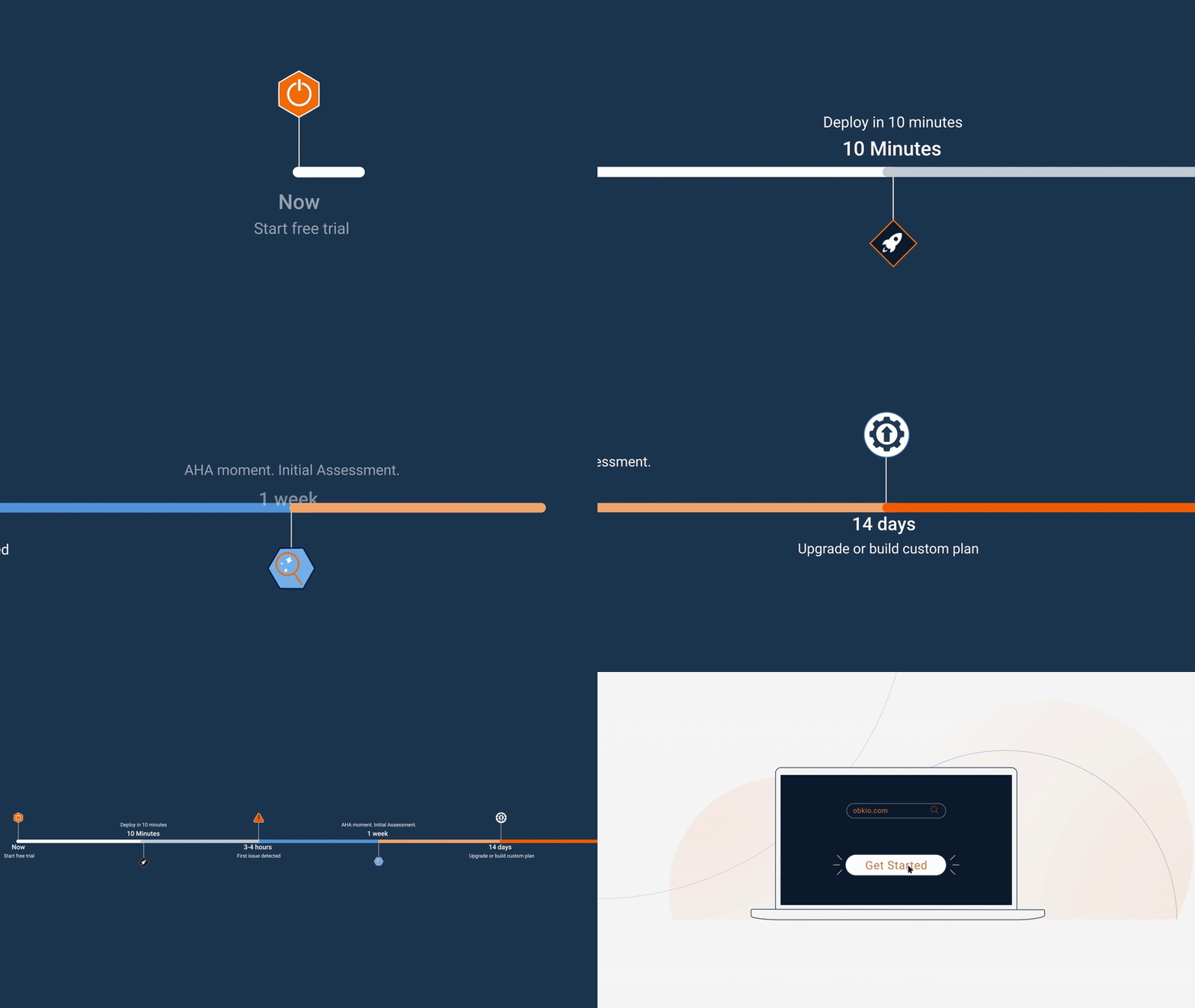
- 14-day free trial of all premium features
- Deploy in just 10 minutes
- Monitor performance in all key network locations
- Measure real-time network metrics
- Identify and troubleshoot live network problems


What Are the Network Capacity Requirements for RTO (Return-to-Office)?
Your network infrastructure was designed for a different world. Let's talk about what's changed since 2019.
How Work Habits Changed During the Pandemic (And Why It Matters)
The way people work fundamentally shifted. Even when they come back to the office, they won't work the way they did in 2019. Here's what's different:
- More video calls (even when people are in the same building). Hybrid meetings are now standard. Three people in a conference room, seven people remote. Everyone on camera. The in-office people are running video on their laptops, the conference room system is running video, and the WiFi is handling all of it simultaneously.
- Cloud-first applications replacing on-premise. Your file server is now SharePoint Online. Your email is Exchange Online. Your CRM is Salesforce. Every application now requires Internet connectivity. Nothing lives in the data center anymore.
- BYOD expectations (personal phones, tablets, wearables). Employees bring their iPhone, iPad, Apple Watch, and Kindle to work. That's four devices per person hitting your WiFi, and that's before we count laptops.
- Hybrid meeting setups. Conference rooms need dedicated bandwidth for video systems, wireless presentation displays, room scheduling panels, and smart speakers. All of this is network traffic that didn't exist in 2019.
- Infrastructure aging. That wireless controller you deployed in 2018? It's now 8 years old. Those access points? Also, 8 years old. Firmware is probably out of date. And they were spec'd for 2018 usage patterns, not 2026 workloads.
- Security requirements evolved. Zero-trust architecture. VPN for everything. Multi-factor authentication. Endpoint detection. All of this adds latency and processing overhead to network traffic.
How to Calculate Your Actual Network Load Increase
Here's the math that should scare you:
- 30% office occupancy during pandemic = X Mbps
- 100% occupancy = 3.3X capacity needed
But that's not the real multiplier.
Collaboration tools use MORE bandwidth now than they did in 2019. More video calls. More cloud applications. More real-time syncing. More everything.
The real multiplier is likely 4-5X your pandemic baseline.
Let's make this concrete with a formula:
(Number of returning employees) × (Average bandwidth per user) = Required capacity
Here's what "average bandwidth per user" actually means in 2026:
Video conferencing (Teams/Zoom): 1.5-3 Mbps per user for HD video
- Standard definition: 1-1.5 Mbps
- High definition: 2.5-3 Mbps
- 4K video (for executive conference rooms): 8-10 Mbps
Cloud storage syncing (OneDrive, Dropbox): Burst traffic
- Can spike to 10-20 Mbps per user when syncing large files
- Background sync is a constant low-bandwidth drain
SaaS applications (Salesforce, cloud ERP): Steady baseline
- 500 kbps - 1 Mbps per active user
- Heavier during report generation or data exports
VoIP calls: 100 kbps per concurrent call
- Seems small, but multiply by 50 concurrent calls
IoT devices, smart office tech, security systems:
- IP cameras: 2-4 Mbps per camera (more for 4K)
- Smart building sensors: Minimal but constant
- Badge readers, door systems: Negligible individually, adds up at scale
Example calculation:
- 200 employees returning to office
- 50% in video meetings at any given time = 100 concurrent video users
- 100 users × 2.5 Mbps = 250 Mbps just for video
- Add cloud apps, file syncing, VoIP, IoT: +150 Mbps baseline
- Total requirement: ~400 Mbps minimum
If your circuit is 500 Mbps, you're operating at 80% utilization during normal hours. That's too close. You need headroom for spikes.

Learn how to calculate your business network bandwidth needs, spot bottlenecks & prevent downtime.
Learn more

How to Review Your WiFi Infrastructure (A Reality Check)
Your wireless network is about to get hammered. Here's why:
Access point capacity limits:
- Most APs handle 20-30 devices comfortably
- At 50+ devices, performance degrades significantly
- Beyond 75 devices per AP, it's barely functional
You might be thinking: "But my APs support 200+ clients."
Sure. Technically. In a lab. In the real world, airtime contention becomes the bottleneck. When 50 devices are all trying to transmit simultaneously, they're competing for access to the radio frequency. Throughput per client drops dramatically.
Coverage vs. Capacity problem:
This is the trap most IT teams fall into:
- Your signal might reach everywhere
- But can it handle everyone connected at once?
You did a WiFi site survey in 2019. Signal strength was great. -60 dBm everywhere. Perfect, right?
But that survey was done with 30% occupancy. Now you're bringing back 100% of employees. Every desk is full. Every conference room is booked. And your APs are drowning.
Dead zones that didn't matter at 30% occupancy suddenly matter at 100%:
When only 50 people were in the office, nobody sat at those desks by the elevator with terrible WiFi. Now 150 people are back, and guess what? Someone's sitting there. And they're complaining.
Conference room demands:
10-15 people all on video calls simultaneously in one room. Even if half are in the room physically and half are remote, the room system is streaming video, and the in-room participants probably have laptops open also running video.
That's 15-20 devices in one physical location, all demanding high-bandwidth, low-latency connectivity at the same time.
If your conference room only has one AP covering it, you're in trouble.
The Network Infrastructure Audit You Need to Run Right Now
Here's your homework before RTO hits:
- Document current capacity: What's your actual bandwidth utilization right now at 30% occupancy?
- Calculate full occupancy requirements: Use the formula above. Be realistic about peak usage.
- Test your WiFi under load: Don't just check signal strength. Check client counts per AP during busy hours.
- Identify single points of failure: If your core switch goes down, what happens? If your Internet circuit drops, do you have failover?
- Check equipment age: Anything older than 5 years should be on your replacement list.
The time to discover your network can't handle full capacity is NOT the first Monday everyone's back in the office.
How to Monitor Network Performance from the User's Perspective During RTO
Here's the problem with traditional network monitoring: It tells you the network is fine when users are telling you it's not.
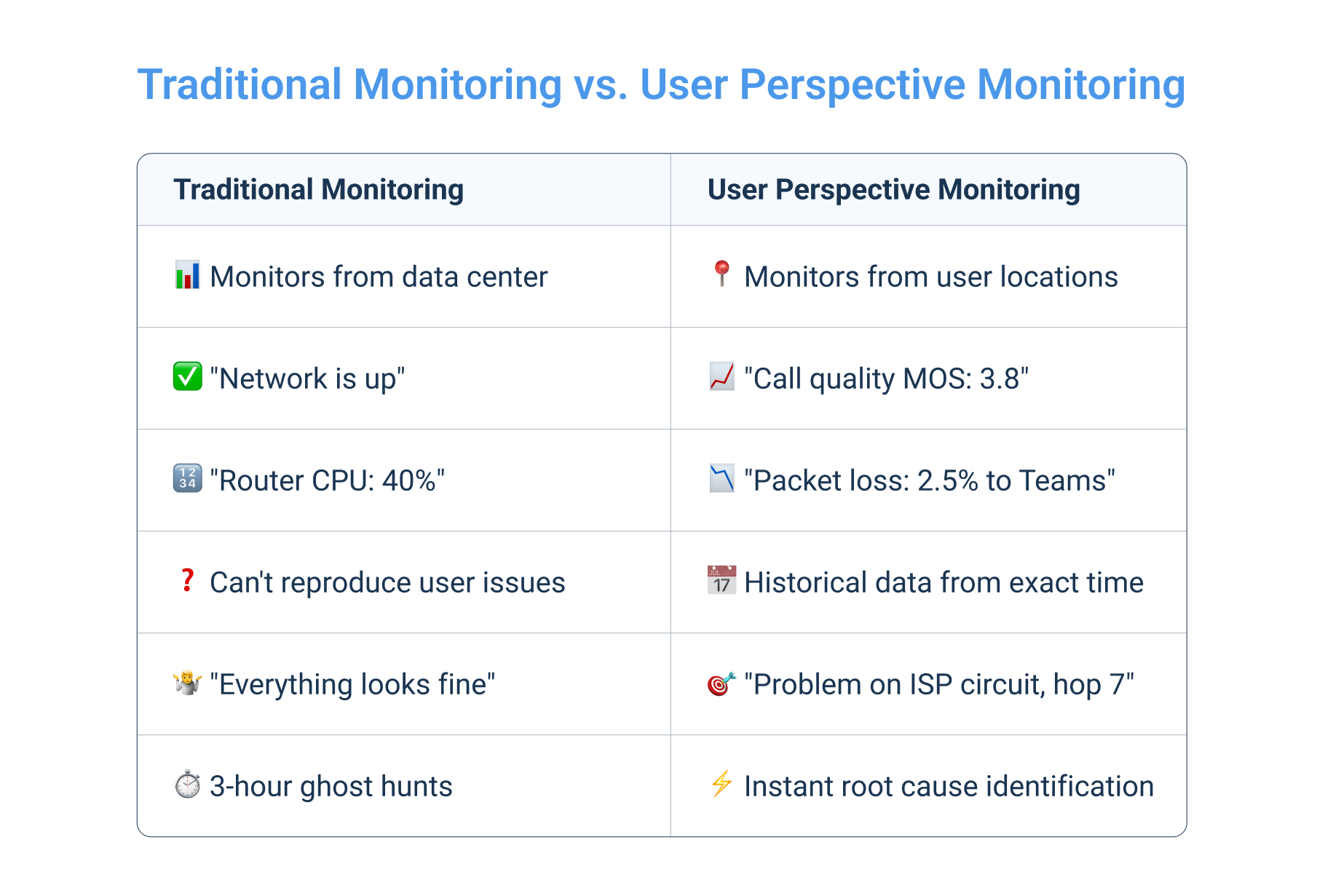
Why Traditional Network Monitoring Fails for RTO Challenges
You've been there. User complains. You check the dashboard:
- Router CPU: 40% utilization → Looks fine
- Ping test: 10ms response time → Looks fine
- SNMP bandwidth monitor: 60% circuit utilization → Looks fine
But the user still can't join their Teams call. Video freezes. Audio drops. They're frustrated.
So what's wrong?
Traditional monitoring watches infrastructure, not user experience.
Your SNMP monitors tell you:
- How much bandwidth is being used (but not if it's enough)
- If devices are up or down (but not if they're performing well)
- Router/switch CPU and memory (but not application quality)
The blind spot:
You can see bandwidth usage on the router. But you can't see:
- If Teams video quality is poor
- Where packet loss is occurring (your network? ISP? Microsoft?)
- Why file uploads are slow
- If latency is too high for real-time applications
When a user complains, you're stuck running manual tests, trying to reproduce the problem, and hoping you catch it before it disappears.
Most of the time, by the time you start investigating, the problem is gone. The user thinks you didn't fix anything. You have no data to prove otherwise.
What User Perspective Monitoring Does Differently
User perspective monitoring tests the network from where users actually work, not from your data center.
Here's what that means:
Monitoring FROM the user's location (not from the data center):
- If users work on the 3rd floor, you need monitoring on the 3rd floor
- If you have multiple office buildings, you need monitoring in each building
- If users connect via WiFi, you need monitoring that uses WiFi (not just wired connections)
Testing actual applications (not just ping/SNMP):
- Simulating VoIP calls to measure call quality (MOS scores, jitter, packet loss)
- Testing application response time to SaaS platforms
- Measuring video conferencing performance
- Monitoring file transfer speeds to cloud storage
Measuring real experience (call quality, app response time, not just uptime):
- Your network can be "up" but still performing poorly
- User perspective monitoring measures quality, not just availability
- It answers: "Can users actually get their work done?"
How Office Network Monitoring Works in Practice with Obkio’s NPM
Here's the technical implementation:
1. Deploy monitoring agents at actual office locations
Install software agents or hardware probes where users work:
- Different floors in your building
- Different buildings if you have multiple locations
- Connected via WiFi (not just Ethernet) to match user experience
- Placed strategically to represent different network paths
With Obkio, you deploy lightweight monitoring agents that sit where your users actually work, not in your server room. These agents can run on:

- Physical hardware (small appliances you place at office locations)
- Virtual machines (if you have local servers)
- Existing workstations or network devices
- Cloud instances (for monitoring remote paths)
Deployment takes minutes, not days. You're not installing complex infrastructure. You're placing monitoring points that simulate real user activity.
2. Agents run continuous tests simulating user activity from workers’ workstations:
These aren't one-time tests. They're running 24/7, constantly measuring:
- VoIP call quality tests to Teams/Zoom: Synthetic voice packets sent to Microsoft or Zoom endpoints, measuring MOS scores (Mean Opinion Score for call quality), jitter, packet loss, and latency. Obkio's agents simulate actual VoIP calls, measuring the metrics that determine whether your users can actually have a conversation or if they'll sound like robots.
- Application response time tests (SaaS apps): HTTP requests to Salesforce, SharePoint, internal web apps: measuring how long they take to respond. You configure which applications matter to your business, and Obkio continuously tests them from the user's perspective.
- Network path monitoring (where do packets go?): Visual traceroutes showing every hop between your office and cloud services, identifying where problems occur. When packet loss happens, Obkio's Visual Traceroutes show you exactly which hop is dropping packets: your office network, your ISP, or the cloud provider.
- Bandwidth testing during peak hours: Regular throughput tests to verify available capacity. Obkio runs these tests intelligently and frequent enough to catch issues, but not so aggressive that they consume your bandwidth.
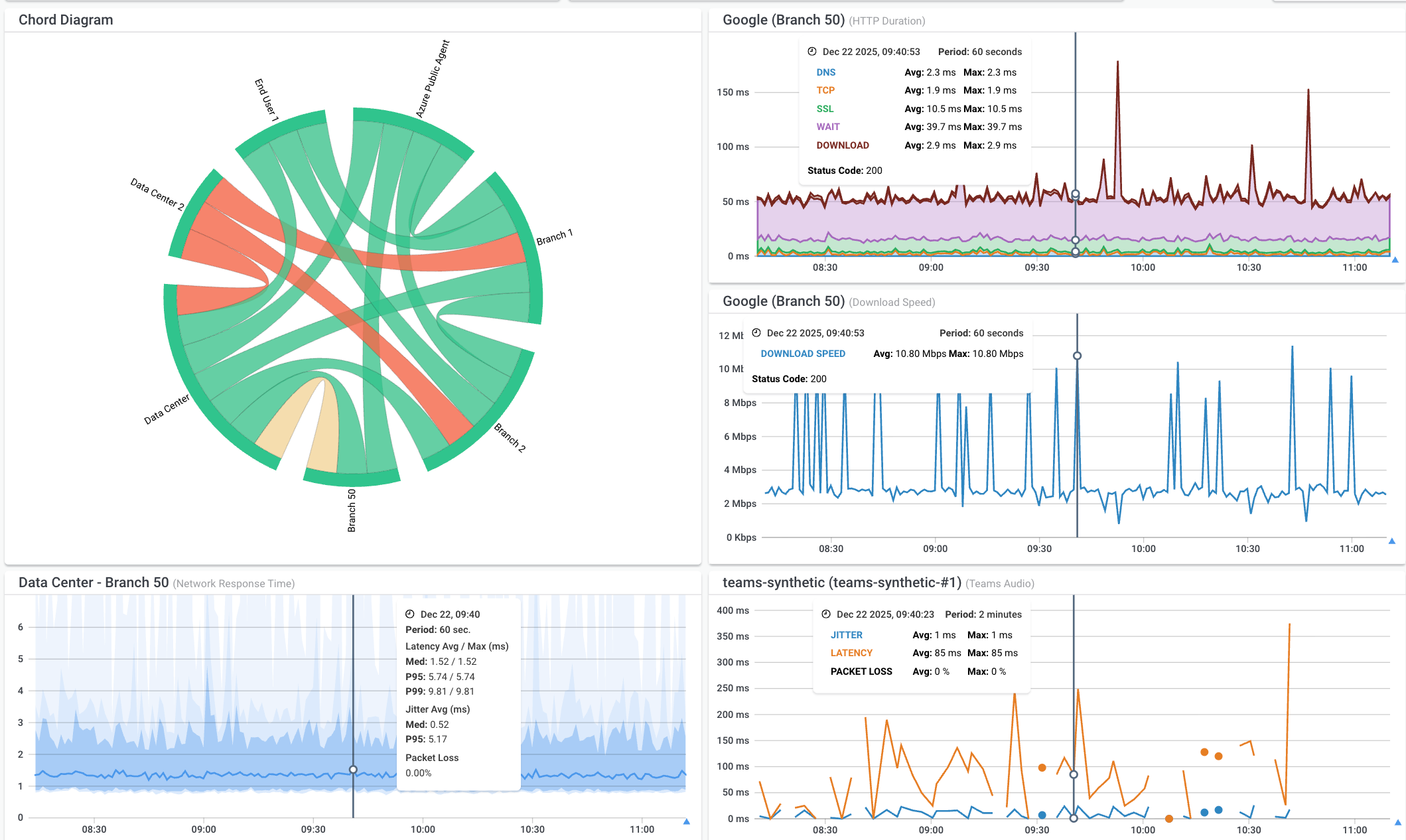
3. Collect data to compare office network performance before vs. during RTO:
This is the critical part. You need baseline data from BEFORE everyone returns.
Obkio stores historical performance data so you can compare:
- Network performance before RTO: MOS 4.3, packet loss 0.2%, latency 25ms
- Network performance after RTO: MOS 3.8, packet loss 1.2%, latency 45ms
Now you have evidence. Something changed. You can prove it. And you can investigate why.
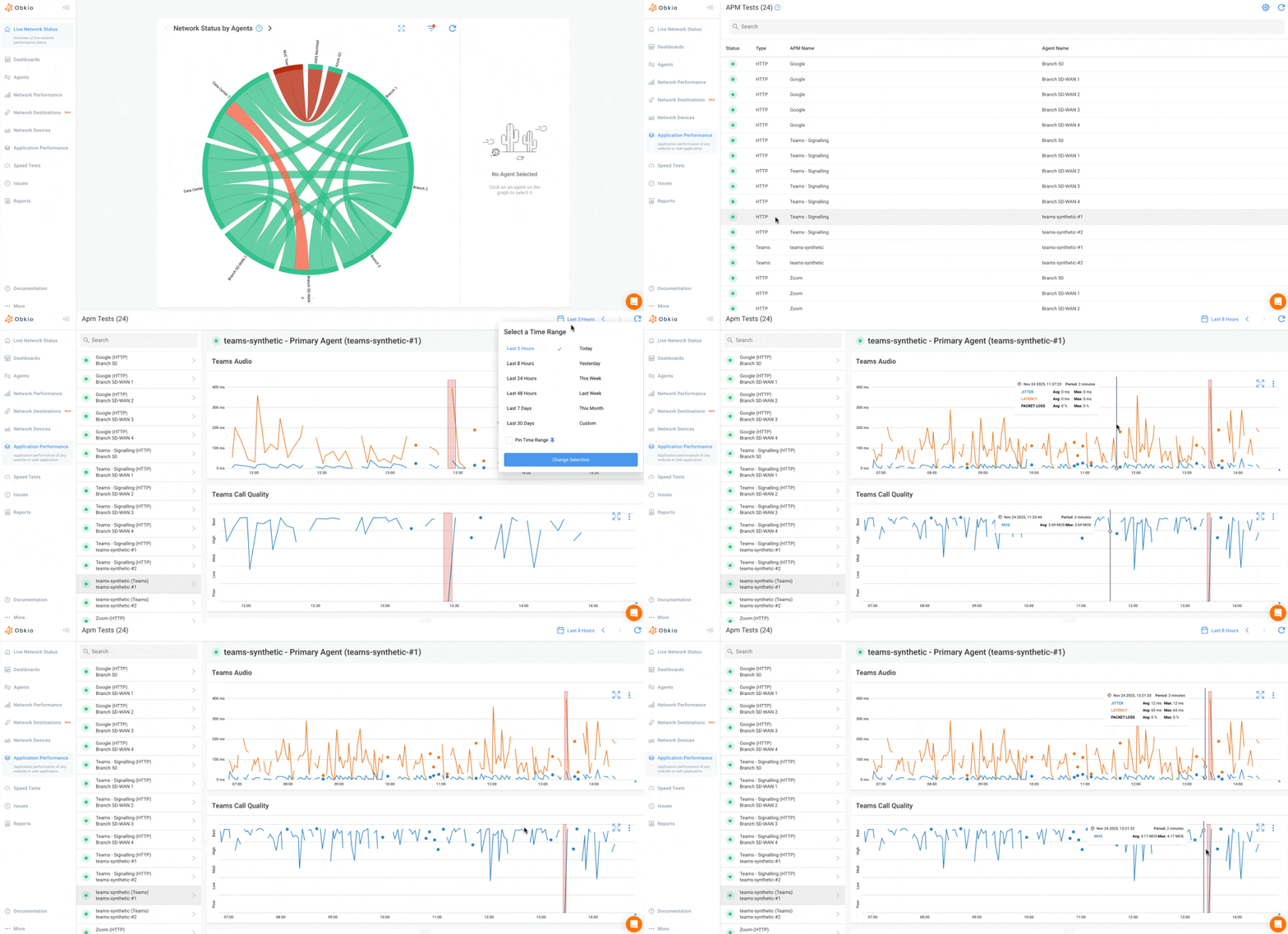
The dashboard shows performance trends over time. You can zoom into specific time periods:
- "Network performance last Monday between 9 AM and 11 AM"
- "Compare this week's performance to last month when we had 30% occupancy"
- "What was the MOS score during that user's Teams call this morning?"
When a user complains about a problem that happened three hours ago, you're not relying on memory or trying to reproduce it. You have the actual data from when it happened.
The Critical Difference: Understand How Returning to Office Is Affecting Your Network Performance
Here's where user perspective monitoring saves your reputation:
When a user complains → You already have data from their location.
User: "Teams video has been terrible all morning."
You: "Let me check... I see we had packet loss of 2.5% between 9:15 AM and 10:30 AM on the path to Microsoft's edge network. The issue was on our ISP's circuit. I've opened a ticket with them and have the data showing exactly when and where the problem occurred."
Data shows exactly where the problem occurs:
- Office WiFi? (Your responsibility) → Fix AP placement, channel config, or add capacity
- ISP circuit? (Call your provider with proof) → Show them the exact time, packet loss percentage, and affected path
- Microsoft 365? (Not your fault) → Show user the evidence that Microsoft's service was degraded, link to their service health dashboard
No more guessing. No more 3-hour ghost hunts.
Traditional monitoring: "Everything looks fine on our end."
User perspective monitoring: "Here's what happened, here's when it happened, and here's whose fault it was."
Common Network Problems During Return-to-Office Transitions (And How to Fix Them)
Let's get practical. Here are the most common network problems IT teams face during RTO, with actual troubleshooting steps and solutions.

Learn about some of the most common network problems that businesses face every day, like high CPU, bandwidth, equipment issues, Internet failures, and more.
Learn more
Issue #1: WiFi Congestion and Poor Wireless Performance
WiFi congestion and poor wireless performance happen when too many devices are competing for limited WiFi resources on the same access point, causing slow speeds, disconnections, and degraded video quality.
Symptoms:
- "WiFi is so slow at the office."
- Video calls freeze on WiFi but work fine on wired
- Frequent disconnections and reconnections
- Slow file uploads to cloud storage
- Users complaining about "buffering" on internal applications
Root Causes:
Too many devices per access point. Most APs are rated for 50+ concurrent clients in marketing materials. Real-world performance degrades significantly after 30-40 clients. At 50+ devices, it's painful.
Access points designed for 30% occupancy, now handling 100%. You spec'd your WiFi based on pandemic headcount. Now everyone's back and your APs are drowning.
Insufficient AP coverage for high-density areas. You have one AP covering a 50-person open office area. That AP is trying to serve 50+ devices. It can't.
How to Diagnose:
Log into your access point controller and check the client count on the nearest AP to the complaint location. If you see >30 connected devices, that AP is overloaded. Check channel utilization: if >70%, you have congestion.
For an immediate fix, direct the user to a wired connection or move them to a less crowded area while you plan permanent solutions.
Solutions:
- Deploy additional access points in high-density areas. If you have 50 people in one area and one AP, add another AP. Yes, it costs money. But "make do with what we have" isn't a strategy when users can't work.
- Optimize channel allocation to reduce interference. Manually assign channels if automatic channel selection is making poor choices. In dense office environments, manual channel planning often works better than auto-RF.
- Enable band steering to push clients to 5 GHz. Configure your wireless system to prefer 5 GHz for capable clients. 2.4 GHz should be legacy fallback only. Most modern devices (2018+) support 5 GHz. Make them use it.
- Implement WiFi 6 (802.11ax) for better multi-client handling. WiFi 6 has technologies specifically designed for high-density environments.
- Configure proper roaming thresholds. Tell devices: "If signal drops below -70 dBm, look for a better AP." This prevents sticky client problems.
- Separate IoT devices to dedicated SSID/VLAN. Your IP phones, printers, badge readers, cameras, put them on a separate wireless network. Don't make them compete with user devices for airtime.
Issue #2: Microsoft Teams and Video Conferencing Quality Problems
Microsoft Teams and video conferencing quality problems happen when there's insufficient bandwidth, packet loss, high jitter, or QoS isn't configured, making real-time video and audio traffic compete with regular data instead of getting priority.
Symptoms:
- "Teams video is choppy/pixelated."
- Audio drops during calls
- Screen sharing lags or stutters
- "It works perfect from home, terrible at the office."
- Users turning off video to make calls work
Root Causes:
- Insufficient bandwidth (especially upload). Video conferencing is symmetrical, you need good upload AND download. Most business Internet circuits are asymmetric (300 Mbps down, 50 Mbps up). Your download is fine. Your upload is saturated.
- No QoS (Quality of Service) configured. Your network treats video traffic the same as email, file downloads, and Windows updates. When bandwidth gets tight, video packets compete with everything else. Video loses because it's real-time and can't buffer.
- Packet loss on path to Microsoft 365. Somewhere between your office and Microsoft's edge network, packets are being dropped. Even 1% packet loss degrades video quality noticeably. At 3%+ packet loss, video is unusable.
- Network congestion during peak hours. 9-11 AM and 1-3 PM are when everyone's in meetings. Your circuit is fine at 8 AM. By 9:30 AM it's saturated. Video calls scheduled during peak times suffer.
- ISP circuit saturation. You're paying for 500 Mbps. During peak hours, you're actually getting 400 Mbps because your ISP is oversubscribed. You don't know this because you're not monitoring it.
- Jitter/latency too high for real-time media. VoIP and video are sensitive to latency variation (jitter). If packets arrive inconsistently, audio cuts out even if bandwidth is sufficient.
How to Diagnose:
Deploy Obkio's Microsoft Teams monitoring to continuously track call quality: Monitor MOS scores, jitter, packet loss, and latency specifically on paths to Microsoft 365 from actual office locations. When a user complains about Teams quality, check Obkio's historical data from their desk to see if it's your office network, your ISP, or Microsoft's service having issues. Get alerts before call quality degrades so you can fix problems proactively instead of reactively.
Run a quick bandwidth test from the user's location during an active call. Check your monitoring dashboard for packet loss (should be <1%) and jitter (should be <20ms) on the path to Microsoft 365. If bandwidth is fine but packet loss is high, it's not a capacity issue, it's either WiFi interference, ISP problems, or Microsoft service degradation. This immediately tells you where to focus.
1. Test MOS scores (Mean Opinion Score for Call Quality): MOS is a 1-5 scale measuring voice/video quality.
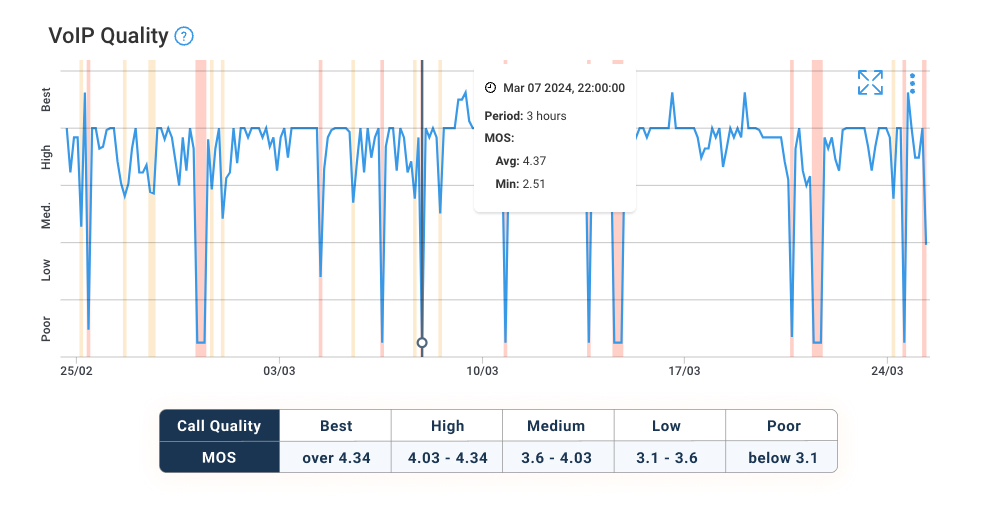
You need monitoring that measures MOS continuously, not just when users complain.
2. Measure packet loss: Run continuous tests from your office network to Microsoft 365 endpoints. Packet loss should be:
- <0.5% = Good
- 0.5-1% = Acceptable
- 1% = Problem
- 3% = Unusable for video
3. Check jitter: Jitter is variation in packet arrival time. Should be <20ms ideally, <30ms acceptable. Above 50ms jitter, calls become garbled.
Measure latency to Microsoft 365 edge locations. Ping to test latency to:
teams.microsoft.comoutlook.office365.com- Microsoft's public IP ranges for Teams
Latency should be <50ms ideally. Above 100ms, users notice delay in conversations.
4. Test during peak hours vs. off-hours:
Run bandwidth tests during actual video calls. While users are complaining about video quality, run a quick bandwidth test. Is available bandwidth significantly lower than your circuit capacity? That's saturation.
Solutions:
- Implement QoS policies prioritizing real-time media traffic. Configure your routers, switches, and firewalls to recognize and prioritize.
- Upgrade ISP circuits if consistently saturated (>80% utilization). If your monitoring shows >80% average utilization during business hours, you're out of capacity. Upgrade. There's no way around it. Optimizations can only do so much.
- Configure traffic shaping for video conferencing. Allocate dedicated bandwidth to real-time applications.
- Optimize routing to Microsoft 365 (ExpressRoute or direct peering). Azure ExpressRoute: Dedicated private connection to Microsoft's network. Microsoft 365 network onboarding: Direct BGP peering with Microsoft.
- Split-tunnel VPN if users are hairpinning through VPN. If your on-site users are forced through VPN to reach the Internet, and then their Teams traffic goes: Office → VPN → Data center → Internet → Microsoft, you're adding unnecessary latency and load. Configure split-tunnel VPN so trusted traffic (Microsoft 365, Zoom) bypasses the VPN.
- Allocate dedicated bandwidth for conference rooms. Conference rooms with 10-15 people simultaneously on video need guaranteed bandwidth. Use VLANs and QoS to ensure conference room traffic gets priority.
- Configure WiFi QoS for voice/video (WMM). WiFi Multimedia (WMM) is QoS for wireless networks. Enable it. Configure voice traffic as highest priority, video as second highest.
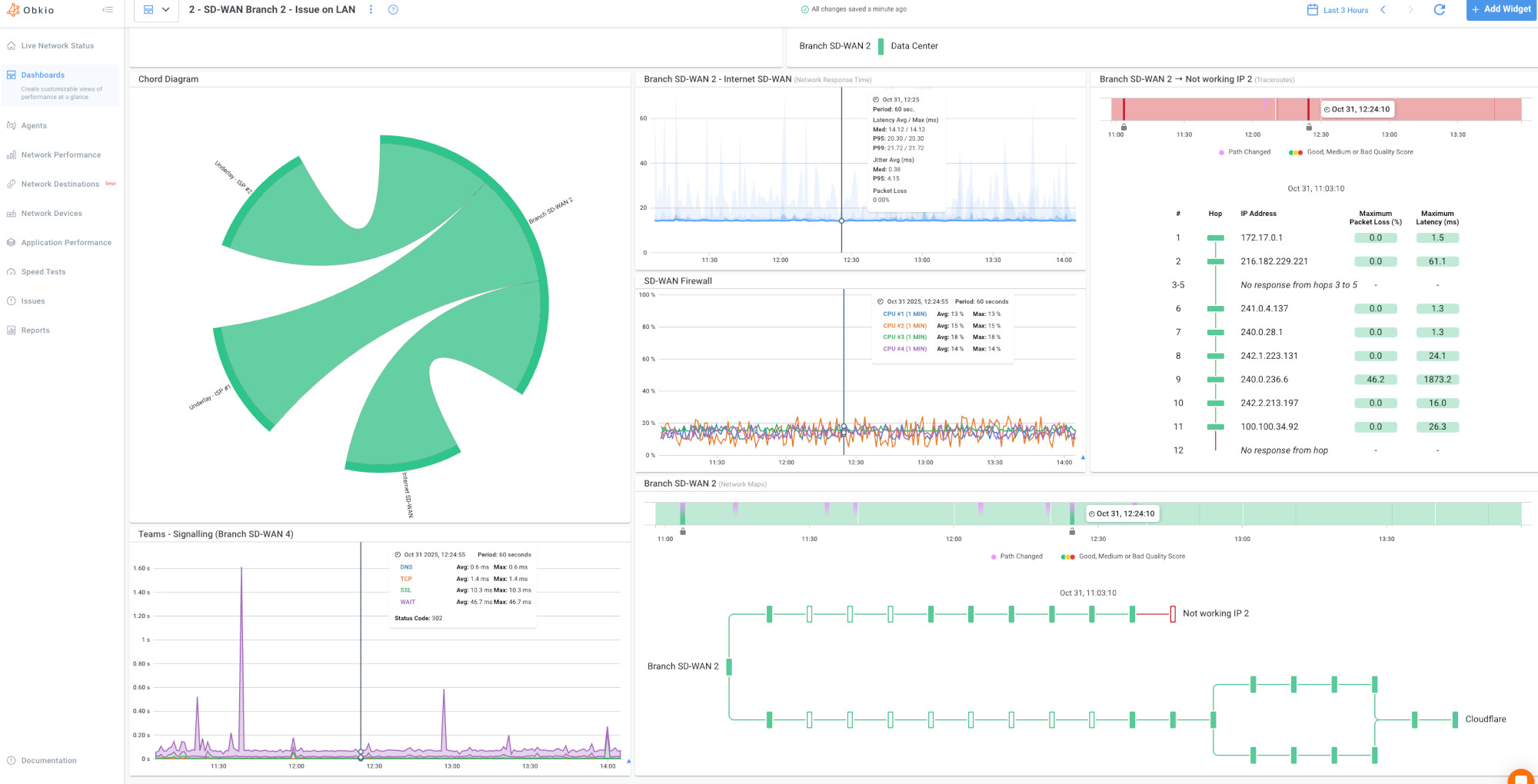
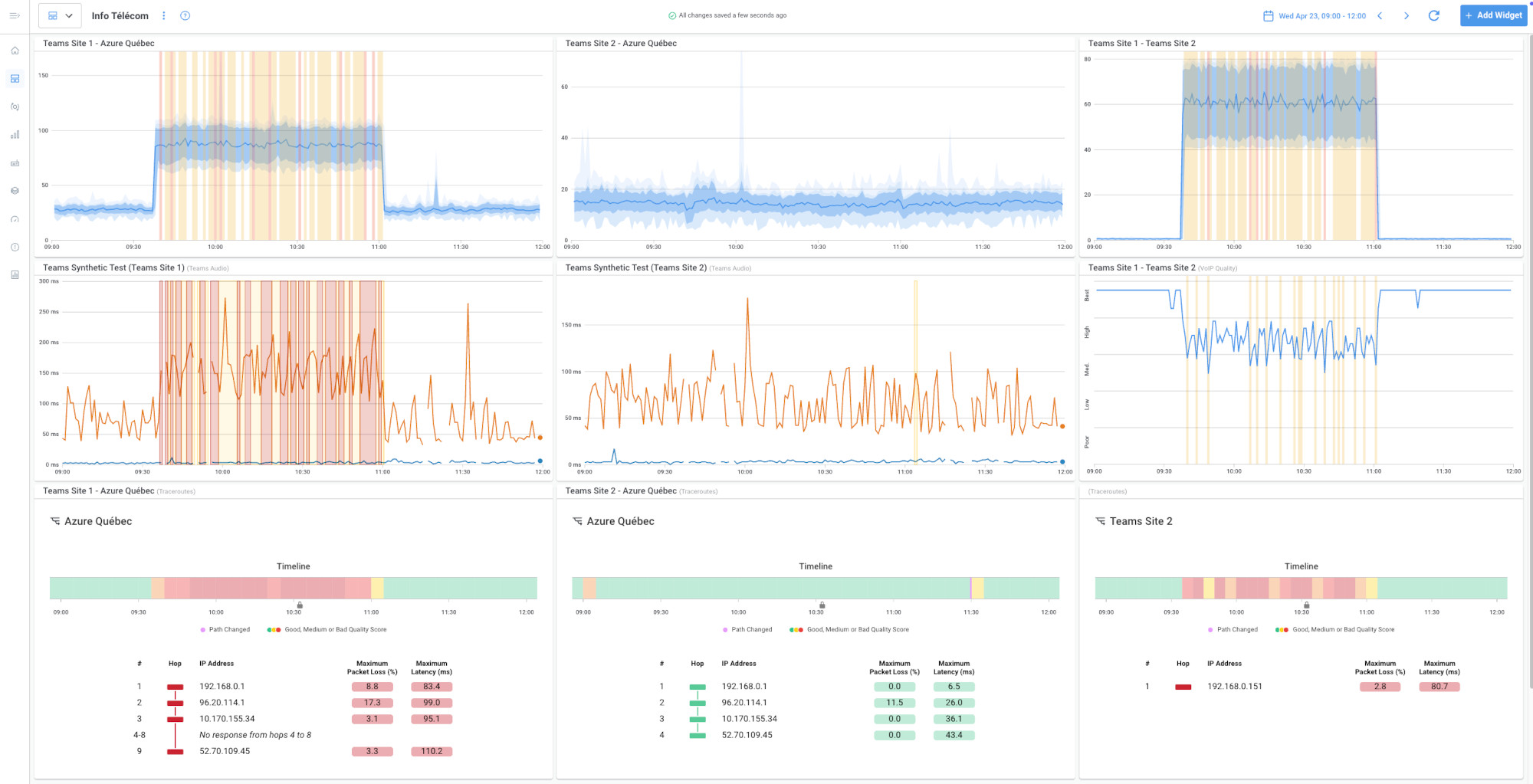 Screenshot from Obkio's Network Monitoring Tool
Issue #3: VPN Bottlenecks and Slow Cloud Application Access
VPN bottlenecks and slow cloud application access happen when all traffic is forced through your VPN concentrator and back through your data center before reaching the Internet, creating an unnecessary detour that adds latency and overwhelms your VPN infrastructure.
Symptoms:
- "Everything is slow when connected to corporate network"
- SaaS applications load faster on phone (cellular) than office WiFi
- VPN connection constantly drops
- File uploads to OneDrive/Dropbox take forever
- "Why is Salesforce so slow at the office but fine at home?"
Root Causes:
VPN concentrators undersized for full office capacity. Your VPN concentrator handled 200 remote workers fine during the pandemic. Now you're bringing 800 people back to the office. But wait, those 800 office users ALSO connect through VPN to reach corporate resources. Your VPN concentrator is drowning.
All traffic is hairpinning through VPN unnecessarily. On-premise users connect to VPN. Their traffic goes:
- Office → VPN concentrator → Data center → Internet → Cloud app
That's insane. Why is a user sitting in your office building sending traffic through VPN to the data center just to reach the Internet?
Cloud apps going the long way around:
- Office → VPN → Data Center → Internet → Microsoft 365
When they should go:
- Office → Internet → Microsoft 365
That extra hop through the data center adds 20-40ms latency and cuts available bandwidth in half.
How to Diagnose:
1. Check VPN concentrator CPU/memory utilization: Log into your VPN appliances. Check:
- CPU utilization over time (should be <70% average)
- Memory utilization (should be <80%)
- Concurrent tunnel count vs. licensed capacity
- Tunnel establishment failures (if connections are being rejected)
2. Test application access with and without VPN: From an office workstation:
- Test Salesforce load time WITH VPN connected: 8 seconds
- Test Salesforce load time WITHOUT VPN (direct Internet): 2 seconds
If there's a huge difference, VPN is the bottleneck.
3. Trace network path to cloud applications: Use traceroute or a network path visualization tool. Look at the path to Microsoft 365:
- Are packets going through your data center unnecessarily?
- How many hops are in the path?
- Where is latency increasing?
If the path is Office → VPN concentrator → Data center → ISP → Microsoft, you're hairpinning.
4. Measure latency through VPN vs. direct Internet:
- Latency to
teams.microsoft.comthrough VPN: 85ms - Latency to
teams.microsoft.comdirect Internet: 25ms
That 60ms difference is your VPN overhead.
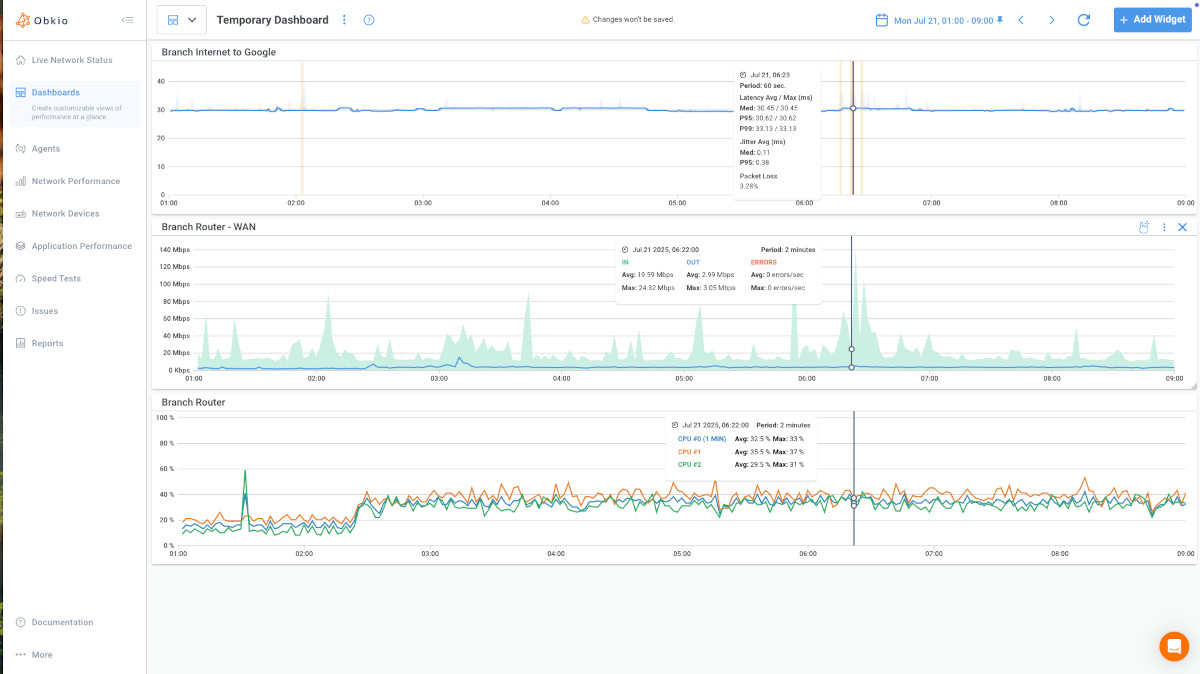
Solutions:
1. Implement split-tunnel VPN (trusted cloud apps bypass VPN). Configure your VPN to allow:
- Microsoft 365 traffic → Direct to Internet
- Zoom traffic → Direct to Internet
- Approved SaaS applications → Direct to Internet
- Internal corporate resources → Through VPN
This massively reduces load on VPN concentrators and improves cloud app performance.
2. Configure direct Internet breakout for O365/approved SaaS. For on-premise users, allow them to reach Microsoft 365 directly from the office, without going through the VPN or data center. Use local Internet breakout at each office location.
3. Upgrade VPN concentrators or add capacity. If you're consistently above 70% CPU utilization, upgrade:
- Add more VPN concentrators (load balance across multiple appliances)
- Upgrade to higher-capacity models
- Move to software-defined VPN solutions that scale more easily
4. Consider SD-WAN for intelligent path selection. SD-WAN solutions can intelligently route traffic:
- Corporate apps → Through MPLS or VPN
- Cloud apps → Direct to Internet
- Automatic failover if primary path degrades
5. Use Microsoft 365 ExpressRoute for dedicated path. For large enterprises, Azure ExpressRoute provides dedicated, private connectivity to Microsoft's network. Bypasses Internet congestion entirely.
6. Disable "force all traffic through VPN" for on-site users. If users are physically in your office, why are they on VPN? Configure your VPN policy: Remote workers use VPN. Office workers use the local network directly.

Learn how to monitor VPN performance for remote workers with dual-session monitoring. Identify VPN bottlenecks, latency issues, and connection problems fast.
Learn more
Issue #4: "It Works at Home, Not at Office" Complaints
"It works at home, not at office" complaints happen when users perceive or experience better network performance on their home internet compared to the office. But this could be a real network problem, a perception issue based on different expectations, or political resistance to returning to the office.
Symptoms:
- Users insist home Internet is faster
- "I never have these problems working from home"
- Resistance to RTO based on network performance
- "My home WiFi is better than our corporate network"
Root Causes:
This one's tricky because there are three possible realities:
- Sometimes legitimate: Office network actually has issues. Maybe your office WiFi IS congested. Maybe your ISP circuit IS saturated. Maybe your VPN concentrators ARE overloaded. The user is right.
- Sometimes perception: Home Internet might actually be WORSE, but user has different expectations. At home, if Netflix buffers, they blame Netflix or their ISP. At the office, if Teams lags, they blame IT. Same problem, different attribution.
- Sometimes political: Using network as excuse to avoid RTO. Employee doesn't want to return to office. Network performance becomes a convenient justification. "I can't be productive at the office because the network is slow" = "Let me keep working from home."
- Without data, you can't tell which it is. And that's the problem. You're stuck arguing with a user who "knows" the office network is slower, but you have no objective way to prove otherwise.
How to Diagnose:
Run comparative monitoring: Office network vs. home network performance. This is powerful.
Deploy monitoring at:
- User's home location
- User's office desk location
Run the same tests from both locations for 1 week:
- Bandwidth tests
- Latency to Microsoft 365
- Packet loss
- Video call quality (MOS scores)
- Application response times
Now you have objective comparison data.
Pull up your user-perspective monitoring data from their desk location using Obkio’s dashboards. Compare actual metrics (bandwidth, latency, packet loss) to what home internet typically provides. If office metrics show 100 Mbps, <20ms latency, and <0.5% packet loss, your network is objectively better. Show them the data. If office metrics are genuinely worse, you have a real problem to fix. Either way, you have facts instead of feelings
Compare metrics:
- Application response times: SharePoint load time at home vs. office
- Video call quality: MOS score for Teams calls at home vs. office
- File transfer speeds: Upload 100MB file to OneDrive at home vs. office
- Network latency: Latency to Microsoft 365 at home vs. office
Document objective differences. Create a report:
- Home network: 250ms latency to Teams, 2% packet loss, MOS 3.2
- Office network: 35ms latency to Teams, 0.3% packet loss, MOS 4.1
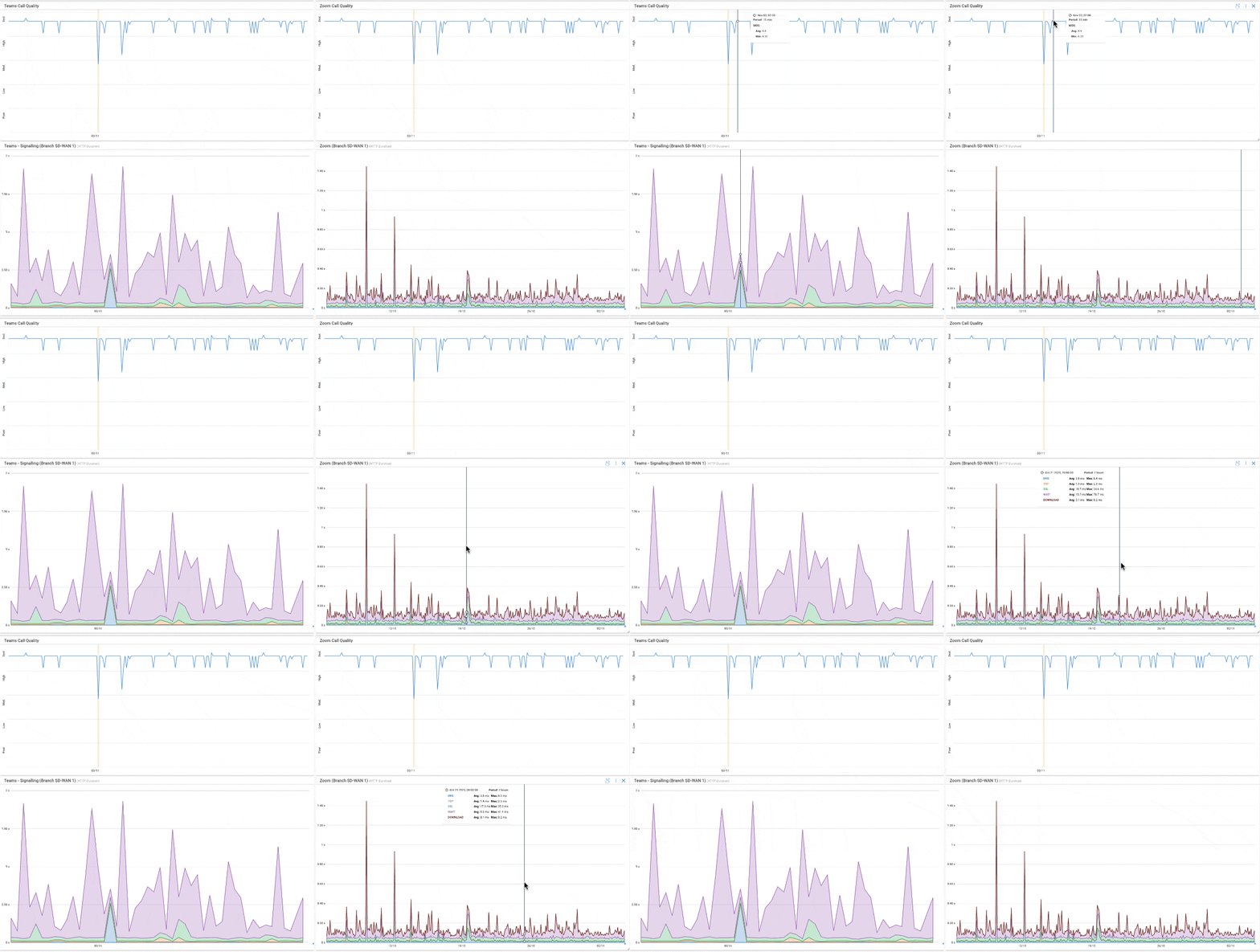
Solutions - If Office Network IS Actually Worse:
Fix the specific issues (WiFi, bandwidth, etc.). Don't be defensive. If the office network has real problems, fix them:
- Refer to solutions in Issue #1 (WiFi congestion)
- Refer to solutions in Issue #2 (bandwidth/QoS)
- Refer to solutions in Issue #3 (VPN bottlenecks)
Communicate transparently about improvements. Tell users:
- "We identified WiFi congestion on the 3rd floor"
- "We've added 4 new access points"
- "We've upgraded our Internet circuit from 500 Mbps to 1 Gbps"
- "We expect these changes to improve performance significantly"
Show before/after data:
- Before upgrades: Average MOS 3.4, packet loss 1.8%
- After upgrades: Average MOS 4.2, packet loss 0.3%
Evidence speaks louder than promises.
Solutions - If Office Network Is Actually Better (or Equivalent):
Show user objective comparison data. Schedule a meeting. Show them the graphs:
- "Here's your home network performance over the past week"
- "Here's office network performance over the same period"
- "Office network actually has lower latency and better video quality"
Explain perception vs. reality. Sometimes the issue is:
- User's home Internet is actually slower, but they blame individual services ("Netflix buffering")
- Office network feels slower because user is in more meetings/calls (more demanding workload)
- User's home Internet benefits from lower contention (1-2 users vs. 200 users sharing office network)
Demonstrate office network advantages:
- Lower latency to internal applications
- Better security and monitoring
- Direct access to corporate resources without VPN
- IT support available when problems occur
Don't be defensive, just present facts. Avoid language like "You're wrong" or "It's all in your head." Instead: "Let's look at what the data shows. Here's what we measured..."
Learn how to use Obkio Network Monitoring to help IT Teams troubleshoot and solve a variety of network problems affecting users working from home.
Learn more
Issue #5: Conference Room Technology and Collaboration Issues
Conference room technology and collaboration issues happen when Zoom Rooms, wireless presentation systems, and AV equipment are competing with user devices for network resources, running on inadequate WiFi, or using outdated firmware, leading to constant disconnections and poor meeting experiences.
Symptoms:
- "Zoom Room keeps disconnecting"
- Room calendar screens don't update
- Wireless presentation systems lag
- HDMI cables don't work half the time
- Audio/video sync issues in hybrid meetings
- Room microphones don't pick up voices clearly
Root Causes:
- IoT devices on same WiFi as users (resource competition). Your conference room video system, wireless presentation display, and room scheduling panel are all on the same WiFi network as 200 user laptops. They're competing for airtime. When WiFi gets congested, the video system stutters.
- Insufficient bandwidth to conference room. You allocated bandwidth based on 1-2 people using a conference room. Now you have 10 people in the room, each with a laptop, plus the room system streaming 4K video. Bandwidth is saturated.
- Poor WiFi coverage in conference rooms. Conference rooms are often interior spaces with concrete/steel construction. WiFi signal is weak. Video systems can't maintain stable connections.
- Outdated firmware on AV equipment. Your Zoom Rooms appliance is running firmware from 2023. Zoom released 15 updates since then fixing bugs, improving performance, and adding features. You're missing all of them.
- Network multicast/discovery protocols blocked. Your conference room scheduling panels use mDNS (multicast DNS) to discover room systems. Your network blocks multicast traffic. Devices can't find each other.
How to Diagnose:
Check if conference room equipment is on a dedicated SSID/VLAN or mixed with user devices. If mixed, that's your problem: room systems need dedicated network resources. Check if the room system is on WiFi or wired. If WiFi, check signal strength in that room (should be >-67 dBm).
1. Test WiFi signal strength in each conference room: Walk into every conference room with a WiFi analyzer:
- Signal strength should be -60 dBm or better
- Check 5 GHz specifically (room systems should use 5 GHz, not 2.4 GHz)
- Test during a meeting when multiple devices are connected
2. Check if room systems are on dedicated VLAN/SSID: Log into your wireless controller. Are conference room devices on the same SSID as user devices? If yes, that's a problem.
3. Verify bandwidth availability to room: During a video conference, check bandwidth utilization:
- Room system consuming bandwidth for 4K video: 10-20 Mbps
- 10 in-room participants with laptops also on video: 25-30 Mbps
- Total: 35-50 Mbps just for that room
If your conference room VLAN only has 50 Mbps allocated, you're saturating it.
4. Test video call quality from room systems: Schedule a test call:
- Join a Zoom or Teams meeting from the room system
- Check video quality (are there artifacts, pixelation, freezing?)
- Check audio quality (are there dropouts, echo, distortion?)
- Monitor network performance during the test (packet loss, latency, bandwidth)
5. Review firmware versions on collaboration equipment: Check every conference room device:
- Zoom Rooms appliances
- Microsoft Teams Rooms systems
- Polycom/Cisco video endpoints
- Wireless presentation systems
6. Compare current firmware to latest available from manufacturer. If you're 2+ versions behind, schedule updates.
Solutions:
1. Dedicated SSID/VLAN for conference room equipment. Create a separate wireless network specifically for conference room devices:
- SSID: "Corp-ConferenceRooms"
- VLAN: Dedicated VLAN with QoS enabled
- Priority treatment for this traffic
Prevents user devices from competing with room systems for airtime.
2. Prioritize room systems with QoS. Configure Quality of Service policies for conference room VLAN:
- Video traffic from room systems: Highest priority
- Assign DSCP markings (EF for voice, AF41 for video)
- Guarantee minimum bandwidth (50 Mbps per room minimum)
3. Wired connections for permanent room equipment (not WiFi). Any equipment that doesn't move should be on Ethernet:
- Room video systems
- Room scheduling panels
- Wireless presentation receivers
WiFi should be for user laptops/phones only. Fixed equipment should be wired for reliability.
4. Upgrade aging AV equipment. If your conference room equipment is 5+ years old, budget for replacement:
- Old systems often don't support modern codecs
- Newer systems have better network efficiency
- WiFi 6 support for wireless components
5. Standardize on one platform (Zoom Rooms OR Teams Rooms, not both). Supporting multiple video platforms is expensive and complicated:
- More licensing costs
- More firmware to maintain
- More troubleshooting complexity
- User confusion about which system to use
Pick one. Standardize. Make IT's life easier.
6. Regular firmware updates on room systems. Create a quarterly schedule:
- Review firmware releases for all conference room equipment
- Test updates in one room before deploying everywhere
- Schedule updates during off-hours (evenings/weekends)
Network Readiness Checklist: How to Audit Your Infrastructure Before RTO
Complete this assessment 30-60 days before RTO mandate takes effect.
You need baseline data BEFORE users return to compare against.
This isn't a "nice to have." This is your insurance policy. When complaints start, when leadership asks questions, when users insist the network is broken, you need data from before the chaos began.
Here's your pre-RTO audit checklist:
Network Bandwidth & Capacity Assessment For Your Office’s Network
What to measure:
Current bandwidth utilization (average and peak):
- Don't just look at daily averages
- Check peak utilization during business hours (9-11 AM, 1-3 PM)
- Identify usage patterns: when does bandwidth spike?
Circuit capacity to critical cloud services:
- Microsoft 365 (Teams, SharePoint, Exchange Online)
- Zoom/Webex data centers
- AWS/Azure if you use cloud infrastructure
- Salesforce, ServiceNow, or other critical SaaS apps
- Your VPN concentrators
Upload vs. download capacity:
- Download is usually fine (most circuits are asymmetric)
- Upload is often the bottleneck for video conferencing
- Check actual available upload bandwidth, not just what you're paying for
Packet loss, latency, jitter on existing circuits:
- Measure continuously, not just one-time tests
- Document baseline "good" performance metrics
- Identify patterns (does performance degrade at certain times?)
How to Test Your Office’s Bandwidth Capacity
Run continuous monitoring for 2 weeks at current occupancy. Two weeks gives you enough data to see patterns:
- Monday morning spikes
- Mid-week peak usage
- Friday afternoon dropoff
- Any anomalies or outliers
Test during peak hours (9-11 AM, 1-3 PM typically). Don't test at 7 AM when nobody's online. Test when your network is actually under load.
Use bandwidth testing from multiple office locations. Don't just test from your IT office. Test from:
- Different floors
- Different buildings
- Via WiFi (not just wired)
- From actual user workstations
Red flags to watch for:
- 70%+ average utilization on any circuit. If you're averaging 70% utilization now at 30% occupancy, you're in trouble. At 100% occupancy, you'll be saturated. Above 80% utilization, performance degrades noticeably. Above 90%, you're dropping packets.
- Packet loss >0.5% during normal hours. Even small amounts of packet loss kill video quality. 0.5% is noticeable. 1% is problematic. 2%+ is unusable for real-time applications.
- Latency >50ms to cloud services. For Microsoft 365, Zoom, and SaaS apps, latency should be under 50ms ideally. 50-100ms is acceptable but not great. Above 100ms, users notice delay in conversations.
- Jitter >20ms on VoIP/video paths. Jitter is variation in packet arrival time. High jitter causes audio dropouts and video freezing. Above 20ms, call quality suffers. Above 50ms, calls become unusable.
Action items:
- Document current baseline metrics
- Calculate required capacity for 100% occupancy
- Identify circuits that need upgrades before RTO
- Budget for bandwidth increases where needed

Evaluate Your Office’s WiFi Infrastructure
What to measure:
1. Access point placement and signal coverage:
- Physical location of every AP
- Coverage maps showing signal strength throughout office
- Dead zones or weak signal areas
- Distance between APs
2. Channel utilization and interference:
- Which channels are your APs using?
- How congested is each channel?
- Interference from neighbouring companies' WiFi
- Overlapping channels causing contention
3. Current client count per AP:
- How many devices are connected to each AP right now?
- What's the peak client count?
- Are some APs handling 40+ clients while others have 10?
4. Roaming performance between APs:
- Do devices roam smoothly between APs?
- Sticky client problems (devices refusing to roam)?
- Roaming thresholds configured properly?
5. Band steering effectiveness (2.4 GHz vs. 5 GHz):
- Are capable devices using 5 GHz?
- Or are modern laptops stuck on 2.4 GHz?
- Is band steering even enabled?
How to Test Your Office’s WiFi
1. Walk the office with testing device during current occupancy.
Don't do surveys at 6 AM when nobody's there. Do them during business hours when APs are actually handling load. The RF environment changes dramatically with people in the space.
2. Test video call quality from different areas.
Join a Teams or Zoom call. Walk around the office with your laptop. Note where video quality degrades. Mark those areas on your floor plan.
3. Check signal strength in conference rooms, break rooms, common areas.
These are often overlooked:
- Conference rooms with concrete walls
- Break rooms in building corners
- Lobbies and reception areas
- Outdoor patios where people work
Red flags:
1. Signal strength below -70 dBm in work areas.
Signal strength is measured in negative dBm (decibel-milliwatts):
- -50 to -60 dBm = Excellent
- -60 to -67 dBm = Good
- -67 to -70 dBm = Fair (acceptable but not ideal)
- -70 to -80 dBm = Weak (users will complain)
- Below -80 dBm = Unusable
If work areas are below -70 dBm, you need more APs or better placement.
2. More than 25 clients per AP regularly.
Marketing materials say APs can handle 50-100+ clients. Real world? 20-30 clients is comfortable. 30-40 is pushing it. Above 40, performance tanks.
3. Channel overlap/interference from neighboring networks.
Log into your wireless controller. Check channel utilization. If your channel is >70% utilized even with low client count, you have interference problems.
4. Older 802.11n or early 802.11ac equipment.
If your APs are:
- 802.11n (WiFi 4): Deployed before 2014, definitely too old
- 802.11ac Wave 1: Deployed 2014-2016, borderline
- 802.11ac Wave 2: Deployed 2017-2020, probably okay
- 802.11ax (WiFi 6): Deployed 2020+, good
If your equipment is 6+ years old, budget for replacement.
Action items:
- Create detailed WiFi coverage maps
- Document client counts per AP at peak hours
- Identify areas needing additional APs
- Plan AP additions/upgrades before RTO
Create An Application Performance Baseline For Your Business’ Applications
What to measure:
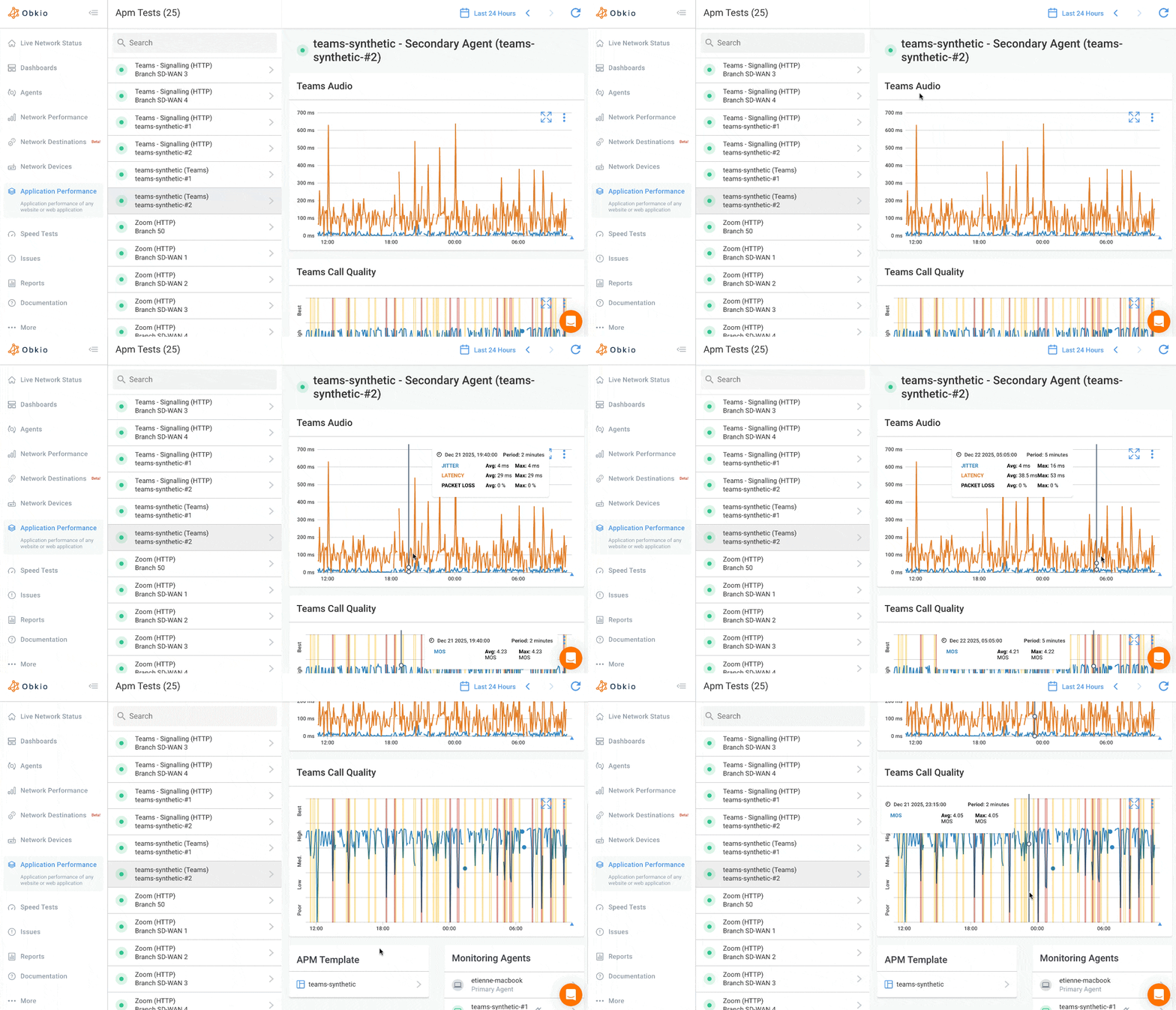
1. Microsoft Teams call quality (MOS scores, packet loss, jitter):
- What's a "good" Teams call on your network right now?
- MOS score baseline (should be >4.0)
- Packet loss during calls (should be <0.5%)
- Jitter (should be <20ms)
2. Zoom meeting performance:
- Video quality metrics
- Audio quality metrics
- Screen sharing responsiveness
- Connection stability
3. Internal application response times:
- Web-based apps hosted in your data center
- Intranet portals
- Internal ticketing systems
- Time tracking apps
4. SaaS application load times (Salesforce, etc.):
- How long does Salesforce take to load?
- ServiceNow page response times
- Any other business-critical SaaS apps
How to Test Business Application Performance
1. Synthetic monitoring from office network to applications. This is where Obkio's application performance monitoring becomes critical. Set up synthetic tests that:
- Simulate VoIP calls to Teams every 5 minutes
- Test HTTP response times to Salesforce every 10 minutes
- Measure SharePoint availability and performance continuously
These tests run 24/7, building your baseline.
2. Real user experience testing from actual desks. Don't just test from IT's office. Test from:
- Sales team desks (they're heavy Salesforce users)
- Marketing team area (they upload large files to cloud storage)
- Conference rooms (video conferencing)
- Random desks throughout the office
3. Test at different times of day:
- 8 AM (before everyone arrives)
- 10 AM (peak morning usage)
- 12 PM (lunch lull)
- 2 PM (peak afternoon usage)
- 5 PM (end of day)
Performance should be relatively consistent. If it varies dramatically by time, you have a capacity problem.
What to document:
Average application response times. For every critical application:
- Minimum response time (best case)
- Average response time (typical)
- 95th percentile response time (worst case that's not an outlier)
Video call quality metrics:
- MOS scores for Teams and Zoom
- Packet loss percentages
- Jitter measurements
- Latency to Microsoft/Zoom endpoints
File transfer speeds to cloud storage:
- Upload speed to OneDrive
- Upload speed to Dropbox/Google Drive
- Download speed from cloud storage
VPN connection times and throughput:
- How long does VPN take to connect?
- What throughput do users get through VPN?
- Latency added by VPN
Action items:
- Deploy continuous monitoring for critical apps
- Run 2-4 weeks of baseline testing
- Document "good" performance metrics
- Create comparison reports for post-RTO analysis
Run A Health Check Of Your Business’ Network Infrastructure
What to inspect:
Run an initial network health check to inspect overall network health and identify any issues.
1. Switch/router firmware versions (are they current?):
- Check every network device
- Compare to vendor's latest stable release
- Document which devices need updates
- Check for known CVEs (security vulnerabilities)
Many network problems are caused by outdated firmware. Bugs that were fixed two years ago are still affecting you because you haven't updated.
2. Hardware age (anything >5 years is suspect):
- Switches: 5-7 year lifespan typical
- Routers: 5-7 years
- Firewalls: 3-5 years (security appliances age faster)
- Wireless controllers: 5-7 years
- Access points: 5-7 years
If hardware is out of warranty, budget for replacement.
3. Single points of failure in network design:
- Only one core switch? What happens if it fails?
- Only one Internet circuit? What happens if ISP has outage?
- Only one VPN concentrator? What happens at peak load?
- Only one path between buildings? What if that fiber gets cut?
RTO brings everyone back. Single points of failure become critical risks.
4. Redundancy for critical paths:
- Dual core switches with failover
- Redundant Internet circuits (different ISPs ideally)
- Multiple VPN concentrators with load balancing
- Redundant power supplies in all critical equipment
5. UPS/power backup systems:
- When was UPS last tested?
- Battery age (UPS batteries fail after 3-5 years)
- Runtime capacity (can you survive a 30-minute power outage?)
- Network equipment on UPS? (not just servers)
6. HVAC in network closets (equipment overheating?):
- Check temperature in wiring closets
- Equipment rated for max 35°C (95°F) typically
- If closets are hitting 30°C+, you have cooling problems
- Overheating causes intermittent failures that are hard to diagnose
Action items:
1. Update firmware on all critical infrastructure. Schedule maintenance windows:
- Test firmware updates in lab first (if possible)
- Update core infrastructure during off-hours
- Have rollback plan if updates cause issues
- Document firmware versions before and after
2. Prioritize replacements based on:
- Age and warranty status
- Impact if device fails
- Performance limitations
3. Test failover systems. Don't assume redundancy works:
- Simulate core switch failure (controlled test during off-hours)
- Test Internet circuit failover
- Verify VPN redundancy actually works
- Document failover times (how long does recovery take?)
4. Document network topology. Create or update:
- Physical network diagram showing all devices
- Logical network diagram showing VLANs, routing
- Cable runs and fiber paths
- Critical single points of failure marked in red
When something breaks during RTO, you need to know exactly how your network is built.
5. Review vendor support contracts:
- Do you have 4-hour replacement for critical equipment?
- Or are you on "next business day" support?
- Can you afford 24 hours of downtime if a core switch dies?
Consider upgrading support contracts before RTO.
Action items summary:
- Audit all equipment age and firmware
- Test redundancy and failover
- Document everything
- Budget for critical upgrades
Learn how to monitor Microsoft Teams performance & connection issues like Microsoft Teams “We’re sorry - we’ve run into an issue” & “something went wrong.”
Learn more
How to Document and Report Network Performance During Return-to-Office
When RTO hits, you need more than just monitoring. You need documentation that protects your reputation and proves competence.
Here's what to document and how to report it:
What to Document (And Why It Matters)
1. Network performance BEFORE RTO (this is your proof of "it was working"):
- Average bandwidth utilization: 45% at 30% occupancy
- Application response times when everything was fine
- VoIP/video call quality benchmarks: MOS 4.2 average
- WiFi performance at 30% vs. 100% occupancy
- Zero user complaints during baseline period
This documentation answers the question: "Why wasn't the network ready?"
2. Bandwidth utilization trends:
- Daily utilization graphs for the past 3 months
- Peak usage times and patterns
- Growth trends (how fast is usage increasing?)
3. Application response times when everything was fine:
- Teams: 1.8 seconds to join meeting
- Salesforce: 2.1 seconds to load dashboard
- SharePoint: 1.5 seconds to load document library
4. WiFi performance at 30% vs. 100% occupancy:
- Client count per AP before RTO: 12-18 average
- Client count per AP after RTO: 28-35 average
- Signal strength before and after
5. VoIP/video call quality benchmarks:
- Baseline MOS scores: 4.3
- Baseline packet loss: 0.2%
- Baseline jitter: 15ms
6. Infrastructure Documentation:
7. Network diagrams with monitoring points marked:
- Show where Obkio agents are deployed
- Show coverage areas
- Mark critical paths
8. WiFi coverage maps:
- Heatmaps showing signal strength
- AP locations clearly marked
- Problem areas identified
9. QoS policies and configurations:
- Which traffic gets priority?
- DSCP markings configured
- Bandwidth allocations by application
10. Bandwidth allocation by application:
- Video conferencing: 30% reserved
- VoIP: 10% reserved
- Business applications: 40%
- General Internet: 20%
11. Equipment inventory and firmware versions:
- Every switch, router, firewall, AP documented
- Firmware versions current as of RTO date
- Warranty and support contract status
12. Third-Party Service Issues:
This is critical for blame assignment.
13. ISP outages and degradation events:
- "On March 15, 2026, 2:15-3:45 PM, our ISP experienced 8% packet loss"
- "Ticket #12345 opened with ISP"
- "Issue resolved by ISP at 3:45 PM"
When users complained during that window, you have proof it wasn't your fault.
14. Microsoft 365 service health incidents:
- Microsoft Teams was degraded on March 20, 2026, 10 AM - 12 PM
- Microsoft incident ID: TM-12345
- Affected regions: North America
15. Cloud provider issues (AWS, Azure, etc.):
- Document every AWS/Azure service disruption
- Correlate with user complaints
- Prove it was cloud provider, not your network
16. Vendor support tickets and resolutions:
- Every ticket opened with ISPs, vendors, Microsoft
- Response times
- Resolution times
- Root cause analysis

Discover the art of crafting dynamic and intuitive network assessment reports with real-time dashboards and graphs using Network Monitoring tools.
Learn more
Why This Matters:
When leadership asks "Why isn't the network ready?" → Show proactive preparation.
Pull up your pre-RTO audit. Show the capacity planning. Show the equipment upgrades. Show the monitoring deployment. Proof you prepared.
When user says "It never works" → Show it works 99.2% of the time.
Pull up uptime reports. Show actual performance data. Prove that "never works" is false. Be respectful, but data doesn't lie.
When blamed for cloud outage → Prove it was Microsoft, not you.
Show network path analysis. Show that packet loss occurred outside your network. Show Microsoft's service health incident. Redirect blame appropriately.
Annual budget discussions → Show data justifying infrastructure upgrades.
Leadership wants to cut IT budget? Show them:
- Network load increased 280% after RTO
- We're operating at 85% capacity during peak hours
- Without bandwidth upgrade, we'll have outages
- Cost of downtime vs. cost of upgrade
Data wins budget fights.

Conclusion: Take Control of Your Network Reputation Before RTO Mandates Take Effect
Return-to-office is happening. IT didn't get a say in the decision, but you DO get a say in how prepared you are.
You can't stop the RTO mandate. But you can control how ready your network is. You can control whether you have data or just excuses. You can control whether you're reacting to problems or proactively solving them.
Stop taking the blame for problems you can't prove.
For five years, IT has operated in the dark. Users complained. You troubleshot blindly. Sometimes you found issues. Sometimes you didn't. But you never had proof.
That ends now.
Start monitoring your network from the user's perspective, and let the data speak for itself.
Deploy Obkio. Get baseline data. Identify problems before users do. And when complaints come (and they will come) you'll have evidence that either proves it's your fault (and you're fixing it) or proves it's not your fault (and here's who to blame).
Start your free 14-day trial of Obkio and find out before your users do.
- 14-day free trial of all premium features
- Deploy in just 10 minutes
- Monitor performance in all key network locations
- Measure real-time network metrics
- Identify and troubleshoot live network problems


