











 Obkio Blog


 Subscribe
Table of Contents
Table of Contents
Your apps are slow. Users are complaining. You're staring at a dashboard trying to figure out what broke and when. Sound familiar?
This is the reality of reactive network monitoring. By the time someone opens a ticket, the issue has already been affecting performance for minutes, sometimes hours. A network health check flips that script. Instead of chasing problems after the fact, you're catching them before users ever notice.
A network health check is a structured assessment of your network's performance, availability, and reliability, covering key metrics like latency, packet loss, jitter, bandwidth utilization, and device health. Run it continuously or on a schedule, and you always know what "healthy" looks like for your network environment, and when something deviates from it.
This guide covers everything you need to know: what a network health check is, why it matters, how to run one step by step, which tools to use, and how to read the results. Tools like Obkio can automate the entire process, but we'll get into that. Let's start with the basics.
What Is Network Health? 
So what is “network health”, and what differentiates it from network performance, quality or connectivity?
Network health refers to the overall state of your network's performance, stability, and reliability at any given point in time. A healthy network delivers consistent speed, low latency, minimal packet loss, and high availability across all connected devices and services. When network health degrades, users experience slow applications, dropped calls, failed connections, and unpredictable outages.
Think of it like the vital signs of a patient. Individually, metrics like latency or packet loss tell you something. Together, they give you a complete picture of whether your network is operating as it should.

Unlock the secrets of robust network health monitoring! From bandwidth bliss to seamless security, discover the essentials for peak performance.
Learn more

What Is a Network Health Check?
A network health check is a structured assessment of how your network is performing at a given point in time or continuously over time. It measures the network metrics that actually reflect end-user experience: not just whether a device is online, but whether your network paths are delivering the performance your applications and users need.
What Are Key Network Health Metrics to Monitor?
A complete network health check covers:
- Latency: How long it takes for a packet to travel from point A to point B
- Packet loss: The percentage of packets that never arrive
- Jitter: The variation in packet delivery times (critical for VoIP and video)
- Bandwidth utilization: How much of your available capacity is actually being used
- Device health: CPU, memory, and interface errors on routers, switches, and firewalls
- Uptime: Whether your network segments and key services are actually reachable
Thresholds matter because a raw number means nothing without context. 100ms of latency on a local LAN is a problem. On a transatlantic WAN path, it's expected. Use these thresholds as your starting point, then adjust based on your specific environment and the sensitivity of your applications.
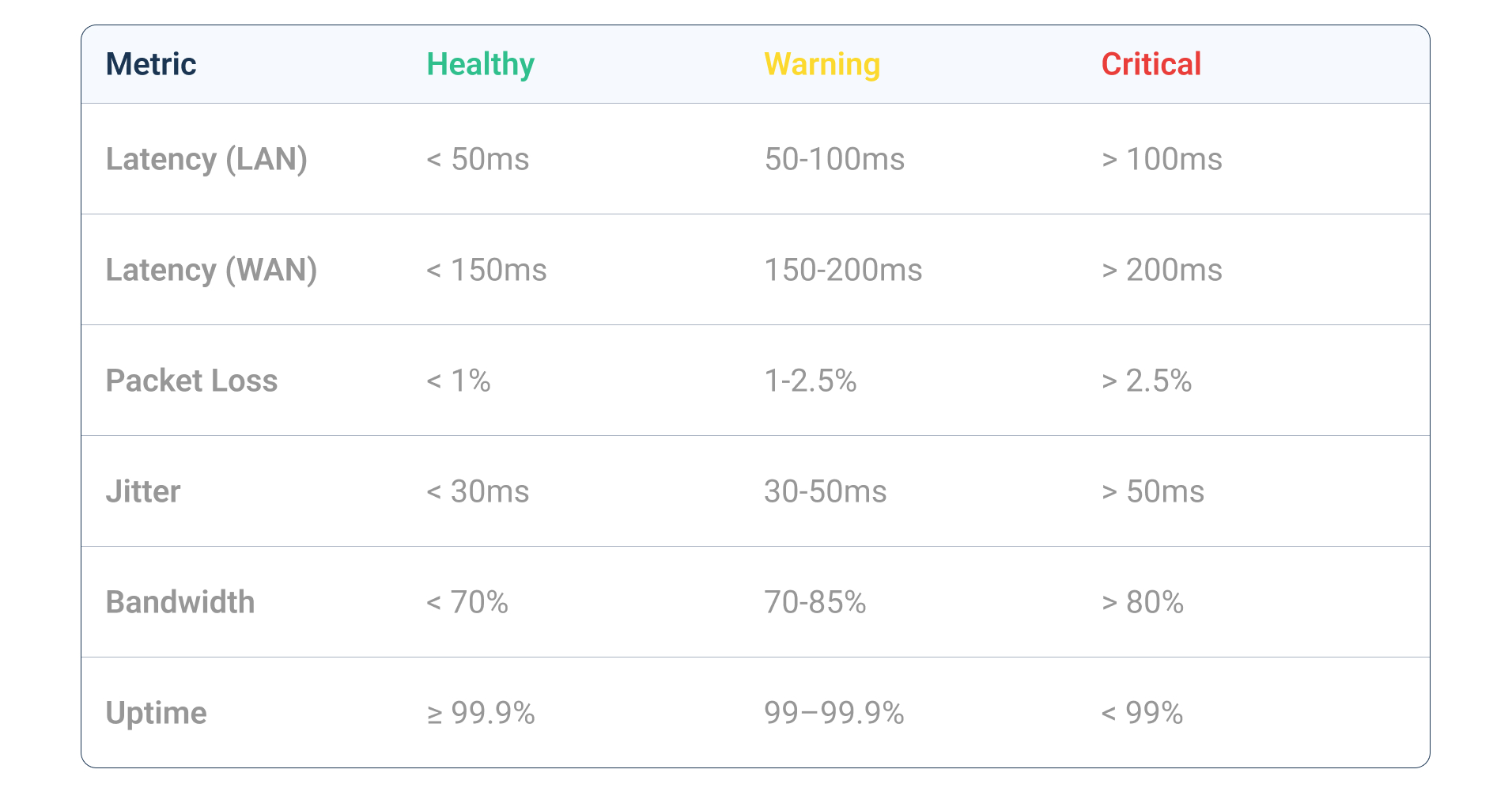
You can run these checks manually using built-in OS tools like ping, traceroute, netstat, but that only gives you a snapshot of one moment. Tools like Obkio’s Network Monitoring Tool automate the entire process continuously, running synthetic tests every 500ms between monitoring agents deployed across your network, and alerting you the moment something crosses a threshold.
Obkio tracks all of these in real time and generates alerts (via email, webhook, or third-party tools like PagerDuty) the moment any metric crosses a configured threshold. You can also adjust those thresholds per monitoring template to match your environment's specific tolerance.
Why Regular Network Health Checks Matter
The case for proactive network monitoring is simple: reactive troubleshooting is expensive, slow, and embarrassing. By the time a user submits a ticket, the performance has already taken a hit. You're now troubleshooting in the dark: without historical data, without a baseline, and under pressure.
Here's why checking network health regularly, ideally continuously, matters:
1. Catch issues before they impact users. Packet loss at 0.5% is almost invisible to users. At 3%, VoIP calls drop. At 10%, productivity stops. Catching that climb early means fixing a small problem, not a crisis.
2. Establish performance baselines. You can't identify degradation if you don't know what normal looks like. Regular health checks build the historical record that tells you "this is what Monday morning looks like at 9 AM", so you can spot when something is genuinely off.
3. Maintain SLA compliance. Whether you're an IT team proving uptime to leadership or an MSP delivering reports to clients, historical performance data is your evidence. Without it, you're working on faith.
4. Plan capacity before you hit a wall. A link sitting at 75% utilization today will be a bottleneck in six months when traffic grows. Health checks let you see that trend early and act before the outage.
Obkio's historical data and trending graphs make this practical because you can compare current performance against any historical period, not just what's happening right now.
What Are the Types of Network Health Checks?
Not all network health checks are created equal. The right approach depends on what you're trying to accomplish and what your network actually looks like.
To make this concrete, let's use a real scenario: a mid-sized company running an SD-WAN deployment across five locations. HQ in Montreal, three regional branch offices, and a data center in AWS. Users at every site connect to cloud-hosted ERP and VoIP applications through the SD-WAN. This is a typical setup, and it's a good stress test for understanding which type of health check actually works, and where each one falls short.
1. Manual vs. Automated Network Health Checks
Manual Network Health Checks like ping, traceroute, netstat, an online speed test are free and require nothing but a terminal. In the SD-WAN scenario above, if a user at a branch office calls to say their VoIP calls are choppy, you might SSH into a device at that site and run a quick ping toward the data center. You'll get a latency reading. Maybe you'll catch elevated packet loss if the problem is active right now.
But here's the reality: if the degradation was intermittent, like spiking for 10 minutes every morning during peak traffic, then clearing up, you'd run that manual ping and see nothing. The problem happened. You just missed it.
Manual checks are useful for confirming a suspected issue that's currently active. They are not a health monitoring strategy.
Automated Network Health Checks like Obkio run continuously in the background across every monitored path: HQ to AWS, each branch to HQ, branch to branch if needed. The moment packet loss climbs above your threshold on the Montreal-to-AWS path at 8:47 AM, Obkio flags it, logs it, and notifies your team. By the time users complain at 9:10 AM, you already have 23 minutes of performance data showing exactly what happened, when it started, and on which path.
For an SD-WAN environment specifically, this matters even more. SD-WAN dynamically routes traffic across multiple underlay connections: MPLS, broadband, LTE. Without continuous monitoring between agents, you have no visibility into whether the routing decisions being made are actually improving performance or silently shifting traffic to a degraded path.
2. Scheduled vs. On-Demand Network Health Checks
Scheduled Network Health checks run at defined intervals and build the historical record your baseline depends on. Obkio runs synthetic tests every 500ms (far more granular than a typical 5-minute polling interval), which means you can see sub-minute performance events that scheduled tools would miss entirely.
In the SD-WAN scenario, your scheduled monitoring builds a baseline over two weeks. You now know that the HQ-to-AWS path sits at 35ms latency during business hours and drops to 18ms overnight. When it climbs to 90ms on a Tuesday afternoon, you know immediately that something is wrong, because you have the baseline to compare it against.
On-demand Network Health checks are what you reach for when you're actively troubleshooting a specific complaint. A user reports that their Microsoft Teams calls are breaking up at a specific branch. You pull up Obkio, drill into the monitoring session for that site, run a visual traceroute, and identify that the issue is three hops into the ISP's network: not your SD-WAN configuration, not your firewall, not the end device. That's on-demand diagnostics working correctly: fast, targeted, evidence-based.
The two are complementary. Scheduled monitoring tells you something is wrong. On-demand tools tell you exactly where.
3. Online vs. Agent-Based Network Health Checks
Free network health check tools online, like speed test sites, latency checkers, test connectivity from your device to a single public endpoint. In the SD-WAN example, running a speed test from an employee's laptop at a branch office might tell you that the broadband underlay is performing fine to a public server. What it won't tell you is whether the MPLS underlay is degraded, whether the path to your AWS data center specifically is experiencing packet loss, or whether the SD-WAN appliance itself is the bottleneck. One endpoint, one moment in time. That's the limit.
Agent-based monitoring covers what online tools can't. Obkio agents deployed at each branch, at HQ, and in your AWS environment create monitoring sessions between every pair of locations. Every 500ms, synthetic UDP traffic travels those paths and reports back metrics: latency, jitter, packet loss, and packet reordering. You're not testing from a laptop to a public server, you're testing your actual network paths, from the inside, continuously.
In an SD-WAN environment, this is the only approach that gives you genuine end-to-end visibility. You can see which underlay connections are performing, which paths SD-WAN is actively using, and whether the performance delivered to users matches what your SD-WAN vendor promised in the SLA.
How to Perform a Network Health Check: Step-by-Step
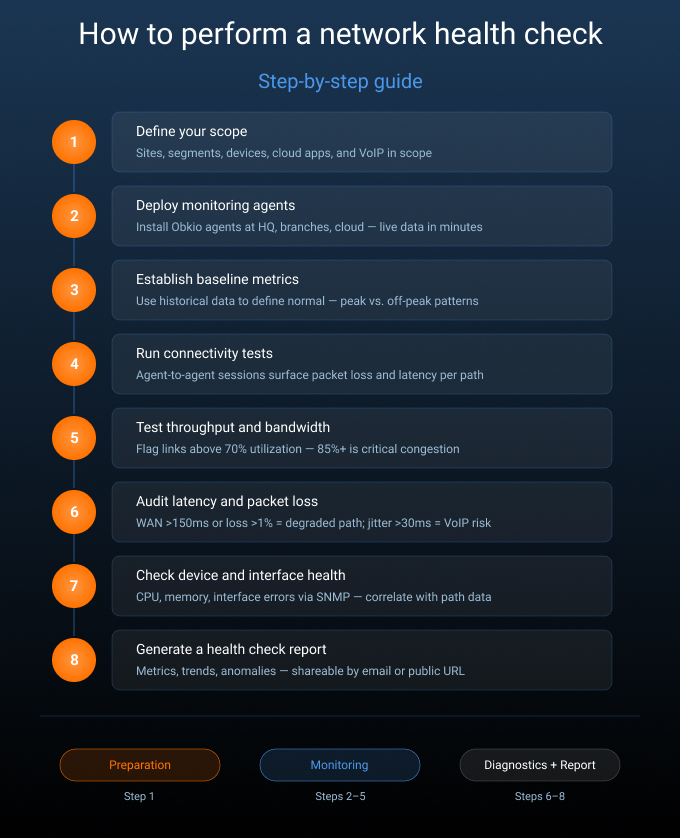
Here's how to run a complete network health check, from scoping to reporting.
Step 1: Define Your Scope
A network health check is only as thorough as the scope you define for it. If you don't know what you're checking, you'll miss the segments, devices, or applications where problems are actually hiding and end up with a health report that looks clean while real issues go undetected.
Before you touch a tool, know what you're checking. Identify the network segments, sites, devices, and applications in scope:
- Which offices or remote sites are included?
- Which cloud environments or SaaS apps are business-critical?
- Which network devices (routers, switches, firewalls) need to be monitored?
- Are VoIP, video conferencing, or other latency-sensitive applications in use?
Without a defined scope, your network health check will have blind spots.
Step 2: Deploy Your Network Health Check Tool
For a meaningful network health check, you need a monitoring tool that can see your entire network. In this guide, we'll use Obkio as our network health check tool, but the principles apply to any agent-based monitoring solution.
Obkio uses lightweight software agents as its testing method. You deploy them at each key location (HQ, branch offices, data centers, cloud environments, and remote user sites) and they continuously exchange synthetic UDP test traffic between each other to measure performance on every monitored path. This is not packet capture or traffic inspection; the agents generate their own controlled test traffic every 500ms to produce accurate, real-time metrics without touching your actual data.
The onboarding wizard gets your first agents deployed and monitoring sessions running in under 10 minutes.


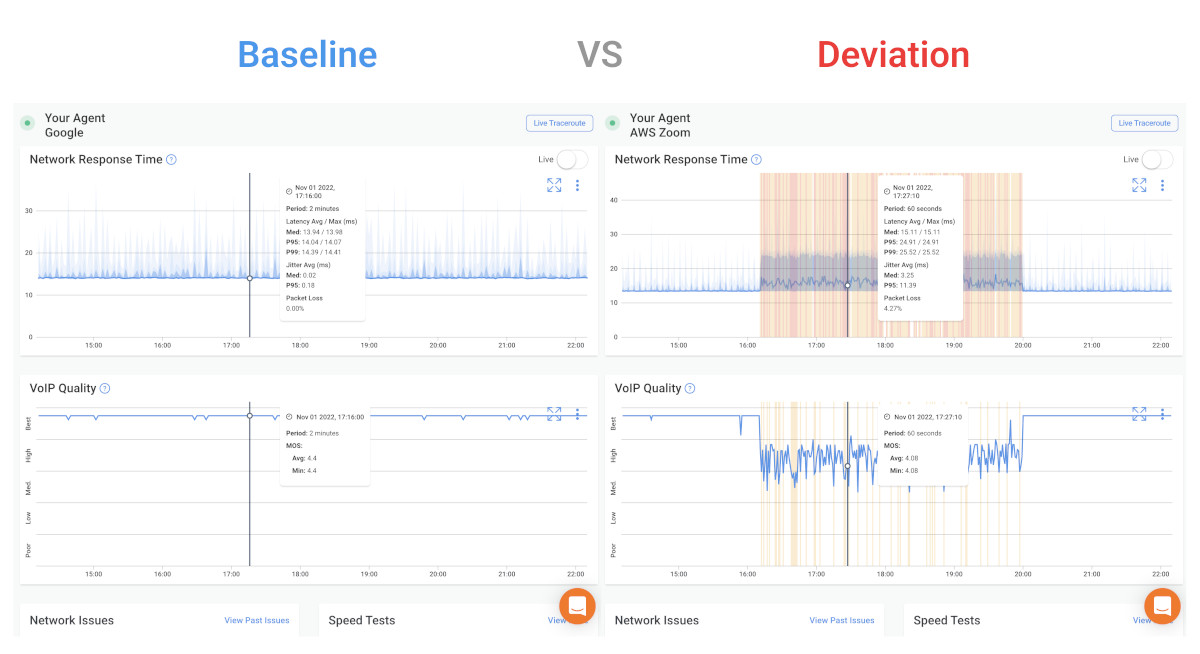
Step 3: Collect Network Health Metrics and Establish Baseline
Give the tool time to build a baseline before you start drawing conclusions. Obkio's historical data shows you what performance looks like during peak hours, off-peak hours, and everything in between. This baseline is what makes future health checks meaningful and without it, you're just looking at numbers without context.
Look for patterns: Does latency spike every morning at 9 AM? Is a specific WAN link consistently near capacity on Thursdays? These patterns are your baseline.
Step 4: Run Network Connectivity Tests
Connectivity tests are the backbone of any network health check. Before you can assess performance metrics, you need to confirm that your network paths are actually reachable and responding, because a path that's up isn't necessarily a path that's healthy.
This step tells you where your network is struggling and gives you a starting point for every investigation that follows.
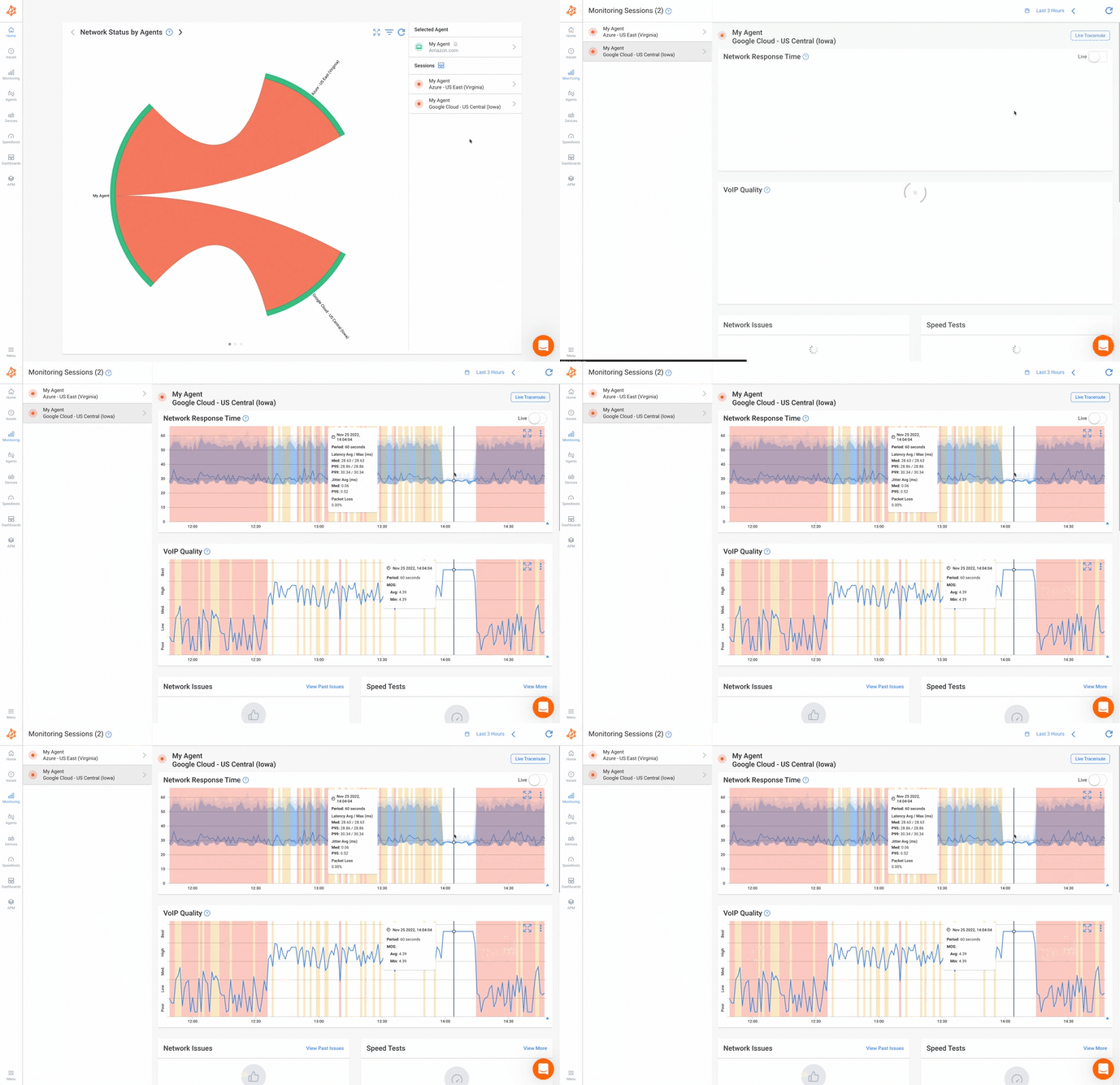
With agents deployed, Obkio's monitoring sessions continuously test connectivity and performance between every pair of agents. You're not running manual pings or traceroutes — you're reviewing ongoing, automated test data that covers every network path you've defined.
Look for sessions showing degraded status (flagged yellow or red in the Obkio dashboard). Drill into any flagged session to see exactly where the latency or packet loss is occurring on the path.
Step 5: Test How Throughput and Bandwidth Affect Network Health
Bandwidth and throughput directly impact the quality of everything running on your network. When a link becomes saturated, all traffic sharing that path is affected; latency climbs, packets get dropped, and bandwidth-sensitive applications like VoIP, video conferencing, and cloud tools become unreliable.
The problem is that saturation rarely happens all at once; bandwidth utilization creeps up gradually as the network grows, making it easy to miss until users start complaining.
Review bandwidth utilization across each monitored link. Flag any link consistently above 70% utilization, that's your warning zone. Above 85% is critical; at that point, congestion is actively affecting performance.
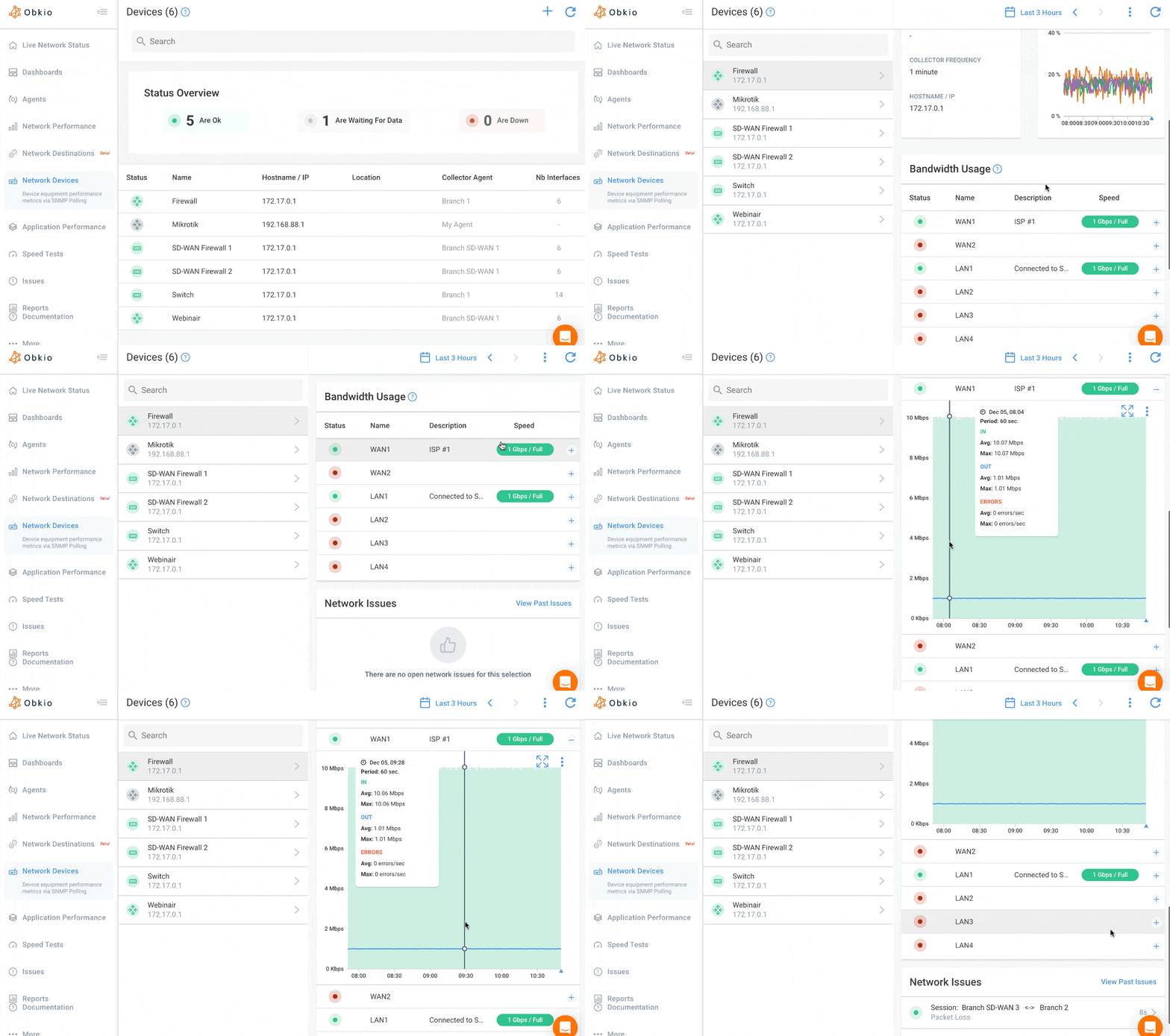
Obkio's bandwidth data is available per monitoring session and trends over time, so you can see whether a congested link is a recurring issue or a one-time spike.
Step 6: Audit Latency and Packet Loss Impacting Network Health
Latency and packet loss are two of the most telling indicators of network health. High latency means data is taking longer to travel between points than it should. Users experience this as sluggish applications and delayed responses.
Packet loss means data isn't arriving at all, forcing retransmissions that compound the slowdown. Even small amounts of either can have an outsized impact on real-time traffic like VoIP calls, video meetings, and cloud-hosted applications.
So when you’re performing a network health check, these are some of the most important metrics to analyze.
In Obkio's session graphs, check each monitored path for:
- Latency above 150ms on WAN paths, or above 50ms on LAN paths
- Packet loss above 1% on any path
- Jitter above 30ms, especially on paths carrying VoIP or video traffic
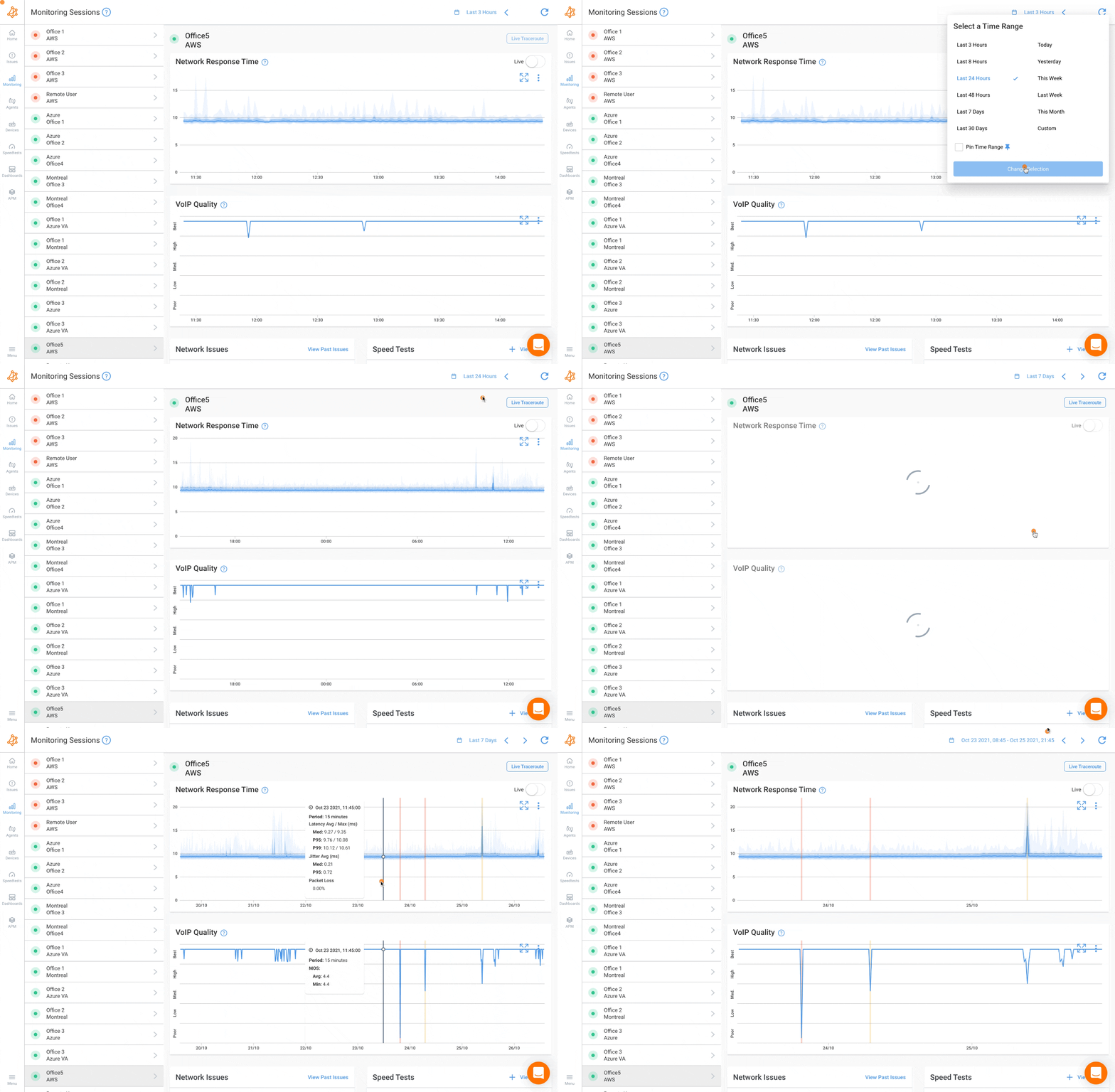
Obkio measures jitter as the variation between consecutive packet delivery times, and packet loss as the percentage of the 120 measurement packets sent per minute that receive no response. These aren't estimates, they're calculated from real synthetic traffic on your actual network paths.
Step 7: Check Device and Interface Health
Network path metrics tell you that something is wrong, device health data helps you understand why. A degraded path doesn't always mean a network problem; sometimes the culprit is a router running at 95% CPU, a switch with a failing interface, or a firewall hitting memory limits. Checking device health alongside path performance gives you the full picture instead of chasing symptoms.
Layer in your device health data. Obkio's SNMP device monitoring covers routers, switches, firewalls, and other network devices: tracking CPU usage, memory utilization, bandwidth per interface, and interface error rates.

Correlate this data with your network path metrics. If packet loss is spiking on a specific segment at the same time a router's CPU is peaking, you've got your culprit. If the network path looks clean but performance is still degraded, the issue might be at the application layer, not the network.
Step 8: Generate a Network Health Check Report
Once you've reviewed the data, generate a network performance report. Obkio's reporting feature lets you extract data covering any time window (from a few hours to a full month) and share it via email or a public URL without requiring the recipient to have an Obkio account.
A complete network health check report should include:
- An overall status summary per network segment
- Per-metric breakdown (latency, packet loss, jitter, bandwidth, uptime)
- Trend graphs comparing current performance to historical baseline
- Any flagged anomalies or threshold breaches
- Recommended actions based on what was found
This report is your deliverable for your IT team, your management, or your clients.
Best Network Health Check Tools and Software
The right tool depends on whether you need a one-time snapshot or continuous visibility. Here's how the landscape breaks down.
Online and Free Network Health Check Tools
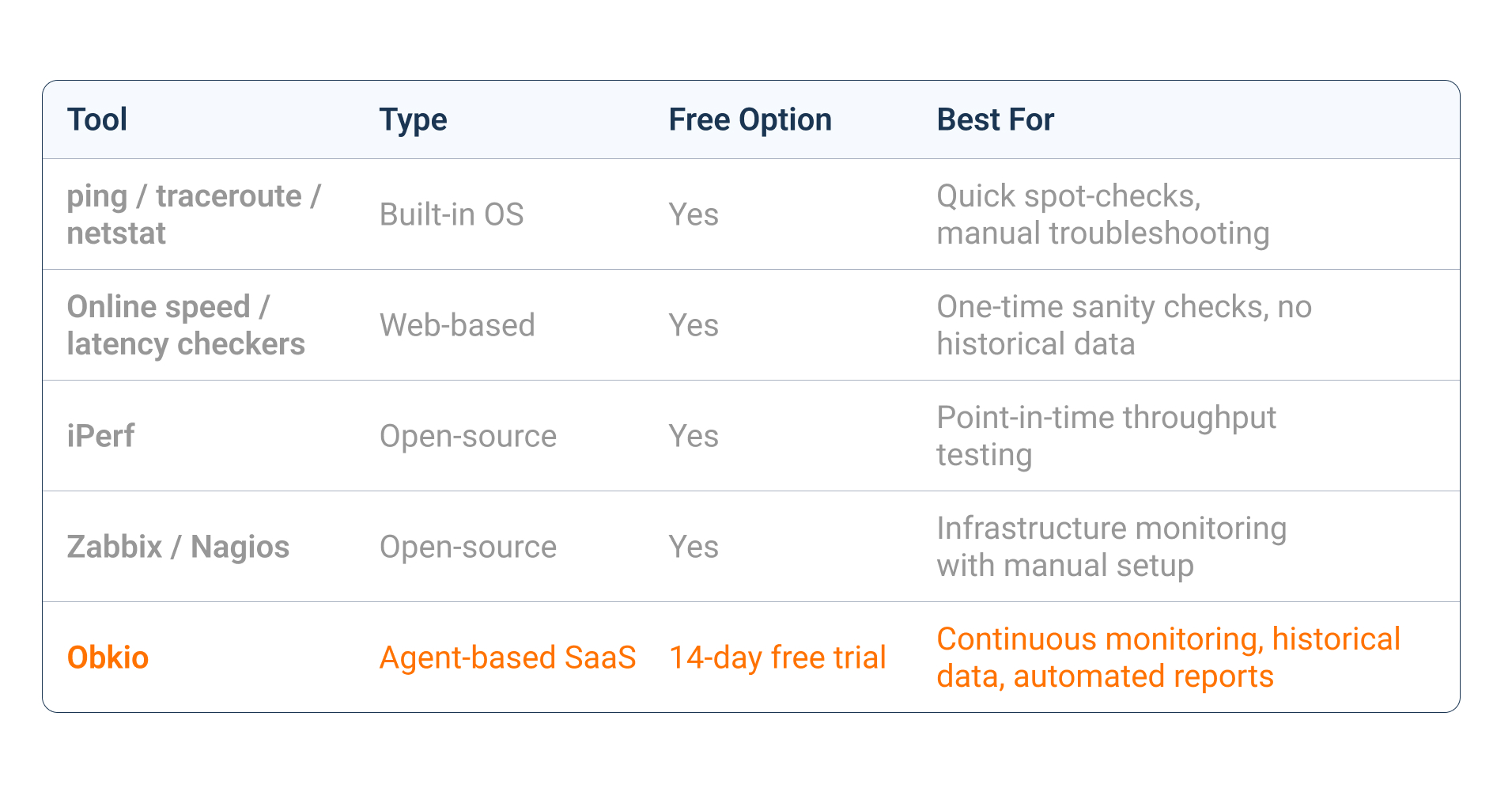
Built-in OS tools like ping, tracert on Windows, traceroute on Mac/Linux, and netstat are free, require no setup, and get the job done for a quick check. The limitation of free network health check software is obvious: they only show you what's happening right now, you have to run them manually, and they give you no historical context.
Free network health check sites that test speed and latency are the same story. Good for confirming a suspected issue, useless for trending or alerting.
Open-Source Options for Network Health Check
Tools like iPerf, Zabbix, and Nagios offer real monitoring capability but require significant setup, maintenance, and expertise. If you have the engineering bandwidth and want full control, they're solid options. If you're an IT team running lean, the overhead can outweigh the benefit.
Commercial Network Health Check Software
Obkio is purpose-built for continuous, agent-based network performance monitoring. Deploy agents across your network: software agents on any device, hardware agents where needed, public cloud agents for testing connectivity to cloud environments. Obkio handles the rest. Monitoring sessions between agents run automatically, metrics are collected every 500ms, and dashboards are live the moment you're set up.
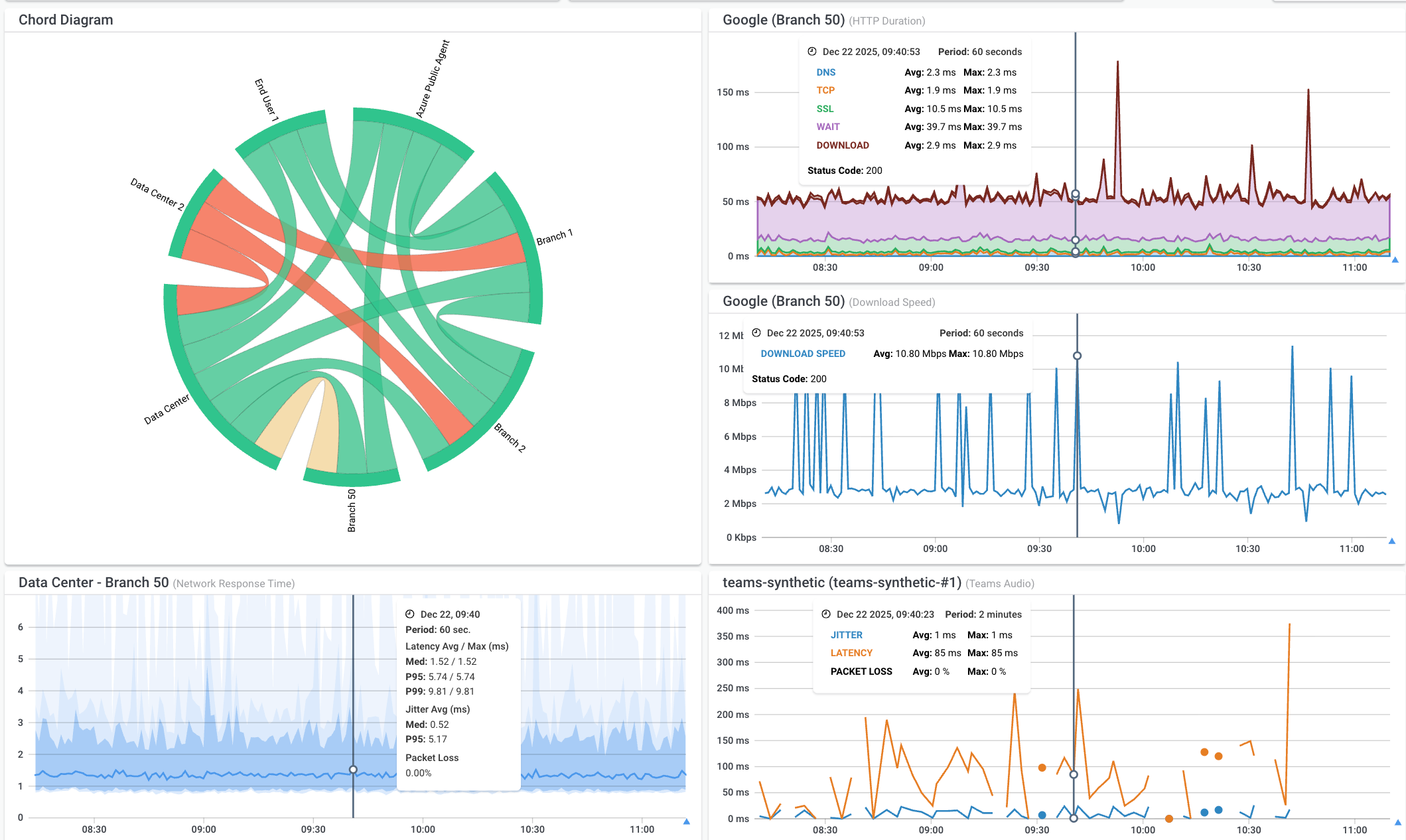
What sets Obkio apart from basic monitoring tools is the combination: real-time metrics, historical trending, SNMP device monitoring, visual traceroutes, application performance monitoring and automated network health check reports, all in a single platform, available via web and mobile app. There's no need to stitch together multiple tools to get end-to-end visibility.
How to Create and Read a Network Health Check Report
A report is only useful if you know what you're looking at. Most people open one and head straight for the graphs, but without a clear reading order, it's easy to miss what actually matters. Here's what a well-structured network health check report should include, and how to interpret it.
Step 1: Start with the summary status
The first thing to look at is the high-level status for each monitored segment. In Obkio, each monitoring session is flagged green, yellow, or red based on whether your thresholds have been breached. Green across the board means no action needed. Any yellow or red means you keep reading.
This summary view is also what you lead with when presenting to management or a client. They don't need the raw numbers — they need the verdict.
Step 2: Identify which segments are flagged
For every yellow or red session, note which network path is affected — for example, HQ to Branch Office, or HQ to AWS. Then prioritize by business impact. A degraded path to your VoIP provider or a critical cloud application is more urgent than a warning on a low-traffic internal link.
Step 3: Drill into the per-metric breakdown
For each flagged segment, look at which specific metric is breaching: latency, packet loss, jitter, or bandwidth utilization. This tells you not just that something is wrong, but what kind of problem you're dealing with. High latency points to routing issues or congestion. Packet loss points to a faulty link or an overloaded device. Jitter above 30ms on a path carrying VoIP or video means call quality is suffering.
Step 4: Check the trend graphs
Compare current performance against your historical baseline. A one-time spike and a metric that's been climbing steadily for two weeks are very different problems — and the report tells you which one you're looking at. Trends point to deteriorating conditions that need a longer-term fix, not just a restart.
Step 5: Review flagged anomalies and timestamps
Look at the list of threshold breaches during the reporting period and pay attention to the timestamps. If packet loss spikes every day at 9am, that's a pattern pointing to peak-hour congestion, not a random failure. If a path degraded for 45 minutes on a Tuesday evening, cross-reference it with any maintenance windows or change activity.
Timestamps are also your evidence trail. When escalating to an ISP or cloud provider, threshold breach records with exact timestamps are far more compelling than a description of the problem.
Step 6: Decide what needs action
Once you've worked through the report, assign a next step to everything that isn't green:
- Yellow segments: schedule an investigation, increase monitoring frequency, and watch for recurrence
- Red segments: investigate immediately and treat as an active incident
- Recurring anomalies that haven't hit red yet: document them and set tighter thresholds so the next occurrence triggers an alert
Obkio's reports can be generated for any time window up to a full month, shared by email or public URL, and accessed without requiring the recipient to have an account in the app. For MSPs, this is what client reporting looks like at scale.
How often should you run a network health check report?
At a minimum weekly for small networks. Daily, or continuously, for larger, more complex environments. With Obkio, the monitoring never stops, so your report is always a reflection of what's actually happening, not a weekly snapshot.

Network Health Check Checklist
Use this checklist before, during, or after a network health check to make sure nothing gets missed.
Network Health Check Preparation
- Define network scope — sites, segments, devices, and applications in scope
- Identify latency-sensitive applications (VoIP, video, cloud apps)
- Confirm monitoring agents are deployed at all key locations
- Verify SNMP access is configured on network devices
Network Connectivity and Performance
- Review all monitoring sessions for degraded status (yellow/red)
- Check latency on all WAN paths and flag anything above 150ms
- Check latency on all LAN paths and flag anything above 50ms
- Check packet loss on all paths and flag anything above 1%
- Review jitter and flag anything above 30ms, especially on VoIP paths
- Review bandwidth utilization per link and flag links above 70%
Network Device Health
- Review CPU utilization on routers, switches, and firewalls
- Check memory utilization on monitored devices
- Review interface error and drop rates
- Correlate device metrics with network path data
Network Baseline and Trend Review
- Compare current metrics against historical baseline
- Identify any sustained degradation trends (not just spikes)
- Note any recurring patterns tied to specific times or days
Network Health Check Report
- Generate a network health check report covering the review period
- Flag any anomalies and threshold breaches with timestamps
- Document recommended actions
- Share the report with relevant stakeholders

Frequently Asked Questions
How often should I perform a network health check?
At minimum once a week for smaller networks. For larger or more complex environments (multi-site businesses, enterprises, MSP clients) daily or continuous monitoring is the right approach. Obkio automates this entirely: monitoring runs continuously, and reports can be generated for any time window. You always have an up-to-date picture without any manual effort.
What does a network health check include?
A complete network health check covers latency, packet loss, jitter, bandwidth utilization, uptime, and device health (CPU, memory, interface errors). It also includes a comparison against historical baseline data — without that context, individual metrics don't tell you much.
Can I do a free network health check online?
Yes, free online tools can test speed and basic latency from your device to a single endpoint. That's useful for a quick sanity check. For ongoing monitoring with historical data, alerting, and visibility across your entire network, you need a dedicated monitoring tool.
What's the difference between a network health check and a network audit?
A network health check focuses on performance metrics (latency, packet loss, jitter, bandwidth, uptime) on an ongoing or scheduled basis. A network audit is broader: it covers security posture, device configuration, compliance, and documentation. Health checks are operational; audits are typically periodic and strategic.
How do I check network health on Windows or Mac?
On Windows: open Command Prompt and use ping, tracert, and netstat. On Mac: use ping, traceroute, and the Network Utility app. These tools give you a point-in-time view. For continuous monitoring with historical data and alerting, deploy a monitoring agent like Obkio alongside these built-in tools.
What is a network health check report?
A document or dashboard summarizing your network's performance over a defined period. A good report includes per-metric data, trend graphs, flagged anomalies, and recommended actions. Obkio generates these automatically and lets you share them via email or URL without requiring the recipient to log into the app.
What's a good tool for automated network health checks?
It depends on your needs. For a one-time snapshot, built-in OS tools or free online checkers work fine. For continuous monitoring with alerting, historical data, and automated reports across a multi-site network, Obkio is built specifically for this. Agents deploy in minutes, and you start seeing live data immediately.
Start Your Network Health Check with Obkio
Most network issues don't show up all at once. They build: slowly increasing latency, a link drifting toward capacity, packet loss climbing from 0.2% to 1.5% over two weeks. By the time users notice, the trend has been going on for a while. The only way to catch it early is to be continuously looking.
Obkio gives you real-time monitoring, historical performance data, SNMP device visibility, visual traceroutes, and automated network health check reports — all in a single platform that deploys in minutes. You get the full picture: from your LAN to your WAN, across every site, every cloud environment, and every monitored device.
- 14-day free trial of all premium features
- Deploy in just 10 minutes
- Monitor performance in all key network locations
- Measure real-time network metrics
- Identify and troubleshoot live network problems


