











 Obkio Blog


 Subscribe
Table of Contents
Table of Contents
When your company’s help desk receives fifteen "my connection is slow" tickets from remote employees in a single morning. Your network monitoring dashboard shows everything green; VPN concentrators running smoothly, bandwidth usage normal, no alerts. Yet employees can't get their work done.
You try to ping their home routers. Nothing. Attempt a traceroute to diagnose the path. It dies at the ISP edge. Check your SNMP queries. They never make it past the residential gateway. Your $50,000 enterprise network monitoring solution is completely blind to what's happening in the last mile, where your employees actually work.
This isn't a configuration problem or a monitoring tool limitation; it's an architectural reality of modern distributed work. Residential Internet service providers systematically block the very protocols that network monitoring depends on. For the millions of IT professionals now supporting remote workforces, this creates a fundamental technical barrier: you're trying to monitor infrastructure you don't control, using protocols that ISPs won't allow through, across networks you can't access.
This means that IT teams troubleshoot in the dark, guessing at root causes while employees grow increasingly frustrated. The question isn't whether your monitoring tools are good enough; it's whether your monitoring approach fits the reality of how people actually work today.
This article explains the reasons why traditional network monitoring fails for distributed teams, and more importantly, how a fundamentally different approach (distributed monitoring from the endpoint perspective) finally solves this visibility gap.
What Is ISP ICMP Blocking? The Problem with Remote Worker Monitoring 
Network monitoring has traditionally relied on two core protocols: ICMP (Internet Control Message Protocol) and SNMP (Simple Network Management Protocol). These protocols are the backbone of how network administrators track device health, measure latency, identify packet loss, and diagnose connectivity issues.
ICMP, which powers familiar tools like ping and traceroute, sends echo requests to devices and measures response times. SNMP allows administrators to query network devices for status information, performance metrics, and configuration details. Both protocols work perfectly within controlled corporate environments where IT teams manage routers, switches, firewalls, and every device on the network.
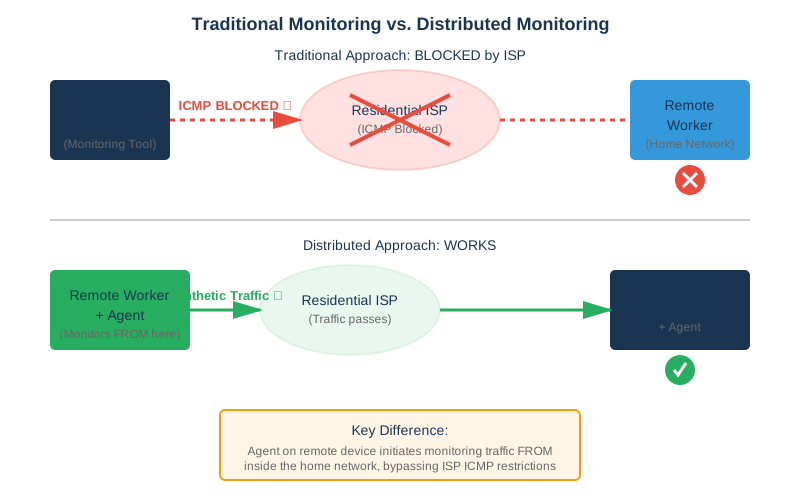
But here's the technical reality that creates the remote worker monitoring problem: most residential ISPs aggressively filter or block ICMP traffic for bandwidth management and what they perceive as security reasons. While blocking ICMP doesn't meaningfully increase security, it makes troubleshooting and network monitoring exponentially more difficult.
When your remote employee works from home, their Comcast, Verizon, AT&T, or local ISP connection sits between them and your monitoring infrastructure. The consequences are significant:
- You can't ping their home router - ICMP echo requests are blocked at the ISP level
- You can't traceroute through their network - Time Exceeded messages never reach you
- You have no SNMP access - You don't control residential gateway devices
- Path MTU Discovery fails - Critical for identifying fragmentation issues
Why Residential ISPs Block ICMP Traffic
Before diving into solutions, it's important to understand why this problem exists in the first place. Residential ISPs block ICMP traffic for several reasons, though ironically, these reasons often create more problems than they solve.
1. Perceived Security Benefits
Many ISPs filter ICMP traffic, believing it enhances security. Historically, ICMP was associated with network attacks like "Ping of Death" and ICMP floods. While modern systems have long since patched these vulnerabilities, the practice of blocking ICMP persists. ISPs argue that preventing ping responses makes residential customers less discoverable to potential attackers scanning the internet for vulnerable devices.
However, blocking ICMP doesn't meaningfully increase security; it simply makes legitimate network troubleshooting significantly harder.
2. Bandwidth Management
ISPs use ICMP filtering as part of their traffic management strategies. By blocking or rate-limiting ICMP echo requests and responses, they reduce the overhead of responding to network diagnostics from external sources. This is particularly relevant for large residential ISPs managing millions of customers.
3. Reducing Support Costs
When residential customers can't be pinged or diagnosed remotely, it reduces the ISP's internal troubleshooting capabilities, but it also limits what other parties (like corporate IT teams) can investigate. This shifts the troubleshooting burden away from ISP support teams, even though it creates blind spots for enterprise IT.
The Unintended Consequence
What ISPs may not fully appreciate is that blocking ICMP breaks critical network functions beyond simple ping tests. According to technical resources on ICMP:
- Path MTU Discovery (PMTUD): Helps prevent packet fragmentation issues that cause silent failures
- Network error reporting: Notifies systems when destinations are unreachable, or routes change
- Traceroute functionality: Enables diagnosis of routing issues and network paths
For enterprise IT teams supporting remote workers, this ICMP blocking creates an insurmountable barrier: traditional monitoring tools that depend on these protocols simply cannot function across residential internet connections.
Residential ISPs will continue blocking ICMP traffic regardless of the challenges it creates for corporate IT teams. The solution isn't to fight against this reality. It's to adopt monitoring approaches designed to work within these constraints. That's where distributed monitoring comes in.
What IT Teams Can't See: The Remote Worker Monitoring Blind Spot
Without visibility into the home-to-cloud network path, IT teams are troubleshooting in complete darkness. When remote workers report issues, administrators face critical questions they simply cannot answer with traditional monitoring tools:
Layer 1 & 2 Issues:
- Is the employee's home Wi-Fi experiencing interference from neighbouring networks?
- Are they on the 2.4GHz or 5GHz band, and is channel congestion affecting performance?
- Is their home router dropping connections intermittently?
- Are they experiencing issues with their modem or the physical connection to the ISP?
ISP-Level Problems:
- Is their Internet service provider experiencing congestion during peak hours?
- Are there issues with the ISP's local infrastructure (CMTS for cable, DSLAM for DSL)?
- Is packet loss occurring at the ISP's edge routers?
- Are peering relationships between ISPs creating bottlenecks?
Internet Backbone Issues:
- Which transit providers are being used for this particular path?
- Is a specific tier-1 provider experiencing outages or congestion?
- Are BGP routing changes causing suboptimal paths?
- Is there packet loss occurring at internet exchange points?
Destination-Side Problems:
- Is the issue with your VPN concentrator or cloud infrastructure?
- Are SaaS applications like Microsoft 365 or Salesforce experiencing regional outages?
- Is latency increasing due to geographic distance or routing inefficiencies?
The typical IT response to "my Internet is slow" becomes an exercise in frustrating guesswork: "Have you tried restarting your router?" This means that IT teams have no data to work with and no visibility into where problems actually occur.
Let’s say your sales executive complains about poor quality during Microsoft Teams video meetings every afternoon between 2-4 PM. Without proper monitoring, you might:
- Blame Microsoft Teams (when it's working perfectly)
- Assume the user's home Internet is inadequate (when they have 500 Mbps service)
- Suspect Wi-Fi issues (when they're hardwired to their router)
- Request ISP intervention (who reports "everything looks fine" from their perspective)
The actual problem? ISP peering congestion during peak hours when residential bandwidth demand spikes as children return home from school and start streaming. Without hop-by-hop visibility showing where latency and packet loss actually occur, this problem is nearly impossible to diagnose correctly. The troubleshooting process becomes pure trial and error, wasting hours of expensive IT time and leaving employees frustrated and less productive.

Learn how remote network monitoring solves distributed workforce challenges. Monitor from user endpoints, bypass ISP blocks, troubleshoot remotely.
Learn more

How to Overcome ICMP Blocking with Remote Worker Monitoring
The change you need to make for remote worker monitoring is straightforward: if you can't access the infrastructure between your employees and your applications, deploy monitoring agents on the devices where your employees actually work.
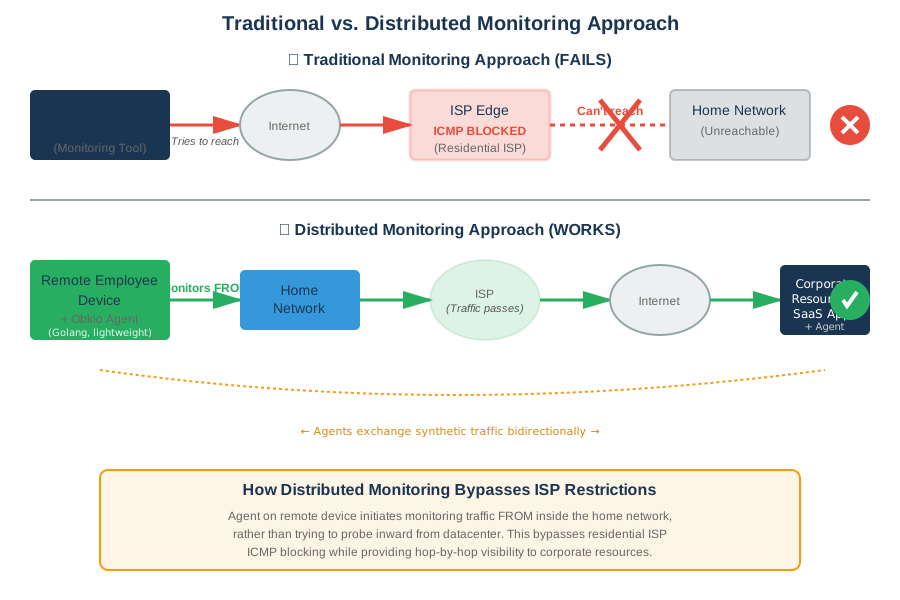
This distributed network monitoring approach flips traditional monitoring on its head. Instead of attempting to reach remote workers from your corporate datacenter (and being blocked by residential ISP restrictions), you deploy monitoring agents directly on remote worker laptops and desktops. These agents sit "inside" the residential ISP restrictions and continuously test network paths from the employee's actual perspective.
Distributed Network Monitoring Approach:
Obkio’s Monitoring Agents are built in efficient languages like Golang to ensure minimal system resource consumption (using less than 1-2% CPU and under 50MB of RAM). They run quietly in the background, generating synthetic traffic that simulates real application behaviour to continuously test network performance.
The key technical difference: the agent operates from inside the residential network, so it can measure what actually matters: the real network path that employee traffic takes to reach business applications. No ICMP blocking can prevent this because the agent is the originator of the monitoring traffic, not the recipient.
Obkio's Remote Worker Monitoring: Built for Distributed Networks
Obkio's Remote Worker Monitoring was specifically designed to solve the unmanaged network monitoring challenge. Unlike traditional monitoring solutions that assume infrastructure access, Obkio's approach recognizes that modern networks are fundamentally distributed, with employees working from locations IT doesn't control.
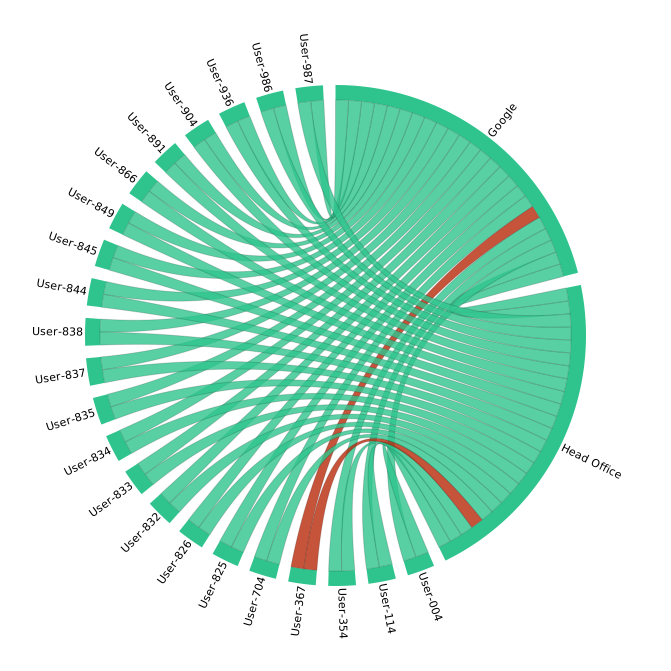
At the core of Obkio's solution is a bidirectional monitoring architecture that deploys lightweight agents at both ends of the network path you need to monitor. Here's how it works:
- Remote Worker Agents deploy on employee laptops and desktops (Windows, Mac, or Linux)
- Monitoring Target Agents deploy in your infrastructure:
- Head office locations
- Corporate data centers
- Cloud providers (AWS, Azure, GCP)
- Or use Obkio's public agents distributed globally across the internet
The agents communicate with each other, continuously exchanging synthetic UDP traffic that measures real network performance between these endpoints. This bidirectional approach means you're measuring the actual path your employees' traffic takes to reach corporate resources, not attempting to probe through ISP restrictions from your datacenter.
What Makes This Different:
Unlike traditional monitoring that tries to reach FROM your datacenter TO remote workers (and gets blocked by ISPs), Obkio monitors the round-trip path BETWEEN the remote worker and your infrastructure. The remote worker agent initiates traffic, bypassing ISP ICMP blocking, while measuring:
- Latency: Round-trip time between the remote worker and corporate resources
- Packet Loss: Percentage of packets that don't complete the round trip
- Jitter: Variation in latency that impacts real-time applications like VoIP
- Path Visualization: Hop-by-hop traceroute showing the complete network path
This architecture solves the residential ISP problem because the monitoring traffic originates from the remote worker's device (inside their home network) rather than trying to penetrate inward from the internet.
Key Features That Enable Remote Worker Monitoring
Network Destinations for IP Monitoring
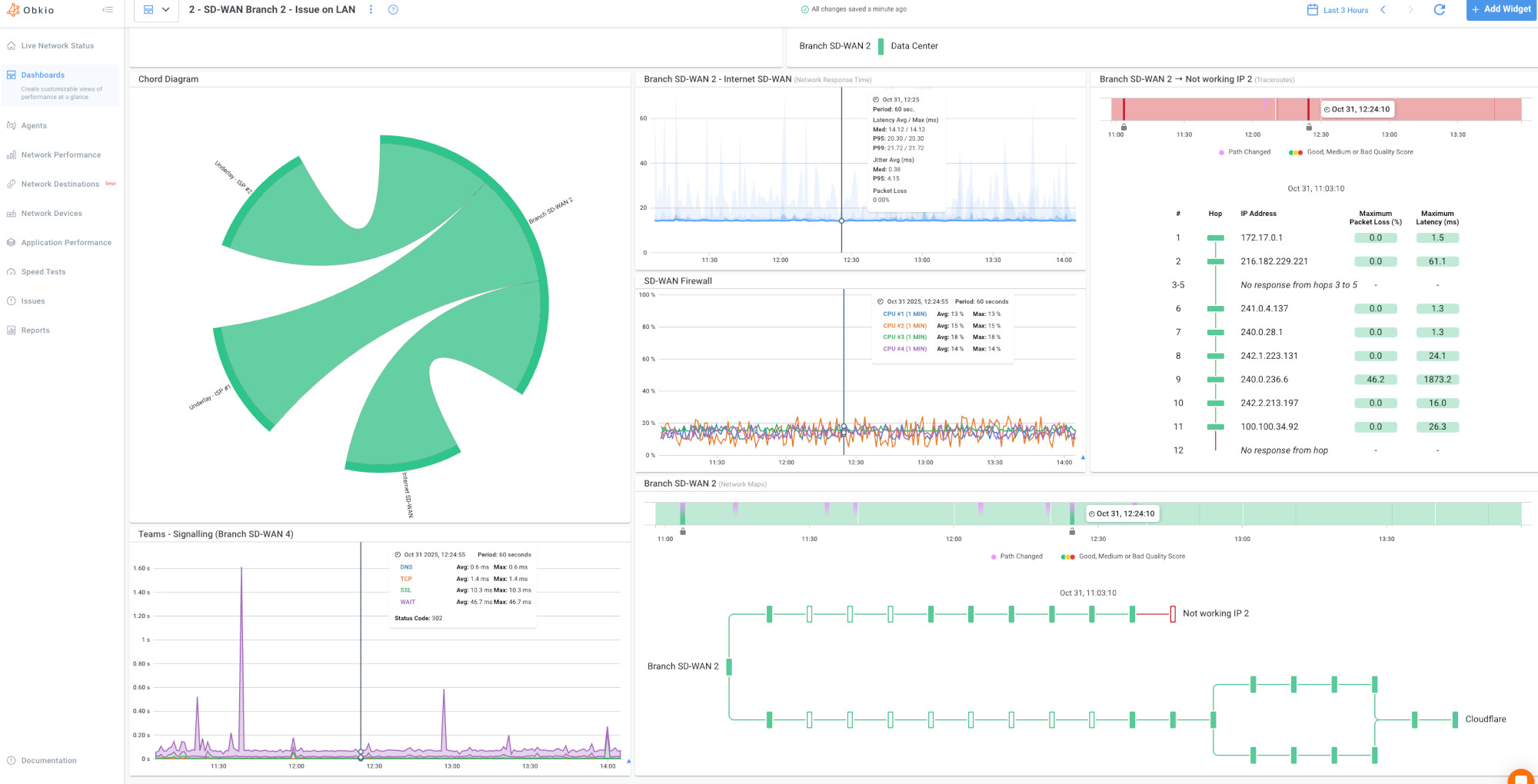
Network Destinations is Obkio's feature for monitoring specific infrastructure you care about. When you configure a Network Destination, you're telling Obkio's agent "monitor the network path to this IP address." The agent then continuously tests connectivity using ICMP with continuous traceroute capabilities, providing visibility into:
- Corporate VPN concentrators
- Office gateway routers
- Cloud infrastructure endpoints
- Critical application servers
- Internet connectivity (via Obkio's public agents)
The continuous visual traceroute feature is particularly powerful. It maps the entire network path hop-by-hop and identifies precisely where issues occur, whether in the home network, ISP infrastructure, internet backbone, or at the destination.
Synthetic Monitoring for Microsoft Teams
VoIP and video conferencing quality depend on consistent low latency and minimal packet loss. Obkio includes dedicated Microsoft Teams monitoring that uses synthetic UDP traffic mimicking real Teams calls. This measures the specific network metrics that impact call quality:
- Latency (target: <150ms for good quality)
- Jitter (target: <30ms)
- Packet loss (target: <1%)
By continuously testing these metrics, Obkio can alert you to network conditions that will cause poor meeting experiences before users start complaining about call quality issues.
Speed Test Integration
When users report "slowness," you need to distinguish between bandwidth problems and latency/packet loss issues. Obkio's integrated Speed Test functionality verifies actual bandwidth availability by running download and upload tests on-demand or on schedule.
This helps you answer critical questions:
- Is the employee getting the 300 Mbps their ISP promises?
- Is congestion limiting throughput during peak hours?
- Is bandwidth adequate for their workload, or do they need an upgraded plan?
Speed Test results combined with continuous latency and packet loss monitoring provide a complete picture of network performance.
Centralized Dashboard with Distributed Visibility
While agents are distributed across remote worker devices and your infrastructure, all monitoring data flows to a centralized cloud-based dashboard. This provides IT teams with:
- Real-time performance metrics for all remote workers
- Historical trends showing when and where issues occur
- Comparative views across different ISPs, geographic regions, or user groups
- Network path visualization with hop-by-hop latency and packet loss
- Alert configuration for proactive notifications when thresholds are exceeded
You can drill down into any individual remote worker's connection to troubleshoot specific issues, or zoom out to see patterns affecting multiple employees across your distributed workforce.
How to Deploy Remote Worker Monitoring (To Overcome ICMP Blocking)
Getting started with Obkio's Remote Worker Monitoring is designed to be fast and straightforward. Most organizations are up and running with full visibility in under 10 minutes.
Step 1. Sign Up for Remote Worker Monitoring (Free Trial)**
Obkio offers a 14-day free trial with full access to all features, no credit card required. This gives you time to:

- Deploy agents across your remote workforce
- Configure monitoring for your specific infrastructure
- Test troubleshooting workflows with real data
- Evaluate the solution before committing
The trial includes access to Obkio's support team, comprehensive documentation, and onboarding assistance to ensure you're successful from day one.


Step 2: Deploy Remote Worker Monitoring Agents
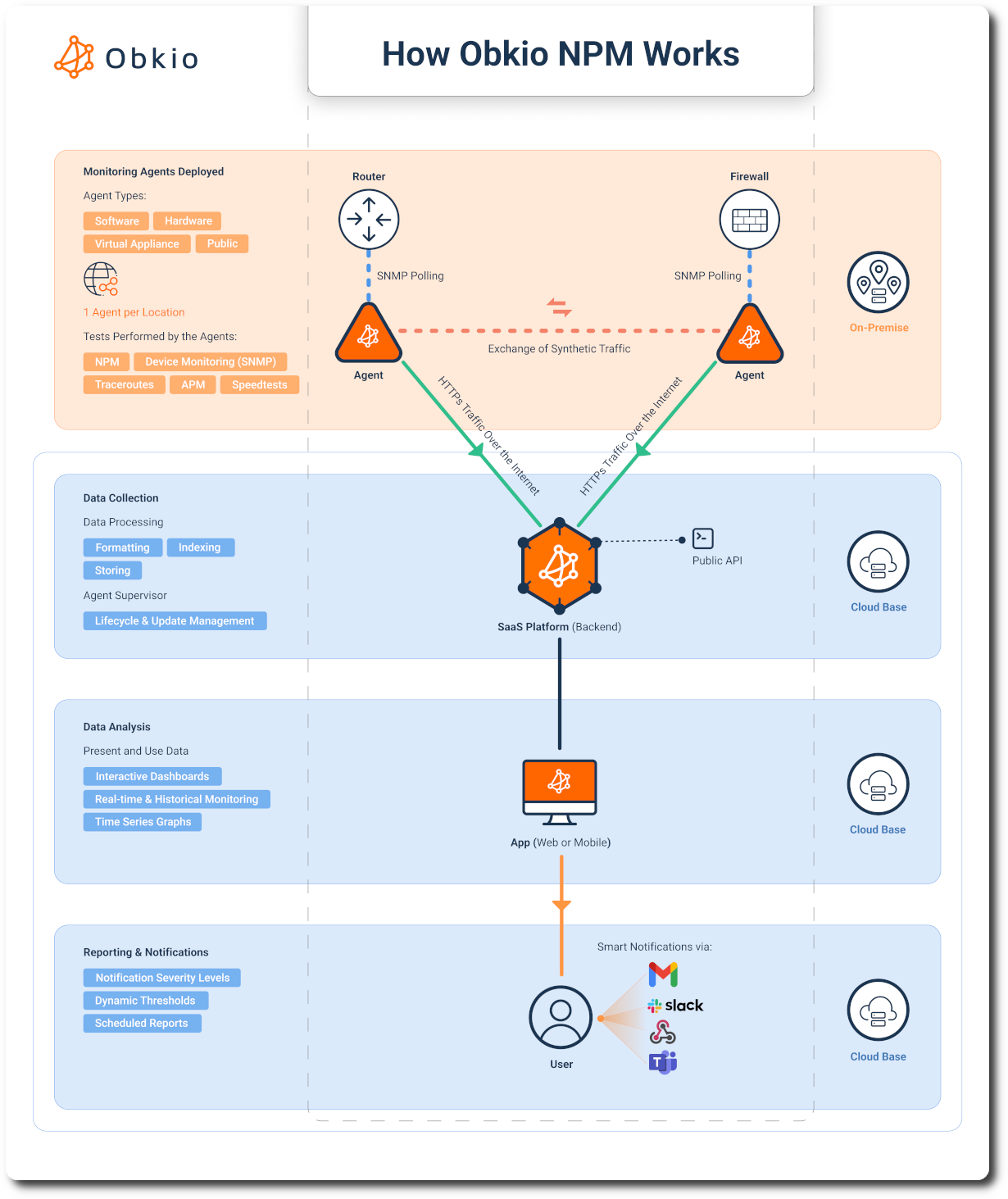
Obkio Monitoring Agents are the foundation of distributed network monitoring. Obkio uses a distributed monitoring architecture where lightweight agents are deployed at both ends of the network paths you want to monitor:
Remote Worker Side:
- Software agents install on employee laptops and desktops
- Run quietly in the background with minimal resource usage (~1-2% CPU, <50MB RAM)
Infrastructure Side:
- Agents deploy in your head offices, data centers, or cloud environments
- Can also use Obkio's Public Agents for internet connectivity monitoring

Where to Install Monitoring Agents
For remote worker monitoring, agents are typically installed in two locations:
Remote Worker Endpoints (Software Agents):
- Install on employee laptops and desktops
- Deploy via existing endpoint management tools (Intune, SCCM, Jamf)
- Or provide download links for manual installation
Monitoring Targets (Any Agent Type):
- Head/Branch Offices: Install agents to monitor connectivity to corporate locations
- Data Centers: Deploy on physical or virtual infrastructure to monitor critical resources
- Cloud Environments: Install in AWS, Azure, or GCP to monitor cloud application access
- Public Agents: Use Obkio's pre-deployed agents to measure general internet performance
Once deployed, agents continuously exchange synthetic traffic with each other every 500ms. This bidirectional communication measures real network performance. This approach bypasses the residential ISP ICMP blocking problem because monitoring traffic originates FROM the remote worker's device (inside their home network) rather than trying to probe inward from your datacenter.
For detailed installation instructions specific to your environment, reference Obkio's comprehensive Agent Installation Guides.
Step 3: Configure Remote Worker Monitoring Sessions
Once agents are deployed, configure what you want to monitor by creating monitoring sessions between agents.
Network Performance Monitoring Sessions:
Create monitoring sessions between:
- Remote worker agents ↔ Head office agents (monitor corporate connectivity)
- Remote worker agents ↔ Data center agents (monitor access to critical infrastructure)
- Remote worker agents ↔ Cloud agents (monitor AWS/Azure/GCP performance)
- Remote worker agents ↔ Public agents (monitor general internet connectivity)
Each monitoring session continuously exchanges synthetic traffic between the two endpoints, measuring latency, packet loss, jitter, and path quality every 500ms.
Network Destinations:
In addition to agent-to-agent monitoring, configure Network Destinations to monitor specific infrastructure:
- VPN concentrator IP addresses
- Critical application server IPs
- Firewall/router gateway addresses
- Any IP address you need ICMP visibility into
Network Destinations use continuous ICMP with traceroute to provide hop-by-hop visibility to these targets, complementing the agent-to-agent monitoring.

Step 3: Analyze Remote Worker Performance Data
While agents are distributed across remote worker devices and your infrastructure, all monitoring data flows to Obkio's centralized cloud-based dashboard. This provides IT teams with unified visibility into your entire distributed workforce from a single interface.
Real-Time Performance Overview:
The dashboard homepage provides at-a-glance visibility into:
- Overall network health across all remote workers
- Active alerts requiring immediate attention
- Performance trends showing degradation patterns
- Geographic distribution of employees and connection quality
- Comparative metrics identifying which locations, ISPs, or regions are experiencing issues
You can quickly identify patterns like "all remote workers on Comcast in the Denver area are experiencing packet loss" or "latency to our AWS infrastructure spiked 30 minutes ago across all locations."
Individual Remote Worker Drill-Down:
When troubleshooting specific employee issues, drill down into individual connections:
- Select the remote worker from the agent list or map view
- View their active monitoring sessions to all monitoring targets (head office, data center, cloud, internet)
- Analyze performance metrics showing:
- Current latency, packet loss, jitter, and MOS score
- Historical performance over the past hour, day, week, or custom timeframe
- Network path visualization with hop-by-hop traceroute
- Bandwidth availability from recent Speed Tests
Visual Traceroute for Root Cause Analysis:
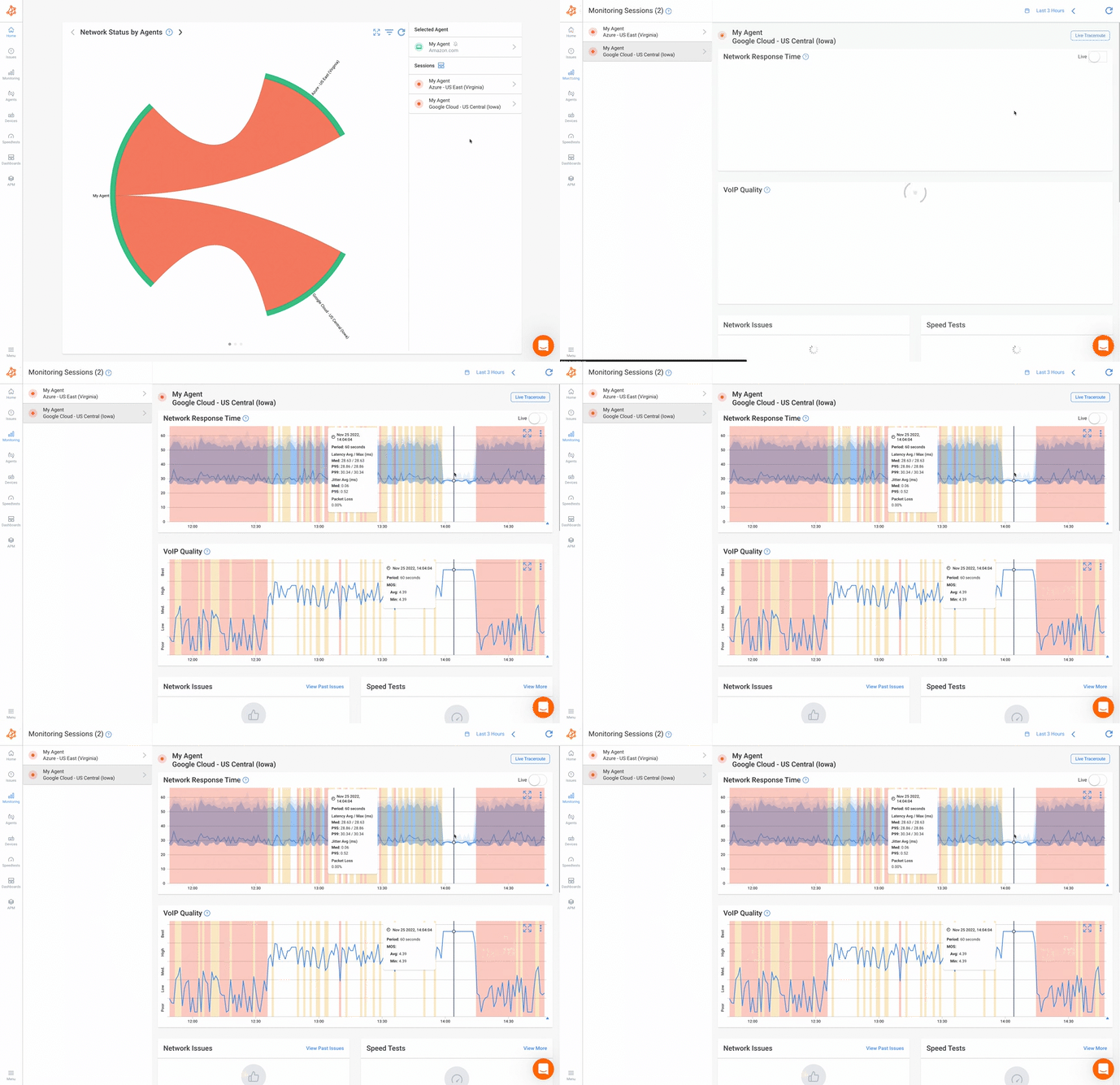
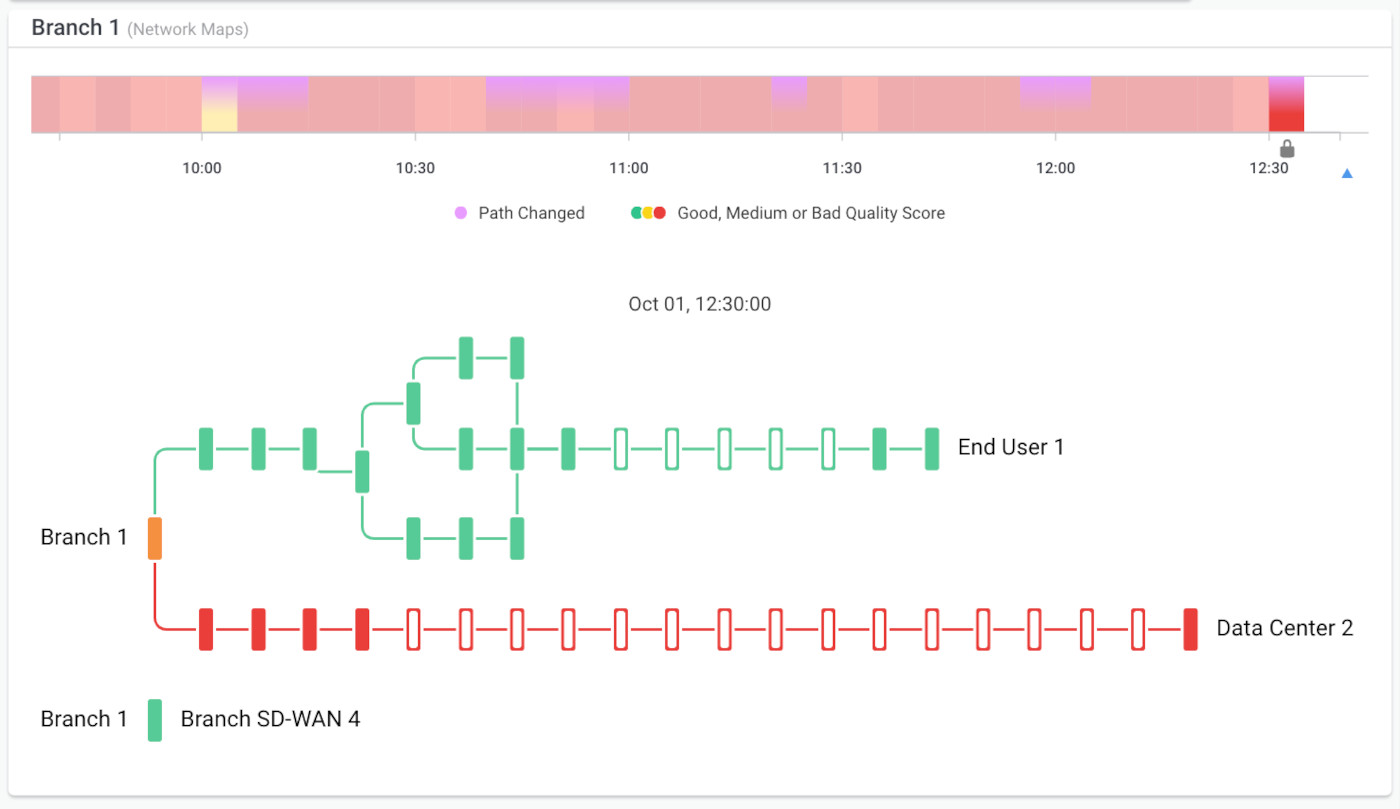
Obkio's continuous traceroute capability is the key to pinpointing exactly where network issues occur. When a remote worker reports problems, the visual traceroute shows:
- Each hop along the network path from their device to the destination
- Latency at each hop identifying where delays are introduced
- Packet loss per hop showing which router or link is dropping packets
- ISP infrastructure details including router IPs and locations
- Time-based visualization showing when and where issues started
For example, you might see:
- Hops 1-2 (Home Network): 5ms latency, 0% loss → Home network is fine
- Hops 3-4 (ISP Edge): 8% packet loss → Problem identified at ISP infrastructure
- Hops 5-10 (ISP Backbone): Normal performance resumes
- Hops 11+ (Destination): Normal performance
This immediately tells you the issue is with the ISP's edge router, not the employee's home network, your infrastructure, or the Internet backbone.
Step 4: Troubleshoot Remote Worker Issues
Now that you know about all the features you can use and how you can set them up, let’s look at an example of a remote network issue.
Remote employee reports "slow connection."
- Navigate to the employee's agent in the dashboard
- Check current performance metrics:
- Latency to head office: 180ms (elevated from normal 45ms)
- Packet loss: 0%
- Recent Speed Test: 250 Mbps (bandwidth adequate)
- View the visual traceroute to identify the issue location:
- Latency spike occurs at hop 6 (ISP backbone router)
- Check historical data:
- The issue started at 2:15 PM
- Affects only this employee (not other workers in the same city)
- Conclusion: ISP routing issue affecting this specific customer
- Action: Open support ticket with ISP, providing specific router IP and performance data
Total time to diagnosis: 3 minutes vs. hours of "restart your router" guesswork
Beyond real-time troubleshooting, the dashboard provides historical analysis capabilities:
- Time-based comparisons: Compare today's performance vs. last week, last month
- Recurring patterns: Identify if issues happen at the same time daily (ISP congestion during peak hours)
- Before/after analysis: Evaluate performance impact after network changes, ISP upgrades, or new employee onboarding
- Trend identification: Spot a gradually degrading performance that might indicate failing equipment or oversold ISP service
Multi-Location Comparative Analysis:
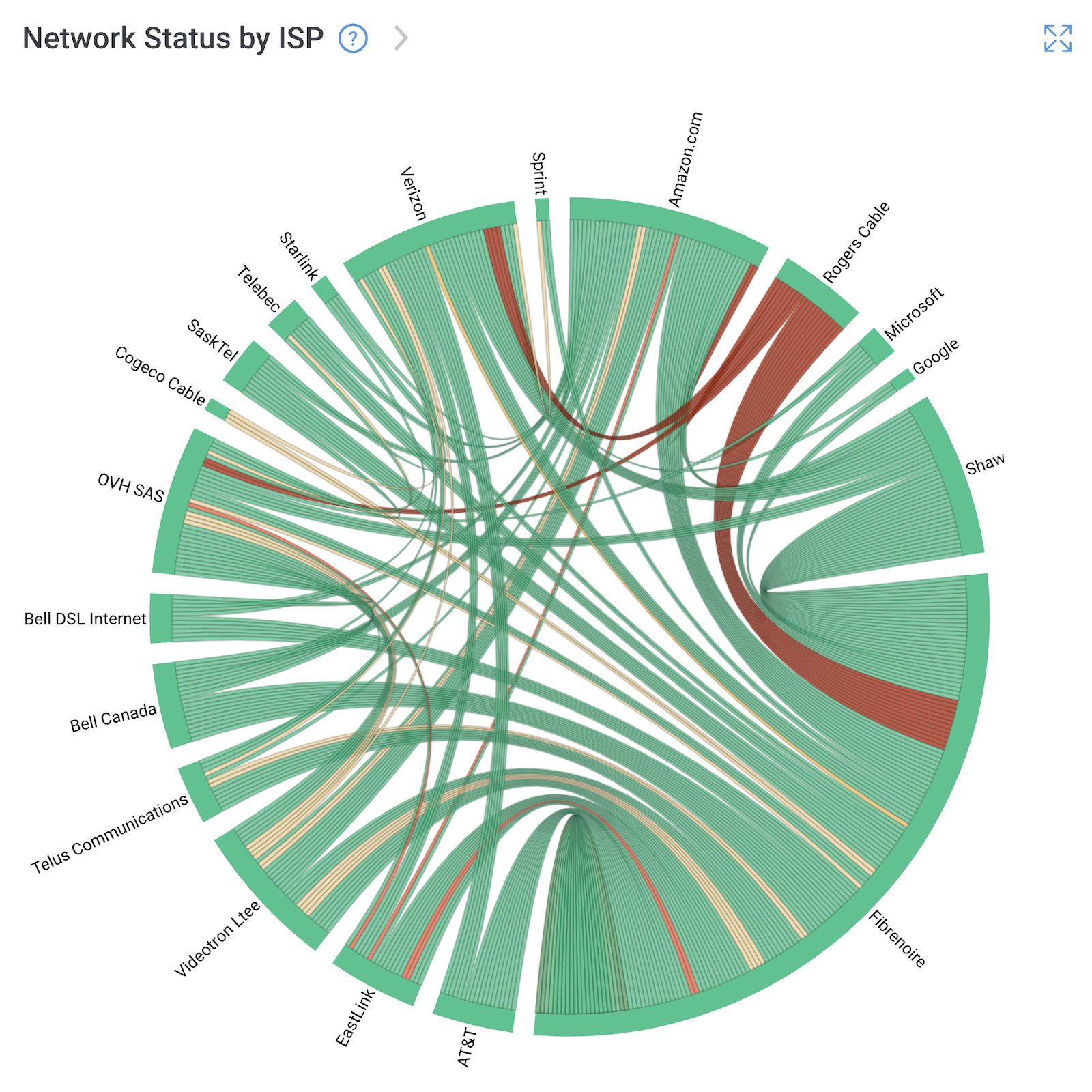
For organizations with many remote workers, comparative views help identify broader patterns:
- Performance by ISP: Which internet providers deliver the best performance?
- Performance by region: Are West Coast employees experiencing different issues than East Coast?
- Performance by time: When do performance issues typically occur?
- Performance to specific destinations: Is the VPN concentrator overloaded? Is AWS experiencing issues?
This data-driven approach enables strategic decisions like:
- Recommending specific ISPs to new remote hires based on performance data
- Identifying which employees might need backup connectivity solutions
- Optimizing VPN infrastructure placement based on actual usage patterns
- Justifying infrastructure investments with concrete performance evidence
Remote Troubleshooting Without Physical Access:
The distributed monitoring helps IT teams to troubleshoot remote worker issues without requiring:
- Physical access to the employee's location
- VPN connectivity to diagnose VPN issues
- Complex log collection or diagnostic tool installation
- Lengthy back-and-forth with employees who may not be technically savvy
Simply view the dashboard to see exactly what the remote worker is experiencing, identify the root cause, and take appropriate action—whether that's opening an ISP ticket, adjusting VPN configuration, or confirming the issue is outside your control.
Exporting Data for Vendor Support:
When issues require vendor involvement (ISP support tickets, SaaS provider escalations), export specific performance data:
- Performance graphs showing latency, packet loss, and jitter over time
- Traceroute results with specific router IPs where issues occur
- Speed Test results proving bandwidth limitations
- Timestamp correlation showing exactly when issues started
This concrete data dramatically accelerates vendor support resolution. Instead of "our customer is experiencing slowness," you provide "customer account #123 experiencing 8% packet loss at your router IP 24.45.67.89 since 2:15 PM EST on 2/5/2026."
3 Remote Worker Issues You Can Solve (Even With ICMP Blocking)
Let's look at some examples of common remote worker issues that your IT team will likely come across, as well as how you can identify and troubleshoot them, while overcoming the ISP ICMP blocking issue.
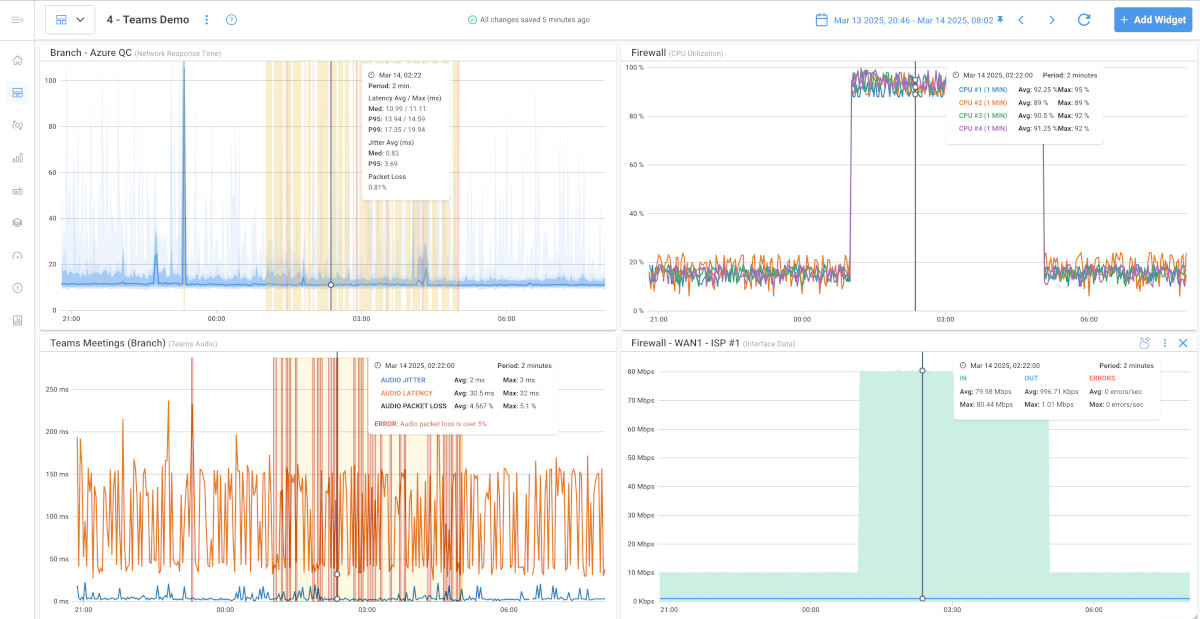
1: Poor Microsoft Teams Call Quality
The remote worker complains, "My video calls are constantly freezing, and audio cuts out." Traditionally, you’d tell them to restart the router, check the Wi-Fi, call their ISP, and even blame Microsoft Teams. This can take hours to days, and may even lead to no concrete resolution.
With Obkio:
- View the employee's dashboard showing network performance to Microsoft Teams.
- Identify 8% packet loss occurring at the ISP edge router (Hop 4 in traceroute)
- Run Speed Test showing bandwidth is adequate (200+ Mbps available)
- Conclusion: ISP infrastructure issue, not bandwidth or home network
- Open support ticket with ISP, providing specific data: "8% packet loss at router IP 24.45.67.89 (your edge router) affecting customer account #123456"
- ISP identifies failing line card, resolves issue
- Resolution time: 2 hours with clear data vs. days of guesswork
2: Intermittent VPN Disconnections
The remote worker complains, "I keep getting disconnected from the VPN multiple times per day." Traditionally, you’d tell them to reinstall the VPN client, update drivers, and check firewall settings. This is often unsuccessful because the problem is on the network-layer, not the application layer.
With Obkio:
- Review historical data showing a pattern of packet loss every afternoon 2-4 PM
- Traceroute reveals packet loss occurs at the ISP peering point (Hop 9) with a specific transit provider
- Packet loss correlates with peak residential usage hours
- Speed Test confirms bandwidth drops from 500 Mbps to 80 Mbps during this window
- Conclusion: ISP congestion during peak hours, likely oversold residential service
- User switches to a different ISP or implements a solution (cellular failover, schedule changes)
- Alternative: Document the issue and provide data for ISP support escalation
3: "The Internet Is Slow"
Most commonly, the remote worker complains that "The Internet is so slow I can barely work." Because Internet issues are the most common issues, they are often treated with generic troubleshooting, often ending with "we can't find any problems," and frustrated employees.
With Obkio:
- View network performance metrics showing consistent high latency (200ms+) to all destinations
- Traceroute shows that a latency spike occurs immediately at the home router (Hop 1)
- Speed Test shows severe bandwidth limitation (5 Mbps down vs. 300 Mbps provisioned)
- Conclusion: Home network or modem issue, not ISP backbone or destinations
- User power cycles the modem and router—the modem firmware was hung
- Performance immediately returns to normal (30ms latency, 300+ Mbps bandwidth)
- Resolution time: 10 minutes with precise diagnosis

Learn how to monitor VPN performance for remote workers with dual-session monitoring. Identify VPN bottlenecks, latency issues, and connection problems fast.
Learn more
The Benefits of Remote Worker Monitoring for Distributed Teams
Implementing distributed remote worker monitoring leads to so many benefits, even beyond overcoming ICMP blocking. It leads to more effective troubleshooting, more efficient IT teams, and happier, more productive remote workers.
Proactive Remote Problem Detection: Rather than waiting for employees to report issues, monitoring alerts IT teams the moment performance degrades. This enables proactive outreach: "We noticed your connection to the VPN has been experiencing packet loss for the past hour. Are you having any issues?" Employees appreciate IT reaching out with solutions before problems become severe.
Dramatically Reduced Mean Time to Resolution (MTTR) When IT teams have actual data showing exactly where network problems occur, troubleshooting time drops from hours or days to minutes. One Obkio customer reported reducing average help desk ticket resolution time for network issues from 4.2 hours to 45 minutes; an 82% improvement.
Improved Employee Experience and Productivity: Network issues get identified faster, diagnosed accurately, and resolved quickly. This means less downtime, fewer frustrating "everything is slow" moments, and higher productivity. Remote workers feel supported rather than isolated when IT can proactively identify and solve their network issues.
Help Desk Efficiency: IT teams spend less time on network-related support tickets because:
- Many issues are resolved proactively before users notice
- Troubleshooting is faster with concrete data
- Fewer "I've tried everything, and it still doesn't work" escalations
- Clear data enables effective communication with ISPs and vendors
Vendor Accountability: When you can provide ISPs with specific data ("packet loss occurring at router IP X.X.X.X between 2-4 PM daily"), support tickets move much faster. ISPs can't dismiss issues with "everything looks fine from our end" when you have detailed traceroute data showing exactly where in their network problems occur. Similarly, when SaaS providers claim "it's your network" you can prove whether that's accurate or whether the issue is on their infrastructure.
Business Continuity Planning Historical network performance data enables informed decisions about:
- Which ISPs provide the most reliable service in different geographic areas
- Whether specific remote workers need backup connectivity solutions
- When and where to invest in improvements
- How network performance trends over time

Conclusion: The Future of Remote Worker Monitoring Is Distributed
The shift to remote work isn't temporary; it's a permanent transformation of how enterprises operate. According to recent studies, over 75% of organizations now support at least some remote workers, and that percentage continues to grow.
Traditional network monitoring approaches that assume controlled, centralized infrastructure are fundamentally incompatible with this new reality. When employees work from residential internet connections that block ICMP traffic, trying to monitor from your datacenter outward simply doesn't work.
The solution requires a fundamental shift in monitoring philosophy: deploy agents FROM where employees actually work, providing hop-by-hop visibility across unmanaged networks you don't control. This distributed approach, pioneered by solutions like Obkio's Remote Worker Monitoring, finally gives IT teams the end-to-end visibility they need to effectively support distributed workforces.
The residential ISP barrier isn't going away. ISPs will continue filtering ICMP traffic for bandwidth management and perceived security benefits. But distributed monitoring works with this reality instead of fighting against it, providing comprehensive network visibility by monitoring from the employee's perspective rather than attempting to probe through ISP restrictions.
For IT teams supporting remote workers, the question isn't whether to implement distributed monitoring; it's how quickly you can deploy it to stop troubleshooting blind and start solving network issues with data-driven precision.
Ready to gain visibility into your remote workers' network performance? Learn more about Obkio's Remote Worker Monitoring solution and start your free trial today.


