











 Obkio Blog


 Subscribe
Table of Contents
Table of Contents
Most IT teams rely on Microsoft Teams Admin Center as their default monitoring tool to find and fix Microsoft Teams issues, but there's a gap between what it shows and what actually causes call quality problems. Teams Admin Center gives you Microsoft's perspective on what happened after an MS Teams call ended. It doesn't tell you what was happening on your network, on your users' devices, or in the five minutes before the complaints started coming in.
That gap is exactly where Microsoft Teams call quality issues live and where dedicated monitoring fills in.
If you've ever stared at a CQD report trying to explain why a specific user keeps having choppy calls when Microsoft's data shows "good quality," you already know the problem. The data is technically accurate. It's just incomplete. And incomplete data leads to the same outcome every time: more time troubleshooting, more user frustration, and more "we couldn't reproduce the issue" tickets.
This article breaks down what Microsoft Teams Admin Center does well, where it falls short, and how Obkio's Microsoft Teams Monitoring tool fills the visibility gap with synthetic testing, end-to-end visibility, three-perspective analysis, and 24/7 proactive coverage. If you're evaluating whether a dedicated Teams monitoring tool adds value to your stack, this is the comparison you need.
What Is Microsoft Teams Admin Center? 
Microsoft Teams Admin Center (TAC) is Microsoft's built-in management portal for IT administrators. It works as a central hub for configuring Teams policies, managing users, and reviewing call quality data across the organization.
From a monitoring standpoint, TAC offers two main tools. The first is Call Analytics, which provides per-user call history and detailed information about devices, networks, and connectivity involved in individual calls and meetings. The second is the Call Quality Dashboard, which is a broader org-wide reporting layer designed to help Teams admins and network engineers monitor call quality trends across the organization.
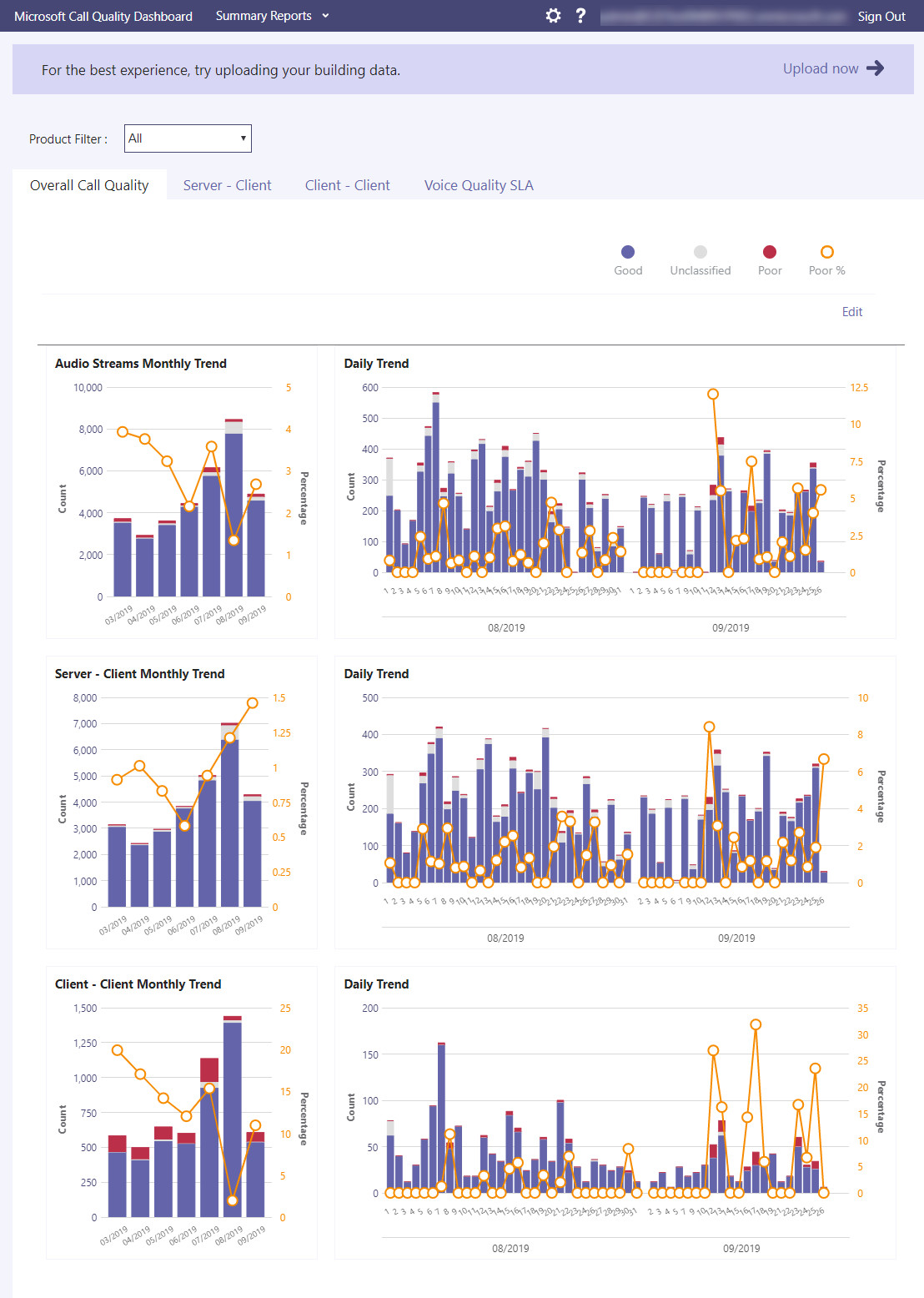 Screenshot from Microsoft Teams Admin Center: Call Quality Dashboard (CQD)
What does Microsoft Teams Admin Center show?
Microsoft Teams Admin Center give admins a way to investigate complaints, spot patterns in poor call quality, and review historical data. Call records are typically available in CQD within 30 minutes of a call ending. That is quite useful for post-incident review, but it means there's no visibility during an active call, and certainly none before issues surface to users.
It's also worth being direct about where the data comes from: all of TAC's call quality information originates from Microsoft's infrastructure. As Microsoft's own documentation notes, TAC's diagnostic telemetry is only as complete as what Microsoft's systems received from clients participating in a call. In simple terms, Teams Admin Center reports on what Microsoft experienced. What happened on your network, at your ISP, or on the endpoint running Teams sits entirely outside its line of sight.
For straightforward incident reviews like confirming whether Microsoft's platform had an outage, or pulling a call record after a user complaint, Teams Admin Center is a reasonable starting point. The limitations become apparent the moment you need to understand why calls are consistently poor before users start filing tickets.
What Are the Limitations of Microsoft Teams Admin Center?
Teams Admin Center is a reactive, Microsoft-centric tool. It tells you what happened from Microsoft's perspective after the fact. That's a structural limitation, not a configuration problem.
Here's where the gaps become operational problems:
Microsoft Teams Admin Center Limitation #1. Reactive by design
There's no real-time or pre-call visibility in TAC. Data arrives after the call ends (typically within 30 minutes) meaning your first signal of a problem is almost always a user complaint. By the time you're looking at CQD data, the meeting is over and the damage is done. For organizations running critical operations on Teams like sales calls, client presentations, all-hands meetings, reactive is not good enough.
Microsoft Teams Admin Center Limitation #2. Microsoft-only perspective
TAC only reports on what Microsoft's infrastructure recorded. Network conditions between your office and Azure, ISP routing issues, WAN congestion, packet loss at the firewall, jitter on a wireless segment, none of that is visible in Teams Admin Center. You're seeing one endpoint of a much longer path. If the problem isn't inside Microsoft's platform, TAC won't help you find it.
Microsoft Teams Admin Center Limitation #3. No synthetic testing
TAC requires actual calls to generate data. During quiet periods like nights, weekends, low-traffic windows, you have zero visibility. You can't detect a degrading network connection before it disrupts Monday morning's all-hands. Issues that develop gradually over hours or days go completely undetected until they're bad enough for users to notice and report.
Microsoft Teams Admin Center Limitation #4. No root cause identification
TAC can confirm that a call had poor quality, but it won't tell you whether the culprit was network congestion, a saturated CPU on the user's device, or a Microsoft service hiccup. It surfaces the symptom. You still have to find the cause. That typically means opening tickets, collecting logs, and running manual tests, all after the fact, often with no way to reproduce the original conditions.
Microsoft Teams Admin Center Limitation #5. User reporting dependency
In most environments, TAC-based monitoring is triggered by complaints. Someone has a bad call, they report it, you look it up. This is not a monitoring strategy, it's a reactive help desk workflow dressed up as monitoring. Users tolerate poor call quality for longer than they'll admit before raising a ticket. By the time a pattern shows up in CQD, the problem has likely been affecting productivity for days.
Microsoft Teams Admin Center Limitation #6. Limited coverage for remote and hybrid environments
Teams Admin Center doesn't distinguish between a user on a well-managed corporate LAN and a remote worker calling in from a home network over a congested ISP connection. Both look similar in TAC's data, because TAC sees neither. As hybrid work becomes the default, this blind spot becomes more consequential.
For organizations with distributed teams, remote workers, or any kind of mixed WAN/ISP environment, these limitations aren't edge cases. They're daily operational reality.
What Is Obkio Microsoft Teams Monitoring?
Obkio's Microsoft Teams Monitoring is a feature of Obkio’s Network Monitoring & Observability tool. Obkio uses lightweight monitoring agents (deployed at key locations in your network) that generate synthetic testing to continuously monitor Teams call quality and performance 24/7, even without an active call.
- 14-day free trial of all premium features
- Deploy in just 10 minutes
- Monitor performance in all key network locations
- Measure real-time network metrics
- Identify and troubleshoot live network problems


The mechanism is straightforward but powerful: Obkio's Monitoring Agents join Microsoft Teams meetings and exchange audio and video data using synthetic traffic. Unlike standard Microsoft tests that send network packets, Obkio analyzes audio and video data using SIP RTC, and also connects to Microsoft's API to download detailed call quality reports. This combined approach closes the gap between what Microsoft sees and what's actually happening end-to-end.
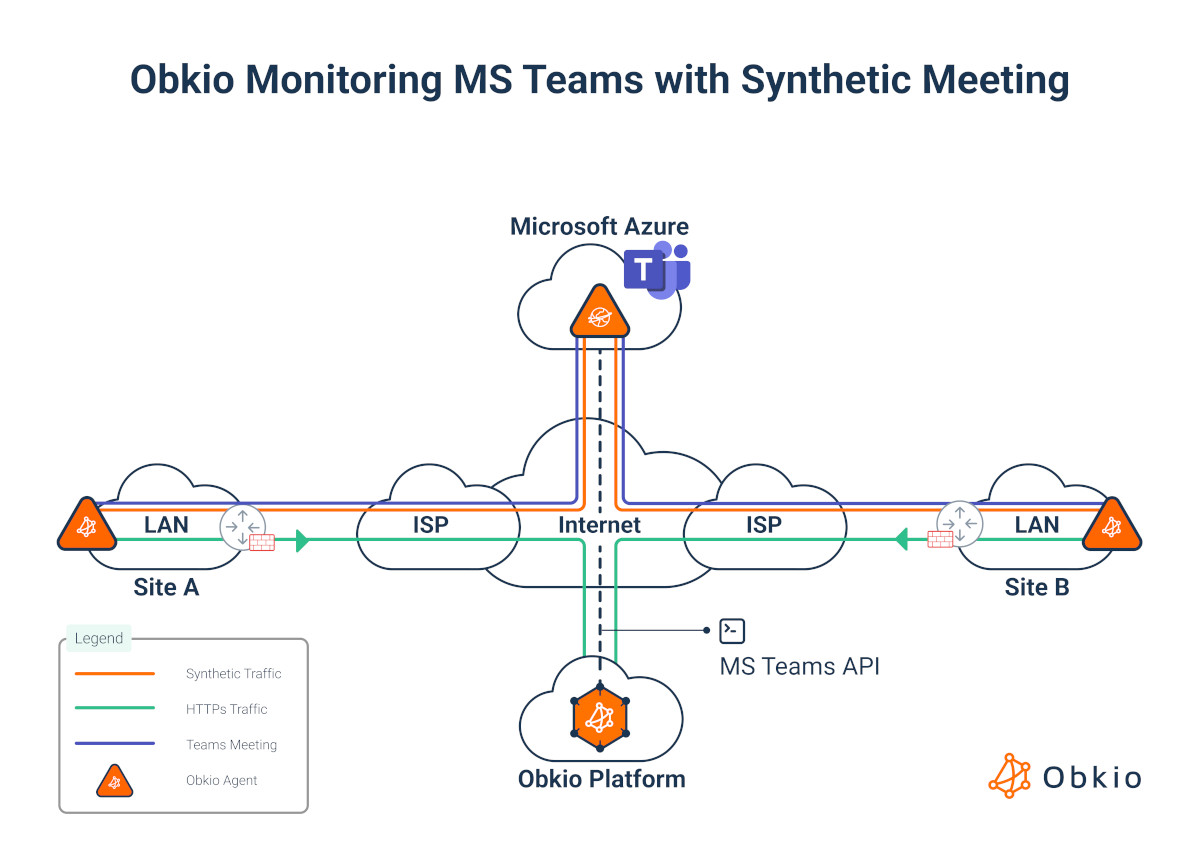
Here's the step-by-step process:
1. The Obkio platform creates a Microsoft Teams meeting automatically, on a continuous cycle.
2. Monitoring Agents join the meeting using Obkio-provided Office 365 licenses. No Microsoft admin credentials required.
3. For 35 seconds, Agents exchange audio and video data, simulating real communication traffic.
4. Performance metrics are collected from 3 perspectives simultaneously: user, network, and Microsoft's platform.
5. The cycle repeats every minute, giving you a continuous, granular view of Teams performance around the clock.
This approach means you're not waiting for a real call to happen. You're generating your own data continuously, testing the full path from endpoint to Azure and back, every 60 seconds. With end-to-end visibility, Obkio covers up to 99% of the Teams call path, from user devices through your network infrastructure, across your ISP, and into Microsoft's Azure data centers.
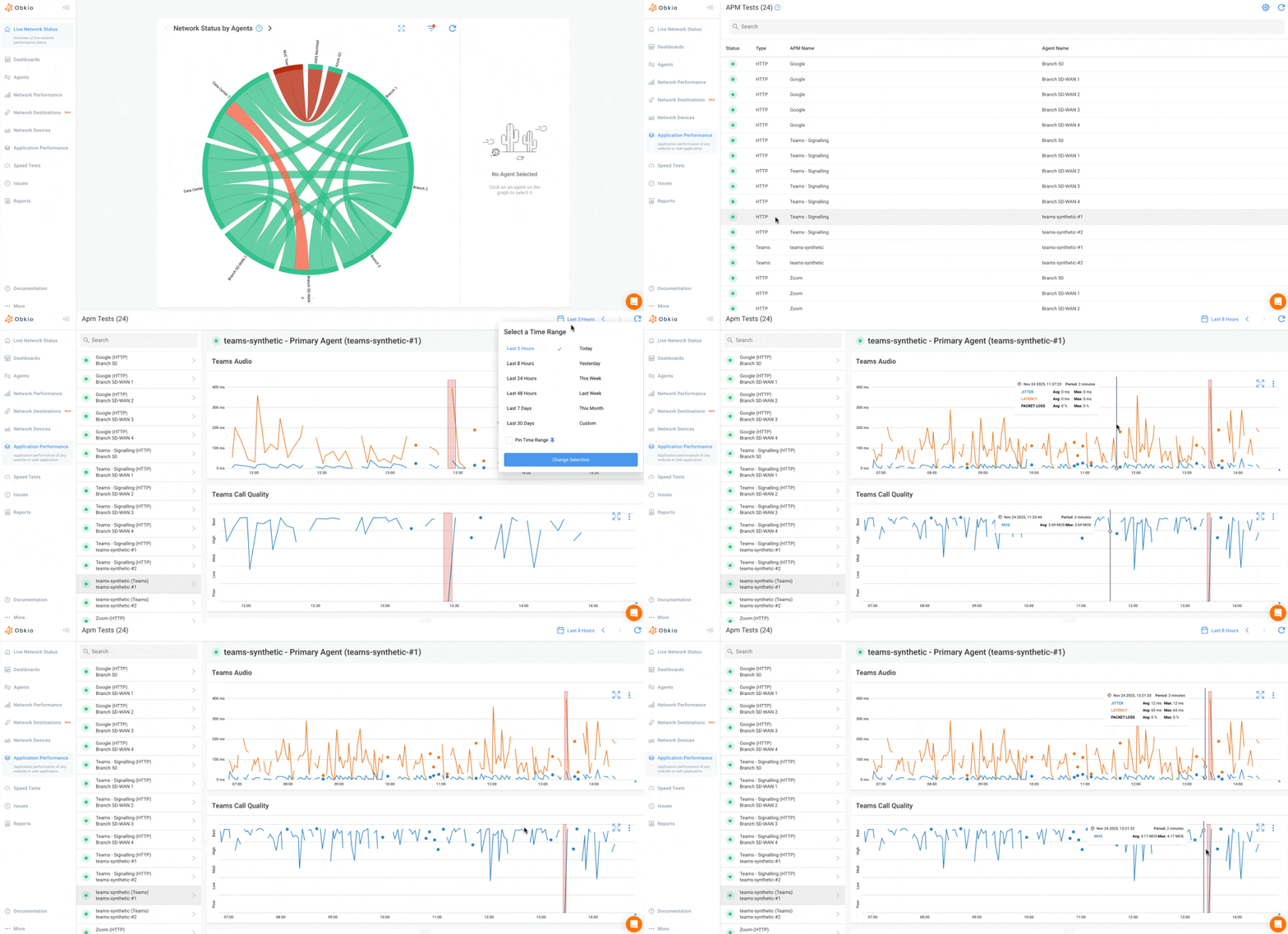
Because Obkio mirrors the exact call path between the agent and Teams tenant based on user location, you're not just monitoring a generic connection to Microsoft. You're monitoring your Teams environment, from your users' actual network paths.

No special Microsoft admin access is required. Obkio handles all the licensing automatically: deploy agents, run the onboarding wizard, and you're monitoring within minutes.
How to Monitor Microsoft Teams Users, Network & Microsoft Issues
The core differentiator in Obkio's approach is three-perspective monitoring: collecting data simultaneously from the user's device, the network path, and Microsoft's platform.
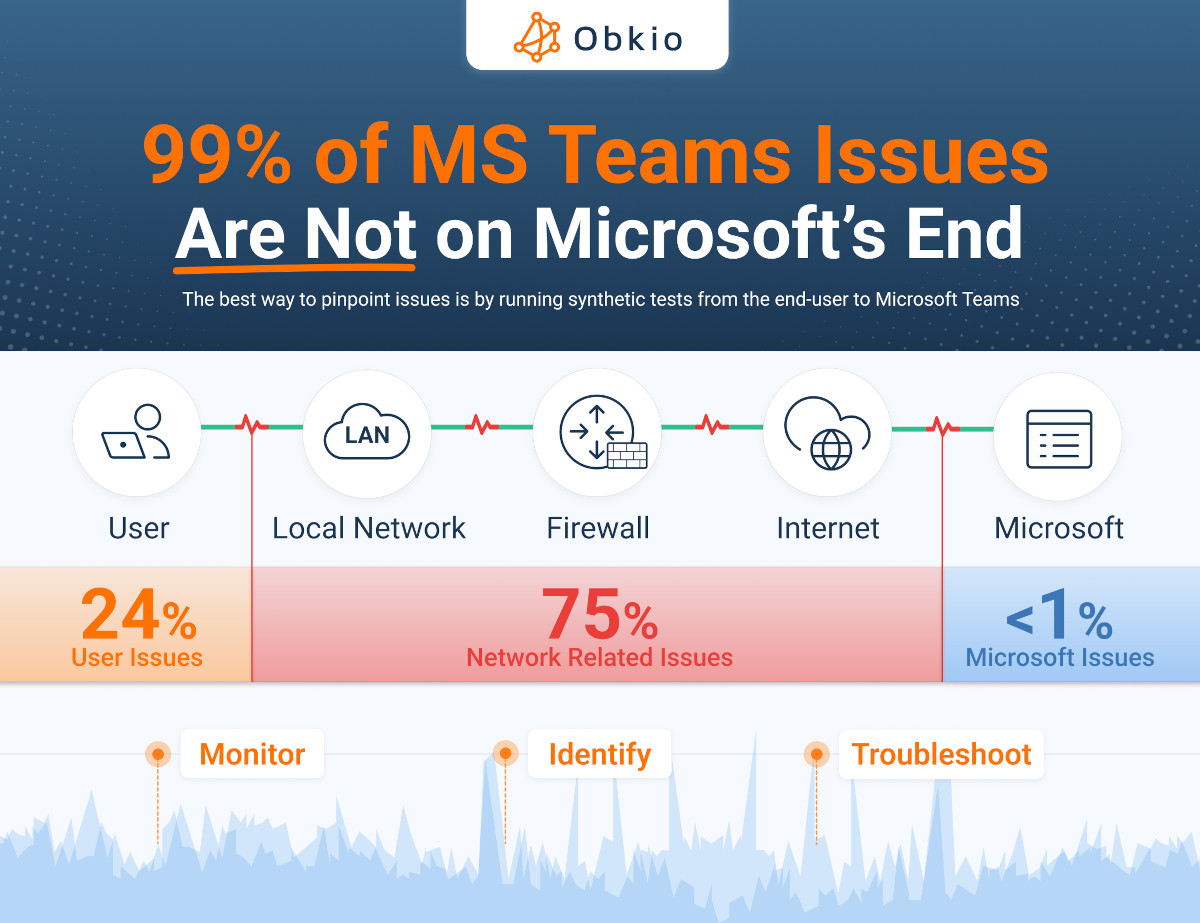
This matters because most Teams call quality issues don't originate where you'd expect. Roughly 75% of Teams issues originate in the network, approximately 24% stem from user workstation environments, and less than 1% come from Microsoft's platform itself.
Teams Admin Center only sees that last slice, the sub-1% that's actually inside Microsoft's infrastructure. The other 99% is invisible to it.

Here's what each perspective covers:
Microsoft Teams Issues: User Device Perspective
From the user's perspective, Obkio monitors workstation resources like CPU usage, memory, disk performance, and network card performance to ensure devices have adequate resources to run Microsoft Teams smoothly.
Teams is resource-intensive. Video encoding, audio processing, and screen sharing all place significant CPU demand on the endpoint. A device running at 90% CPU during a video call will produce audio artifacts, dropped frames, and sluggish response that look identical to a network problem from the user's side.
Without device-level data, you're chasing the wrong layer. An IT team that spends an hour investigating network packet loss only to discover the user's machine is five years old and maxed out has wasted time and credibility. Device metrics close that loop fast.
Microsoft Teams Issues: Network Perspective
Network Perspective tracks the metrics that matter for real-time communication: latency, jitter, packet loss, and bandwidth between users and Microsoft's Azure infrastructure. This is the layer where the vast majority of Teams issues actually originate: ISP degradation, WAN congestion, QoS misconfiguration, high jitter on a wireless segment, or a routing path that's adding 80ms of unexpected latency.
This is also the layer entirely invisible to Teams Admin Center. Obkio covers it by running Network Performance Monitoring (NPM) tests from the agent's point of view, continuously, between each Monitoring Agent and Microsoft Azure. When you see a spike in packet loss at a specific time, you have the data to act on it, not just a user's description of "the call was choppy."
Microsoft Teams Issues: Microsoft API Perspective
Obkio connects to Microsoft's API to download detailed call quality reports, which are then cross-referenced against network and device data. This gives you the platform-side view (what Microsoft's infrastructure recorded about the call) alongside everything Obkio captured from your environment.
The power here is correlation. If your network metrics look clean and your device metrics look clean, but call quality was poor, the API data might reveal a server-side issue on Microsoft's end. Conversely, if Microsoft's data shows good quality but users are complaining, the problem almost certainly lives in your network or on user devices, and Obkio already has the data to tell you which.
Obkio's dashboard displays metrics from all three perspectives side-by-side, so you can correlate issues and pinpoint when, where, why, and what is causing them. That single-pane correlation view is what turns "Teams is slow" from an open ticket into a resolved root cause.
Obkio Microsoft Teams Monitoring vs. Teams Admin Center: Side-by-Side Comparison
Microsoft Teams Admin Center and Obkio Microsoft Teams Monitoring are built for fundamentally different jobs; one reviews what happened after a call, the other monitors the full call path continuously.
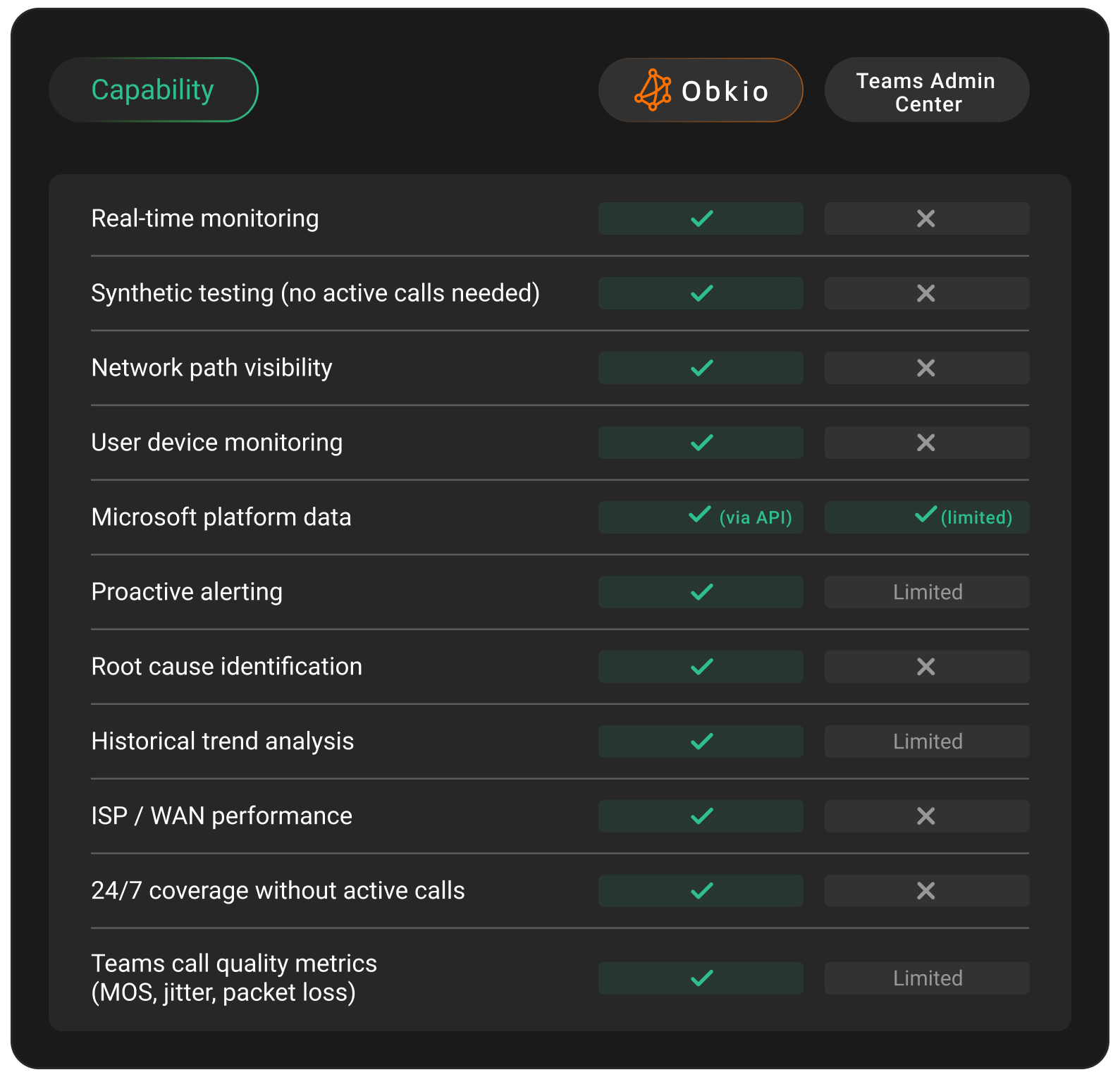
Teams Admin Center is reactive and Microsoft-centric; it tells you a call was poor after it ended, but only from Microsoft's perspective. Obkio monitors the full call path continuously, across user devices, your network, and Microsoft's platform, so you can identify issues before users report them and pinpoint exactly where they originate.
Key differences at a glance:
- Real-time monitoring: Obkio monitors continuously; Teams Admin Center only shows data after a call ends
- Synthetic testing: Obkio tests Teams performance 24/7 without requiring active calls; Teams Admin Center has no equivalent
- Root cause identification: Obkio pinpoints whether an issue stems from the network, user device, or Microsoft's platform; Teams Admin Center cannot
- Network and device visibility: Obkio covers your full infrastructure; Teams Admin Center only sees Microsoft's side
- Microsoft platform data: both tools pull this, making them complementary rather than mutually exclusive
The table makes the structural difference clear. TAC is a post-call reporting layer. Obkio is a continuous monitoring layer. They're not the same category of tool.
The core gap comes down to perspective: Teams Admin Center only sees what Microsoft's infrastructure experienced, which accounts for less than 1% of what actually causes Teams call quality issues. The other 99% (your network and user devices) is invisible to it.
When Is Microsoft Teams Admin Center Enough, And When Isn't It?
Teams Admin Center is a solid tool for specific, well-defined scenarios. It's worth being direct about that because there's no value in dismissing a tool that does its job well within its intended scope.
Microsoft Teams Admin Center Monitoring Works Well When You Need to:
- Review a specific call record after a user complaint
- Confirm whether Microsoft's platform had an incident during a reported time window
- Pull PSTN call logs for compliance or billing review
- Investigate isolated, infrequent quality issues tied to specific users or meetings
- Run org-wide trend analysis on Teams call quality over time using CQD data
- Identify which users or meeting rooms have the highest rates of poor-quality calls
If your Teams environment is relatively simple, like a single-site office, reliable ISP, modern managed endpoints, and your users rarely raise call quality complaints, TAC may give you most of what you need for reactive troubleshooting. It's also the right tool when you need to confirm that Microsoft had a platform issue on a specific date. That's what it was built for.
Microsoft Teams Admin Center Monitoring Falls Short When You Need to:
- Understand why calls are consistently poor even when Microsoft's data shows no issues
- Monitor Teams performance for remote or hybrid workers across unmanaged home networks
- Detect degradation before it disrupts a meeting, not 30 minutes after it ends
- Troubleshoot distributed networks with multiple sites, WAN links, or ISP dependencies
- Meet proactive monitoring requirements for internal SLAs or IT governance mandates
- Support MSP clients who need per-tenant visibility into call quality across managed environments
- Isolate whether a problem is on your network, on user devices, or on Microsoft's end
The pattern is consistent: the more distributed your environment, the faster TAC's Microsoft-centric view runs out of answers. Remote workforces, multi-site deployments, and ISP-dependent connectivity are precisely the scenarios where a dedicated monitoring layer becomes essential rather than optional.
How to Use Obkio Microsoft Teams Monitoring With Teams Admin Center
These aren't competing tools. They're complementary layers that cover different parts of the same problem.
Think of it this way: Obkio tells you where and why a Teams issue occurred: network congestion at a specific site, packet loss between a user and Azure, a device running out of CPU during a video call. Teams Admin Center then lets you confirm what Microsoft's infrastructure recorded during that same window. Used together, you have both sides of the story. Obkio surfaces the signal and points to the root cause. TAC provides the Microsoft-side data to corroborate or rule out platform involvement.
Practically, here's what the workflow looks like. A user reports choppy audio on a Teams call at 2:15 PM. With Obkio, you open the dashboard and immediately see elevated jitter between that user's site and Microsoft Azure starting at 2:10 PM, five minutes before the call degraded. The network data shows the issue, timestamps it, and points to the network segment where it occurred. You can then check TAC's call record for that user to see how Microsoft's platform registered the same call. The two data sets together either confirm the root cause or rule out platform involvement quickly.
Obkio's synthetic testing means you don't need an active Teams call to monitor performance, you'll always have visibility into potential Teams issues, even before they happen. TAC, by contrast, needs something to happen before it can show you anything. The two tools cover opposite ends of the monitoring timeline: proactive versus retrospective. Both have a role in a mature Teams monitoring strategy.

For MSPs, this combination is particularly valuable. Obkio provides the continuous, per-client visibility that MSP SLAs require: synthetic testing across each client's network, with alerting and historical data to support incident reports. TAC provides the Microsoft-side data when you need to escalate to Microsoft or document an incident for a client. Together, they give MSPs a defensible, complete picture of Teams performance across their managed environments.
How to Get Started with Obkio Microsoft Teams Monitoring Tool
Setup is straightforward. Deploy Obkio Monitoring Agents at the network locations where Teams is used (office sites, remote worker endpoints, data centers), and deploy an Azure Monitoring Agent to test the path directly into Microsoft's infrastructure. Obkio handles the Teams licensing automatically; no Microsoft admin access or special permissions are required.
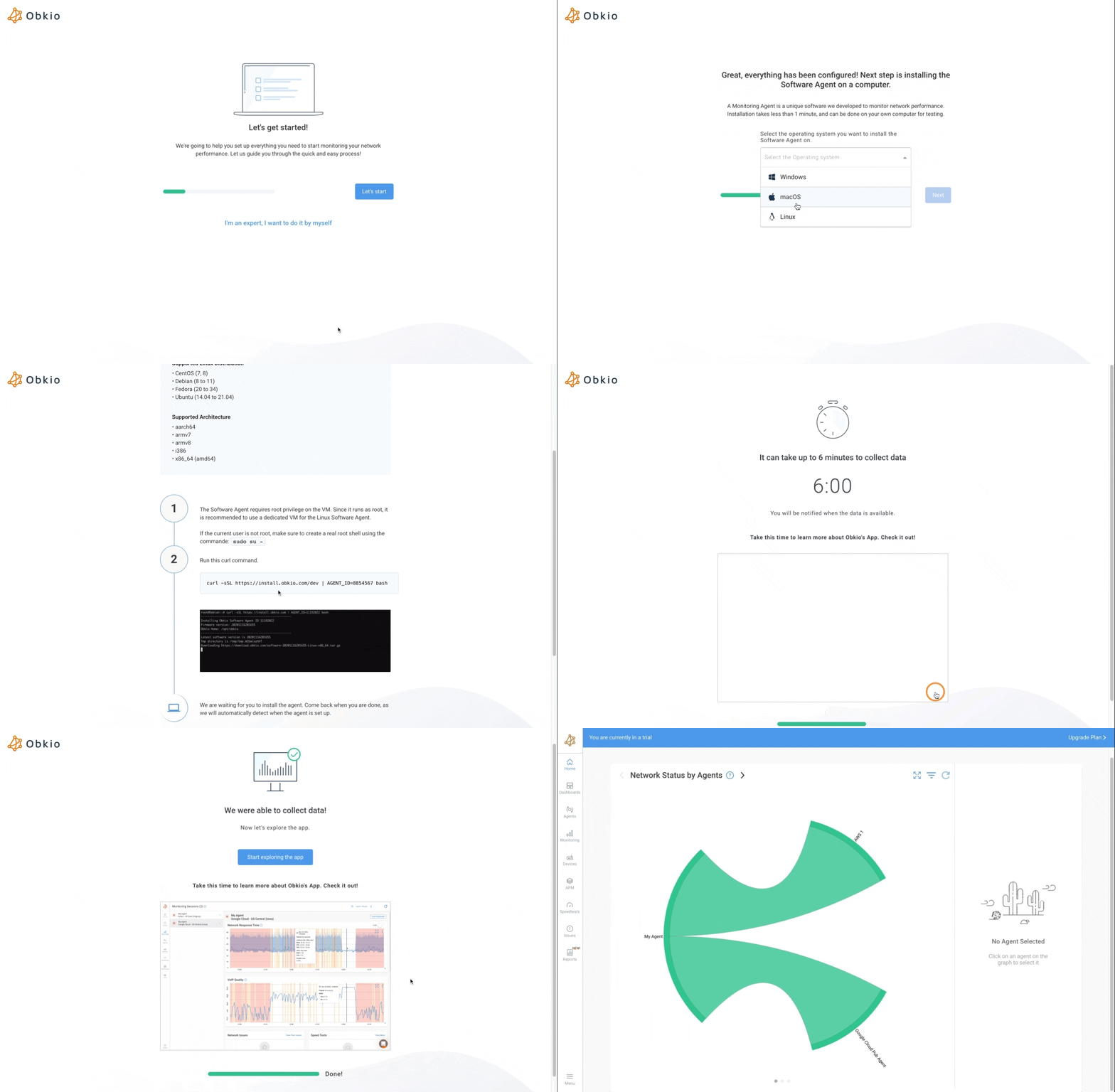
Once deployed, agents start joining synthetic Teams meetings every minute, collecting data from all three perspectives immediately. Most teams have meaningful baseline data within a few hours.
Frequently Asked Questions About Microsoft Teams Admin Center
Does Microsoft Teams Admin Center show network problems?
No. Teams Admin Center only shows data from Microsoft's infrastructure: call records, device telemetry reported by clients, and platform-side diagnostics. Network conditions between your users and Microsoft's servers (latency, packet loss, jitter, ISP routing) are not visible in TAC. For network-layer visibility, you need a dedicated network monitoring tool like Obkio.
Can I monitor Microsoft Teams without active calls?
Yes, with Obkio. Obkio's Monitoring Agents join Microsoft Teams meetings and exchange synthetic audio and video data continuously, meaning you don't need an active Teams call to monitor performance. Teams Admin Center requires real calls to generate data and has no synthetic testing capability.
What metrics does Obkio track for Microsoft Teams?
Obkio tracks metrics across three perspectives. From the user device: CPU usage, memory, and network card performance. From the network: latency, jitter, packet loss, and bandwidth between users and Microsoft's Azure infrastructure. From the Microsoft platform: detailed call quality reports pulled via Microsoft's API. It also tracks MOS (Mean Opinion Score) to quantify the perceived quality of voice calls.
Is Obkio a replacement for Microsoft Teams Admin Center?
No, and it's not trying to be. Obkio complements Teams Admin Center by covering the network and user-device layers that TAC can't see. TAC handles post-call review and Microsoft-side data. Obkio handles proactive monitoring, real-time network visibility, and root cause identification. They work best together.
How long does it take to set up Obkio Teams Monitoring?
Most deployments are operational within minutes. Deploy the Monitoring Agents at your key network locations, follow Obkio's onboarding wizard, and the agents begin collecting Teams performance data immediately. No Microsoft admin credentials required, Obkio manages the Teams licensing and meeting setup automatically.
Stop Guessing. Start Monitoring MS Teams Performance
Microsoft Teams Admin Center is not a bad tool, it's just the wrong tool for the job most IT teams are trying to do. It was built to manage Microsoft's platform and report on what Microsoft experienced. That's exactly what it does. But when calls are degrading on your network, on your users' devices, or over an ISP connection that Microsoft has no visibility into, TAC leaves you with symptoms and no answers.
The 75/24/1 breakdown tells the real story: the vast majority of Teams issues are network and device problems, not Microsoft platform problems. That's where your monitoring needs to be.
Obkio covers that gap, continuously, proactively, and from all three perspectives at once. Synthetic meetings running every minute. Network metrics from endpoint to Azure. Device health from every workstation running Teams. All correlated in a single dashboard, with alerts before your users notice anything is wrong.
Used together, TAC and Obkio give you complete coverage: Obkio finds the problem and tells you where it is, TAC confirms what Microsoft recorded. That combination is what a mature Teams monitoring strategy actually looks like.
- 14-day free trial of all premium features
- Deploy in just 10 minutes
- Monitor performance in all key network locations
- Measure real-time network metrics
- Identify and troubleshoot live network problems


