











 Obkio Blog


 Subscribe
Table of Contents
Table of Contents
Remote workers depend on VPNs to access corporate resources. When VPN performance tanks, productivity stops. The problem? Most IT teams troubleshoot blindly. They can't tell if slow performance is caused by VPN encryption overhead, ISP issues, or corporate infrastructure problems.
Here's the reality: Your remote workers are calling the help desk, saying "the VPN is slow", but you have no visibility into what's actually happening on their end. You're guessing. Maybe you ask them to restart their router. Maybe you can check the VPN concentrator. Maybe you blame their ISP. But you're not measuring anything.
This guide shows you how to monitor VPN performance for remote users using dual-session VPN performance monitoring. You'll know exactly where problems occur, whether it's in the VPN tunnel, at the ISP level, or somewhere in your corporate network.
What is VPN Performance Monitoring for Remote Users? 
VPN performance monitoring tracks network metrics like latency, packet loss, jitter, and throughput specifically for VPN connections used by remote workers. Unlike basic network monitoring that just tells you "something is wrong” , VPN monitoring identifies whether performance issues stem from the VPN tunnel itself or from other network segments.
The metrics that matter:
- Round-trip latency: How long packets take before and after VPN encryption
- Packet loss rates: Percentage of packets dropped through the VPN tunnel
- Jitter: Latency variation that destroys VoIP and video call quality
- Throughput: Actual bandwidth you're getting through the VPN
- VPN connection stability: How often connections drop and reconnect
Here's what makes this different from regular network monitoring: You need to see performance from the remote worker's perspective, not just from your data center.
Why is Remote Worker VPN Monitoring Different from Office Network Monitoring?
Monitoring remote workers presents challenges that don't exist when monitoring office networks. Remote workers connect from unmanaged home networks through consumer ISPs. You don't control any of that infrastructure.
The visibility problem breaks down like this:
- You can't ping remote workers: About 80% of residential ISPs block inbound ICMP traffic. That ping test you rely on for office networks? Useless here.
- You don't control their equipment: No access to home routers, no SNMP queries on consumer-grade devices, no insight into their local network.
- You can't run traditional monitoring: Agentless monitoring doesn't work when you can't reach the endpoints.
- You need their perspective: The only way to know what they experience is to monitor FROM their device.
Traditional network monitoring tools assume you control both ends of the connection. With remote workers, you control one end (your corporate network) and have zero visibility into the other end (their home setup). That's the gap you need to fill.

Learn how to monitor unmanaged networks and remote workers' home connections. Get visibility into networks you don't control with distributed monitoring.
Learn more

How to Use Dual-Session VPN Monitoring
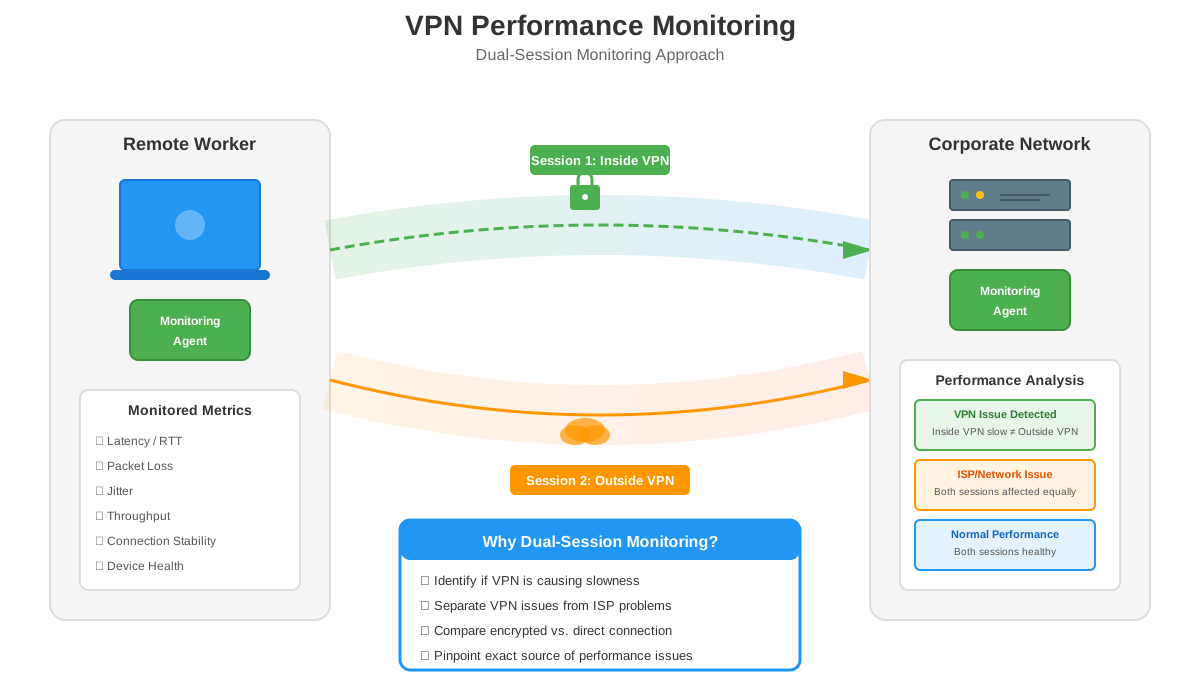
The most effective way to monitor VPN performance is dual-session monitoring. Dual-Session VPN Monitoring involves running two simultaneous monitoring sessions from the same remote worker device: one inside the VPN tunnel and one outside through their direct Internet connection.
How does Dual-Session VPN Monitoring Work?
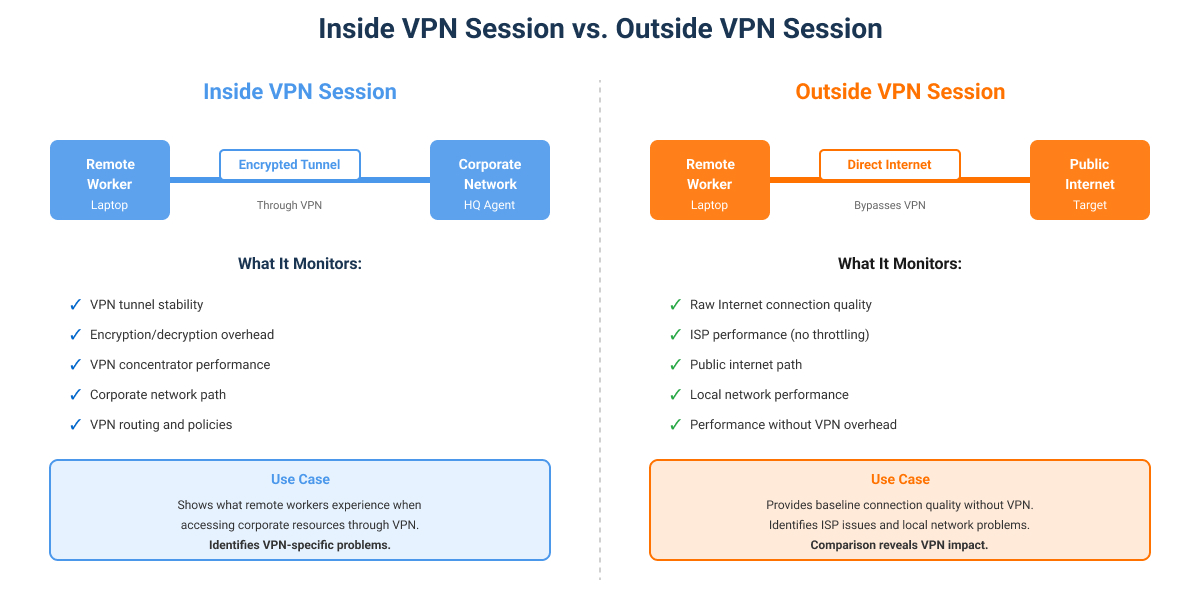
- Inside VPN session: Monitors performance through the encrypted VPN tunnel to your corporate network. This shows you what happens when traffic goes through your VPN infrastructure.
- Outside VPN session: Monitors performance through a direct Internet connection, bypassing the VPN entirely. This shows you the raw Internet connection quality.
Why this approach works: By comparing both sessions, you can definitively identify whether performance degradation is caused by the VPN itself or by external factors like ISP issues or corporate network problems.
When both sessions show problems, the issue is with the remote worker's Internet connection or ISP. When only the inside VPN session shows problems, the issue is with your VPN infrastructure or corporate network. Simple.
Inside VPN Session monitors:
- VPN tunnel stability and encryption overhead
- VPN concentrator performance under load
- Network path through VPN to corporate resources
- Impact of VPN-specific routing and policies
Outside VPN Session monitors:
- Raw Internet connection quality without VPN overhead
- ISP performance and any throttling
- Public Internet path and routing
- Baseline performance for comparison
The difference between these two sessions tells you exactly where performance breaks down.
How to Set Up VPN Performance Monitoring for Remote Workers
Here's where theory meets practice. We'll walk through setting up dual-session VPN monitoring using Obkio's network performance monitoring platform. Obkio is built specifically for distributed network monitoring; it's designed to monitor from the end-user perspective, which is exactly what you need for remote workers.
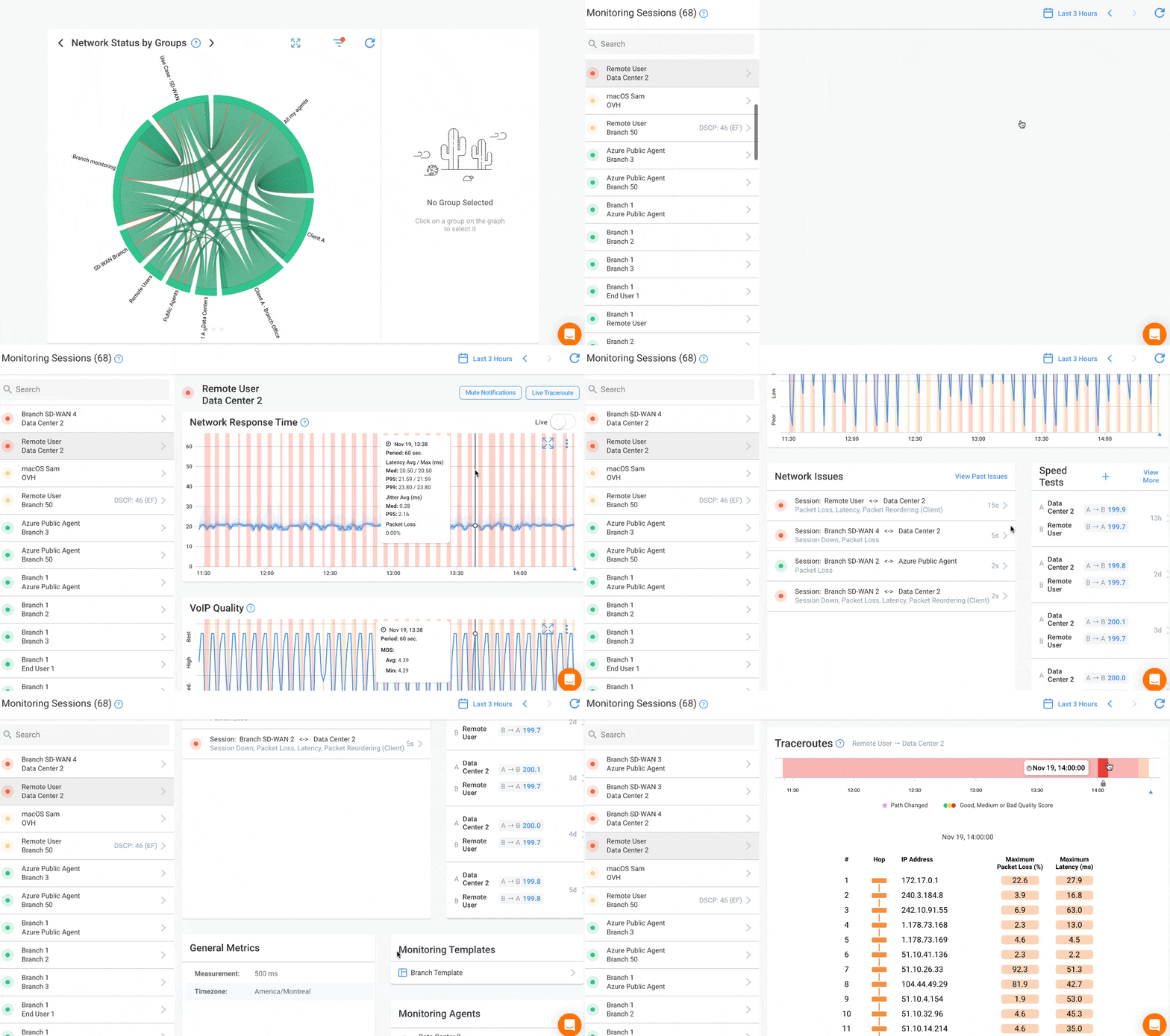
Unlike traditional monitoring tools that require complex infrastructure, Obkio uses lightweight agents deployed at monitoring points (remote workers, headquarters, branch offices) that continuously exchange synthetic traffic to measure real-time network performance.
Before you start, make sure you have:
- Obkio monitoring agents on remote worker devices: Lightweight software agents installed on laptops or workstations (Windows, Mac, or Linux)
- Obkio agent at headquarters: An agent deployed in your corporate network (can be a VM, physical appliance, or software agent)
- Active VPN connection: Either client-based VPN (like Cisco AnyConnect, Palo Alto GlobalProtect) or firewall-based VPN
- Port forwarding configured: Your corporate firewall needs to allow UDP port 50000-50050 for monitoring traffic between agents
The total setup time is about 10 minutes for your first remote worker. After that, you can deploy to additional workers in minutes using silent installation.


Step 1: Deploy Obkio Monitoring Agents on Remote Workers’ Workstations
On Remote Worker Devices:
Download the Obkio agent installer for your operating system. For mass deployments, use the MSI installer (Windows) or PKG installer (Mac) with your deployment tool.
For silent deployment, you can pre-configure parameters in the installer so agents automatically register without user interaction.
At Your Headquarters:
Deploy an Obkio agent in your corporate network. This is your monitoring target, the endpoint remote workers connect to through the VPN.
Best practice: Deploy the headquarters agent on the same network segment where your VPN concentrator terminates connections. This gives you an accurate measurement of the full VPN path, not just to some random server in your data center.
The headquarters agent needs a static IP address that remote worker agents can reach through the VPN tunnel. Make note of this IP.
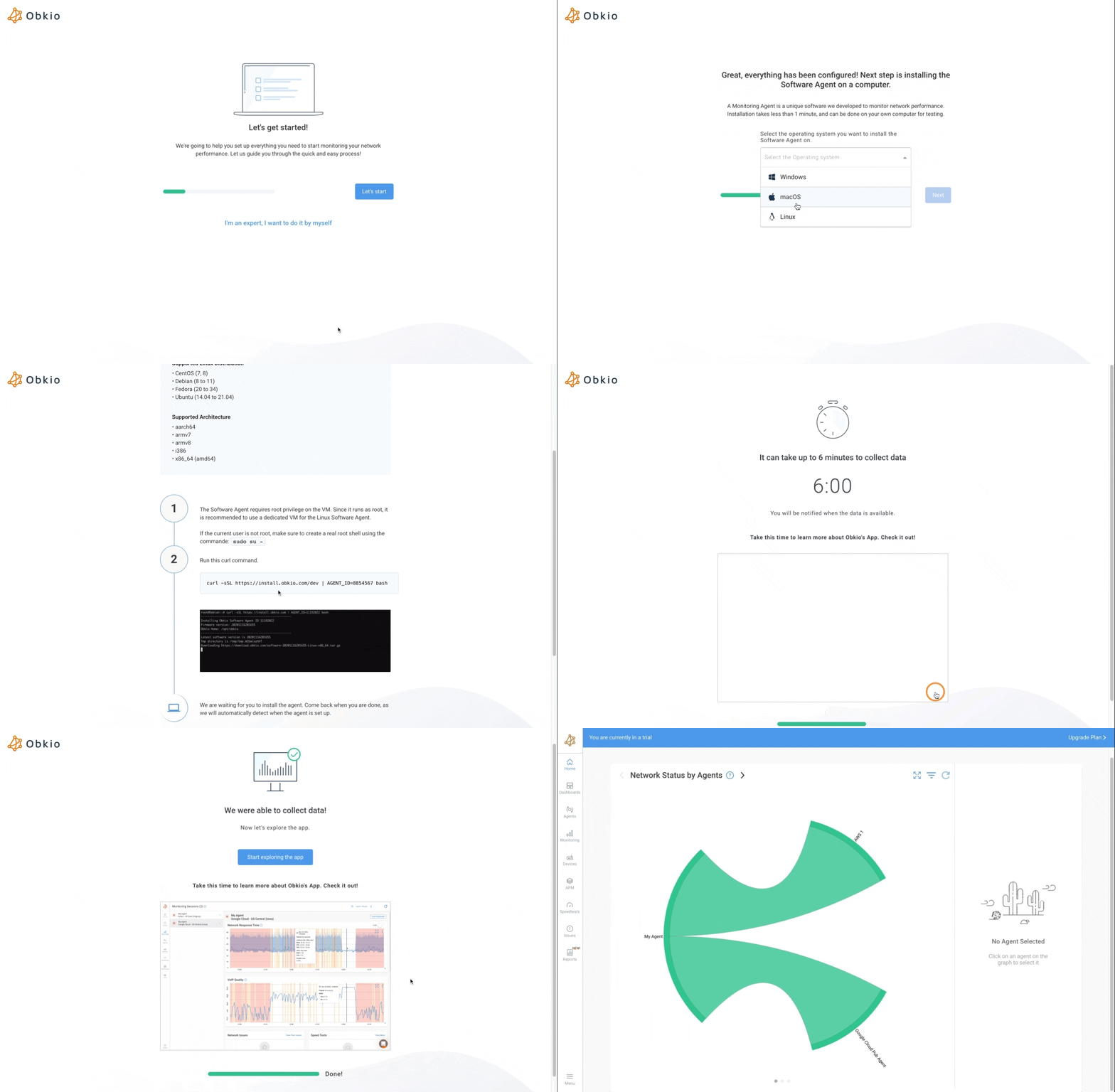
Step 2: Configure Agent Networks (Corporate vs. Remote Network)
In the Obkio dashboard, you'll organize agents into networks. Networks are logical groupings that represent different locations or network segments.
Create two networks:
1. Corporate Network: Contains your headquarters agent
2. Remote Workers: Contains all remote worker agents (you can create sub-networks if you want to organize by region or department)
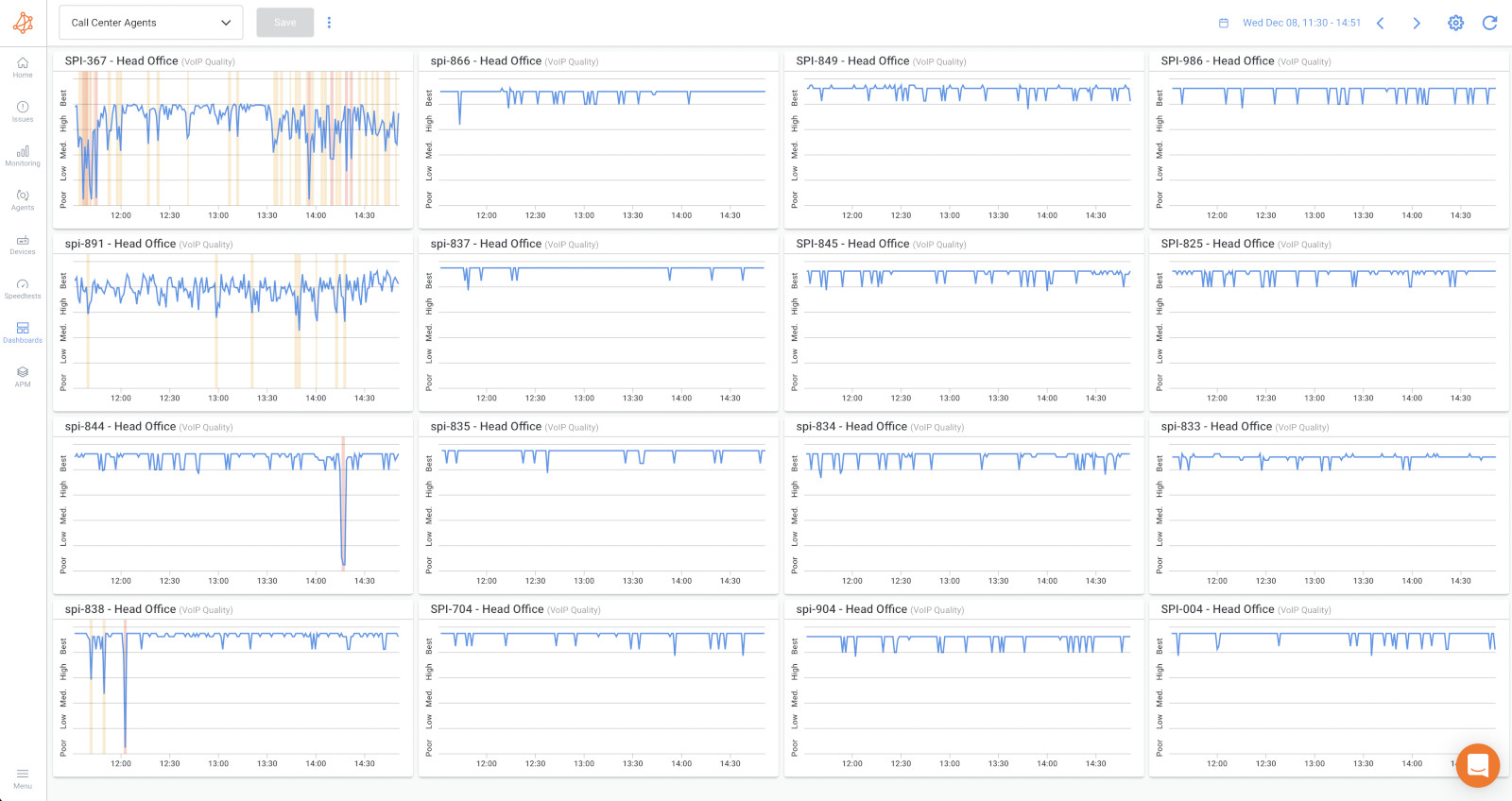
Step 3: Create Inside VPN Monitoring Session
This session monitors performance through the VPN tunnel, the path remote workers actually use to access corporate resources.
1. Create a new monitoring session from the remote worker agent to the headquarters agent
2. Use default IP addressing settings: This automatically uses private IPs, which forces traffic through the VPN tunnel
3. Set the monitoring template: Set "VPN Monitoring" template, with pre-configured appropriate thresholds for VPN connections
The agent starts sending UDP monitoring packets through the VPN tunnel to the headquarters agent. The headquarters agent responds, and Obkio measures latency, packet loss, and jitter in real-time.
Step 4: Create Outside VPN Monitoring Session
This session monitors the raw Internet connection, bypassing the VPN. It's your baseline for comparison.
Create a second monitoring session from the same remote worker agent
Target: Obkio's public monitoring agent: Select a public agent geographically close to the remote worker (Obkio provides public monitoring agents in major cities worldwide)
Use the same monitoring frequency: Keep it consistent with the inside VPN session
Step 5: Compare VPN Performance Data Between Sessions
Now you have two simultaneous monitoring sessions from the same remote worker device: one through VPN, one bypassing VPN.
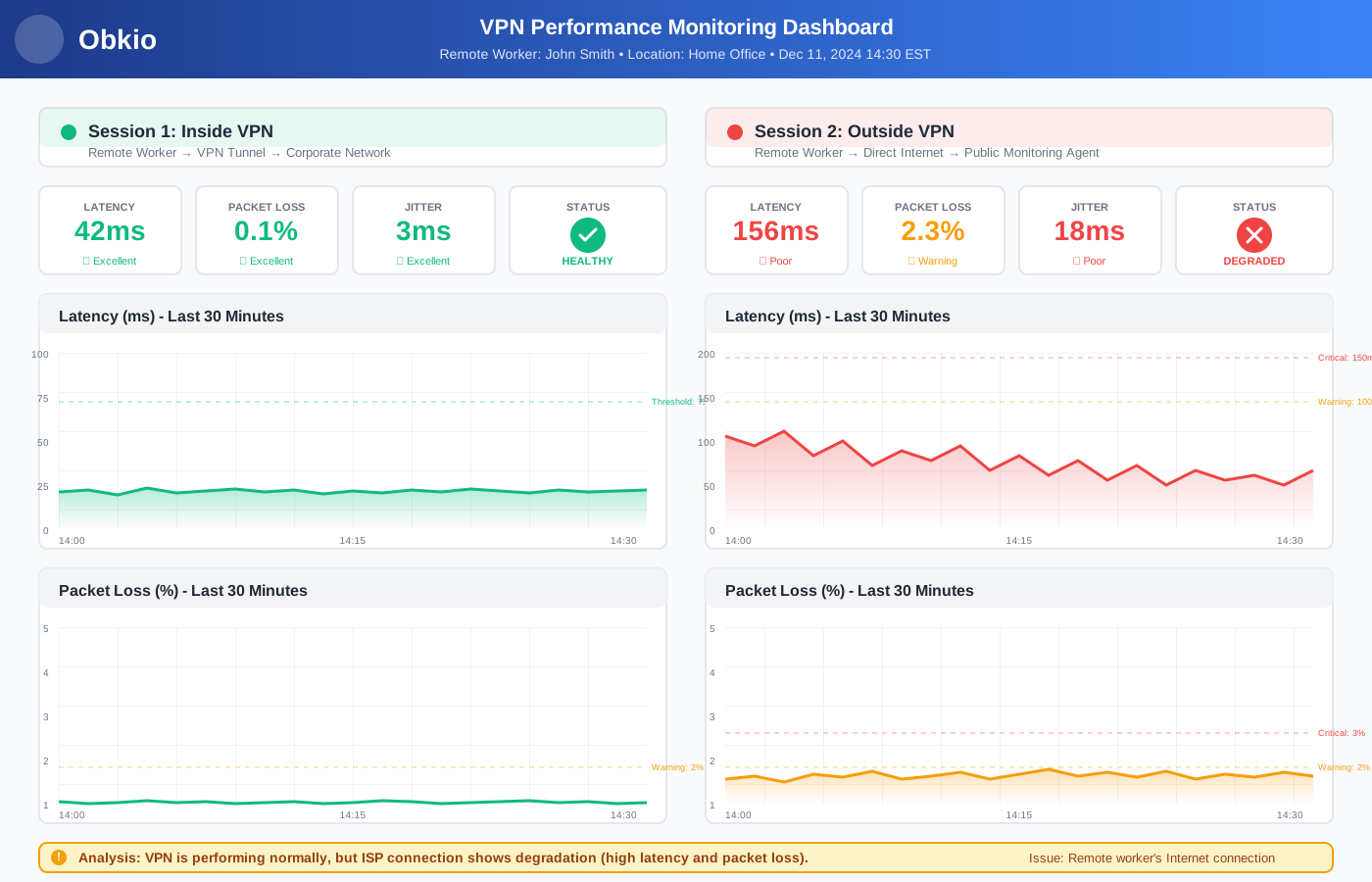
What to look for:
When inside VPN degrades, but outside VPN stays stable:
The VPN is your problem. Either the VPN infrastructure is overloaded, or there's a configuration issue with the tunnel. Check VPN concentrator resources and routing.
When both sessions degrade simultaneously:
The ISP or local network is your problem. The VPN isn't causing the issue; the remote worker's Internet connection has problems. Look at the remote worker's local network or contact their ISP.
When performance diverges at specific times:
You've found time-based patterns. If inside VPN degrades every day at 9 am, your VPN concentrator is likely hitting peak load. If both sessions degrade every evening at 6 pm, the ISP probably has residential congestion.
Obkio automatically calculates the performance delta between sessions and highlights it on the dashboard. You'll see exactly how much latency the VPN adds and whether packet loss occurs in the VPN tunnel versus the Internet path.
Alert when VPN session disconnects
Obkio sends alerts via email, Slack, Teams, or webhooks to your monitoring tools. You'll know about VPN performance problems before remote workers call the help desk.
- 14-day free trial of all premium features
- Deploy in just 10 minutes
- Monitor performance in all key network locations
- Measure real-time network metrics
- Identify and troubleshoot live network problems
What Are Common VPN Performance Issues for Remote Workers?
When remote workers complain, "Why is my VPN slow?", it's rarely just that the VPN is slow. Multiple factors can degrade VPN performance, and each has distinct symptoms. Here's what typically goes wrong and how to identify each issue using your monitoring data.
1. VPN Encryption Overhead
Encryption and decryption add latency to every packet. It's usually minimal (2-5ms), but it compounds with other issues and becomes noticeable.
How to identify it: Inside VPN session shows higher latency than outside VPN session, but both sessions are otherwise stable. The delta between them is the encryption overhead.
2. VPN Concentrator Overload
When too many remote workers connect simultaneously, VPN servers become bottlenecks. The concentrator can't keep up with encryption/decryption demands.
How to identify it: Latency spikes during business hours, affects multiple remote workers at the same time, CPU usage is pegged at 95%+ on your VPN infrastructure.
3. ISP Throttling or Congestion
Some ISPs throttle VPN traffic. Others just have congestion during peak hours. Either way, the remote worker's Internet connection is the problem.
How to identify it: Both monitoring sessions show degradation at the same time. Traceroutes show issues in the ISP's network. Problems occur during predictable peak hours like 2-5 pm when everyone in the neighbourhood is streaming Netflix.
4. Split Tunnel Routing Issues
Misconfigured split tunnelling sends traffic through inefficient paths. Some apps work fine, others crawl.
How to identify it: Inconsistent performance across different applications. Traceroutes show unexpected routing paths. Some corporate resources are fast, others are slow, with no clear pattern.
5. Last-Mile Connectivity Problems
Issues between the remote worker's location and the ISP's infrastructure. It could be anything from damaged cables to oversubscribed neighbourhood nodes.
How to identify it: Both monitoring sessions show identical degradation patterns. Traceroutes show problems at the first hop or within the ISP's local network.

How to Identify if Your VPN is Causing Performance Problems
Once you have dual-session monitoring running, the data tells you exactly where performance breaks down. The comparison between inside and outside VPN sessions eliminates the guesswork. Here's how to interpret what you're seeing and identify the root cause.
Scenario 1: The VPN is the Problem
The inside VPN session shows degradation, but theOutside VPN session performs normally.
- Cause: VPN encryption overhead, concentrator overload, or tunnel configuration issues.
- Action: Check VPN concentrator resources, review encryption settings, and consider adding capacity or load balancing.
Scenario 2: The ISP is the Problem
Both VPN sessions show identical degradation and the problems occur at the same time for both sessions. Traceroutes show issues in the ISP's network.
- Cause: ISP throttling, congestion, or last-mile connectivity issues.
- Action: Remote worker needs to contact their ISP with performance data. May need to upgrade to business-class Internet.

Scenario 3: The Corporate Network is the Problem
The inside VPN session shows issues, but the utside VPN session reaches the Internet fine. Problems correlate with corporate network changes or peak usage times.
- Cause: Firewall rules, bandwidth limits, routing issues in your corporate infrastructure.
- Action: Check firewall logs, review bandwidth allocation, verify routing configurations.
Scenario 4: Remote Worker's Local Network
Both VPN sessions show problems, but they only affect a single remote worker. Traceroutes show issues at the first hop (their home router).
- Cause: Wi-Fi interference, outdated router firmware, and local device resource constraints.
- Action: Remote worker needs to check Wi-Fi signal strength, update router firmware, and connect via Ethernet for testing.
What Are Important VPN Performance Metrics to Monitor?
You can't improve what you don't measure. VPN performance monitoring tracks specific metrics that directly impact remote worker productivity. Here are the critical metrics you need to monitor and what the numbers actually mean for your VPN infrastructure.
1. VPN Performance Metrics: Latency (Round-Trip Time)
Latency measures the time for packets to travel to the destination and back. VPNs typically add 2-10ms of latency due to encryption overhead.
- Good: <50ms total latency
- Acceptable: 50-100ms
- Poor: >100ms
Latency above 100ms makes real-time applications like VoIP and screen sharing frustrating.

Uncover what causes high latency in your network and how you can troubleshoot. Learn to identify congestion, QoS issues and more causing network delay.
Learn more
2. VPN Performance Metrics: Packet Loss
Packet Loss refers to the percentage of packets that don't reach their destination. Even small packet loss severely impacts VPN performance because TCP has to retransmit lost packets.
- Good: 0% packet loss
- Acceptable: <0.5%
- Poor: >1%
At 1% packet loss, performance degrades noticeably. At 2-3%, applications become unusable.

Learn all you need to know about high packet loss and its impact on network performance. Discover practical tips for diagnosing and fixing packet loss.
Learn more
3. VPN Performance Metrics: Jitter
Jitter is the variation in latency between packets. Critical for VoIP and video conferencing through VPN. High jitter causes choppy audio and video freezes during calls.
- Good: <5ms jitter
- Acceptable: 5-15ms
- Poor: >15ms

Learn what network jitter is, how it affects VoIP & video calls, and proven methods to measure and reduce jitter in your network
Learn more
4. VPN Performance Metrics: Throughput
Throughput is the actual data transfer rate through the VPN compared to available bandwidth. If a remote worker has 100 Mbps Internet but only gets 20 Mbps through the VPN, you have a throughput problem.

Unravel the secrets of network throughput: from bytes to blazing speed. Learn, measure, and optimize with Obkio's Network Performance Monitoring.
Learn more
5. VPN Performance Metrics: VPN Connection Stability
VPN connection stability refers to the frequency of VPN disconnections and reconnections. Every disconnect disrupts work and forces users to reconnect, losing whatever they were doing.
How to Troubleshoot VPN Performance Issues: Step-by-Step
You've got monitoring running, and you've detected a VPN performance issue. Now what? Here's a step-by-step troubleshooting process that helps your remote IT team movefrom quick diagnosis to root cause identification. This approach works whether you're dealing with a single remote worker complaint or widespread performance degradation.
Step 1: Compare Inside vs Outside VPN Sessions
Look at the performance graphs for outside and inside VPN performnace side-by-side. Identify when and where the sessions diverge. If inside VPN degrades while outside VPN stays stable, you've isolated the problem to VPN infrastructure.
Look for patterns: Does degradation happen at specific times? Does it affect multiple users simultaneously? These patterns point you toward infrastructure issues versus individual problems.
Step 2: Run Visual Traceroutes
Identify where in the network path performance degrades. Is it at the remote worker's device, their home network, the ISP, the VPN tunnel, or your corporate network?
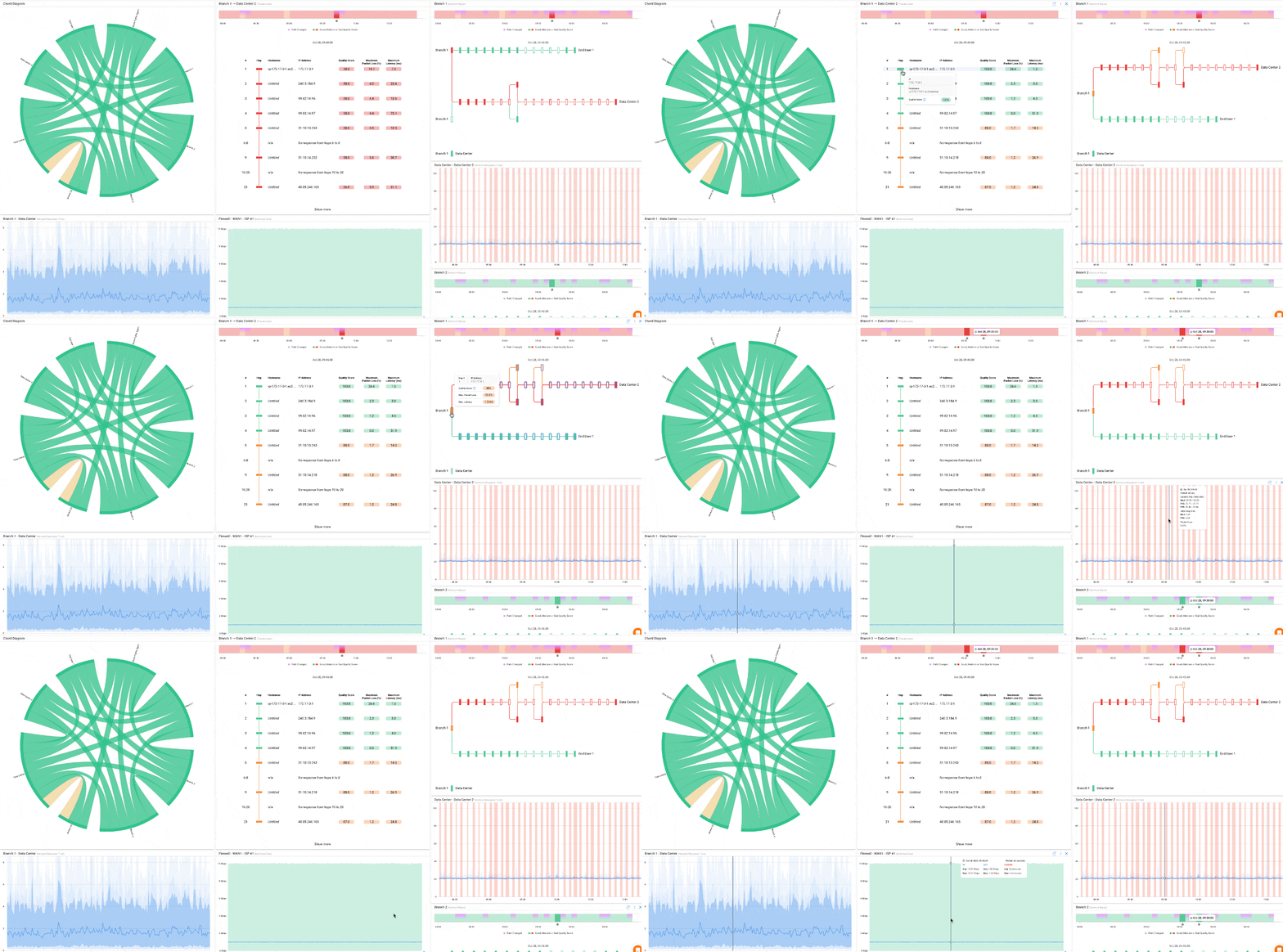
Obkio's Visual Traceroute tool shows the complete network path with latency measurements at each hop. Run traceroutes for both the inside VPN and outside VPN sessions during a performance issue.
This identifies exactly where in the network path performance degrades:
- First hop problems: Remote worker's local network or device
- ISP hops showing packet loss: Internet service provider issues
- VPN concentrator hop with high latency: VPN infrastructure overload
- Corporate network hops: Internal routing or bandwidth problems
The visual representation makes it immediately obvious which network segment is causing the issue.
Step 3: Check VPN Concentrator Resources
If your inside VPN session shows degradation, check your VPN infrastructure. Monitor CPU utilization, memory usage, and active connection counts on your VPN concentrators during the performance issue.
If CPU is consistently above 85-90% during peak times, your concentrator is overloaded. If memory is maxed out, you're hitting capacity limits. If connection counts are approaching your licensed limit, you need to add capacity.
Correlate these infrastructure metrics with the latency spikes you're seeing in Obkio. When VPN CPU spikes and user latency spikes at the same time, you've confirmed the bottleneck.
Step 4: Validate Remote Worker's Local Network
Check Wi-Fi signal strength, look for interference sources, verify the device has adequate CPU and memory available, review local network configuration.
If both Obkio monitoring sessions show problems, the issue is on the remote worker's end. Work with them to check:
- Wi-Fi signal strength: Weak signal causes packet loss and high latency
- Interference sources: Microwaves, cordless phones, neighbouring networks
- Device resources: High CPU or memory usage on their laptop
- Local network configuration: Outdated router firmware, DNS issues
Have them connect via Ethernet cable for testing. If performance improves dramatically on Ethernet, Wi-Fi is the problem.
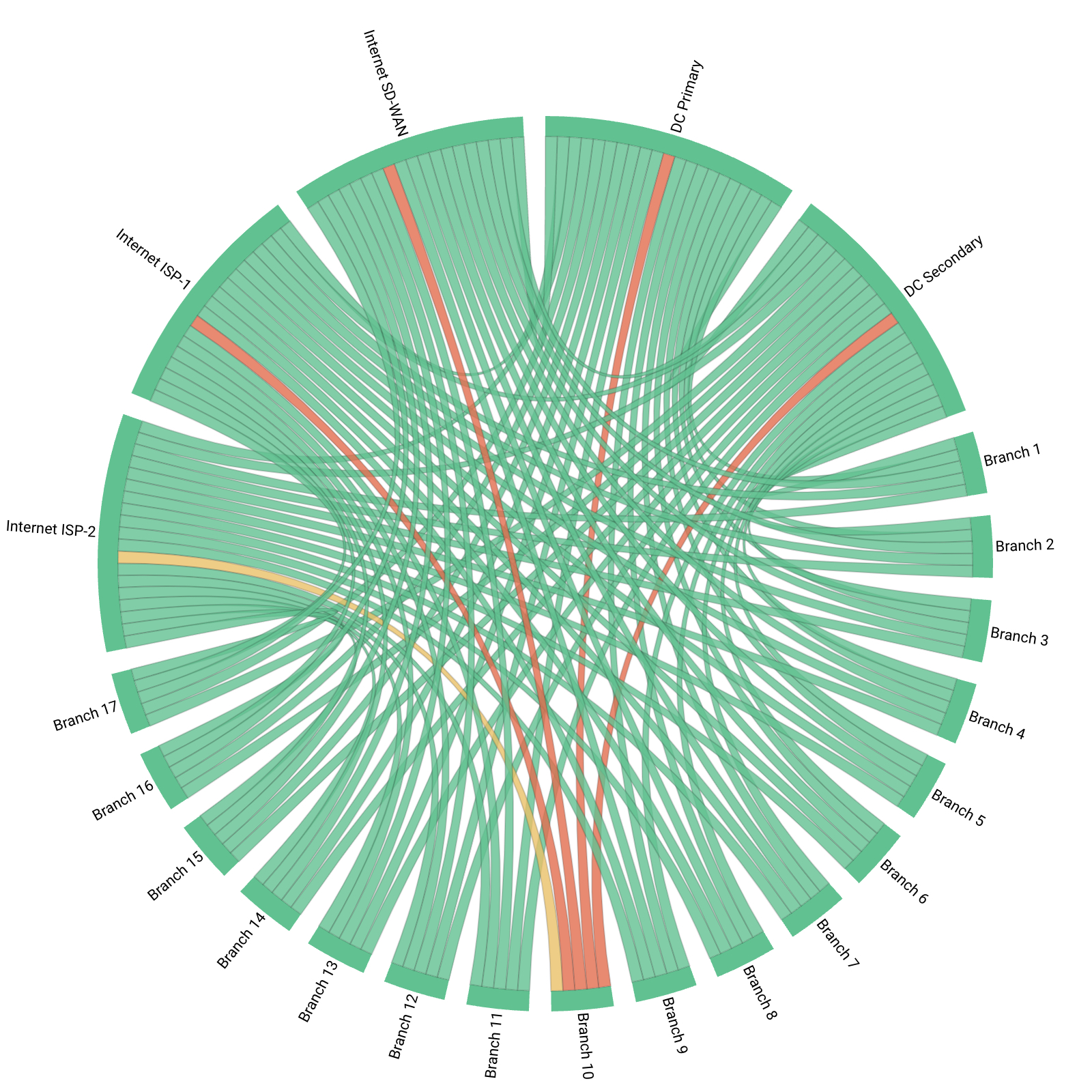 Obkio Chord Diagram
Step 5: Test with Speed Tests
Run speed tests from the remote worker's location to verify their ISP is delivering promised bandwidth. Compare speed test results against VPN throughput.
Step 6: Review VPN Configuration
Verify encryption settings aren't too aggressive, check split tunnel rules for misconfigurations, and review routing to ensure efficient paths.
Best Practices for Remote Worker VPN Monitoring
Setting up VPN monitoring is step one. Using it effectively is what separates reactive IT teams from proactive ones. These practices help you catch issues early, understand patterns, and fix problems before they impact productivity.
1. Monitor Continuously, Not Just During Issues
Establish performance baselines so you know what "normal" looks like for each remote worker. Catch degradation before users complain.
2. Deploy Monitoring to All Remote Workers
Identify patterns affecting multiple users versus individual issues. One user having problems might be a local issue. Ten users having the same problem indicates infrastructure issues.
3. Set Performance Thresholds
Configure alerts for latency >100ms, packet loss >1%, or jitter >15ms. Get notified when performance crosses acceptable limits.
4. Use Dual-Session Monitoring
Always compare VPN and non-VPN paths. Don't guess whether the VPN is the problem, measure it.
5. Document Baselines
Know what "normal" performance looks like for each remote worker. Is 30ms latency normal for this user, or did it just jump from 15ms? Context matters.
6. Correlate with VPN Infrastructure Metrics
Combine end-user monitoring with VPN server monitoring. When end-user latency spikes, check if VPN CPU usage also spiked.
7. Track Historical Data
Identify trends like time-of-day patterns or gradual degradation over weeks. Performance that slowly degrades over time indicates infrastructure that needs upgrading.
Learn how to use Obkio Network Monitoring to help IT Teams troubleshoot and solve a variety of network problems affecting users working from home.
Learn more
What is Proactive VPN Performance Monitoring vs. Reactive Troubleshooting?
Most IT teams troubleshoot VPN issues after users complain. With continuous monitoring, you flip that model. Here's what the difference looks like in practice.
Reactive VPN Monitoring Approach (typical):
Remote worker opens ticket: "VPN is slow." IT asks them to restart their router and reconnect. Issue persists. Multiple back-and-forth emails. Hours or days to resolve. User frustration high.
Proactive VPN Monitoring Approach (with monitoring):
Monitoring detects VPN latency spike automatically at 2:15 pm. IT sees exact metrics: latency increased from 45ms to 150ms. Traceroute shows a bottleneck at the VPN concentrator. IT increases concentrator capacity before more users are affected. Issue resolved in minutes. Most users never noticed.
That's the difference. Reactive troubleshooting is slow and frustrating. Proactive monitoring catches issues before they become tickets.
Real-World VPN Monitoring Scenarios
Theory is one thing. Here's how dual-session VPN monitoring solves actual problems IT teams face every day. These scenarios show you what to look for when your VPN performance is down, and how to fix the issue.
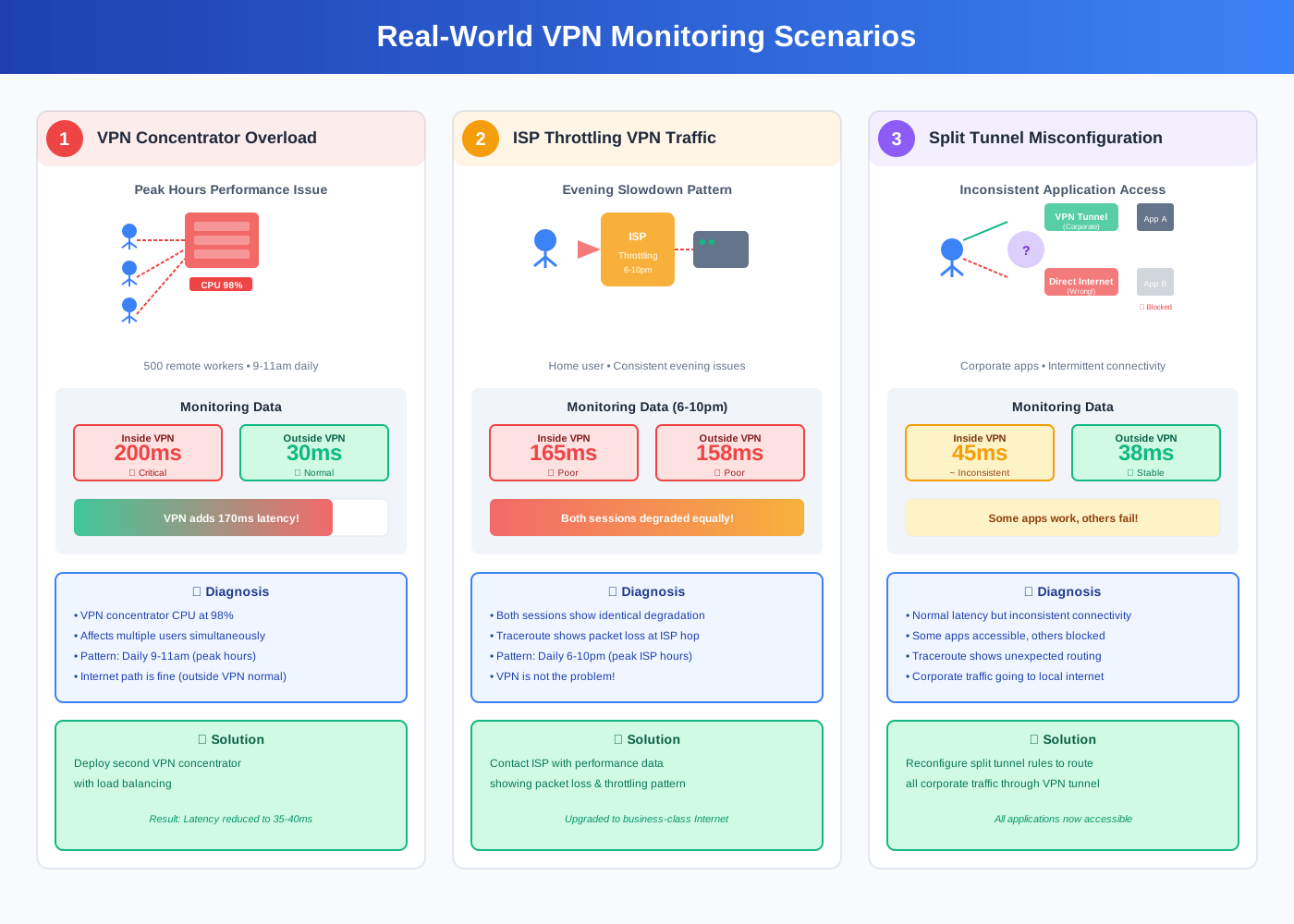
Scenario 1: VPN Concentrator Overload During Peak Hours
Situation: Company with 500 remote workers experiences slow VPN performance daily between 9-11 am.
What monitoring revealed: Dual-session monitoring showed inside VPN latency spiking to 200ms while outside VPN remained stable at 30ms. VPN concentrator CPU hit 98% during peak connections.
Solution: Added a second VPN concentrator with load balancing. Peak latency dropped to 50ms. Problem solved.
Scenario 2: ISP Throttling VPN Traffic
Situation: Remote worker reports consistent VPN slowness every evening.
What monitoring revealed: Both inside and outside VPN sessions degraded simultaneously from 6-10 pm. Traceroutes showed packet loss at the ISP's first hop.
Solution: Remote worker contacted ISP with performance data showing the issue. ISP acknowledged congestion on their neighbourhood node. Worker switched to business-class Internet with SLA. Problem solved.
Scenario 3: Split Tunnel Misconfiguration
Situation: Remote worker can't access certain corporate applications through VPN but others work fine.
What monitoring revealed: Inside VPN session showed normal latency but inconsistent connectivity. Investigation revealed split tunnel configuration sending some corporate traffic through local Internet instead of the VPN tunnel.
Solution: Reconfigured split tunnel rules to properly route all corporate traffic through VPN. Problem solved.
VPN Monitoring for Different Remote Work Scenarios
Not all remote work setups are the same. Your monitoring approach needs to adapt based on whether you're dealing with permanent site-to-site VPNs, individual laptop users, or hybrid cloud connections. Here's how to adjust your strategy for each.
Remote Office with Site-to-Site VPN
Monitor both ends of the VPN tunnel. Track stability of the permanent connection. Identify if the issue is at the remote site, headquarters, or in transit between locations.
Individual Remote Workers with VPN Client
Deploy monitoring agents on laptops. Monitor from the user's perspective. Track VPN client performance and stability on devices that move between locations.
Hybrid Cloud VPN Connections
Monitor VPN tunnels to AWS, Azure, or Google Cloud. Track performance of cloud-hosted applications accessed through VPN. Identify if the issue is with the cloud provider's network or your VPN tunnel.

Frequently Asked Questions about VPN Performance for Remote Users
Can I monitor VPN performance without installing software on remote worker devices?
No. Effective VPN monitoring for remote workers requires monitoring from their perspective. You need an agent on their device to see what they actually experience. Remote monitoring from your data center can't tell you about their local network or ISP performance.
How much bandwidth does VPN performance monitoring use?
Minimal. Monitoring traffic is typically 100-200 Kbps per session. That's negligible compared to VPN tunnel capacity and won't impact user experience.
What if all remote worker traffic goes through a VPN with no split tunnel?
Dual-session monitoring may require routing adjustments to ensure the outside VPN session uses a direct Internet path. You might need to temporarily enable split tunnelling for monitoring traffic or configure routing exceptions.
How do I explain VPN monitoring results to non-technical users?
Present side-by-side graphs showing inside vs outside VPN performance. Use simple explanations: "Your VPN adds 100ms of delay, which is why video calls are choppy" or "Your ISP is causing the slowness between 2-5 pm, not our VPN."
Conclusion: Stop Guessing, Start Measuring VPN Performance for Remote Users
VPN performance monitoring for remote workers isn't optional anymore. When remote work is permanent, you can't afford to troubleshoot blindly.
Dual-session monitoring gives you definitive answers. Is the VPN causing problems? Is it the ISP? Is it the corporate network? You'll know immediately instead of guessing.
The key is monitoring from the remote worker's perspective using both inside and outside VPN sessions. Deploy monitoring agents to your remote workforce, configure dual-session monitoring, and establish performance baselines. When issues occur, you'll know exactly where to look and how to fix them.
Start with a few remote workers to validate the approach. Once you see the difference between reactive troubleshooting and proactive monitoring, you'll roll it out to everyone.
Ready to monitor VPN performance for your remote workers? Learn more about Obkio's remote worker monitoring.
- 14-day free trial of all premium features
- Deploy in just 10 minutes
- Monitor performance in all key network locations
- Measure real-time network metrics
- Identify and troubleshoot live network problems


