Status Overview Widget
- What the Status Overview widget shows
- How Obkio selects the status and the issue to display
- How to add it to a session or dashboard
What you are going to learn:
Overview 
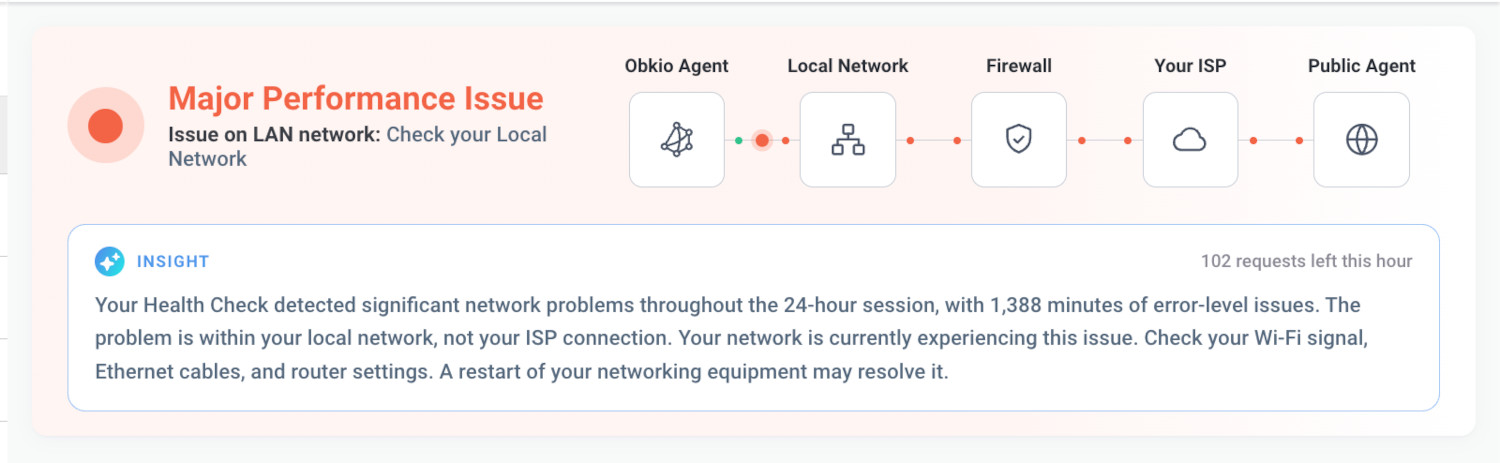
The Status Overview widget displays the overall status of a Network Monitoring Session during the selected time range. It shows a status, a recommended action, the network path with the location of the issue when Obkio Insights identified a root cause, and an AI-generated summary.
This widget helps you:
- Understand at a glance if a session had issues during a period of time.
- See where an issue is located on the network path: local network, firewall or ISP.
- Know what to do next, with a recommended action and a plain-language summary.
Note: The Status Overview widget is different from the Status Overview bar displayed at the top of the Network Performance list, which filters sessions by their current status. Learn more on Session Status Overview.
What Is the Status Overview Widget?
The widget is made of three parts:
- Status (left): A coloured status icon, a title in bold and a recommended action below it. The background of the card uses the colour of the status.
- Network path (right): The path between the two agents of the session, from the
Obkio Agentto thePublic Agent, with the location of the issue highlighted. - Insight (bottom): An AI-generated summary of what happened during the selected time range.
The widget always reflects the selected time range, not the live status. The live status of the session is displayed next to the session name at the top of the session page (for example, It's been Ok for 3h 12m) and doesn't change with the time range.
How the Status Overview Widget Selects a Status
The status is based on the percentage of the selected time range that the session spent in each severity level. The severity levels come from the session's Network Monitoring Thresholds.
The severities are checked in this order, each with its own threshold of 5% of the selected time range:
- If the session was in Critical for 5% of the time range or more, the status is Critical.
- Otherwise, if it was in Error for 5% or more, the status is Error.
- Otherwise, if it was in Warning for 5% or more, the status is Warning.
- Otherwise, the status is Ok.
For example, on a 24-hour time range, 5% is 1h 12min. A session that spent 2 hours in Warning and 30 minutes in Error is in Warning, because the Error time is below 5% of the range.
The Information severity is not used: time in Information is counted as Ok.
The Severity Summary widget shows the time spent in each severity and the 5% threshold, so you can see why a status was selected.
Each status has its own title and action:
| Status | Colour | Title | Action |
|---|---|---|---|
| Critical | Dark red | Loss of Internet Connectivity | Verify network devices and cable status |
| Error, with a root cause | Light red | The root cause (see Error Status and Root Causes) | The action of the root cause |
| Error, without a root cause | Light red | Major Performance Issue | Investigate traceroutes to pinpoint root cause |
| Warning | Yellow | Minor Performance Issue | Investigate traceroutes to pinpoint root cause |
| Ok | Green | All Good | Keep monitoring to stay proactive |
| No data | Grey | No Available Data | No severity data was reported for this period |
Error Status and Root Causes
When the status is Error, the widget looks for a root cause identified by Obkio Insights during the selected time range. If one is found, the title of the widget is the root cause and the action is the next step for that root cause. When several root causes were identified, the widget displays the one that lasted the longest during the selected time range. If two root causes are tied, the most recent one is displayed.
If no root cause was identified, the widget displays Major Performance Issue. This is expected: not every Error has a root cause. Use the Traceroutes of the session to investigate.
Root causes are currently identified for the Error status only. A Critical or Warning status always displays its own title.
| Title (root cause) | Action | Marked on the path | Available |
|---|---|---|---|
| Issue on LAN network | Check your Local Network | Between the Obkio Agent and the Local Network | Always |
| Issue between firewall and ISP's local loop | Add Device Monitoring to confirm root cause (opens the device creation page) | Between the Firewall and your ISP | Without Device Monitoring |
| Issue in ISP's network | Open ticket with ISP and share this report | Your ISP | Always |
| High bandwidth usage on firewall | Investigate source IPs | Firewall side of the Firewall to ISP link | With Device Monitoring |
| High CPU usage on firewall | Investigate CPU process usage | Firewall | With Device Monitoring |
| High memory usage on firewall | Investigate Memory process usage | Firewall | With Device Monitoring |
| Issue on ISP's local loop | Open ticket with ISP and share this report | Between the Firewall and your ISP | With Device Monitoring |
Without Device Monitoring, three root causes can be identified: LAN, firewall to ISP local loop and ISP network. When the firewall is monitored with Network Device Monitoring and paired with the agent in the Insights configuration, the firewall to ISP issue is split into more precise root causes: bandwidth, CPU, memory and ISP local loop. Learn more on Obkio Insights.
Network Path Visualization
The network path shows five points, from left to right:
Obkio Agent: the agent of the session on your networkLocal NetworkFirewallYour ISPPublic Agent: the Public Monitoring Agent of the session. It is labelledServer Agentwhen the server of the session is one of your own agents.
The path uses the colour of the status:
- Ok: The whole path is green.
- Warning: The whole path is yellow.
- Critical: The whole path is dark red.
- Error with a root cause: A pulsing ring marks where the issue is located. The part of the path before it is green and the part after it is light red. An issue located between two points, like the ISP's local loop, is marked on the link between them instead of on a point.
- Error without a root cause: The whole path is light red.
- No data: The whole path is grey.
AI-Generated Summary
Below the status, the Insight box displays a short AI-generated summary of the selected time range. It explains how long the session had issues, where they were located, whether the issue is still ongoing and what to check next. When root causes were identified, it lists each one with its percentage and duration, to show why one was selected.
While the summary is generated, the box displays Analyzing....
This text is AI-generated, so treat it as a starting point rather than the final word.
Hourly Limit of AI Summaries
AI summaries are limited per hour. The limit is a pool shared by everyone in your organization, and it is refilled at the top of each hour. The size of the pool depends on your Subscription Plan and on your number of Monitoring Agents:
- Free, Starter and Basic plans: 2 AI summaries per hour per Monitoring Agent
- Premium plan: 10 AI summaries per hour per Monitoring Agent
The number of requests left is displayed on the top right of the Insight box (for example, 3 requests left this hour). When none are left, a countdown to the next available request is displayed, and the box explains that your organization has used all of its AI requests for this hour. Users who can manage the subscription plan also see an Upgrade your plan link.
Each new time range uses one request. A time range that was already analyzed is displayed again without using a request. Clicking the refresh button of the page generates a new summary.
The limit only affects the AI summary. The status, the action and the network path are always displayed.
How to Use the Status Overview Widget
On a Monitoring Session
- In the App, go to the
Network Performancetab and open a Network Monitoring Session. - The Status Overview widget is displayed at the top of the session page, above the Severity Summary and the Network Quality widgets.
- Use the date selector at the top of the page to change the time range.
The widget is also displayed on the shared session page of a shareable link. Learn more on Shareable Links.
On a Dashboard
- Navigate to the
Dashboardstab - Select the dashboard or create a new one
- Click
Add Widget. - Select
Severity and Insights Metrics. - Select the
Public Agentand theSessionsthat you'd like to visualize. - Select
Status OverviewunderGraphs. You can also selectSeverity Summaryto add both widgets at once. - The widget will then be added to your dashboard. You can resize or arrange the widget as needed; it automatically adapts to your screen size.
One widget is added for each selected session. The widget follows the time range of the dashboard.
By default, the widget is named after the two agents of the session, followed by (Status Overview). Click the name to open the session page. To set a custom name or change the session, click the three dots icon on the top right of the widget and then Edit Options. Learn more on Dashboard Widgets.
If the widget is too small to display its content, it shows Widget too small. Resize the widget to display it.
Requirements and Limitations
- The Status Overview widget is available on Network Monitoring Sessions toward a Public Monitoring Agent or toward an agent in Private Internet Server mode. It is not displayed on other sessions.
- On dashboards, the
Public Agentfield only lists Public Monitoring Agents. - Users with the Billing User role can't see this widget. Learn more on User Roles.
- When no data was reported for the selected time range, the widget displays
No Available Data, the path is grey and no AI summary is generated. If the data can't be loaded, the widget displaysThere is no available data for this selection. - The status is based on the severities of the session, while the root cause comes from Obkio Insights. An Error status can therefore have no root cause (
Major Performance Issue).